


A folder you used yesterday is still there, but the files inside now end in .black_lotus. A new note sits alongside a desktop message you didn’t put there.
It’s tempting to start with the first recovery tool you find. What you do before that can matter more than the tool you pick.
Overview
What the .black_lotus extension points to
Black Lotus ransomware is a file-encrypting threat associated with the .black_lotus extension. In the documented Windows sample, it appended that suffix to existing file names after encryption.
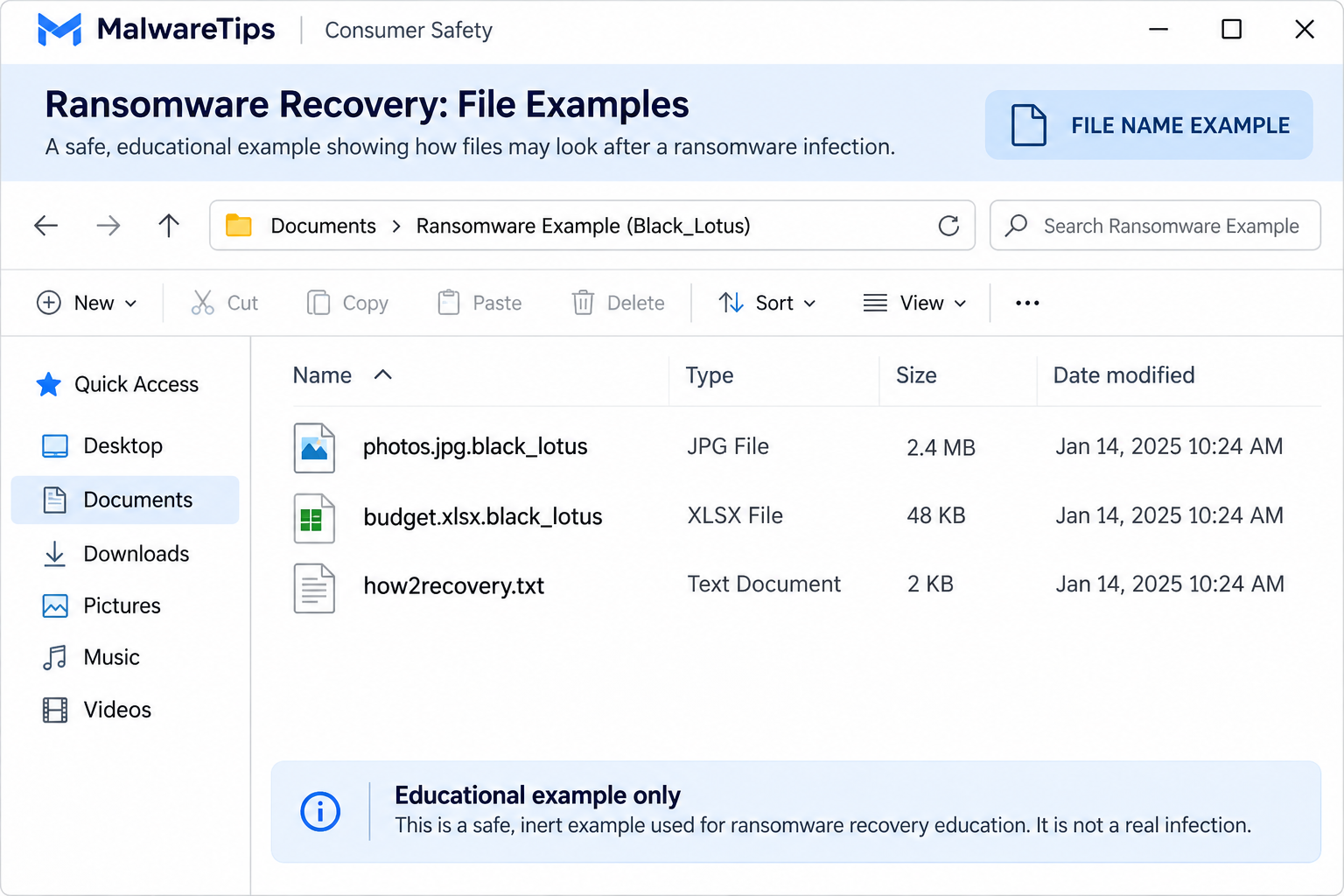
A photo named vacation.jpg might appear as vacation.jpg.black_lotus. The first part of the name is still there, but changing the name back doesn’t change the data inside.
The sample also changed the desktop wallpaper and left a note named how2recovery.txt. The note and the changed file names are more useful together than either clue on its own.
The illustration above shows example names, not a screenshot of an infected system. Preserve the actual names, note and timeline from your own device.
What the note says, and what it cannot establish
The note claims the network has been encrypted and directs the reader to contact the operators. It discourages outside help and uses a deadline to pressure the reader.
The deadline printed in the documented sample predates the public write-up. It’s not a current countdown you should follow, and it’s not a reliable date for your incident.
Likewise, language about an entire network is a claim in a note. Responders need logs and independent checks to establish which computers, shares or accounts were actually affected.
There’s no confirmed entry route for the specific sample in this guide. Don’t blame a recent email, update or coworker without evidence tying that event to the incident.
Containment, removal and recovery are different jobs
- Containment stops the affected device from reaching other computers, shares and online backup services.
- Preservation keeps the note, timelines and encrypted files available for investigation and future recovery.
- Removal or rebuilding addresses the infected Windows installation.
- Recovery brings back data from a usable backup, an existing version or a genuinely matching decryptor.
Don’t start by attaching your only backup to the affected computer. Protect it first, then decide where you can inspect or restore it without exposing it to the same problem.
What to Do First After Finding .black_lotus Files
-
Disconnect the affected device from the network.
Unplug Ethernet and turn off Wi-Fi. Keep it away from network drives and shared folders. If it’s managed equipment, contact your incident team using a separate device.
Leave shutdown and reboot decisions to responders when possible. Powering off can lose evidence; keeping a machine connected can put more systems at risk.
-
Keep backup media out of reach.
Do not connect an offline backup to see whether it still works. Tell your administrator if a backup, NAS or cloud sync service was already connected.
Protect remote copies from additional changes through the provider or incident team. Don’t delete synced files from the infected computer to try to stop the sync.
-
Record what you saw before changing it.
Note the first time you spotted the changed names, the devices involved and the folders you found. Photograph the wallpaper if useful, without sharing sensitive details publicly.
Save the original note and preserve encrypted files. Do not rename, edit or overwrite the only copy just to see whether a file will open.
-
Escalate if the affected device belongs to a business.
Call IT or incident response independently. Give them the device name, scope you’ve observed and whether you already ran a scan or tried restarting.
For connected systems, responders can decide what must be isolated, which logs to preserve and whether evidence requires a disk image before any cleanup.
-
Don’t pay or contact the sender as a troubleshooting step.
Payment doesn’t guarantee a working decryptor or prevent further demands. If this is an organizational incident, decisions about reporting, legal obligations and negotiation belong with authorized responders.
Ignore unsolicited messages promising they can recover everything. A stranger claiming to know the malware name is not evidence they have a compatible key.
How to Remove Black Lotus Ransomware From Windows
Step 1: Decide whether to scan or rebuild
For work systems or an incident involving multiple devices, stop at containment and follow the response team’s directions. A consumer scan is not a substitute for scoping the intrusion.
On a personal PC, consider reinstalling Windows if you can’t establish what ran or the device remains unreliable. Preserve evidence and unique files before wiping anything.
If you plan to investigate the original drive, work from a copy or ask a specialist. Reinstalling Windows onto that drive can reduce your recovery options.
Start recovery on another trusted system when available. You don’t need to wait for the original machine to become usable before checking safe backup versions.
Step 2: Obtain a trusted scanner for a personal Windows PC
Use this step only after isolating the machine and preserving necessary evidence. If you suspect ongoing encryption or cannot safely reach the desktop, get help before starting the procedure.
Download the Windows installer using a trusted computer. Check the publisher before opening it and don’t use a tool or attachment supplied by the ransom note.
Malwarebytes for Windows
Download the Windows installer
Manual scanning does not require a paid plan.
Follow the setup screens and skip optional offers you don’t want. Use trusted installation media only, never the drive containing your only backup.

Step 3: Run the scan and review the detections
Open Malwarebytes and choose Scan from the main screen. If you need updated definitions or the installer needs a connection, use a safe plan rather than reconnecting an untrusted PC.

When the results appear, review them before taking action. Save the scan report or record detection names and locations so you can compare them with findings later.
Select Quarantine for identified threats. If you aren’t sure what a particular item is, get help instead of adding a broad exclusion to finish the scan.

Step 4: Check again before trusting the computer
If the scanner asks for a restart, follow that instruction only after preservation is complete and it’s appropriate for your situation. Leave the computer isolated.
After the restart, run a follow-up check and confirm the detections did not return. A scan with no detections is useful information, not proof the system is trustworthy.
Keep clean backups disconnected until you have a trusted restore environment. If detections return, encryption continues or you can’t complete a scan, get professional help or plan a clean rebuild.
For a personal PC, the MalwareTips Windows removal help forum can help interpret scan results. Share only redacted information and never post encrypted work documents or credentials.
How to Recover .black_lotus Files Without Overwriting Your Originals
Start with known-good backups
Pick a recovery point from before the first signs of the incident. That may be earlier than the time when you noticed the ransom note.
Inspect the backup from a clean system or with your incident team. Restore a handful of important files to a separate location before committing to a full restore.
Open those copies and verify their contents. A familiar file name and plausible size don’t prove that a photo, archive or spreadsheet contains its original data.
If you have several backup dates, don’t overwrite the last readable one when trying a newer snapshot. Keep the source and test destination separate.
Restore documents before assuming applications or settings should come back wholesale. Reinstall software from trusted sources and ask your administrator how to validate system backups.
Look for versions that survived independently
File history, a NAS snapshot or a cloud provider’s version history may have a copy from before encryption. Availability depends on the service settings and whether the copy survived.
Check from a clean device using the genuine provider interface. If there are many affected files, ask support about restoring to a different folder before starting a bulk rollback.
A sync copy isn’t necessarily a backup. A service may have replicated the encrypted version, and a device with writable access may also have affected a shared location.
If a file’s Previous Versions list is empty, don’t infer that a third-party tool can recreate snapshots that no longer exist. Check other copies instead.
On Windows, you may be able to right-click the parent folder, choose Properties and check Previous Versions. Availability varies with the backups or snapshots configured before the incident.
If an older version is listed, open it and copy a test file elsewhere. Don’t select Restore on the only live folder until you know what it replaces.
For a network share, ask its administrator to check snapshots at the storage system. A snapshot that doesn’t appear in your own Windows menu may still exist on the server.
For a synced folder, record whether you paused syncing on the affected computer. Do not reconnect it to see what happens while you’re trying to protect an older cloud version.
Check for a decryptor without gambling on the only copy
The No More Ransom decryptor catalog is a useful starting point. We couldn’t verify a public decryptor for the sample covered here.
Don’t choose a tool just because it has a similar name or extension. A family label from an antivirus engine isn’t enough to establish decryption compatibility.
If a trusted source later identifies a suitable tool, follow its instructions and test it against disposable copies. Keep the original encrypted files and note unchanged.
Never upload sensitive files to a site you don’t trust. If identification requires an example, ask a responder what nonconfidential sample is appropriate.
Treat deleted-file recovery as a last, separate option
File recovery utilities can sometimes find readable originals if they were deleted and haven’t been overwritten. They cannot convert correctly encrypted data into the old file.
Where the data matters, have the affected drive imaged before experimenting. Install recovery software and write any results somewhere else, not onto the source drive.
The site’s EaseUS Data Recovery Wizard download guide is an option for a copy-based deleted-file search. Preview a result before paying for any recovery features.
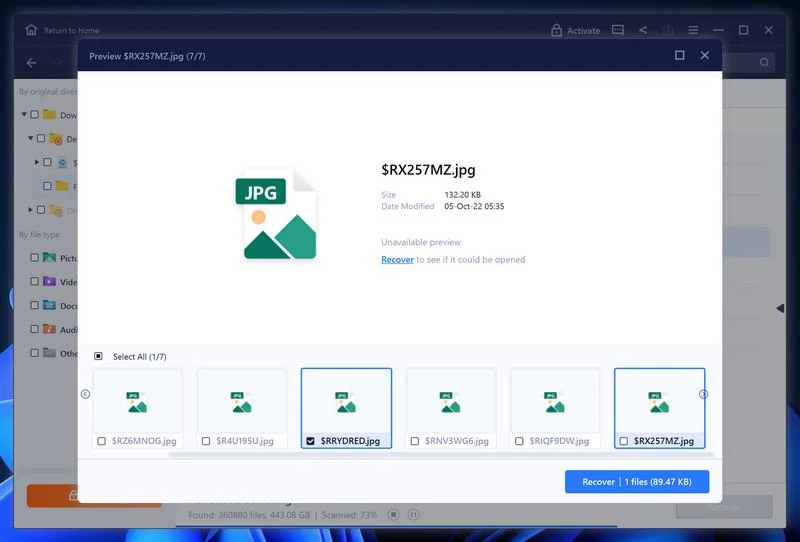
Stop if the utility finds only encrypted copies or files that don’t open. Paying for a larger recovery quota won’t provide a key or make an overwritten original reappear.
Keep what you can’t recover today
Store untouched encrypted files with the ransom note and the details of the incident. Keep that set away from your regular backup rotation so it doesn’t overwrite usable data.
If a future decryptor becomes available, those files give you something to test. Keeping them is an option, not a promise that a tool will eventually exist.
On a shared system, document which folders were restored and from what dates. Tell users about gaps before they assume an older file contains the latest changes.
Verify the files people actually need
Check at least one file from each important folder or backup source. Include large files and recent ones rather than relying on the first thumbnail that opens.
For a database, ask the responsible administrator to validate a restored copy. The file may open but still need consistency checks before it is used for live work.
An older spreadsheet may be readable and still omit transactions entered after the backup. Record the cutoff so those transactions can be reconciled from a separate source.
Keep a list of the folders you couldn’t restore. That will make it easier to search email attachments, exports or shared copies without repeatedly scanning the same drive.
If several systems used the same network share, compare what each owner actually lost. One person’s restored shortcut is not evidence that the underlying shared folder is complete.
Reconnect only after you have a clean plan
Before reconnecting a rebuilt system, update it through a trusted route and restore only data you’ve checked. Avoid reintroducing unfamiliar programs from the affected installation.
Change exposed account credentials on a clean device, following your incident team’s priorities. Don’t enter the replacement credentials on the machine you isolated just to test them.
When the incident is stable, make a separate backup of the recovered data. Keep earlier usable backups until you’ve checked that your newly restored files are complete.
Frequently Asked Questions
Is Black Lotus ransomware the same thing as the BlackLotus bootkit?
Don’t infer that from the name. This guide covers changed files ending in .black_lotus and the how2recovery.txt note, not the separately documented UEFI bootkit.
Will renaming a .black_lotus file repair it?
No. A name change doesn’t reverse encryption. Keep originals untouched, especially if an incident responder or a compatible decryptor might need them later.
Is there a free Black Lotus decryptor?
We couldn’t verify one for the sample discussed here. Check a trusted catalog periodically and don’t try tools intended for another family on your original files.
Does a clean Malwarebytes scan mean my files are recovered?
No. Scanning addresses threats on the device. You still need a usable backup, a surviving version or a compatible decryption tool to restore encrypted data.
Should I open how2recovery.txt and follow its instructions?
Preserve the note for identification, but don’t use its contacts or follow its payment directions. If the device is managed, send the incident details to your response team.
Can I reconnect my backup as soon as the ransom wallpaper is gone?
No. The wallpaper can disappear without establishing that the device is safe. Verify a trusted restore environment and test your backup on a separate destination first.
The Bottom Line
Isolate a computer with .black_lotus files, preserve what changed and leave your backups disconnected. Get incident-response help before cleaning managed or networked systems.
Remove the infection or rebuild the system before restoring files. Start with a verified backup or surviving version and test copies, not the only originals you have.

Join the discussion
0 commentsShare your experience or ask a question about this article.
Your progress
Did these steps help?
Let us know how the guide worked for you.
Describe what you see and the step you reached. Keep passwords and other private information out.
Discussion
Start the conversation
Have a question or something useful to share? Add the first comment.