


An email says new messages aren’t reaching your inbox. The fix, according to the sender, should only take about five minutes.
That sounds simple enough until you ask who’s supposed to make the change. A real mail delivery problem leaves clues outside the message announcing it.
Overview
The alert claims a problem with your domain, not your inbox settings
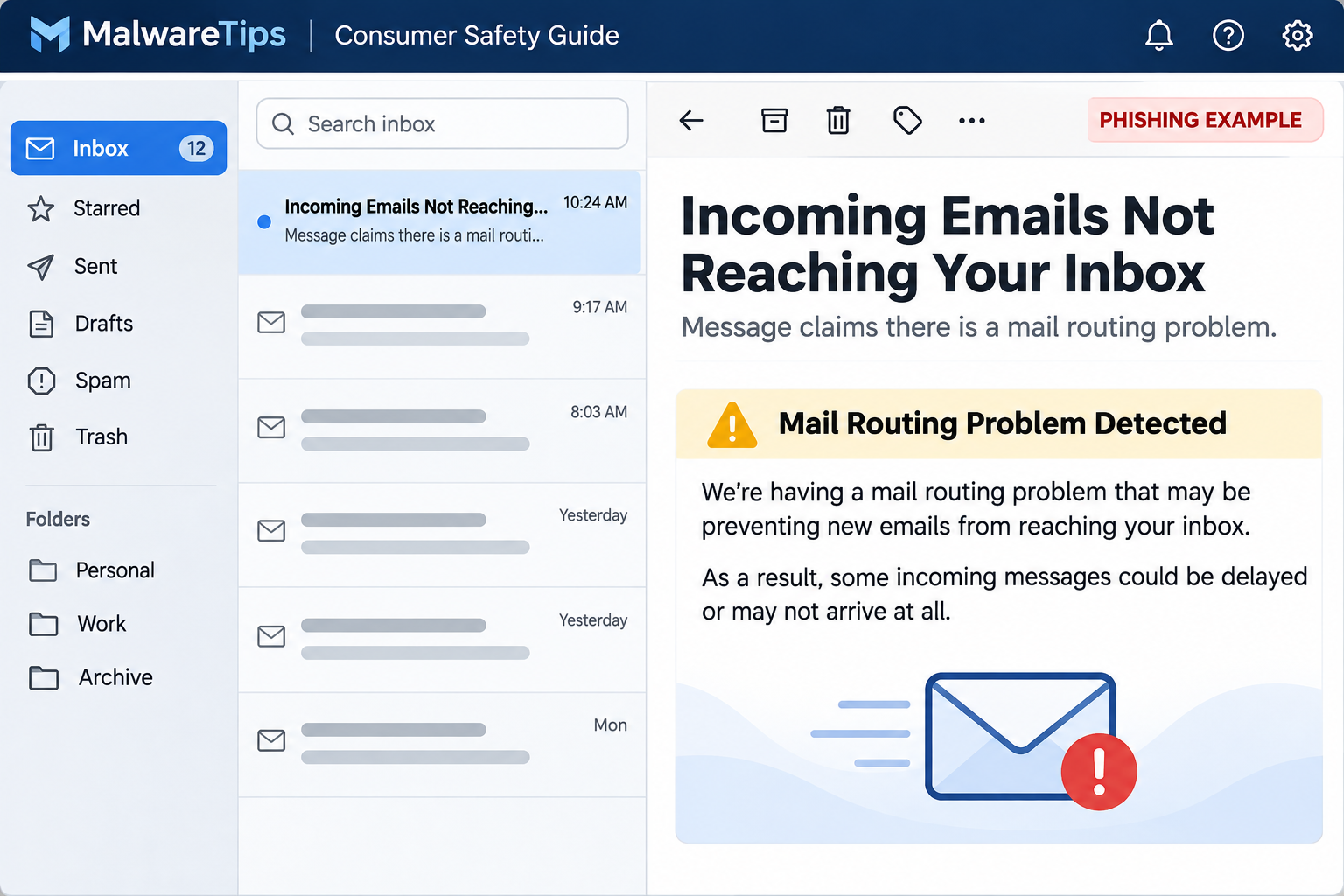
The subject in this example is “Incoming Emails Not Reaching Your Inbox.” The body blames the records that tell other mail systems where to deliver messages addressed to your domain.
The notice claims to come from Relay, Inc. and marks incoming mail as blocked. It offers a repair button rather than directing you to your usual support portal.
This is the incoming mail is being misrouted scam. The button did not lead to a real mail administration page. It opened an unrelated sign-in screen asking for mailbox credentials.
That distinction makes the next move clear. Report the message as phishing. If you are genuinely missing mail, investigate that problem independently.
A personalized login screen isn’t the same as a verified one
The sign-in screen displayed the recipient’s address. That detail can make it feel as if an existing session or a recognized company account is waiting for you.
A website can display an address without having access to the account behind it. If you see your own address, the page still has not proved who controls it.
The reported destination used a name that suggested an academic publisher. It wasn’t the domain of the purported mail relay or of the legitimate publisher it resembled.
The mismatch matters more than the quality of the layout. A convincing login box on the wrong site is still a request to give somebody else your password.
What an actual mail routing incident would give you to check
Mail can fail for legitimate reasons, especially after a provider migration, a DNS change or a service interruption. The claim is believable because the underlying problem exists.
But a real mail incident can be checked without trusting the alert. Start with evidence from your own environment:
- An independently reported bounce or delivery delay from a known sender.
- A delivery trace or provider log covering the affected mailbox and time.
- A recent change ticket for the domain’s email service.
- A status notice visible in the provider portal you normally use.
- A known administrator who can confirm whether there’s an open incident.
No single missing email proves a domain-wide failure. The right test depends on who is affected, where the message came from and whether the receiving system ever saw it.
How the Incoming Mail Is Being Misrouted Scam Works
Step 1: A delivery problem lands in the middle of a workday
Someone waiting for an invoice, a reply from a client or a password reset already has a reason to think about missing email. The warning supplies an explanation without evidence.
It puts the problem at the domain level. That makes it sound bigger than one misplaced message and encourages the reader to worry about everything that might be backing up.
A working inbox can still receive messages during a partial outage, so receipt of the scam email alone is not a technical diagnosis. It’s the proposed fix that deserves scrutiny.
If a contract or payment is due, check with the sender through a known channel while IT investigates. You don’t need the notice to find out what’s missing.
Step 2: The message promises one quick repair
The button is labeled “Fix my records.” That wording sounds practical, but it hides a basic role mismatch: ordinary mailbox users generally do not administer a company’s public mail-routing records.
An authorized administrator would use a domain manager or provider console that already exists. They can check the record and compare it with the provider’s documentation before changing anything.
There is no reason for a mailbox owner to enter their email password into an unfamiliar form just to see whether the company’s routing records are correct.
If you’re an administrator, resist the opposite impulse too. Don’t change a record solely to make the warning go away. A bad change can create the outage the email claimed.
Step 3: The repair button turns into a sign-in request
Instead of showing a known service dashboard, the documented link brought up a form asking for an email address or username and a password.
The recipient’s address was already visible. That makes the form look less like a random website, but it doesn’t show the page has any relationship to your account.
If you notice the wrong destination before typing, close it. Keep the original message for whoever handles phishing at work, without opening the page again to collect more evidence.
When an IT team needs the destination for blocking, it can inspect the original message safely. Recipients don’t have to forward a clickable copy to an entire department.
Step 4: Mailbox access can create a second incident
An exposed password may give somebody a chance to read messages, look up invoices or impersonate the mailbox owner. What they can do depends on the account and its protections.
A mailbox also receives recovery messages for other services. The problem may reach well beyond the inbox, especially for addresses used to manage billing, websites or shared work accounts.
The attacker might not announce a takeover. For a business, an altered reply in an ordinary conversation can be more damaging than an obvious lockout.
That’s why changing the password is only part of recovery. The provider or security team should also check access history, active sessions and settings that could keep exposing messages.
How to Verify a Real Mail Routing Problem Without the Link
Find out whether the issue affects one address or a whole domain
Ask a known sender whether they received a delivery failure. If possible, get the exact time, sending address and recipient address through an established channel.
Send a harmless test from an account you control. If it fails, keep the time and any bounce text. Leave customer data out of the test.
Check spam, quarantine, filters and available mailbox space through your normal interface. One affected mailbox and several unrelated mailboxes point to different places to investigate.
An employee can collect those clues without gaining administrator access. Give the details to the team that normally handles the domain, including how you learned of the phishing email.
Compare the records from your real provider console
An MX record helps tell other mail systems where to deliver incoming messages for a domain. It is not a list of the messages sitting in a particular inbox.
Authorized administrators can compare the current settings with their provider’s documented values and recent change history. Save existing values before making any approved correction.
Businesses that route mail through a filtering gateway may intentionally show a different destination than the final mailbox provider. Don’t overwrite a working setup because a generic example looks different.
If someone else runs the domain, ask them to check it. The quickest way to make a routine investigation worse is to experiment with live settings you don’t control.
Check what happened to an actual message
Microsoft 365 administrators can use Exchange Online message trace to check what the service did with a message. Other providers offer their own logs or support route.
A message marked delivered deserves a different investigation than one the provider never saw. A single screenshot of an empty inbox can’t tell you which situation you’re in.
If only one sender is affected, check that sender’s delivery response and the receiving provider’s logs before declaring a broad incident. Preserve timestamps with their time zone.
What to Do if You Have Fallen Victim to This Scam
-
Report the original email through your normal security route.
Use your employer’s phishing-report button or approved ticket system. Explain whether you received the message, visited the page, typed anything or approved a sign-in.
If you’re reporting from a personal account, send the message to the mailbox provider’s phishing process. Don’t click unsubscribe on the suspicious email.
-
Protect the mailbox if you gave the page a password.
Go directly to the real service on a trusted device. Change the password, or ask an administrator to reset it if the account is managed.
Replace the password on other services where it was reused. Prioritize recovery email, domain administration and accounts that can approve business payments.
If you typed the password and closed the tab without submitting, report that too. Treat it as potentially exposed rather than assuming the form waited for a final click.
-
Ask the provider to end sessions you don’t recognize.
Changing a password doesn’t necessarily end every existing session. Ask the administrator how to revoke sessions and review new authentication methods in your specific service.
Check for recovery details you didn’t add. If a strange sign-in approval appears afterward, deny it and include the time in your report.
-
Review mailbox rules and copies sent outside the organization.
Look for unexpected forwarding, delegates, filters or rules that file certain replies away. Have IT preserve suspicious entries before removing them according to its incident process.
Check sent and deleted items around the time of the incident. Lack of a strange sent message is useful context, not proof the account was never opened.
-
Protect any business conversations the mailbox could expose.
Tell your finance team if the mailbox handles invoices or supplier banking changes. Verify new payment details by calling a contact number already on file.
If a suspicious payment has been made, alert the bank and your finance team immediately. Preserve the genuine transfer reference and the conversation about the change.
-
Keep device cleanup separate from account recovery.
The reported lure is a link to a fake login, not a confirmed software download. Reporting and protecting the account take priority if that’s what happened.
If a variation delivered a program and you ran it, tell IT immediately and follow its endpoint procedure. Do not run company credentials through the affected device.
When This Reaches a Shared Inbox
A shared mailbox changes the first question from “Did I click?” to “Who had access when it arrived?” A phishing report can help an administrator locate other copies.
Don’t start deleting messages from the shared account while the team is collecting evidence. Record which person saw the notice and who, if anyone, followed the link.
Ask the administrator whether the mailbox uses a direct password or delegated access. If it’s delegated, check the individual accounts rather than assuming a shared password exists.
For a finance inbox, look at the actual approval trail. If a supplier instruction changed after the incident, find the earlier instruction and verify the new one outside the conversation.
A thread may contain several people copied at different times. Ask the incident team to identify who needs a warning rather than broadcasting sensitive invoice details to everyone involved.
What to Keep for the Mail Administrator
Write down the subject, recipient address and approximate receipt time. If you have a phishing-report feature, it can preserve technical information that a screenshot alone leaves out.
Tell the administrator when you noticed a delivery problem, if there was one. Separating the time of the first missing message from the phishing email helps narrow the search.
If you changed a setting while trying to fix delivery, report exactly what changed. Don’t make another change just to bring it back without checking the last known working configuration.
Keep the original outside any ongoing conversation with the suspect sender. People can investigate the alert without clicking it or sharing it in a client-facing thread.
Frequently Asked Questions
Is the “Incoming Emails Not Reaching Your Inbox” alert genuine?
The example here is phishing. It claims a routing problem but takes readers to an unrelated credential form. Use an existing provider portal or support contact to verify real outages.
Does the notice prove my MX records changed?
No. It asserts that they no longer point to the right place. Only a check by someone with access to your real domain settings can confirm that claim.
Why did the page already know my email address?
The address was supplied as part of the link in the documented case. Showing an address doesn’t mean the site has authenticated you or accessed your mailbox.
What if the phishing email arrived during a genuine outage?
Handle the two issues separately. Report the phishing message, then investigate the outage through known administrators, a delivery trace or your provider’s real support portal.
Can I check missing mail without being the administrator?
Yes. Ask a trusted sender for the exact delivery time or bounce, check your own spam folder, and provide those details to your administrator without changing domain settings.
Do I need to warn every contact if I only opened the email?
Not usually. Report the message and leave any broader notification to the security team. Contact warnings become more relevant if an account was accessed or messages were sent.
The Bottom Line
Don’t use the repair button in the incoming mail is being misrouted email. An unfamiliar sign-in form cannot tell you whether your domain’s mail routing is broken.
Check delivery through the system you already trust. If you entered a password, report it promptly, secure the account and have active sessions and mailbox changes reviewed.

Join the discussion
0 commentsShare your experience or ask a question about this article.
Discussion
Start the conversation
Have a question or something useful to share? Add the first comment.