


Some files now end in .ULTIMATE. At the same time, a message on the desktop demands your attention, and closing the window doesn’t seem to help.
The screen can make it feel as if everything depends on that timer. There are more useful things to check first.
Overview
Match the changed files to the note
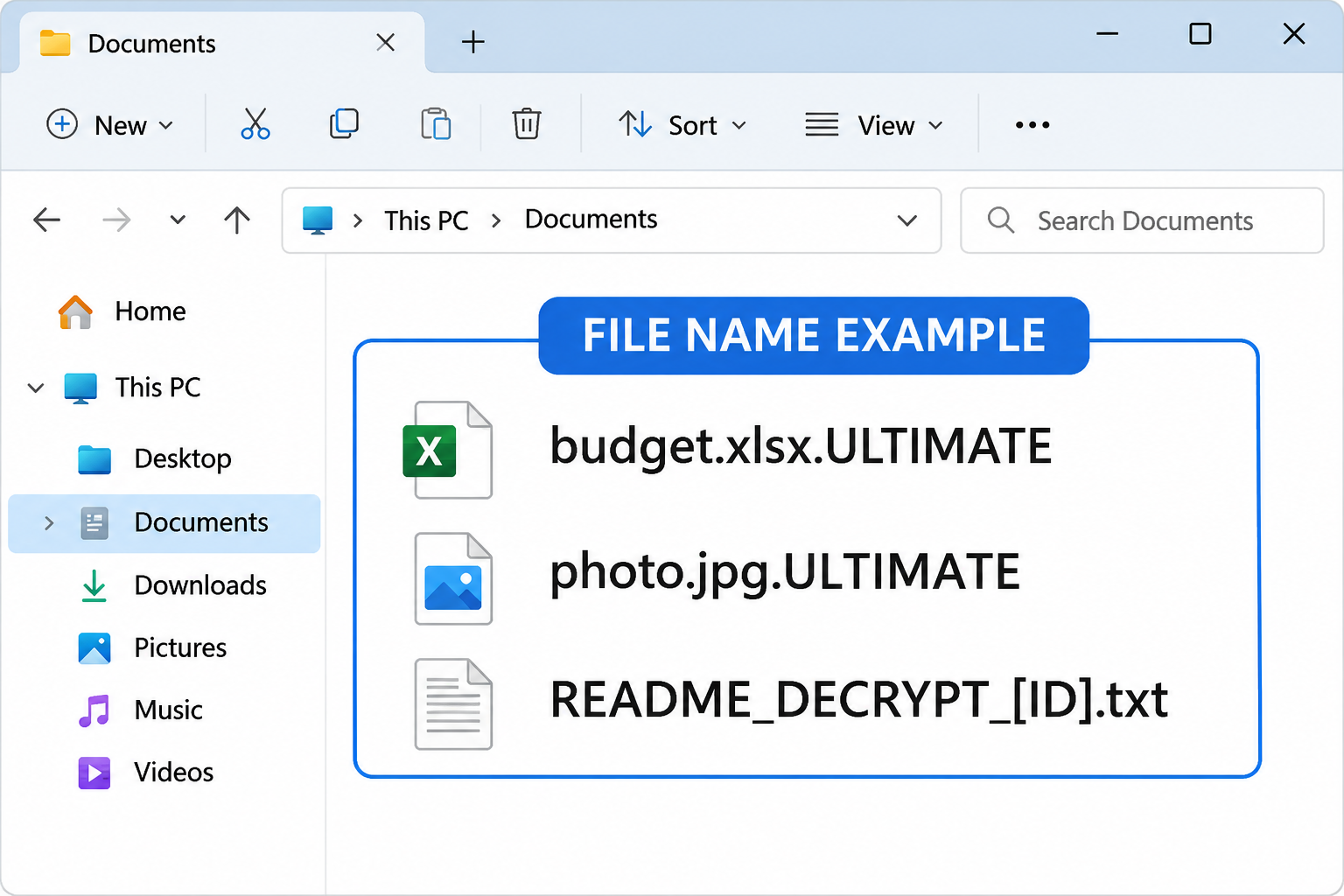
The Windows ransomware sample called Ultimate added .ULTIMATE to affected filenames. It also left notes whose names start with README_DECRYPT and include a victim identifier.
The sample left both a text note and an HTML note, changed the wallpaper and displayed a persistent window. They were several presentations of the same demand.
An extension by itself isn’t a reliable identification. Several recently changed files, a matching note and a trusted security report give an incident responder more to work with.
Don’t open the HTML note in a browser just to see the countdown. Record its name and preserve it for responders without interacting with its controls.
The window is not a trustworthy status monitor
The sample’s messages demanded 0.5 BTC and used several time limits to pressure the reader. Those were the operator’s claims, not independently established recovery deadlines.
The display also suggested that activity was in progress. An on-screen indicator is not a trustworthy record of which files were affected or which backups survived.
The reported sample tried to start again after sign-in. Repeated windows can make normal Windows use difficult, even if the files you are looking at no longer appear to change.
Do not use the screen’s payment controls. Separate what you can verify from what the note tells you to do.
The three jobs are containment, cleanup and recovery
- Stop access to other systems and backup storage.
- Preserve the notes, encrypted files and timeline before changing the device.
- Remove the malware or rebuild Windows using a trusted plan.
- Restore from clean copies, surviving versions or a verified compatible decryptor.
- Verify recovered files before putting them back into use.
Removing Ultimate from Windows does not make .ULTIMATE documents readable again. Likewise, finding one working backup does not tell you that the computer is safe to reconnect.
What to Do Before Trying to Close the Warning
-
Isolate the device.
Disconnect Ethernet and Wi-Fi. If the computer is managed, use a separate device to call your incident response team and describe the repeated windows.
If the interface won’t respond, tell responders that immediately. Do not leave the computer on a shared network while trying repeatedly to dismiss the warning.
-
Protect any storage the computer can reach.
Keep offline backups away from the affected computer. Tell the administrator if a network drive, sync client or external disk was connected around the time files changed.
Check cloud versions through the provider from a clean device. Don’t delete encrypted copies from a syncing folder in the hope that this will undo earlier changes.
-
Preserve information about the incident.
Record the time you noticed the first unreadable file, which folders were affected and the filenames of the notes. A private photo of the screen can help.
Keep victim IDs and any private contents out of public posts. Do not edit or rename the only encrypted copy while collecting evidence.
-
Leave power and restart decisions to the response plan.
On a work system, follow your team’s directions before rebooting or scanning. A shutdown can lose evidence, but containment takes priority when a device cannot otherwise be isolated.
For an organization, the CISA ransomware guide describes coordinated containment and the value of preserving evidence before cleanup.
-
Do not treat payment as a recovery test.
The demand and offer to open a sample file do not guarantee a working tool for your data. Avoid sending money or files to the operator.
If you already paid, preserve the transaction record and report it through the appropriate incident or fraud channel. A payment does not reduce the need to contain the machine.
How to Remove Ultimate Ransomware From Windows
Step 1: Choose a route that doesn’t rely on the blocked desktop
If the warning keeps opening, don’t keep restarting the same Windows installation just to try another close button. Plan from an unaffected device.
If the disk contains your only copy, get help preserving it before reinstalling. A clean installation can overwrite data and evidence even if that’s not what you meant to do.
On a work computer, leave scans and boot changes to IT. They can decide how to preserve the system and whether a replacement machine is the fastest safe path.
If you’re handling a personal PC, use the scan path only after preservation and when the desktop is usable. Otherwise, ask about a clean rebuild or guided offline recovery.
Step 2: Download and install a known Windows scanner
On a trusted device, obtain the genuine Malwarebytes Windows installer. Don’t use a link from the ransom note or a pop-up that claims to remove the warning.
Windows ransomware cleanup
Download Malwarebytes for Windows
You do not need to buy a subscription to run a Threat Scan.
Open the known setup file and confirm the publisher before approving the installation. Follow the setup prompts, skipping optional offers you don’t want.

If installation cannot finish while the device is isolated, stop and get advice. Do not connect it to your regular network simply to get past an installer screen.
Leave external backup drives unplugged during the scan. You don’t need to expose a good backup to the affected PC to find out whether Windows has an active threat.
Step 3: Scan, save the report and review detections
Open Malwarebytes from Windows and choose Scan. Give the Threat Scan time to complete, even if the original warning window has stopped appearing.

Keep a copy of the report separate from your encrypted documents. It may help a technician distinguish a ransomware detection from another problem on the same machine.
Seeing a ransomware detection does not tell you which files were encrypted. Record a few examples of affected folders without opening or modifying the files.
Review the results before taking action. Save the detection names and paths, and choose Quarantine for the threats identified by the scanner.

If a restart is required, do it after preservation and according to your cleanup plan. If repeated windows or detections return, keep the PC off the network and get help.
Step 4: Confirm whether Windows should be reused at all
Run a follow-up check. A quiet desktop is useful, but it does not prove that the ransomware or another program didn’t change the system.
If the PC remains unstable, plan a trusted reinstall. Keep separate storage for the original evidence and for your clean restore.
Get help from the MalwareTips Windows removal forum for a personal machine if you’re unsure how to interpret a report. Remove private details before sharing.
Don’t bring the entire previous installation back after a rebuild. Reinstall trusted applications separately and keep old programs out of the restored data.
How to Recover Files With the .ULTIMATE Extension
Test a backup before committing to a restore
Start with offline copies that predate the earliest suspected changes. Use a clean computer or the restore environment your incident team sets up.
Restore a few important files to a separate test location. Open them and check their contents, rather than relying on their names or the backup software’s success message.
Compare a recent spreadsheet against expected rows or transactions. For images, check a few full files, not just cached thumbnails. Restoring the wrong version can create a second problem.
Keep the original backup disconnected when you’re done testing. A verified copy is especially valuable if other recovery options later turn out to be unusable.
Look for earlier versions at the source
A version history or storage snapshot may contain an earlier copy if it was enabled and survived. That is different from opening the current encrypted file.
Use the real cloud console from a clean device. If the provider offers a folder rollback, ask how it handles newer, unaffected files before applying a broad restore.
On Windows, look for Previous Versions on an affected folder if your setup supports it. Copy an earlier file to a different location instead of overwriting the original folder.
For a network share, ask its administrator to check the storage system itself. A snapshot can exist without being visible to your Windows account.
Don’t choose a decryptor by a familiar name
The No More Ransom catalog is a good place to check. We couldn’t verify a public decryptor for the sample described here.
Detection labels may vary between vendors. A scanner assigning a label from another family isn’t enough to establish that a tool for that family can decrypt your files.
If a trusted responder identifies a matching tool later, test disposable copies before working on anything irreplaceable. Keep the notes and at least one untouched set.
If a recovery site asks for a confidential document to identify the case, stop and ask a trusted incident specialist what can safely be shared.
Consider deleted-file recovery only for untouched originals
A recovery utility may find a deleted original if it has not been overwritten. It will not decrypt an intact .ULTIMATE file.
Where data matters, ask about imaging the affected drive first. Installing a utility on it or saving results back onto it can reduce the chance of recovering a missing original.
If you already have a suitable working copy, the EaseUS recovery walkthrough shows how to preview a candidate file before restoring it elsewhere.
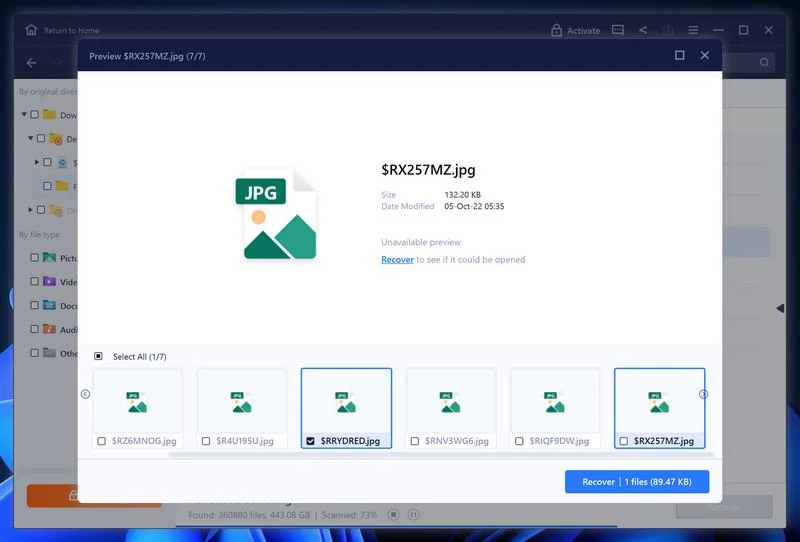
Open recovered files in a trusted environment and check their contents. A filename in a search result does not tell you whether the underlying data is usable.
Keep track of what is still missing
Some records may survive outside the backup entirely. Look for versions you sent in email, exported to another system or shared with someone who can confirm their date.
Write down which copy you used. If the restored version is older than you need, document that gap before someone treats it as current.
Keep unreadable originals separate from the working set. That leaves something to test if better information becomes available without mixing encrypted files back into active folders.
Once verified data is back on a trusted system, take a fresh backup. Don’t replace your only pre-incident backup with an untested copy of the restore.
Check what the repeating window interrupted
When the screen is almost unusable, someone may have forced an application to close. After recovery, look for unfinished writes or unsaved work separately from files encrypted by the malware.
Check the affected folders by date and file type, not by counting pop-ups. A hundred copies of a warning window can still represent one event.
If a finance system was open, ask the owner to reconcile any interrupted transactions. A readable backup can restore records without explaining whether a partially completed action went through.
If you plan to send evidence to a technician, agree on a safe channel first. The HTML note isn’t something coworkers need to open to understand the report.
Restart services in a deliberate order
Bring back the services people need first, but restore them into a trusted environment. Don’t reconnect an affected PC simply because a shared folder is urgently needed.
If several people edit the same files, ask them to hold changes while you confirm the recovery point. New work written into an unverified restore can complicate reconciliation.
Make sure you can access the recovered files after the restoration account signs out. A file that only opens for the person performing the restore may still need permissions repaired.
Document who owns the new backup and how to verify it. If another copy of the ransom message appears, report it rather than assuming it’s merely an old notification.
On a home computer, prioritize records you can’t easily replace, such as family photos and tax documents. Download ordinary applications again instead of searching for old installers.
If an application keeps its own backups, ask its vendor how to inspect one without opening it on the affected PC. Save restored data outside the original location.
If a technician kept the original drive for recovery, label it and store it separately from backup disks. Don’t put it back in regular use by mistake.
Frequently Asked Questions
Why do I see more than one Ultimate ransom note?
The reported sample used a text note, HTML note, wallpaper and a window. They can carry the same demand without representing four separate incidents.
Does closing the ransom window stop the infection?
No. Closing a window only changes what you see. The documented sample attempted to start again after sign-in. Isolate the device and follow a cleanup plan.
Can I get my files back by removing .ULTIMATE from the name?
No. Changing a filename doesn’t reverse encryption. Keep originals unchanged and use copies for any verified recovery test.
Does the deadline mean my backups will stop working?
No. The timer is part of the demand. The availability of an independent backup depends on what was saved and whether the affected system could reach it.
Is there a verified free Ultimate decryptor?
We couldn’t verify a public tool for this sample. Check a trusted catalog, but don’t use a lookalike tool just because the extension or detection name sounds familiar.
Will a scan undo the encryption?
No. A scan can detect or quarantine malware. Recovering the files requires a separate route, such as a clean backup, a surviving version or a matching decryptor.
The Bottom Line
If .ULTIMATE files appear beside a README_DECRYPT note, disconnect the computer and protect backups before doing anything with the ransom window.
Preserve the original files, then clean or rebuild Windows through a trusted route. Test backup versions separately and reconnect only when you have a safe restore environment.

Join the discussion
0 commentsShare your experience or ask a question about this article.
Your progress
Did these steps help?
Let us know how the guide worked for you.
Describe what you see and the step you reached. Keep passwords and other private information out.
Discussion
Start the conversation
Have a question or something useful to share? Add the first comment.