


Yesterday’s spreadsheet still has its old name, almost. There’s an extra extension at the end, and a new text file has appeared alongside it.
If several unrelated files now end in .se7en, leave them where they are for the moment. The choices you make next can affect what you recover.
Overview
What a Se7en ransomware incident looks like
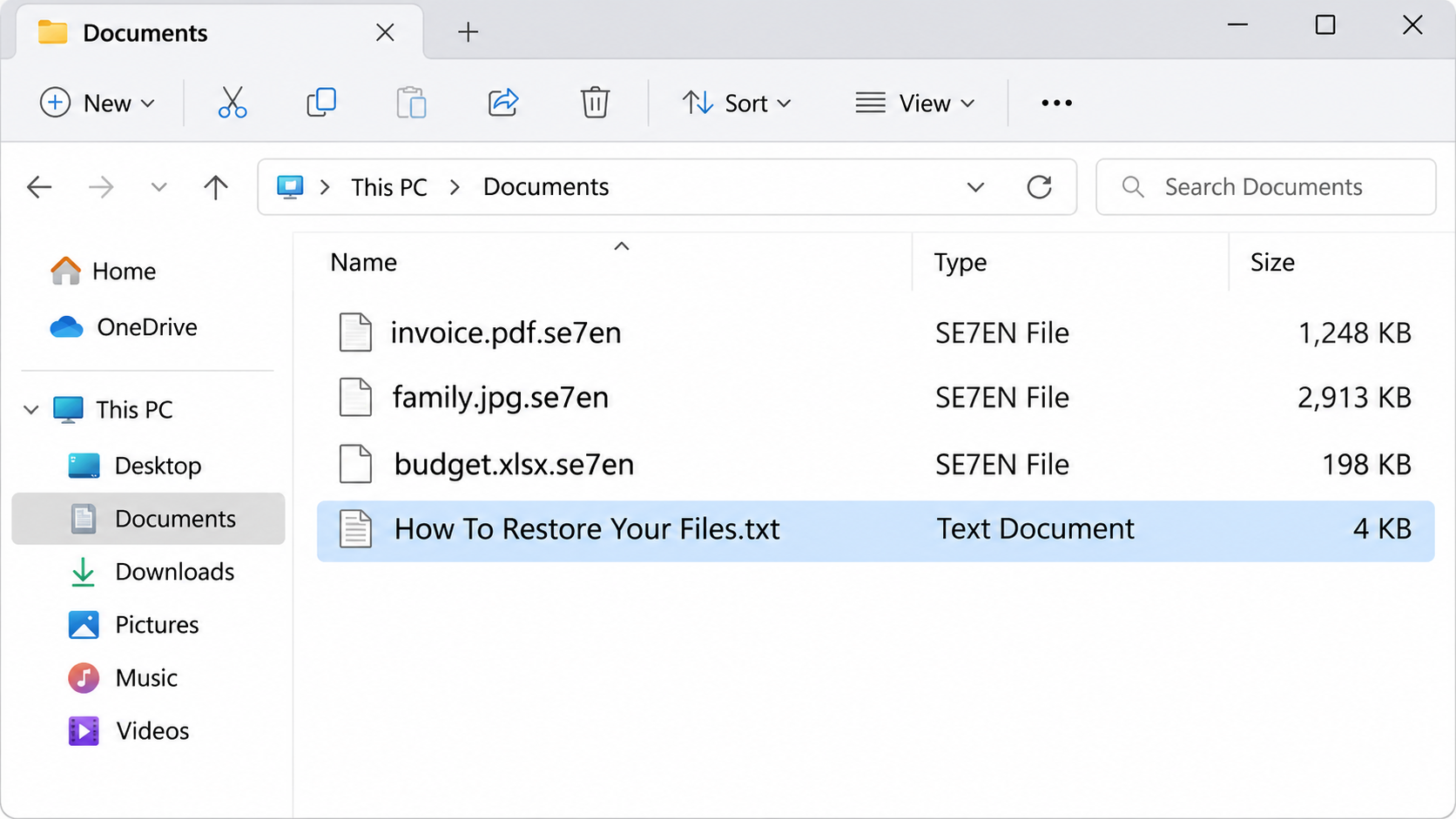
Se7en ransomware is a documented Windows file locker related to Babuk. In the analyzed sample, it encrypted files, added .se7en after the original extension and left a separate note.
That means family.jpg can become family.jpg.se7en. The filename still looks familiar, but the contents have changed. Renaming the photo won’t repair it.
The image shows a reconstructed folder, not an infected computer or a record of actual victims. Its filenames illustrate the pattern you can look for without opening suspect software.
The note asks you to trust the party that locked the files
The reported note is called How To Restore Your Files.txt. Its authors claim they can restore the data and tell you to keep independent help out of it.
It also threatens disclosure of information. A threat is reason to investigate possible copying, particularly for company records. It isn’t evidence that every victim’s files were taken.
Make a note of what matches your situation:
- Several familiar files now have the extra .se7en extension.
- Files that used to open normally are failing across unrelated folders.
- The same recovery note appears beside changed documents.
- Security software logged activity around the same time.
- The computer had access to a shared folder, cloud sync or a connected backup.
Identifying the family is only the beginning of recovery
A report from an antivirus may recognize a Babuk-family threat but use a different name from Se7en. Keep the exact detection text, the file extension and the ransom note together.
Those details do different jobs. The detection can help identify the malicious program. The changed filenames help you find affected data. Neither tells you whether a particular backup survived.
Don’t turn a single alert about a downloaded game into a ransomware diagnosis. Investigate a blocked download, but distinguish it from the combination of changed files and a ransom note.
Why a Babuk Decryptor Isn’t Automatically a Se7en Decryptor
The names look similar when you search for help. A family name groups related malware; it doesn’t mean every version uses the same keys or works with the same tool.
Avast’s Babuk decryptor update describes the editions it supports, including Tortilla. Its published list does not name .se7en as a supported extension.
Treat that as a practical limit, not a reason to rename your files to a supported extension. Changing the label won’t change how the ransomware encrypted the file.
If a trusted project adds support later, follow its instructions for your exact variant. A defensible test preserves the encrypted originals and uses copies of a few files first.
The No More Ransom directory is a place to check for tools. Use a clean device and avoid third-party listings selling a guaranteed fix for every Babuk variant.
How the Se7en Ransomware Extortion Works
Step 1: The affected files stop behaving like the originals
The point at which you discover the change isn’t necessarily the point at which the attack started. The initial route into your system may not be clear from the note.
Note when files stopped opening and whether the change reached a shared drive. That helps responders decide whether to isolate more than one computer.
Don’t infer a cause from the last email you read. Keep the chronology, recent downloads and alerts available so an investigation can distinguish coincidence from the entry point.
Step 2: The extra extension makes the damage visible
The affected document may still show its familiar name. It’s the suffix at the very end that signals the change. File Explorer can hide extensions in some views.
If you are safely reviewing filenames after containment, choose View, then Show, then File name extensions in Windows 11 File Explorer. You don’t have to modify any individual file.
Copy the displayed names into your notes, including the original file types. A mixture of picture and document extensions followed by .se7en is more informative than one unexpected file.
Step 3: The ransom note offers a private route out
The familiar folder now contains a message promising a way out. Its filename sounds like ordinary instructions, so following the contact request might feel like the obvious next step.
The note establishes that someone left a demand behind. It cannot guarantee that payment will produce a reliable key or that any copies of your data will be destroyed.
Keep what you see for responders. Don’t follow the note’s links, run its suggested tools or send it confidential sample files to see what the author can recover.
Step 4: Pressure can push people into a second loss
Someone without a current backup can feel that paying is the only remaining decision. But the immediate decision is whether any more data, money or access will leave your control.
The attackers may insist that a specialist will make things worse. The real risk is experimenting on your only copy. You can get help without sacrificing the originals.
Once you contain the incident, check the options in a different order: preserved copies, known backups, surviving file versions, then tools documented for your exact case.
What to Do if You Have Fallen Victim to This Scam
- Disconnect the computer. Unplug Ethernet and turn off Wi-Fi. Don’t connect a backup or move the files to another machine while the source may still be active.
- Tell IT first on a work computer. Use a different device to reach support. Leave reboots, evidence capture and removal to whoever coordinates the response.
- Save a record before cleanup. Photograph relevant filenames or note text. Record which disks and shares were mounted, when symptoms began, and whether you saw a security alert.
- Protect other copies. Stop syncing from the affected device by keeping it offline. Check backups and cloud accounts from a trusted device, not by reconnecting the infected computer.
- Report the incident. For U.S. cases, use the FBI’s Internet Crime Complaint Center. Include payment records if you already paid and keep your report reference.
- Review sensitive records separately. On work systems, include the personnel responsible for accounts, contracts and data protection. A scanner cannot tell you whether information was copied.
CISA’s ransomware guide prioritizes isolating affected systems. If you cannot isolate a system, ask responders about powering it off; that can interrupt activity but also lose evidence in memory.
Remove Se7en From a Personal Windows PC
Step 1: Choose a scan or a planned clean rebuild
Use the procedure below only on a personal Windows computer after containment and evidence preservation. If several computers are affected or you need forensic evidence, work with a responder instead.
A scan can find and quarantine known threats. Consider a clean rebuild if the infection persists, administrator access was compromised or Windows won’t start reliably.
Set aside encrypted files and the case information before reinstalling. If the only copies live on the disk you plan to erase, pause and ask for help.
Step 2: Get the real Windows installer and open Malwarebytes
Get the installer on a trusted computer. Don’t put the affected PC back on the network just to download it. Keep any installer transfer separate from your backups.
Download the Windows installerOr get the free scanner from Malwarebytes
Open the setup file you downloaded from the trusted source and follow the prompts. The free edition is sufficient for a manual scan. You can skip paid offers.
Check what Windows identifies before approving the installer. Don’t approve anything you obtained through the ransom note, even if the prompt looks familiar.

Step 3: Run a Threat Scan and check the findings
Open Malwarebytes and choose Scan to start a Threat Scan. Wait until results appear. Don’t assume the program has frozen just because a scan takes longer than expected.

Keep a record of the results and choose Quarantine for detected threats. Don’t dismiss a detection because it says Babuk or Babyk instead of Se7en.
If the filenames changed but the scan found nothing, keep a record of both. The scan may have missed the threat or run after it stopped.
Restart if the program requires it, unless your responder asked you to hold the machine for evidence. After restart, open the program again, check the report and run another scan.

Step 4: Decide whether the computer is ready to be used again
If detections return or files keep changing, keep your backups disconnected. Bring the report to the MalwareTips removal help forum or a responder.
A clear scan cannot tell you which accounts were accessed. Use a clean device to update exposed credentials and check active sessions before restoring ordinary access.
The result screen shows threats found by that scanner, not a list of files that can be decrypted. Keep that report and your list of affected documents in separate records.
On a personal PC, check Windows Update from the rebuilt or trusted environment before using old files. Reinstall only the programs you need, starting with those that open essential documents.
Don’t reinstall software just because you found it in a backed-up Downloads folder. Reinstall from the publisher. Reintroducing the file that started the incident can undo the whole recovery.
How to Recover .se7en Files Without Sacrificing the Originals
Try one small restore from a known good backup
Choose a backup from before the earliest suspected changes. Restore a few files to a separate location on a trusted system and open them to check the contents.
If the backup also has the extra suffix, try an earlier version. Keep any clean copies separate until you know which ones you need.
If the backup program offers to replace existing files, select another destination. Don’t make the test irreversible. A folder with a new name makes it easier to compare results later.
Keep track of the backup date and the restore date separately. A file restored today may hold an older version of the work than its new timestamp suggests.
Look for file versions that never passed through the infected machine
If a folder synchronized to OneDrive, check Microsoft’s recovery instructions from a clean device. A synced current copy may be encrypted even when a previous version survives.
Check Windows File History only if it was configured before the attack. Older exports, earlier emails and shared copies from coworkers can also help replace a few critical files.
Keep restored files apart from the encrypted originals. Don’t overwrite the only copy of either. If no earlier version survives, keep the encrypted copy for a future matching tool.
Recover working documents before restoring the whole folder
Start with the records you need most: a current project, for example, or the paperwork you need to identify your accounts. A partial recovery can still be useful.
Compare dates and contents before choosing which version to use. Check that spreadsheets still contain their data and that photos open at full size, not just as cached previews.
Leave the original backup offline when you finish. Make a separate copy of the restored data, then reconnect synchronization only when you trust the rebuilt or cleaned device.
If the backup shows different damage across two folders, write down where you found intact copies. That note can save time when several versions share the same filenames.
Frequently Asked Questions
What is a .se7en file?
In the documented incident pattern, the suffix is added to a file already encrypted by the ransomware. A lone filename isn’t enough to establish that a device was infected.
Can I open an affected file by removing .se7en from its name?
No. Removing the suffix only changes the name displayed by Windows. It does not restore the contents the application expects to read.
Is How To Restore Your Files.txt a reliable way to identify the variant?
It’s a clue, especially with the .se7en suffix and changed files. Similar note names have appeared in other incidents, so use the filename and detection evidence together.
Does the ransom note prove that someone stole my data?
No. Its threat should prompt a separate data-exposure review, especially at work. Look for evidence of access or copying instead of relying on what the attackers claim.
Will Malwarebytes decrypt my files after removing the ransomware?
No. Quarantine is for malicious software. For files, use a verified backup, surviving versions or a trusted tool that specifically supports the variant you have.
Should I contact the address in the note for a free sample recovery?
No. Keep that address for your report. Sending a sample can disclose more information and a small claimed success doesn’t guarantee recovery of the rest.
The Bottom Line
If Se7en ransomware changed your files, isolate the computer and preserve the note and encrypted copies. Don’t pay or use a tool advertised by the extortionist.
Remove the threat or rebuild Windows before restoring data. Start with a small test from an older backup and keep the originals separate until recovery is complete.

Join the discussion
0 commentsShare your experience or ask a question about this article.
Your progress
Did these steps help?
Let us know how the guide worked for you.
Describe what you see and the step you reached. Keep passwords and other private information out.
Discussion
Start the conversation
Have a question or something useful to share? Add the first comment.