


You sent the message. It’s in your Sent folder. Then an alert arrives claiming your emails aren’t actually getting through.
If the missing reply matters, a promise to fix delivery can be hard to ignore. It helps to know what a real delivery problem looks like before you act.
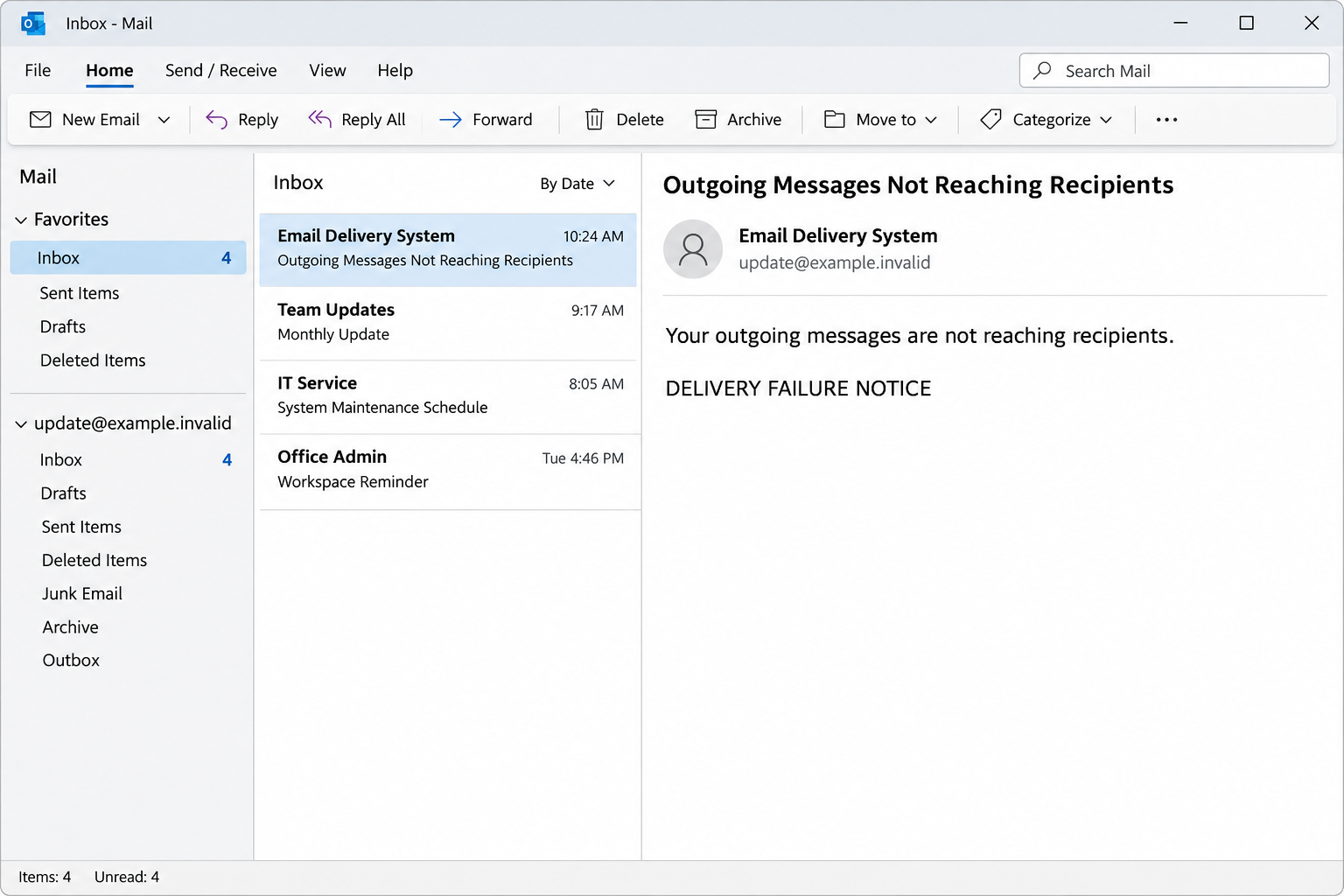
Overview
The warning is about mail you’ve already sent
The Outgoing Messages Not Reaching Recipients email scam claims a problem with your domain is stopping sent messages from reaching their destinations. It offers a shortcut to repair delivery.
That’s an unusually persuasive thing to hear if a client hasn’t answered an invoice, a colleague hasn’t returned a document, or you’re waiting for confirmation from a supplier.
The message offers both a fix and a way to ignore the problem. The recorded fix button leads to an imitation of cPanel Webmail, where a password is requested.
The image above recreates the email warning. It isn’t a capture of the page behind the button, and it isn’t proof that a message actually failed.
The technical language doesn’t come with a delivery record
The email mentions SPF, DKIM and DMARC, all real terms used in email authentication. It also cites an SMTP standard and talks about keeping failed messages in a queue.
None of those terms identifies a rejected message. A real delivery investigation starts with specific information, such as the recipient, the time and the response returned by the receiving system.
The lure turns a question about delivery into a sign-in request. It doesn’t explain why an ordinary mailbox password would fix an organization’s mail routing or domain records.
A single missing reply is not enough to diagnose anything.
The recipient may have received the message, a filter may have moved it, or the wrong address may have been used.
The landing page and real service are not the same
The reported login imitated cPanel Webmail and used a legitimate hosting service as its home. That doesn’t make the content of the page legitimate.
The lookalike already showed the recipient’s address and had a field for the password. Seeing your own address there can feel like confirmation, but it is not authentication.
When you need to check a real delivery problem, these are more useful than the warning:
- A bounce or delay notice tied to a message you actually sent.
- Confirmation from the recipient using a different channel you already trust.
- A matching event in your organization’s mail logs or your provider’s delivery history.
- Instructions from your own administrator or hosting company, obtained without following the alert’s link.
How the Outgoing Messages Not Reaching Recipients Scam Works
Step 1: The email explains an absence before you know what caused it
Most people notice delivery problems when a message comes back, not when it quietly stays unanswered.
This notice fills that gap with a definite explanation: your outgoing mail isn’t reaching people.
It doesn’t need to know which conversation is worrying you. Anyone who depends on timely replies can imagine a message they sent recently that might be stuck.
The claim directs you away from the person you emailed. Instead of asking whether they received something, you may start thinking about how to fix your entire mailbox.
Try to identify the supposedly failed message. The recipient, subject and time should come from your existing records, not guesses suggested by the warning.
An alert that only tells you something is wrong can feel urgent. It’s much less useful as evidence than a genuine notice referring to a specific delivery attempt.
Step 2: Familiar email standards make the story sound official
SPF, DKIM and DMARC help receiving systems evaluate aspects of who was authorized to send a message and how it should be handled.
They are not three passwords you need to reset.
Configuration mistakes do happen. A new mailing tool, an old DNS record or a forwarding setup can create real delivery problems.
The email doesn’t diagnose any of those. It borrows the terminology used by the people who investigate delivery without supplying their evidence.
A mailbox login and a domain-administration login can be entirely different things. Someone with no permission to change DNS won’t acquire that permission by confirming a webmail password.
If you run the domain, inspect your dashboard yourself. If you don’t, give the administrator an example of an affected message rather than trying a repair from an email.
Step 3: A queued-mail claim turns the warning into a deadline
The notice says failed messages are queued for 72 hours. It gives the supposed repair a practical consequence: wait too long and important mail may not arrive.
Retries and temporary delays are real features of email. The fact that a message mentions a plausible retry period doesn’t mean the sender inspected your mail queue.
That is where people can waste time. They begin reacting to a clock in their inbox instead of finding out whether the original message was accepted, rejected or delayed.
If the content is time-sensitive, alert the recipient through a verified channel that you’re checking delivery. Avoid repeatedly resending sensitive documents until you confirm the right address.
Step 4: The supposed repair opens a lookalike webmail screen
The recorded fix link leads to a page dressed like cPanel Webmail. The address field is already populated, so the password looks like the one missing piece.
That page is an unrelated destination. It does not need to be on a strange-looking site for the request to be wrong.
Large cloud services host content for other people.
A well-known hosting name in the address bar doesn’t identify the person who made the page or authorize it to collect your login.
The documented path is a password prompt, not a domain repair screen. There is no reason to return and try entering information to see what happens next.
If you already typed a password, stop troubleshooting delivery there. Protect the mailbox through the real provider first.
Step 5: The problem can become an account incident
A person who gets into a mailbox could see actual messages, invoice conversations or reset notices. This risk does not depend on the delivery warning being true.
If the account can send on behalf of a business, future messages that look familiar to recipients may be more persuasive than the original alert.
Watch for activity you did not initiate, not just missing mail. An unfamiliar forwarding address or delegated user can matter even when the inbox is still functioning.
The sample doesn’t identify a particular compromised account. Check the settings and activity for your own account rather than assuming that every recipient lost access.
How to Check Whether Your Sent Mail Actually Arrived
Start with a specific message, not the entire domain
Open your Sent folder through your regular account. Pick the message you think failed and confirm the address, time and subject.
A copy in Sent tells you the mail client treated it as sent. It doesn’t prove the recipient’s mail server accepted it or that it appeared in their inbox.
Look for a response from the mail system that identifies the same address and message. Be careful with bounce notices you weren’t expecting; those can also be impersonated.
If appropriate, contact the intended recipient outside the email thread. Ask whether they received the message and whether their spam or quarantine folder is worth checking.
When you’re dealing with financial instructions or sensitive files, verify the other party before resending. A bounced message is not a reason to send it to an unfamiliar replacement address.
Use delivery history if the first checks are inconclusive
A hosting provider or organization administrator may be able to see whether a message was accepted, deferred or rejected. Give them the actual sender, recipient and timestamp.
For accounts that have it, cPanel’s Track Delivery documentation describes the kinds of delivery information that can appear in the real account.
Access can depend on the host and your permissions. If you can’t see delivery history, don’t use a link from the alert to get it.
Once you know whether the problem affects one recipient, every recipient at a domain, or many unrelated addresses, it becomes easier to give support a useful example.
Authentication settings may matter for a wider issue. If your host uses cPanel, its Email Deliverability guidance explains what the real diagnostic interface is for.
Don’t paste proposed DNS changes from an unverified email. If somebody else hosts the domain’s authoritative DNS, coordinate changes with that person and your email provider.
Know where to look if sending really stopped
Check whether the message is still in Outbox rather than Sent. An offline mail client and a rejection by a receiving server are different problems with different remedies.
If webmail works but one desktop client doesn’t, tell your provider. That detail can point support toward a client sign-in or configuration problem rather than a domain-wide outage.
Keep one example with exact times. A failed send from your accounting tool and a message from your normal inbox may use different systems, even if their addresses look alike.
Don’t change several settings at once to see what happens. A verified administrator can preserve the existing records and identify which service sent the message before making changes.
What to Do If You Fell Victim
-
Stop using the repair page and report the message.
If you never entered anything, close it. Use the report feature in your mail client or send the original privately through your organization’s reporting procedure.
Tell support what you observed before the warning, if anything. The attack and an ordinary delivery problem can happen at the same time.
You don’t need to revisit the site to collect a screenshot, and you should not put the live link in a message to coworkers.
-
If you typed a password, change it from the verified mail service.
Use the portal you already know or contact the provider from a separate account or known number. If it’s work email, involve your administrator promptly.
Change any copy of that password you used elsewhere. Prioritize services that control access to the mailbox, the domain or other work accounts.
Tell support if you also approved a verification request. The observed page shows a password field, but you should report any additional actions that actually happened to you.
-
Make sure someone else didn’t leave the mailbox open.
Ask the provider or IT to check and, where appropriate, revoke sessions and device access. Review sign-in methods and recovery details for changes you didn’t make.
Check mailbox forwarding, filters, rules and delegated access. Ask before deleting suspicious changes if your organization needs to preserve evidence of what happened.
On shared accounts, coordinate password changes with administrators. Avoid sending a new credential by ordinary email to get other users back in.
-
Look at actual outgoing activity.
Ask IT or the provider about suspicious sending outside your usual recipients or times. Some activity may appear in logs even when it isn’t obvious in Sent.
If somebody used the account to send payment instructions, alert recipients using a verified channel. Ask them not to act on changed bank details until they confirm them independently.
If an unauthorized payment has already gone out, contact the relevant bank through known details. A password reset won’t stop money that’s already been sent.
-
Resolve the genuine delivery problem separately, if one exists.
After securing the mailbox, give support one clear example of a delayed or failed message. Include the recipient address and timestamp, keeping private content out unless requested securely.
If you separately ran an unexpected file or installed a tool, tell IT about that action. This recorded fake login alone isn’t proof of software infection.
Keep any incident reference separate from the mail delivery ticket. A real queue problem belongs with your provider, not with the person who sent the warning.
Frequently Asked Questions
Does a message in Sent mean the recipient received it?
Not necessarily. It means your mail application recorded a send. Find a related delivery record or ask the recipient through a channel you already know.
Why does the page already know my email address?
The page can display information without confirming that it’s your provider. An address already filled in is not proof of a legitimate account session.
Is a website genuine if it looks like cPanel Webmail?
No. The design can be copied. Get to webmail from your provider’s known website or bookmark, never from an unexpected repair request.
Can SPF, DKIM or DMARC cause genuine delivery problems?
Authentication or policy problems can contribute to rejection or spam filtering. A specific delivery event and your domain’s actual settings are more useful than an unsolicited diagnosis.
What if only one customer can’t find my message?
Check the address and ask the customer to look in spam or quarantine. If necessary, give your provider the time, recipient and subject so it can trace the attempt.
Should I change a password if I opened the email but didn’t type anything?
Reading the email doesn’t tell the sender your password. Report it. Change credentials promptly if you entered them, and follow any additional steps your administrator recommends.
The Bottom Line
Don’t use an unexpected delivery alert to sign in to webmail. Check the message you sent through your provider or with the recipient instead.
If you already typed a password into the lookalike, secure the mailbox now. You can investigate the original missing reply afterward.

Join the discussion
0 commentsShare your experience or ask a question about this article.
Discussion
Start the conversation
Have a question or something useful to share? Add the first comment.