


When a customer tells you your email landed in spam, you remember it. The next notice about getting back into inboxes is bound to catch your eye.
One message promises “deliverability protection.” Before you turn anything on, find out what that phrase is supposed to mean for your account.
Overview
The offer promises better inbox placement
The Email Deliverability Issues scam presents itself as a service notice. It says there’s a problem with how your mail reaches inboxes and asks you to enable or update protection.
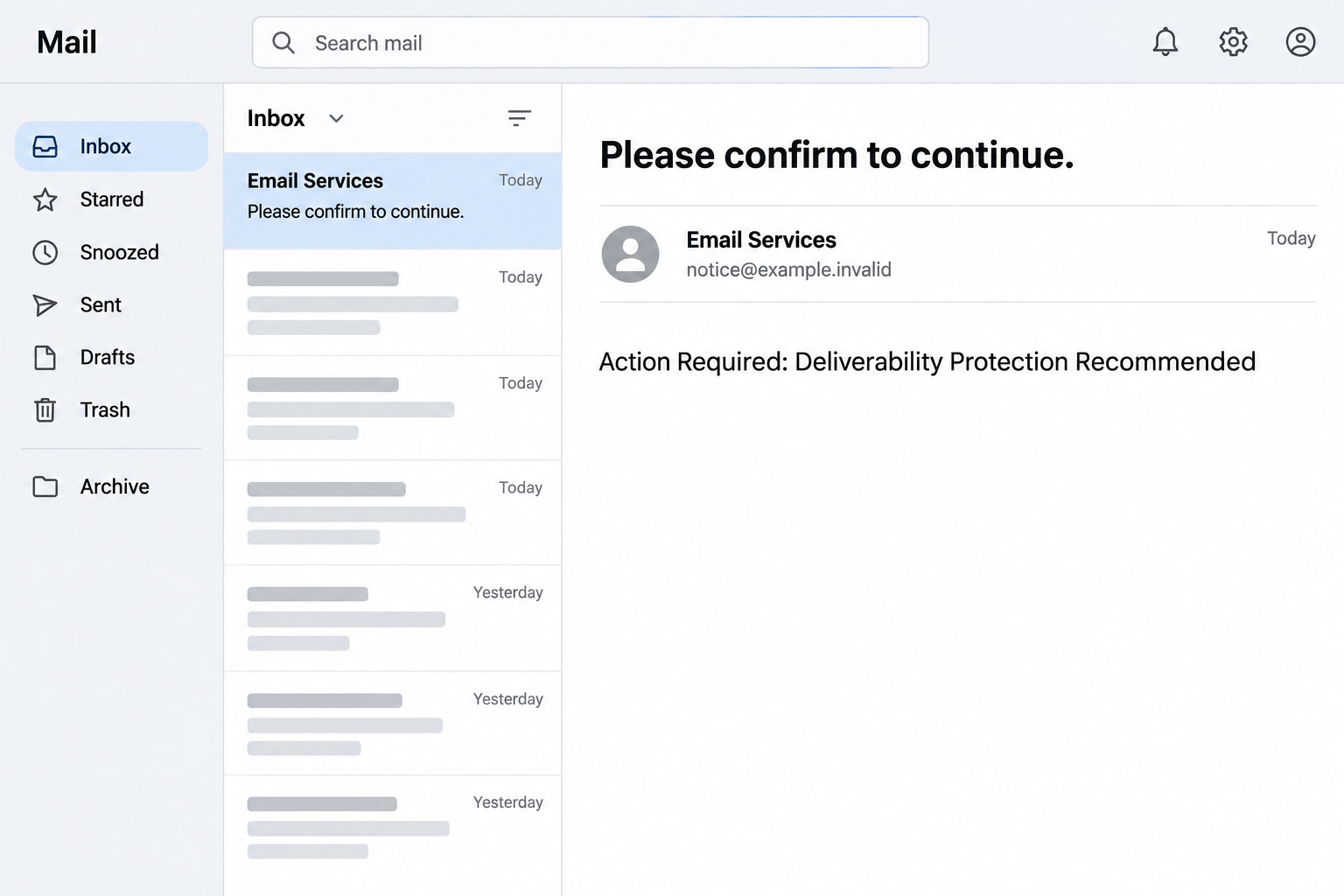
One version used “Please confirm to continue.” as the subject. The sender styled itself as Email Services rather than identifying a provider the reader could verify.
A second version talks directly about messages landing in spam. Its subject recommends a deliverability update, while the text inside says an update is required.
The picture above recreates the opening of the first version. The email didn’t give readers evidence that a particular message had been affected.
The button didn’t open a legitimate settings page
The reported destination was a sign-in lookalike, not a control panel where a sender could inspect or change how their mail was handled.
The first destination was reported offline. Don’t revisit a suspicious link to check whether yours still shows a form.
The presence of a sign-in screen isn’t proof the provider requested anything. This case uses a real delivery concern to coax readers toward handing over email credentials.
No documented evidence shows a necessary software installation or a legitimate subscription you need to buy. The immediate device and account risks depend on what you actually did.
Deliverability is a real issue, but it needs real evidence
Your mail can be delivered to someone’s provider and still land in a spam folder. An outright rejection, a temporary delay and spam placement are different outcomes.
Nor is the problem always your individual inbox. A newsletter platform might be sending on your behalf while day-to-day replies go through another service.
Check the type of sending at issue before you assume a setting needs to change:
- If a customer reports one message in spam, identify that message and the receiving address first.
- If many marketing messages go missing, check the platform that sent the campaign and its delivery data.
- If the alert names no provider or message, ask your real provider whether it issued any notification.
- If the page asks for an email password, leave it and use your known account route.
How the Email Deliverability Issues Scam Works
Step 1: It targets a problem a sender may not be able to see
A message in someone else’s spam folder looks normal from your end. You may not know what happened unless they tell you or the sending service provides useful records.
The scam plays on that uncertainty. Instead of telling you that mail bounced, it suggests that ordinary correspondence might be reaching the wrong folder without your knowledge.
This is especially convincing to someone who sends quotes or appointment reminders. A missed reply can cost you time or a customer even when the mailbox looks fine.
The email doesn’t need to know about a particular missed message. It offers a broad explanation that can feel personal if you’ve worried about the issue before.
Step 2: Vague branding makes it look like routine provider advice
Words such as Email Services and Deliverability Team can pass for the name of a department. They don’t identify who has authority over your account.
A real email provider has other paths to reach you. Its dashboard, published service status and established support channel are better starting points than a generic notice.
The scam also mixes optional and mandatory language. “Recommended” sounds like advice, but the body can describe it as something you must do to keep mail working.
Before opening any setting, work out which service handles this type of mail.
A general label on the warning won’t tell you whether it concerns your mailbox or a newsletter tool.
Step 3: A broad promise replaces a concrete diagnosis
The first notice offers a setting called deliverability protection. The other tells you to update settings so messages go to inboxes rather than spam.
Both sound as though one toggle could solve everything. In practice, mailbox providers apply their own policies to incoming messages, and different sending issues require different checks.
A password prompt can’t tell you why a recipient’s provider filtered one email. It can’t show whether your domain’s sending records or a campaign’s mailing lists are healthy.
Look for a message ID, error result, identified service or a clear explanation in a known dashboard. The notice doesn’t become technically useful just because it sounds technical.
Step 4: A settings request goes somewhere that asks for credentials
The advertised action is an adjustment to delivery. The destination instead imitates a login screen.
There is nothing odd about signing in to manage a real account. The trouble here is letting an unsolicited notice select the site where you enter that password.
Start a new session from the app or bookmark you normally use. Don’t use a link supplied by the warning to decide whether the warning is genuine.
If you use work single sign-on, it helps to know what your usual route looks like.
Ask IT before giving an unfamiliar page any password or accepting a separate access prompt.
Step 5: A fake settings change can leave a real account exposed
If somebody obtains your password, they may be able to read correspondence or send mail that looks as if it came from you.
A business sender might later see real reputation or delivery problems if an account is abused to send spam.
That would be a separate consequence, not confirmation of the original warning.
The practical order matters: protect the account first. Then have the real provider check any evidence of missing, filtered or unusual mail.
If you were only shown a page and entered nothing, don’t assume you now have an account takeover.
Record your interaction accurately and let any additional signs guide what happens next.
How to Investigate Real Email Deliverability
Figure out whether one message or a whole stream is affected
Ask one known recipient what they saw, using a different channel if the reply matters. Find out whether they received the message, found it in spam or never saw it.
Write down the time, sender, recipient and service that submitted the mail. You can usually start troubleshooting without exposing the message body or any private attachments.
If one newsletter went to spam but your invoices and replies arrive normally, investigate the newsletter separately. The two streams may use different systems and records.
If many ordinary messages start bouncing, check the service’s status page and task the actual provider or administrator with a trace. Don’t guess from a suspicious notice.
Use the tools provided by the real sender or host
Look for rejection reasons or campaign delivery reports in the platform you already use. An accepted message and one that never left your provider call for different next steps.
A host may offer an email deliverability dashboard for checking sender authentication. That is a diagnostic feature, not a guarantee that a recipient will put mail in the inbox.
A newsletter platform may have its own process for linking a domain. Start inside its established account and confirm who controls your DNS before changing anything.
If the message is between you and a known contact rather than a mailing list, ask about their own filters.
You may not need to change any sending settings at all.
Don’t fix legitimate settings from a borrowed checklist
If support identifies a real authentication issue, ask which service sends the affected mail and which domain it uses. Keep those answers with the current record values.
Don’t copy DNS values from the warning, lookalike or a chat that began there. A wrong change can disrupt other mail that was working before.
Businesses that use a third party for marketing may need both that vendor and the domain administrator involved. An individual mailbox owner may not be able to resolve it alone.
If you receive a notice after sending a big campaign, check the account’s genuine reports. Convenient timing is still not proof of a legitimate sender.
Know when a test is useful
Send a short message without confidential information to an address you control, if your provider recommends testing. Confirm which application sent it and when you checked it.
An inbox result for that one test tells you what happened to that message. It doesn’t prove every customer will receive future mail in the same folder.
Don’t add the suspicious sender to your allowed list to see whether things improve. Changing what you receive from that sender won’t fix how other mail systems treat your messages.
Keep the results with your real support ticket. Whoever helps you should be able to explain which evidence points to an issue and what a proposed change addresses.
What to Do If You Fell Victim
-
If you only opened the notice, use your normal reporting channel.
Close the page without entering anything. Report the message as phishing and keep it only as needed for your provider’s or employer’s reporting process.
Record which subject you saw. The fact that the two versions sound slightly different can help a support team identify both without sharing the link.
Check your actual email settings only if you have a real reason to. The warning alone does not prove anything needs to be fixed.
-
If you entered a password, secure the corresponding account.
Start from the known webmail portal, provider’s app or company IT desk. Change the password and review whether the recovery details were changed.
Replace a reused copy on other services, starting with any that control access to the identity or address you used on the fake page.
If you approved a prompt or shared a one-time code, include that in your report. Don’t wait for a second warning from the same sender.
-
Check for activity you didn’t authorize.
Review sign-ins, active sessions and connections using your account settings or an administrator. Look for forwarding, filters or delegates you did not add.
If the same account manages a mailing platform, review recent campaigns and administrator access there too. Account compromise and ordinary newsletter performance require different evidence.
Let your provider preserve useful records before wiping rules. An incident timeline can help it tell which changes happened after the suspected disclosure.
-
Warn contacts if there’s evidence the mailbox was used.
Use another trusted channel if the account is still under review. Tell the affected people which message or request not to trust without sharing the phishing link.
Ask your business team to review any unfamiliar financial instructions separately. Restoring a mailbox does not automatically undo a payment someone already sent.
If you ran a file or installed an app in a separate encounter, report that action as well. The documented deliverability lure was for credentials, not a confirmed installer.
-
Get back to the real mail question after containment.
Once the account is secure, give support a specific example if legitimate mail is still missing. Get the evidence from your sent history and actual delivery reports.
Use the verified provider to address any real sending limits, filtering or authentication problems. You do not need the suspicious page for any of those tasks.
Save the resulting ticket, especially if several services send mail under your domain. A clear record helps the next person avoid acting on an unknown notice.
Frequently Asked Questions
Is “Deliverability Protection” a real setting I need to enable?
The documented phrase was used in a fake notice. If your actual provider offers a similarly named feature, confirm what it does through your account rather than the email.
Is the email fake even if my messages are landing in spam?
A real filtering issue doesn’t authenticate the alert. Verify two things separately: which email went to spam and who actually sent the warning.
What if the subject says “Deliverability Update Recommended for Your Account”?
That wording appeared in another version of the scam. Its softer subject still led readers toward an unrelated sign-in rather than a trusted sending dashboard.
Does an account password let a sender fix my delivery?
Not by itself. A genuine setting must be changed in the correct service by someone with the right permissions. Don’t hand your password to an unknown page.
Can I verify the problem without asking a customer to forward private mail?
Often, yes. Start with the sender, recipient and time. Your provider may be able to trace a message without needing the body or attachments.
What should I do if I can’t sign into my mailbox now?
Contact the provider or administrator through a known route. Tell them about the password prompt and any unexpected changes, especially if your old recovery details stopped working.
The Bottom Line
Don’t use the email’s button to update deliverability. Check the actual sending account or platform, and start with one real message that you can trace.
If you already entered your password, secure the account first. Let the real provider handle any genuine delivery problem after you know who has access.

Join the discussion
0 commentsShare your experience or ask a question about this article.
Discussion
Start the conversation
Have a question or something useful to share? Add the first comment.