


You’re looking for Christopher Nolan’s The Odyssey at home. One result has the right poster, the right cast, and what looks like a way to watch.
Then the page tells you something is wrong with your browser. The film hasn’t started, and the site’s first instruction is worth questioning.
Overview
There are two dates to keep straight
Researchers documented deceptive pages using The Odyssey as bait after the film’s theatrical release in July 2026. The sites weren’t part of Universal’s release or distribution.
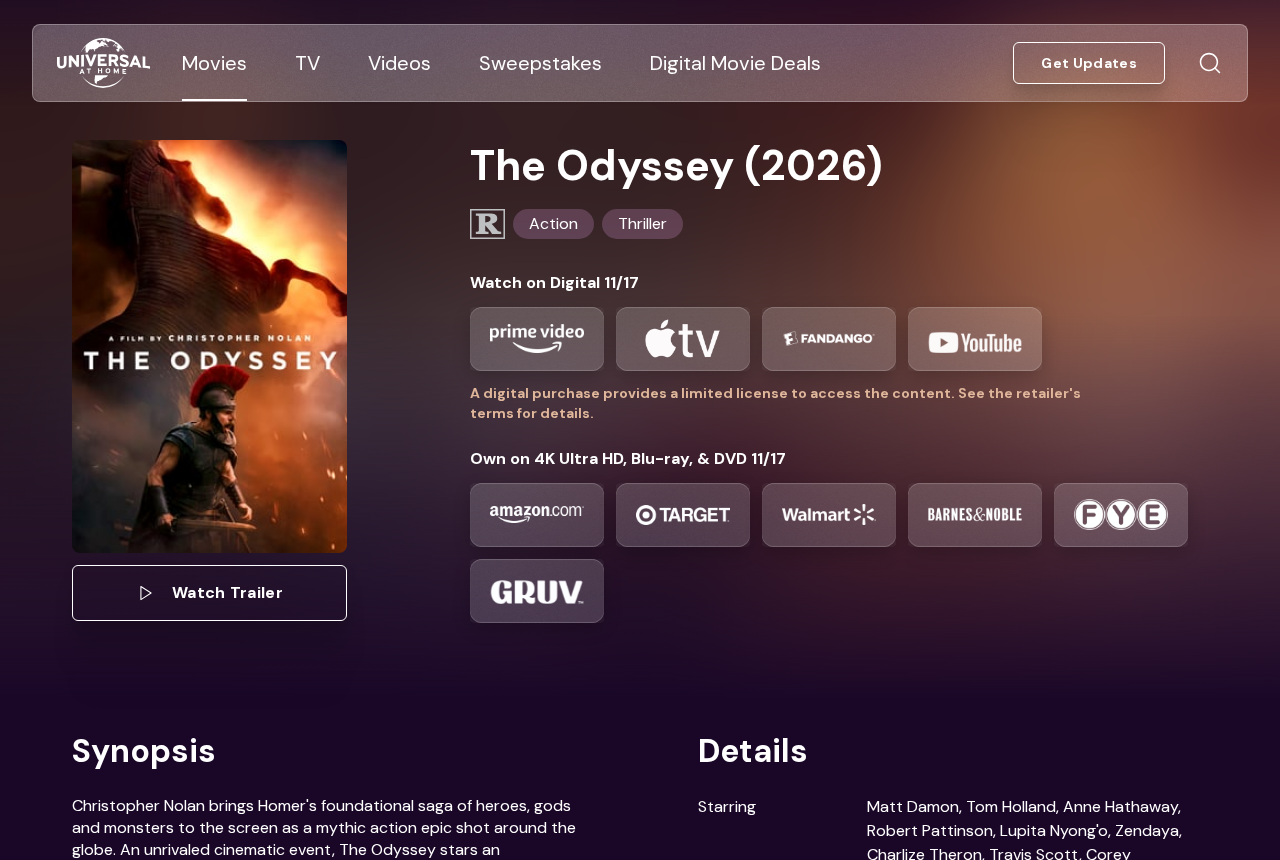
For home viewing, Universal Pictures At Home lists November 17 as the digital release date. Use the studio or an established provider to check availability where you live.
The digital release is a reason people will search for the film again, not evidence that the July scam pages still operate. Don’t treat a fresh search result as either.
A real release date gives you a useful way to verify an offer. It doesn’t make an unaffiliated page safe because that page mentions the same date.
The fake browser warning comes from the page, not the film
In the documented version, cloned listings displayed a warning claiming a browser component was missing. It offered to fix the problem before visitors could proceed.
The prompt was part of the website. It wasn’t evidence that a browser checked your computer or that the movie needed some extra software.
Following it could lead away from the listing to unrelated offers, including fake support or a browser extension. The precise destination could change between visits.
Don’t follow the instruction to see where it ends. Close the page and open the film’s listing through a provider you already recognize.
What to look at before trying to watch
The right poster proves very little. The path to the film is what you can independently check:
- Can you find the same movie through an official studio page or your usual video service?
- Is the service offering a rental, purchase, or included subscription access, and does it explain which?
- Is a random page asking you to repair the browser before you can watch?
- Does the supposed movie file show up as an application rather than a video?
- Is an unfamiliar party asking you to call for help or grant it access?
If a film result sends you looking for a browser fix instead of explaining the terms of the rental, switch routes. Don’t try to fix the listing.
How The Odyssey Fake Browser Warning Scam Works
Step 1: A result looks like a listing for the right movie
The copies documented in July used familiar listing layouts and recognizable details about The Odyssey. Those details include information already available to anyone looking up the film.
A convincing page isn’t necessarily a distributor. The site can reuse legitimate artwork without having access to a film anyone can watch.
Movie names can also overlap. If you open an official storefront, check the year and director before you buy. That prevents a real listing for another title from confusing matters.
Step 2: A web page claims the browser needs a repair
The warning appears on top of the page and says a component is missing. It frames the problem as something blocking access to the movie.
That framing is more convincing when you’ve already decided the listing looks real. It encourages you to treat the next instruction as technical help rather than another sales pitch.
A website can display text that resembles an error. That doesn’t mean the browser or operating system issued it. Don’t install the site’s solution.
Step 3: The supposed fix takes you away from the movie
Instead of solving a playback problem, the button can lead through advertising redirects. One person may see a different destination from another.
The destination won’t be the same for everyone. What matters is that the movie listing is now choosing which software or support you encounter.
If you’re presented with a support number, extension, or download, stop. A media problem does not give the page authority to choose what you install.
Step 4: The next page asks for something the film never needed
One destination may offer a browser add-on. Another might ask you to get in touch with a technical support desk you didn’t look for.
A visitor who keeps following those prompts may end up giving somebody information, money, or access to a device. Not everyone who saw the original warning went that far.
The useful distinction is what you actually did. Closing a page, installing an extension, and permitting someone to control a computer require different responses.
Don’t Confuse a Download With a Video
A second version used a file dressed up as a movie
The July reporting also found a purported download presented as The Odyssey that Windows identified as an application. That was a separate offer, not the same as seeing the warning.
The file had a movie-like name and a familiar player icon. An icon is not a file type; it doesn’t tell you whether opening the file launches a program.
You don’t need to open the file to check. In File Explorer, inspect the Type column or the file’s properties. An application isn’t an ordinary movie file.
Even if the name says 1080p or uses the word video, an executable can still run as software. Leave it unopened and don’t send it to anyone else.
Visiting, downloading, and running aren’t the same event
A page appearing in a tab doesn’t establish that you installed anything. If you closed it immediately, don’t pay somebody to remove an infection they claim to see.
If an unwanted download arrived, note it without opening it. Use your operating system’s normal security tools and ask IT before changing anything on a managed device.
Running an unfamiliar program is a different exposure. Stop using that computer for passwords and banking until you’ve dealt with it. Use a separate trusted device for urgent account checks.
If somebody remotely controlled the machine, end that session and tell your bank or IT what you opened while they had access.
Check Availability on a Route You Choose
Use the studio’s listing to identify the film
The studio’s page gives you the release details and identifying information for the right title. Don’t expect a free full film from an unrelated page using the same art.
If you want to rent or buy it, search directly inside an established video app or storefront. Make sure the listed offer applies to your location and account.
An official provider may list a release before the film becomes watchable. A preorder isn’t immediate access, and a purchase isn’t automatically part of a current subscription.
If you’re waiting for it to appear on a service you already pay for, check that provider’s own catalog. Don’t rely on an unexplained badge on a movie link.
Know which product you’re about to buy
The studio lists digital and physical editions separately. A disc preorder won’t put an instantly playable copy in your video library just because the retailer also carries digital releases.
Check whose account the order will go into. On a shared device, an offer for a different profile or region may not give you what you expected.
Amazon’s own announcement describes a purchase on Prime Video. That isn’t the same as saying the movie is included with your existing subscription.
Check opening and rental terms before you pay if you’re making plans with other people. Don’t let another site’s countdown tell you when the real service will make it available.
If you find the film through an advert, compare the retailer’s name and title with what comes up when you reach the service independently.
If playback fails, use the actual provider’s help
Start from the app or storefront where you placed the order. Look for the purchase in your account and open support from there.
If you were charged and can’t watch, keep the receipt and ask the provider what the purchase included. Don’t take a refund offer from an unrelated site.
Reach browser help from the vendor’s own site when you need it. The player you’re using doesn’t need permission to make you call a number from a pop-up.
Sometimes a browser or device genuinely needs an update. Run that update through system settings or established vendor controls, not an installer attached to a claimed movie.
What to Do if You Have Fallen Victim to This Scam
- Close the page rather than clicking the warning. If it won’t close normally, quit the browser and reopen without restoring that tab. Don’t return to get a better screenshot.
-
Check whether a file actually arrived. Look in the browser’s download history and Downloads folder without opening anything suspicious. If you didn’t run it, don’t launch it to check.
On a work or school computer, notify IT and follow its instructions about preserving the file. Don’t share it with friends.
-
Remove a browser permission or extension you actually granted. Open browser settings yourself. Look for the specific site among notification permissions or the unfamiliar extension you just installed.
If the change won’t stay removed or the browser is managed, contact the browser vendor or IT. Don’t follow more repair prompts from the original site.
-
If you ran an application, get the device checked. Disconnect the affected computer and avoid typing more passwords there. Tell IT immediately if it belongs to an organization.
On a personal Windows device, use Microsoft’s Windows Security guidance for scan options. Seek help if the scan can’t resolve the problem.
-
Secure accounts if you exposed access. Change any password you typed into a suspicious page from a trusted device. Review active sessions and payment details through the official provider.
If somebody observed sensitive information during remote access, tell the relevant provider which account or payment was visible.
-
Contact the card issuer if you paid outside the official service. Use your bank’s own app or card number. Explain what you bought and who received the payment.
Save the order confirmation and dispute reference. Check the real rental or purchase record separately from the charge you didn’t expect.
Tell a One-Time Pop-Up From a Browser Change That Persists
If the warning showed up only on the movie listing, close the tab and leave it closed. You don’t need to revisit it to test your browser.
A different problem is a notification that continues after you’ve moved on to other sites. Check which site name appears on it before changing any permissions.
In Chrome, open Settings, then Privacy and security, Site settings, and Notifications. Look for the specific site among the entries allowed to send notifications.
Remove or block that site’s permission if you granted it. This deals with that site’s notifications, not with every warning you might encounter online.
If you installed an extension, open Extensions from Chrome’s menu and use Manage Extensions. Compare the extension’s name and installation with what you remember approving.
Don’t remove a work-required extension because you don’t recognize its name. Ask the device administrator if an extension is managed or won’t stay removed.
Google’s browser cleanup guidance covers unwanted redirects and pop-ups. Use it when the browser still changes its behavior after you’ve closed the suspicious page.
If you ran the application, an extension check isn’t a full device check. Say what you opened when you contact IT or request help with a personal computer.
When you get the browser working normally again, don’t use the old link as a test. Open your actual streaming service and verify the listing that way.
Frequently Asked Questions
Is Universal Pictures or the movie behind the scam?
No. The documented sites used the title and artwork as bait. Use the studio’s home entertainment page or an established provider to find the actual release.
Does the November 17 digital release mean the movie is free to stream?
No. A digital release may mean purchase or rental. Check the provider’s listing and terms in your region rather than assuming subscription access.
Is a missing browser component warning proof something is broken?
No. The warning observed on these copies was part of the web page. Close it and use the actual browser vendor or video provider if you need help.
Can a file with a video icon be an application?
Yes. An icon isn’t the file type. Check the extension or properties without opening it. If the supposed movie is an application, leave it unopened.
Do I need to change every password if I only closed the tab?
Closing a tab isn’t the same as entering a password or allowing access. Act on anything you actually entered, installed, or allowed.
Is the July reporting evidence that a specific page is still active?
No. It documents the observed pattern during the theatrical release. Look for the same warning signs now without assuming an old domain still operates.
The Bottom Line
Don’t follow a movie page that wants to repair your browser or run an application. Check The Odyssey through the studio or your usual video provider.
If you already followed the prompt, check what changed. A download you left unopened, an extension you installed, and a payment you authorized each need a different response.

Join the discussion
0 commentsShare your experience or ask a question about this article.
Discussion
Start the conversation
Have a question or something useful to share? Add the first comment.