


A message about an upgraded webmail service sounds like routine maintenance. You might even be glad somebody is taking care of security behind the scenes.
Then the email says there’s something you must verify right away. Before you do it, find out what an actual mailbox upgrade would mean for you.
Overview
A supposed security upgrade you have to finish yourself
The Webmail Security Service System Update email scam says a security upgrade has already taken place. It tells the recipient to verify their mailbox immediately to get the new version.
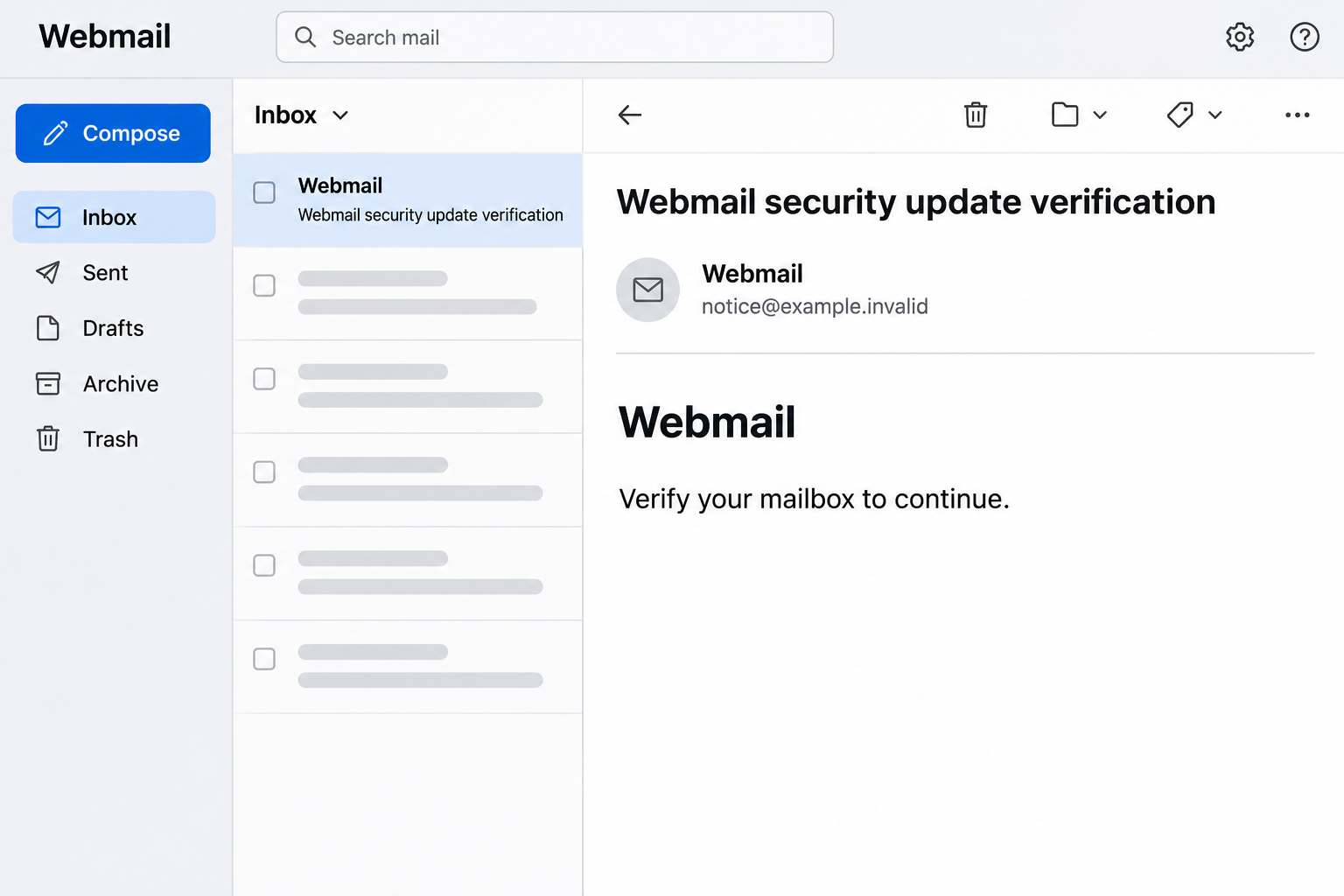
The documented subject was “Webmail security update verification.” The body referred to the recipient’s domain and presented itself as an automated notice.
The picture above recreates the kind of email you might see, not the page asking for a password.
No email address or destination in that image belongs to the original incident.
There is a difference between an administrator updating mail security and a user taking an action after a real change.
The notice never gives you a verified way to connect the two.
The feature the email talks about never appears
The recorded action takes you to an unrelated site dressed as a webmail login. It asks for an email address and password rather than showing a version or service status.
The copied page also displays “Secure SSL Connection.” Those words do not establish who owns the page or entitle it to receive the password to your real account.
The route matters more than the style of the form. If you sign in after an update, sign in where you already know your provider hosts your email.
The message isn’t an installer and the documented destination is a login lookalike. There’s no verified software update, downloaded payload or device infection in this sample.
Your domain name isn’t private proof of a maintenance job
An email address already contains a domain. Seeing that name in a notice can make the text feel tailored without proving a relationship with the sender.
A work mailbox may have an internal administrator, while a personal or small-business address can use a hosting company to run mail behind the scenes.
For a genuine change, you want information from the party that manages the service, not just a message that repeats who you are.
Check the warning from outside the message:
- Open the mailbox the way you usually do and check whether there is an actual sign-in problem.
- Ask your administrator or provider whether an announced change applies to your account.
- Confirm the exact portal or instructions through a known company directory or support channel.
- Keep a password, recovery code or unexpected verification prompt out of the conversation unless you initiated the real sign-in and recognize the request.
How the Webmail Security Update Scam Works
Step 1: It announces maintenance after the fact
The message is phrased like something has already happened on the server. It doesn’t ask for permission to make the change.
That matters because the reader may assume the provider has finished its part. Verifying the mailbox sounds like the only thing standing between you and a better-protected account.
In real life, security changes can be invisible to ordinary users. They might also be preceded by notices, enrollment instructions or an administrator explaining what to expect.
The mere fact that you didn’t see an earlier notice isn’t decisive.
Ask the person who maintains the system to confirm the change before treating the message as a work order.
Step 2: The message makes an account name look like evidence
The notice can name the recipient’s domain without showing anything about the organization’s actual setup. A familiar string does a surprising amount of work.
A mailbox on a custom domain could use an outside cloud provider, a hosting panel or a server run by the organization itself.
The domain displayed in a greeting doesn’t settle that question.
You should be able to name the account you’re securing before you enter any secret. If the provider isn’t clear, find out through the person who set up your email.
The notice’s automated tone isn’t a credential either. Attackers can write that replies are unmonitored just as easily as a real service can.
Step 3: Immediate verification leaves little time to ask a useful question
The email says verification is needed immediately but doesn’t describe a meaningful deadline for an identified rollout. It makes the reader feel late without explaining what is ending.
If the service still works, check it through your usual mail client. If it doesn’t, the verified support route is more important, not less.
Don’t let an actual problem make you trust the first explanation that arrives. An expired session or provider outage can occur at the same time as an unrelated phishing email.
A support team can usually tell you whether your account, your device or a wider service change is involved. The email places all three possibilities behind one button.
Step 4: The button changes the task from an upgrade to a sign-in
The recorded link opens a generic Webmail Login page on a host unrelated to the recipient’s provider. The form asks for information you use to enter the real mailbox.
A password on that page doesn’t verify an upgrade from your provider. What it gives the page is the opportunity to collect a credential.
That is why the familiar design matters less than the route. Stop when a security notice makes you sign in somewhere you weren’t expecting to reach.
The reassuring connection label doesn’t resolve the mismatch. A site can encrypt the traffic going to it while still being the wrong site to trust.
A separate dormant-account warning has used the same unrelated host. The earlier email threatened shutdown; this one says an upgrade is already installed.
That distinction tells you what to check. Ask about the actual maintenance announcement, not an account inactivity policy, and verify either request outside the message.
Step 5: The original email becomes less important if access is lost
If a password reaches an impersonator, the next concern is access to the email account and other services that rely on it.
Look at what the mailbox controls. It might receive password resets, store invoice conversations, or let you respond as a shared sales or support account.
A password change matters immediately, but it may not answer whether sessions, forwarded copies or delegated access were added. That’s a separate check for the provider or IT team.
If you never entered a password, don’t treat this outcome as though it happened. Report the message and let the organization check for any wider circulation.
How to Check a Real Mail Security Change
Start with the service you already use
Open the webmail bookmark, internal portal or app you normally use. If the service needs you to do something new, ask whether the instruction also exists there.
A managed account may use a separate work sign-in screen rather than a password form that says only Webmail. Your administrator can explain what should appear.
If your email moves to another company, the old and new systems can coexist during the transition. Ask your provider for the expected date and account instructions.
There may also be a legitimate reason for a mail app to request reauthentication. Check that the prompt began inside the app or from an independently verified instruction.
Distinguish a new sign-in policy from a software update
A change to multi-factor authentication or approved sign-in methods can involve a real enrollment step. An organization’s normal process should identify the policy and where enrollment happens.
An update on a server and an update to your local mail app are not the same job. Use approved software channels if the app itself needs to be updated.
If someone claims that a browser password must be supplied to activate a server upgrade, ask what system is being changed and why the normal portal can’t handle it.
That question isn’t a challenge to a genuine administrator. It’s the sort of practical detail a technician needs to communicate a real change clearly.
If you manage the mail service, remove the ambiguity for everyone
A short announcement in your normal staff channel can help users recognize a real rollout. Tell them which accounts are affected and whether there is anything to do.
If an action is needed, give the name of the application or the location of the existing internal instructions. Don’t make an unexpected email their only way into the process.
Explain what should not happen. For example, if an upgrade is entirely server-side, say clearly that users do not need to resubmit passwords or approve new access.
If people already received the impersonation message, warn them using the wording they recognize but leave out the live link. Give them one private place to report it.
Ask users to distinguish a password typed into the page from a login that began in their usual app. That difference tells support what it needs to investigate.
If a new provider really is involved, confirm its identity with the person who owns the change. Don’t let a copied maintenance notice become the unofficial rollout instructions.
What to Do If You Fell Victim
-
Leave the page closed and let the right person know.
If you saw the message but didn’t use the button, report it as phishing. For work mail, follow the organization’s incident reporting process.
If you opened the page but stopped before signing in, say that. There’s no need to go back and check whether the form still works.
Provide the subject and time if you know them. An administrator can check the original message without you sending the link to everyone who might recognize it.
-
Replace an exposed password through the real provider.
Use the official sign-in route or ask the administrator to initiate the reset. Choose something unique and change the same password wherever you used it again.
If you no longer control the recovery email or phone, tell the account provider. Resetting a password can be difficult if somebody has already changed the recovery path.
For a personal Google mailbox, use Google’s compromised account guidance. A managed work account may have a separate recovery process.
Tell support if you entered a security code or approved a prompt too. The documented fake page asked for a password, but your own sequence determines the response.
-
Ask about sessions and mailbox access, not only the password.
Check recent logins and connected devices through the actual account settings when available. Ask IT or your host to revoke unfamiliar access or end sessions if necessary.
Review forwarding rules, delegates, filters and account recovery options. A rule you didn’t create can be a sign that access extended beyond a simple sign-in.
If a rule looks suspicious, preserve the details your administrator needs to investigate before deleting it. Ask whether they need a screenshot or a record from the system.
-
Protect people and services that depend on this inbox.
If the mailbox receives reset emails for other accounts, work through the most important services first. Review changes, not just whether the passwords still work.
If others received unexpected instructions from your mailbox, warn them through a trusted channel. Ask that they verify changed payment information before acting.
For shared mail, involve the owner or team lead. A person who signs in as an individual may not have permission to remove a delegate or stop group forwarding.
-
Report any separate device activity and finish the real maintenance check.
If you installed something or opened an unexpected file as part of a different version, tell support what it was. Don’t run a tool sent by the same sender.
For work devices, let your organization decide how to inspect or isolate them. Its process can preserve evidence that a consumer cleanup step might remove.
Once access is secure, ask whether there is any genuine update to complete. Use only the route your provider or administrator confirms.
Frequently Asked Questions
Is the “Webmail security update verification” email genuine?
The documented message led to an unrelated webmail lookalike that asked for a password. Check a genuine security upgrade through your regular sign-in or a verified administrator.
Does including my company’s domain prove the sender works there?
No. The domain may be visible in your email address. Familiar details in a greeting do not establish who sent the notice.
What does the “Secure SSL Connection” label mean?
A printed label proves nothing. Even when the browser uses an encrypted connection, that doesn’t mean the site belongs to your provider.
Can a real mail update require me to sign in again?
Yes, a real change can require reauthentication or enrollment. Start from your established portal and ask your provider what change it authorized.
Do I need to change my password if I only read the notice?
Reading the message doesn’t supply your password. Report the email. If you entered a credential, change it through the real service and review access.
What if the mailbox really stopped working?
Ask your administrator or provider to check it through a known support route. A real login problem doesn’t validate an unrelated verification page.
The Bottom Line
Don’t use the button in a surprise webmail security update. Ask your provider to confirm the change and open the real account from a route you already know.
If you typed a password into the lookalike, treat it as exposed. Change it through the provider and check who still has access to the mailbox.

Join the discussion
0 commentsShare your experience or ask a question about this article.
Discussion
Start the conversation
Have a question or something useful to share? Add the first comment.