


The spreadsheet still has the name you gave it, except for a new ending: .fraud. When you try to open it, you don’t get the spreadsheet you remember.
Then you find READ_ME_FRAUD.txt. Before following anything in it, make sure the copies you still have are safe.
Overview
The changed file name and the note go together
Fraud ransomware is the name used for a documented Windows file-encryption sample that appended .fraud to affected files and created a note named READ_ME_FRAUD.txt.
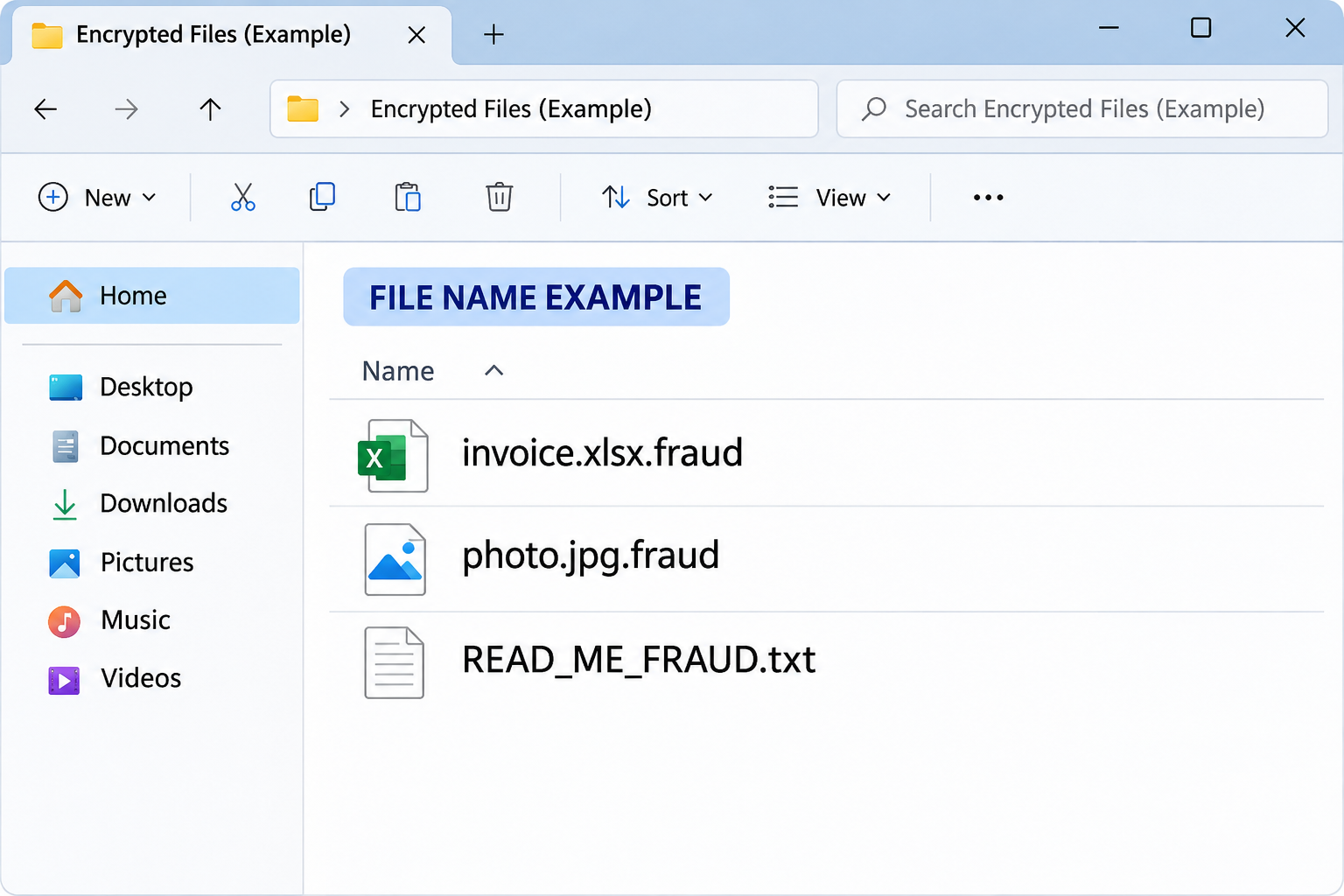
The original extension stays visible. A file that used to end in .xlsx may now end in .xlsx.fraud. This is not an ordinary conversion into a new spreadsheet format.
The note’s presence alongside many newly renamed, unreadable files is a much stronger warning than a single unfamiliar file name. Preserve both clues for someone investigating the incident.
The image above shows illustrative file names. Compare the actual names and timing on your own machine, without opening a suspicious program to confirm the match.
The note says more about the pressure than the recovery
The documented note describes encryption and claims a particular key is needed. It gives the victim an identifier and tells them to send it to an unnamed operator.
There was no usable contact method in the sample note. Do not look for a stranger online who claims to be that operator or can sell you the key.
The message also includes machine-specific information. Keep it private: a hostname, username or device details can identify your system without proving that information was sent outside it.
The note’s description of the cryptography is a claim in the sample. You don’t need to validate it before isolating the device and protecting any remaining backups.
What to preserve before cleanup
- The original note, without editing it or publishing the victim identifier.
- Several untouched affected files, including their original paths and names.
- The time you first saw the changes and which locations were affected.
- The last backup date you can verify, without attaching the backup to the affected machine.
- Any recent security alert or application change that your responder asks you to preserve.
There’s no confirmed entry route for this particular sample in the evidence covered here. Don’t assume an email, download or staff member caused your incident without corroboration.
What to Do First if You Find .fraud Files
-
Cut off access to other systems.
Disconnect the affected device from Ethernet and Wi-Fi. Don’t reconnect it to a shared network to check whether the problem has spread.
If this is a managed computer, call your incident team from another device. Explain whether the computer is still on and whether any file shares were connected.
-
Protect backup drives and cloud copies.
Leave offline backup media disconnected. If a backup drive was attached or a cloud sync client was running, tell whoever manages those copies.
Don’t delete files from a synchronized folder in an attempt to stop the damage. The deletion might sync too, and it may remove useful evidence.
-
Make a timeline before resetting anything.
Record the first folder where you noticed changes, whether other folders were affected and what the device was doing shortly beforehand.
Preserve the actual note and file names. If you need to show them to a responder, use a private channel and ask how they want to receive evidence.
-
Get help before changing a work system.
For an organization, containment may involve other devices, storage and identities. Follow the CISA ransomware response guidance through your incident team.
Don’t restart, scan or reimage a managed machine until responders decide what must be collected first. A wiped machine can no longer provide the original evidence.
-
Keep payment and recovery promises separate.
Do not pay a stranger who claims to have the key. The note itself does not establish that a working decryption service is available.
Do not send your only affected file or confidential material to someone offering a free test. Ask an incident specialist about a safe way to identify the case.
How to Remove Fraud Ransomware From Windows
Step 1: Decide whether the original system should be preserved
If the device holds business records, sensitive files or your only recoverable copy, don’t begin by reinstalling Windows. A specialist can help preserve the disk before it is changed.
For a managed device, your IT team decides whether to isolate it for investigation or rebuild it. A home scanner cannot establish which other systems or accounts were affected.
For a personal PC, use a clean device to plan the next steps. If the original computer is still unstable, you may be better served by a clean rebuild.
If you need a clean rebuild, confirm where your encrypted evidence, readable data and legitimate recovery information will be kept. Don’t put all three back on the affected drive.
Step 2: Get and install a scanner only if cleanup is appropriate
If evidence has been preserved and it’s safe to scan the personal PC, download the Windows installer from a trusted system. Keep your only backup out of this process.
Malwarebytes for Windows
Download the Windows installer
Manual scanning does not require a paid plan.
On the affected PC, open the known Malwarebytes setup file from Downloads or trusted installation media. Review the publisher prompt before allowing installation, and skip optional offers you don’t want.

If setup requires internet access or fails offline, don’t reconnect the affected PC to a shared network just to finish. Ask a technician about a safe setup or clean rebuild.
Step 3: Run a Threat Scan and review the result
Open Malwarebytes and select Scan on the dashboard. Let the scan finish before reviewing the report, and note whether the scanner itself flagged any errors.

Save the report and note the detection names and paths. Quarantine confirmed threats; if you’re unsure whether a result is legitimate, get help instead of creating an exclusion.

Some detections require a restart. Do that only after preservation and when it’s appropriate for your device. Keep the computer isolated until you know what you’re restoring to.
Step 4: Decide whether the device is trustworthy enough to reuse
Run a follow-up scan after any required restart. If detections return or file names continue changing, stop and get help rather than repeating the same cleanup indefinitely.
A clean scan does not show that nothing else happened. If the entry route or broader impact remains unknown, a clean rebuild may be the better choice.
For personal Windows support, use the MalwareTips Windows removal help forum and share redacted details. For business systems, use your incident team instead.
Don’t restore applications by copying executable files from the affected system. Obtain legitimate installers separately and restore only files and settings you have checked.
How to Recover .fraud Files
Make a recovery inventory
Write down what you actually need: recent invoices, personal photos, database exports or another specific set. A clear list gives you a way to judge whether a recovery attempt helped.
Identify where each item normally lives and where a second copy might exist. Email attachments, accounting exports and records held by coworkers can supplement a missing backup.
Record when you last opened a readable version. That date is a better starting point for looking through backups than the date in a message the ransomware created.
Keep the encrypted files, the note and your recovery worksheet together but separate from your everyday backup rotation. You don’t want a new backup to overwrite a known-good copy.
Check offline backups and saved versions
Choose a backup from before the first suspected encryption, using a clean device. Restore a few representative files into a separate test folder, not onto the affected drive.
Open a document that matters, not just the smallest file in the set. Verify recent entries or dates, especially when a business depends on records added after the last backup.
For Windows Previous Versions, check the parent folder from an appropriate recovery environment. If a usable version exists, copy a test file elsewhere before restoring over anything.
For cloud storage, use the genuine provider from a clean computer. Its version history or deleted-files area may hold earlier versions if those features were enabled and the copies survived.
For a managed storage device, ask the administrator to check snapshots at the server. Not seeing an older version from your workstation doesn’t settle what the storage system retained.
Match the decryptor to the actual case
Check the No More Ransom decryptor catalog from a trusted device. We couldn’t verify a public decryptor for the documented Fraud sample.
A tool with a similar title is not necessarily compatible. Ask a trusted responder to identify the family from the note and affected files before you try anything.
If a compatible tool becomes available, test it on duplicate files first. Keep the only encrypted copy unchanged so a failed experiment doesn’t remove another recovery option.
Do not run a program supplied by the original note or an unverified recovery service. A tool called an unlocker can still be an unrelated and unsafe download.
Use file recovery only for a different kind of loss
Deleted-file recovery tries to find readable originals that may still be on storage. It is not decryption and can’t turn intact ciphertext back into a document.
If the disk matters, ask about imaging it before running a recovery utility. New writes, including an installation, can overwrite remnants you might otherwise recover.
If you have a suitable working copy, the EaseUS recovery guide shows how to preview results before recovering them to another drive.
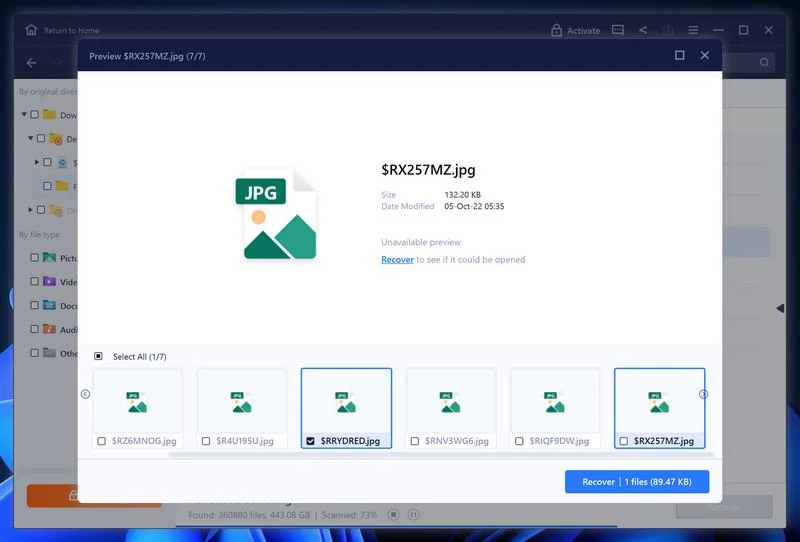
If a preview isn’t available, don’t count the file as recovered. Open the result in a safe environment and confirm it contains what you need before paying for more capacity.
Verify completeness before putting files back into use
Separate files you restored from files you recreated. If a spreadsheet only covers the first half of the month, mark the gap before anyone uses it to make decisions.
Compare important counts and dates with a separate record. A rebuilt database or archive may need its own checks before it can be put back into production.
When you have a trusted system and verified data, make a fresh backup. Keep at least one earlier readable copy until you know your restored records are usable.
For shared files, tell the people affected which date you restored. They may know about later edits that can be recovered from email or a separate device.
If recovery is still incomplete
Don’t let a service quote change what you know. Ask exactly whether it proposes to restore a backup, recover deleted originals or decrypt files with a verified matching tool.
If no safe recovery path exists today, preserve the remaining encrypted data. Set it aside rather than repeatedly trying tools on the same files.
Check whether a supplier, accountant or colleague holds an independent copy of a missing document. Verify its date and contents before using it in place of the original.
For a home PC, a photo library may survive on a camera card or another computer. Keep those sources away from the affected PC until a clean restore location exists.
Write down what you recovered and where it came from. This avoids redoing the same searches or letting an older copy silently replace a newer one.
If different backup dates contain different sets of records, test them in separate folders. Merging them too early can hide which version belongs to which date.
When a document can’t be restored, note its last known path and who had a copy. That is useful when the incident team searches retained archives later.
Frequently Asked Questions
Is every file ending in .fraud necessarily encrypted by Fraud ransomware?
No. Look for several newly changed files, the READ_ME_FRAUD.txt note and evidence from your own system. A file extension by itself does not identify a sample.
Can I repair a file by taking .fraud off the end?
No. Renaming does not reverse encryption. Leave the original unchanged and use copies if a legitimate recovery tool later becomes available.
Why doesn’t the note give a way to contact the operator?
The reported sample tells readers to contact an operator but doesn’t list a contact route. That is not a reason to seek one out independently.
Will Malwarebytes restore my documents?
No. It can help detect and quarantine malware on the PC. File recovery depends on other copies, usable snapshots or a decryptor that actually matches the incident.
Can I try a recovery tool before reinstalling Windows?
Preserve the affected drive first. Use a separate environment or ask a specialist. Installing recovery software on the original drive can overwrite data you might otherwise recover.
Should I reconnect a backup as soon as my scanner finishes?
No. Review the results, establish a trusted restore environment and test a small restore first. An isolated backup is worth protecting until the recovery plan is clear.
The Bottom Line
If you find .fraud files and READ_ME_FRAUD.txt, isolate the PC, keep the originals and protect your backups. Do not rely on the note for a way to recover.
Clean or rebuild the system only after preserving what you need. Look for readable copies and test recovery separately before putting anything back on the affected computer.

Join the discussion
0 commentsShare your experience or ask a question about this article.
Your progress
Did these steps help?
Let us know how the guide worked for you.
Describe what you see and the step you reached. Keep passwords and other private information out.
Discussion
Start the conversation
Have a question or something useful to share? Add the first comment.