


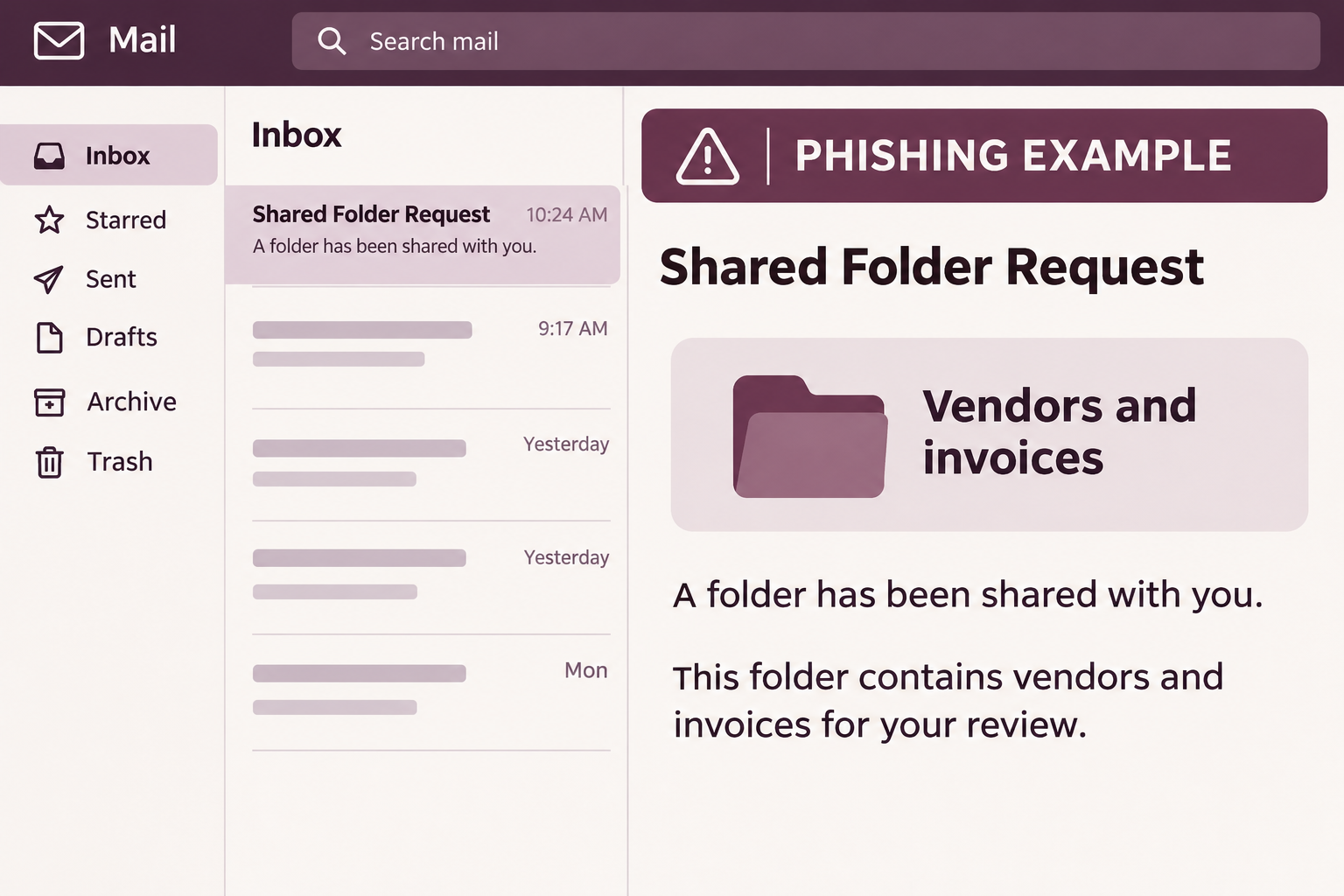
An accounting folder turns up in your inbox. The subject names a person, and the label says the folder contains vendors and invoices.
There’s a good reason not to rush through this one. The place where a real share appears is more useful than anything the invitation says about itself.
Overview
An invoice folder is the hook
The Zoho Shared Folder Request scam starts with a message that looks like an invitation to open accounting documents. The wording suggests that someone has already granted you permission.
The name attached to the folder may sound familiar. But there’s no invoice to verify in the message itself, only a button that takes you elsewhere.
That difference is easy to miss if you process supplier documents every day. A share notification often arrives without much explanation, and the file names may be all you see.
The sample even describes a safe copy. That statement comes from the message, not from your employer’s security tools or from Zoho.
Two sign-in screens, neither belonging to the service you expected
The documented link first opened a page asking for a work email address. It then took readers to a second page imitating Zoho’s sign-in.
Those screens appeared on different, unrelated web addresses. There was no reason to assume the change was a normal handoff between your employer and Zoho.
The first screen collected an address, while the second sought account credentials. If you reached only the first screen, that is different from giving the imitation page your password.
Zoho is a legitimate service whose name was used in the invitation. The fake screens do not show that Zoho sent the message or that WorkDrive itself was compromised.
Find the share from the service, not from the invitation
- Open WorkDrive the way your organization normally does.
- Look for the folder under Shared with Me if it was shared directly with your account.
- Check that you’re in the right account, organization and team.
- Ask the purported sender to confirm the share through a channel you already know.
- If you supplied a password, check sessions and access before assuming a reset fixed everything.
External shares can work differently. If the folder doesn’t appear, confirm with the sender independently rather than treating the missing item as a reason to use the link.
How the Zoho Shared Folder Request Scam Works
Step 1: A notice borrows the language of accounts payable
A folder called vendors and invoices fits a payment run, a reconciliation or a handoff at the end of a shift. That’s why it’s easy to open without thinking.
The email presents the share as something that already happened. That nudges you to open it instead of asking why a colleague would share those records with you.
A coworker’s real name doesn’t settle the question. It could have come from a public page or a conversation; the sample doesn’t show where it came from.
If the folder would be unusual for your role, ask the person why you need it. Do this in an existing chat or a separate conversation you start.
Step 2: The first screen feels like a routine identity check
The first page asks for a work email address. A request for something less sensitive than a password can feel like a low-stakes way to continue.
Entering only an address doesn’t provide the password or grant access to WorkDrive. It can still tell a scammer which address a real person is using and willing to enter.
If you stop there, say so when reporting the incident. It helps the security team distinguish a possible follow-up target from someone whose account may already be exposed.
A useful check is whether you started the process from a service your employer recognizes. An expected question can still be unsafe when it appears at an unrelated location.
Step 3: The second screen asks for the more valuable information
The next screen resembles the Zoho sign-in page. By the time it appears, you may feel you are halfway through an ordinary process and want to finish.
That second screen is not proof of a legitimate single sign-on arrangement. Real workplaces do use identity providers, but you can ask IT which sign-in destinations to expect.
Do not choose a social sign-in option merely because a familiar logo appears. The documented example displayed such options, but the behavior of every option was not established.
Leave the page if it is not the sign-in you intended to use. No invoice needs you to test a password at an unverified address.
Step 4: An exposed account can affect a real supplier relationship
What someone can see after a takeover depends on the account’s permissions. It might include messages, shared files or the names of regular suppliers.
A fake invoice arriving from a recognized address can look more credible than the original folder invitation. Pay attention to changes in payment instructions, especially inside a familiar conversation.
If an account is shared across several Zoho services, check which ones the user could access. The consequences of a limited external account differ from those of a team administrator.
Give the security team the time you entered information. It helps them compare the report with sign-ins, sharing changes and account activity rather than guessing which events belong together.
Check a Folder Request Without Opening the Email Link
Start with Shared with Me
Sign in through your usual company route and open WorkDrive. The Zoho guide to Shared with Me shows how to find items shared directly with you.
If you have more than one Zoho account, check which one is signed in. A personal address and a company address can lead to different sets of files.
Look for the owner as well as the folder name. A generic title like invoices can appear in several places, particularly when different teams run their own accounts.
If you can’t find the folder, ask its owner to check the share settings from their side. Don’t ask them to resend the original email without first verifying it.
Verify the business reason as well as the sender
A colleague might confirm their name but know nothing about the share. Ask whether they sent this specific folder, to this address, for this task.
If it came from outside the company, use the contact details already in your vendor records. Avoid addresses and numbers taken from the invitation.
An accounting folder can contain more than a single invoice. If you’re not supposed to handle those records, don’t open them just to see whether the request was genuine.
Have the sender use the approved method for providing the documents. That could mean a new share inside the existing workspace, or another route your employer already accepts.
A genuine share doesn’t authorize a payment change
Even a verified folder may contain an instruction that needs its own checks. Treat payment destinations, bank changes and unusual deadlines as separate decisions.
If a new account number appears in a document, verify it using the supplier’s previously established contact. Do not rely on a note inside the same file.
Keep the person who reviews an invoice separate from whoever approves the actual transfer where your process allows. One compromised account then has less chance of deciding both.
What to Do if You Have Fallen Victim to This Scam
-
Tell your security team where you stopped.
Report the original email using the workplace’s phishing process. Give the receipt time and say whether you opened it, entered an address or entered a password.
If a browser offered to save a password or you saw an approval request, mention that. Don’t send anyone the password or the approval code.
-
Secure the affected identity through the real service.
If you signed into the imitation, tell IT immediately. For an individually managed account, use the Zoho route you know to replace the exposed password.
If your employer manages sign-in through another provider, use that provider’s recovery process. Changing a password somewhere else won’t necessarily affect the account you exposed.
Change reused passwords too. Start with any recovery email or account that has access to supplier records.
-
Check active sessions separately.
Use Zoho’s Active Sessions instructions or ask your administrator to review sign-ins and end suspect sessions. Check the device, time and browser details where available.
Review linked applications and recovery settings through the appropriate admin route. If you recognize an application but not a recent approval, ask IT to investigate before assuming it is safe.
-
Review files, sharing and mail activity.
Ask the workspace administrator whether there were downloads, new public links, role changes or unexpected shares around the exposure time. Keep the findings in the incident record.
If the account also handles mail, look for new filters, forwarding and replies you didn’t send. Let security preserve suspicious records before deleting them.
-
Check accounting instructions before the next payment run.
Tell whoever manages supplier payments which account was exposed. Review pending changes to bank details and verify unusual requests independently.
If a payment already moved, contact the bank or payment provider quickly. Supply the genuine transaction reference and an accurate timeline, without promising the vendor that funds can be recovered.
-
Handle an actual download as a separate problem.
The reported link sequence sought sign-in information. If your copy also delivered a file or program and you opened or ran it, tell IT what it was.
Don’t assume that resetting Zoho cleans a device. Conversely, a device scan won’t revoke an account session or undo a changed sharing permission.
Check Who Could See the Folder Afterward
List the services the affected account can reach before asking everyone to reset everything. For example, a billing mailbox and a WorkDrive admin account have different responsibilities.
If a file was shared outside your organization, find out whether it was shared with one named account or made available to anyone with a link.
For an unexpected public link, preserve its metadata through the admin process and revoke it if authorized. Ask whether any recipients still need a legitimate replacement link.
If a vendor got a strange follow-up, ask for a copy through a safe channel. Compare it with your sent records without asking the vendor to open any link.
If nothing unusual appears in the available logs, record which time period and systems were checked. A short history may not answer what happened across every service.
Tell the folder owner what needs checking
An account can have permission to view a file without permission to share it. Ask the administrator to verify the affected user’s actual role before assuming what was exposed.
If invoices contain addresses or tax information, let the data owner decide whether any disclosure needs a separate response. You don’t need to circulate the documents to raise that question.
When notifying a vendor, refer to a known invoice number through the established channel. Avoid copying unrelated account details or messages into a thread the attacker might still be reading.
If you previously bookmarked a vendor folder, open it from the approved workspace instead of looking for a new invitation. Existing documents may be accessible without another share at all.
If you manage the mailbox where the invite arrived
Search your approved message-reporting system for the subject and receipt window. One user’s report can help establish whether several people in the same payment team received the invitation.
Leave removal from other inboxes to the team authorized to do it. A message in someone else’s account may contain details needed to determine who received it and when.
Ask who can sign off on the next payment batch. A brief pause for any changed instructions is different from stopping every unrelated payment your business needs to make.
Frequently Asked Questions
Is the Zoho Shared Folder Request email a real WorkDrive invitation?
This example is not a genuine invitation. Its link passed through unrelated sign-in pages. An actual shared item can be verified from WorkDrive or with the sender independently.
Can a fake request include a real colleague’s name?
Yes. A name is not authentication. Ask the colleague to confirm the specific folder and why they shared it, without replying to the unexpected notice.
What if I only entered my work email address?
Report that as address disclosure, not a password compromise. Watch for follow-up messages and unrequested approvals. If you also entered a password elsewhere, tell IT where.
Why did I see two sign-in pages?
The documented case asked for an address first and then displayed a Zoho imitation. An additional page isn’t evidence that your real identity provider is involved.
Does changing my Zoho password close every active session?
Check sessions rather than assuming. The right procedure depends on how the account is managed, and connected applications can have separate access that needs review.
Should I pay the invoice if the vendor confirms the folder was shared?
Verify the payment details independently, especially if anything changed. Confirming a share and authorizing a transfer are different decisions.
The Bottom Line
Don’t use the button in the Zoho Shared Folder Request scam. Open WorkDrive directly or ask the sender to confirm the folder through a channel you already trust.
If you entered account details, report it promptly, review active sessions and check whether anyone changed the files or payment instructions your team relies on.

Join the discussion
0 commentsShare your experience or ask a question about this article.
Discussion
Start the conversation
Have a question or something useful to share? Add the first comment.