

An administrator appears to have shared a calendar containing a May event. Accepting it seems like a harmless way to avoid missing a workplace commitment.
The invitation becomes less ordinary when its buttons, manual calendar address, and document screen are examined as one connected journey.
Overview
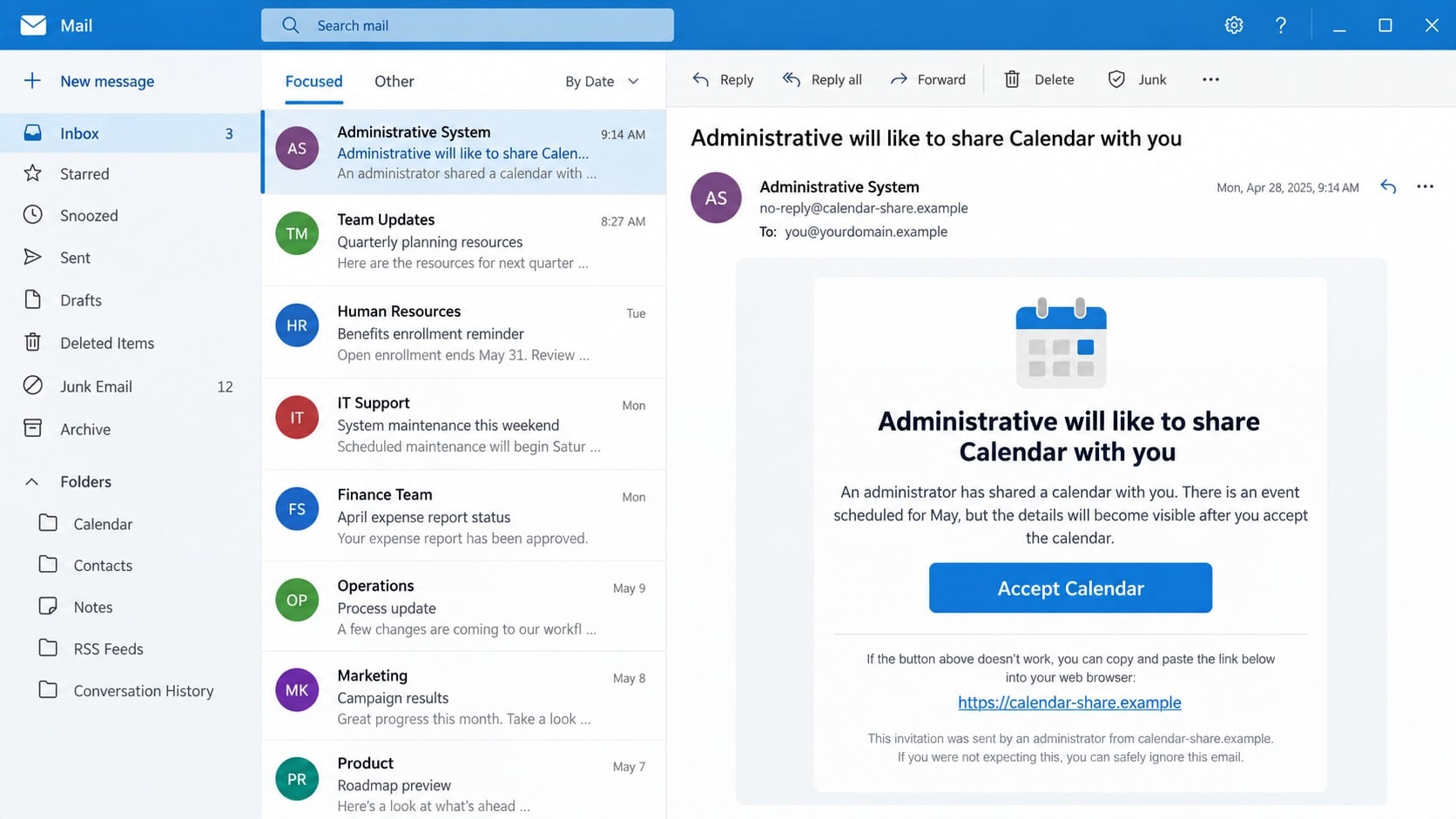
The administrator and May event presented in the invitation
The email uses a subject resembling “Administrative will like to share ‘Calendar’ with you.”
It says an administrator scheduled an event during May and wants the recipient to add a shared calendar.
An “Accept Calendar” button provides the easiest route. The message may also show a manual Internet Calendar address.
That alternative makes the invitation look technically complete, as though it came from a real scheduling system.
However, the sender remains vague. No recognizable administrator, department, event title, location, agenda, or attendee list supports the request.
The unrelated document portal behind the calendar story
The observed link did not open a normal calendar subscription screen.
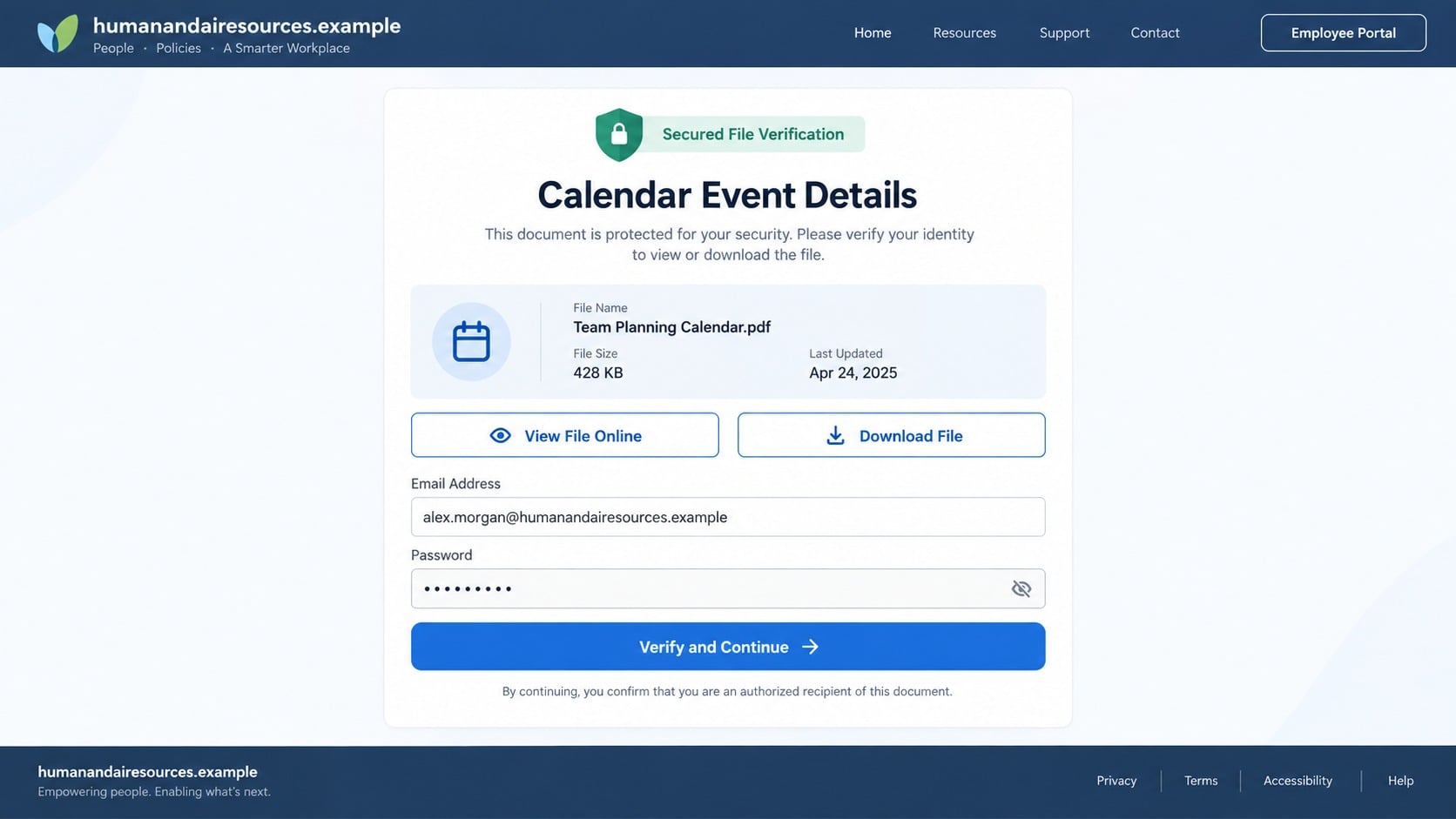
Instead, it led to an unrelated domain displaying an Adobe-themed secure file page.
Visitors were offered choices resembling “View online” and “Download,” then prompted for an email address and password.
A calendar invitation should not transform into an external Adobe login without explaining the document, sender, and business purpose.
The switch reveals the campaign’s objective: collecting credentials rather than sharing a schedule.
What a captured account can reveal
Calendars expose meetings, travel, absences, colleagues, customers, and recurring business routines.
If the same account controls email and files, a stolen password reaches an even broader collection of information.
Attackers may use access to:
- Read confidential mail and attached documents.
- Study meeting schedules before impersonating executives.
- Send invitations containing more malicious links.
- Reset passwords for connected services.
- Target coworkers during known absences or travel.
- Create hidden rules that preserve future access.
The calendar is not being shared. It is an everyday collaboration feature repurposed as a believable doorway to a fake login.
How the Admin Shared Calendar Email Scam Works
Step 1: The invitation imitates a common administrative task
Shared calendars are routine in offices, schools, volunteer groups, and service organizations.
Administrators use them for holidays, room bookings, schedules, training, and company events.
That familiarity makes the request feel low risk. Recipients may treat acceptance as housekeeping rather than a security decision.
The campaign never needs to explain the organization because “administrator” can fit almost any workplace.
Vague authority also discourages delay. People worry that declining could make them miss an event everyone else already received.
Step 2: A future month supplies just enough context
Mentioning May gives the invitation a time frame without revealing an event that could be disproved.
The reader may imagine a review, deadline, holiday, maintenance window, conference, or mandatory meeting.
This technique turns missing information into personal relevance. Each recipient fills the blank with something plausible.
A genuine invitation normally identifies the event, organizer, date, time, and participants before acceptance.
The month alone is not useful scheduling information. It is atmospheric detail designed to support the story.
Step 3: The manual subscription option adds false technical depth
An Internet Calendar address can look impressive to someone who has manually subscribed to a schedule before.
Including one suggests the sender understands calendar software and offers a fallback if the button fails.
Yet a technical-looking string can still point to attacker-controlled infrastructure or serve as decoration.
Recipients should never paste an unknown subscription address into calendar software merely to test it.
A malicious calendar can introduce recurring spam events, deceptive reminders, and links that remain visible long after the original email disappears.
Step 4: Acceptance unexpectedly becomes document access
The campaign breaks its own story after the click. Instead of calendar details, the visitor sees a supposed protected Adobe file.
This abrupt change should end the interaction.
Attackers rely on momentum, hoping the recipient assumes an attached agenda or policy document explains the new page.
Buttons labeled “View online” and “Download” create another decision while keeping the promised content hidden.
Every additional screen makes the process feel more established, although none proves a real calendar or document exists.
Step 5: The secure-file form collects workplace credentials
The final page requests an email address and password as though authentication were required for document access.
Submitting the form sends those values to the phishing operator.
The website cannot validate a company account legitimately because it is not the employer, calendar provider, or Adobe.
A false error may request a second attempt. The page can then redirect elsewhere to disguise the collection.
No calendar appears because the shared schedule was never the purpose.
Step 6: The compromised mailbox spreads trusted invitations
An attacker who enters the account can inspect real meetings and learn which colleagues collaborate frequently.
They can send a second lure from the victim’s address, reference an authentic event, or invite an existing group.
Messages from a known coworker receive more trust than an outside campaign.
The intruder may also add delegates, forwarding rules, or connected applications to preserve access.
What began as one fake May event can therefore become a convincing internal phishing chain.
Why Calendar Invitations Receive Less Scrutiny
Acceptance appears reversible and harmless
People assume a calendar can be removed later. That perception lowers the caution normally applied to invoices or password warnings.
However, the email button is still an external link. Its destination can request anything after the click.
Low perceived risk is exactly what makes collaboration lures useful.
Administrative language borrows workplace authority
The word “administrator” suggests centralized control, even when no person or department is named.
Employees may believe the request is mandatory or automatically generated.
Real authority can be verified through the organization’s directory and calendar system. A label inside an email is not enough.
Calendar formats are unfamiliar to many users
Internet Calendar addresses, subscription files, and provider-specific buttons are technical details most recipients rarely inspect.
Attackers exploit that uncertainty by adding official-looking fields that users cannot easily evaluate.
When the format is unfamiliar, ask support rather than following the unfamiliar workflow.
The content may arrive during a busy scheduling moment
People process invitations quickly between meetings. They may accept first and read details later.
A vague future event benefits from that habit because it does not immediately conflict with the current schedule.
Slowing down for one sender check removes much of the campaign’s advantage.
How Real Shared Calendar Invitations Behave
The organizer and calendar are identifiable
A genuine invitation names the sharing account or person and identifies the calendar being offered.
Recipients can recognize the relationship or confirm it through a known channel.
A generic administrator with no organization is not a useful identity.
The invitation appears inside the real calendar service
Users can open their calendar application independently and inspect sharing settings or pending invitations.
Google Workspace, Microsoft 365, and other platforms manage permissions inside authenticated accounts.
There is no need to enter an email password on an unrelated document website.
Permission levels are visible before acceptance
Real sharing workflows explain whether the recipient can see availability, event details, or make changes.
The phishing message focuses on accepting and provides no meaningful permission information.
That omission matters because access scope is central to legitimate calendar sharing.
The event details remain consistent across the journey
If the email discusses a calendar, the destination should continue discussing that calendar.
An unexplained switch to an Adobe file, payroll portal, or generic webmail login is not normal continuity.
Stop whenever the requested action changes without a clear and independently verified reason.
Calendar sharing does not require an external mailbox password
Established providers handle access within their own authenticated interfaces and organization policies.
A third-party page cannot safely “confirm” ownership by collecting the same reusable password that protects the mailbox.
When a form requests that secret, close it and review the invitation inside the actual calendar service.
Downloads should match a known event purpose
A genuine meeting may include an agenda, map, or supporting document, but the organizer should identify it before delivery.
Generic Download buttons conceal both format and origin. They provide no reason to expose a device to an unknown file.
Ask the organizer to share required material through the organization’s approved repository.
Organization policy can narrow uncertainty
Some workplaces prohibit external calendar subscriptions or restrict them to approved domains.
Employees should know where those rules appear and which team handles exceptions.
A consistent policy removes the need to make individual trust decisions under pressure.
Mobile previews can hide decisive details
Compact mail applications may shorten sender addresses and button destinations, leaving only the reassuring display name visible.
Do not accept an unfamiliar invitation merely because the phone view omits evidence.
Open the official calendar separately or ask support to inspect the original message.
Administrator, Event, Calendar, and Destination Checks
Identify the supposed administrator
Expand the sender details and compare them with your organization’s real directory.
Ask the administrator through internal chat, a known number, or an established support portal whether they shared anything.
Do not reply to the questionable email because the attacker may receive and answer that response.
A legitimate sender should be able to name the calendar and explain its audience.
Verify the May event before accepting
Search the existing calendar, intranet, and internal announcements for a matching event.
Ask for the title, date, time, location, organizer, and reason the recipient needs access.
The month by itself cannot validate a schedule.
If nobody inside the organization recognizes the event, preserve the email for investigation.
Inspect sharing through the real calendar settings
Open the calendar service from its official application or a saved bookmark.
Review pending invitations, subscribed calendars, sharing permissions, and delegated access without using the email button.
Remove unknown subscriptions that create deceptive events or recurring notifications.
Administrators can also check whether the supposed sharing action exists in audit logs.
Compare the promised action with the destination
Preview the link and identify the actual registered domain. Familiar words elsewhere in the address can be misleading.
A calendar button that opens an Adobe-themed credential form has failed the most basic consistency check.
HTTPS encrypts the connection but does not validate the business story.
Report the complete destination without exploring its download or login choices.
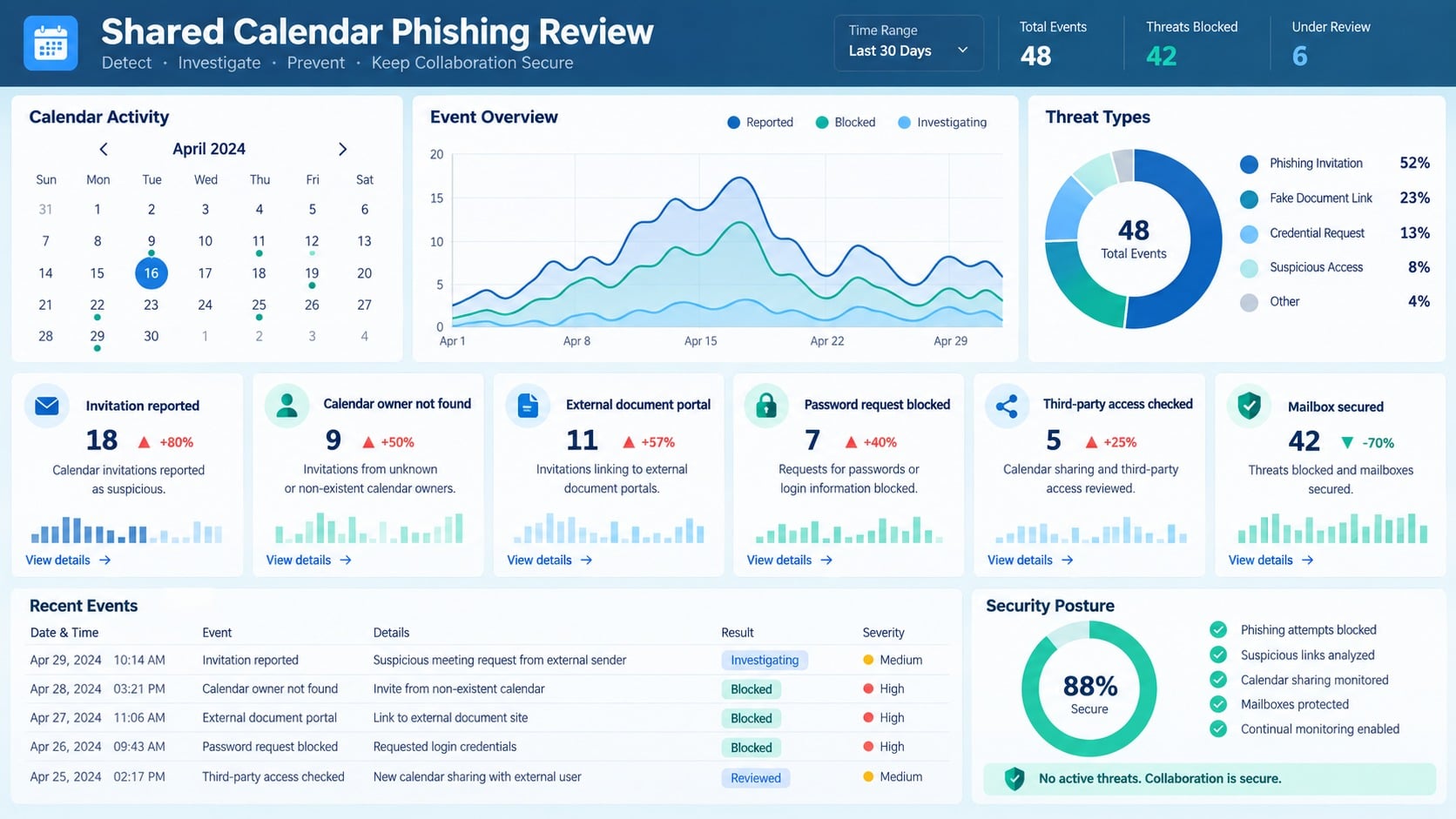
What to Do If You Fell for the Admin Shared Calendar Scam
Your next steps depend on whether you only clicked, added a subscription, entered a password, downloaded content, or approved authentication.
Act promptly, but do not continue interacting to discover what the page intended.
- Close every related page. Do not retry the form, select Download, paste the calendar address, or approve browser notifications.
- Remove unknown calendars. Inspect subscriptions and shared calendars through the official service, then delete entries you cannot verify.
- Change submitted passwords. Use the genuine account portal and replace the exposed secret everywhere it was reused.
- End unauthorized sessions. Sign out unfamiliar devices and revoke unknown application tokens, delegates, and recovery methods.
- Audit mailbox and calendar settings. Check forwarding, rules, event delegates, sharing permissions, invitations, and recently deleted security messages.
- Strengthen authentication. Register a passkey or hardware security key and remove any method added by an intruder.
- Inspect downloaded files. Use Malwarebytes to check the device if any calendar file, document, installer, or archive was opened.
- Reduce malicious redirects. AdGuard can block many reported phishing, tracking, and deceptive advertising destinations.
- Notify your organization. Send security staff the original email, full link, visible calendar address, and a timeline of your actions.
- Warn likely contacts. Tell coworkers to distrust new invitations or document links sent from your account during the exposure period.
Is Your Device Infected? Run a Free Malware Scan
Slow performance, constant pop-ups, or strange behavior? These are classic signs of a malware infection. The fastest way to find out is to scan your device with Malwarebytes Free — one of the most trusted malware removal tools available.
The free version detects and removes the most common threats, including:
- Adware — the cause of those annoying pop-ups
- Browser hijackers — unwanted redirects and changed homepages
- Trojans and spyware — hidden programs stealing your data
- Potentially unwanted programs (PUPs) — software you never asked for
👉 Select your device below — Windows, Mac, or Android — then follow the simple steps to download Malwarebytes, scan your system, and remove any threats it finds. The scan usually takes 5 to 20 minutes.
Run a Malware Scan with Malwarebytes for Windows
Malwarebytes is one of the most popular and trusted anti-malware tools for Windows — and it’s completely free for removing infections. It catches threats that many antivirus programs miss, including adware, browser hijackers, and trojans. Follow the steps below to scan and clean your PC in just a few minutes.
Download Malwarebytes
Click the button below to download the latest version of Malwarebytes for Windows from the official source. The free version is all you need — it will scan your computer and remove adware, browser hijackers, and other malicious software at no cost.
Download MalwarebytesOfficial installer for Windows 11 and 10. Your download starts right away.Want real-time protection? See Malwarebytes Premium Malwarebytes Free for WindowsScans and removes malware at no cost
-
Install Malwarebytes
When the download finishes, open your Downloads folder and double-click the MBSetup file. If Windows shows a User Account Control pop-up, click “Yes” to allow the installation.

Follow the On-Screen Prompts to Install Malwarebytes
The setup wizard will walk you through a few quick screens:
-
Choose where you’re installing the program — “Personal Computer” or “Work Computer” — then click Next.

-
Malwarebytes will now install on your device. This usually takes under a minute.

-
When installation is complete, the “Welcome to Malwarebytes” screen will open automatically.

-
On the final screen, click Open Malwarebytes to launch the program.

-
Enable “Scan for Rootkits”
Before scanning, turn on rootkit detection so Malwarebytes can find even the most hidden threats. Click the Settings gear icon on the left side of the screen.

In the settings menu, find “Scan for rootkits” and click the toggle so it turns blue.

Done? Click “Dashboard” in the left pane to return to the main screen.
Start the Scan
Click the blue Scan button. Malwarebytes will automatically update its virus database and start checking your computer for malware.

-
Wait for the Scan to Finish
The scan checks your entire system for browser hijackers and other malicious programs, so it can take 5 to 20 minutes depending on your computer. Feel free to do something else — just check back occasionally to see the progress.

-
Quarantine the Detected Threats
When the scan is done, you’ll see a list of everything Malwarebytes found — malware, adware, and potentially unwanted programs. Click the “Quarantine” button to remove all of them at once.

Malwarebytes will now remove the malicious files and registry entries and move them safely into quarantine.

-
Restart Your Computer
Some threats can only be fully removed after a reboot. If Malwarebytes asks you to restart, click Yes. Once you’re logged back in, Malwarebytes has finished removing the threats it found.

That’s it — your Windows PC is now clean of trojans, adware, and other malware, and should be back to running smoothly.
If you are still having problems with your computer after completing these instructions, then please follow one of the steps:
- Run a computer scan with ESET Online Scanner
- Ask for help in our Windows Malware Removal Help & Support forum.
Run a Malware Scan with Malwarebytes for Mac
Malwarebytes for Mac is a free on-demand scanner that removes the malware other security software tends to miss — adware, browser hijackers, and unwanted programs included. Cleaning an infected Mac with Malwarebytes has always been completely free, and it’s our go-to recommendation. Follow the steps below to scan and clean your Mac in just a few minutes.
-
Download Malwarebytes for Mac
Click the button below to download the latest version of Malwarebytes for Mac.
Download MalwarebytesOfficial installer for macOS. Your download starts right away.Want real-time protection? See Malwarebytes PremiumMalwarebytes Free for MacScans and removes malware at no cost -
Open the Malwarebytes setup file
When the download finishes, open your Downloads folder and double-click the setup file to begin the installation.

-
Follow the On-Screen Prompts to Install Malwarebytes
The Malwarebytes for Mac Installer will guide you through a few quick screens. Click “Continue” and keep following the prompts until the installation completes.



When the installation is complete, Malwarebytes opens to the Welcome to Malwarebytes screen. Click “Get started“.
-
Select “Personal Computer” or “Work Computer”
Malwarebytes will ask what type of computer you’re installing it on. Click either Personal Computer or Work Computer, whichever applies.

-
Start the Scan
Click the “Scan” button. Malwarebytes will automatically update its detection database and begin checking your Mac for malware.

-
Wait for the Scan to Finish
Malwarebytes will scan your Mac for adware, browser hijackers, and other malicious programs. This can take a few minutes, so feel free to do something else — just check back occasionally to see the progress.

-
Quarantine the Detected Threats
When the scan is done, you’ll see a list of everything Malwarebytes found. Click the “Quarantine” button to remove all the threats at once.

-
Restart Your Mac
Malwarebytes will now remove all the malicious files it found. Some threats can only be fully removed after a reboot — if Malwarebytes asks you to restart, allow it. Once you’re logged back in, your Mac is clean.

That’s it — your Mac is now free of adware, rogue browser extensions, and other potentially harmful software.
If you are still experiencing problems while trying to remove a malicious program from your computer, please ask for help in our Mac Malware Removal Help & Support forum.
Run a Malware Scan with Malwarebytes for Android
Malwarebytes for Android automatically detects and removes dangerous threats like malware and ransomware so you don’t have to worry about your most-used device being compromised. Aggressive detection of adware and potentially unwanted programs keeps your Android phone or tablet running smooth.
-
Download Malwarebytes for Android.
You can download Malwarebytes for Android by clicking the link below.
Get Malwarebytes for AndroidOpens Google Play in a new tab.Want real-time protection? See Malwarebytes Premium for AndroidMalwarebytes for AndroidScans your phone and removes malware at no cost -
Install Malwarebytes for Android on your phone.
In the Google Play Store, tap “Install” to install Malwarebytes for Android on your device.

When the installation process has finished, tap “Open” to begin using Malwarebytes for Android. You can also open Malwarebytes by tapping on its icon in your phone menu or home screen.

-
Follow the on-screen prompts to complete the setup process
When Malwarebytes will open, you will see the Malwarebytes Setup Wizard which will guide you through a series of permissions and other setup options.
This is the first of two screens that explain the difference between the Premium and Free versions. Swipe this screen to continue.
Tap on “Got it” to proceed to the next step.
Malwarebytes for Android will now ask for a set of permissions that are required to scan your device and protect it from malware. Tap on “Give permission” to continue.
Tap on “Allow” to permit Malwarebytes to access the files on your phone.
-
Update database and run a scan with Malwarebytes for Android
You will now be prompted to update the Malwarebytes database and run a full system scan.

Click on “Update database” to update the Malwarebytes for Android definitions to the latest version, then click on “Run full scan” to perform a system scan.

-
Wait for the Malwarebytes scan to complete.
Malwarebytes will now start scanning your phone for adware and other malicious apps. This process can take a few minutes, so we suggest you do something else and periodically check on the status of the scan to see when it is finished.

-
Click on “Remove Selected”.
When the scan has been completed, you will be presented with a screen showing the malware infections that Malwarebytes for Android has detected. To remove the malicious apps that Malwarebytes has found, tap on the “Remove Selected” button.

-
Restart your phone.
Malwarebytes for Android will now remove all the malicious apps that it has found. To complete the malware removal process, Malwarebytes may ask you to restart your device.
That’s it — your Android phone is now clean — no more malicious apps, adware, or browser redirects.
If you are still having problems with your phone after completing these instructions, then please follow one of the steps:
- Restore your phone to factory settings by going to Settings > General management > Reset > Factory data reset.
- Ask for help in our Mobile Malware Removal Help & Support forum.
Stay Protected: Block Ads and Malicious Sites
Now that your device is clean, keep it that way. Most infections start with a malicious ad or a fake download button — so blocking them at the source is your best defense.
We recommend AdGuard, which blocks malicious ads, phishing pages, and dangerous redirects before they can reach you.
👉 Download AdGuard and browse safely
Frequently Asked Questions
Can an administrator legitimately share a calendar by email?
Yes. Real services send sharing notifications, but the invitation should match an identifiable administrator and appear within the official calendar account.
Verify it independently before accepting.
Why did the calendar button open an Adobe page?
The change supports the phishing operation. The campaign uses the calendar story to reach a separate fake document login.
A normal calendar acceptance does not require that unexplained transition.
Is a manual Internet Calendar address always dangerous?
No. Internet Calendar subscriptions are legitimate technology, but unknown addresses can deliver unwanted events and malicious links.
Add only calendars whose owner and purpose you have verified.
What if I accepted an event but entered no password?
Review subscriptions, sharing permissions, downloads, and browser notifications. Remove anything introduced by the message.
A password change becomes important if autofill submitted data or authentication was approved.
Does the browser padlock make the document portal safe?
No. It only indicates encryption between your browser and the current website.
It does not prove the website belongs to Adobe, your employer, or the calendar provider.
How can organizations reduce calendar phishing?
Restrict external sharing where appropriate, document approved invitation formats, and teach employees to inspect requests inside the official service.
Simple reporting, strong authentication, and alerts for new delegates or applications reduce impact.
The Bottom Line
The admin shared calendar email invents a vague May event, then abandons scheduling for an unrelated Adobe-themed credential page.
Open calendar settings independently, verify organizers through known channels, and secure the account immediately if any secret reached the form.

Join the discussion
0 commentsShare your experience or ask a question about this article.
Discussion
Start the conversation
Have a question or something useful to share? Add the first comment.