

An unexpected 8% raise can make an ordinary workday feel different. The attached-looking review also appears private, polished, and ready to open.
Before celebrating or sharing credentials, employees should pause long enough to compare the message with how their employer actually handles compensation.
Overview
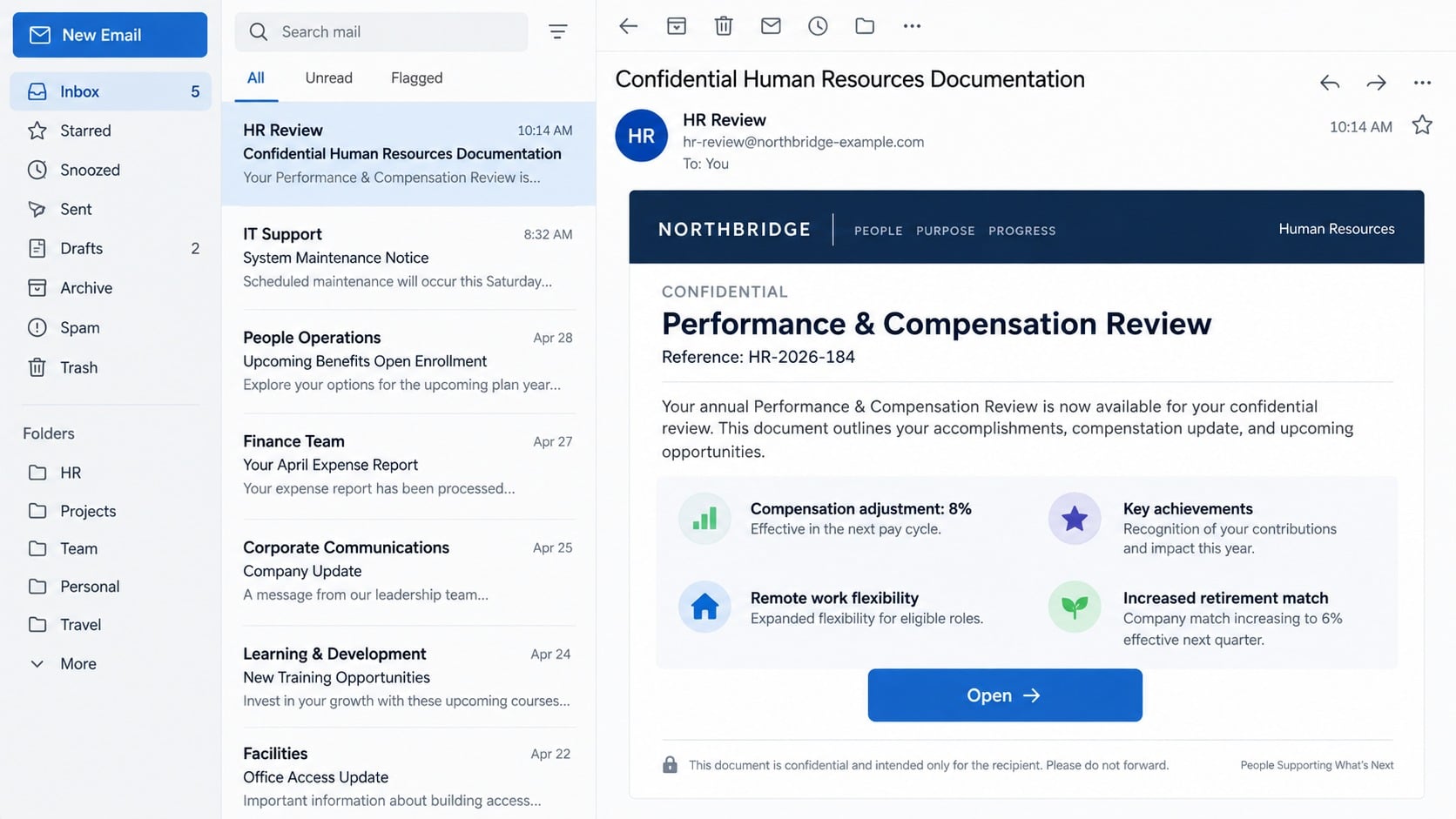
The confidential HR document used as bait
The email uses a subject resembling “Confidential Human Resources Documentation” and presents a performance review as a newly shared workplace file.
Its preview claims the employee earned an 8% salary increase following strong performance.
Additional rewards may include extended remote-work flexibility and a larger employer retirement contribution.
The document also praises unspecified achievements. These flattering details make the review feel personal without requiring accurate knowledge of the recipient.
A button marked “Open” invites the employee to read the complete evaluation through a supposed secure process.
The fake Adobe verification sequence
The button leads away from the employer’s normal HR system to an unrelated domain.
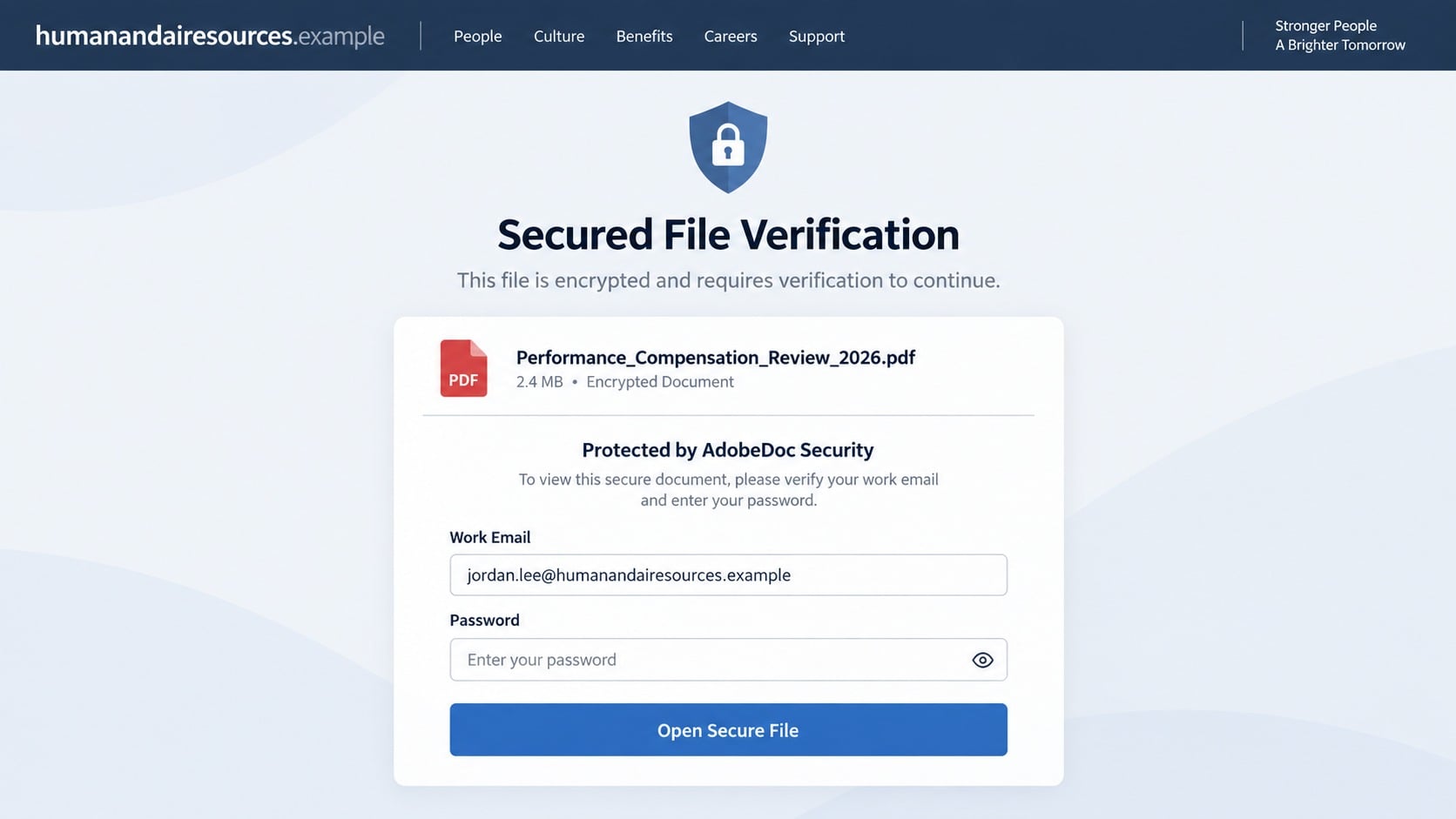
The observed destination imitated an Adobe security workflow and described the file as protected.
Visitors were asked to provide an email address and password to view the document.
Adobe branding does not turn an unfamiliar website into a legitimate document service. The credential form belongs to the phishing operation.
No performance report or compensation change appears after submission because the promised file is only the lure.
Why workplace credentials are especially valuable
Corporate accounts often connect email, file storage, internal chat, human-resources tools, customer systems, and single sign-on.
An intruder can use that access to study the business before selecting a profitable next move.
Common risks include:
- Reading private salary and personnel conversations.
- Stealing documents from shared cloud folders.
- Impersonating the employee in payment requests.
- Targeting payroll staff with bank-change instructions.
- Sending more phishing from a trusted internal account.
- Accessing applications connected through company identity.
The invented reward creates curiosity, while the “confidential” label discourages recipients from asking coworkers before opening it.
How the Performance and Compensation Review Email Scam Works
Step 1: The message promises news employees naturally want
Compensation reviews carry real emotional weight. A raise affects household plans, career decisions, and the employee’s sense of recognition.
The campaign chooses an attractive but believable figure. An 8% increase sounds significant without resembling an impossible windfall.
Remote flexibility and retirement benefits broaden the appeal. Even someone skeptical about salary may want to inspect those policy changes.
Flattery also reduces defensive thinking. Readers focus on whether their efforts were noticed rather than whether the delivery method is authentic.
The claim remains generic enough for mass distribution. No manager quotation, review period, job title, or actual achievement must be correct.
Step 2: Confidentiality isolates the recipient
Labeling the document confidential creates two useful pressures. It makes the content seem important and discourages casual verification with colleagues.
The recipient may believe forwarding the email would violate policy. That hesitation gives the attacker room to control the experience.
Real salary information is sensitive, but sensitivity should produce stronger internal controls, not an unexplained external login page.
Employees can still contact their manager or HR through established channels without sharing the suspicious document widely.
Confidentiality protects genuine personnel data. It should never be used as a reason to ignore security procedures.
Step 3: A document preview supplies convincing detail
The email may resemble a message from Gmail, a document platform, or an internal notification tool.
A visible contents panel lists the alleged raise, achievements, remote-work terms, and retirement contribution before the file opens.
That preview serves as manufactured evidence. It gives the reader enough information to believe a complete review exists behind the button.
There is no need for the attacker to create a real evaluation. A few attractive bullet points can carry the story.
The design may be professionally aligned and free from obvious spelling errors. Visual polish cannot verify its sender or destination.
Step 4: The Open button transfers trust to another brand
The message begins as an HR communication, then the landing page suddenly presents itself as an Adobe security service.
This brand handoff can feel normal because employees regularly receive documents through third-party platforms.
However, the destination domain determines who controls the page. Logos and phrases such as “Secured File Verification” are easily copied.
The observed address was unrelated to the employer and Adobe. Its wording attempted to resemble human-resources terminology.
An invented protocol may add several screens, creating the impression that stronger protection surrounds the document.
Step 5: The verification form captures the employee’s password
The final gate requests an email address and password, supposedly to confirm permission to view the protected review.
Those fields do not authenticate against the employer. They deliver the entered information to the campaign operator.
The form may reject the first attempt or display a loading message. Repetition can capture a corrected credential.
A redirect to a real Adobe or company page afterward may conceal the theft.
The victim could conclude that access expired, the document was withdrawn, or the browser failed.
Step 6: Account access becomes an internal impersonation tool
After testing the password, the attacker can examine the mailbox for reporting lines, vendors, payroll schedules, and current projects.
Messages sent from a genuine employee account encounter less suspicion than an outside lure.
The intruder may request confidential files, distribute another fake review, or redirect a legitimate payment conversation.
Forwarding rules can quietly preserve copies of replies. Application-consent grants may maintain access even after a password reset.
Quick internal reporting is therefore essential, especially when the same credentials unlock multiple company systems.
Warning Signs Hidden Inside the Compensation Story
The raise appears before any manager conversation
Employers follow different review schedules, but significant compensation changes normally involve a known manager, HR representative, or authenticated employee portal.
An unexplained email that announces a final percentage outside that process deserves verification.
Exciting news does not exempt the message from ordinary security checks.
The achievements are flattering but difficult to verify
Generic praise can fit almost any employee. Phrases such as “key contributions” sound personal while avoiding actual projects, dates, and measured outcomes.
A genuine review usually reflects the organization’s established format and evaluation period.
If the preview could describe everyone, it may have been written for mass delivery.
The login brand does not match the supposed sender
The journey moves from human resources to a Gmail-like notice and then an Adobe-themed verification page.
Each transition borrows a new layer of familiarity, yet none establishes ownership of the destination.
Unexpected brand switching should prompt employees to stop and use the official HR portal instead.
The page asks for a reusable secret
A protected document service may require authentication, but users should reach that service through an established company sign-in route.
An unfamiliar website asking for the normal workplace password creates unacceptable risk.
Do not test the form with an old password. Any entered secret becomes information for the attacker.
How Genuine Performance Reviews Are Usually Delivered
They follow a recognizable calendar
Most organizations conduct reviews during known cycles or after documented milestones. Employees generally know when conversations and approvals occur.
An out-of-cycle notice is not automatically fraudulent, but it should be confirmed before any link is opened.
HR can verify the timing through a previously known phone number or internal messaging directory.
They use approved employee systems
Companies commonly deliver reviews through an HR platform, internal portal, or controlled document repository.
Employees reach those systems from bookmarks, intranet links, or single sign-on dashboards they already use.
A new external domain with an unfamiliar login sequence does not inherit trust from copied company branding.
They identify accountable people and records
A legitimate review connects to a manager, review period, employee record, and formal approval process.
The recipient can verify those elements without giving credentials to the message sender.
Vague promises paired with a precise 8% figure reverse that pattern. The reward is specific while the supporting record remains absent.
They do not demand secrecy from security teams
Salary details may be confidential, but employees should always be allowed to report a suspicious delivery mechanism.
Security staff can investigate metadata without discussing the employee’s actual compensation.
A reporting culture protects both privacy and the organization.
They preserve a trace inside established systems
A completed review usually leaves notifications, workflow history, approvals, or acknowledgments within the employer’s authorized platform.
That record can be checked without opening an unexplained external document.
When every trace exists only inside one unsolicited email, verification should happen before authentication.
HR Identity, Raise, Domain, and Login Verification Checks
Confirm the sender through an independent HR channel
Expand the sender address and reply destination, but do not rely on them alone. Display names and addresses can be misleading.
Call HR using the internal directory or message a known representative through the company platform.
Ask whether a document was issued, which system should host it, and whether the stated review cycle is correct.
Do not use contact information supplied inside the suspicious email.
Compare the promised raise with the real process
Consider whether the organization announces percentages before manager meetings and whether retirement or remote-work terms normally appear together.
Open the established HR portal independently and look for a matching notification.
Absence alone does not prove fraud, but combined inconsistencies strengthen the warning.
Never submit credentials simply to learn whether the reward is real.
Read the destination domain as an ownership record
Preview the button and identify the registered domain, not merely words elsewhere in the address.
Human-resources phrases can be placed inside a criminally controlled domain to resemble a company department.
Encryption and a browser padlock protect traffic to that operator. They do not make the operator Adobe or your employer.
Send the complete link to security staff without opening it.
Evaluate the requested login against normal behavior
Ask whether this document platform is approved and whether the normal single sign-on screen looks identical.
Unexpected requests for a workplace password, recovery code, or authentication approval should end the session.
Open the known company dashboard and locate the document from there. A real file should remain accessible through the authorized route.
If it exists only behind the email’s button, treat the claim as unverified.
What to Do If You Fell for the Performance and Compensation Review Scam
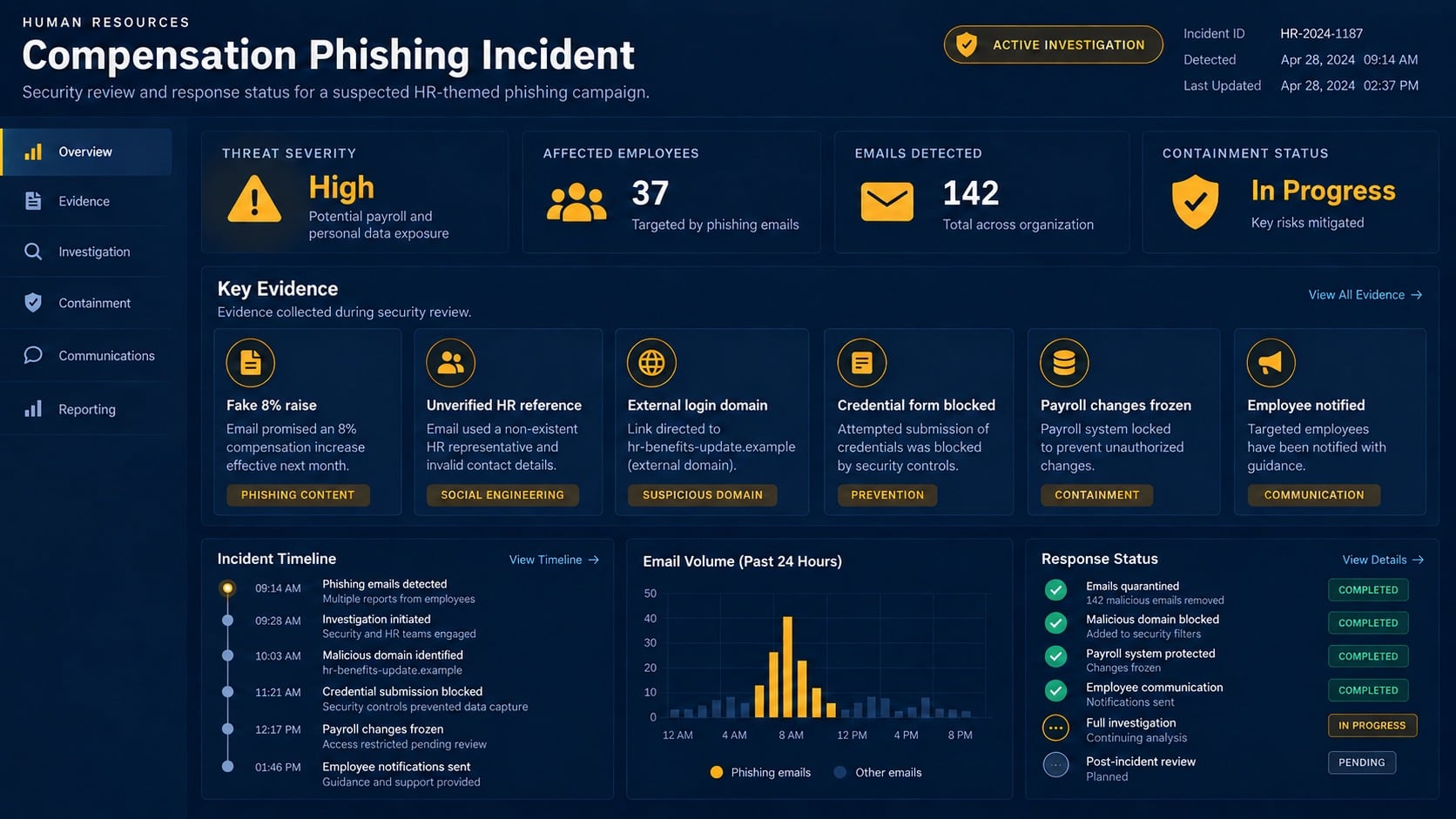
Embarrassment about an attractive raise can delay reporting, but security teams have seen many emotionally targeted lures. Prompt facts are more useful than self-blame.
Tell responders exactly which fields were completed and whether an authentication prompt or download followed.
- Stop interacting. Close the page without entering another password, downloading the promised review, or approving any login request.
- Notify employer security. Use the official reporting channel and include the original message, full link, submission time, and actions taken.
- Change the work password. Reach the company identity portal independently and create a unique replacement that appears nowhere else.
- End suspicious sessions. Revoke unfamiliar devices, browser sessions, application tokens, and app passwords with administrator assistance.
- Review authentication methods. Remove unknown phone numbers, authenticators, passkeys, and backup options before registering stronger protection.
- Inspect mailbox changes. Check forwarding, delegates, inbox rules, sent items, deleted alerts, and automatic replies for attacker activity.
- Protect payroll details. Ask HR to watch for direct-deposit changes, tax-document requests, or messages supposedly sent by you.
- Scan downloaded content. If the page delivered a file, use Malwarebytes to inspect the device for credential stealers or remote-access tools.
- Limit future exposure. AdGuard can block many known phishing and malicious advertising destinations before their forms fully load.
- Warn targeted coworkers. Attackers may reuse the same review or send messages from the compromised account to trusted colleagues.
Is Your Device Infected? Run a Free Malware Scan
Slow performance, constant pop-ups, or strange behavior? These are classic signs of a malware infection. The fastest way to find out is to scan your device with Malwarebytes Free — one of the most trusted malware removal tools available.
The free version detects and removes the most common threats, including:
- Adware — the cause of those annoying pop-ups
- Browser hijackers — unwanted redirects and changed homepages
- Trojans and spyware — hidden programs stealing your data
- Potentially unwanted programs (PUPs) — software you never asked for
👉 Select your device below — Windows, Mac, or Android — then follow the simple steps to download Malwarebytes, scan your system, and remove any threats it finds. The scan usually takes 5 to 20 minutes.
Run a Malware Scan with Malwarebytes for Windows
Malwarebytes is one of the most popular and trusted anti-malware tools for Windows — and it’s completely free for removing infections. It catches threats that many antivirus programs miss, including adware, browser hijackers, and trojans. Follow the steps below to scan and clean your PC in just a few minutes.
Download Malwarebytes
Click the button below to download the latest version of Malwarebytes for Windows from the official source. The free version is all you need — it will scan your computer and remove adware, browser hijackers, and other malicious software at no cost.
Download MalwarebytesOfficial installer for Windows 11 and 10. Your download starts right away.Want real-time protection? See Malwarebytes Premium Malwarebytes Free for WindowsScans and removes malware at no cost
-
Install Malwarebytes
When the download finishes, open your Downloads folder and double-click the MBSetup file. If Windows shows a User Account Control pop-up, click “Yes” to allow the installation.

Follow the On-Screen Prompts to Install Malwarebytes
The setup wizard will walk you through a few quick screens:
-
Choose where you’re installing the program — “Personal Computer” or “Work Computer” — then click Next.

-
Malwarebytes will now install on your device. This usually takes under a minute.

-
When installation is complete, the “Welcome to Malwarebytes” screen will open automatically.

-
On the final screen, click Open Malwarebytes to launch the program.

-
Enable “Scan for Rootkits”
Before scanning, turn on rootkit detection so Malwarebytes can find even the most hidden threats. Click the Settings gear icon on the left side of the screen.

In the settings menu, find “Scan for rootkits” and click the toggle so it turns blue.

Done? Click “Dashboard” in the left pane to return to the main screen.
Start the Scan
Click the blue Scan button. Malwarebytes will automatically update its virus database and start checking your computer for malware.

-
Wait for the Scan to Finish
The scan checks your entire system for browser hijackers and other malicious programs, so it can take 5 to 20 minutes depending on your computer. Feel free to do something else — just check back occasionally to see the progress.

-
Quarantine the Detected Threats
When the scan is done, you’ll see a list of everything Malwarebytes found — malware, adware, and potentially unwanted programs. Click the “Quarantine” button to remove all of them at once.

Malwarebytes will now remove the malicious files and registry entries and move them safely into quarantine.

-
Restart Your Computer
Some threats can only be fully removed after a reboot. If Malwarebytes asks you to restart, click Yes. Once you’re logged back in, Malwarebytes has finished removing the threats it found.

That’s it — your Windows PC is now clean of trojans, adware, and other malware, and should be back to running smoothly.
If you are still having problems with your computer after completing these instructions, then please follow one of the steps:
- Run a computer scan with ESET Online Scanner
- Ask for help in our Windows Malware Removal Help & Support forum.
Run a Malware Scan with Malwarebytes for Mac
Malwarebytes for Mac is a free on-demand scanner that removes the malware other security software tends to miss — adware, browser hijackers, and unwanted programs included. Cleaning an infected Mac with Malwarebytes has always been completely free, and it’s our go-to recommendation. Follow the steps below to scan and clean your Mac in just a few minutes.
-
Download Malwarebytes for Mac
Click the button below to download the latest version of Malwarebytes for Mac.
Download MalwarebytesOfficial installer for macOS. Your download starts right away.Want real-time protection? See Malwarebytes PremiumMalwarebytes Free for MacScans and removes malware at no cost -
Open the Malwarebytes setup file
When the download finishes, open your Downloads folder and double-click the setup file to begin the installation.

-
Follow the On-Screen Prompts to Install Malwarebytes
The Malwarebytes for Mac Installer will guide you through a few quick screens. Click “Continue” and keep following the prompts until the installation completes.



When the installation is complete, Malwarebytes opens to the Welcome to Malwarebytes screen. Click “Get started“.
-
Select “Personal Computer” or “Work Computer”
Malwarebytes will ask what type of computer you’re installing it on. Click either Personal Computer or Work Computer, whichever applies.

-
Start the Scan
Click the “Scan” button. Malwarebytes will automatically update its detection database and begin checking your Mac for malware.

-
Wait for the Scan to Finish
Malwarebytes will scan your Mac for adware, browser hijackers, and other malicious programs. This can take a few minutes, so feel free to do something else — just check back occasionally to see the progress.

-
Quarantine the Detected Threats
When the scan is done, you’ll see a list of everything Malwarebytes found. Click the “Quarantine” button to remove all the threats at once.

-
Restart Your Mac
Malwarebytes will now remove all the malicious files it found. Some threats can only be fully removed after a reboot — if Malwarebytes asks you to restart, allow it. Once you’re logged back in, your Mac is clean.

That’s it — your Mac is now free of adware, rogue browser extensions, and other potentially harmful software.
If you are still experiencing problems while trying to remove a malicious program from your computer, please ask for help in our Mac Malware Removal Help & Support forum.
Run a Malware Scan with Malwarebytes for Android
Malwarebytes for Android automatically detects and removes dangerous threats like malware and ransomware so you don’t have to worry about your most-used device being compromised. Aggressive detection of adware and potentially unwanted programs keeps your Android phone or tablet running smooth.
-
Download Malwarebytes for Android.
You can download Malwarebytes for Android by clicking the link below.
Get Malwarebytes for AndroidOpens Google Play in a new tab.Want real-time protection? See Malwarebytes Premium for AndroidMalwarebytes for AndroidScans your phone and removes malware at no cost -
Install Malwarebytes for Android on your phone.
In the Google Play Store, tap “Install” to install Malwarebytes for Android on your device.

When the installation process has finished, tap “Open” to begin using Malwarebytes for Android. You can also open Malwarebytes by tapping on its icon in your phone menu or home screen.

-
Follow the on-screen prompts to complete the setup process
When Malwarebytes will open, you will see the Malwarebytes Setup Wizard which will guide you through a series of permissions and other setup options.
This is the first of two screens that explain the difference between the Premium and Free versions. Swipe this screen to continue.
Tap on “Got it” to proceed to the next step.
Malwarebytes for Android will now ask for a set of permissions that are required to scan your device and protect it from malware. Tap on “Give permission” to continue.
Tap on “Allow” to permit Malwarebytes to access the files on your phone.
-
Update database and run a scan with Malwarebytes for Android
You will now be prompted to update the Malwarebytes database and run a full system scan.

Click on “Update database” to update the Malwarebytes for Android definitions to the latest version, then click on “Run full scan” to perform a system scan.

-
Wait for the Malwarebytes scan to complete.
Malwarebytes will now start scanning your phone for adware and other malicious apps. This process can take a few minutes, so we suggest you do something else and periodically check on the status of the scan to see when it is finished.

-
Click on “Remove Selected”.
When the scan has been completed, you will be presented with a screen showing the malware infections that Malwarebytes for Android has detected. To remove the malicious apps that Malwarebytes has found, tap on the “Remove Selected” button.

-
Restart your phone.
Malwarebytes for Android will now remove all the malicious apps that it has found. To complete the malware removal process, Malwarebytes may ask you to restart your device.
That’s it — your Android phone is now clean — no more malicious apps, adware, or browser redirects.
If you are still having problems with your phone after completing these instructions, then please follow one of the steps:
- Restore your phone to factory settings by going to Settings > General management > Reset > Factory data reset.
- Ask for help in our Mobile Malware Removal Help & Support forum.
Stay Protected: Block Ads and Malicious Sites
Now that your device is clean, keep it that way. Most infections start with a malicious ad or a fake download button — so blocking them at the source is your best defense.
We recommend AdGuard, which blocks malicious ads, phishing pages, and dangerous redirects before they can reach you.
👉 Download AdGuard and browse safely
Frequently Asked Questions
Does the email prove I received an 8% raise?
No. The figure is part of the lure and is unsupported by a verified HR record.
Confirm compensation through your manager, established HR contact, or authenticated employee portal.
Why would scammers use a performance review?
Reviews combine curiosity, privacy, career importance, and financial reward. Those emotions can make an employee open a document quickly.
The subject also fits normal workplace traffic better than a conventional prize message.
Is the Adobe-branded page connected to Adobe?
Copied logos and security language do not establish a connection. The observed page used an unrelated domain to collect credentials.
Verify protected documents through the organization’s approved document service, opened independently.
What if I entered a password but multifactor authentication blocked access?
The password is still exposed and may be reused elsewhere. Replace it immediately and report the event.
Reject unexplained prompts, then ask administrators to review sign-in attempts and session activity.
Could clicking alone infect the computer?
The confirmed purpose of this campaign is credential collection. Clicking without entering information carries less account risk.
Scan the device if anything downloaded, the browser requested software, or unusual behavior followed.
How can HR teams make real reviews easier to recognize?
Use a consistent portal, announce review cycles, identify approved document systems, and remind employees that security reporting never violates confidentiality.
Predictable processes remove the uncertainty that phishing campaigns exploit.
The Bottom Line
The Performance and Compensation Review email uses an invented 8% raise and confidential document preview to lead employees into a counterfeit Adobe login.
Verify rewards through known workplace channels, protect submitted credentials immediately, and treat unexpected external HR portals as a security event.

Join the discussion
0 commentsShare your experience or ask a question about this article.
Discussion
Start the conversation
Have a question or something useful to share? Add the first comment.