


A contract carrying your name appears to be waiting behind an encrypted DocuSign button. The message gives you 14 days to inspect it.
That combination feels official enough to prompt a quick click, especially when the recipient is already involved in paperwork or negotiations.
Overview
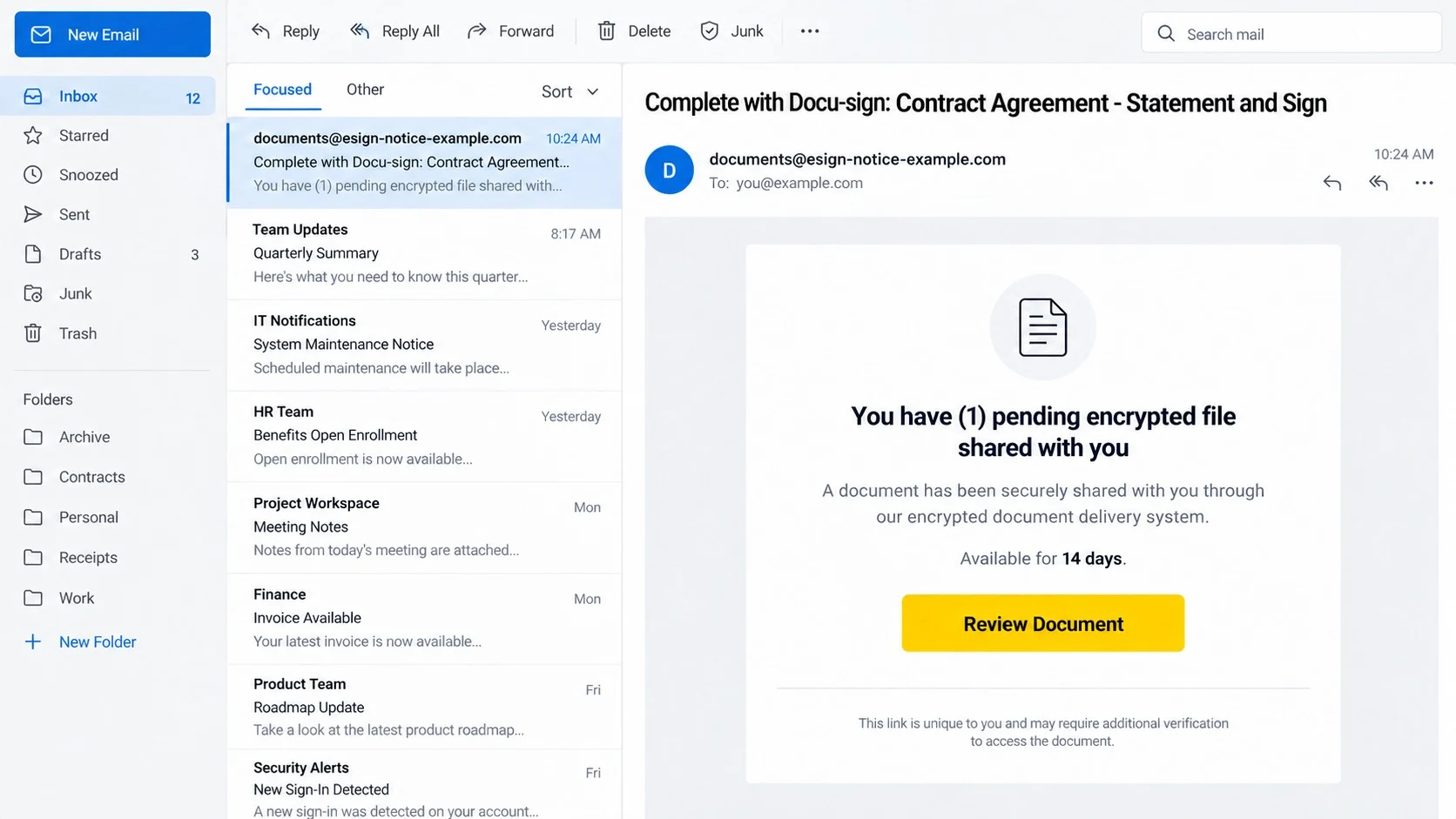
The pending encrypted contract described in the email
The message uses a subject resembling “Complete with Docu-sign: [name]. Contract Agreement – Statement and Sign.”
It tells the recipient that one encrypted file remains pending and is available for a limited period.
A “Review Document” button appears to open the contract and begin a signature process.
The wording mixes document sharing, encryption, signing, and expiration. Together, those concepts suggest a protected business transaction.
The email does not clearly identify a known sender, organization, contract purpose, or relationship that explains why the recipient was selected.
What could be confirmed about the destination
The linked page was inactive when examined, so its final form could not be observed directly.
That limitation matters. It would be inaccurate to describe a specific credential form as confirmed when the destination no longer displayed one.
However, the email matches a familiar phishing pattern that routes recipients through changing pages based on location, browser, address, or campaign status.
Such destinations may imitate Microsoft, Google, generic webmail, or a document portal before requesting a password.
The inactive page does not make the email safe. Criminal pages are frequently removed, paused, replaced, or restricted after reports begin.
The risks created by a false document request
A fake DocuSign notification can support credential theft, malicious downloads, invoice fraud, or collection of personal information.
The exact harm depends on the page served when the recipient visits.
Potential outcomes include:
- A counterfeit email or Microsoft 365 sign-in form.
- A request to download a harmful “secure document.”
- A fake contract designed to collect identity details.
- A second-stage payment or invoice substitution attempt.
- Browser notification permission used for later deceptive alerts.
- Redirection to another active phishing domain.
DocuSign is being impersonated and is not responsible for the deceptive message.
How the Encrypted DocuSign File Email Scam Works
Step 1: An unexplained contract creates urgent curiosity
A contract can carry financial, legal, or employment consequences. Few recipients are comfortable ignoring one that appears to include their name.
The attacker benefits from both recognition and uncertainty. Someone expecting paperwork may assume it is legitimate, while everyone else wonders who sent it.
Using “[name]” within the subject makes a mass email feel assigned to a particular person.
The phrase “Statement and Sign” remains vague enough to cover property, employment, insurance, loans, services, or vendor agreements.
No meaningful context is supplied before the click. Curiosity is expected to bridge that gap.
Step 2: Encryption language makes ordinary questions feel inappropriate
Calling the file encrypted explains why its contents are not visible inside the email.
It also prepares the recipient for an additional verification screen. A later password request may seem like part of opening protected material.
Encryption is a real security feature, but the word itself proves nothing about the sender or file.
Legitimate protected documents still belong to an identifiable transaction and can be confirmed with the sender independently.
When encryption becomes an excuse for missing context, it should increase scrutiny rather than suppress it.
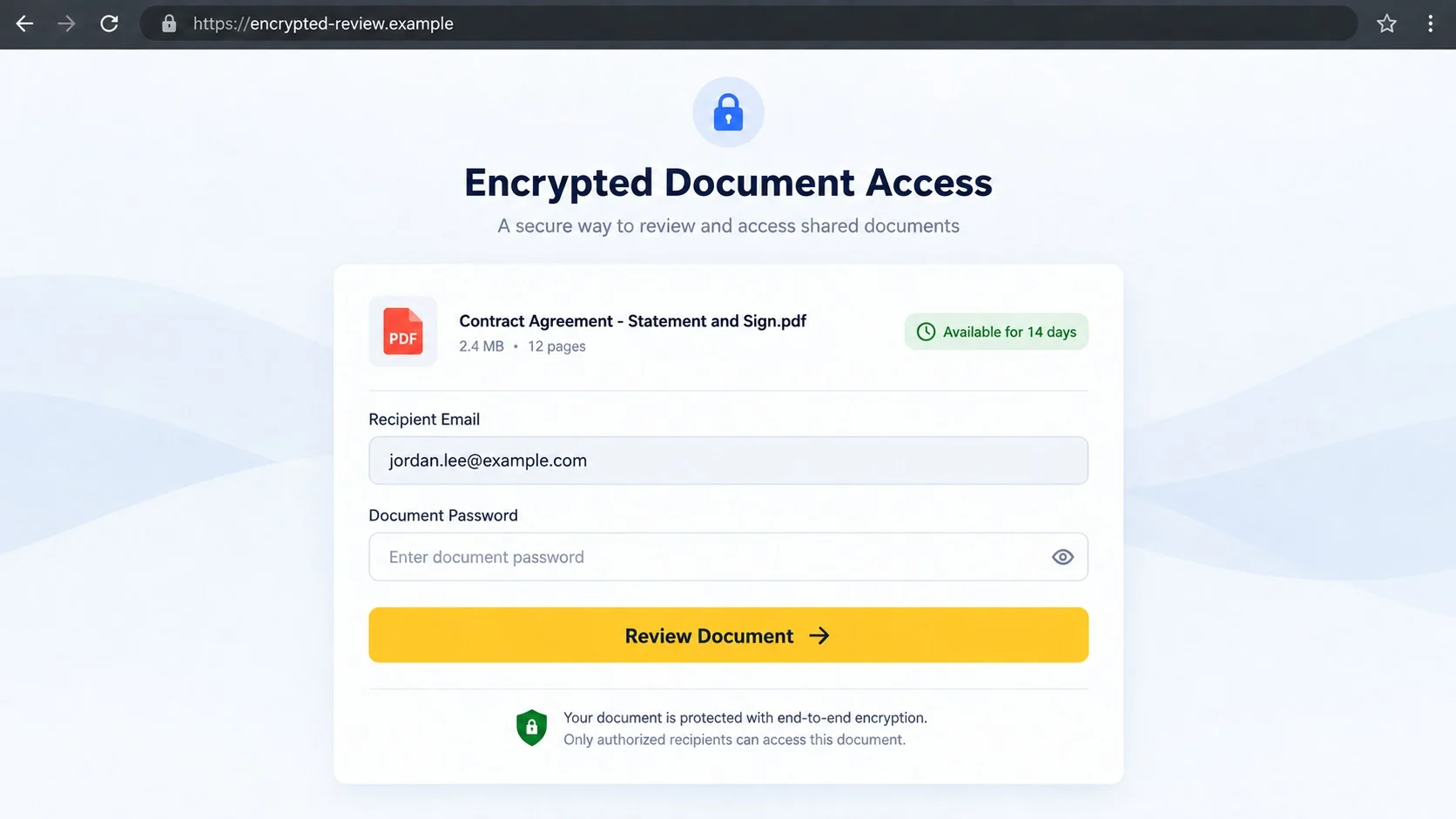
Step 3: The 14-day window encourages action without obvious panic
A two-week deadline appears more realistic than a threat measured in minutes.
It resembles ordinary document retention and gives the email an administrative tone.
Nevertheless, an expiration date creates a reason to act before the recipient has confirmed the sender.
The attacker does not need everyone to click immediately. The message may remain in the inbox until a busy moment lowers attention.
A genuine deadline can be verified through the contracting party using known contact details.
Step 4: The button can route visitors through changing infrastructure
A button may point to a tracking link, compromised website, redirect service, or page that changes behavior over time.
Campaign operators sometimes show harmless content to scanners while serving a login form to selected visitors.
They can also close a page after collecting enough accounts, then activate a replacement domain in later emails.
This explains why one investigator may see an error while another recipient earlier encountered a working form.
It does not establish exactly what this inactive link previously displayed. It does show why availability is not a trust signal.
Step 5: The next page likely seeks a valuable action
Based on the campaign design, credential collection is a strong possibility, but it remains an assessment rather than a directly observed fact.
A page might ask the visitor to choose an email provider, then enter an address and password.
Another variation could deliver a file, request personal details, or introduce a fake invoice.
Recipients should not explore the destination to discover which outcome applies. That investigation belongs in an isolated professional environment.
The safe decision follows from the deceptive email and unverifiable transaction, not from completing its journey.
Step 6: Stolen access can make the next message more convincing
If credentials are captured, criminals may enter the mailbox and locate real contracts, customers, and signature requests.
They can then place a malicious document inside an existing conversation where it appears far more credible.
Compromised accounts also allow invoice interception, password resets, and impersonation of the victim.
A downloaded payload could instead provide remote access or steal browser sessions without relying on a password.
The response must match what occurred after clicking, including form submission, downloads, permissions, and authentication approvals.
What Makes the Fake DocuSign Notification Persuasive
Electronic signatures are now routine
People receive legitimate signature requests for employment, housing, taxes, sales, health care, and business services.
A DocuSign-style email therefore fits many inboxes without requiring detailed targeting.
Familiarity can become a shortcut. Recipients recognize the workflow and overlook whether they recognize the transaction.
The message places the recipient’s name near the contract
Basic personalization is inexpensive. Names and email addresses circulate through public records, marketing lists, breaches, and compromised contacts.
Seeing a correct name does not prove a sender possesses a real agreement.
Meaningful verification requires the contracting organization, document purpose, and expected delivery route.
Security language makes the extra steps look protective
Terms such as “encrypted,” “secure,” and “protected” reassure readers before they encounter an unfamiliar page.
Those words can also make a password request seem reasonable.
Actual security is demonstrated by verified ownership and an expected authentication flow, not decorative terminology.
An inactive destination can create false reassurance
Someone revisiting the link may find an error and assume the original message was merely outdated.
Phishing infrastructure disappears for many reasons, including takedowns, account suspension, campaign rotation, and deliberate access filtering.
A broken trap remains evidence of a broken trap, not evidence that the sender was genuine.
How to Verify a Real DocuSign Request Safely
Identify the human or business behind the envelope
A legitimate signature request should correspond to a transaction the recipient understands.
Contact the supposed sender using a phone number, saved conversation, or official website obtained independently.
Ask for the envelope purpose and recipient address without forwarding the suspicious link.
Open the service independently where possible
Users with an established DocuSign account can sign in through a saved bookmark or manually entered official address.
Look for a matching envelope in the account rather than relying on the email button.
An expected sender can also resend a genuine request after the suspicious message is reported.
Inspect the complete link before visiting
Preview the button destination and read the registered domain carefully. Do not be distracted by familiar words in a subdomain or path.
Shortened links and chained redirects hide ownership, so they deserve additional caution.
A browser padlock confirms encryption to the displayed host. It does not confirm who sent the contract.
Compare the wording with the expected transaction
Look for a recognizable organization, sender name, document title, and reason for signature.
Generic phrases such as “Contract Agreement – Statement and Sign” avoid details that a genuine sender should know.
Unexpected secrecy, urgency, or login requirements should be resolved before the file opens.
Ask the sender to describe the next screen
A real contracting party should know which service issued the envelope and what the recipient will see after opening it.
They can explain whether an account is required, which identity provider is expected, and whether a download should occur.
If their description conflicts with the page, stop immediately and provide the discrepancy to security staff.
Do not use a password as a document discovery tool
Recipients sometimes enter credentials because they want to learn who sent an unexpected contract.
That reverses the safe order. Identity and purpose must be established before any account secret leaves the trusted sign-in route.
An unknown document is not important enough to justify an unknown login.
Sender, Envelope, Link, and Account Verification Checks
Authenticate the sender outside the email
Expand the From and Reply-To addresses, then compare them with established correspondence.
Even a plausible address is not sufficient when the underlying transaction is unknown.
Call the organization through a trusted directory entry and ask whether it issued an envelope to you.
Never use telephone numbers introduced by the suspicious message.
Demand verifiable envelope details
Ask for the sender organization, document purpose, expected signers, and approximate delivery time.
A real sender can confirm those facts without requesting your email password.
Check the established account or previous project thread for a matching request.
Do not disclose sensitive contract information merely to test an unsolicited caller.
Treat destination behavior as changeable
A currently inactive page may have behaved differently earlier. A working page may also change after your first visit.
Do not revisit suspicious addresses from another device, network, or browser to make them reveal content.
Preserve the email and full destination for your security team or provider.
Professional analysis can occur without exposing a personal session or workplace identity.
Review accounts according to the action taken
If credentials were entered, inspect sign-in history, active sessions, multifactor methods, recovery options, and connected applications.
If a file was opened, preserve its name and scan the system before continuing normal work.
If only the email was viewed, report it and remove it without experimenting further.
A precise timeline helps responders distinguish possible exposure from confirmed changes.
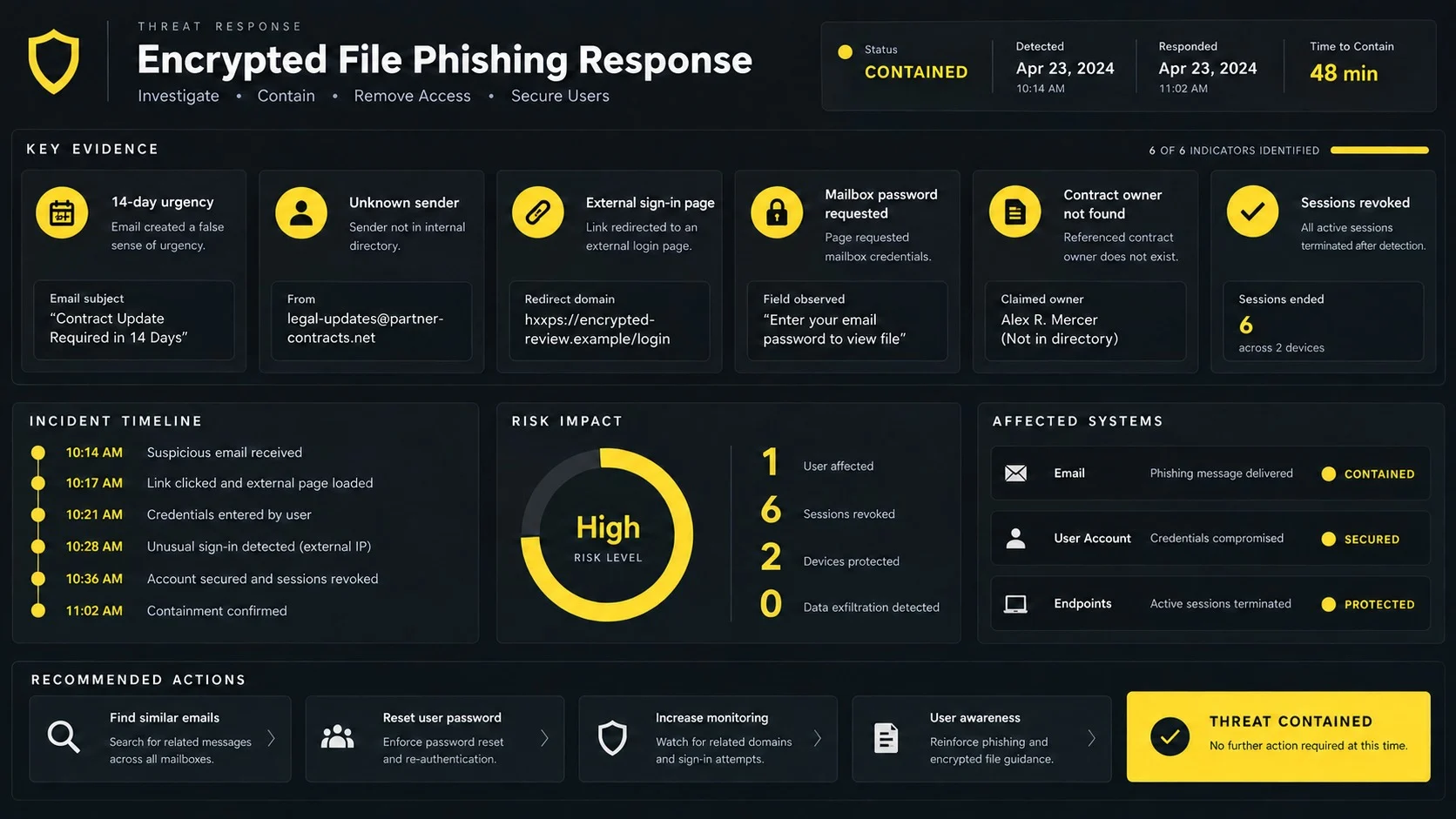
What to Do If You Fell for the Encrypted DocuSign File Scam
Because the inactive destination prevents certainty about every version, your response should cover the information, files, and permissions you actually provided.
Do not minimize an incident merely because the page later stopped working.
- Close the destination. Stop retrying the link, completing forms, downloading documents, or granting browser notification permission.
- Record what happened. Note the time, page appearance, information entered, downloads, errors, redirects, and authentication prompts.
- Verify the contract independently. Contact the supposed sender through known details and inspect your official DocuSign account directly.
- Replace exposed credentials. Change any submitted password through the real provider, then update every account where it was reused.
- Revoke unauthorized access. End unfamiliar sessions, remove unknown recovery methods, and withdraw suspicious application permissions.
- Inspect the mailbox. Review sent mail, forwarding, delegates, rules, deleted alerts, and recent password-reset messages.
- Handle downloads cautiously. Disconnect if necessary and use Malwarebytes to examine any file or device involved in the incident.
- Block known malicious pages. AdGuard can reduce exposure to many reported phishing destinations and deceptive redirect chains.
- Alert relevant organizations. Report the impersonation to your email provider, employer security team, and DocuSign through official channels.
- Monitor financial conversations. Warn colleagues or vendors if the account contained contracts, invoices, or payment instructions attackers could exploit.
Is Your Device Infected? Run a Free Malware Scan
Slow performance, constant pop-ups, or strange behavior? These are classic signs of a malware infection. A quick way to check is to scan your device with Malwarebytes Free, one of the most trusted malware removal tools available. If you only visited a scam page and didn’t download or install anything, this scan is optional.
The free version detects and removes the most common threats, including:
- Adware — the cause of those annoying pop-ups
- Browser hijackers — unwanted redirects and changed homepages
- Trojans and spyware — hidden programs stealing your data
- Potentially unwanted programs (PUPs) — software you never asked for
👉 Select your device below — Windows, Mac, or Android — then follow the simple steps to download Malwarebytes, scan your system, and remove any threats it finds. The scan usually takes 5 to 20 minutes.
Run a Malware Scan with Malwarebytes for Windows
Malwarebytes is one of the most popular and trusted anti-malware tools for Windows — and it’s completely free for removing infections. It catches threats that many antivirus programs miss, including adware, browser hijackers, and trojans. Follow the steps below to scan your PC and remove what Malwarebytes finds.
Download Malwarebytes
Click the button below to download the latest version of Malwarebytes for Windows from the official source. The free version is all you need — it will scan your computer and remove adware, browser hijackers, and other malicious software at no cost.
Download MalwarebytesOfficial installer for Windows 11 and 10. Your download starts right away.Want real-time protection? See Malwarebytes Premium Malwarebytes Free for WindowsScans and removes malware at no cost
-
Install Malwarebytes
When the download finishes, open your Downloads folder and double-click the MBSetup file. If Windows shows a User Account Control pop-up, click “Yes” to allow the installation.

Follow the On-Screen Prompts to Install Malwarebytes
The setup wizard will walk you through a few quick screens:
-
Choose where you’re installing the program — “Personal Computer” or “Work Computer” — then click Next.

-
Malwarebytes will now install on your device. This usually takes under a minute.

-
When installation is complete, the “Welcome to Malwarebytes” screen will open automatically.

-
On the final screen, click Open Malwarebytes to launch the program.

-
Optional: Check for rootkits with a Custom Scan
You don’t need to change any settings for a normal scan. The standard Threat Scan in the next step is enough for most problems, so you can go straight to it.
If you also want to check for rootkits, use a Custom Scan. In current versions of Malwarebytes, rootkit scanning is only available there:
- On the Scanner tile, click the three-dot menu and select Advanced Scan.
- Choose Custom Scan. In its options, check Scan for rootkits.
- Select your system drive (usually C:\) as the location to scan, then start the scan. It takes longer than a Threat Scan.
- When it finishes, review and quarantine the results as described in the steps below.
Rootkit scanning isn’t available on Windows devices with ARM processors.
Start the Scan
Click the blue Scan button. Malwarebytes will automatically update its virus database and start checking your computer for malware.

-
Wait for the Scan to Finish
The scan checks your entire system for browser hijackers and other malicious programs, so it can take 5 to 20 minutes depending on your computer. Feel free to do something else — just check back occasionally to see the progress.

-
Quarantine the Detected Threats
When the scan is done, you’ll see a list of everything Malwarebytes found — malware, adware, and potentially unwanted programs. Click the “Quarantine” button to remove all of them at once.

Malwarebytes will now remove the malicious files and registry entries and move them safely into quarantine.

-
Restart Your Computer
Some threats can only be fully removed after a reboot. If Malwarebytes asks you to restart, click Yes. Once you’re logged back in, Malwarebytes has finished removing the threats it found.

When the scan is done, check whether the problems you noticed have stopped. If they continue, see the options below.
If you are still having problems with your computer after completing these instructions, then please follow one of the steps:
- Run a computer scan with ESET Online Scanner
- Ask for help in our Windows Malware Removal Help & Support forum.
Run a Malware Scan with Malwarebytes for Mac
Malwarebytes for Mac is a free on-demand scanner that removes the malware other security software tends to miss — adware, browser hijackers, and unwanted programs included. Cleaning an infected Mac with Malwarebytes has always been completely free, and it’s our go-to recommendation. Follow the steps below to scan your Mac and remove what Malwarebytes finds.
-
Download Malwarebytes for Mac
Click the button below to download the latest version of Malwarebytes for Mac.
Download MalwarebytesOfficial installer for macOS. Your download starts right away.Want real-time protection? See Malwarebytes PremiumMalwarebytes Free for MacScans and removes malware at no cost -
Open the Malwarebytes setup file
When the download finishes, open your Downloads folder and double-click the setup file to begin the installation.

-
Follow the On-Screen Prompts to Install Malwarebytes
The Malwarebytes for Mac Installer will guide you through a few quick screens. Click “Continue” and keep following the prompts until the installation completes.



When the installation is complete, Malwarebytes opens to the Welcome to Malwarebytes screen. Click “Get started“.
Malwarebytes needs Full Disk Access to check your whole Mac. When it asks, open System Settings > Privacy & Security > Full Disk Access, turn on Malwarebytes (it may be listed as Malwarebytes Protection), and confirm with your password or Touch ID. Then return to Malwarebytes. On macOS Monterey and earlier, this setting is in System Preferences > Security & Privacy > Privacy.
-
Select “Personal Computer” or “Work Computer”
Malwarebytes will ask what type of computer you’re installing it on. Click either Personal Computer or Work Computer, whichever applies.

-
Start the Scan
Click the “Scan” button. Malwarebytes will automatically update its detection database and begin checking your Mac for malware.

-
Wait for the Scan to Finish
Malwarebytes will scan your Mac for adware, browser hijackers, and other malicious programs. This can take a few minutes, so feel free to do something else — just check back occasionally to see the progress.

-
Quarantine the Detected Threats
When the scan is done, you’ll see a list of everything Malwarebytes found. Click the “Quarantine” button to remove all the threats at once.

-
Restart Your Mac
Malwarebytes will now remove all the malicious files it found. Some threats can only be fully removed after a reboot — if Malwarebytes asks you to restart, allow it. Once you’re logged back in, check whether the problems you noticed have stopped. If they come back, save the scan report and ask for help in our forum.

If the problems you noticed continue after the scan, see the options below.
If you are still experiencing problems while trying to remove a malicious program from your computer, please ask for help in our Mac Malware Removal Help & Support forum.
Run a Malware Scan with Malwarebytes for Android
Malwarebytes for Android scans your phone or tablet for malware, adware, and potentially unwanted apps. The free version scans only when you start a scan. Real-time protection, which checks apps automatically, is part of the paid Premium version.
-
Download Malwarebytes for Android.
You can download Malwarebytes for Android by clicking the link below.
Get Malwarebytes for AndroidOpens Google Play in a new tab.Want real-time protection? See Malwarebytes Premium for AndroidMalwarebytes for AndroidScans your phone and removes malware at no cost -
Install Malwarebytes for Android on your phone.
In the Google Play Store, tap “Install” to install Malwarebytes for Android on your device.

When the installation process has finished, tap “Open” to begin using Malwarebytes for Android. You can also open Malwarebytes by tapping on its icon in your phone menu or home screen.

-
Follow the on-screen prompts to complete the setup process
When Malwarebytes opens, it walks you through a short setup. Tap Get started and follow the prompts. If you see an offer for a trial or a paid plan, read it before you accept. You can skip it and keep using the free scanner.
Malwarebytes will ask for permission to access the files on your phone so it can scan them. Tap Allow, or turn on the permission in the Android screen that opens, then return to Malwarebytes.
-
Run a scan with Malwarebytes for Android
On the main screen, tap Scan now. In some versions, you open the menu, tap Scanner, and then tap Run a scan.
-
Wait for the Malwarebytes scan to complete.
Malwarebytes will now start scanning your phone for adware and other malicious apps. This process can take a few minutes, so we suggest you do something else and periodically check on the status of the scan to see when it is finished.

-
Remove the detected apps.
When the scan has been completed, you will see a list of the threats that Malwarebytes for Android has detected. Next to each detected item, tap the menu icon (three dots), then choose to uninstall the app or delete the file. Android then asks you to confirm. Tap OK or Uninstall to remove the app.
-
Restart your phone.
When the detected apps are removed, restart your phone if Malwarebytes asks you to. Then check whether the problems you noticed have stopped.
If the problems you noticed continue after the scan, see the options below.
If you are still having problems with your phone after completing these instructions, then please follow one of the steps:
- Ask for help in our Mobile Malware Removal Help & Support forum.
- Only as a last resort, reset your phone to factory settings. Read the warning below first.
- Back up your photos, videos, files, and messages, for example to your Google account or a computer.
- Make sure you know your Google account email and password. The phone asks for them after the reset. If you changed the password recently, Google recommends waiting 24 hours before you reset.
- On a Samsung phone, also make sure you know your Samsung account password.
- If you use an authenticator app for two-step verification, move your accounts to another device or save your backup codes first.
Stay Protected: Block Ads and Malicious Sites
No scan can prove a device is completely clean, so it helps to block threats before they reach you. Most infections start with a malicious ad or a fake download button — so blocking them at the source is your best defense.
We recommend AdGuard, which blocks malicious ads, phishing pages, and dangerous redirects before they can reach you.
👉 Download AdGuard and browse safely
Frequently Asked Questions
Was the inactive page definitely a credential form?
No. The final page was unavailable during examination, so a specific form could not be confirmed.
Credential phishing is strongly consistent with the lure, but downloads and other follow-up tactics remain possible.
Does a 14-day expiration prove the request is legitimate?
No. Attackers can choose any deadline. A realistic interval is part of the message design, not proof of a real envelope.
Verify the sender and transaction independently.
Is DocuSign responsible for this email?
No evidence connects DocuSign with the fraudulent campaign. Its name and familiar workflow are being impersonated.
Report the message through official channels without following its links.
What if I clicked but saw only an error?
Close the page and report it. Do not keep testing from different browsers or networks.
Review account activity if autofill activated, a download occurred, or any credential was entered before the error.
Can a real encrypted document ask me to sign in?
Yes, legitimate services may require authentication. The sign-in should occur through an expected service and verifiable transaction.
Reach the account independently instead of trusting an unexplained email button.
How should businesses reduce fake signature requests?
Document approved signing platforms, require independent verification for unexpected envelopes, and make reporting simple.
Strong authentication and alerts for unusual mailbox rules limit the damage when credentials are exposed.
The Bottom Line
The encrypted DocuSign file email uses a vague named contract and 14-day window to draw recipients toward an unverified, now-inactive destination.
Do not infer safety from a broken link. Confirm the sender separately and secure every credential, file, or permission exposed during the visit.

Join the discussion
0 commentsShare your experience or ask a question about this article.
Discussion
Start the conversation
Have a question or something useful to share? Add the first comment.