


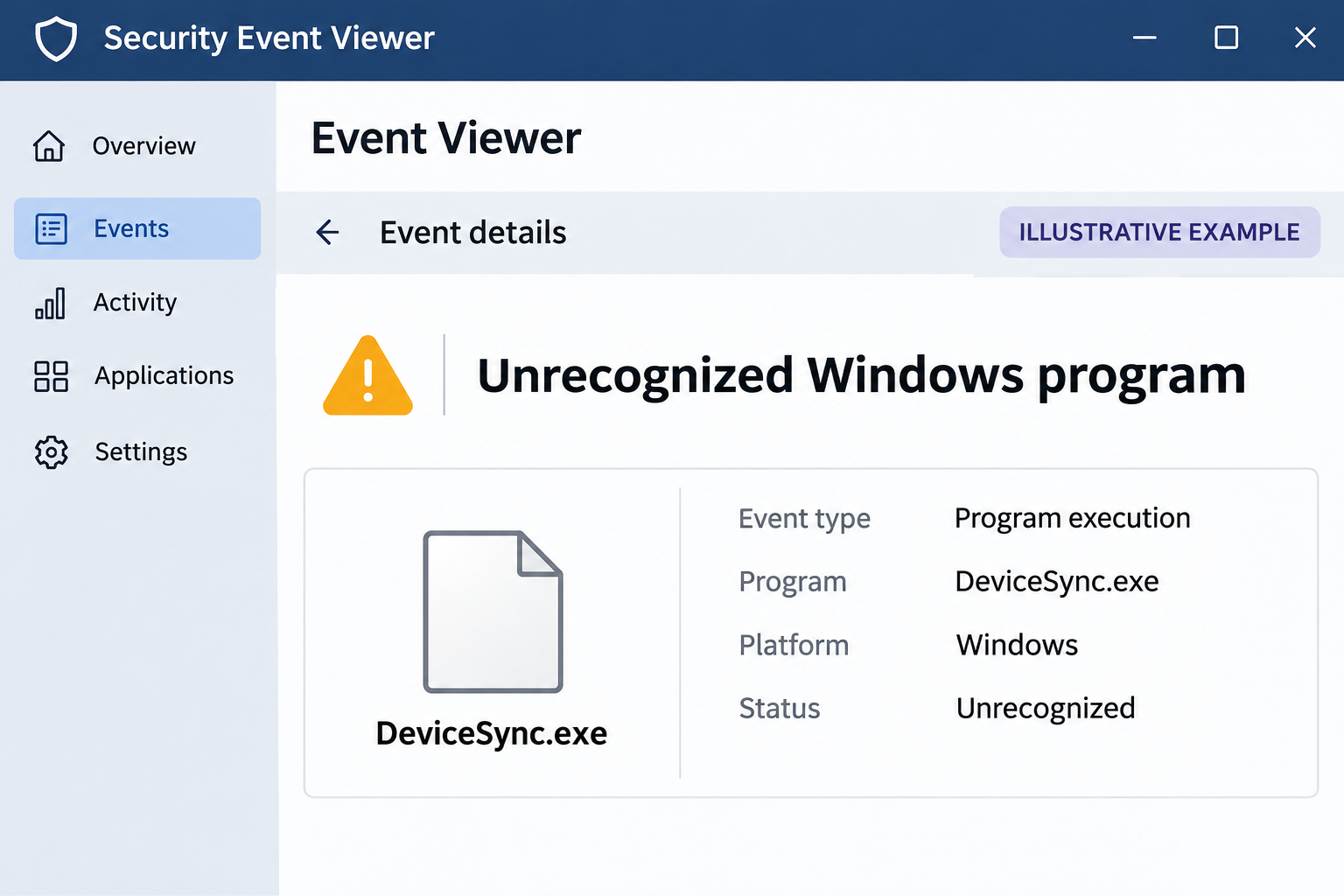
DeviceSync.exe sounds like something Windows might use to keep a phone or another device in sync. A security alert with that name can be easy to dismiss.
Before you clear the alert, find out whether it identifies the same file described here. The name by itself won’t answer that question.
Overview
A backdoor under an ordinary name
NETRYX is a remote access trojan identified in a Windows sample named DeviceSync.exe. A remote access trojan gives someone a way to control an affected computer without the owner’s permission.
The filename is a clue, not a verdict. Unrelated programs can have the same name. A detection tied to the file’s actual identity and behavior is more useful.
The publicly documented sample tried to keep running after a user signed in again. That makes deleting the original download an inadequate test of whether the computer is clean.
If your security software identified NETRYX or a responder confirmed this sample ran, take the device offline. Use another trusted device for passwords, messages and the incident report.
What the research confirms about AI
The Joe Security analysis identifies remote-command functionality and an unfinished-looking assistant feature in the same Windows program. Those findings have different levels of evidence.
The report found code for asking a language model for a response. It did not show a successful exchange or automatic execution of the model’s suggestions.
That difference matters. A headline about AI might sound like the reason to isolate the machine, but the backdoor is already a problem without that feature.
The analysis also notes other embedded references that don’t establish what happened on the network. Don’t infer that a cryptocurrency transaction, stolen credential or additional infection necessarily occurred.
What to confirm before assuming infection
- Did your security tool block the file before it ran, or detect it after execution?
- Does the report identify the actual file, rather than just a matching name?
- Was the file found in Downloads, or did the scanner report a running or installed component?
- Was the affected computer connected to work systems, online storage or a shared drive?
- Which accounts were used after the earliest suspicious event?
If you can’t answer those questions, preserve the alert. Its time, file path and action can help someone distinguish a prevented download from an incident that needs containment.
How to Interpret a DeviceSync.exe Alert
Start with the security product’s own report
Open your existing security product from its normal shortcut, not from a notification on a website. Find the original detection and look for the action it recorded.
Blocked, quarantined and allowed are not interchangeable. If the program reports that it blocked execution, save the result rather than trying to launch the file again.
A detection against a file in Downloads may call for a different response from a backdoor detected in a running program. Ask support if the report is unclear.
If the file was removed, don’t restore it just to compare it with the public sample. A saved detection report can often answer the immediate questions without another encounter.
Put the file name in context
A known piece of software may use generic words like device and sync. Check the publisher and your expected software inventory without running the file to see what opens.
For a work machine, share the path and detection privately with IT. A legitimate utility installed by your employer should be identifiable through its normal device management records.
For a personal PC, note where the program came from if you remember. An installer you downloaded, an unexpected file in a message and an installed component are different leads.
The publicly analyzed sample does not establish a specific delivery route. Don’t blame a recent update, email or download unless your own evidence links it to the incident.
Treat recurring signs as a reason to investigate, not to guess
The research found attempts to make the backdoor start again when a user logged in. A file returning after cleanup warrants more investigation, especially if the same detection reappears.
That doesn’t mean you should delete every item with a similar name. An unfamiliar startup entry can belong to legitimate software, and deleting it can break unrelated features.
If you see a recurring detection, record its location and time. A technician can compare reports and decide whether a remaining component, a fresh download or another issue explains it.
On a managed endpoint, leave startup settings and security software alone. Your team can preserve the details it needs before removing anything.
What to Do After a Confirmed NETRYX Infection
-
Disconnect the affected computer.
Unplug Ethernet and turn off Wi-Fi. Leave shared drives and removable backups disconnected. If the computer belongs to work or school, call the response team from another device.
Tell responders whether you are still signed in and whether you restarted. Don’t reboot to test whether a backdoor returns while they are preserving evidence.
-
Record the detection and what you did afterward.
Save the detection name, file location, timestamp and the tool’s reported action. Write down whether you opened the file or approved a Windows prompt.
Don’t run the program again. If the team needs the original file, let it tell you how to transfer it safely.
-
Protect accounts from a different device.
Start with accounts that can reset others, including email and the work identity provider. Notify the administrator if you used privileged accounts on the affected machine.
Ask how to revoke active sessions and replace exposed credentials or recovery methods. Don’t enter replacement passwords on the suspected device.
-
Look beyond the endpoint if it accessed work resources.
Give IT a list of services or shares you used during the relevant period. Include remote access and administrative accounts, even if the backdoor never visibly opened them.
Keep the review tied to evidence. Remote access creates a possibility of misuse; it doesn’t establish that every service you used was compromised.
-
Use a safe cleanup plan for the actual device.
On a managed system, wait for instructions. For a personal PC, decide whether to scan or preserve the disk for a technician before attempting changes.
If suspicious activity continues or you cannot establish what ran, a clean reinstall may be more appropriate than a series of one-off fixes.
How to Remove NETRYX RAT From Windows
Step 1: Prepare the PC without losing evidence
Use the illustrated procedure below for a personal Windows computer after you’ve preserved what you need. On company devices, follow the incident team’s plan instead of starting a consumer scan.
If you can’t reach a usable desktop, don’t keep restarting to experiment. Get help preserving data and choosing between offline analysis and a clean rebuild.
Make a list of important files you can restore from a trusted copy. Do not plug the only backup into an infected system just to see what it contains.
Step 2: Get a known installer and open Malwarebytes
Obtain the Windows installer through a trusted computer, not from the site or message that supplied the suspicious file. An optional paid subscription is not required for a manual scan.
Malwarebytes for Windows
Use the free manual scan for this initial check.
Open the verified setup file in Downloads, check the publisher prompt and follow the setup screens. Decline optional offers you don’t need. Don’t override an unexplained security warning.

If the installer needs connectivity, do not reconnect an untrusted PC to your normal network simply to finish. Get advice on a safe setup or clean rebuild instead.
Write down the last time the PC was connected. That timestamp helps you compare local findings with sign-in alerts you review later from a trusted device.
Step 3: Run a scan and review each result
Launch Malwarebytes. On the dashboard, select Scan and wait for the Threat Scan summary. Save the result or use the report view to record detections.

Make a note of whether the scan completed. A scan you canceled, or one that stopped with an error, is not the same as a completed scan with no detections.
If the scanner shows a file path, keep it with the result. A detection name on its own may not tell you which download or Windows profile was involved.
If confirmed threats are listed, select them and choose Quarantine. If you don’t recognize a result, preserve the report and ask for help rather than marking it safe.

After any requested restart, repeat the check at an appropriate point in your cleanup plan. A scanner may address a detection without establishing what another person did before removal.
Step 4: Confirm the next action with the evidence you have
Compare any new report with the first one. A recurring file or related detection is a reason to keep the PC isolated and seek help.
The MalwareTips Windows removal forum can help with a personal system. Share redacted logs, not the malicious file, passwords or customer information.
If a rebuild is needed, use Microsoft’s Windows installation media guidance. A clean installation can erase files and settings, so preserve data and verify the target drive first.
Install applications from their real providers afterward. Avoid restoring unknown executables or an old browser profile wholesale, especially if the security team suspects that software or sessions were affected.
Check Accounts and Work That May Have Been Exposed
The question after cleanup isn’t only whether DeviceSync.exe is gone. Think about what you used the PC for between the suspected start time and isolation.
If you accessed email, review new forwarding or recovery settings and unfamiliar sign-ins. If you approved payments, ask the responsible team to verify those actions in its own records.
For a browser you used on the affected machine, tell your provider if you had important sessions open. A password change doesn’t necessarily end every session in every connected app.
If you work with sensitive documents, identify what the account could read. Let your organization determine whether anything was accessed or needs to be reported.
Don’t broadcast the contents of the security report to everyone who received an email from you. Share what they need to check without exposing another set of private information.
After restoration, write down which files came from a backup and which apps you installed fresh. That gives you a useful record if the detection later returns.
When a detection says it was blocked
A blocked attempt is worth recording even when the machine never ran the file. Keep the event time and the action reported by the product.
If a coworker sent you the download through a work channel, report that contact to IT. The sender’s name doesn’t show whether their account or device was involved.
Avoid using the same installer again from another location. Verify the exact program you actually needed and ask your administrator where it should come from.
Give the responder a useful starting point
If several people use the same computer, say which person was signed in when the alert appeared. That can narrow the accounts and files responders need to check first.
If you opened personal email on the affected work device, protect it separately. Your employer may not manage that account or be able to review it.
Note when the machine last connected to a shared drive. That helps a business distinguish resources the device could reach from resources it actually accessed.
An installed backdoor is different from legitimate remote support software. If you aren’t sure which is present, ask the person who manages the computer before removing an approved tool.
If the report lists more than one detection, keep them together with the original timestamps. A responder can determine whether they describe the same file or a separate concern.
Give the analyst the security product’s name as well as its detection label. Different products may describe the same sample differently, so a generic label alone cannot establish the family.
After work access is restored, check which accounts should be signed in again. Don’t reconnect an old saved session that the incident team specifically revoked.
For a family PC, ask each user which services they accessed after the suspected start time. Don’t ask anyone to share their password to make that list.
Frequently Asked Questions
Is every DeviceSync.exe file NETRYX?
No. The name identifies the documented sample, but unrelated software can use similar names. Ask your security tool or administrator to confirm the actual file and detection.
Did NETRYX automatically execute AI-generated commands?
That wasn’t established. Researchers found a developmental assistant feature but did not confirm a successful query or automatic execution of a model response in the case discussed here.
Can NETRYX still matter if the AI feature never ran?
Yes. The backdoor and its ability to accept remote commands are sufficient reason to contain an affected computer. The assistant feature isn’t necessary for that risk.
Is deleting the original download enough?
Not if the backdoor already ran. The research documented attempts to start again after sign-in, so check for installed components and follow a trusted response plan.
Should I change passwords on the suspected computer?
No. Use a separate trusted device, and ask your provider or administrator about revoking old sessions. A clean password shouldn’t pass through the affected PC.
What if Malwarebytes found nothing?
Keep the original detection and consider the full timeline. A negative scan doesn’t establish that an earlier backdoor never ran or that no account was accessed.
The Bottom Line
Treat a confirmed NETRYX infection as a Windows backdoor, not just an interesting AI finding. Isolate the PC and preserve the detection before trying to clean it.
Use a trusted device to protect accounts. Follow your incident team’s instructions or a safe personal cleanup plan, and rebuild if you can’t regain confidence in the system.

Join the discussion
0 commentsShare your experience or ask a question about this article.
Discussion
Start the conversation
Have a question or something useful to share? Add the first comment.