


An email says your bonus is ready and a signature is the only thing standing between you and the payment. It gives you two days to finish.
That’s an easy message to move to the top of your inbox. Before doing anything with it, find out where your employer normally records a payment like this.
Overview
The email puts a signature between you and a bonus
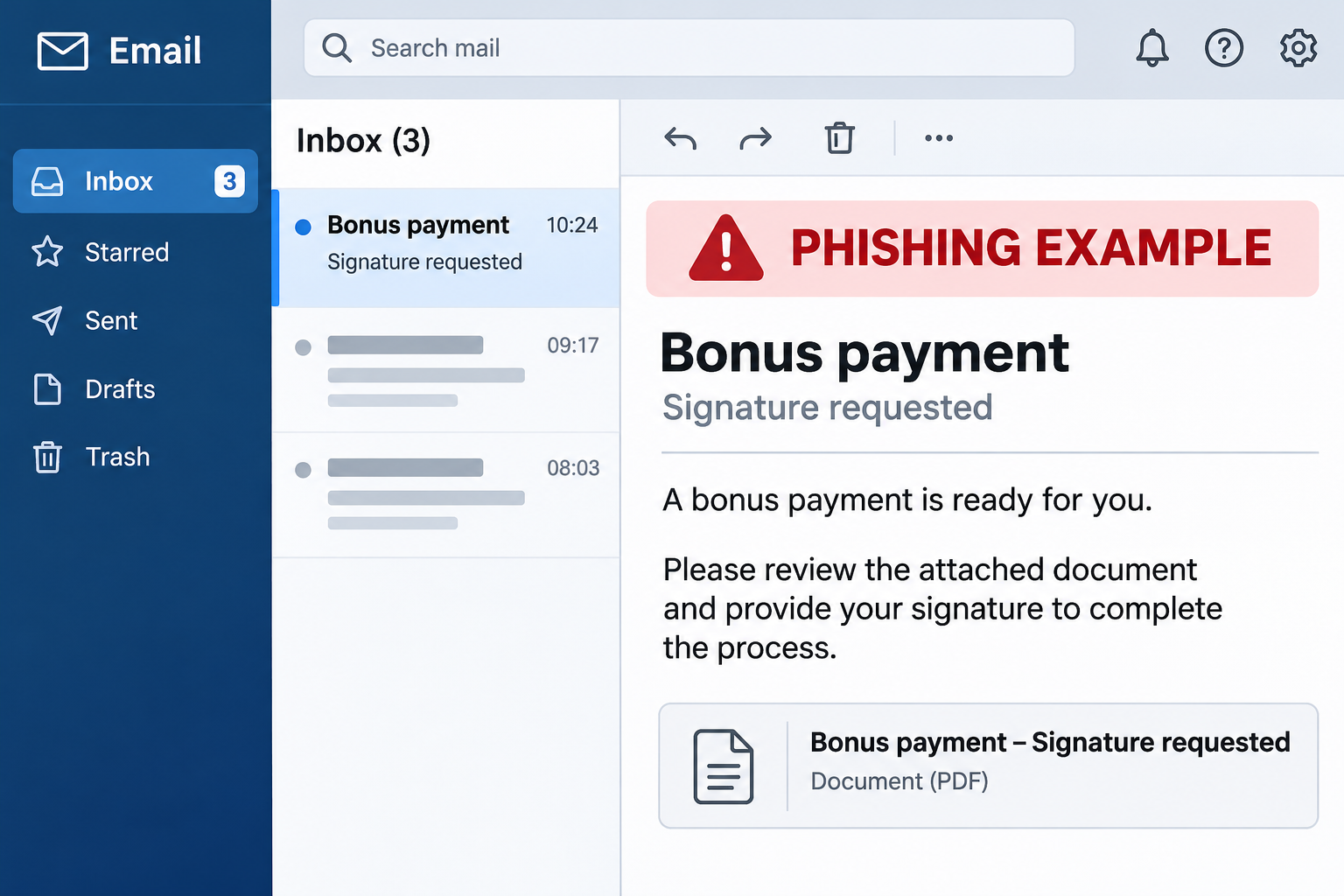
The Bonus Payment Accrued email scam presents an unexpected payment as something payroll already approved. It refers to six months of pay slips and suggests the money is ready.
The subject in the documented example asks for a review and confirmation. The body gives the reader 48 hours to complete a signature request and avoid a processing delay.
You don’t need to know whether your workplace ever pays bonuses this way to assess the notice. Start with your known payroll channel and ask about this particular payment.
A real amount could be pending separately. Don’t treat the message as a pay statement, a confirmation of eligibility or a record that anything was deposited.
The supposed document is presented inside the message
The reported message displayed something that looked like a PDF signature request. The control beside it opened a web page rather than a verified document in your usual signing system.
That distinction matters when you describe what happened. Seeing an attachment-shaped box in an email doesn’t establish that a PDF was saved or opened.
The reported destination asked the reader for an email password. A Gmail-themed example used a supposed session check to explain why it wanted the password.
The observed risk was account disclosure, not a documented payment deduction or software installation. If your copy actually downloaded a file, report that as a separate event.
What you can check before acting
- Whether your employer announced a bonus or compensation adjustment.
- Whether it appears in an independently opened payroll or HR portal.
- Which signing service your employer actually uses, if any.
- Whether the request has an owner you can reach through the staff directory.
- Whether you entered a password or merely saw the email.
On a personal address, you may receive genuine payroll notices from an employer. That still doesn’t make an unexpected password form part of the employer’s workflow.
How the Bonus Payment Accrued Scam Works
Step 1: The message promises money you don’t want to lose
A bonus is different from an ordinary password notice. The message doesn’t have to threaten a lockout; it only has to make waiting feel like losing money.
The reference to six months gives the claim a plausible accounting explanation. The email does not supply a verified pay statement that shows how the amount was calculated.
If you are expecting a bonus, that timing can make the message feel more plausible. Check an existing record rather than letting the coincidence decide which link you trust.
If you’re not expecting one, don’t assume you were excluded from some special process. Ask payroll whether a communication went out and how it would appear in your account.
Step 2: The signature deadline creates a small task with a large reward
The message presents the signature as a formality, not a separate decision. That makes the proposed action sound less consequential than the payment attached to it.
Your normal HR process may include a deadline or an electronic signature. The safer test is whether you can find the request through the application or person you already trust.
Look at what the employer is actually asking you to sign. A legitimate document can be reviewed through its proper route; an unexplained password request doesn’t substitute for it.
If the message says not to reply, use a new conversation with payroll. There’s no need to ask the sender to confirm its own claim.
Step 3: The supposed signature request becomes an email login
The captured example did not show a verified bonus agreement. It displayed a prompt asking for the password to the recipient’s email account.
One version showed details about the browser and current visit. That can look like a security check, but an unfamiliar page showing those details hasn’t proved who runs it.
Don’t enter a password to find out what comes next. If a signing service genuinely uses your work identity, you can start from the employer’s known service instead.
A fake login may not show anything useful after submission. No matter what the next page says, report the password as exposed if you typed it there.
Step 4: The payroll claim disappears, but the email risk remains
The documented request seeks access to email. That is valuable even when the sender never gets near the actual payroll system.
An exposed inbox may contain pay statements, contact details or notices that let someone reset other accounts. What can be accessed depends on that person’s permissions and the provider.
For an employee who handles payroll or benefits, the possible exposure can include other people’s records. Notify the relevant team rather than trying to judge the scope alone.
If you see a new direct-deposit request later, treat it as a separate item that needs independent verification. The original email didn’t establish that your payroll settings were changed.
Verify the Bonus Without Using the Email
Start where your employer normally announces compensation
Use the same payroll or HR service you used for your last pay statement. Select the right employer and pay period if you have more than one account.
Look for a statement, approved compensation notice or pending document. The absence of an item doesn’t settle an HR question, but it means the email isn’t enough evidence to proceed.
Call payroll through the directory. Ask whether a payment is pending and how it would appear. Don’t share the password you may have entered.
For an employer that doesn’t use a portal, go through the person who normally issues compensation notices. Don’t trust a payroll phone number printed on an unfamiliar document.
Check the document separately from the money
If payroll confirms a genuine payment, ask whether there’s anything to sign. Open the document from the verified channel, not the original email you’re investigating.
A signature confirms an agreement or acknowledgment. It isn’t a reason to disclose your mailbox password to a page you haven’t verified.
If a legitimate document asks for bank information, confirm that with payroll separately. Don’t use a file that appeared alongside a suspicious email to change direct deposit.
When a deadline falls outside business hours
Save the email and note the stated deadline. Use your employer’s approved escalation route if timing matters, rather than deciding the email must be real because nobody is available.
If a manager confirms that a bonus is being discussed but doesn’t recognize the message, ask for the official process. Both things can be true.
For a company using a payroll contractor, verify the route already on file. The name of a real payroll provider in a message is not the same as authentication.
What to Do if You Have Fallen Victim to This Scam
-
Tell your employer what you actually did.
Use the phishing report tool or your usual support channel. Say whether you only read the email, followed its link or entered information.
Keep the subject and approximate receipt time. If a file really was downloaded, say so, but don’t reopen it to confirm what it contains.
-
Secure email if you supplied a password.
Contact IT for a work account. For a personal Gmail account, follow Google’s compromised account guidance from a trusted device.
Change reused passwords on affected accounts. If you saw an authentication prompt, tell support whether you accepted it and when.
-
Review sessions and mailbox changes.
Check recent devices, recovery settings and active sessions through the genuine provider. Ask IT how it wants to handle an account with access to payroll records.
Review unexpected forwarding or replies around the time of exposure. Leave suspicious records available if the incident team needs to preserve them.
-
Ask payroll to confirm the next deposit destination.
If you entered banking details elsewhere or the exposed email could be used to change direct deposit, tell payroll before the next run.
Check the account currently recorded with payroll through its secure process. Do not send a full bank statement or account credentials in an ordinary ticket.
-
Use a separate plan if a file ran.
The documented example showed a credential prompt. If your computer ran something afterward, tell IT or a trusted technician about that separate device risk.
Don’t use the affected device to enter a replacement password if you suspect it ran an unfamiliar program.
-
Check any follow-up through the same verified route.
A later message might claim your signature failed, your transfer was delayed or another document is required. Don’t take that as proof there was a real payment.
Give payroll or IT the original report number if available. They can decide whether the new message belongs to the same incident.
If You Handle Payroll or Employee Records
If several employees got the email, tell them where to verify their own pay without sharing anyone’s compensation information. A short internal notice can name the subject and deadline.
Check whether the timing overlaps a scheduled pay run. If it does, make clear that a real pay date doesn’t authenticate the phishing message.
Pause only the changes that require review, such as a newly requested deposit destination. Keep normal payroll decisions separate from the investigation unless the responsible team says otherwise.
Have your security team review who received the email and whether anyone entered credentials. Microsoft’s phishing investigation guide explains how authorized teams can separate delivery, interaction and account activity.
If a compromised account had access to employee documents, tell the appropriate data owner. Don’t ask staff to send you copies of private pay slips to establish scope.
Keep employee responses in the incident record. Someone who just saw the message doesn’t need the same recovery steps as someone who supplied a password.
When the message reaches a former employee
An unexpected bonus message may show up after you leave a job. If you have a genuine question about final compensation, use the employer’s published contact or your separation paperwork.
Don’t sign in to a disabled work account through a new link to see whether it still exists. Ask the former employer how it delivers final pay documents.
If you supplied a personal email password, protect that account yourself even if your former employer can investigate the message. It may not be able to revoke your personal sessions.
If a payroll change shows up after the incident
Ask payroll when the change was requested and which channel it came through. Preserve that information before replacing the details, so the timing can be compared with the phishing report.
If a deposit hasn’t been sent, ask whether the payroll team can hold that specific transaction. If it has, ask how the employer and its payment provider handle misdirected pay.
Don’t send a second payment to somebody who says they can release your original one. A genuine correction should be traceable through the employer and its payroll provider.
Verify any later signature request with the payroll case you already opened. A new document doesn’t show that the incident was resolved.
If the real signing service sends reminders, ask payroll whether it can identify a request inside your account. You shouldn’t need to compare two unexpected email links.
If you’re helping a coworker, point them to the verified payroll route. Don’t ask for their pay amount or for a screenshot of their account.
Keep a genuine payment confirmation separate from the suspicious message. If questions arise later, payroll can refer to the actual transaction instead of the original claim.
Frequently Asked Questions
Is the 48-hour deadline a real payroll deadline?
Not for the example covered here. Check through payroll or your HR system before acting on any deadline in an unexpected compensation email.
Was the PDF icon proof there was an actual attachment?
No. The documented control looked like a PDF request but opened a web page. If your copy saved a file, report what happened without opening it again.
Why did a bonus notice ask for my email password?
The reported page was seeking email access, not processing a signature. Your employer can tell you where a legitimate document should appear.
What if I really am owed a bonus?
Check the actual payment with payroll. A genuine entitlement and a fake message can exist at the same time.
What if I only opened the message?
Report it and don’t use the link. Receiving or reading the message does not, by itself, establish that someone obtained your password or changed your pay.
Do I need to check my direct deposit after a password disclosure?
If the account could reach payroll or authorize a change, ask the employer to check. A mailbox password reset doesn’t reverse a deposit change that already happened.
The Bottom Line
Don’t use the signature link in the Bonus Payment Accrued email. Ask payroll about the payment through a channel you already use.
If you entered an email password, report it and secure the account. If the account could affect pay, have payroll confirm where the next deposit is scheduled to go.

Join the discussion
0 commentsShare your experience or ask a question about this article.
Discussion
Start the conversation
Have a question or something useful to share? Add the first comment.