


You wanted a VPN or another familiar application. Now a security alert mentions AtlasCross and you’re wondering what ran with your download.
The next steps depend on what you actually opened. A download warning and a running backdoor call for different responses.
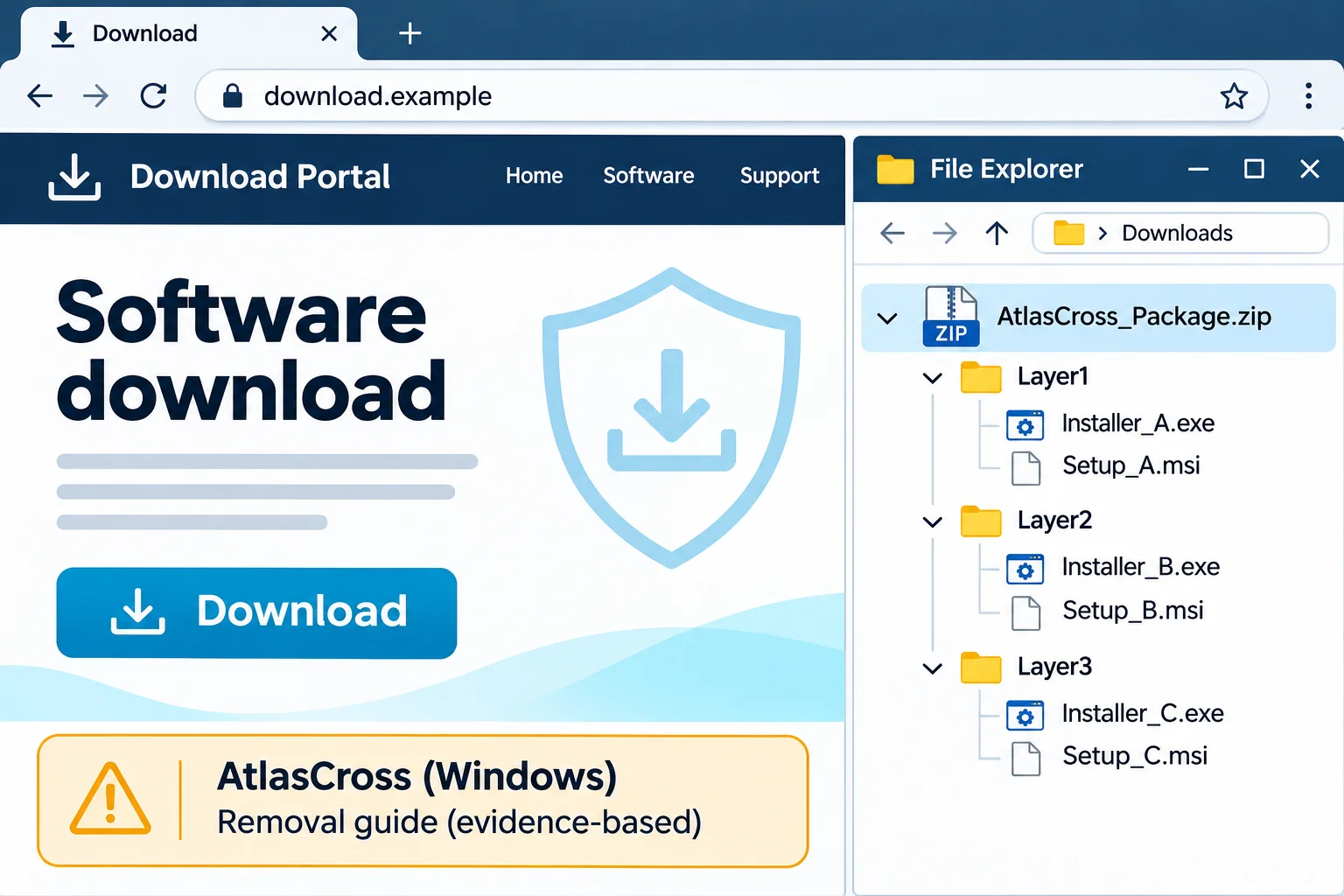
Overview
A Windows backdoor, not a normal download component
AtlasCross, also called Atlas or AtlasRAT in 2026 reporting, is a Windows remote-access trojan. It is not a required component of your VPN or messaging app.
Do not treat an alert as a request to find a better installer. If the suspicious package ran, stop using that computer for sensitive activity.
Different delivery routes need the same careful response
Hexastrike examined weaponized software installers. Proofpoint separately documented Atlas in email-delivered archives. Neither route identifies every infection or proves what happened on your computer.
- Downloaded but never opened: keep the file closed and scan it; a saved installer alone does not establish execution.
- Opened the package: isolate the computer and treat its contents as potentially exposed until the incident is assessed.
- Received an antivirus detection: preserve the exact name, affected path, timestamp, and recorded action.
- Work or school computer: contact IT before changing software, removing evidence, or reconnecting it.
Removal and recovery are separate jobs
A scanner can find and quarantine malicious files. It cannot reverse someone copying a document or restore control of an account they already accessed.
The illustrated procedure below uses ESET Online Scanner. It is a free second-opinion scan, not a promise that ESET identifies every AtlasCross variant.
Keep two questions in view: is Windows trustworthy again, and have potentially exposed accounts been secured? A quiet desktop answers neither by itself.
What to Do to Remove AtlasCross RAT From Windows
-
Step 1: Isolate the computer and keep useful evidence
Disconnect Ethernet and turn off Wi-Fi. Disconnect from VPNs too. Do not use the suspect computer to sign into email, banking, work systems, or a password manager.
From a separate clean device, change potentially exposed passwords and revoke suspicious sessions now (see Step 6). Keep this computer isolated; never enter replacement credentials on it.
Contact your bank or payment provider immediately if you suspect financial fraud. Do not wait for the scan; use its official contact details.
If you can safely do so, record the alert and download address without reopening the package. Note roughly when it ran and which accounts you used afterward.
On a managed device, report the suspected RAT immediately through a separate phone or clean computer. Let your security team decide whether it should remain powered on.
Do not start a cleanup race against an active remote operator. If windows move unexpectedly or security controls keep changing, stop interacting and obtain incident-response help.
For a personal computer, keep the suspicious ZIP or installer unopened while seeking advice. Do not send executable attachments to friends or post them in a public forum.
Preserve the antivirus report before removing anything. A filename without its path and detection result can be difficult to interpret later.
Read the action carefully. “Blocked download,” “quarantined file,” and “process detected” describe different events. Tell your helper which one occurred instead of reducing them all to “infected.”
Include failed attempts too. If you clicked the package twice, approved a prompt, or restarted afterward, those details help establish the sequence without rerunning anything.
Keep a short written timeline outside the affected computer. Use approximate times when necessary, and distinguish what you remember from what an alert actually records.
-
Step 2: Decide whether an online scan is appropriate
ESET needs internet access for its initial detection-module download. Moving its installer from a clean computer does not remove that requirement.
Do not reconnect a confirmed active RAT or a managed computer simply to follow this tutorial. Ask a responder about controlled scanning or a clean rebuild instead.
If you cannot assess that risk, leave the device isolated and arrange trusted technical help. The online procedure is for a device judged suitable for that connection.
When a scan is appropriate, close personal applications first. Keep the computer on reliable power and allow time for a full scan to finish.
Keep existing security protection enabled. If another product prevents the scan, save the error and ask for assistance rather than disabling protection on an infected machine.
These are reference screenshots from the MalwareTips ESET tutorial. Their example findings are not results from your computer or a test of an AtlasCross sample.
-
Step 3: Get the genuine scanner and complete setup
Use the download button below, then check that the destination is ESET’s official website. Avoid advertisements offering a special “AtlasCross remover.”
ESET Online ScannerFree one-time malware scan from ESETDownload ESET Online ScannerOpens the official download page in a new tab.
On ESET’s page, choose the free Online Scanner or Run Your Scan Now option, not the separate full-protection trial.
In Downloads, open the genuine esetonlinescanner.exe you obtained from ESET, not an executable bundled with the suspect software.
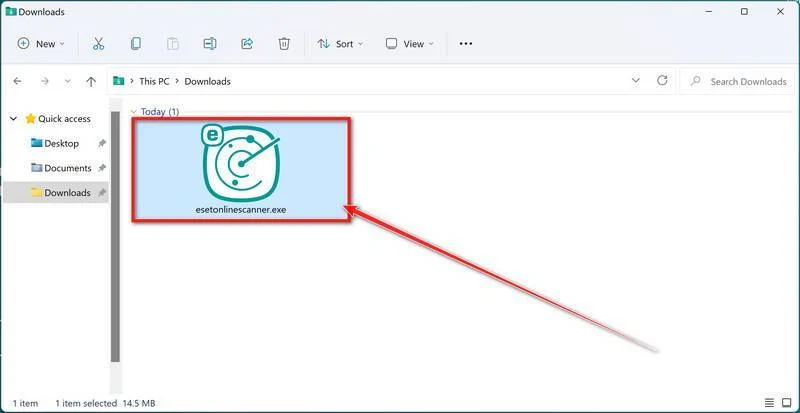
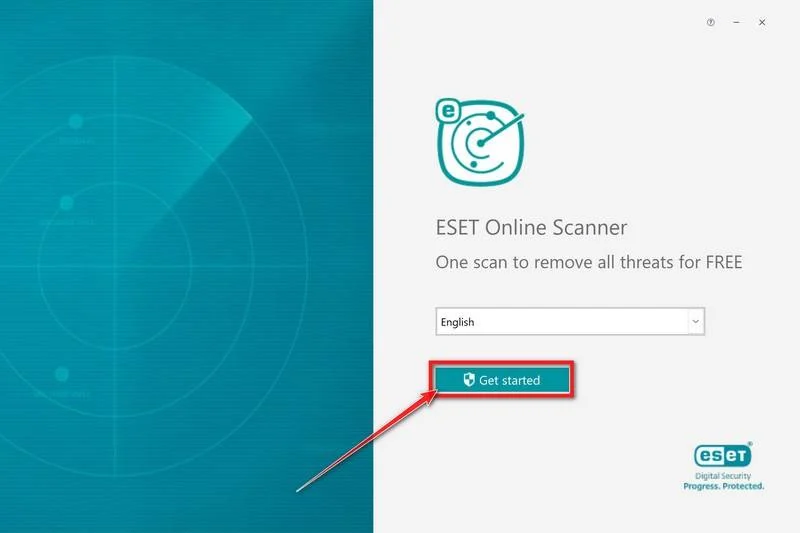
Select your language and click Get started. Approve a Windows permission prompt only after checking that it belongs to the ESET file you deliberately downloaded.
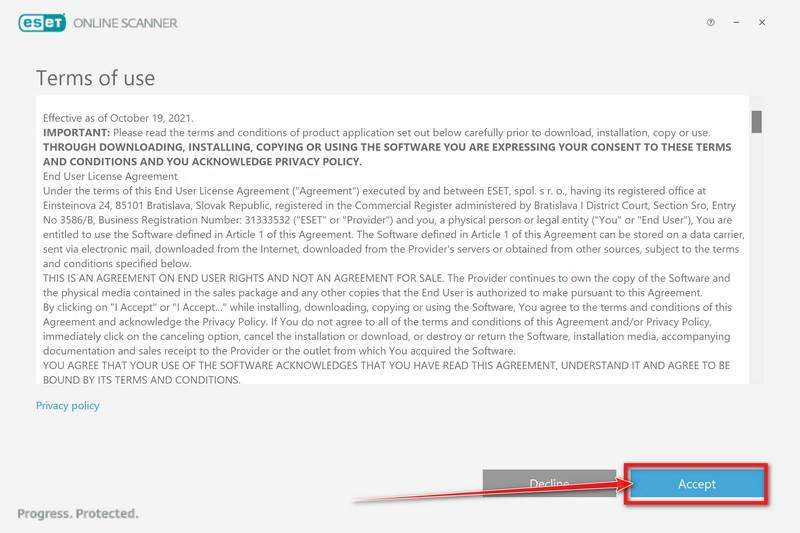
Read the terms and privacy information. If you agree, click Accept; follow any additional Get Started prompt before continuing.
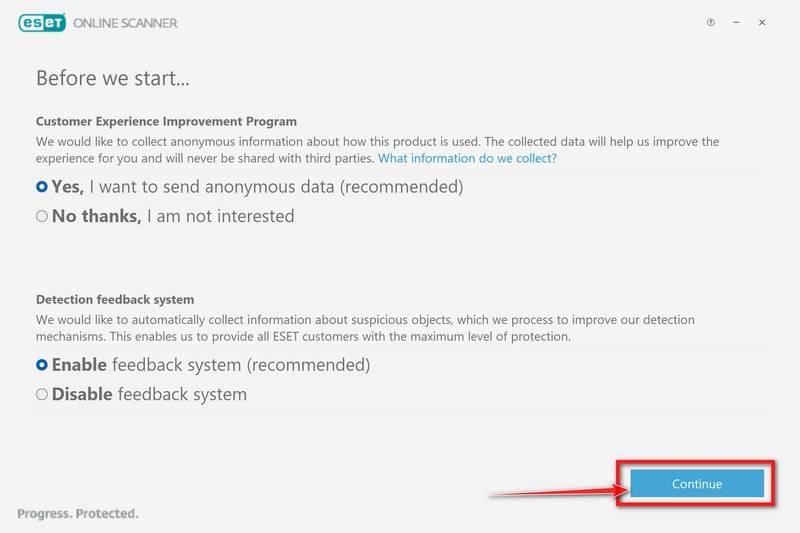
Choose your Customer Experience Improvement Program and Detection feedback system preferences, then click Continue. These choices are distinct from selecting which files to scan.
-
Step 4: Run a full scan and let updates finish
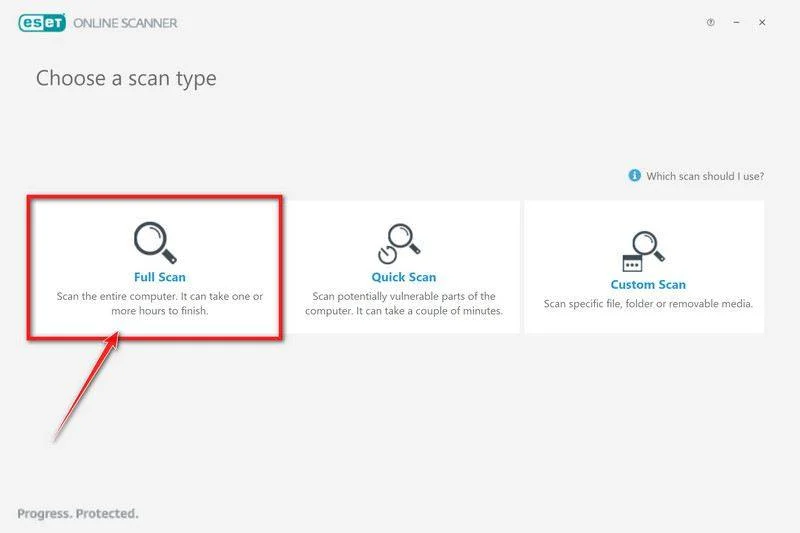
Select Full Scan. If returning to an earlier ESET session, first open Computer scan or Device scan, depending on the version.
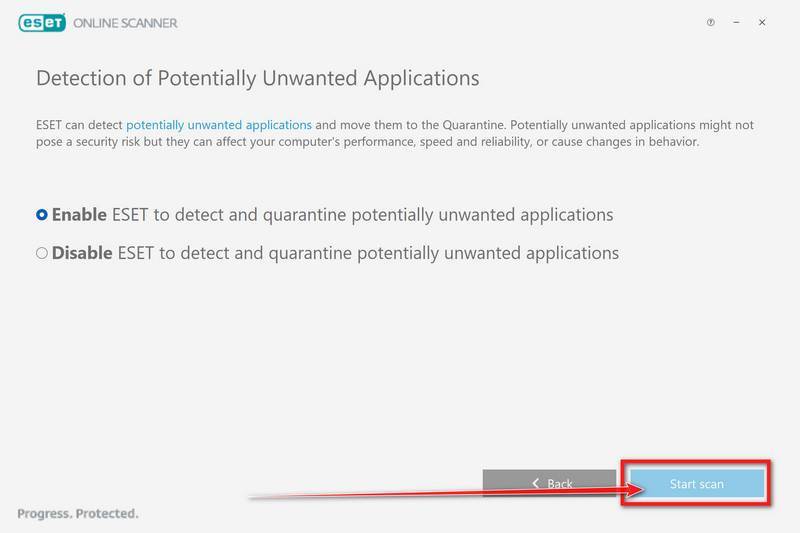
Enable detection of potentially unwanted applications, then click Start scan. Review such detections individually rather than assuming every flagged utility is an AtlasCross component.
Wait for module updates and the scan to finish. Full Scan checks files it can access; locked, excluded, or otherwise inaccessible material can limit coverage.
The screenshot below shows the update stage, not a completed examination. A progress percentage or a detection appearing early does not mean cleanup has finished.
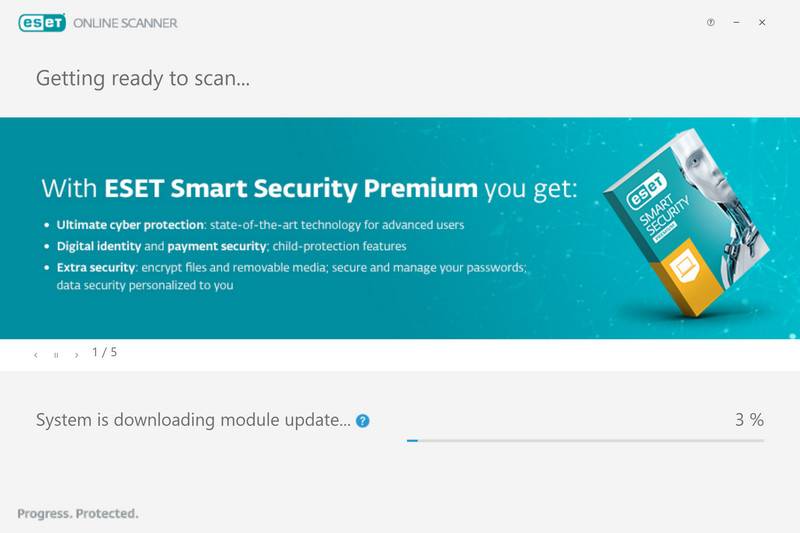
Follow ESET’s current instructions if labels differ. An update failure or interrupted scan is an incomplete attempt, not a clean result.
Do not open the original installer to see whether it still works while scanning. Leave other files from that download closed as well.
-
Step 5: Read the result, quarantine findings, and save the log
At completion, open View detailed results. Check each item’s location and action, including whether it appears under resolved or unresolved detections.
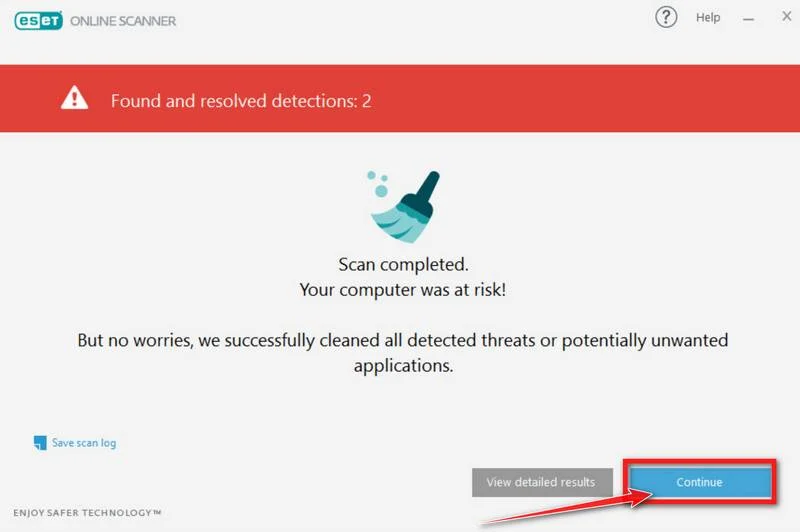
ESET normally cleans detected threats and places affected files in quarantine. Do not restore a file merely because its removal stopped the downloaded application from working.
Click Save scan log and keep a copy. Record any unresolved findings before closing the scanner or making further changes.
After saving the log, click Continue. Periodic scanning and feedback are optional; follow the closing prompts without purchasing the separate protection product.
Restart if ESET requests it for cleanup, then scan again when safe. A restart does not authorize reconnecting a device that still requires isolation.
If a finding remains unresolved or returns, stop repeating the same scan indefinitely. Keep the reports and move to assisted investigation or a rebuild.
With zero detections, check that the scan completed and updates succeeded. Do not interpret “nothing found” as proof that earlier remote access never happened.
ESET’s quarantine guidance explains unresolved detections. Keep quarantine intact while a technician reviews uncertain files; do not empty it simply to tidy up.
-
Step 6: Secure accounts from a clean device
Use a different, trusted device for account recovery. Start with your primary email and password manager, since they can control recovery of other accounts.
On a separate trusted device, reset potentially exposed passwords and change any matching passwords used for other services. Prioritize accounts opened while the suspicious software was running.
Use each service’s security page to sign out other sessions, remove unfamiliar devices, and review connected applications. A password change alone may leave other access methods intact.
Check recovery email addresses, phone numbers, forwarding rules, and unfamiliar authentication methods. Restore your own settings before relying on that account again.
Enable multifactor authentication where available and store recovery codes safely. Never approve a login request you did not initiate, even during a stressful cleanup.
For Microsoft accounts, use the official compromised-account recovery process. Avoid anyone offering account recovery through an unsolicited direct message.
If financial accounts were accessible, contact the provider through its official app or published number. Ask about suspicious transactions and appropriate account restrictions.
For workplace credentials or documents, notify your employer. Removing a home-computer infection does not close an incident involving company accounts or copied business information.
List sensitive material the computer could access: synced work folders, saved account details, and private documents. This is a response checklist, not a claim those items were stolen.
If you used it to administer websites or cloud services, ask the service administrator whether exposed access keys or app passwords need replacement alongside your normal password.
Keep security notifications until recovery is settled. Note unfamiliar sign-ins and account changes, but do not follow links in new messages claiming to resolve the incident.
-
Step 7: Verify recovery or arrange a clean rebuild
Before resuming ordinary use, confirm that security protection is working, scans finish, and no detections return. Update Windows and reinstall necessary applications from their genuine publishers.
Do not bulk-delete browser profiles, reset every browser, or remove scheduled tasks based only on a familiar-looking name. Those actions can destroy evidence and legitimate settings.
If an unexplained remote-support application appeared, have its origin and access settings checked. Do not remove an employer’s authorized support tools without approval.
A confirmed backdoor, recurring persistence, or an uncertain scope can justify a clean Windows installation. Ask a trusted technician when you cannot confidently establish recovery.
Microsoft’s clean-install instructions explain the destructive steps. Back up irreplaceable documents first, confirm the correct drive, and preserve your license and recovery information.
Have installation media prepared on a clean computer. Do not carry the suspect installer, unknown scripts, or a complete infected system image into the rebuilt installation.
Scan restored documents before opening them. A backup is useful, but its date alone does not establish that everything inside it is safe.
If you need help interpreting results, use the MalwareTips Windows malware-removal forum. Describe the sequence and attach requested logs after checking them for private information.
Do not post passwords, authentication codes, customer data, or confidential workplace documents. For a managed incident, share evidence through your organization’s approved channel instead.
Why the Installer Can Look Convincing
Hexastrike’s analysis found nested Setup Factory packages, a modified Schools.exe, and a working UltraViewer decoy. The legitimate program did not make the surrounding package safe.
Its analyzed chain loaded an initial component in memory but later established disk-backed persistence. Calling the whole infection “fileless” would miss that distinction.
The practical lesson is to assess the complete download, not just the application window you expected. A successful installation is not a security check.
Hexastrike left the certificate holder’s involvement unresolved. A signature does not establish knowing participation or make an installer safe.
Requesting administrator permission is not automatically bypassing UAC. Stop at unexpected prompts rather than approving them to get an unfamiliar package working.
PowerChell Runs Inside Another Process
The examined Atlas component used PowerChell to host .NET and execute PowerShell inside its process, without launching powershell.exe. It also attempted security-logging and inspection bypasses.
PowerChell is the framework’s name. A missing PowerShell window cannot clear a suspicious download.
Nor is ordinary .NET activity enough to diagnose AtlasCross. Give a responder the alert and surrounding timeline instead of terminating every application that uses the same runtime.
Hexastrike did not capture the separately loaded WeChat plugin. Claims about exactly what that plugin stole would go beyond its findings.
What the Email Campaign Adds to the Picture
Proofpoint linked Atlas to its TA4922 cluster, including March and April email campaigns using HR or invoice lures. Some builds used DLL side-loading.
Proofpoint identified code supporting file transfers, surveillance functions, and additional plugins, but received no follow-on payloads. Supported functions are not proof that every victim was recorded.
TA4922 is Proofpoint’s narrower cluster, not a synonym for every operation called Silver Fox. Its financial-motivation and Chinese-speaking assessments are assessments, not a universal attribution.
For a recipient, the useful difference is where to look for the first file. Search the original message and download history without opening its attachments again.
Give IT the message headers or original email through its reporting process. A forwarded screenshot can omit information needed to trace delivery.
The broader Silver Fox fake-download coverage explains another campaign. This guide addresses Atlas-family removal, not every malware family distributed through impersonated software sites.
Keep Family Names Separate From a Diagnosis
“AtlasCross” and “AtlasAgent” also appear in different 2023 research. Shared naming does not establish lineage with the 2026 Windows RAT.
An antivirus vendor may use another detection label. Ask for the full report rather than searching for a single name and deciding unmatched alerts are irrelevant.
Conversely, an old article using the same name cannot explain your infection by itself. The affected file, execution history, and available telemetry matter more.
You do not need to identify an operator before taking protective action. Isolate a suspected backdoor, preserve evidence, and secure exposed accounts while identification continues.
Frequently Asked Questions
Does downloading an AtlasCross installer mean I am infected?
Not necessarily. Saving a file is different from running it. Leave it unopened, scan it, and investigate further if it executed or security alerts indicate activity.
Will uninstalling the application I wanted remove the RAT?
Do not rely on that. A normal uninstaller only addresses its own application; it does not establish that a malicious package’s other components are gone.
Why is there no PowerShell window?
A visible shell is not required for malicious activity. Judge the file and detection evidence, not whether you noticed a command window during installation.
Is ESET Online Scanner free, and does it prevent another infection?
The one-time scanner is free. It is not continuous protection, and paid product offers are optional. Keep a supported real-time security product active afterward.
Can a clean scan tell me whether my files were copied?
No. It reports what that scan found, not a history of every action. Preserve available logs and seek incident-response help when sensitive information may be involved.
When should I reinstall Windows instead of scanning again?
Consider a clean rebuild for confirmed remote access, returning detections, or unresolved persistence. Obtain help first if you need evidence or cannot safely choose the correct drive.
The Bottom Line
Do not run the suspect package again. If it executed, isolate the computer, preserve the alerts, and use the scanning route only when a network connection is appropriate.
Secure potentially exposed accounts from a clean device. If you cannot establish that the computer is trustworthy, choose assisted recovery or a clean rebuild over repeated reassurance scans.

Join the discussion
0 commentsShare your experience or ask a question about this article.
Your progress
Did these steps help?
Let us know how the guide worked for you.
Describe what you see and the step you reached. Keep passwords and other private information out.
Discussion
Start the conversation
Have a question or something useful to share? Add the first comment.