


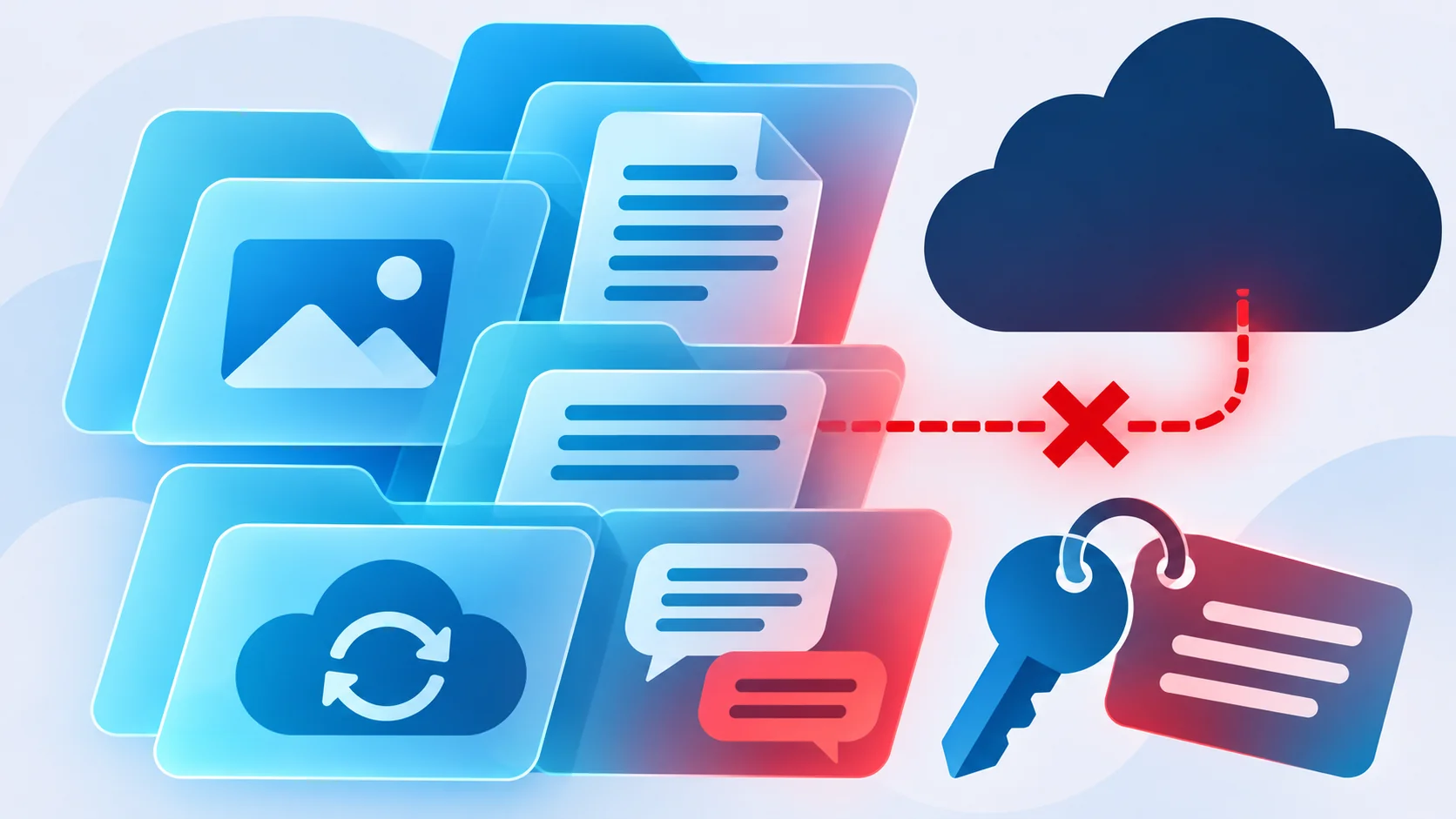
A CloudZ RAT alert raises an uncomfortable question: was someone watching your Windows computer, and could information from a linked phone have been exposed too?
Work through the removal guide first. Then check the cross-device connections and accounts that deserve attention, without assuming your phone needs to be erased.
Overview
A Windows infection with more than one consequence
CloudZ is a remote access Trojan. In the intrusion analyzed by Cisco Talos, it supported credential theft and additional malicious components.
Its Pheno plugin checked for Microsoft Phone Link activity. Talos described potential access to sensitive information synchronized onto the infected PC, including SMS-based verification messages.
The practical response has three parts: remove the Windows infection, disconnect affected device links, and protect accounts from information that may already have escaped.
Phone Link is not itself the malware
Phone Link is Microsoft’s legitimate cross-device application. Its presence, or an unfamiliar text notification on your desktop, does not diagnose CloudZ.
The concern is an already-compromised PC accessing information available there. That is different from proving that malware was installed on the paired phone.
Use a real antivirus detection or an incident investigation as your starting point. A website claiming to have found CloudZ is not a trustworthy diagnosis.
Choose the response that fits your exposure
- A suspicious web page alone: close it without installing its recommended fix.
- A downloaded file you never opened: do not launch it to find out what it does.
- A detection or confirmed execution: isolate Windows and follow the cleanup and account-protection steps below.
- A work or school computer: contact its security team before changing evidence, running additional tools, or restarting.
How to Remove CloudZ RAT from Windows
These instructions are for a personal Windows computer. On a managed device, your administrator’s incident-response instructions take priority over this consumer walkthrough.
Do not buy a cleanup service advertised by the original warning. Use the download route below, and never grant remote access to an unsolicited caller.
Step 1: Isolate the PC and preserve useful details
Unplug Ethernet and turn off Wi-Fi on the affected computer. Turn off Bluetooth as well if a phone is connected through it.
Stop using that PC for email, banking, password changes, or approving sign-ins. Use another trusted device for urgent account recovery.
Disconnect backup drives and stop copying files into shared folders. Do not attach your only good backup to a computer still under investigation.
Write down the detection name, file path, detection time, and security product involved. Save the existing antivirus report when available.
Keep the suspicious download’s original name and the message or website that delivered it. Do not reopen the file or forward an executable to another person.
If the computer belongs to an organization, leave deeper investigation to its security team. Process termination, deletion, and restarts can remove evidence they need.
For your own PC, download the scanner from a separate trusted computer if possible. Transfer only the genuine installer, not files from the suspected infection.
The scanner needs internet access for detection updates. Do not reconnect a confirmed infected PC to a business or shared network simply to complete this guide.
If you cannot arrange a suitable scan connection without exposing other devices, ask for removal help before reconnecting. Do not disable your firewall or antivirus.
Step 2: Download and open ESET Online Scanner
ESET Online Scanner provides a free one-time Windows scan and can run alongside an existing antivirus. It does not require buying a full protection package.
Use the button below to reach the official download page. Choose its one-time scanner download, rather than a paid product offered elsewhere on the page.
Download ESET Online ScannerOpens the official ESET download page in a new tab.
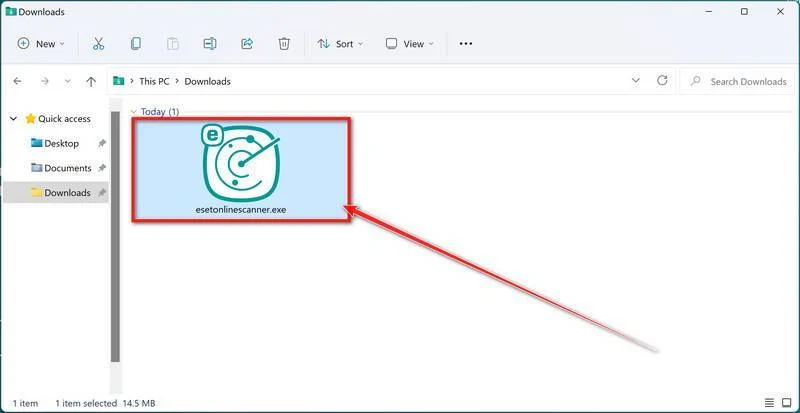
Open your Downloads folder and double-click esetonlinescanner.exe. If you used another computer to obtain it, open the transferred genuine installer instead.
Do not run a different file merely because its icon looks similar. An unexpected publisher warning or a blocked installation is a reason to stop and ask.
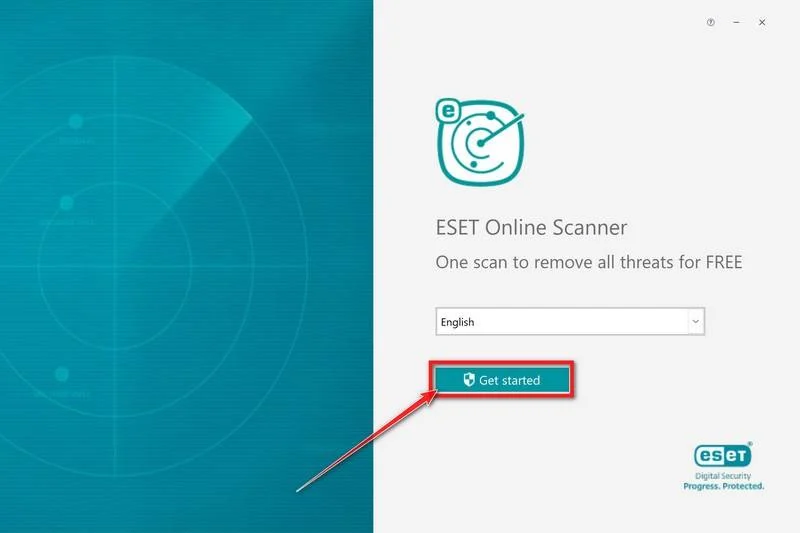
Choose the language you want, then click Get started. Approve the Windows permission prompt only for the ESET application you deliberately opened.
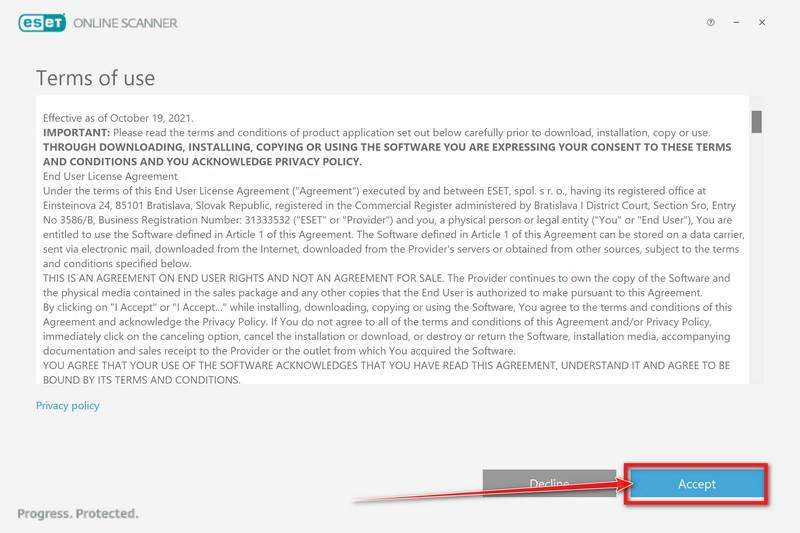
Read the Terms of use. If you agree, click Accept to continue. A purchase or payment-card entry is not part of this one-time scan.
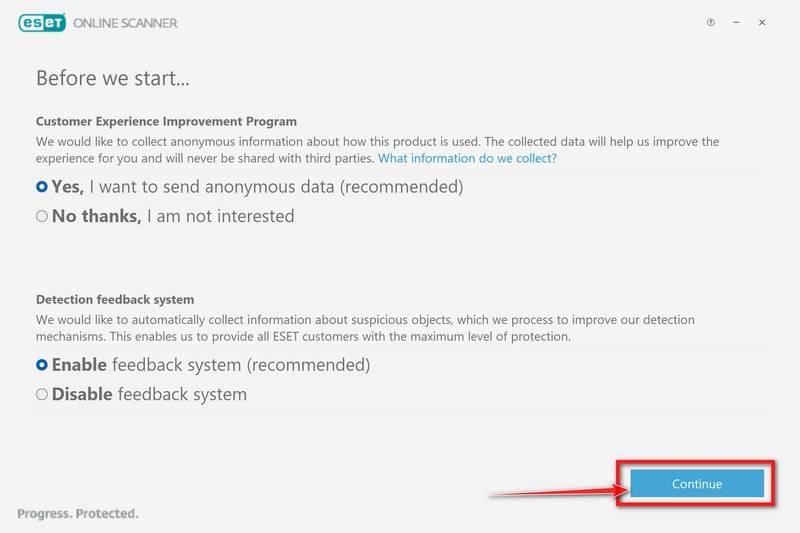
Choose whether to join the Customer Experience Improvement Program and enable the Detection feedback system. Review both choices; they are not instructions to buy protection.
Click Continue after choosing your preferences. If a welcome screen appears before scan selection, choose Computer scan.
Step 3: Run the full scan and let updates finish
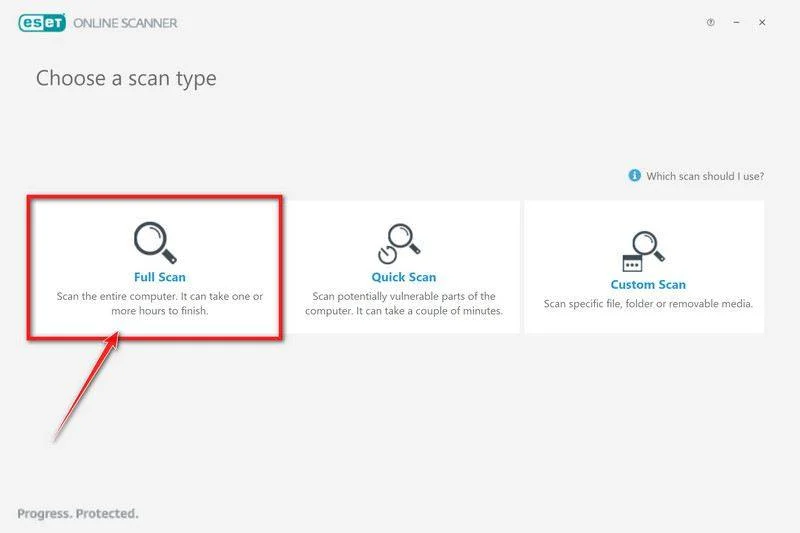
Choose Full Scan. This is the broad system check, rather than the shorter Quick Scan or a scan restricted to selected folders.
Allow time for it to finish. A full scan can take hours on a computer with substantial data; its duration is not a measure of infection severity.
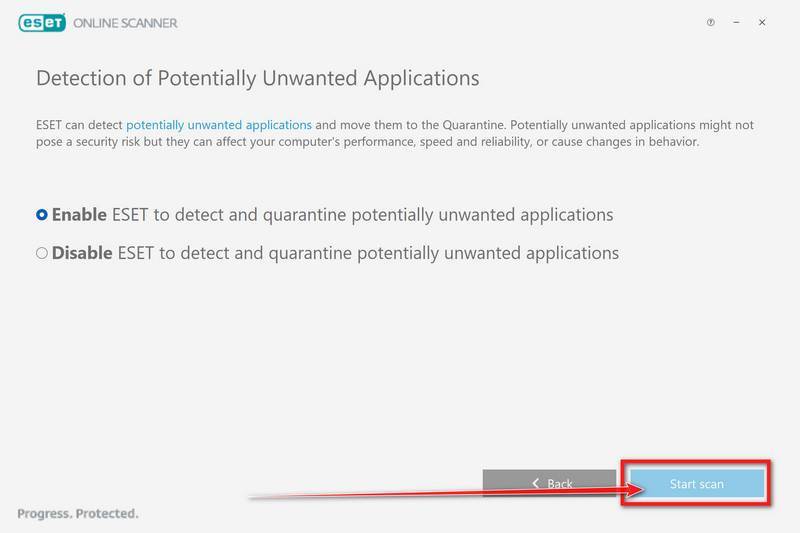
On the potentially unwanted applications screen, choose Enable if you want these applications included. Then click Start scan.
A potentially unwanted application is not automatically CloudZ. Keep that distinction when reviewing results, especially for remote-administration software you knowingly use.
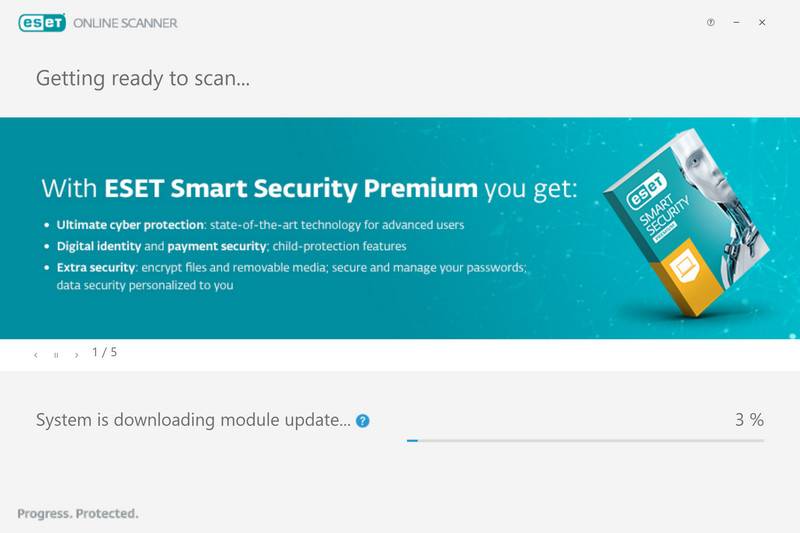
ESET first downloads detection-module updates. Wait for that preparation to finish; the download progress is not the malware scan’s final result.
If updates fail, record the error and check the connection available for the scan. Do not follow an unrelated pop-up offering an alternative updater.
Once scanning begins, leave the application open. Avoid opening personal accounts or moving files around while it checks the computer.
The scan examines files it can access within its scope. An inaccessible location, interrupted scan, or unresolved error must not be interpreted as a clean result.
If a scan stalls or closes unexpectedly, keep its error details. Repeated failures need investigation, not repeated attempts to bypass Windows security controls.
Step 4: Review detections, save the report, and restart when requested
When the scan ends, open View detailed results. Read the detection names, affected paths, and recorded actions rather than relying only on a colored summary.
ESET attempts to clean and quarantine detected threats. Check whether each item was resolved; a detection count does not tell you whether cleanup succeeded.
Click Save scan log and keep the report. The results screen also has Continue, which takes you onward after you review the findings.
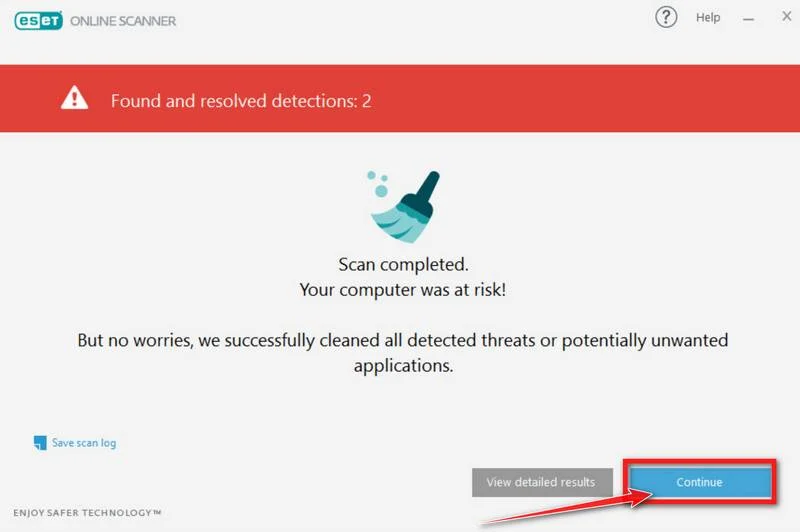
Leave detected malware quarantined. Do not restore it, add it to exclusions, or rerun it because an unfamiliar website says the detection is mistaken.
If ESET requests a restart to finish cleaning, save your work and allow it on your personal PC. Follow your administrator’s instructions on managed systems.
After signing back in, reopen the scanner if it requests another check. Confirm that any follow-up scan completes and review its result too.
You may be offered periodic scanning, a product upgrade, feedback, or emailed results afterward. These choices are separate from completing the one-time scan.
Keep the report and quarantine while resolving the incident. Do not remove scanner data simply to clear away evidence of what was detected.
Step 5: Disconnect the affected Phone Link relationship
If you linked a phone to this PC, disconnect that relationship while the incident is unresolved. Do this from the phone first when possible.
On Android, open Link to Windows and sign out of its Microsoft account. A downloaded version places this under Settings > Accounts.
On phones with the feature built in, find Link to Windows in Settings or the quick panel, select the account, and choose Sign out.
On iPhone, sign out inside Link to Windows if you use it. Under Settings > Bluetooth, select the PC and choose Forget This Device.
On Android, also unpair the PC in Bluetooth settings if paired. Menu names differ between manufacturers, so check the device name before removing a pairing.
After Windows cleanup, open Phone Link > Settings > Devices. Use the affected device’s menu, choose Remove, and confirm.
Check Windows Settings > Bluetooth & devices > Mobile devices > Manage devices for a remaining entry and remove that connection too.
Microsoft’s current unlinking instructions explain the separate phone and Windows locations. Disconnecting synchronization is not a substitute for removing Windows malware.
Step 6: Check the result and decide whether rebuilding is safer
Review the original antivirus alert again. Check whether it now shows quarantine or removal, and whether any follow-up alert names the same path.
If the detection returns after restarting, keep the PC isolated. A recurring alert can indicate another component or persistence that the first cleanup did not resolve.
Ask for help in our Windows Malware Removal Help & Support forum. Include detection names and sanitized logs, not passwords, recovery codes, or private messages.
A remote access Trojan can leave uncertainty beyond the one file an antivirus removed. For important business or personal data, discuss a planned Windows rebuild.
Before reinstalling, preserve needed evidence and identify documents worth keeping. Keep a separate verified backup; do not carry unknown executables or the old system image into recovery.
A reinstall erases data depending on the option chosen. If you lack a reliable backup or recovery key, stop and get help before starting.
Install applications again from their genuine publishers and apply Windows updates before restoring normal use. Restore documents carefully, rather than restoring the entire suspected software environment.
Rebuilding Windows does not withdraw information already copied or undo account changes. Complete the account checks below even when you choose a fresh installation.
What the CloudZ and Pheno Findings Actually Show
Talos could not establish the original entry point. A fake ScreenConnect update was part of the observed chain, not proof that every infection started that way.
The researchers documented a loader and scheduled-task persistence. That explains why closing a suspicious window or restarting Windows is not a complete removal method.
Pheno’s published code looks for Phone Link processes and proxy-related output. It produces reconnaissance logs, including a possible-connection indication, rather than visibly displaying stolen verification codes.
The report therefore describes potential interception, not a demonstrated universal defeat of multi-factor authentication. Do not treat the malware name as proof every account was accessed.
Likewise, a legitimate Windows process or remote-support application is not automatically malicious. Do not delete system components or authorized management software based only on a name.
The useful distinction is between the infected computer, the information available to it, and the accounts that information might unlock. Each needs a different remedy.
What to Do About Exposed Accounts and Verification Messages
Do these checks from a different trusted device, not the PC you are still cleaning. Start with the accounts that control access to your other accounts.
-
Secure your main email. Change its password to a new, unique one. Check recovery email addresses, telephone numbers, forwarding rules, and connected applications.
Remove unauthorized changes through the provider’s genuine settings. If you cannot sign in, use its official account-recovery process, not a contact advertised in a warning.
-
End existing sessions. Use each account’s security page to sign out other devices or revoke sessions. A password change does not replace that check.
For a Microsoft account, open Additional security options and choose Sign out everywhere. Microsoft says this can take up to 24 hours and excludes Xbox consoles.
-
Replace reused or exposed passwords. Work through accounts saved or used on the affected PC, prioritizing financial, work, and password-manager access.
Use a different password for each service. Otherwise, changing one account can leave another accessible through the same old password.
-
Review verification activity. Check recent sign-ins, unexpected code messages, and changes to authentication methods. A code you did not request deserves attention, even without a completed login.
Do not approve unexpected requests or disclose codes to someone offering cleanup. Check account activity through the official application or a manually opened provider website.
-
Recheck linked-device permissions. Leave the affected Windows-to-phone relationship disconnected until Windows is trustworthy again. Do not immediately restore every old pairing and connected application.
When you eventually reconnect, grant only the permissions you actually need. A convenient message mirror can expose private content to anyone controlling that PC.
-
Keep a short incident record. Retain detection reports, suspicious sign-in times, and account-recovery confirmations. Give relevant details to your provider or employer without sharing secrets publicly.
If an account shows unauthorized transactions or activity, contact that service through its official support channel promptly. Malware removal does not reverse an account takeover.
You do not need to erase a phone merely because it was paired. Investigate separate mobile symptoms or detections on their own evidence.
Frequently Asked Questions
Does a CloudZ detection mean my phone is infected?
No. A Windows detection does not establish a mobile infection. Disconnect the affected link and protect relevant accounts; do not jump straight to a factory reset.
Should I remove Microsoft Phone Link completely?
Disconnect the affected pairing while you investigate. The legitimate application is not itself CloudZ, and removing it alone would not clean an infected Windows system.
Will deleting the suspicious update remove everything?
Not reliably. Once a malicious file has run, other components may remain. Keep the original detection details and complete the scan, result review, and follow-up checks.
Do I need to buy ESET to follow this guide?
No purchase is required for the ESET Online Scanner one-time scan described here. Read optional offers separately; do not enter payment details to complete this procedure.
What if the scanner reports no threats?
Keep the result, but compare it with the original alert and unresolved symptoms. An interrupted scan or continuing detection needs help, not an assumption of safety.
Is changing my password enough after cleanup?
Also review sessions, recovery methods, account activity, and cross-device links. Information already exposed does not disappear when the Windows malware is removed.
The Bottom Line
For a confirmed CloudZ infection, isolate the Windows PC, complete removal or a carefully planned rebuild, and keep the affected Phone Link connection disconnected.
Then secure accounts from a trusted device and review sessions and verification activity. Do not treat a clean scan as proof that previously exposed information is safe.
A paired phone is not automatically an infected phone. Base any mobile cleanup on separate evidence, while taking the Windows compromise seriously.

Join the discussion
0 commentsShare your experience or ask a question about this article.
Your progress
Did these steps help?
Let us know how the guide worked for you.
Describe what you see and the step you reached. Keep passwords and other private information out.
Discussion
Start the conversation
Have a question or something useful to share? Add the first comment.