


An app promising live football doesn’t seem connected to the private lists and reminders on your phone.
A warning about Perseus Android malware raises a different question: what could a streaming download have reached beyond the video player?
Overview
More than an unwanted streaming app
Perseus is Android malware designed for device takeover. ThreatFabric’s research connects its code to Phoenix and Cerberus, rather than an unrelated browser-notification problem.
Reported campaigns used IPTV-themed disguises, with separate dropper and payload applications. That finding concerns malicious downloads, not every streaming service or app.
Private notes change the recovery priorities
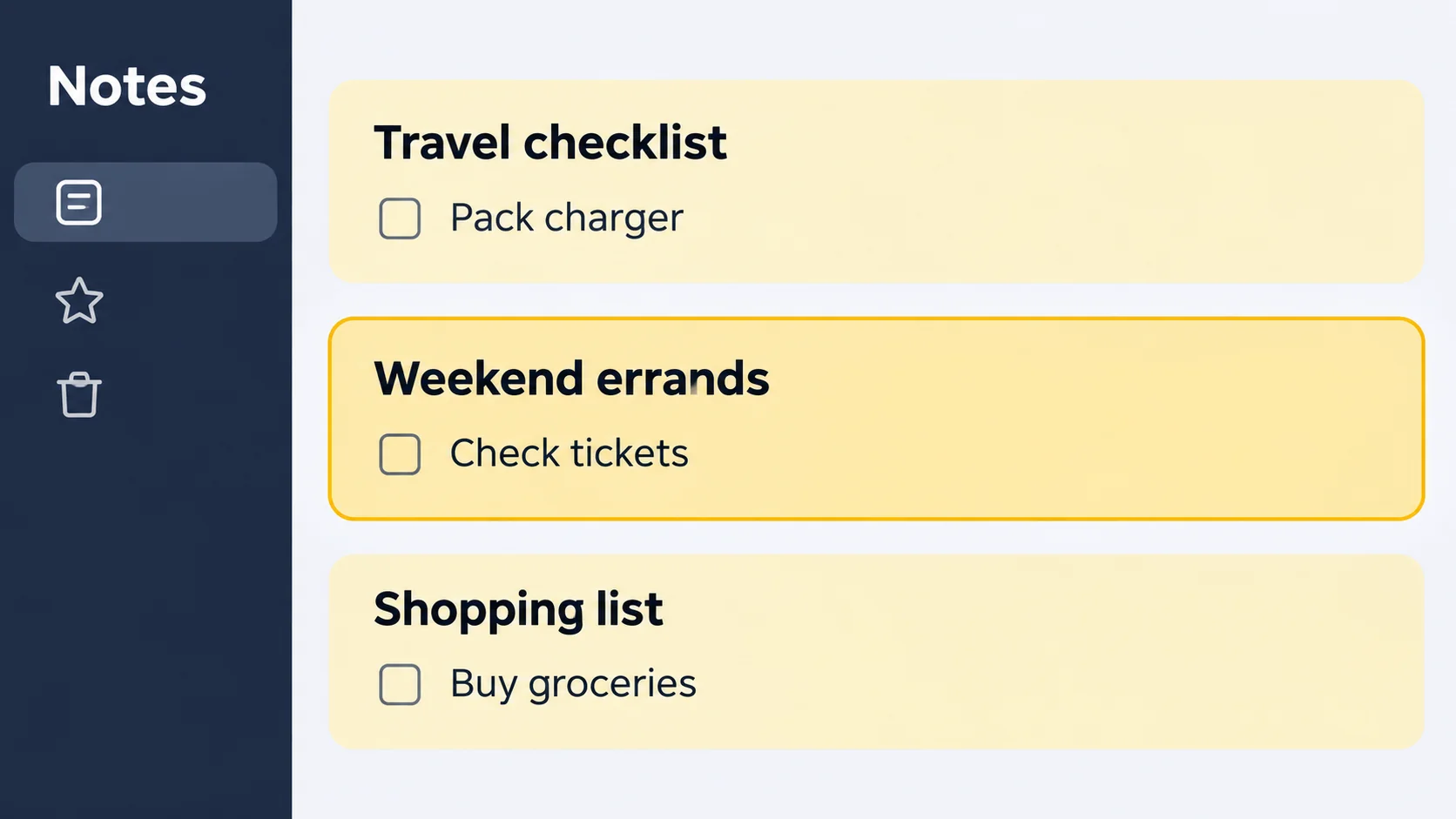
The English fork studied included scan_notes, which uses Accessibility to navigate note applications and record their contents. This wasn’t established for every Perseus version.
A grocery list and a saved password need different responses. Think about what your notes contained before assuming that uninstalling an app finishes the job.
Contain the phone, then restore trust
A suspicious app name alone isn’t a diagnosis. Combine installation history, security detections, permissions, and unexpected account activity before deciding what to remove.
- Stop sensitive activity on the affected phone.
- Identify both the suspicious installer and any application it added.
- Review the suspect app’s access, uninstall it, and complete a supported scan.
- Protect exposed accounts and secrets from a separate clean device.
If this is a work or school device, contact its administrator first. Removing management software or resetting it yourself can disrupt evidence collection and recovery.
How to Remove Perseus Android Malware Safely
Follow the steps in order on a personal Android phone. Menu names vary by manufacturer; use Settings search when the described option isn’t immediately visible.
Step 1: Stop using the phone for sensitive activity
Don’t open banking, password-manager, email, or cryptocurrency applications on a phone you suspect someone can control. Use another trusted device for urgent communications.
Turn on Airplane mode, then check that Wi-Fi and mobile data are off. Some phones retain Wi-Fi settings when Airplane mode changes.
This interrupts a network connection; it doesn’t uninstall malware. Keep the phone separated while you identify the suspicious applications and review their access.
Record the app names, installation dates, security warnings, and the time you noticed the problem. Don’t repeatedly reopen a suspicious app to investigate its behavior.
If money is moving or someone changed account access, contact the bank or provider immediately from a clean device. Don’t wait for every cleanup step.
For an employer-owned phone or a serious targeted incident, ask the response team about preserving evidence before restarting, uninstalling, or wiping anything.
Step 2: Identify the suspect app and review its access
Open Settings > Apps, then See all apps if needed. Look for applications installed around the questionable streaming download.
Check installation source, developer information, and any security detection. A familiar icon can be copied, while an unfamiliar name may belong to legitimate software.
Research identified the labels Roja App Directa, TvTApp, and PolBox Tv. Names can change, so don’t treat that short list as a complete detector.
For the app you have identified, open Permissions and review access such as SMS, files, camera, or microphone. Deny access the suspicious app shouldn’t retain.
Accessibility is separate from ordinary permissions. On Samsung Galaxy devices, open Settings > Accessibility > Installed apps, select the suspect service, and turn its switch off.
Other manufacturers may use Downloaded apps or another label. Consult the manufacturer’s instructions if you can’t find the service or the setting won’t stay off.
Don’t disable legitimate screen readers, accessibility aids, or workplace management indiscriminately. The goal is to remove the identified unwanted app’s access, not every service.
Also search Settings for Install unknown apps. Review the browser or installer used for the download and turn off its unnecessary installation permission.
Don’t follow instructions from the suspicious app to allow restricted settings or switch off Play Protect. Those protections should remain enabled.
Step 3: Uninstall the dropper and any malicious payload
Return to the confirmed unwanted app’s App info page and tap Uninstall. Use Android’s Settings, not an uninstaller offered inside the suspicious application.
The older Samsung examples below show the Uninstall and confirmation controls. Select the app you identified on your phone, not the example photo editor pictured.
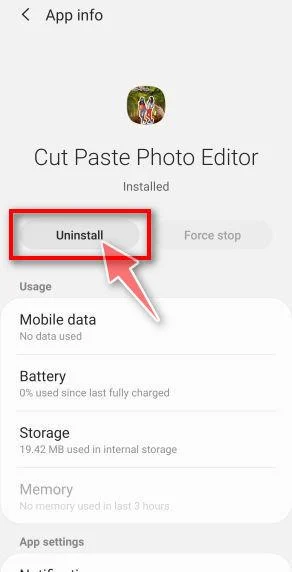
Read the confirmation dialog and verify its app name. Removing an app can erase its local data, so avoid uninstalling unrelated applications containing important information.
Confirm with OK or Uninstall, depending on your Android version. Then return to the app list and check that the selected application is gone.
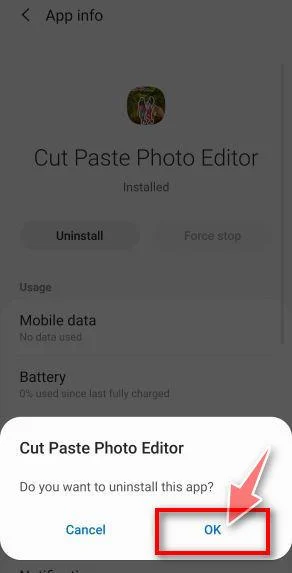
Check for a second application installed by the original download. Removing a dropper doesn’t automatically establish that its payload has also been removed.
If Uninstall is disabled, search Samsung Settings for Device admin apps. Check whether the confirmed unwanted app is active there.
Deactivate only that confirmed malicious administrator if Android permits it, then return to App info and uninstall. Don’t remove legitimate work, school, or security management.
If management controls are locked or you aren’t sure what an entry does, stop and contact the administrator or manufacturer. Don’t force a device-owner removal.
When an app interferes with Settings, Safe Mode can help. On supported Galaxy models, hold the Side and Volume down buttons to open the power menu.
Touch and hold Power off. Before continuing, note that Safe Mode can reset some wallpaper, theme, or widget customization on certain devices.
Choose Safe mode, then uninstall the identified app through Settings. Restart normally afterward. Other models have different startup procedures; use their official instructions.
Step 4: Install the Android scanner without a forced purchase
After removing the identified apps and disabling their access, reconnect only as needed to obtain trusted tools. If remote interference continues, stop and seek technical help.
Use the Google Play listing below. Verify that the developer is Malwarebytes, tap Install, and then Open. Don’t download a scanner APK from an advertisement.
The optional Premium link is an affiliate link. MalwareTips may earn a commission if you buy, at no additional cost to you.
Get Malwarebytes for AndroidOpens the official Google Play listing.Want real-time protection? See Malwarebytes Premium for Android
The current app supports Android 10 and later. If Google Play says your phone isn’t supported, don’t obtain an older copy from an unknown download site.
Open the app, review its introduction, and tap Get started. Existing subscribers can choose I have a subscription instead.
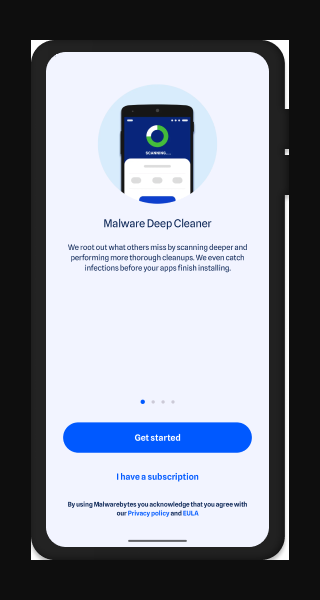
The Android manual malware scanner is free. Real-time protection can require a subscription; you don’t need to buy it for this manual scan.
If a plan screen appears, tap the X at the upper left to continue in Free Mode without starting a trial.
Read any purchase confirmation before accepting it. If the free route isn’t available on your screen, stop and use official support rather than entering payment details.
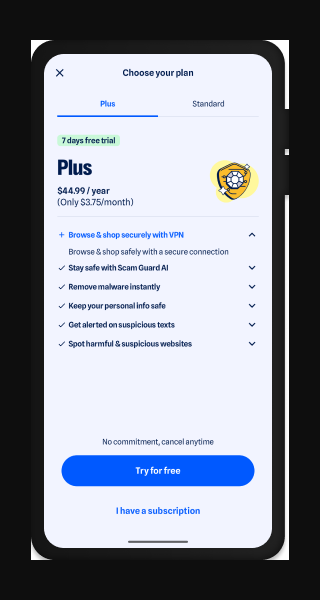
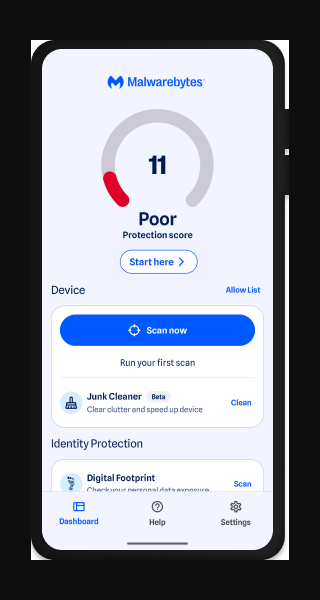
Notification and optional protection prompts may appear during setup. Review each purpose rather than enabling every feature merely to improve a dashboard score.
A low protection score reflects configured features, not a diagnosis that Perseus is present. Actual scan results are a different screen.
If you choose paid protection later, check the plan and renewal terms separately. The optional offer above isn’t a requirement for these removal instructions.
Step 5: Run the manual scan and handle detections
Before scanning, update Malwarebytes through Google Play. In the app, open Settings > Security > Database updates and choose Check for updates.
Some versions call the manual control Update or Force update. Wait for completion; if it fails, check the connection or seek official support.
On the Malwarebytes dashboard, find Device and tap Scan now. Allow storage access when prompted if you want files checked alongside installed apps.
Keep the scan running until it finishes. An interrupted scan isn’t a completed check, and a progress indicator isn’t a removal result.
Open the results and review the detected app or file names. Keep the detection details if you need help deciding what a finding means.
For a detected malicious app, tap the menu beside its name, choose Uninstall app, and confirm Android’s uninstall prompt.
Don’t select Always allow for a suspicious finding. That excludes it from later detection instead of resolving the underlying problem.
After removal, check the app list again. Follow any requested restart, reopen the scanner, and investigate detections that remain or return.
No items detected means that scan found no threats. It doesn’t prove nobody accessed your notes or that every form of compromise has been ruled out.
Step 6: Check Android protections and unresolved behavior
Open Google Play, tap your profile icon, then Play Protect. Review its alerts and keep Scan apps with Play Protect enabled in its settings.
Follow supported uninstall prompts for harmful applications. Don’t dismiss a warning just because a streaming app claims it needs extra permissions to work.
Check Android security and Google Play system updates through Settings. Manufacturers use different update menus; install available supported updates and restart when requested.
Revisit the suspect service’s Accessibility entry and the installed-app list. Unexpected reappearance, blocked controls, or continuing unauthorized activity requires more investigation.
Don’t use clearing Chrome, deleting browsing history, or resetting every browser as a substitute for removing an installed device-control application.
If your phone is too old to receive security updates or run supported tools, ask its manufacturer about recovery and replacement options before trusting sensitive accounts.
Step 7: Escalate persistent compromise before resetting
If removal fails, the screen keeps being controlled, or the app returns, stop experimenting. Use manufacturer support or qualified incident-response assistance.
A factory reset erases local apps and data. Before proceeding, verify essential backups, account recovery access, authenticator recovery, and any wallet information you need to retain.
Know the Google Account and screen-lock credentials required afterward. Google’s reset guidance says to wait 24 hours if you recently reset the account password.
Use your manufacturer’s procedure, not a universal button sequence. Don’t restore the suspicious APK or automatically reinstall the same unverified streaming download.
For additional help, use MalwareTips Mobile Malware Removal Help. Share app names and error messages, but never passwords, recovery codes, private notes, or wallet phrases.
What to Do About Notes and Accounts Exposed to Perseus
A phone can be cleaned while stolen information remains usable. Work through the categories below from a separate clean device, starting with the most sensitive.
-
Secure your main email account. Change its password if exposed, review recent security events, and remove unfamiliar signed-in devices or sessions.
Check recovery addresses, phone numbers, forwarding rules, and connected applications. Google’s compromised-account guide explains its controls; other providers have their own recovery procedures.
-
Replace passwords and recovery codes saved in notes. Prioritize banking, work, cloud storage, and any password reused elsewhere.
Create new recovery codes through each service’s security settings. Don’t simply move an exposed code into a different note and keep using it.
-
Tell your bank about suspicious access or transactions. Use the number on your card or an independently located official contact, not a message’s callback number.
Ask about securing mobile banking, removing unauthorized devices, and reviewing transfers. Record the report reference; reimbursement depends on the circumstances and provider.
-
Treat exposed wallet recovery phrases as compromised. Reinstalling a wallet or changing its app password doesn’t replace the phrase controlling its accounts.
Use your provider’s official guidance, such as MetaMask’s compromised-wallet instructions, from a clean device. A new wallet needs a new recovery phrase, not the exposed one.
Don’t send extra cryptocurrency into a wallet suspected of automatic draining just to pay transaction fees. Get qualified help before risking additional funds.
-
Notify your workplace about business information. Notes may contain access tokens, customer details, or internal instructions even when they contain no obvious login.
Let the security team decide which credentials, sessions, and business records need action. Don’t upload the notes to a public forum for analysis.
Keep a private checklist of what you replaced and when. That is more useful than repeatedly checking the same account while overlooking another exposed secret.
Review two-step verification methods as well. Remove methods you didn’t add and establish a secure replacement before discarding the only authenticator or recovery route you control.
What the Perseus Findings Mean for Your Phone
Researchers documented overlays, captured input, remote screen or interface sessions, and operator actions. The risk isn’t limited to someone knowing a password.
That explains why changing credentials on the suspect phone is a poor first move. Restore trust in the device while handling account recovery elsewhere.
The notes target list included an incorrect OneNote package name. It doesn’t demonstrate successful OneNote access or the ability to unlock protected notebooks.
Researchers also suggested possible LLM-assisted development from coding clues. Those clues don’t prove AI authorship, and they don’t change the cleanup priorities.
You don’t need to identify the malware’s developer before taking sensible action. You do need to distinguish an installed malicious app from a suspicious advertisement.
Match Your Response to What Actually Happened
If you only saw an ad, close it and don’t install its download. Seeing a promotion alone doesn’t mean your phone has Perseus.
If you downloaded an APK but never installed it, don’t open it. Keep any evidence needed for a report, then remove the unwanted download.
If you installed the app, check whether it added another application or obtained Accessibility access. That exposure warrants the device-cleanup steps above.
If account activity changed, investigate that separately even after uninstalling. Notifications, bank records, and security-event timestamps can help establish what happened.
Slowness, battery drain, or data usage alone isn’t enough to identify this family. Don’t uninstall trusted assistive software merely because it uses powerful permissions.
Avoid anyone promising guaranteed recovery in exchange for a payment or wallet phrase. Use established support channels, not unsolicited direct messages after requesting help.
Frequently Asked Questions
Can Perseus steal every note on an Android phone?
The reported English fork navigates note-app interfaces. That doesn’t establish access to every note, every version, or locked notebooks and encrypted vaults.
Does having an IPTV app mean my phone is infected?
No. The warning concerns specific malicious downloads. Installation source, package identity, permissions, detections, and account activity matter more than the IPTV label alone.
Will uninstalling the streaming app remove everything?
Not necessarily. A dropper may have installed a separate payload. Review both applications, complete the scan, and investigate anything that returns or can’t be removed.
Do I need a paid Malwarebytes subscription to scan?
The Android manual malware scanner is free. Paid protection is optional; close the plan screen with its X rather than starting an unwanted trial.
Will changing my phone PIN protect exposed accounts?
A new PIN doesn’t replace account passwords, recovery codes, or wallet phrases. Handle those separately from a clean device and review signed-in sessions.
Should I factory-reset the phone immediately?
Not automatically. Preserve necessary evidence and recovery access first. Persistent compromise may require a reset, but its data loss and restoration risks need planning.
The Bottom Line
Remove Perseus Android malware before trusting the phone again. Contain it, remove the installer and payload, review their access, and finish the supported scan.
Then protect the information your notes contained. Cleaning Android doesn’t replace exposed passwords or wallet phrases, and it doesn’t end sessions already opened elsewhere.
If control problems continue, stop relying on the phone for sensitive activity and get qualified help before restoring accounts or backups.

Join the discussion
0 commentsShare your experience or ask a question about this article.
Your progress
Did these steps help?
Let us know how the guide worked for you.
Describe what you see and the step you reached. Keep passwords and other private information out.
Discussion
Start the conversation
Have a question or something useful to share? Add the first comment.