


An update carrying your bank’s name asks you to finish one more card check. The familiar colors and tidy progress screen make it seem routine.
Then the instructions become unusually specific about your card and phone. If you have already followed them, the next steps deserve your attention.
Overview
NFCShare turns a supposed bank update into a card check
NFCShare is Android banking malware identified through deceptive app downloads. The app can read contactless card information and ask you to type your card PIN.
A counterfeit banking page supplies the pretext. Instead of completing an ordinary update through Google Play, the visitor is directed toward an unofficial Android installation file.
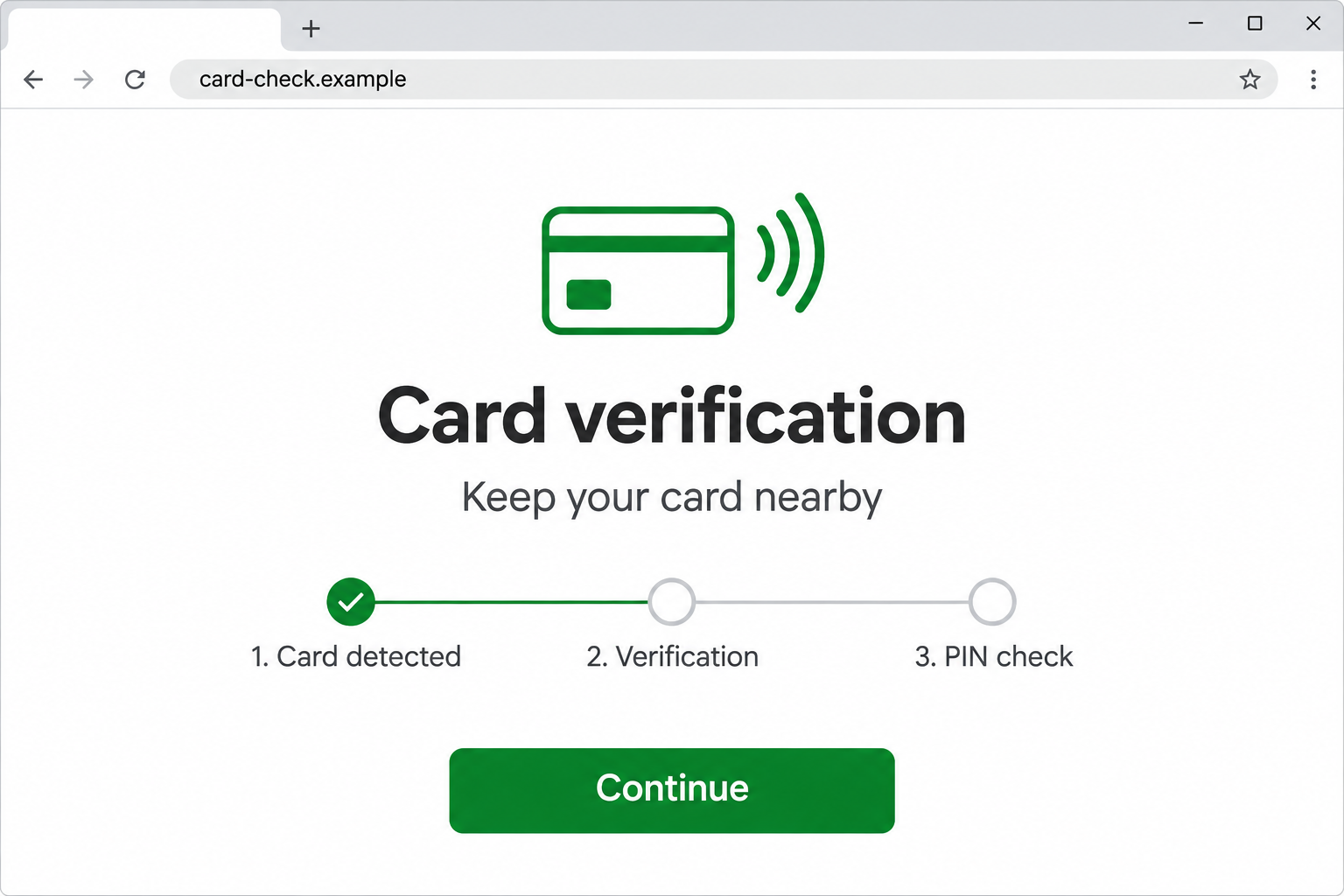
The illustration depicts that kind of verification lure. It is not a genuine banking service or a page you need to use.
The exposure depends on what you actually did
Receiving a message is different from installing its app. Holding a card against that app and entering a PIN adds a separate financial exposure.
- You only saw the message or page: stop interacting and verify through your bank.
- You installed the update: remove the untrusted app and check the phone.
- You supplied banking credentials: secure the online account through genuine channels.
- You presented your card or entered its PIN: contact the card issuer immediately.
Cleaning the phone and protecting the account are different jobs
Removing NFCShare cannot recall information already transmitted. A phone scan also cannot cancel a card payment or replace a compromised banking password.
Use the removal guide below for the Android device. The later response section covers your card, account access, evidence and disputed transactions.
How to Remove NFCShare From Android
For a work-managed phone, contact your administrator before changing management settings. A business incident may require evidence preservation before uninstallation or a reset.
For a personal phone, start with the steps below. Keep a separate, trusted device available for banking, support calls and account recovery.
Step 1: Stop the card check and contain the exposure
Move your payment card away from the phone. Do not continue the verification, supply another PIN or follow instructions from someone directing the process.
Turn off Wi-Fi and mobile data while you identify the app. This interrupts its normal online connection, although it cannot undo an earlier transmission.
If you tapped your card or entered its PIN, contact the issuer from another phone now. Use the number printed on the card or its genuine website.
If the issuer offers an immediate card freeze through a genuine channel, use it while contacting support. Do not rely on the suspicious app’s controls.
Do not wait for a scan before reporting the financial exposure. Explain that an unofficial banking app asked you to hold the card nearby.
Record the app name, approximate installation time and the message that led there. Preserve useful evidence without reopening the app or repeating the card interaction.
Step 2: Find the unofficial app and uninstall it
Open Android’s Settings, then Apps. Depending on the manufacturer, you may need See all apps or App management.
Find the app installed during the supposed update. Check its installation source and timing, not just the bank logo or a reassuring name.
A real banking app may already be present beside the imitation. Do not remove either one solely because their names resemble each other.
Open the suspect app’s information page through Settings. This displays its controls without requiring you to launch the banking interface again.
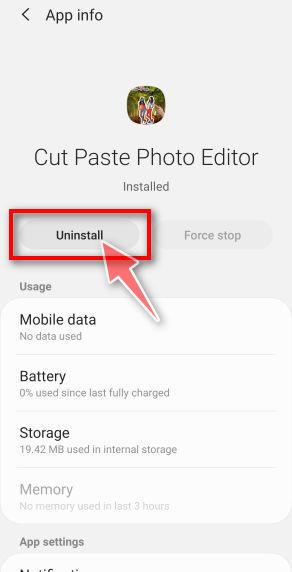
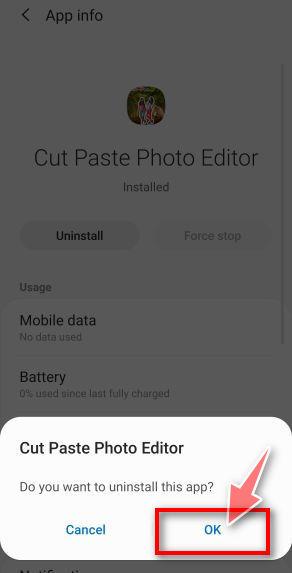
The Android examples use a photo editor to demonstrate the controls. Choose the app involved in your incident, not the example shown in the picture.
Tap Uninstall for the confirmed unwanted app and approve Android’s prompt. Removing an app deletes its local data, so preserve necessary incident details first.
If Android completes the removal, check the installed-app list again. An icon disappearing from the home screen alone does not establish that the app was uninstalled.
Do not install another APK offered as a cleanup tool. Obtain security software through its genuine store listing, not the original banking message.
Step 3: Handle a blocked uninstall without disabling legitimate services
If Uninstall is unavailable or the app interferes with navigation, review the privileges granted to that specific app. Do not switch off every service.
Search Settings for Device admin apps. Remove administrator permission only from the confirmed unwanted app, then try its ordinary uninstall control again.
Also review its Accessibility or other special access if you granted it. Legitimate assistive tools and employer management software can use these settings too.
NFCShare’s card-reading behavior does not establish that every installation received administrator or Accessibility privileges. These checks address an obstruction, not a requirement to disable everything.
Safe Mode can prevent downloaded apps from running while you uninstall the problem app. Use your manufacturer’s procedure because controls differ between phones.
On Samsung, open the power menu, press and hold Power off, then select Safe mode. Remove the identified app there and restart normally.
Safe Mode can affect home-screen customizations. If removal still fails, obtain qualified help instead of deleting unfamiliar Android components.
Step 4: Run a manual Malwarebytes scan
If the app cannot be removed or a managed-device incident is ongoing, obtain help before reconnecting the phone.
Once the suspect app is removed, use a trusted connection to get updates and security tools. Keep the payment card away.
Open the genuine Google Play listing below. Confirm that you are installing Malwarebytes, rather than another app advertised on a search page.
The current app requires Android 10 or later. If your phone is unsupported, seek manufacturer guidance instead of installing an older APK from an unofficial mirror.
Tap Install, then Open. If the app is already installed, update it through Google Play before scanning.
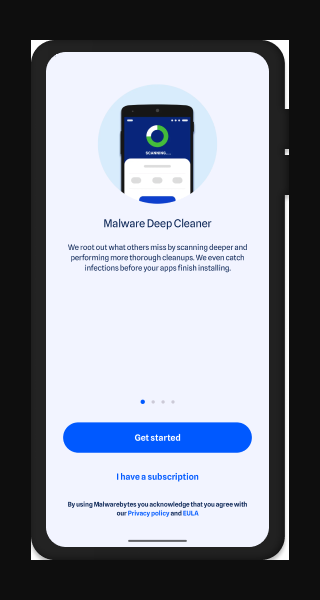
Move through the welcome screens and tap Get started. Existing subscribers can use the sign-in option instead of buying a second subscription.
Onboarding can display a subscription offer. Read the choices before proceeding, particularly any trial that would later renew.
Manual scanning is available in Free Mode. A purchase is not required to follow this manual-scan procedure.
If you do not want a plan, close the offer using its X. Do not select Try for free merely to reach the scanner.
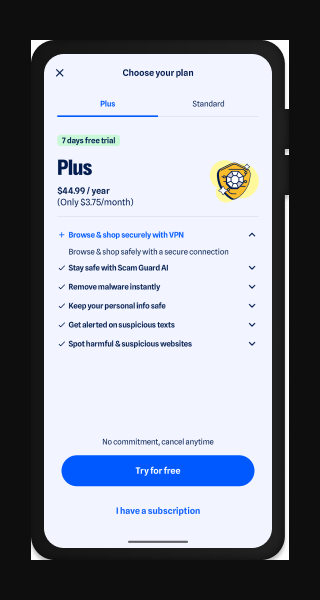
Only accept optional protection features you intend to use. Automatic scanning and other paid benefits are separate from the manual check described here.
Before scanning, open Malwarebytes Settings, then Security and Database updates. Use Check for updates, or Update where that label appears.
Let the update finish. If it fails, resolve the connection or ask genuine support before relying on an outdated scan.
On the dashboard, locate the Device area and tap Scan now. Grant the requested storage access if you want accessible files checked too.
A protection score summarizes enabled features. It is not a finding that NFCShare has infected your phone.
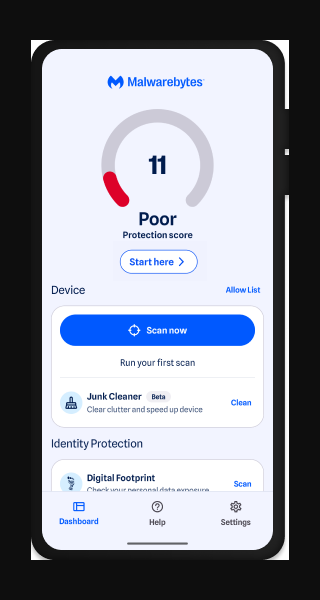
Allow the scan to finish, then open its results. Do not stop halfway because the phone seems normal or the original app is gone.
If scanning cannot complete, keep the error details. Follow genuine vendor support rather than accepting a replacement scanner from an unsolicited caller.
Step 5: Act on detections and confirm removal
For each detected item, open the menu beside its name. Review the finding and select Uninstall app for a malicious application.
Android may display its own confirmation dialog. Approve removal of the identified app, checking the name before you confirm.
Do not select Always allow for an app you have not verified. That choice excludes it from future scanning instead of removing it.
Keep a record of detection names and actions taken. Restart if requested, and check that the selected app no longer appears among installed applications.
A result with no detections means the scan found nothing within its checks. It does not prove that previously exposed card or account details are safe.
Optional real-time protection is available separately. You can compare Malwarebytes Premium for Android without treating it as a condition of recovery.
MalwareTips may receive a commission through paid-product links. The manual scan above remains available without a purchase.
Step 6: Update Android and check its built-in protection
Install available Android security and Google Play system updates through Settings. Names and locations vary, so use your manufacturer’s instructions if the menu differs.
In Google Play, open your profile menu and choose Play Protect. Open its settings and confirm Scan apps with Play Protect is enabled.
Return to Play Protect and review any warning it presents. Follow the detection’s instructions rather than dismissing an unfamiliar finding automatically.
Revisit the app that supplied the original installation permission. Search Settings for Install unknown apps and disable unnecessary permission for that browser or file manager.
This does not remove software by itself. It reduces the chance of another unofficial installation through the same route.
Android can retain the downloaded APK after its app is removed. Once necessary evidence is preserved, delete that installation package from Downloads to avoid reinstalling it.
Do not forward the package to friends for testing. Share installation details or a security report instead of circulating a potentially malicious file.
Step 7: Escalate if the phone remains untrusted
If detections return, an app resists removal or you cannot establish what was installed, ask your manufacturer, security provider or an experienced incident responder for help.
MalwareTips also provides mobile-malware help. Share symptoms and detection names, never passwords, banking codes or your card PIN.
A factory reset is an escalation, not the automatic first step. It erases local data and requires planning for account access and backups.
Make sure you can sign in to the Google account on the phone. A reset can require that account to restore access.
Google advises waiting 24 hours after a recent Google-account password reset before factory-resetting the device.
Follow device-specific reset guidance and restore only trusted personal data. Automatically reinstalling the same questionable APK can recreate the problem.
Do not reset browsers indiscriminately. A malicious banking app is not evidence that every browser profile, saved password or notification setting needs to be erased.
How the Fake Banking Update Leads to NFCShare
The bank’s name makes the installation feel expected
D3Lab’s original analysis described a Deutsche Bank-themed phishing route that delivered an APK presenting itself as Support Nexi.
The important transition is from a bank-branded page to an unofficial app. A familiar logo cannot establish who supplied the installation file.
A request to update banking software should be checked through the bank’s independently located instructions. Do not use the message’s own link to authenticate it.
The card interaction supplies information the attacker wants
The analyzed app reads NFC-derived payment-card information and displays a separate PIN request. The PIN comes from what the person types, not a magical extraction.
The analyzed code sends the collected card data and entered PIN to an attacker-controlled WebSocket endpoint. The verification interface conceals that transmission.
This distinction matters when reporting the incident. Tell the issuer whether you installed the app, presented the card, entered a PIN or disclosed online-banking credentials.
Simply keeping NFC enabled is not the same event. The documented lure depends on a malicious installation and induced interaction.
The app label changes more easily than the underlying risk
A later D3Lab investigation tracked bank-branded APKs distributed through a GitHub repository disguised as a school project.
Those builds retained NFCShare markers while changing branding, hosting and packaging. A reputable hosting platform did not make the uploaded applications legitimate bank updates.
Do not hunt for one permanent icon or filename. Installation history, the genuine bank’s distribution instructions and a security assessment are more useful together.
What to Do If NFCShare Exposed Your Banking Details
-
Give the issuer a precise account of the card interaction. State whether the card was presented and whether its PIN was typed.
Ask what blocking, replacement and monitoring are appropriate. Do not assume changing the online-banking password also protects the physical card or its PIN.
-
Secure online banking from a trusted device. If credentials were entered on the imitation page, contact the bank through its genuine app, website or telephone channel.
Ask about unknown sessions, newly enrolled devices and changed contact details. Replace exposed passwords and reused copies, following the bank’s recovery process.
-
Report unauthorized transactions promptly. Note the date, amount and merchant or ATM description for each transaction you do not recognize.
Request the bank’s formal fraud-dispute process and keep its reference number. Outcomes depend on the transaction and applicable rules, so nobody can promise a refund.
-
Keep useful evidence without spreading it. Preserve the original message, installation source, detection report and relevant bank correspondence.
Do not publish card numbers, account identifiers or PINs in a public forum. Share sensitive records only through a verified institution’s secure process.
-
Reject anyone selling guaranteed recovery. An unsolicited helper requesting an upfront fee, remote access or another verification payment can turn one incident into another.
Keep using the issuer’s verified contact route for follow-up. Do not let a new caller take over the process because they know about the earlier incident.
Frequently Asked Questions
Does receiving an NFCShare message mean my phone is infected?
No. Identify what happened after the message arrived. Installing an unofficial APK is a different exposure from reading a message or viewing its page.
Can NFCShare read the PIN directly from my card?
The documented interface asks the person to enter a PIN. Do not confuse that typed secret with card information read through NFC.
Should I delete my real bank app too?
Not automatically. Identify the unofficial installation through its source, timing and security findings. Ask the bank if you cannot distinguish it from the genuine app.
Is Malwarebytes manual scanning free on Android?
Yes, Free Mode includes manual scanning. Dismiss an unwanted subscription offer rather than starting a trial solely to reach Scan now.
Will removing the app make my card safe again?
Removal addresses the device. The issuer must assess exposed card details and PINs, while compromised online-banking credentials need separate account recovery.
Do I always need to factory-reset the phone?
No. Use supported removal first. Persistent symptoms, failed uninstallation or an uncertain high-risk compromise justify professional advice and possibly a carefully planned reset.
The Bottom Line
Do not complete a card-verification process inside an unofficial banking update. Remove the untrusted app and follow genuine security instructions, not the message that supplied it.
If your card, PIN or banking credentials were exposed, contact the bank immediately from a trusted device. NFCShare removal and financial protection must both be addressed.

Join the discussion
0 commentsShare your experience or ask a question about this article.
Your progress
Did these steps help?
Let us know how the guide worked for you.
Describe what you see and the step you reached. Keep passwords and other private information out.
Discussion
Start the conversation
Have a question or something useful to share? Add the first comment.