


A warning about a remote-access Trojan on your Mac raises different questions from an annoying pop-up. You want to know what remains after closing the window.
If the detection names 3Crypt RAT, begin with the computer in front of you. Its startup settings and security report offer better clues than appearances.
Overview
3Crypt RAT is reported macOS remote-access malware
The documented malware profiles a Mac’s hardware, security settings, running processes, and network. That information can help an operator understand the compromised environment.
It is not a legitimate optimization utility merely because its activity involves system information. A credible detection warrants containment and careful cleanup.
Several startup routes make superficial removal unreliable
Reported persistence includes a LaunchAgent identifier, com.test.3crypt, changes to shell startup files, and a scheduled crontab entry. Removing one item may leave another launch route.
- Disconnect the Mac before continuing sensitive online activity.
- Keep the security report for targeted cleanup assistance.
- Inspect startup mechanisms without deleting unfamiliar files indiscriminately.
- Review exposed accounts through a separate trusted device.
The infection route and actual damage need separate checks
A specific delivery campaign has not been confirmed. General risks such as untrusted installers should not be presented as the proven origin of your particular detection.
Reported evasion behavior also limits what a quiet desktop can tell you. No obvious symptoms does not settle whether a detected infection has been resolved.
How to Remove 3Crypt RAT From a Mac
For a company-owned Mac, notify your security team before changing its files or restarting. It may need to preserve evidence and investigate connected systems.
Keep the initial detection report available as you work. Its affected paths will help a trusted helper investigate any components that remain after scanning.
Step 1: Isolate the Mac and preserve the warning
Turn off Wi-Fi through Control Center and disconnect any Ethernet cable. Stop accessing sensitive services, including email, banking, and your password manager.
Save the security alert’s name, affected path, and time. Do not launch the flagged item again or upload personal files to public scanning sites.
If you already have a trusted, updated scanner, start with it offline. Otherwise, obtain the correct Mac installer using another clean device where possible.
Installation and database updates may require a temporary connection. Do not use that connection to resume ordinary browsing or enter important credentials.
Step 2: Download the Mac version of Malwarebytes
Use the Mac download button below. Windows .exe installers do not belong in this procedure, even if a search result recommends them.
Download Malwarebytes Free for Your Mac
If the direct download is unavailable, open the Malwarebytes for Mac download page and select Free Download. Do not switch to a Windows package.
Malwarebytes provides free on-demand scanning and removal on Mac. Scheduled scanning and real-time protection belong to paid features, not prerequisites for this cleanup.
Compare optional Malwarebytes Premium protection for Mac
Both linked Malwarebytes product pages may earn MalwareTips an affiliate commission. You can proceed with the free scanner without purchasing a subscription.
Step 3: Install Malwarebytes and enable Full Disk Access
In Finder, open Downloads and double-click the Mac installation package. Read the introduction and select Continue, then work through the information and license screens.
Choose Agree when accepting the license, then Install. Authenticate in the genuine macOS installer prompt, and select Install Software to complete the installation.
These credentials belong only in the verified local installation process. Never provide them to an unsolicited caller, browser pop-up, or remote-support chat.
Close the installer when setup finishes, then open Malwarebytes. Choose Personal Mac if asked and use Maybe later to continue with the free scanner.
Decline the optional newsletter if you do not want it. Continue to the dashboard without providing an email address when that option appears.
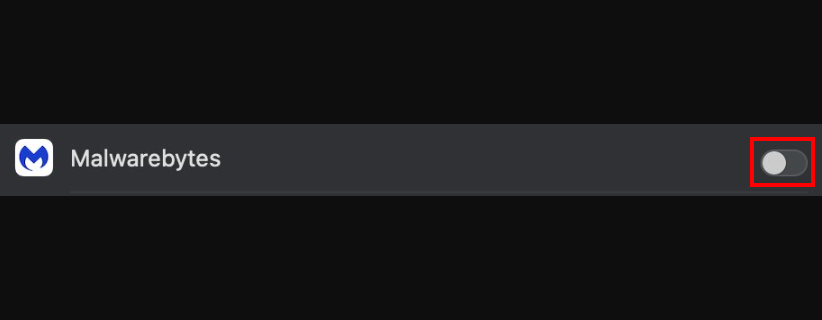
When prompted, open System Settings, then Privacy & Security, then Full Disk Access. Find Malwarebytes in the list and turn its toggle on.
Authenticate with your Mac password or Touch ID when macOS asks. Return to Malwarebytes once you have enabled the requested permission.
Step 4: Follow the Monterey permission path when applicable
On macOS Monterey, open System Preferences instead. Choose Security & Privacy, open Privacy, then select Full Disk Access in the sidebar.
Unlock the panel with the padlock and your Mac administrator credentials. Select the Malwarebytes Protection checkbox, then return to the application.
Do not disable other security controls to complete this step. If the application entry is missing, use Malwarebytes’ installation support rather than guessing.

Step 5: Run a Threat Scan and let it finish
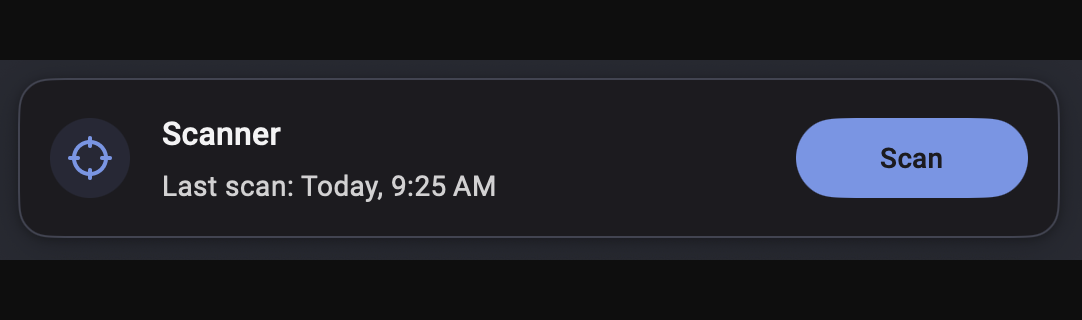
Allow the scanner to obtain available updates, then select Scan on the dashboard. Choose Threat Scan if the app offers several scan types.
Let scanning finish before using the Mac for other work. The results page will show whether threats were found and which actions remain available.
A Quick Scan is less comprehensive than a Threat Scan. Use a Custom Scan when a reported folder or additional drive requires separate checking.
Step 6: Quarantine detections and retain the report
Review the Threat Scan summary and keep confirmed threats selected. Click Quarantine for detections that have not already been quarantined automatically.
Open the Scanner card, choose Reports, select the relevant scan, and click View. Keep the detection names and affected paths for any follow-up investigation.
Do not restore a flagged item simply because its name looks familiar. Ask a trusted helper to investigate a suspected false positive first.
If the scan finds no threats, select Done and continue the persistence checks below. A clean result does not settle every consequence of remote access.
Step 7: Restart only if requested and check again
If Malwarebytes requests a restart, save your work and allow it. Reopen the app afterward and check whether the requested remediation completed.
Run another updated Threat Scan, then compare its report with the first result. Returning items require investigation of their launch mechanisms, not repeated blind deletion.
When removal fails, keep the Mac isolated and request assistance in the MalwareTips Mac malware removal forum or from a qualified Mac specialist.
Share detection names and paths, not private documents or passwords. A planned macOS rebuild may be appropriate if the integrity of the installation remains uncertain.
Check the Persistence Routes That Matter for 3Crypt
LaunchAgents: inspect the launch target, not just the label
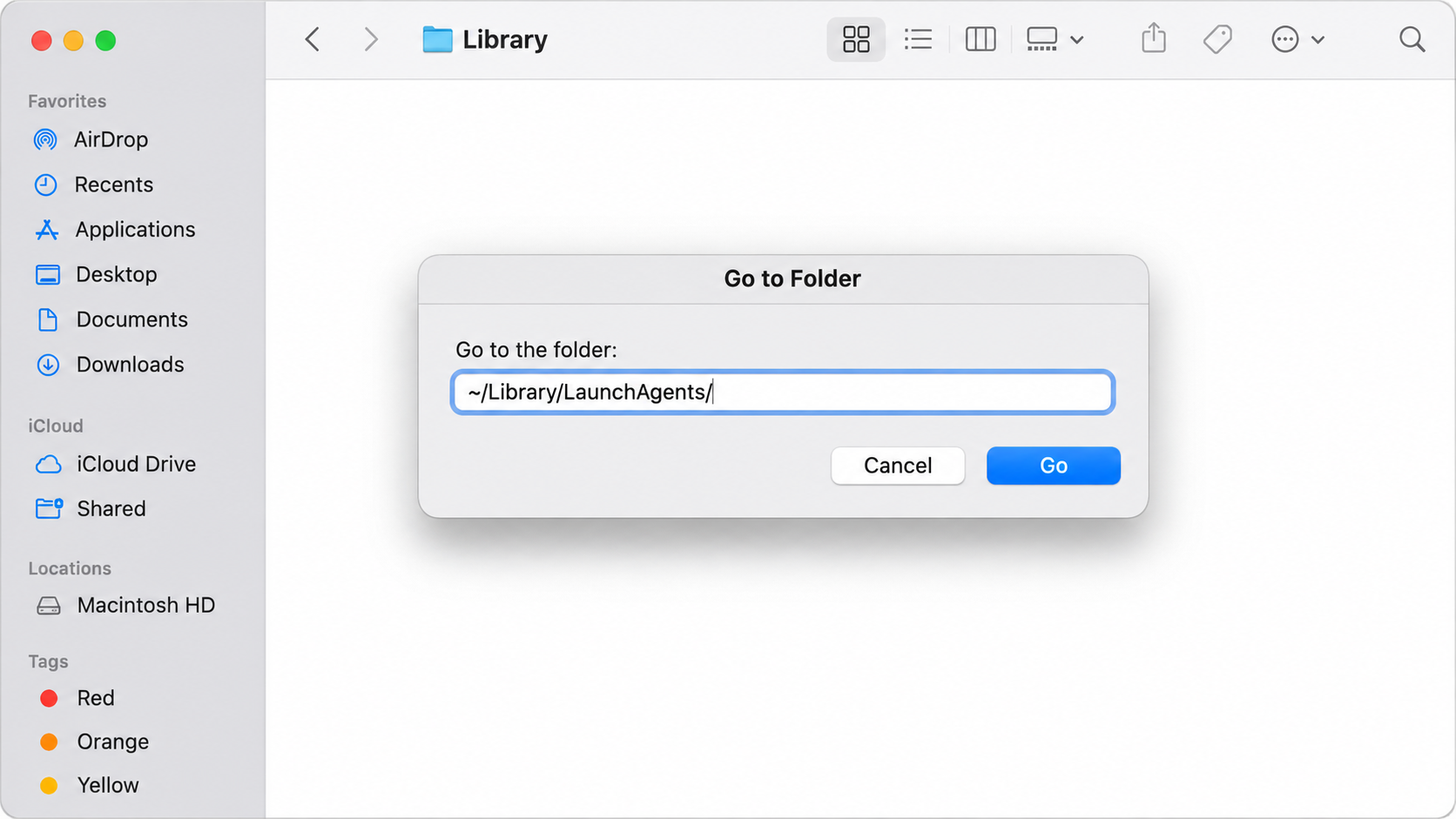
In Finder, choose Go, then Go to Folder. Enter ~/Library/LaunchAgents/ to inspect the current user’s agent files without changing them.
Other agents can reside in /Library/LaunchAgents/, while system-level launch daemons use /Library/LaunchDaemons/. These locations contain legitimate software as well as possible unwanted entries.
A matching identifier from the report is a clue to investigate. It does not tell you that every file with a similar name belongs to this malware.
Ask a qualified helper to compare a suspicious property list’s launch target with the flagged executable. Preserve both paths before deciding what needs removal.
Do not empty those folders or delete everything that lacks an Apple name. Legitimate backup tools, updaters, and other applications may depend on their entries.
Likewise, moving only a property list may leave its payload elsewhere. Effective cleanup connects the startup instruction with the program it actually launches.
Shell startup files: avoid pasting a blanket reset
The report describes modifications to .zshrc, .bashrc, and .bash_profile. These files can run initialization instructions when a command shell starts.
They may also contain important, legitimate customization. Deleting the whole file can break development tools or other settings without explaining the suspicious entry.
If you use Terminal regularly, tell the helper what your normal environment includes. That context makes it easier to distinguish an unfamiliar addition from your setup.
Do not open repeated Terminal sessions just to see whether symptoms recur. Have a trusted specialist inspect the startup files and compare them with your report.
You should never paste a cleanup command that downloads a script from an unverified address. The supposed cure can introduce another remote-access tool.
Scheduled jobs: absence from Login Items is not clearance
A crontab entry represents another way to schedule execution. It is separate from the familiar Login Items panel, so one empty list cannot clear every persistence route.
On your own Mac, System Settings, General, then Login Items & Extensions offers a useful additional review. Note unfamiliar entries without assuming they are all malicious.
Do not delete corporate background services or management profiles to make the list look cleaner. A workplace administrator should determine whether those entries belong.
If the same threat returns after scanning, share that pattern and its paths. Repeated removal without investigating the launch mechanism may miss the underlying problem.
What the Reported Capabilities Mean for Your Mac
Reading security settings is different from disabling them
The malware reportedly checks protections such as FileVault, the firewall, and System Integrity Protection. That does not establish that it disabled every protection it examined.
Check actual settings instead of assuming the worst or toggling controls blindly. Record unexpected changes and ask a qualified helper about their cause.
Do not disable Gatekeeper or other safeguards to make a cleanup program run. Obtain trusted software and investigate installation problems through its legitimate support.
For a managed Mac, protection settings may reflect organizational policy. Coordinate changes with administrators rather than working around controls you do not recognize.
Quiet activity does not provide a reliable timeline
A remote-access infection does not have to display advertisements or a ransom note. Looking for those signs alone can miss the type of problem being investigated.
Reported timestamp and log manipulation mean local dates may need careful interpretation. Do not decide exposure began yesterday solely because one file shows yesterday’s date.
Combine the detection time with account alerts, trusted installation records, and any earlier observations. A professional can help separate dependable evidence from misleading timestamps.
Write down what you know and what remains uncertain. A useful incident report can contain an estimated window without pretending to identify the exact first moment.
Device cleanup and information recovery have different limits
Removing an unwanted program can stop its local activity. It cannot retrieve documents already copied or automatically reverse changes made through a compromised account.
That is why the recovery checklist below addresses identities as well as macOS. Prioritize accounts according to what you used or exposed on this Mac.
Do not assume every item in your Keychain was stolen merely because a RAT was detected. At the same time, avoid dismissing credible evidence of account misuse.
When to Consider Rebuilding macOS
A planned clean installation may be appropriate when detections recur, unauthorized changes continue, or a specialist cannot establish confidence in the existing system.
Discuss the plan before erasing anything. Check that you can access essential accounts, locate recovery information, and preserve the documents you actually need.
Back up documents carefully, keeping them separate from applications, installer packages, and shell configuration. Reintroducing an untrusted executable can undermine a newly rebuilt Mac.
Review backups before restoring them wholesale. An old system snapshot can include the same startup changes or unwanted software you were trying to remove.
A business Mac may require a company-approved image or enrollment process. Let its administrators manage that work and the return to trusted service.
Rebuilding is a device-recovery choice, not a guarantee about exposed accounts. Continue the relevant security review even after macOS has been replaced.
What to Do If 3Crypt RAT Was Detected on Your Mac
-
Preserve the initial security notification and scan report. Record the detection, file location, and actions already taken without relaunching any flagged component.
If the computer belongs to your employer, report the incident through its real support channel. Mention whether you used work services during the suspected period.
-
Protect important accounts from a separate trustworthy device. Begin with the mailbox, Apple Account, or other identity that controls recovery for services you use.
Replace exposed or reused passwords, review signed-in devices, and investigate unfamiliar recovery methods. Use each provider’s official settings rather than instructions from an unsolicited message.
-
List sensitive material accessible during the suspected compromise. Business documents, private keys, recovery codes, and financial information can require different follow-up actions.
Tell the appropriate organization when its information may be affected. Avoid sending entire private files when a description or secure reporting process will suffice.
-
Complete the Mac scan and investigate the specific persistence locations with a trusted helper. Keep copies of repeat findings instead of repeatedly discarding the reports.
Do not remove all LaunchAgents, profiles, or shell startup files. Targeted cleanup protects legitimate configuration and makes it easier to verify what changed.
-
Contact financial providers about actual unauthorized activity, using their verified channels. Supply relevant transaction references and explain the possible device compromise without guessing at losses.
If wallet secrets were accessible, seek wallet-specific guidance about replacing them safely. Changing an application’s password does not create a new private key.
-
Update supported macOS and trusted applications after resolving the infection. Reinstall software from verified sources and check that unwanted startup behavior does not return.
Arrange professional help or a planned rebuild if confidence remains low. Avoid anyone promising complete recovery in exchange for passwords, remote access, or an advance fee.
Frequently Asked Questions
Can a Mac really be infected with 3Crypt RAT?
The reported remote-access malware specifically targets macOS. Built-in Mac protections are valuable, but they do not make a credible malware detection something to ignore.
Will deleting one LaunchAgent remove every component?
Not necessarily, because the report describes multiple persistence methods. Cleanup should connect the identified launch instructions with their payloads and investigate any returning findings.
Should I erase my .zshrc file after this alert?
Do not erase an entire shell configuration without understanding its contents. A qualified helper can identify suspicious additions while preserving legitimate customization.
Does 3Crypt checking FileVault mean encryption was disabled?
No, reading a security setting is different from changing it. Inspect the actual configuration and investigate unexpected changes instead of assuming the reported capability proves them.
Can Malwarebytes for Windows clean this Mac infection?
Use the Mac application and Mac instructions. A Windows installer is not the correct scanner for a Mac running macOS.
Do I need to erase the Mac immediately?
First preserve necessary evidence and consider the circumstances with trusted support. Persistent compromise may justify rebuilding, but erasure requires a careful recovery and backup plan.
The Bottom Line
A credible 3Crypt RAT detection calls for Mac-specific cleanup and a check of multiple startup routes. Do not settle for removing one unfamiliar icon.
Keep the Mac isolated while resolving recurring findings, protect important accounts elsewhere, and obtain qualified help before making destructive changes.

Join the discussion
0 commentsShare your experience or ask a question about this article.
Community experiences
Did this happen to you?
Your experience could help someone recognize the same scam. Submit a private report for our team to review.
I experienced this tooReports are reviewed before publication. Sharing publicly is always your choice.
Discussion
Start the conversation
Have a question or something useful to share? Add the first comment.