


You search for Claude on your Mac and find what looks like a quick installation route. The page feels familiar, and the instructions promise little fuss.
Before you follow them, there is one detail worth slowing down for. The path to that download can matter more than its polished appearance.
Overview
The warning concerns an impersonated installer
Push Security documented Adception, a search-ad attack that led Mac users toward a fake Claude installer through Google, Bing, and a compromised retailer.
Claude itself is a legitimate Anthropic service. This warning concerns the installation offer reached through that deceptive journey, not the genuine application.
The important boundary is running unfamiliar code
Following an installation guide should not mean trusting every instruction it presents. Pause when a website asks you to open another application and run code.
Do not continue simply because you recognize the logo. Verify the installation method independently before giving an unfamiliar page that level of trust.
Your next action depends on what you actually did
- If you only viewed the page, close it without following its instructions.
- If you copied text, avoid pasting that material into Terminal.
- If you ran a command, isolate the Mac and begin cleanup.
- If this happened at work, notify your real security team promptly.
How the Fake Claude Mac Download Scam Works
Step 1: A sponsored result borrows a familiar destination
The reported Google ad appeared for a Claude Mac search while displaying Bing as its destination. That recognizable name was only an intermediate stop.
A search advertisement occupies space purchased by an advertiser. Its position does not replace your own check of the service you eventually reach.
Google provides an advertiser-information menu through More or Info, followed by About this advertiser. Those details can help document a suspicious advertisement.
Even so, an advertiser disclosure is not a software signature. Keep the advertiser’s identity and the authenticity of a downloaded program as separate questions.
Step 2: An unrelated website becomes a stepping stone
Bing’s click tracker forwarded visitors through a compromised retailer’s page before the fake installer. The retailer was an abused intermediary, not an identified scam operator.
Unexpected changes of destination deserve attention during a software download. You should not need to understand an unrelated business to establish who supplies your application.
Do not send complaints or account information to a business merely because its website appeared along the route. Record the sequence for the appropriate investigator instead.
Step 3: The site behaves differently for different visitors
The fake site’s current page code checks the referring page and sends other arrivals toward a 404 screen. A direct visit can therefore miss the offer.
That observation explains why a link might appear different when a friend opens it. It does not mean the friend misunderstood what you originally saw.
Keep any existing browser-history entry and screenshot rather than reopening the journey to prove your experience. Repeating a suspicious installation is not a useful verification method.
Step 4: The installation instructions move into Terminal
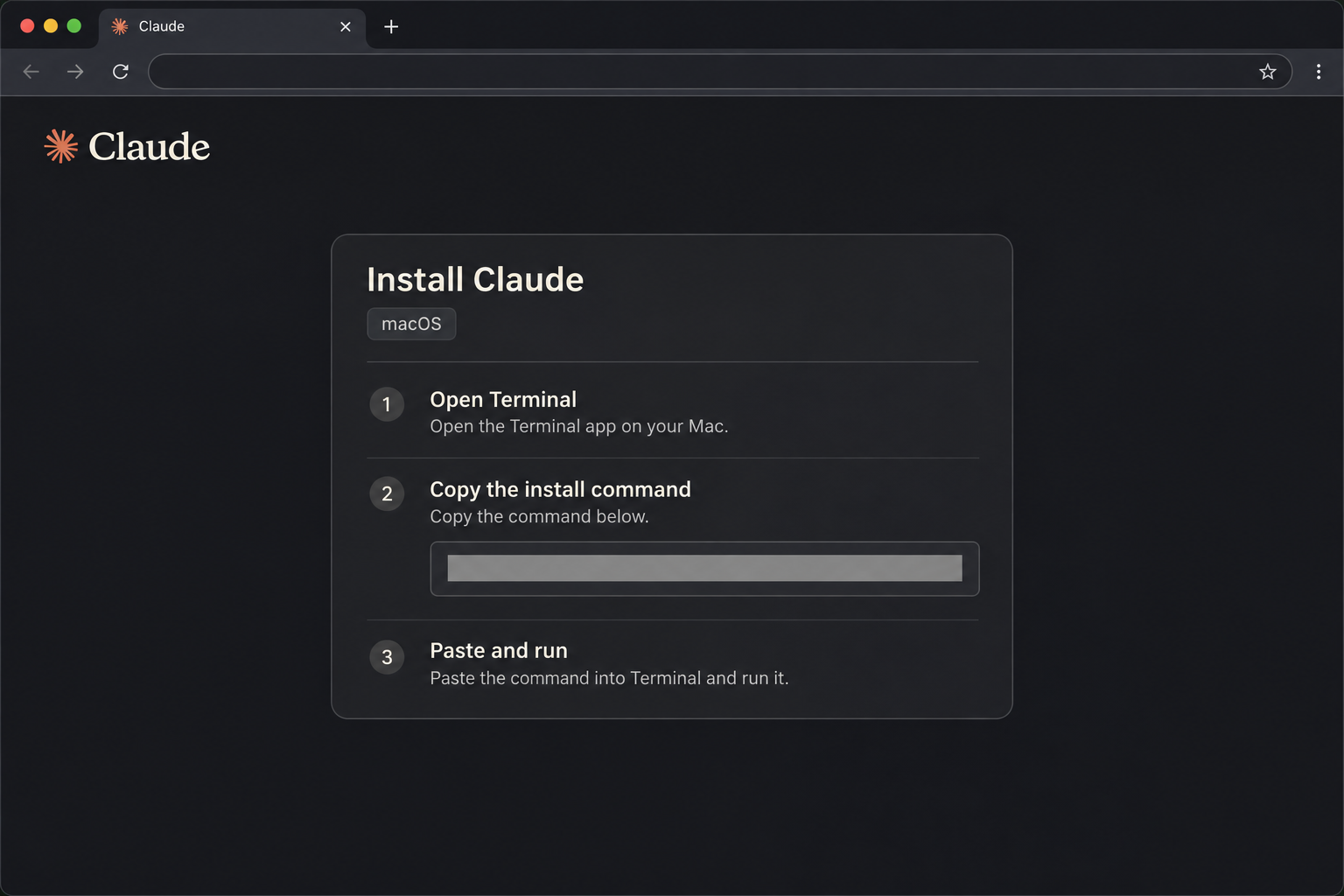
The site’s installation interface includes instructions to open Terminal, copy an installation command, and run it. Its copied branding does not authenticate that procedure.
The reconstructed prompt above shows the handoff to Terminal, with the command concealed so the example cannot be copied and run.
Terminal is a legitimate macOS tool, not a sign of malware by itself. The risk comes from the instructions it receives and who supplied them.
A website can choose what its Copy button puts on your clipboard. The visible command and the text you actually paste can be different.
You do not need to analyze the command yourself before saying no. Close the offer and use installation instructions obtained directly from the developer.
Step 5: The recorded command concealed its real download
In Push Security’s case, the copied command differed from the displayed one. It printed a genuine-looking Claude address while retrieving a script from another destination.
Base64 concealed the remote address; a pipe sent the script to a shell for execution. The report does not identify the final malware family.
A progress message is output chosen by a program. It cannot independently certify that the program is installing what its author claims.
If you already pressed Return, do not wait for an installation window before responding. A command can finish without leaving a familiar application behind.
Choose the Genuine Claude Installation Route
Desktop installation and developer tools are different choices
Anthropic’s Claude Desktop installation guidance directs Mac users to its download page, then the macOS download and the downloaded file.
After installation, the application opens from Applications. Begin with that official guidance when you want the desktop application rather than following an advertiser’s improvised instructions.
Claude Code also has a legitimate terminal installation method in its official quickstart. The existence of that method does not authenticate a lookalike page.
This distinction matters when a warning sounds too broad. A terminal command is not automatically malicious, just as a familiar developer name is not automatically trustworthy.
Start again without reusing the suspicious page
Close the offer and reach the developer through a separately verified route. Do not use its support button to ask whether its own installer is genuine.
Compare the product you wanted with the documentation you are reading. Desktop chat, a developer command-line tool, and a browser extension are not interchangeable downloads.
For a work Mac, use your organization’s software catalog or established help desk. An approved installation process is preferable to bypassing controls to finish quickly.
Keep existing Claude account credentials out of unfamiliar support forms. An installation problem does not justify giving a stranger access to your mailbox or recovery codes.
What to Do if You Have Fallen Victim to This Scam
-
Establish whether you only viewed, copied, downloaded, or executed something. Write down your best recollection, including the approximate time and the browser you used.
If you copied text but never ran it, copy a harmless word from a trusted document to replace it. Do not paste suspicious material into a shell.
-
If a command ran, turn off Wi-Fi and unplug Ethernet. Stop using that Mac for banking, email, password changes, and other sensitive activity.
Preserve the browser history and any existing command or alert evidence. Do not run the command again, even if the first attempt displayed an error.
-
For a managed computer, tell the actual IT or security team before deleting files, restarting, or scanning. Explain that the incident began during a software installation.
They may need the timing, referring page, copied text, and security logs. Share those through their approved process, not an unsolicited remote-support conversation.
-
Secure accounts from another device if you entered credentials or executed untrusted code. Prioritize your main email account and services containing sensitive work or financial information.
Review active sessions and unfamiliar recovery methods alongside password changes. Ask each provider about revoking access that a password change might leave active.
-
On a personal Mac where the command ran, follow the illustrated cleanup procedure below. If you only saw the ad, do not assume an infection.
Keep the scanner’s findings so a removal specialist can investigate actual files. A threat’s detection name may differ from the name used in this article.
-
Report the deceptive advertisement through Google’s reporting controls. Open More or Info on the ad, choose Report ad, and explain the impersonation.
Reporting does not itself block the advertisement or clean your Mac. Keep screenshots and references without publishing private accounts, copied secrets, or personal documents.
Mac Cleanup If You Executed the Installation Command
Skip this procedure if you merely viewed the offer and did nothing further. It addresses possible software execution, not the ordinary appearance of an advertisement.
Step 1: Preserve the incident details before changing files
Keep the Mac disconnected while recording what happened. Note the time, installation instructions, unexpected permission requests, and any security alert that appeared.
If an updated scanner is already installed, begin with it offline. Otherwise, use a clean device to obtain the Mac installer when practical.
Setup or database updates may require a temporary internet connection. Do not use that interval to resume account sign-ins or continue the suspicious installation.
Step 2: Get the free Mac scanner without buying protection
Download the Free Malwarebytes Scanner for Mac
If that route does not start your download, open the Malwarebytes Mac page and select its Free Download control.
Free on-demand scanning and removal are available without purchasing a subscription. Scheduled scans and real-time protection are separate paid features.
View optional Malwarebytes Premium protection for Mac
The linked product pages may support MalwareTips through affiliate commissions. You can complete this cleanup without paying for Premium protection.
Step 3: Install the verified package and allow necessary access
Open Finder, choose Downloads, and double-click the Mac installation package. Read the introduction and select Continue through the information and license screens.
Select Agree to accept the license, then Install. Authenticate only in the genuine local macOS installer prompt and select Install Software.
Close the installer when it finishes, then open Malwarebytes. Choose the personal-device option for a Mac you or your family own.
Use Maybe later where offered to continue with the free version. You can decline the optional newsletter and proceed without providing an email address.
For requested Full Disk Access, open System Settings, Privacy & Security, then Full Disk Access. Enable the verified Malwarebytes entry and authenticate when prompted.
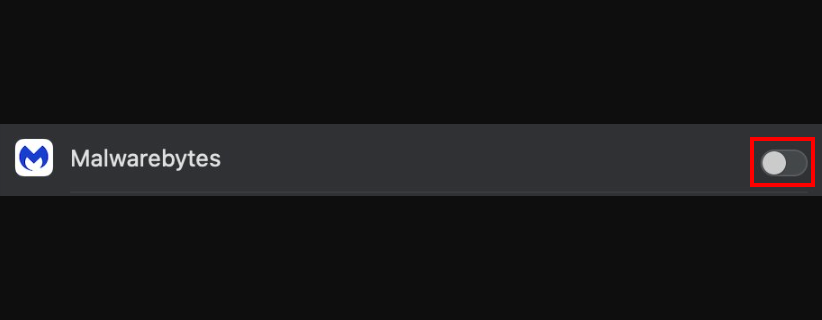
On Monterey 12, use System Preferences instead of System Settings. Open Security & Privacy and select Full Disk Access in its sidebar.
Click the lock and enter your Mac password to permit changes. Authenticate only in this local settings window, not a website’s permission request.
Select the Malwarebytes Protection checkbox to grant access to the installed scanner. Monterey uses this checkbox rather than the toggle shown for newer macOS versions.

Step 4: Run the scan and review its actual findings
Allow the application to obtain available updates, then select Scan on the dashboard. The application opens a progress page while it checks the Mac.
Keep the application open while its scan runs. Avoid starting other installers or reconnecting to sensitive accounts during this check.
Do not cancel solely because the scan seems brief. Mac scans concentrate on likely threat locations rather than examining every unchanged file.
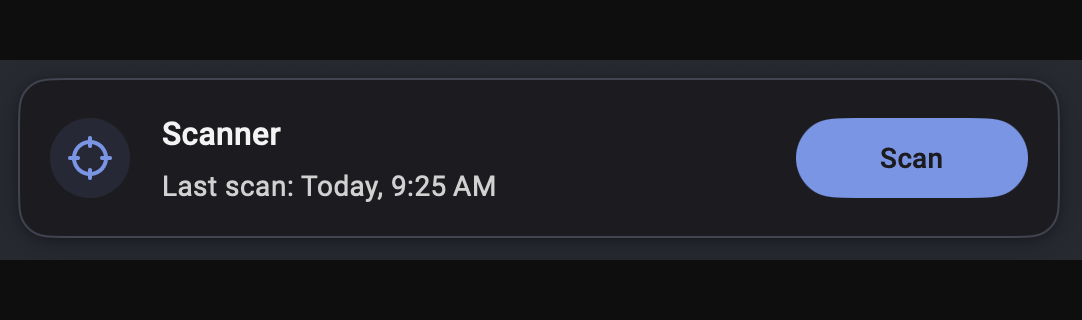
Let the scan finish before drawing conclusions. Note detection names and locations, including anything that appears unrelated to the installation attempt.
Do not open a detected file to check its contents. Leave it untouched while reviewing the result or asking a trusted specialist for help.
Step 5: Apply remediation without restoring suspicious files
Review the detected items, select the findings you want isolated, and choose Quarantine. If the scan finds nothing, select Done and continue the incident review.
Do not restore a quarantined component because its filename looks familiar. Ask a trusted specialist to assess any suspected false positive first.
To review isolated items later, open Detection History and Quarantined items. Deleting an item there is permanent, so preserve evidence before choosing that action.
A removed detection does not explain every action that occurred earlier. Continue the separate account review when credentials or sensitive information may have been exposed.
Step 6: Complete a requested restart and investigate anything returning
Save your work and restart if Malwarebytes requests it. Reopen the application afterward to check that the requested remediation completed.
Run another updated scan and compare its report with the first one. Returning findings deserve investigation rather than repeated, undocumented deletion attempts.
For the Mac scan report, open the Scanner card, choose Reports, select the relevant scan, then View. Record its findings while arranging further help.
No scanner can guarantee that every consequence of untrusted execution has disappeared. Keep the Mac isolated if suspicious activity or repeated detections continue.
Request help in the MalwareTips Mac malware removal forum, providing detection names and relevant paths without sharing passwords or private files.
Review Unwanted Access After Cleanup
Open System Settings, General, then Login Items & Extensions. Compare listed startup items with software you intentionally installed, using the Apple settings guide when needed.
Record an unexplained entry before changing it. Remove or disable only an item you have identified as unwanted, rather than treating every unfamiliar name as malicious.
Also review permissions you granted during the incident. Tell your helper about unexpected requests for broad file access, screen access, or control of other applications.
Do not remove workplace management profiles or security tools to simplify that review. Legitimate administration needs to be distinguished from an unwanted installation.
Do not delete system files based on a guessed malware name. Ask your helper to identify unwanted components from the Mac’s actual findings.
If reliable cleanup remains uncertain, discuss a planned macOS rebuild with qualified support. Preserve essential documents and recovery information before any action that erases data.
Keep application installers and suspicious configuration out of a document backup. Restoring an entire unexamined environment can reintroduce the problem you were trying to resolve.
Frequently Asked Questions
Is the genuine Claude application itself a scam?
No, Claude is an actual Anthropic service. The warning applies to an impersonated installation offer, not to every application or page displaying the Claude name.
Does a terminal installation always mean malware?
No, legitimate developer tools can use terminal installation. Follow the real developer’s independently verified instructions rather than treating a copied command as proof of authenticity.
Do I need cleanup after simply seeing the advertisement?
An advertisement alone does not establish infection. Close the offer, avoid its instructions, and assess separately whether you downloaded, opened, executed, or approved anything.
Can copying a command be treated like running it?
Copying and execution are different actions. Avoid pasting suspicious clipboard contents into Terminal, and replace them with harmless text if you stopped before execution.
Will installing the real Claude app undo an earlier compromise?
No, a genuine application’s installation is not a malware-removal procedure. Investigate earlier untrusted execution first, then install legitimate software through its verified route.
Does a clean scan prove my accounts are safe?
A scan examines the device, not every account session. Secure exposed accounts through their official settings from a trustworthy device and investigate any unauthorized activity separately.
The Bottom Line
Do not run commands from this fake Claude Mac download offer. Start again through Anthropic’s official installation guidance instead of trusting the advertising journey.
If you already executed its instructions, disconnect the Mac, preserve the evidence, and arrange cleanup. Protect relevant accounts elsewhere while the device is being assessed.

Join the discussion
0 commentsShare your experience or ask a question about this article.
Community experiences
Did this happen to you?
Your experience could help someone recognize the same scam. Submit a private report for our team to review.
I experienced this tooReports are reviewed before publication. Sharing publicly is always your choice.
Discussion
Start the conversation
Have a question or something useful to share? Add the first comment.