


A Teams message from someone calling themselves the IT Service Desk can arrive in the middle of an ordinary workday, when you already have plenty to finish.
A request to install a small maintenance tool may not seem remarkable. Before following it, there are a few details worth slowing down to examine.
Overview
SynkLoader turns supposed technical help into a foothold
SynkLoader is Windows malware documented in an attack involving a fake IT help desk on Microsoft Teams. The user was persuaded to install an MSI called PowershellCleaner.
The installation supplied a loader capable of receiving additional components. This makes removing the initial installer different from resolving the resulting access.
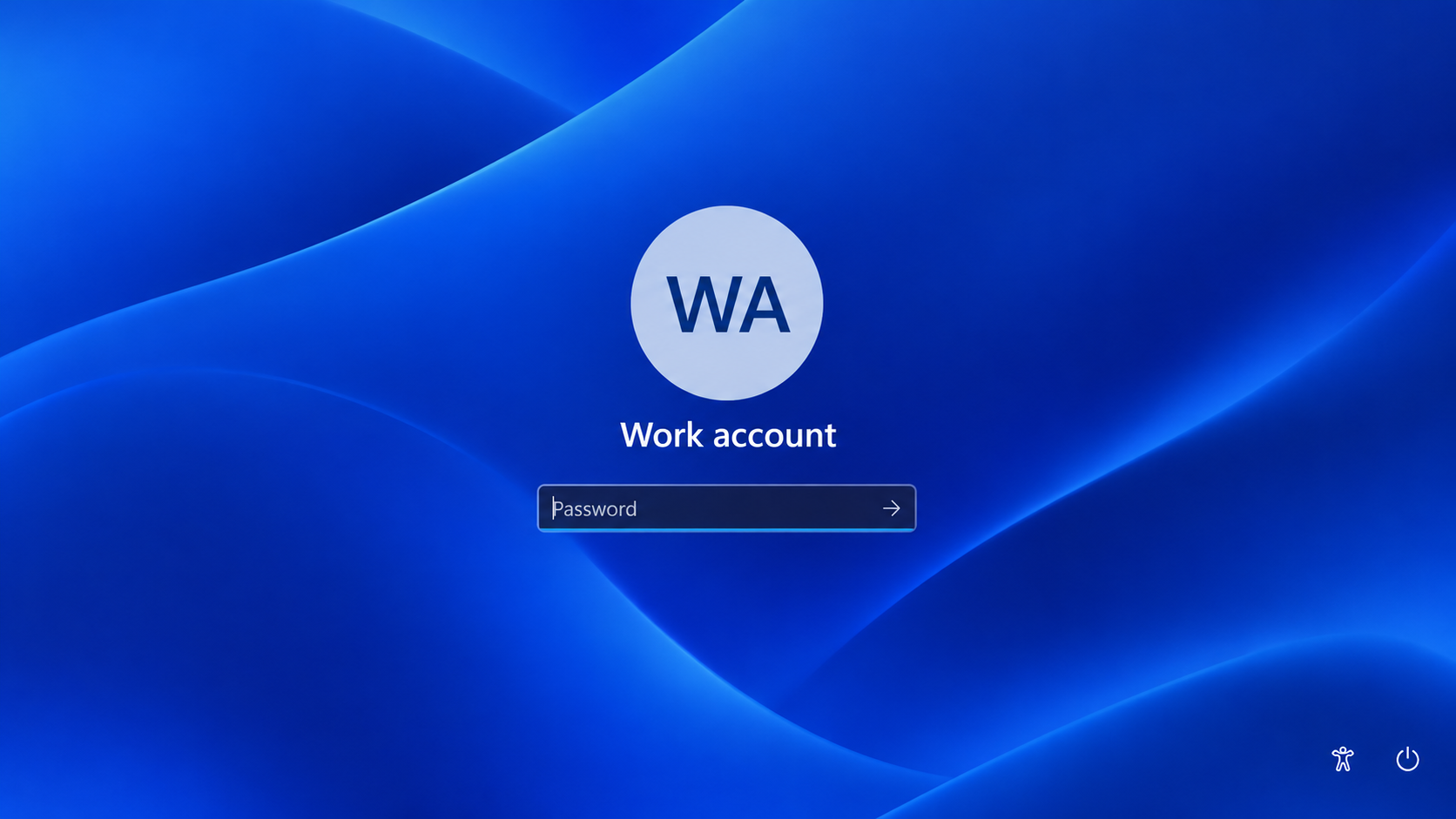
The fake lock screen puts a work password at risk
One component, called PhishLocker, imitates the Windows sign-in screen to capture a system password. Other modules support command execution, network tunneling, and screen control.
If your work computer might be involved, contact your real security team from another device. Avoid entering another password into the suspicious screen.
What belongs in the response
- Preserve the Teams message and installer details safely.
- Let workplace responders direct isolation and evidence collection.
- Remove the loader and investigate additional components.
- Protect the affected identity through legitimate company support.
The investigation did not establish a final ransomware deployment. Treat possible later damage seriously without assuming your files were encrypted or that a decryptor is needed.
How to Remove the Malware From Windows
For an employer’s computer, contact the security team before scanning, restarting, or deleting files. Their investigation may need evidence that cleanup would change.
Do not run PowershellCleaner again because the Teams contact asks you to. Use the original message and scan reports to brief legitimate support.
Step 1: Disconnect the affected computer
Turn off Wi-Fi and unplug Ethernet. Stop using the computer for email, banking, shopping, password changes, or accessing your other devices.
Write down the alert’s detection name, file location, and time. Keep the antivirus report without reopening the suspect file or forwarding its attachment.
If you have already installed an updated scanner, use it offline first. Otherwise, obtain its installer on a clean device where practical.
Some installers require internet access to finish setup or obtain updates. If reconnecting is necessary, keep it brief and avoid signing into anything.
Step 2: Obtain the Windows scanner
Use the direct Windows installer link below. If your browser cannot retrieve it, use the separate free-scanner page to obtain the official download.
Download the Windows Malwarebytes Installer Directly
Open the Malwarebytes Free Scanner Download Page
The free version provides on-demand scanning and removal. Paid real-time protection is optional, and buying a subscription is not required to follow these cleanup instructions.
See optional Malwarebytes Premium protection for Windows
The linked Malwarebytes pages may support MalwareTips through affiliate commissions. This does not change which detected items you should review or quarantine.
Open File Explorer, select Downloads, and locate the Malwarebytes installer you obtained. Do not substitute the original suspicious installer or a similarly named attachment.

Step 3: Install and open Malwarebytes
Double-click MBSetup.exe and confirm the Windows permission prompt only when it identifies the expected Malwarebytes installer. Select Install to continue through setup.
Choose Personal for your own computer, then continue. Skip optional product offers if you do not want them, and select Open Malwarebytes when installation finishes.
You can run an on-demand scan without activating a paid subscription. Dismiss optional subscription offers and continue to the scanner rather than entering payment information.
Let the application retrieve available updates before scanning. If setup fails, save its exact error instead of disabling security features or trying unofficial download mirrors.
Step 4: Run the recommended Threat Scan
Open the dashboard and select Scan. Choose Threat Scan if your version presents several scan types, then allow the check to finish.
Threat Scan checks common infection locations. Use a Custom Scan afterward when a specific download folder, additional drive, or reported path needs separate examination.
Keep the results screen open after scanning finishes. You will need the detection names and affected paths when deciding which items to quarantine.

Step 5: Review findings and quarantine threats
Read the detection names and affected paths when scanning completes. Keep confirmed threats selected and use Quarantine to isolate the detected components.
A scanner may use a generic Trojan label instead of the family name. Save its report so a helper can examine the actual files involved.
Do not restore quarantined files simply because an application stops working. Ask the vendor or a trusted removal specialist to investigate a possible false positive.

Step 6: Restart when requested and scan again
Save any open work, then accept a requested restart. Reopen Malwarebytes afterward and review whether removal completed or any items still require attention.
Run another Threat Scan with current updates. Compare new findings with the earlier report rather than assuming a disappearing warning means everything is resolved.
A clean result is useful, but cannot guarantee that an attacker left no other software behind. Continue with the case-specific checks below.

Step 7: Get help if cleanup will not hold
Repeated detections, returning startup entries, blocked security tools, or fresh unauthorized activity require further investigation. Keep the computer isolated while deciding the next step.
Post the detection report and a description of the symptoms in the MalwareTips malware removal assistance forum, without passwords or private documents.
For confirmed remote control, professional assessment or a planned clean Windows installation may be safer than repeated manual deletion. Preserve documents carefully before any reset.
Rebuilding removes local software only when performed correctly. Account access, stolen information, and unauthorized payments still need their own response.
SynkLoader Checks That Matter After the Scan
Use the actual installation trail
The documented installer extracted files beneath the user’s local PowershellCleaner folder, then placed a bundled Python environment and loader in a separate randomized roaming-profile directory.
That is a useful trail for responders, not a command to erase every Python folder. Legitimate applications can also include their own Python runtime.
Keep the download name, its source message, and the paths mentioned in detection reports. A helper can use them to connect related components.
Do not run the installer again to reproduce its behavior. A second execution could add more activity and complicate the incident timeline.
Scheduled tasks deserve a closer look
Expel documented a task that launches the bundled loader at sign-in and on a daily schedule. The task’s name was randomized rather than a reliable fixed identifier.
On a personal system, open Task Scheduler and inspect a relevant task’s Actions tab. Note the full executable and argument paths for a trusted helper.
Do not remove all tasks with unusual names or a morning trigger. Their names and schedules alone cannot distinguish legitimate maintenance from this malware.
For workplace endpoints, leave that examination to administrators when possible. They can correlate the task with endpoint alerts, installation records, and other affected devices.
One removed component may not explain the whole incident
A loader’s purpose is to bring in more functionality. The initial detection may therefore describe only one part of what happened on the computer.
Tell a responder if you saw an unexpected lock screen, unexpected remote-control activity, or new sign-in alerts. Those observations help decide what else to investigate.
Do not reinstall the supposed cleaner after scanning because the help-desk contact insists it is required. Verify that request with your established company support channel.
How the Fake Help Desk Attack Works
Step 1: A Teams contact claims an internal support role
In the documented incident, a contact used an IT Service Desk display name and a Microsoft 365 tenant address. Familiar infrastructure helped the approach look plausible.
A platform account is not proof that its operator works for your organization. Verify unexpected support requests against a known ticket, directory entry, or published internal number.
Researchers recovered account and download details, not the complete chat. A different greeting would not make the request safe.
Step 2: The user installs a supposed maintenance package
The installer came through an Azure storage address and presented itself as PowershellCleaner. Hosting on a familiar cloud service did not make the package a Microsoft tool.
The important trust decision was running software supplied through the unsolicited support exchange. A real-looking file host does not answer who uploaded it.
If a support agent asks you to bypass normal software approval, pause the request. Contact the real help desk outside that same conversation.
Step 3: The loader receives additional capabilities
SynkLoader’s modular design lets the operator send more components after installation. The original Expel investigation describes profiling, persistence, and interactive tools.
For a user, this changes the question from whether the installer remains in Downloads to whether unauthorized software or access persists elsewhere.
A workstation that seems quiet can still need investigation. The absence of a new application window does not reveal what modules ran in memory.
Step 4: A familiar-looking sign-in prompt requests the password
PhishLocker imitates the Windows sign-in screen to collect a user’s password. Do not enter credentials into an unexpected prompt that follows the unsolicited installer.
A password entered there may affect more than Windows if the organization uses the same identity for other services. Tell real support exactly what you entered.
Network-tunneling functionality adds another concern: unauthorized connections may travel through the affected machine. Administrators should consider that when reviewing account and network activity.
When the Windows Sign-In Screen Feels Wrong
Do not type a password to test the screen
A sudden sign-in prompt after installing an unsolicited maintenance package deserves caution. Stop interacting and reach your organization through a separate trusted device.
Do not enter a real password, an old password, or a recovery code to see which one works. That is not a safe way to identify software.
The researchers observed visual and window-behavior differences, but those depend on versions and implementation. A single missing blur or icon cannot diagnose every machine.
Alt + Tab is also not a dependable universal escape test. The documented fake screen attempted to take focus back, and normal behavior can vary.
Report the order of events
Explain whether the screen appeared before or after the installer, whether you entered anything, and whether the computer was connected to a work network.
You do not need to know the malware’s module names to give a useful report. A clear sequence helps responders choose where to look.
If safe and consistent with workplace guidance, preserve the visible message or photograph it with another device. Do not include a password in the record.
Keep the original Teams conversation available rather than deleting it out of embarrassment. It may help the organization identify other people who received the same approach.
What to Do If You Installed PowershellCleaner or Suspect SynkLoader
-
Contact your actual help desk or security team using a number or portal you already know. State that an unsolicited Teams contact supplied a maintenance installer.
Ask for incident-response instructions before restarting or removing files. Work investigators may want the computer left running but isolated while they preserve evidence.
-
Stop communicating with the suspicious contact and preserve the conversation. Record the display name, account address, file name, and approximate installation time.
Do not send the installer to coworkers as a warning attachment. Share its identifying details through the reporting method your security team approves.
-
Tell responders whether you entered a password into the unexpected sign-in screen. Include whether that identity also accesses email, VPN, or other company systems.
Let administrators arrange the appropriate credential reset and session revocation. Changing a password locally may not address company-wide sign-in tokens or other access.
-
For a personal PC, follow the illustrated Windows cleanup procedure and keep the reports. Investigate startup tasks and recurring components with a trusted removal helper.
Do not treat removing the PowershellCleaner folder as complete cleanup. The installation can involve additional locations and components beyond that visible starting point.
-
Review important personal accounts from a separate clean device if you used them during the incident. Replace exposed or reused passwords and inspect recovery settings.
For work accounts, coordinate that review with company administrators. They may need to check authentication records, internal access, and changes affecting other users.
-
Resume work only after the responsible team or trusted helper has resolved the device and account concerns. Ask whether rebuilding is preferable to continued local repair.
Keep the incident reference for follow-up. If another unsolicited technician offers to finish the repair, verify that person independently before allowing any access.
Frequently Asked Questions
Is PowershellCleaner a standard Microsoft maintenance utility?
The name describes the malicious installer in the documented SynkLoader incident. Do not trust a package merely because it mentions PowerShell or comes from cloud storage.
Does using Microsoft Teams prove the support contact is genuine?
No, a Teams account and an internal-sounding display name do not establish employment. Verify unexpected installation requests through your organization’s known support system.
Is SynkLoader itself confirmed ransomware in this incident?
The documented investigation described a loader and additional access tools, not a confirmed final ransomware deployment. Possible operator intentions should not be presented as an observed encryption event.
Should I enter a fake password to dismiss PhishLocker?
Do not experiment with the suspicious prompt. Preserve what happened and contact legitimate support separately, especially if a workplace identity or managed endpoint is involved.
Can I remove every Python installation to eliminate SynkLoader?
No, legitimate software also uses Python. Cleanup should identify the actual malicious paths and associated startup mechanisms instead of deleting unrelated programming environments.
Why might my employer prefer investigation before a restart?
A restart changes the system’s running state and may lose useful evidence. Follow the security team’s instructions so cleanup does not obstruct its incident response.
The Bottom Line
Do not install a maintenance tool supplied by an unverified Teams help-desk contact. SynkLoader shows how that request can lead to credential phishing and broader access.
If you already ran the package, stop using the affected computer for sensitive work. Contact genuine support, preserve the sequence, and address both the installation and exposed identity.

Join the discussion
0 commentsShare your experience or ask a question about this article.
Community experiences
Did this happen to you?
Your experience could help someone recognize the same scam. Submit a private report for our team to review.
I experienced this tooReports are reviewed before publication. Sharing publicly is always your choice.
Discussion
Start the conversation
Have a question or something useful to share? Add the first comment.