


Some of the most revealing things on a Mac don’t stand out in Finder. Think of a scratch note or a conversation left open.
If you saw a MioLab or Nova Stealer warning, take a moment to remember what you used on this Mac before investigating the download.
Overview
MioLab and the Nova Stealer name
MioLab is an information stealer built for macOS. LevelBlue SpiderLabs documented the operation’s use of the Nova name and analyzed a sample that could collect data from several familiar applications.
An information stealer looks for useful data instead of locking documents. The desktop can look normal after a program has searched through files available to the user.
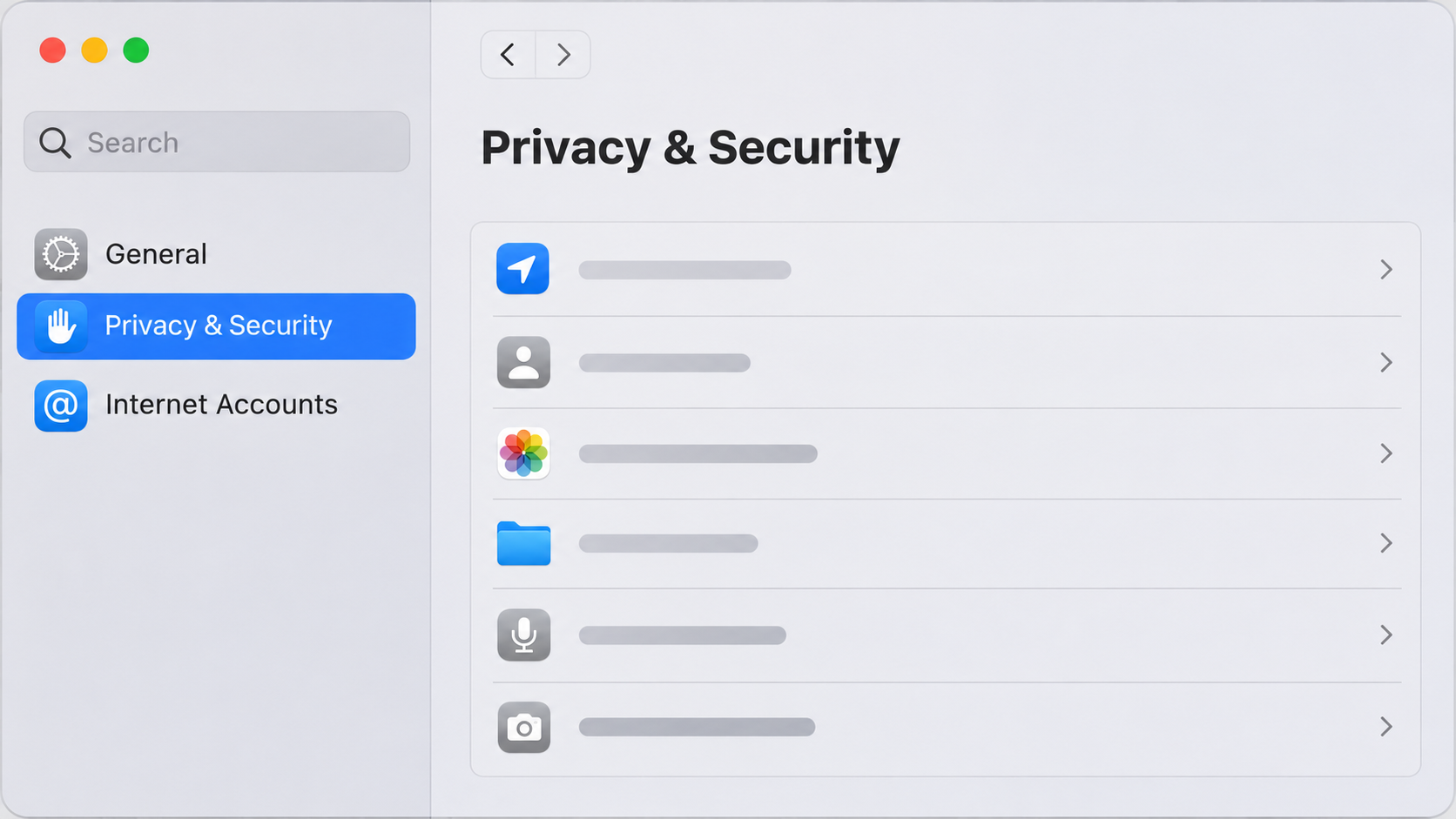
The image above is a reconstruction of a privacy settings view. It does not show a real detection, an affected account, or a statement about what a particular device exposed.
A note can matter as much as a password
The research documented Apple Notes collection, along with targeting of browser profiles and data associated with messaging apps.
It did not establish that every note or chat on every Mac was stolen.
Think about why the information was stored there. A grocery list and a backup code are both notes, but only one can help a stranger take over an account.
Some notes exist only on the Mac, and others may be synced from an account. The important incident question is what was accessible, not what folder name you remember.
What to put on an exposure list
Start with a list of places you actually used. Don’t screenshot the contents of a note that holds a password just to explain that you kept one.
- List email addresses and browsers used for important accounts without including passwords.
- Note which messaging apps stayed signed in and who might trust a message apparently sent by you.
- Mark whether recovery codes, client attachments, or wallet recovery words ever appeared on the Mac.
It’s normal not to remember every file. An inventory of the highest-risk categories still helps the people handling the incident make better decisions.
How MioLab Stealer Can Expose Data on a Mac
Step 1: The attack starts with something run on the Mac
The lab analyzed a macOS application capable of running on Intel and Apple silicon. That evidence does not give every incident the same sender, file name, or lure.
If your warning followed a download, make a note of the page or message that led to it.
Don’t open the file again to confirm which application it claimed to be.
An installer appearing in Downloads is different from a program that ran. Security history and the actions you recall help distinguish a prevented attempt from a plausible exposure.
Step 2: The program checks what the local user can reach
Once running, the stealer can gather information already present on the computer. That means your usual apps matter, even if you didn’t sign in again during the incident.
The research described collection involving browser information and local files. It matters whether that Mac was a lightly used travel machine or the one holding your clients’ work.
Another family member’s account isn’t automatically affected simply because it belongs to the same household. Review who used the device, in which accounts, and with what access.
Step 3: Messaging sessions and notes become part of the exposure
The research identified activity involving local Discord and Telegram data and Apple Notes. A program targeting these locations doesn’t need to present a fake login box to the reader.
A copied session is not the same thing as a stolen password. A password change may be necessary, but you should also use the platform’s controls to end suspect sessions.
People who received messages should check them through a different channel. An instruction appearing in an old chat thread isn’t proof that the usual account holder sent it.
Step 4: Copied secrets can outlast the infected Mac
The sample was designed to send collected information elsewhere. Cleanup can stop activity on the Mac, but it can’t erase a copy someone may already possess.
If you kept a wallet phrase or backup codes in a note, the useful decision is whether those secrets may need replacing.
Editing the note doesn’t change what the secret can unlock.
There’s no reason to enter a wallet phrase in a site that claims to check it. Follow the wallet maker’s official guidance from a separate, trusted environment.
What to Do if MioLab May Have Run on Your Mac
-
Separate the Mac from your normal network. If a suspicious app may have run, disconnect Wi-Fi and any Ethernet connection when it is safe to do so.
For an employer’s device, tell it when the alert appeared before you delete apps or restart. Include the source of the download if you know it.
-
Put your primary email account first. Use a device that wasn’t involved to change relevant credentials and check recovery data, forwarding, and active sessions through the provider.
Think of the mailbox as access to other accounts. If a reset message could have gone there, the account behind that message belongs on your review list.
-
Check your Apple Account from a trusted device. Use Apple’s compromised-account instructions to review sign-ins, devices, and settings if you see unexpected activity.
Don’t remove a device you rely on without understanding what it is. If you can’t get into the account, use Apple’s own recovery route rather than a search advertisement.
-
Review messaging sessions and tell relevant contacts. Look for unknown sessions in the apps you used on that Mac and remove them using the legitimate account controls.
If someone received an unusual request from you, warn them through a separate channel. Don’t forward an attack link as part of that warning.
-
Treat reusable recovery secrets as higher priority than ordinary notes. Identify recovery codes, private access tokens, or wallet phrases that may have been locally available.
Renew credentials where the provider supports it. For a wallet seed, get vendor guidance on securing funds with a fresh wallet instead of only changing the app password.
-
Record sensitive documents without circulating their contents. Describe relevant files by type and owner, and tell your organization’s security or privacy contact if its information was involved.
Keep the incident time and any alert details. Do not paste the original notes or account recovery information in a help forum.
How to Remove MioLab Stealer From a Mac
Step 1: Record which application macOS or your security software reported
Identify the app, its location and the alert’s wording if you can do so without opening the file. Don’t bypass an Apple warning to see what it does.
If you received a work package, ask the administrator to verify its origin. Don’t empty the Trash or erase the Mac before they decide what evidence is needed.
Use System Settings > General > Login Items & Extensions to review unusual entries if this is your Mac. Don’t remove a managed or legitimate service simply because you don’t recognize it.
Step 2: Obtain the genuine Mac scanner
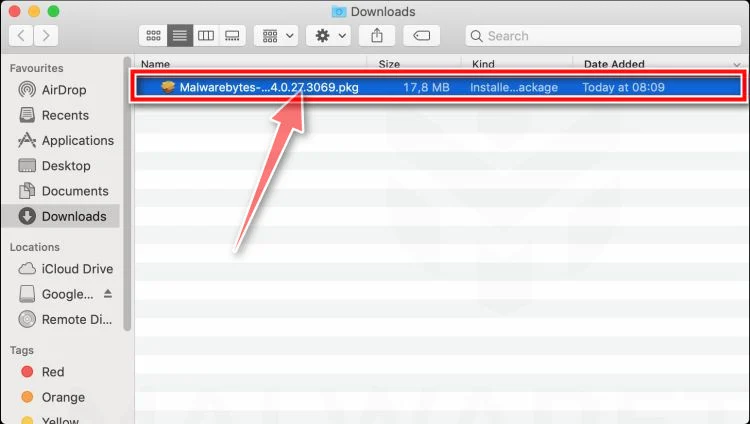
On a personal Mac, use the Malwarebytes for Mac installer. If connecting isn’t appropriate, ask a trusted technician how to get the installer without resuming normal network access.
Check the installer identity and follow the onscreen prompts appropriate to your macOS version. An old screenshot shows the general step, not how every current dialog must look.
Do not grant broad permissions to the download that caused the alert. If the trusted scanner needs a permission, confirm the requesting app and use its official setup guidance.
Step 3: Run a scan and interpret the result in context
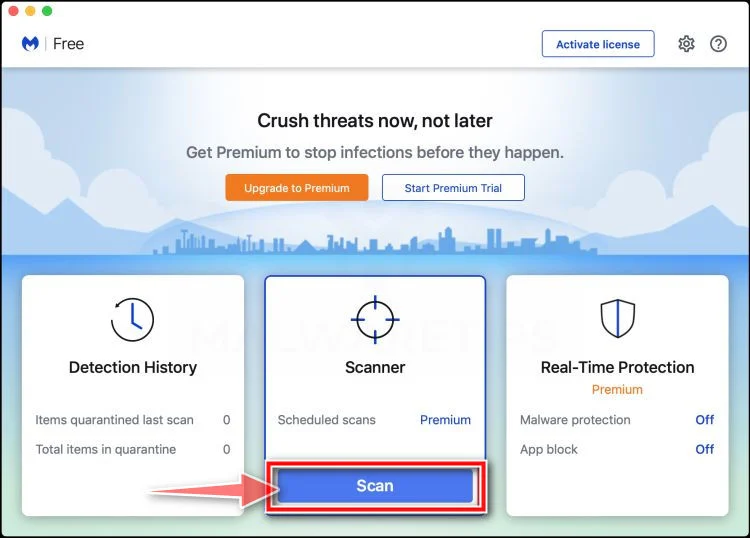
Open Malwarebytes, locate Scan, and let the scan complete. Review the detections and quarantine the confirmed threats when you’re authorized to handle the device.
Keep the detection details, including their paths and the time of the scan. If you see the same detection after an approved restart, stop using the Mac for account recovery.
An empty scan is not a report on your Notes or chats. It won’t say whether earlier sessions were copied or someone used data gathered before cleanup.
Step 4: Decide whether the Mac can return to regular use
Persistent warnings, unexplained new software, or sensitive business access are reasons to escalate. A technician can decide whether a clean reinstall is justified and help preserve essential non-executable data first.
Use MalwareTips support for a second opinion on a sanitized home-device log. Never include recovery codes, private account data, or the original app package.
Malwarebytes Premium for Mac is an optional affiliate link for future protection. You don’t need to buy it to protect the accounts that were on the Mac.
What to Review After You Stop Using the Mac
Start with notes you used as a temporary holding place
If you pasted a recovery code into a note last month and forgot to remove it, focus on what that code can still unlock.
The name of the note doesn’t matter.
Use the service that issued it to invalidate or replace it where possible. Keep the replacement in an approved location, rather than pasting it into the same old note.
When documenting your actions, write down the account name and the date you changed it. A recovery checklist should not become a second list of secrets.
Think about chats other people are likely to trust
Old groups, shared projects, and financial conversations are useful places for somebody to impersonate you. Put people expecting an imminent document or payment near the top of your warning list.
Ask them to call a known number if they receive a payment instruction. For work, tell the person who can stop or confirm the payment independently.
If a platform offers a way to see recent devices or terminate sessions, use that feature instead of assuming a password change takes care of every logged-in client.
Decide what to bring back from a backup
If you must rebuild, start with known documents and export formats you can inspect. Don’t restore recent installers, third-party scripts, or an entire application library just to recover your settings.
Tell whoever helps you restore whether you saw a detection before or after the most recent backup. The date helps them decide which material needs closer inspection.
Once the Mac is trusted again, verify your login methods from scratch. It’s easier to spot an old unwanted session when you know exactly which devices should be listed.
Keep your oldest known-good backup apart from the working copy while you verify the restore.
If an early restore gives you the wrong files, you still have an alternative to consult.
Check that Notes and your critical applications can find the data you expected before disposing of old copies. Use the apps’ official support if a sync conflict is unexpected.
If a reopened document contains an old password, treat it as an expired record, not the current login. Replace references you would otherwise accidentally use.
Keep a short list of login sessions you revoked and credentials you replaced.
If a service alerts you a week later, that record helps establish whether the activity happened before recovery.
Tell any household member or colleague who used the Mac what checks apply to them. They can review their own account activity without giving you their secrets.
In a family, talk privately to anyone whose notes synced to the Mac. They need to know what to check, but they don’t need to tell you their passwords.
If a business uses the Mac for client work, its response team may review logs from several services. Don’t announce a breach before it has assessed which records were involved.
Frequently Asked Questions
Is MioLab the same name as Nova Stealer in this case?
Nova is a name used by the macOS operation covered in the LevelBlue research. A detection containing only the word Nova isn’t enough to identify the same family.
Does MioLab mean Apple Notes itself was hacked?
Nothing in the report shows that.
It describes malware looking for information accessible on a Mac. It doesn’t establish a breach of Apple’s Notes infrastructure or of every user’s synced account.
Is a Mac with Apple silicon excluded?
Apple silicon isn’t exempt from this family. The lab report covers a sample for both Apple silicon and Intel. The processor alone isn’t enough to decide whether you were exposed.
Does looking at a download in Finder mean the stealer ran?
Seeing a file in a folder isn’t proof of execution. Check what you opened, which warnings appeared, and what security history can establish without running the file again.
Does signing out on this Mac end the attacker’s session elsewhere?
Use the account’s official session or device management controls from a separate trusted device. Ask the provider for help if you can’t see those controls.
Can a scan tell me whether a note was read?
Not by itself. A scan can look for signs of malicious software, but investigating data access or a later account takeover takes different kinds of evidence.
The Bottom Line
MioLab matters because information already on the Mac can be useful to a thief. Review the accounts, chats, and sensitive notes you actually used on the device.
Once the Mac is isolated, protect reusable secrets from somewhere you trust. Cleanup and account recovery solve different problems, and both deserve a place on your list.

Join the discussion
0 commentsShare your experience or ask a question about this article.
Your progress
Did these steps help?
Let us know how the guide worked for you.
Describe what you see and the step you reached. Keep passwords and other private information out.
Discussion
Start the conversation
Have a question or something useful to share? Add the first comment.