


A normal Windows desktop can hide the most important part of an incident. The files are where you left them, and the browser still opens your usual pages.
If a scanner or account alert gave you a reason to look closer, don’t return to the original download. Start with what the computer could already access.
Overview
Marco Stealer looks beyond browser passwords
Marco Stealer is Windows information-stealing malware examined by Zscaler ThreatLabz. It targets several kinds of data that may already be on the computer before an unwanted program runs.
Researchers observed collection related to browser profiles, wallet extensions, and files. The latter includes locations used by popular cloud sync services, as well as ordinary local folders.
This doesn’t mean the cloud provider was hacked. A desktop sync folder can hold local copies of files the user previously opened or chose to keep on the device.
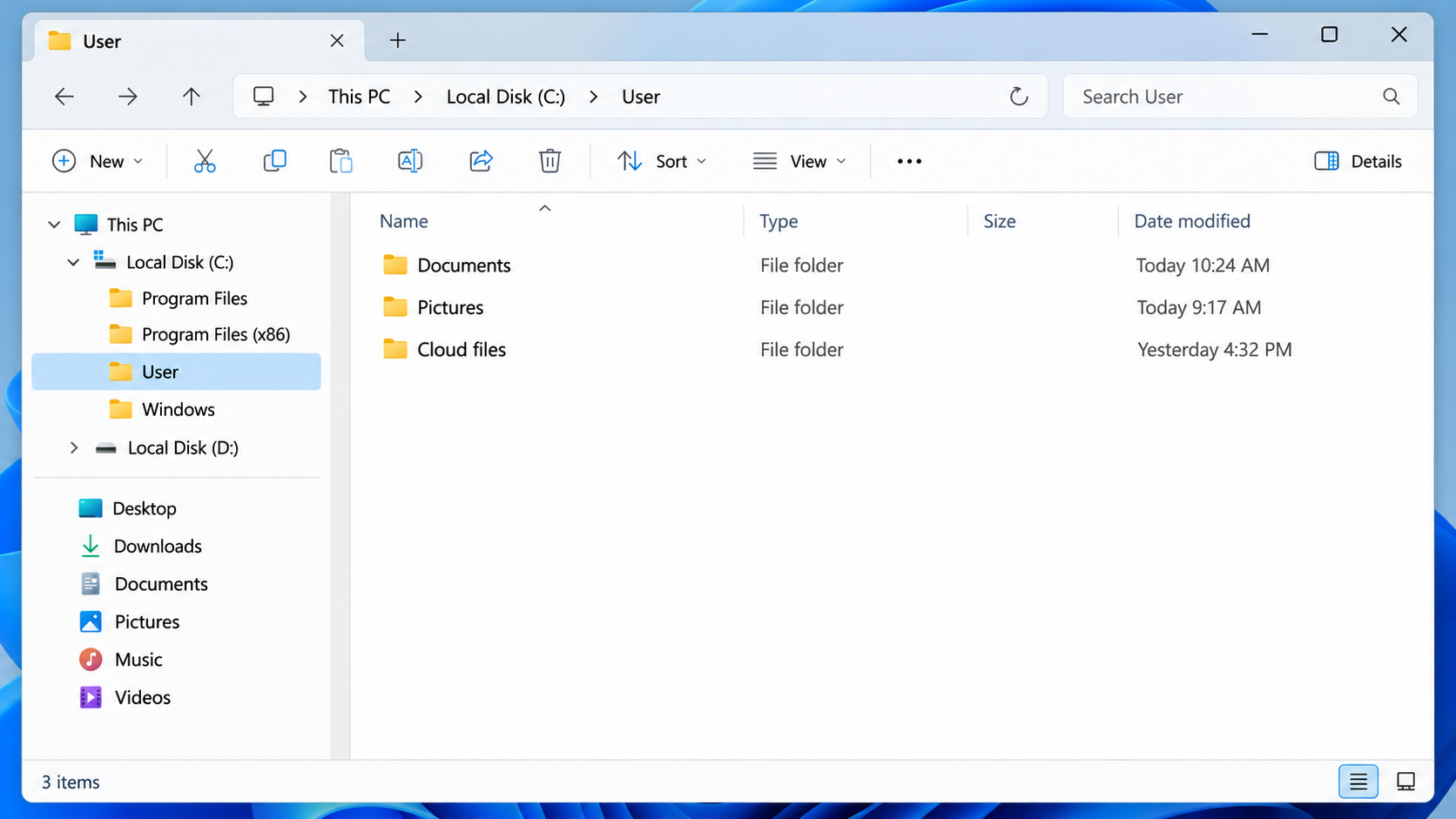
The Explorer view here is a reconstruction of that distinction. It doesn’t show an infection, file contents, or a particular account or organization.
Which data was visible depends on the Windows profile
Focus on what you used on the PC. A shared family machine and a workstation holding client records have different risks.
One person may have a browser signed into a work account and a second profile used only at home.
Give support the names of the services involved without exporting their stored data.
A wallet extension can hold data that matters even if its balance wasn’t on screen. A provider can explain how to respond without asking you to hand over recovery words.
An unexpected email sign-in and a change in a shared document are also different events. Give each responsible service the records it can actually use.
Start with the questions that narrow down exposure
- Identify which Windows user actually ran the suspect program.
- Check which browsers or profiles were already signed in.
- Note which files were synchronized or stored locally.
- Tell the owner of any shared workspace about the possible device exposure.
- Check whether a wallet, exchange, or payment account was available to that user.
Not every sample targets every application in the same way. The article describes demonstrated capabilities and realistic exposure decisions, not a claim about which files were taken from your computer.
How a Marco Stealer Infection Can Lead to Data Theft
Step 1: An unwanted program gets an opportunity to run
The documented research covers a downloader and the resulting stealer. It does not establish one original email or website from which every person received it.
That means an alert can be useful even when you don’t remember the first message. Write down programs installed or run near the alert, and let support compare them.
Don’t file every unfamiliar download under the same malware name. Give the people helping you the exact alert from the product that observed it.
Step 2: The program can collect browser and session information
The researchers examined activity affecting stored browser data, including information a browser uses to remember past sign-ins. You can be exposed without typing a fresh password into a fake form.
Use a device you trust to review active sessions and recovery settings. A new password may not invalidate every existing session, depending on the service involved.
If the browser had multiple profiles, check which belonged to the Windows user and which were active. This is more useful than resetting accounts that were never available there.
Step 3: It can look for files outside the browser
Local documents, pictures, and cloud-synced files can exist side by side. The report describes searches across common folders, so a browser-only review can miss another part of the exposure.
Cloud storage does not mean every item is downloaded. Some services show online-only placeholders, while others keep files readily available for offline use.
Tell your cloud administrator which folders were synced and how the computer was used. It can review sharing changes or sign-ins without treating a local copy as provider-wide compromise.
Step 4: The consequences may first show up in a separate service
An email reset, changed sharing link, or unexpected wallet transaction can happen after the machine stopped showing anything unusual. Report each event through the real provider.
If you are unsure whether a file was copied, avoid announcing that it was. Preserve the access and sharing records so the responsible team can make that distinction.
Likewise, deleting the original download doesn’t remove a copied file from someone else’s possession. Device cleanup and the response to possible data exposure need separate decisions.
What to Do if Marco Stealer May Have Run on Your PC
-
Keep the affected computer out of sensitive work. Disconnect Wi-Fi or Ethernet if a suspicious program may have run and you can safely isolate the PC.
If it’s a work device, call the support team before restarting. Give it the alert time, exact detection label, and what you did before it appeared.
-
Use a separate trusted device for account checks. Start with email and services that can reset other passwords, then review the cloud, payment, and social accounts you used there.
Check for unfamiliar devices, forwarding, or delegated access. Ask the provider how to sign out active sessions instead of assuming that every password change does it automatically.
-
Map the synced files without opening the suspect computer again. From a clean device, use the cloud service’s own account settings and sharing view.
Tell an administrator which sensitive folders were available on the PC. Don’t upload their contents to a forum to demonstrate which folders the malware could see.
-
Handle exchange accounts and wallet secrets separately. Call the exchange if you find unfamiliar access or withdrawals. For a self-custody wallet, use its maker’s verified advice.
Do not type a recovery phrase into a security checker or send it to an incoming caller. If the phrase was exposed, say so without repeating it.
-
Document what changed in shared work. Record an unknown share, deleted file, unusual sign-in, or new app authorization with the date and service.
Send that report through an approved channel if the information is private. The team can decide whether users outside your computer also need a warning.
-
Keep the suspect download out of restored folders. If you kept it in a shared sync folder, warn its administrator.
Don’t send a copy to people you are trying to protect.
Preserve the original evidence through your incident process. Remove the file only after the person responsible confirms it is no longer needed.
How to Remove Marco Stealer From Windows
Step 1: Read the security result rather than testing it again
Select Start, open Windows Security, then go to Virus & threat protection > Protection history. Check whether the event says blocked, quarantined, or still requires action.
See Microsoft’s Protection History guide if you need to interpret the status. Do not choose Allow or Restore to see whether the file opens.
If you use another antivirus, record its event as well. A label from one product may not be identical to what another product calls the same item.
Step 2: Install the verified Windows scanner from a clean source
For a personal Windows device, use the Malwarebytes installer. If you need to remain offline, arrange a trusted transfer rather than connecting in order to search for tools.
Open the approved setup package, check the publisher and complete the normal installation. A work device should use only the tools its administrator authorizes.

Step 3: Quarantine confirmed findings and check them again
Open Malwarebytes and choose Scan on its main screen. Wait for a complete result and review each item it marks for action.
Use quarantine for confirmed threats, save the result if you need help, and restart when asked on a personal device. Check the history after Windows returns.
If the same item reappears, set the PC aside and ask support about further cleanup. Don’t use the affected system to verify account security.

The Malwarebytes Premium offer is an optional affiliate route for continuing protection. It cannot remove a share or session that exists in a separate cloud account.
Step 4: Repair the affected Windows setup without guessing
Use Settings > Apps > Installed apps to review software added near the incident. Remove only confirmed unwanted applications, and don’t disable managed tools or unidentified system items.
Update Windows, browsers, and genuine cloud clients through official settings. Ask MalwareTips support or a technician for help if findings return or the PC cannot update.
If support recommends a rebuild, confirm backups before erasing anything. Restore selected clean files instead of bringing back old installers and unverified browser profiles.
Step 5: Reconnect cloud sync after checking the account first
Using a trusted device, check the cloud account’s recovery details and relevant activity before signing into a newly cleaned or rebuilt computer.
If the service exposes active devices or shared links, check the names with the account owner.
One familiar folder can be shared with more people than the person using it expects.
Reconnect only the folders you actually need at first.
Check that new copies are coming from the correct account rather than from an old local folder whose contents haven’t been reviewed.
How to Tell Which Cloud Files Were Actually on the PC
Start with what was available offline
Microsoft’s Files On-Demand guide distinguishes online-only OneDrive files from files already present on a PC. A blue cloud against a file means it is online-only at that time.
Files marked to stay on the device can open without the network. Files you’ve recently opened may also have been available locally even if you never pinned the whole folder.
Don’t turn sync back on to see which icons appear. Describe your normal settings and habits to the administrator, and use safely preserved records if there are any.
A status icon seen after a device has been rebuilt won’t tell you what happened last week. It describes the copy the system is showing now.
Follow the share, not just the copy
If a document was shared outside the household or company, note who owns it and who is meant to have access.
The owner is the right person to change that sharing.
Ask the owner to check for new links or invitees and record changes before revoking a suspicious share. Don’t reset permissions for every document without a reason.
An old copy might have been taken even when the original has no unusual share link. Conversely, a new invite doesn’t prove Marco was the one that created it.
The two checks answer different questions. One looks at what the stealer could read locally, and the other looks for activity through the cloud service itself.
Write down changes somebody else can verify
Give the support team a short list with the type of file, the cloud service, and the suspected exposure window. Keep passwords and complete file contents out of it.
Note the time of an unfamiliar sign-in and let the provider interpret it. A new city can be a network change, but it matters alongside other warnings.
Notify a document owner through a known channel, especially if the file contains sensitive material. Avoid attaching it to an email that goes to a larger group.
If the device was shared, let each user check their own accounts from a clean device.
You don’t need to collect anyone else’s sign-in details to make a useful incident report.
If several people used the same shared folder, nominate one person to track what changes and when. It is harder to interpret activity if everybody changes permissions at once.
Ask whether the cloud service keeps an audit log for your plan. If it doesn’t, that limit belongs in the report alongside the facts you could verify.
Frequently Asked Questions
Did Marco Stealer break into the cloud provider?
The report describes a stealer running on Windows and looking at locally accessible data and cloud-related locations. That doesn’t establish an intrusion into the provider itself.
Does a folder icon prove all its files were on disk?
A sync client can list files that aren’t kept as local copies. Ask the account owner how the folder was configured before counting every visible item as exposed.
Why check a browser I barely use?
Infrequent use doesn’t rule out an older saved sign-in or account record. Check which profiles were accessible from the affected Windows user instead of relying on usage alone.
Is it safe to put a new password on the same PC?
Switch to a known-clean device if you suspect malware ran. Newly changed credentials should not go back onto the machine before you’ve checked its status.
Can a scan tell me which document was stolen?
It can report malware it detects, not necessarily what an application previously read. Review device and cloud activity with the people responsible for those records.
What if the scanner gives a different family label?
Use the exact product name, threat label, time, and file path from your alert. Support can compare those details without having you reopen the item.
The Bottom Line
Stop using the suspect PC for fresh sign-ins or sensitive file work. Check the Windows alert and ask what the device could already reach.
If Marco may have run, clean the PC and verify the important accounts from another device. Review cloud sharing and files separately from browser passwords.

Join the discussion
0 commentsShare your experience or ask a question about this article.
Your progress
Did these steps help?
Let us know how the guide worked for you.
Describe what you see and the step you reached. Keep passwords and other private information out.
Discussion
Start the conversation
Have a question or something useful to share? Add the first comment.