


The first file that won’t open might look like an isolated problem. Then you notice that the files beside it have changed names, too.
Before trying to put the folder back the way it was, take a moment to protect the copies you still have.
Overview
What Rusty Lockbox does to files
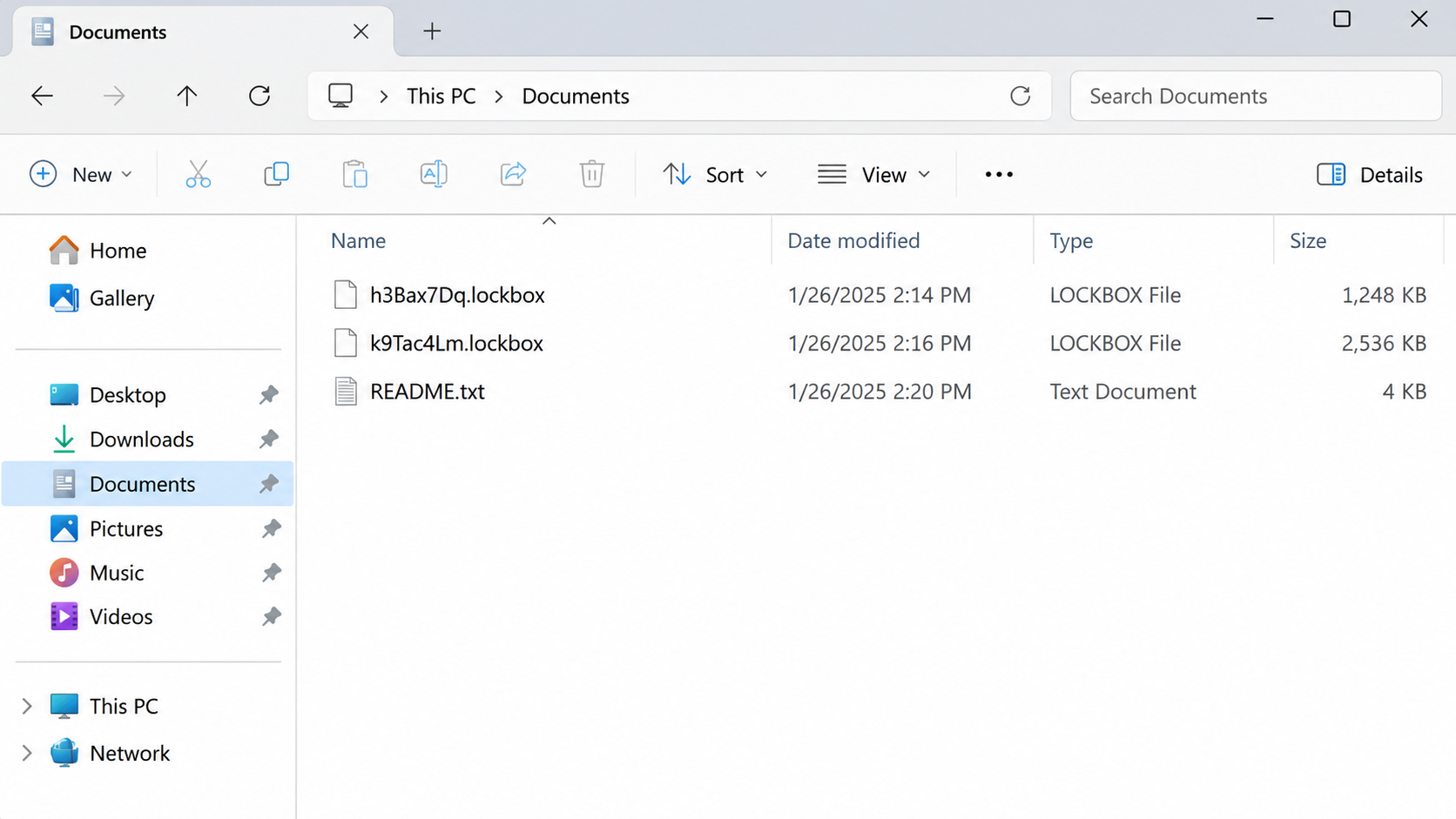
Rusty Lockbox, also called Rusty Locker, is ransomware. The documented sample changes filenames and appends the .lockbox extension, leaving some folders full of names you won’t recognize.
Changing the extension back won’t reverse the encryption. If the document’s contents were encrypted, a spreadsheet program still can’t read those contents under the original name.
The sample also leaves a text file named README.txt. That name is common in legitimate software, so it means very little when found apart from suspicious file changes.
The folder image above is a reconstruction, not a screenshot from a victim. Your own evidence is more useful: write down the actual names, locations, and times you see.
Why the note talks about more than files
Cynet’s research describes Rusty Lockbox as a double-extortion operation. The strategy combines encryption with pressure about stolen information, so reliable backups don’t necessarily end the incident.
A note’s claim that information was taken isn’t proof of which records left your network. It also isn’t a reason to ignore the possibility, especially when sensitive files were accessible.
On a work system, report the claim in the text to your incident response contact.
Use a trusted device or a phone number you already know, not a contact in the note.
Keep these clues separate when you make your first report:
- Large groups of unreadable .lockbox files describe a change you can see.
- README.txt connects a demand to the file changes if it appeared at the same time.
- Unusual account use or network activity needs its own investigation, even if file recovery succeeds.
What the extension does and doesn’t tell you
One old file ending in .lockbox doesn’t settle the question. A better match is a cluster of new names, unreadable files, and a note found within the same period.
File dates can help you narrow the timeline. They can’t tell you when an attacker first gained access, so don’t use the newest encrypted file to define the entire incident.
Some reports describe interference with local backups. Check what remains without assuming every copy is gone or that an attached backup drive was protected just because it’s called a backup.
How Rusty Lockbox Ransomware Works
Step 1: An intruder or malicious program gains access
The file extension tells you nothing reliable about the opening move. A responder needs more than the ransom note to distinguish a suspicious download from a longer network intrusion.
Give the investigation a sensible starting point: which device first showed changes, who uses it, and which folders or systems it could access.
Don’t ask coworkers to open a file or click a suspicious message for comparison. Gather dates, screenshots of alerts, and the location of the original evidence instead.
Step 2: Sensitive records may be taken before the damage becomes visible
The operation uses the threat of publication as leverage. Cynet describes theft before encryption as part of the operation, not as a finding about every organization that sees the extension.
If a shared drive contains both public brochures and private contract records, don’t assume those files have the same exposure. An authorized responder can investigate the relevant logs and accounts.
This stage is why undoing the visible file damage is only one job. You can put documents back and still need to determine whether somebody obtained copies.
Step 3: Familiar files are replaced by unreadable versions
The malicious program encrypts data and changes affected names. An Explorer window that once listed client names or dates may suddenly show random-looking strings and the same suffix.
You might first notice the change because a recent document shortcut fails. Look at the containing folder without opening unknown files, and note whether its contents changed together.
If a separate computer begins showing the same names in a shared folder, don’t assume it also executed the ransomware. It may be seeing changes on shared or synced storage.
Step 4: The ransom note tries to make payment feel inevitable
The note asks the reader to communicate with the operators and raises the prospect of stolen files. Its demands come from the people trying to pressure the victim.
They cannot give you independently verifiable assurance that they’ll keep information private. Paying is also no guarantee of a working key or complete recovery.
A better immediate question is which copies are outside the affected computer’s reach. That separates real recovery options from claims that only the attacker can help.
What to Do if Rusty Lockbox Encrypted Your Files
-
Take the affected computer off the network. If it’s a personal PC and you can safely do so, unplug Ethernet and turn off Wi-Fi.
If a work computer or shared server is involved, contact IT immediately. Follow its instructions about isolating equipment without cutting off access to critical systems.
-
Keep recovery media out of reach. Don’t attach an offline backup disk, insert a USB copy, or make the old computer reconnect just to see whether cloud storage works.
If another machine synchronizes the same damaged folder, ask the administrator to protect its available versions before more changes propagate.
-
Write down the first visible changes. Keep the time, original folder, examples of the new names, the note’s exact filename, and recent security alerts.
Use a photo or other approved evidence collection process. Don’t share the note publicly if it contains a private incident reference or company information.
-
Report the data-theft claim separately. A company should involve its security, privacy, and other designated contacts to evaluate access and reporting obligations.
At home, think about whether the device held tax forms, IDs, or sensitive login records. Use a clean device to contact the appropriate providers if you find signs of misuse.
-
Do not negotiate through an unsolicited helper. If someone promises a private key for an upfront fee, don’t give them remote access or send encrypted business files.
Report the incident through a national cybercrime channel if appropriate. In the United States, the FBI’s IC3 reporting site is a starting point.
-
Choose who owns the recovery before changing files. Decide which person will preserve the originals and which person will test recovery on a separate system.
This division is especially useful when employees have already started renaming files or restoring folders from several places. Make sure everyone’s working from the same incident timeline.
How to Remove Rusty Lockbox From Windows
Step 1: Make a cleanup decision before acting on the PC
If this is a business network, don’t start a home cleanup on the infected machine. The responder may need to preserve evidence and check where else the attacker had access.
For a personal computer, note the difference between an active detection and the many files left behind. An alert that names ransomware is separate from every .lockbox file.
Open Windows Security > Virus & threat protection > Protection history to record any detections if the device can be inspected safely. Never allow a blocked file for testing.
Don’t delete the .lockbox originals or try to restore a quarantined program. If evidence is needed, ask a qualified technician how to preserve it without transferring an executable.
Step 2: Use a trusted Windows installer if appropriate
A personal Windows PC may be suitable for a Malwarebytes scan after evidence is protected. Use the Malwarebytes Windows installer, not software promoted in the ransom note.
If staying offline is necessary, get a trusted technician to handle the installer and any updates. Don’t connect the computer to the normal network to complete setup.
Open the known installer and follow the prompts. The setup image shows a genuine installation stage, but it does not mean that anything has already been found or removed.

Step 3: Scan and check exactly what was detected
Open Malwarebytes and choose Scan in the Scanner area. Let it finish, read the results, and quarantine confirmed threats if you control the PC.
If the scanner asks to restart, only do so after any required evidence capture. Run another scan afterward, and record detections that return instead of clearing the history.
Expect .lockbox documents to remain encrypted. A security scanner can target malicious software, but it’s not a substitute for a backup or a ransomware-specific decryptor.

Step 4: Rebuild if cleanup can’t establish trust
Continued encryption, new administrative accounts, or more affected devices deserve professional intervention. Rebuilding from known-good installation media may be safer than repeatedly scanning a network you haven’t assessed.
For a home device, MalwareTips support can help interpret a sanitized scan result. Leave out customer files, private identifiers, or the operator’s contact details.
Malwarebytes Premium for Windows is an optional affiliate link for ongoing protection. You do not need to buy it to follow the recovery guidance below.
How to Recover Files After Rusty Lockbox
Preserve the damaged copy first
Keep unchanged copies of encrypted files and the note before working on recovery. An IT team may prefer a forensic image of affected storage over copying folders manually.
Don’t plug your only good backup into the original PC to make that copy. Work with a clean recovery machine and storage that can safely be separated from the incident.
If the timeline isn’t clear, pick files that represent different kinds of damage. A recent spreadsheet, a photo, and data from a larger project may not recover identically.
Test an offline or versioned backup away from production
Look for an offline disk, an independent backup service, or storage managed by somebody with a separate account. Find a restore point from before the earliest known suspicious change.
Pick several files to test and restore them to a separate location first. A file appearing in the list doesn’t mean its contents are intact.
Open clean copies of representative documents, including large files and ones used by important applications. For a business, check those applications can actually read the restored data.
Check Windows File History and cloud versions
On a clean or otherwise approved device with the backup available, use File Explorer to find the folder that contained the document. Right-click it and choose Restore previous versions.
If an older entry is available, expand Open and choose Open in File History when offered. To keep the current folder intact, expand Restore and select Restore to.
Microsoft’s File History guide explains the controls. Don’t use the default in-place restore before protecting the current evidence.
Use the cloud provider’s official site on a trusted device to see what’s still available. With OneDrive, Version history is useful when the service retained an earlier copy.
If the ransomware created a new name while deleting the old one, the original may appear in deleted items rather than in the new file’s version history.
Don’t try a decryptor just because the suffix looks familiar
No matching Rusty Lockbox decryptor was verified in the No More Ransom tools catalog when this guide was checked. That isn’t a claim no tool can ever be released.
If a responder later identifies an exact match, use the verified publisher’s instructions and test a duplicate. Preserve the original even if an early test appears to succeed.
Don’t submit work files to a public identification service without permission. Ask whether a note or a non-sensitive sample is enough and who will retain the upload.
Reconnect only when the renewed environment is ready
For a personal PC, finish cleanup or reinstall first, install updates, and review security settings. On a managed network, let the response team handle when each system can rejoin.
Bring back verified documents before convenience files. Avoid restoring programs, startup entries, or archives from the incident window unless a qualified person has reviewed them.
Watch for new changes after reconnecting cloud sync or shared storage. If unusual rename activity starts again, stop the sync and contact whoever owns the incident.
Frequently Asked Questions
Does Rusty Lockbox always leave a README.txt file?
The analyzed sample did, but the filename is not unique. Use the text, timing, file damage, and security logs together to support identification.
Why are the original document names gone?
The sample renames affected files as part of the encryption process. Keep a record of which folders held important files so you can compare with an older copy.
Can Windows File History fix this if I switch it on now?
It can’t create yesterday’s copy after an attack. It can only help if the relevant versions already exist and remain safely available.
Do I know that private files were published if the note says so?
The note isn’t enough to establish that. Treat the threat seriously, but let a qualified team check whether files were accessed or transferred and whether publication has been independently confirmed.
Should I delete the encrypted copies after restoring a backup?
Keep them until you have validated the restored files and cleared any evidence retention requirements. Keep at least one untouched copy if important data is still missing.
Is a clean scan enough for a business to resume work?
Not on its own. IT needs to check the systems, administrative access, backups, and other parts of the incident before authorizing network access again.
The Bottom Line
If the extension and note point to Rusty Lockbox, protect the unaffected copies and report it before putting files back. A rushed restore can sacrifice both evidence and usable versions.
Cleaning Windows and recovering files are separate tasks. Bringing a file back from a backup also doesn’t answer whether somebody else obtained it.

Join the discussion
0 commentsShare your experience or ask a question about this article.
Your progress
Did these steps help?
Let us know how the guide worked for you.
Describe what you see and the step you reached. Keep passwords and other private information out.
Discussion
Start the conversation
Have a question or something useful to share? Add the first comment.