


A familiar utility, a normal installation, and a valid publisher signature can feel reassuring. A later security alert can make that same download look very different.
If QUIC RAT appears in a detection or incident report, start with the software version and the alert details. They determine what needs attention next.
Overview
QUIC RAT is a Windows backdoor, not a browser setting
QUIC RAT is a malicious remote-access implant investigated during the 2026 DAEMON Tools compromise. Its name refers to a communication protocol it can use.
That does not make ordinary QUIC web traffic suspicious. Turning off a browser protocol is not a removal method for an infected Windows computer.
Similarly, DAEMON Tools is legitimate disc-imaging software. The relevant issue is a compromised release and what attackers subsequently delivered, not the product’s normal mounting features.
The affected release and the later payload are different questions
Kaspersky identified compromised DAEMON Tools versions 12.5.0.2421 through 12.5.0.2434. The report documents a corrected release, 12.6.0.2445, published in May 2026.
A machine exposed to those installers needs investigation. However, exposure to the installer does not automatically establish that QUIC RAT was the follow-on payload.
Keep these distinctions in mind when reading an alert:
- A suspicious installer, an early information collector, and QUIC RAT are separate findings.
- A valid digital signature did not rule out the compromised installer.
- An unfamiliar process name alone does not identify the infection.
- Updating DAEMON Tools does not remove every payload already delivered.
- A completed antivirus scan cannot revoke an attacker’s stolen account access.
The right response depends on whether this is a personal or managed PC
A company or school computer belongs with its security team. Reboots, deletion, and cleanup can erase evidence that explains the wider incident.
For a personal computer, the procedure below covers containment, an illustrated malware scan, result handling, and decisions about rebuilding Windows.
Account recovery follows separately. You do not need to wait for the affected computer to be usable before protecting important accounts from another trusted device.
How to Remove QUIC RAT and Related Windows Malware
Step 1: Isolate the computer and stop using it for sensitive activity
Disconnect Ethernet and turn off Wi-Fi. Do not sign into email, banking, work services, or a password manager on the suspected computer.
Disconnect external backup drives too. Leave them aside until you have a safe destination for recovery and know whether the backups predate the incident.
If this is a managed device, contact IT using another device. Give them the alert, the software version, and the approximate installation time.
Follow their instructions before restarting, uninstalling, or running additional scanners. They may need memory, endpoint logs, and other evidence that consumer cleanup would change.
On a personal PC, photograph or save the alert details without opening a new account session. Do not run an old installer to reproduce the problem.
Step 2: Preserve the details that connect the alert to the installation
Record the detection name, file path, time, action taken, and whether the security product says the threat remains active. Keep the original report.
In Windows 11, open Settings → Apps → Installed apps and search for DAEMON Tools. Record the version shown without launching the application.
If the version is not displayed, leave that question unresolved. A missing version is not a reason to rerun a potentially compromised executable.
Also note where the installer came from and whether it was run. A downloaded archive that was never executed is a different exposure from an installed backdoor.
Do not delete notepad.exe, conhost.exe, or other Windows components because they appear in a report. Malware can misuse legitimate processes.
The security tool’s detection, full path, and surrounding activity matter. Deleting a genuine system file can break Windows without removing the code responsible.
Step 3: Run a complete ESET Online Scanner check when cleanup is appropriate
ESET Online Scanner provides a free on-demand scan and cleanup procedure. You do not need to buy a security subscription to perform this scan.
It needs internet access to obtain detection updates. Do not reconnect a confirmed backdoor merely to follow a download instruction.
If QUIC RAT is confirmed active, arrange assisted cleanup or a clean Windows rebuild first. Keep the machine isolated while deciding with a qualified helper.
For a personal PC undergoing a precautionary check, use a clean device to obtain the installer. Reconnect only when you have a safe cleanup plan.
The following procedure preserves the full installation, scan, and results sequence. Stop and seek help if security warnings block it or the infection returns.
-
Download ESET Online Scanner.
Use the download button below. It opens ESET’s official download page, rather than a search advertisement or a third-party installer.
ESET Online ScannerFree one-time malware scan from ESETDownload ESET Online ScannerOpens the official download page in a new tab.
-
Open the downloaded installer.
Open your Downloads folder and double-click esetonlinescanner.exe. If you transferred it from another device, open that verified copy instead.
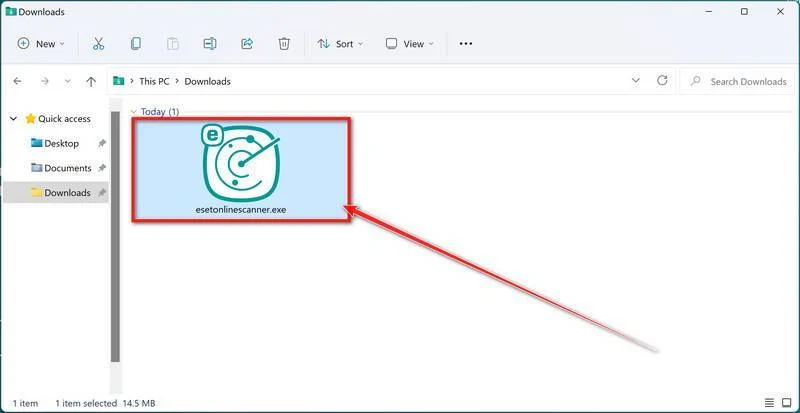
If Windows requests permission, confirm that you opened the intended ESET installer before choosing Yes. Do not disable security controls to make it run.
-
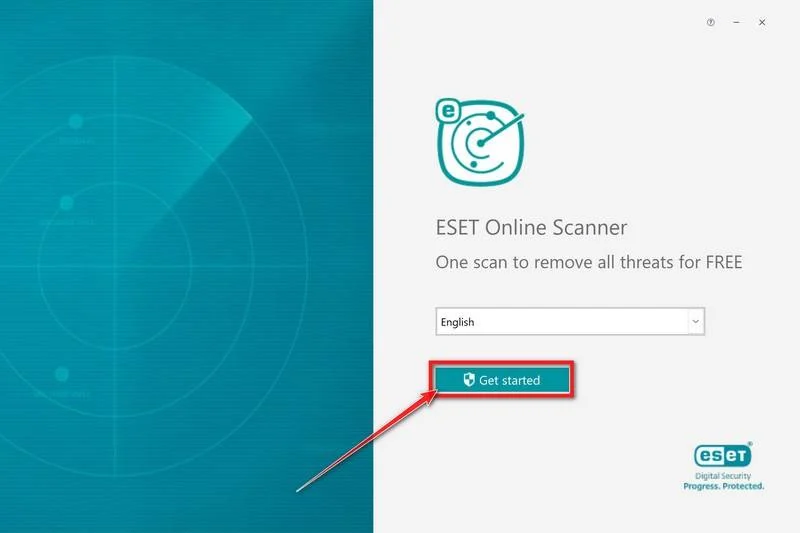
Choose the language and begin setup.
On the opening screen, select your language and click Get started.
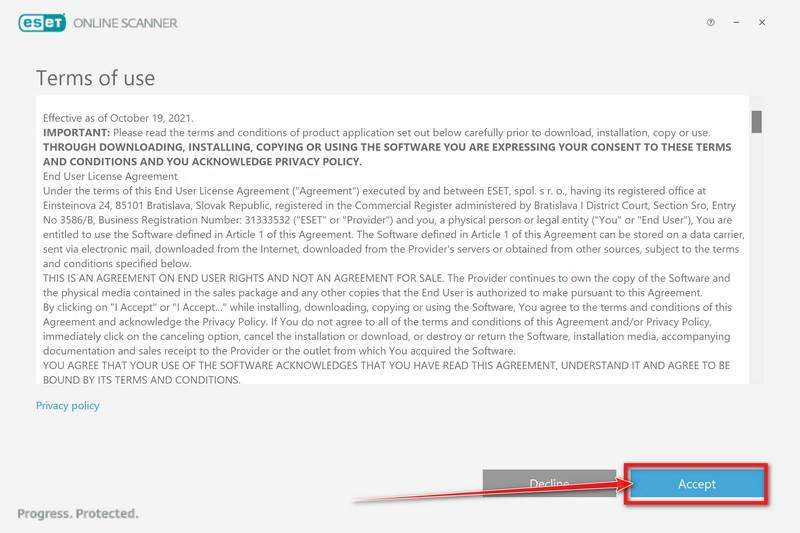
Read the Terms of use. If you agree, click Accept. Continue through an additional Get started screen if your version displays one.
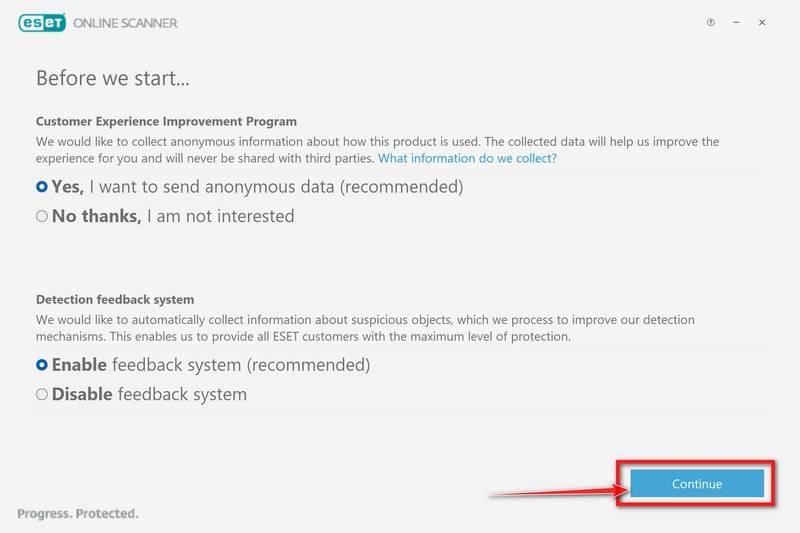
Choose your preferences for the Customer Experience Improvement Program and Detection feedback system. These choices are optional. Click Continue.
-
Select a full scan.
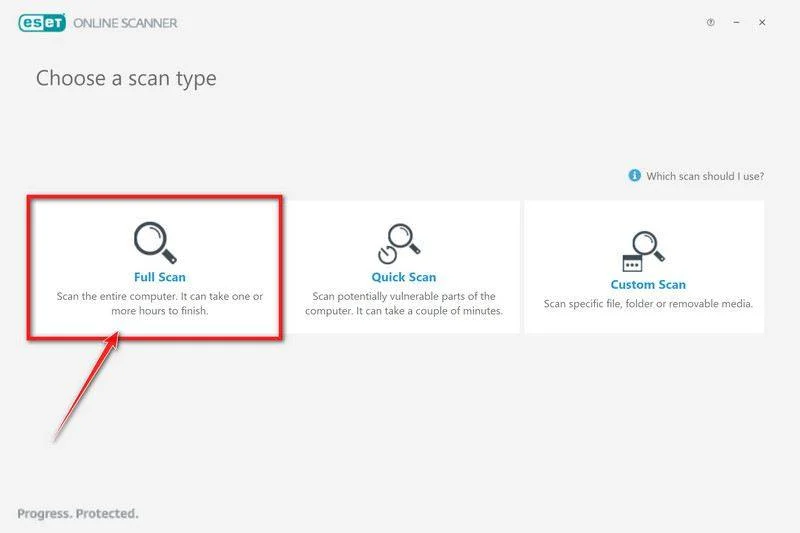
If you previously opened ESET, choose Computer scan from its welcome screen. In the scan selection, click Full Scan.
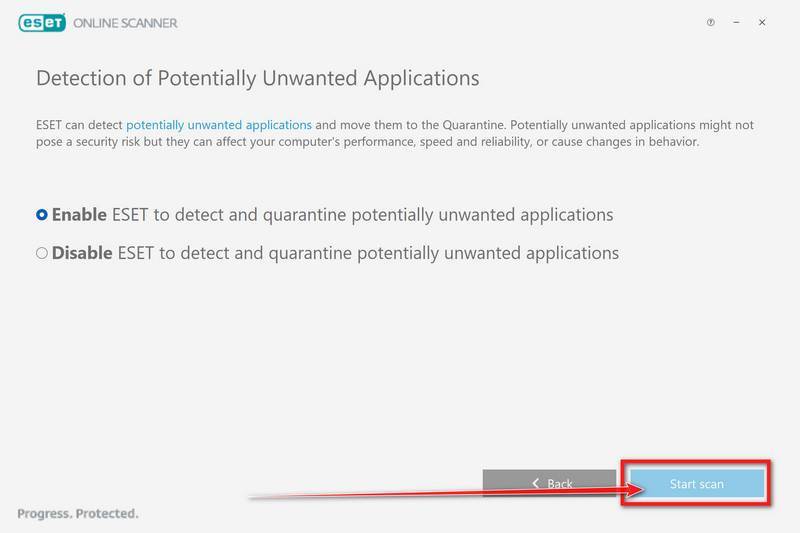
Choose Enable for Detection of Potentially Unwanted Applications, then click Start scan. This includes unwanted software alongside other threats.
-
Allow updates and the scan to finish.
ESET downloads its detection modules before scanning. The preparation screen is not a completed malware check.
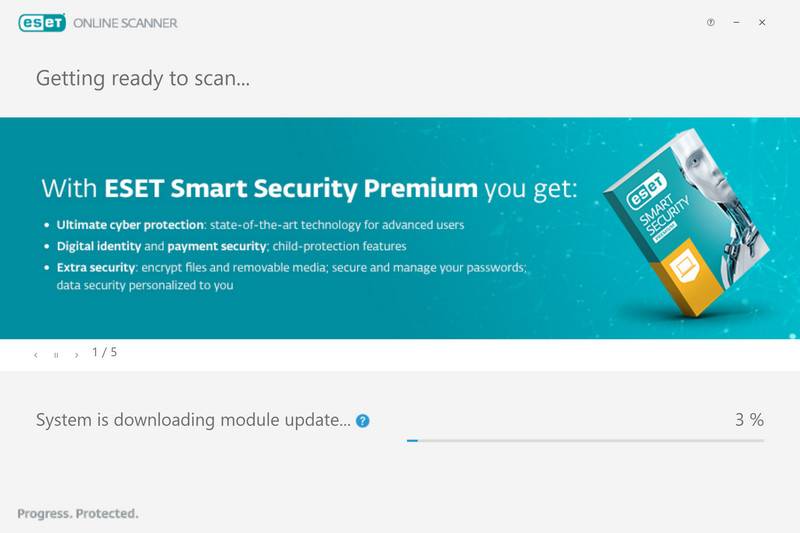
Leave the scan running until it reports completion. A full scan checks the system and files it can access, subject to exclusions and access restrictions.
Large drives can take considerable time. If the scan stops, record the error instead of treating an unfinished check as a clean result.
-
Read the result and keep a copy.
On the final screen, open View detailed results. Check what was detected and whether each item was cleaned, quarantined, or left unresolved.
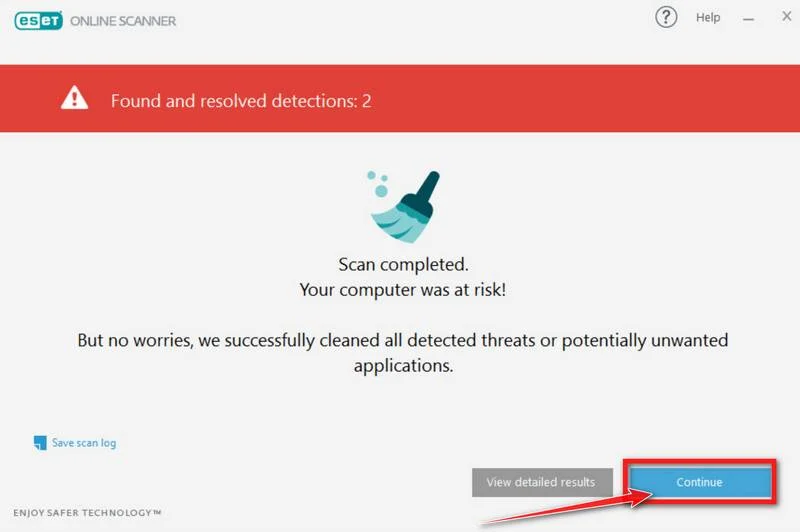
Click Save scan log to retain the findings, then Continue. Do not restore quarantined items simply because their names look familiar.
Follow a requested restart when evidence preservation permits. Monthly scanning or another product offer is optional, not a payment needed to finish this cleanup.
Step 4: Remove the compromised installation without deleting Windows files
After the report has been preserved and cleanup is underway, remove a confirmed compromised DAEMON Tools installation through Windows’ normal application controls.
Open Settings → Apps → Installed apps, find DAEMON Tools, open its menu, and choose Uninstall. Follow the application’s removal prompts.
On Windows 10, the corresponding list is Settings → Apps → Apps & features. Follow your security team’s process on managed computers instead.
Keep the old installer out of future restores. Do not reinstall from the same downloaded file because the installed application has disappeared.
If uninstalling fails, preserve the error and ask for help. Do not search for a random “force removal” executable or manually erase driver folders.
Only reinstall the utility if you still need it, using a current release obtained through the verified developer route after the computer is trustworthy again.
Step 5: Check what remains and decide whether Windows should be rebuilt
After an approved restart, reopen the scanner and review the saved result. Investigate unresolved detections, repeat alerts, or security settings that will not stay enabled.
A backdoor can receive additional payloads. Removing one detected file does not establish that the rest of the installation and its accounts are safe.
For confirmed remote access or an uncertain cleanup, a clean Windows installation may be the appropriate way to restore confidence in the operating system.
Plan that rebuild before erasing anything. Preserve needed evidence and personal documents, and confirm that you have the recovery keys and installation media required.
Restore documents from a known-good backup and check them before use. Reinstall applications from trusted sources instead of restoring the suspected system wholesale.
If you need guided assistance, post the detection and scan report in the MalwareTips Windows removal-help forum. Redact personal information.
What the DAEMON Tools Attack Actually Delivered
A signed download could still contain the first-stage backdoor
The original Kaspersky analysis describes malicious changes in three signed DAEMON Tools components, starting April 8, 2026.
That is why checking only the publisher name was insufficient. The trusted application had become the delivery route, rather than an obvious counterfeit download.
The broader compromise was not a count of QUIC RAT infections
The investigation distinguished an information collector, a minimalistic backdoor delivered to about a dozen machines, and the later QUIC implant.
QUIC RAT itself was observed at one Russian educational institution. Those narrower observations must not be turned into a claim that every affected user received it.
The name explains a transport option, not a list of proven spying features
The implant supports several network transports and can inject payloads into notepad.exe and conhost.exe.
A long list of capabilities associated with other RATs is not a substitute for findings about this one. Match a response to the actual detection.
How to Make Sense of the Alert Without Making the Problem Worse
An antivirus label may identify an installer, a loader, or a later component. Save the full detection before searching its name.
Check the action column carefully. “Blocked before execution,” “quarantined,” and “active threat” describe different situations, even when the alert uses a similar malware label.
If another person sends you a warning, open your own security application’s history directly. Do not install a scanner from an unsolicited support message.
Do not run commands copied from a malware report to see what they do. Technical reports may include the attacker’s original download-and-execute commands.
Likewise, an indicator is for comparison, not exploration. You do not need to visit a suspicious command server to determine whether the alert matters.
Resist the urge to reset everything at once. Clearing every browser or changing DNS without a reason can erase useful context without removing a backdoor.
Repair browser or network settings only when the report or your own observations establish an unwanted change. Otherwise, concentrate on the installed software and endpoint findings.
What to Do if You Installed an Affected Release or Had a Confirmed Detection
-
Secure your main email from a clean device.
Change its password if exposure is suspected. Review recent sign-ins, recovery information, forwarding rules, and unfamiliar connected applications.
Sign out sessions you do not recognize. A password change and a device scan are different controls, and neither should be assumed to replace the other.
-
Review work access with the administrator.
Report any VPN, remote desktop, work email, or cloud account used on the affected PC. Administrators can revoke sessions and investigate connected systems.
Do not quietly wipe a work laptop and reconnect it. The incident may require checks beyond the one device in front of you.
-
Rotate sensitive secrets according to the exposure.
Prioritize banking, important accounts, and credentials stored or used on the machine. Developers should review exposed API keys, deployment credentials, and repository access.
For managed services, revoke old tokens through the proper administrator. Adding a new password does not necessarily invalidate a separate access token.
-
Turn on stronger account protection.
Use unique passwords and supported multifactor authentication. Prefer passkeys or security keys where available, and review recovery methods that could bypass them.
Keep backup codes somewhere safe outside the suspected computer. Do not upload them to a stranger offering to investigate the malware.
-
Act on actual unauthorized activity quickly.
If money moved or an account changed, contact the provider through its official app or independently verified website. Save transaction references and incident numbers.
Do not pay a person who promises to reverse every loss after a remote scan. Cleanup does not undo a completed transfer.
-
Choose ongoing protection separately from this incident.
Malwarebytes Premium is an optional paid protection product, not a requirement for the free ESET procedure above.
We may earn a commission through that link at no extra cost to you. No protection product guarantees that a compromised account is secure again.
Keep the saved reports and monitor your important accounts. If alerts return, stop using the PC for sensitive work and seek further help.
Frequently Asked Questions
Is QUIC RAT the same thing as the QUIC internet protocol?
No. The protocol has legitimate uses. The malware’s name does not mean every browser connection using QUIC is malicious or should be blocked.
Does having DAEMON Tools installed prove that QUIC RAT infected my PC?
No. Check the affected version, installation history, and security findings. The software compromise and the later QUIC RAT deployment are not interchangeable findings.
Will updating DAEMON Tools remove the backdoor?
Do not rely on an application update to clean payloads already delivered. Investigate the endpoint and complete the appropriate cleanup or rebuild.
Should I delete Notepad or conhost.exe if they appear in the report?
No. These are legitimate Windows components that malware can misuse. Preserve the report and let verified security tools or a qualified analyst address the infection.
Do I have to buy antivirus software to follow the removal guide?
No. The ESET Online Scanner procedure is free. Optional paid protection is separate, and buying it does not replace account recovery or incident investigation.
When is professional help more appropriate than another scan?
Seek help for a managed device, confirmed remote access, recurring detections, unresolved cleanup, or sensitive business exposure. Keep the computer isolated while arranging assistance.
The Bottom Line
Do not keep using a suspected QUIC RAT infection for sensitive activity. Isolate the PC, preserve the detection, and remove the malware or rebuild Windows appropriately.
Protect important accounts from another clean device now. If a compromised DAEMON Tools release was installed, replacing the application is only part of the response.

Join the discussion
0 commentsShare your experience or ask a question about this article.
Your progress
Did these steps help?
Let us know how the guide worked for you.
Describe what you see and the step you reached. Keep passwords and other private information out.
Discussion
Start the conversation
Have a question or something useful to share? Add the first comment.