


A mouse that won’t behave or a screen that suddenly rotates is easy to blame on a shortcut. Most of the time, that’s a reasonable place to start.
If a CrystalX detection accompanied the changes, treat what the computer did as a clue. The visible problem may be the least important one.
Overview
A remote-access threat with very visible side effects
CrystalX is Windows malware analyzed by Kaspersky’s Global Research and Analysis Team. It combines remote control, data collection, and disruptive actions that its sellers described as pranks.
Changes to wallpaper, input, or display orientation can be part of that activity. Those symptoms can also have ordinary explanations, so they’re not a CrystalX identification by themselves.
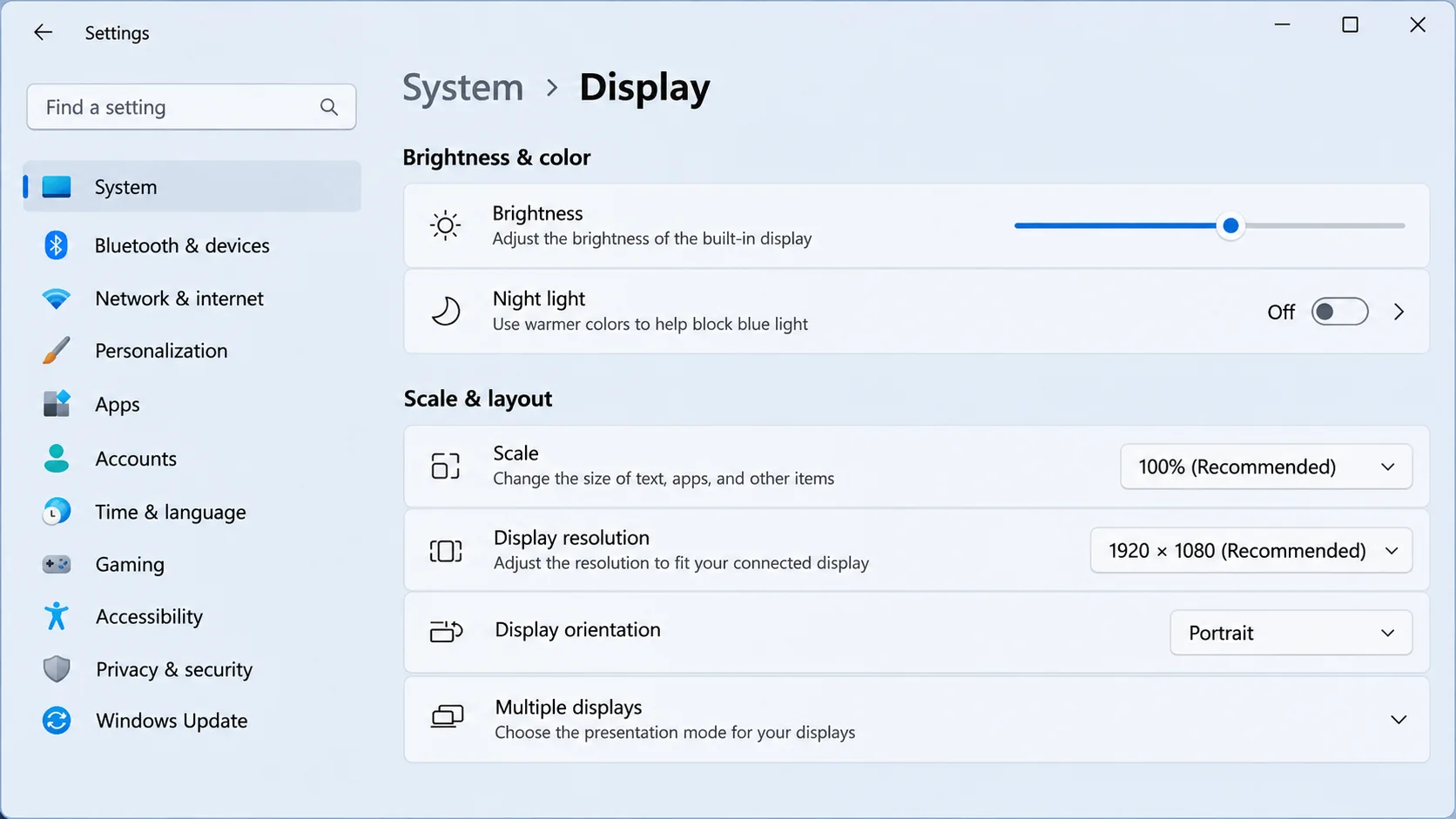
The screen above reconstructs a display setting that may change. It isn’t a scan result, an original victim screenshot, or evidence that a Windows setting alone identifies this threat.
CrystalX and Webcrystal are names for the same reported operation
The research traces CrystalX back to a tool advertised as Webcrystal RAT. The study also notes similarities with WebRAT, known as Salat Stealer, without establishing they are identical.
It matters which name and file your security product actually recorded. Something with a similar name in a browser history isn’t enough to diagnose an infected machine.
The researchers didn’t establish one way that victims received the malware. Advertisement of the malware to operators is not evidence that every victim downloaded it from that same service.
The quiet part deserves more attention than the prank
The documented features include access to data from browsers and apps such as Steam, Discord, and Telegram. It also includes keylogging and a capability to interfere with copied wallet addresses.
- Take a named alert and an unexpected system change together, rather than relying on either a funny wallpaper or a rumor.
- Keep unreviewed devices away from account recovery and payments.
- Review the actual accounts and wallets used on the device, rather than assuming every service was exposed.
- Record any affected app and approximate time without exporting secrets or chat histories.
Reports of an infection attempt do not establish everything a remote operator used on a particular device. A PC that looks normal also isn’t proof that its sessions were safe.
How CrystalX Can Affect a Windows PC
Step 1: The malicious program runs on the computer
CrystalX is supplied to other criminals as a service, but that description is about who can use the malware. It doesn’t tell you how it reached your device.
If an alert appeared after you installed or opened something, preserve the timing. Don’t replay the setup or test an old download to see whether it was responsible.
A Windows alert that says an item was blocked is useful. Read its outcome before describing that item as an installed backdoor.
Step 2: Accounts become interesting without a new login screen
CrystalX can collect stored information from apps and Chromium-based browsers. An attacker may not need to ask you to visit a phony sign-in page.
The account list should reflect how you actually used the PC. A gaming account left signed in may need attention alongside a browser profile used for work.
Check sessions from a separate trusted device. If your provider distinguishes between changing a password and signing out existing sessions, do both where the circumstances call for it.
Step 3: Clipboard interference can put a payment at risk
The analyzed tool contains a clipboard feature that can affect submitted wallet addresses. A destination can therefore differ from what you intended even if you started with the right address.
If a wallet transfer hasn’t been approved, stop and verify the full destination through independent records. Don’t retry the transfer on the computer you suspect.
For an already completed transfer, record the transaction identifier and the intended recipient from a separate device. A scanner can’t bring back funds sent to the wrong address.
Step 4: Visible changes can interrupt your response
The malware can change familiar desktop behavior and display messages. A distracting appearance doesn’t explain whether it was also collecting information in the background.
You may be tempted to immediately fix the screen or mouse. First note the changes and review any security warning, especially if the controls move again without your input.
If a message asks you to talk to somebody about the problem, don’t use that chat as support. Call a trusted technician or your security team separately.
What to Do if CrystalX Is Detected on Your PC
-
Keep the device out of normal use. If the program may be active, disconnect the PC from Wi-Fi and Ethernet when safe to do so.
On a work machine, notify your security team from another device. Leave evidence and shutdown decisions to the person coordinating the response.
-
Record what changed without opening the suspect file. Note the time, the displayed detection name, the file if recorded, and unusual screen or mouse behavior.
A harmless change can coexist with a blocked download, so record them as separate facts. The chronology lets a responder decide whether they are connected.
-
Review important accounts from another device. Begin with the mailbox that controls recovery. Then check browser accounts and any gaming or messaging services used on the PC.
Use each provider’s security page to review sessions, change exposed passwords, and revoke unfamiliar access. Warn contacts if strange messages were sent using your account.
-
Pause any wallet activity that relied on this Windows device. Confirm the intended destination from a known record and check whether the completed transaction used it.
A seed phrase or key exposed to the PC warrants its own recovery decision. Use the wallet maker’s verified guidance and never give a supposed helper the recovery words.
-
Tell the responsible person about shared data. If the PC could reach private work files, inform IT about the sessions and folders you used during the incident.
Keep the actual data private when reporting. A filename category, sync service, and approximate time are more useful than sending someone the documents again.
How to Remove CrystalX From Windows
Step 1: Check the alert before changing the desktop
Use Windows Security > Virus & threat protection > Protection history if Microsoft Defender reported the issue. Check whether it says blocked, quarantined, or still requires action.
On a personally managed PC, note any browser or account symptoms outside the alert. Avoid changing a managed setting or restarting a work PC before its administrator responds.
Don’t restore a quarantined file to prove it was the cause. A screenshot or text record of the detection is safer than transferring the original item.
Step 2: Install a trusted scanner on a personal PC
Obtain the Malwarebytes installer for Windows through the established route. If isolation is necessary, ask a technician to arrange approved access to installation and updates.
Open the known installer and complete setup. Leave programs offered in a suspicious on-screen chat unopened, even when they use the same security brand.
Skip this consumer procedure on systems managed by somebody else. Workplace security tools and evidence handling need to stay under the organization’s control.

Step 3: Scan and preserve what the software reports
Open Malwarebytes and choose Scan in its Scanner panel. Wait for the result, review the names, and quarantine the confirmed threats if you control the system.
Keep the report before following a restart prompt. Once the reboot is appropriate, scan again and write down anything that reappears.
An empty result doesn’t tell you whether account activity occurred earlier. Check the actual services as part of recovery before you trust sensitive logins on this PC.

Step 4: Check the browser before restoring its profile
Chrome users can open Extensions > Manage extensions from the menu. Edge users can open Extensions > Manage extensions through its own menu.
Remove a confirmed unwanted extension on your personal PC and verify it is absent after restarting the browser. Don’t remove approved work controls or rely on an unfamiliar name alone.
If an extension returns after removal, record it and ask for help. It may be restored from somewhere outside that browser’s extension menu.
Step 5: Return settings to normal only after checking security
If the display is still wrong, open Settings > System > Display and select the affected display if more than one is connected. Check Display orientation under Scale & layout.
Choose the orientation your display normally uses and confirm the change if prompted. An ordinary orientation adjustment changes the view, not the status of the original detection.
Use MalwareTips support for help interpreting a sanitized home-device result. If symptoms or detections return, a trusted technician can assess whether a clean rebuild is warranted.
For ongoing Windows protection, the Malwarebytes Premium option is optional and linked through an affiliate offer. It doesn’t replace restoring account control or verifying payments.
What the Clipboard Symptom Cannot Tell You
Check the recipient, not only the display
A changed address can be hard to spot if you compare only the beginning or end. For a legitimate transfer, verify the destination against the recipient’s independent record.
A wrong address doesn’t diagnose CrystalX specifically. If you want to establish what happened, record the actual recipient, the intended recipient, and the device you used.
Treat an account and a self-custody wallet differently
An exchange can help review its own account activity and lock access. A wallet’s app password cannot make a copied recovery phrase inaccessible to somebody who has it.
Don’t move funds from a device that may still alter what you paste. Get help from the verified provider rather than a profile offering to recover the transfer.
Limit what you carry back to a clean PC
If a rebuild is needed, separate basic documents from software and browser state. Don’t copy the unverified download or every old extension into the replacement environment.
Once the system is cleared for use, check the settings you restored and the sign-ins you authorized. Unexpected software or repeated detections belong back with the person helping you respond.
How to Interpret a Detection Without Losing Useful Evidence
Be clear about what was prevented
If the first security product stopped an installer, write down the status instead of describing the file as a running infection. Check whether there were any later related alerts.
If the security tool tells you to restart, check whether the PC is part of a workplace response first. A restart can affect evidence the organization may want to collect.
Keep the time the file was first seen separate from the time the scan named it. Those dates can matter if you used an affected account between them.
Tell account providers which actions were yours
Check whether unusual activity was a login, a new device, a message, or a transfer. Keep the records separate so a routine sign-in doesn’t get confused with a payment alert.
If an unfamiliar login appears in a gaming account, review recent changes and purchases there. Changing a browser password alone won’t correct activity inside another service.
Start an account dispute through the real provider rather than reposting the entire scan history. Give only what it needs to identify the affected account or transaction.
Keep ordinary device behavior in perspective
A display orientation can change because of an external monitor or a user’s preference. Compare it with the expected layout before treating it as something a criminal did.
After cleanup, return the display to its normal orientation and watch for repeat changes. If they come back along with security alerts, bring that evidence to a trusted technician.
If several monitors are attached, note which one changed and when. A dock or a display reconnect can help explain why only one screen looks different.
Keep that observation separate from a named security detection. Restoring the orientation can make the machine easier to navigate without proving the threat is gone.
Frequently Asked Questions
Is a sideways screen enough to identify CrystalX?
No single display change establishes that diagnosis. Check for an actual detection or corroborating evidence before treating a display setting as an infection.
Is the earlier Webcrystal name relevant?
Kaspersky traced Webcrystal RAT to the later CrystalX name. It described separate malware with design similarities, so don’t treat every WebRAT label as equivalent.
Does fixing the mouse or display remove the malware?
Those changes only restore the behavior you expect to see. They don’t remove a remote-access program or protect accounts that were already exposed.
Should I open my wallet on the infected PC to check the history?
Use another trusted device to review the actual transaction record. Don’t make a new payment simply to learn whether your clipboard still misbehaves.
Will every victim see signs of a prank?
The visible actions are capabilities, not mandatory symptoms. Somebody can encounter the malware without seeing a new background or getting a message.
Is the original delivery method known?
The researchers didn’t identify a precise initial route for the observed infections. Keep the relevant alert and history rather than assuming a particular email or download caused it.
The Bottom Line
Treat a CrystalX detection as a security event, not a Windows prank. Isolate the affected device and check the threat before restoring the settings that changed.
If you used sensitive accounts or made payments on that PC, investigate those from a separate trusted device. Fixing the desktop cannot undo what happened outside it.

Join the discussion
0 commentsShare your experience or ask a question about this article.
Community experiences
Did this happen to you?
Your experience could help someone recognize the same scam. Submit a private report for our team to review.
I experienced this tooReports are reviewed before publication. Sharing publicly is always your choice.
Discussion
Start the conversation
Have a question or something useful to share? Add the first comment.