


A hardware utility usually answers one quick question about a temperature, a memory setting, or the processor, then lets you get back to work.
If the download later turns up in a security warning, don’t open the installer again. Start with the version and date you already have.
Overview
The STX RAT incident concerned how software was delivered
STX is a Windows remote access Trojan. Cyderes and other researchers documented it in an April 2026 incident involving download links on the CPUID website.
The genuine utilities were not the same thing as the compromised delivery route. Seeing CPU-Z or HWMonitor on a computer isn’t enough to conclude that the computer was affected.
That distinction changes what a reader should do.
Check when and where you obtained the installer, and whether you ran it, instead of removing every existing copy of a legitimate tool.
Researchers also tied STX activity to a separate lure involving VPN software. A related malware family doesn’t make all download sources or software publishers part of one breach.
A remote operator can work without an obvious desktop window
Cyderes described STX capabilities that include remote control and collecting saved information. The person sitting in front of the PC may not see an ordinary support session.
An earlier download that seemed to complete doesn’t tell you what else ran. Windows can continue to display the expected utility while an unrelated program has access in the background.
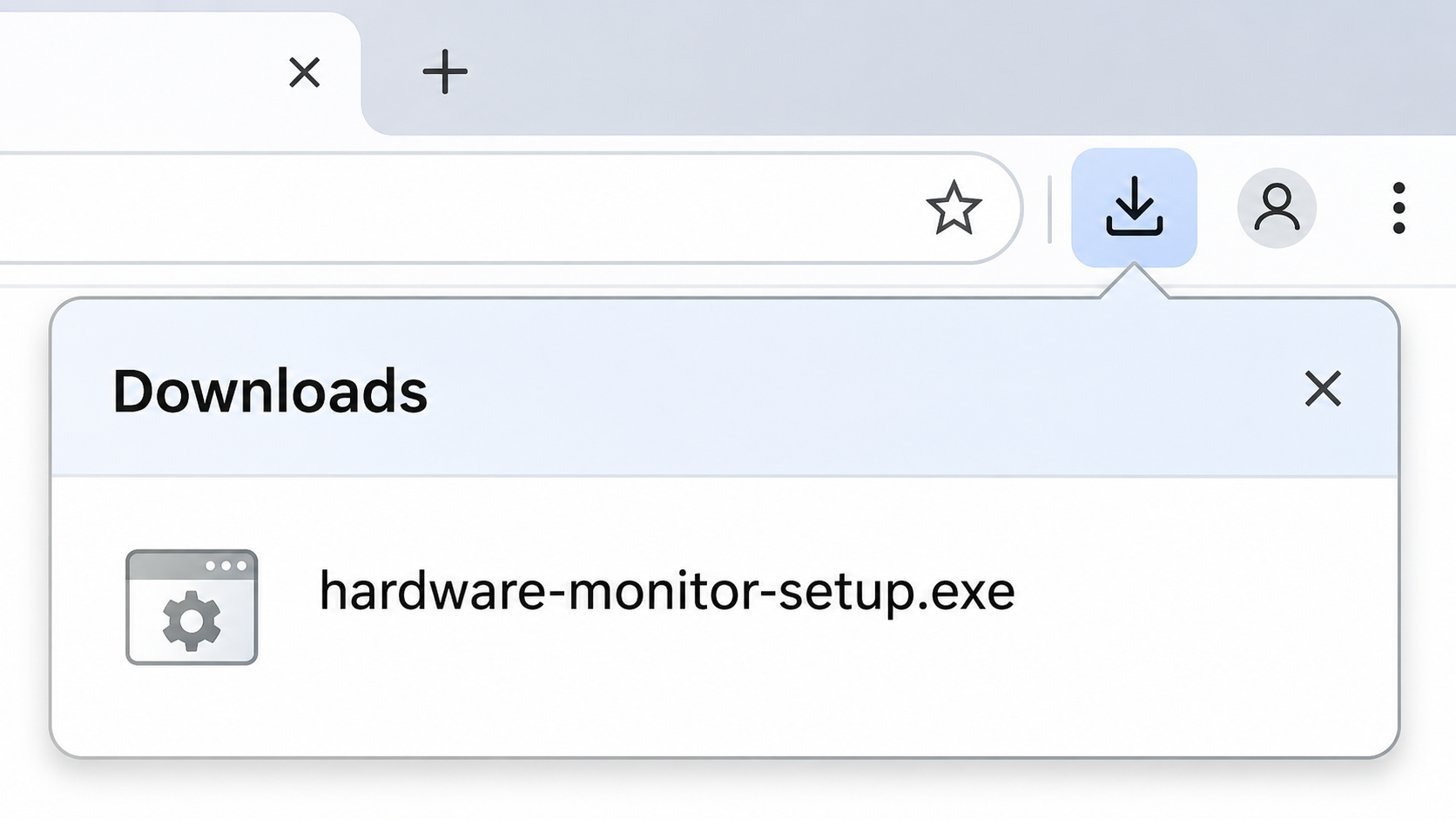
That’s why it helps to check both the original download and your security records. The fictional Downloads view here shows where to start, not footage of the incident.
Decide which installation is relevant before choosing a remedy
- Find the downloaded file name and date in your existing browser history.
- Note whether you ran the installer or only saved it.
- Separate an older known installation from a new copy obtained during the reported incident.
- Preserve any warning or quarantine details without restoring the item.
- If the computer was used to manage a server, tell the team responsible for that access.
Checking a Windows program’s signature can help verify who signed that file. It doesn’t independently establish that everything distributed with it came from the expected source.
Follow the File Trail Before Making Changes
In most desktop browsers, Ctrl+J opens Downloads. Locate the entry using its date or filename and note the original source if the browser still shows it.
Do not click the filename itself to see what happens. If the record shows only the name, give support that limited information rather than reopening the original download page.
If an organization’s deployment tool supplied the file, ask its administrator which installer went into the package.
The date the software appeared may be later than the date someone first downloaded it.
You might also find a download duplicated in a browser profile you rarely use. Check the profile that was actually active when you went looking for the utility.
If a trusted administrator has already replaced the package, ask for the verified version and install date. Don’t assume that a new file erased the history of the old one.
Finding the correct context is more important than identifying an exact threat label on your own.
Give support the original file details and any antivirus action in the order they occurred.
How the STX RAT Infection Happens
Step 1: A familiar download route stops supplying what users expect
Normally, getting software through the developer’s website is safer than relying on a third-party mirror.
A compromise of the site’s download links creates an exception while that delivery route is affected.
A person may have visited the genuine page and still received a different installer. This is why reconstructing the exact time and file matters more than remembering the logo.
If you need to use the tool again, check its current official notice and obtain a fresh, verified copy on a clean system.
Do not reuse the file in your Downloads.
Step 2: Running the installer gives the unwanted program a chance to start
Saving an installer is not the same event as running it.
If Windows blocked the file before it opened, record that result rather than guessing what the installer would have done.
If you did run it, note the prompts you approved and whether it opened under a normal user or administrator. Give those facts to your security team.
Don’t launch it on another computer to check its appearance. A different result would not tell you what happened on the first computer and could affect another machine.
Step 3: STX can create access outside the utility you wanted
The reported software could provide hidden remote desktop control and collect data from selected applications. Those capabilities are different from the features you expect in a hardware monitor.
An unknown window isn’t required for something to be wrong. Look for concrete confirmation in alerts and logs instead of assuming a normal desktop means no other activity occurred.
The research applies to particular samples and delivery chains. A familiar Windows component appearing in Task Manager doesn’t identify STX on its own.
Step 4: Removing the original download doesn’t revoke exposed access
If a remote operator copied a session or saved credential, deleting the installer won’t take it back. Decide which services were reachable from that Windows account.
Someone using the machine to troubleshoot a server has different exposure from someone checking a gaming PC.
Include admin sessions, backup clients, and other sensitive tools only if they were present.
When you find an unexpected provider alert, verify it by signing in from a known-clean device. Don’t treat a new email link as the shortcut to a reliable answer.
What to Do if You Ran a Suspect STX Installer
-
Stop using the affected computer for sensitive tasks. Take it off Wi-Fi or Ethernet if you can safely do so and the installer may have run.
On a managed computer, notify the help desk before powering down or changing protection settings. Tell it the program name, download time, and which accounts you used.
-
Save the details you can get without executing the file. Open your existing browser Downloads history and record the filename, date, and known original download source.
Keep the security alert and the name Windows displayed. Do not upload the installer to a public service if your company or an investigation needs to control the sample.
-
Check other devices that got the same copy. If you shared the installer or placed it in a deployment folder, tell the people responsible for those systems.
Distinguish whether someone merely received the copy or actually used it. A warning can identify the filename and date without attaching the executable again.
-
Protect sensitive sign-ins from a clean device. Review email and any account used to manage work systems first, then prioritize other saved or open accounts.
Check active sessions and recovery details through the issuing service. Ask an administrator whether keys, API tokens, or saved file-transfer credentials need revocation.
-
Look separately at finance and wallet exposure. Check unauthorized transactions through the actual bank, exchange, or wallet provider rather than through an unsolicited message.
If a wallet secret may have been accessible, ask the official provider what to do from a clean setup. Avoid entering it into a webpage offering recovery help.
-
Prepare a return-to-use decision with support. Explain whether privileged tools, secure files, or company accounts were reachable from the Windows session.
A consumer scan may be one part of that decision. A device that handles other machines may need a deeper review or a rebuild before it returns to service.
How to Remove STX RAT From Windows
Step 1: Read Windows Security records around the installation
From Start, open Windows Security, go to Virus & threat protection, then select Protection history. Match findings to the date rather than choosing the first one in the list.
Follow Microsoft’s description of Protection History to understand blocked, quarantined, and unresolved items. Don’t use Allow or Restore to see if a detection repeats.
Write down the exact label and path. On a work system, keep the existing state unless your organization tells you to change it.
Step 2: Obtain and install the legitimate Windows scanner
For a personal computer, use the Malwarebytes Windows installer, downloaded through a trusted route. If advised to stay offline, ask your technician how to transfer an approved copy.
Open that installer and review the publisher shown by Windows. Proceed through normal setup, without turning off existing protections to satisfy an unexpected request.

Step 3: Run a scan and review findings after a restart
Open Malwarebytes, choose Scan from the dashboard, and let the scan complete. Review the results instead of relying on what the window showed halfway through.
Quarantine confirmed threats through the scanner’s controls. Record any item that still requires action, and follow an appropriate restart prompt on a personal computer.
After Windows starts again, recheck that the detections did not return. A repeat result is a reason to isolate the computer again and seek help.

If you want continuing Windows protection, the Malwarebytes Premium link is an optional affiliate offer. A subscription can’t verify your old installer or end a stolen session.
Step 4: Remove the suspect installer once evidence is preserved
Delete the confirmed copy from Downloads on a personal PC once you no longer need it for investigation. Remove any separate copies you can identify in personal setup folders.
If a file is stored in a work share, tell the person responsible rather than deleting shared records yourself. If it was deployed elsewhere, one cleanup doesn’t change those systems.
A leftover copy on a backup drive can be reopened later by mistake. Write down which backup held it and restore only verified files from that backup.
Step 5: Check persistent findings and arrange a clean rebuild if necessary
Windows’ Settings > Apps > Startup can show some software configured to run at sign-in. Don’t treat the list as exhaustive or disable entries you cannot identify.
Talk to MalwareTips removal support or a technician if a detection returns. Don’t post server details, passwords, session exports, or private keys in a support thread.
If a clean rebuild is advised, confirm the backups and installation media before erasing anything. Use known-good installers and keep affected deployment files out of the restored system.
Verify the replacement before putting it back in circulation
Check the developer’s official distribution route from a clean device. If the publisher provides release hashes or signature instructions, use those to verify the exact copy you intend to use.
In File Explorer you can right-click a signed installer, open Properties, and review its Digital Signatures tab.
If the publisher or signature is unexpected, stop and ask someone qualified to confirm it.
Verify the whole package where possible, not just a familiar program inside an archive. A valid signature on one executable isn’t a signature for the surrounding files.
A business deployment should start with an approved replacement that is recorded and distributed by the team responsible. Report any saved copy that still shows the original download date.
Close out access on machines the PC could reach
If the computer was used for server administration, give the proper team a list of the systems you logged into. Let it decide which sessions and credentials require action.
Review file-sharing credentials separately from browser passwords. A tool that logs in to a backup destination has a different effect from a site account that only reads a dashboard.
If a business keeps installation files in a central shared directory, replace the old package only after the responsible team verifies it. Preserve needed evidence before changing the share.
Check whether backup or storage services logged changes while the computer was affected.
Keep records for any files you do not recognize rather than assuming an alert was the entire incident.
Frequently Asked Questions
Are CPU-Z and HWMonitor malware?
CPU-Z and HWMonitor are both genuine utilities. The documented incident involved altered download delivery, not proof that every past, current, or genuine copy of either program contains STX.
What if I downloaded a copy but never opened it?
That differs from running a Windows program. Preserve the date and alert as needed, leave the file unopened, and arrange removal of the unused copy.
Does a familiar installer prove everything it loaded was legitimate?
Recognizable windows and file names don’t settle the origin of an entire package. Use the download history and security findings to identify the specific copy you received.
What if my hardware monitor has been installed for years?
An older verified installation isn’t automatically part of a later delivery incident. Check whether you recently downloaded, reinstalled, or updated it through an affected route.
Is a quiet desktop enough to rule out STX?
The researchers documented functionality that did not require a visible remote support window. Look at security records and ask for help if you ran the affected installer.
Do I need to change passwords after removing the file?
If the suspicious program ran, review the accounts and credentials that were available there. Use a known-clean device and ask each responsible provider what it can revoke.
The Bottom Line
Don’t run the old installer to see whether it is genuine. Establish which copy reached your PC and whether you actually ran it.
If it ran, isolate the Windows device, check it for malware, and protect any sensitive access it held. Verify the next installer independently before using the utility again.

Join the discussion
0 commentsShare your experience or ask a question about this article.
Community experiences
Did this happen to you?
Your experience could help someone recognize the same scam. Submit a private report for our team to review.
I experienced this tooReports are reviewed before publication. Sharing publicly is always your choice.
Discussion
Start the conversation
Have a question or something useful to share? Add the first comment.