


An unexpected prompt on a Mac is often just one more thing to dismiss. It gets harder to judge when it appears beside an app you already recognize.
If something is asking you to recover access you never lost, walk away from the prompt. You can check the real app without opening that window again.
Overview
A Mac stealer that can change the application you open
Moonlock researchers examined notnullOSX, a macOS information stealer with several components. One of the most important findings concerns the software a wallet owner thinks they’re opening.
The sample analysis found functionality designed to replace some genuine desktop wallet applications with deceptive copies. A familiar name or icon wouldn’t protect the reader from a new recovery prompt.
This is not an accusation against those wallet makers. The scene in which the program changes is the affected Mac, rather than a normal update provided by the genuine developer.
Knowing the difference also keeps the response proportional.
A wallet icon that suddenly changed doesn’t establish an infection, but a suspicious installation followed by an unexpected recovery request warrants a closer check.
What Full Disk Access changes
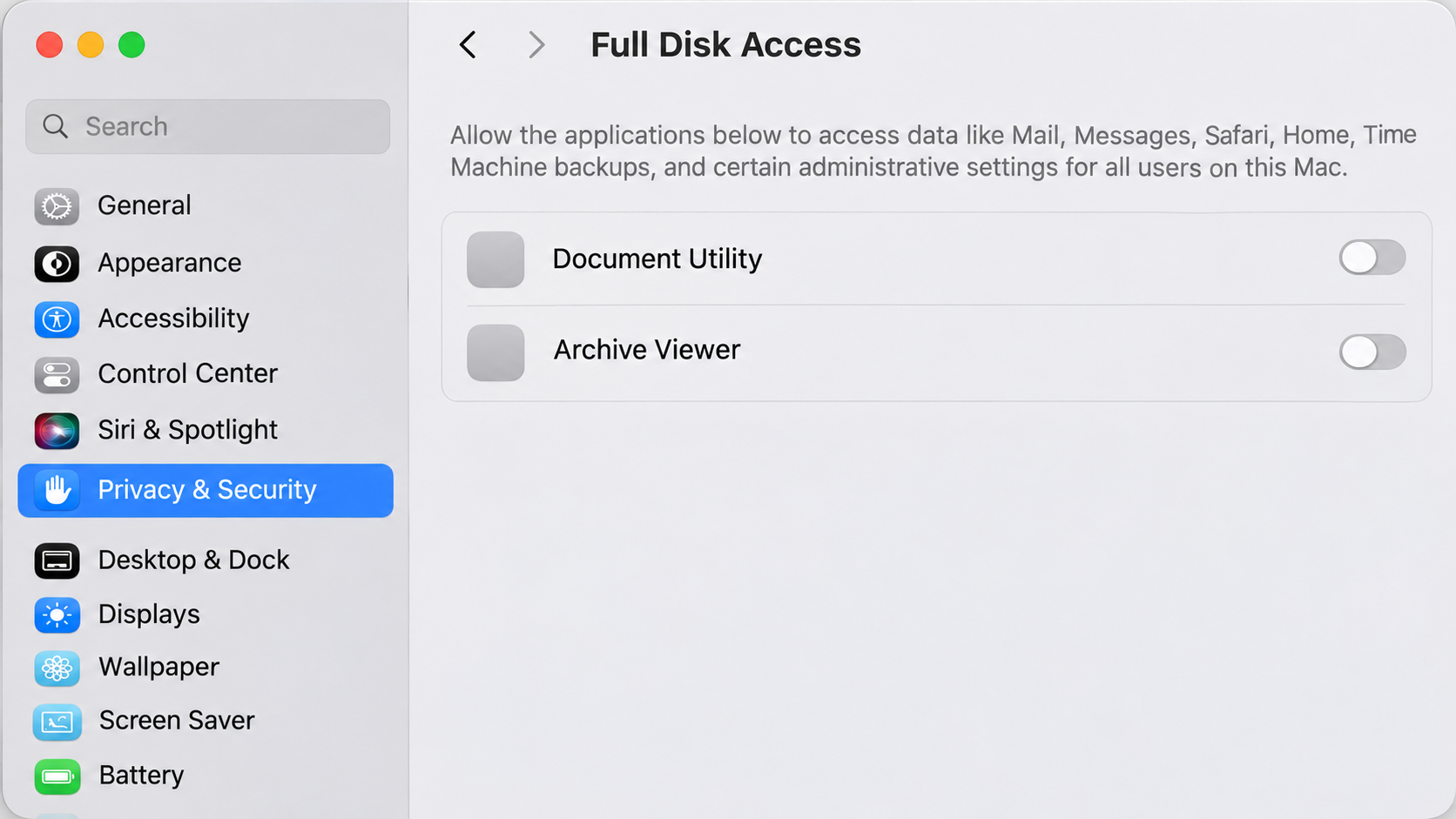
Full Disk Access is a real macOS permission. It permits an application to reach categories of data that macOS normally protects from ordinary applications.
The settings screen shown here is a reconstruction, not evidence that particular apps are unsafe. Find the exact app and permission on your own Mac through System Settings.
Moonlock describes broader data collection when the malware has that access. The observed modules could target browser or messaging information and data associated with wallet software.
Some collected wallet information can be encrypted. That finding is not the same as proof that every recovery phrase was obtained or that every wallet on a Mac was drained.
Decide what exposure to report before you change anything
- Write down whether you merely visited a site, mounted a disk image, or actually ran something.
- Note whether an unexpected Terminal window appeared and whether you acted on any instruction.
- Record if a downloaded program asked for Full Disk Access or other permissions.
- Tell your wallet provider if you entered recovery words, not just whether you opened the desktop app.
- Flag browser or Telegram sessions if they were open on the same Mac.
If someone else set up the computer or the wallet, ask when they installed or updated the relevant app.
Don’t ask them to send you recovery words as part of the check.
How the notnullOSX Infection Happens
Step 1: The download or repair instruction borrows another task
Researchers described more than one route to the malware, including malicious disk images and fake repair instructions. Neither route requires the Mac owner to be looking for a wallet first.
A familiar activity can make an unusual request easier to miss. If you were following a video or a setup guide, verify that instructions belong to the actual publisher.
Don’t use the download page to check its own authenticity. Return to a known developer route from another device if you’ve already run something suspicious.
Step 2: The requested action crosses a system boundary
Opening a disk image is different from running an item inside it. An unexpected Terminal instruction or permission prompt is another action to record separately.
A legitimate app can ask for Full Disk Access for a specific feature. The warning sign is a request from a program whose origin or need you cannot establish.
If you stopped before running anything, say so. You don’t need to complete an instruction to give support a useful incident timeline.
Step 3: The malware can collect items already on the Mac
Once a suspicious item runs, software can look through data that the signed-in user or granted permissions make available. It doesn’t have to ask you to type everything again.
The researchers observed modules relevant to different applications. Start the response with the browser profiles, messages, wallets, and sensitive files that were actually accessible on your Mac.
If an employer manages the device, tell it which work access was active while the problem could have occurred. It can decide what other systems need review.
Step 4: A copied wallet app can ask for a secret later
Moonlock describes a replacement capability that can make a counterfeit companion app look familiar to its owner. An unexpected recovery request can therefore be part of a later stage.
Do not type any recovery words into the affected Mac to prove the app is yours. Check the wallet maker’s real guidance from a different trusted device.
Using a hardware wallet does not make the words safe to share with a desktop program.
If the secret is exposed, the safety of the original device isn’t the only question.
What to Do if notnullOSX May Have Run on Your Mac
-
Leave the affected Mac out of sensitive work. Disconnect its network if you think the program ran and can safely do so. Switch to a known-clean device for support.
Don’t open the suspicious wallet or enter more information to check its appearance. Preserve existing evidence without sending an app copy or any private key to someone else.
-
Record what the download actually asked you to do. Note the installer file, approximate time, permission request, and whether a program ran.
If this is a work Mac, contact its security team before restarting or deleting items. It may need to protect work access while it investigates.
-
Treat a recovery phrase entered on the Mac as potentially exposed. Reach the wallet maker through its real support channel and explain the type of information you disclosed.
Don’t include the words in your ticket. Ask for guidance for your exact wallet type instead of importing the same phrase into another app.
-
Keep exchange account and wallet recovery separate. On a trusted device, check active exchange sessions, withdrawals, and changes that you did not make.
Ask the exchange to help secure its own account. Someone using a self-custody wallet may need a different response, even when both services show the same coin.
-
Check unrelated access the Mac could reach. Prioritize email and other accounts that can reset passwords. Review connected devices, logins, or active sessions using the real services.
If you used server or cloud tools there, tell the responsible administrator. Have it assess reachable credentials rather than rotating tokens from the machine you are checking.
-
Keep a private record of account events. Save transaction identifiers and case references where appropriate, without storing a phrase or a key beside them.
Avoid unsolicited recovery services that want remote control, a fee, or wallet secrets. An attacker can read public transaction history without having the authority to return funds.
How to Remove notnullOSX From macOS
Step 1: Review the exact app that received permission
Open System Settings > Privacy & Security > Full Disk Access. Note any app that appeared around the incident, and compare it with what you actually authorized.
If you can identify the malicious or unwanted app and the computer is yours, turn off that app’s access.
Don’t disable accessibility tools, backups, or managed security based on unfamiliar names.
Permissions can be only part of the problem. Removing the permission does not establish what the app already read or whether another program remains on the Mac.
Step 2: Check startup and the downloaded file without opening either
Open System Settings > General > Login Items & Extensions. Look for confirmed unexpected entries associated with the installation, and get help identifying any entry you cannot verify.
If a suspicious image remains mounted, eject it without opening anything inside. Keep the download available for work support if it asks for evidence.
On a personal Mac, remove the confirmed suspect installer once you no longer need it. Keep it out of shared folders and don’t restore it from a backup.
Step 3: Install the Mac scanner from a trusted source
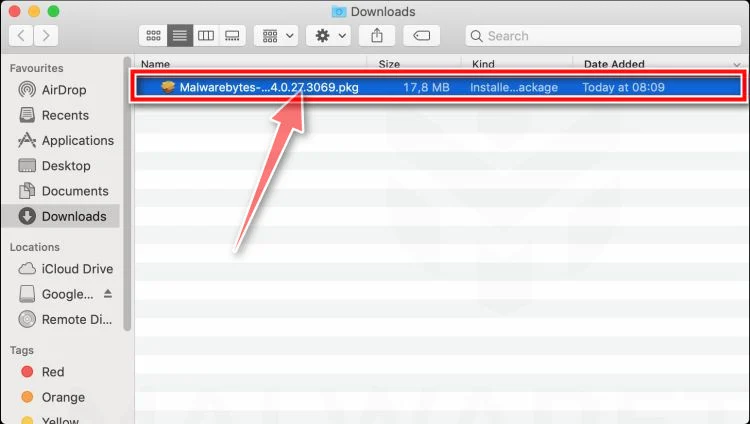
Use the Malwarebytes installer for Mac. When the Mac needs to stay offline, get an approved installer on a second computer and ask support about safe transfer.
Open the verified package in Finder and follow the macOS installer prompts. The walkthrough screenshots show an earlier release, so names or placement may vary in the current app.
Step 4: Run the scan and review the exact detections
Open Malwarebytes in Applications, then use Scan and let it finish. Read the findings before deciding which reported items require action.
Quarantine confirmed threats through the scanner. If it asks for a restart, save your work and follow that prompt on a personal Mac.
After the restart, check whether the same detections or unexpected permission entries returned. Don’t interpret an empty detection list as a decision about the wallet.
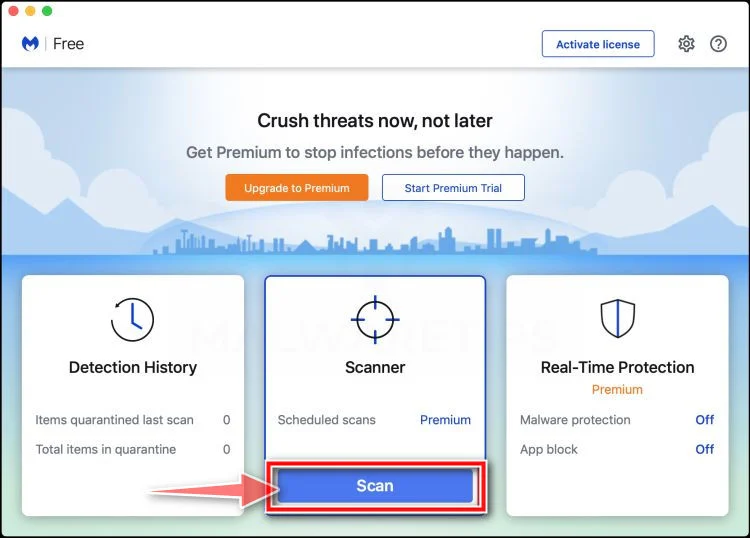
The Malwarebytes Mac upgrade uses an optional affiliate link for ongoing protection. It does not invalidate a recovery phrase or repair an unauthorized transfer.
Step 5: Verify installed wallet software before opening it again
Do not reuse the desktop wallet app simply because its icon remained the same. Check with the genuine wallet maker about identifying and replacing a potentially altered installation.
Download any replacement only after confirming the official route on a trusted device.
The opportunity to run a new installer is not a reason to enter your old phrase during a test.
If a suspicious app or detection returns, seek help through the MalwareTips support area or a qualified technician. Don’t share unredacted wallet or account screenshots.
Make a clean transition back to the accounts you use
Leave new passwords and authentication changes on the trusted device while cleanup is in progress. The first time you log back in is a choice, not a diagnostic test.
Check the wallet provider’s instructions before restoring from any backup. An old application copy and a recovery secret are different objects and can require different action.
If a technician recommends rebuilding macOS, verify your backup and which folders will return. Do not blindly restore every installer and application from the period under investigation.
How to Check the Wallet Without Reopening the Suspect App
Start with the type of wallet you actually use
Write down whether it is a custodial account, a browser wallet, a desktop wallet, or hardware with a desktop companion. That distinction changes which provider can take action.
With a custodial service, contact the provider about your sessions and withdrawals.
A desktop wallet that holds its own keys may not have anyone who can reset access from a support console.
If you use more than one wallet, identify which app asked for recovery words. Do not open all the other wallets on the affected Mac as a quick test.
Separate a device confirmation from a request for recovery words
A normal hardware wallet workflow can involve reading a confirmation on the device. That doesn’t make a separate request for the recovery phrase in a desktop window routine.
Compare the current steps to the wallet manufacturer’s official guidance on a clean device. If you’re unsure which prompts are legitimate, ask support before accepting anything.
Do not give the phrase to a support representative, even when you initiated a real support case. Describe where you entered it and what other changed screens you saw.
Confirm the transactions through a trusted source
Use the wallet or service’s verified method on a clean device to check recent activity. Write down dates and transaction identifiers when something doesn’t match your records.
If the provider can’t reverse an already completed transfer, ask what steps it can still take. Keep the recovery advice separate from promises sent by strangers who monitored the transaction.
When the investigation is closed, note which app and credentials were replaced. That makes it easier to spot an older copy of the suspect app returning from a backup later.
Frequently Asked Questions
Is notnullOSX part of macOS?
It is the name given to a malicious program described by researchers. It is not a macOS feature or a standard hardware wallet utility.
Does a browser warning tell me I have the stealer?
A warning is a reason to check what happened, not to identify the whole incident. Establish whether the file was blocked, opened, or granted a permission.
Why is Full Disk Access useful to investigate?
It changes what an app can read on the Mac. Review which exact app got the permission and when, rather than judging the safety of every listed app.
Does this mean my hardware wallet device was hacked?
The report describes activity on a Mac and a possible replacement of desktop software. If you entered your recovery words, ask the provider about that specific exposure.
Can I use the same phrase in a fresh desktop app?
Reusing a phrase restores the same wallet access rather than replacing the underlying secret. Ask the genuine wallet provider what to do if that secret may have been copied.
Does a clean scan clear my browser account sessions?
The Mac scan and the provider’s session list answer different questions. Review old access through each service you used, ideally from another device you trust.
The Bottom Line
Stop using the suspect wallet window or installer on that Mac. Verify the real software through its original publisher before you return to it.
If you ran the download, check the Mac and any accounts it could reach. If you disclosed recovery words, act on that exposure separately, even if the scan finds nothing.

Join the discussion
0 commentsShare your experience or ask a question about this article.
Your progress
Did these steps help?
Let us know how the guide worked for you.
Describe what you see and the step you reached. Keep passwords and other private information out.
Discussion
Start the conversation
Have a question or something useful to share? Add the first comment.