


A security alert naming NANOREMOTE can leave you wondering whether an ordinary-looking file was doing something else. The answer depends on what ran and what it could reach.
This Windows backdoor can give an outsider access well beyond one suspicious download. Start with the cleanup instructions, then work through the files and accounts that need attention.
Overview
A Windows backdoor, not a Google Drive warning
NANOREMOTE is a Windows backdoor analyzed by Elastic Security Labs. It can run commands, handle files, collect system information, and load additional programs.
Its file-transfer functions use Google Drive. That does not make an ordinary Drive notification, installed Drive application, or shared document evidence of infection.
The important starting point is a malware detection, a confirmed malicious file, or an incident investigation connecting this backdoor to your computer.
The loader can resemble security software
In the analyzed chain, a separate component called WMLOADER impersonated a Bitdefender program. It decrypted a nearby payload file and loaded NANOREMOTE into memory.
A familiar product name is therefore not enough to authenticate the file. Equally, the filename alone cannot tell you that a legitimate Bitdefender installation is malicious.
- Threat: Windows backdoor with remote command and file-transfer functions.
- Observed loader: WMLOADER, which is a separate component, not another name for NANOREMOTE.
- Related implant: FINALDRAFT, linked through code similarities, not an interchangeable family name.
- First response: isolate the affected computer and preserve the alert information.
Cleanup and exposure need separate attention
Removing a detected payload addresses the computer. It cannot pull back documents already copied elsewhere or invalidate sessions an attacker might still possess.
The guide below separates scanning, checking the result, and protecting accounts. If this is an employer-managed computer, involve its security team before changing the system.
How to Remove NANOREMOTE From Windows
For an employer-managed computer, stop here and contact your security team. Disconnect as instructed, but do not reboot, install tools, or delete evidence without its approval.
A responder may need information still held in memory. The personal-computer procedure below is not a replacement for coordinated incident response on a business network.
- Step 1: Isolate the computer and preserve the alert.
- Step 2: Prepare a safe scanning connection.
- Step 3: Open and configure ESET Online Scanner.
- Step 4: Run a full scan.
- Step 5: Review cleanup actions and save the report.
- Step 6: Restart when appropriate and check unresolved findings.
Step 1: Isolate the Computer and Preserve the Alert
Unplug Ethernet and turn off Wi-Fi. Stop using the computer for email, banking, password changes, or work access while you assess the problem.
Record the security alert’s detection name, full file path, time, and action taken. A photograph from another device can preserve the alert without opening more applications.
Note whether the file ran or was blocked before execution. Also record any recent installer or message associated with it, without reopening a suspicious attachment.
Do not upload company files, private documents, or the suspected payload to a public analysis website. A support helper normally needs the detection details first.
If you notice ongoing account misuse, use a different trusted device to contact the relevant provider. Do not wait for the scan to protect an actively abused account.
Step 2: Prepare a Safe Scanning Connection
ESET Online Scanner provides a free one-time scan for Windows. The button below uses MalwareTips’ established affiliate route to ESET’s official download page.
Download ESET Online ScannerOpens the official download page in a new tab.
If possible, obtain the installer on a clean computer and transfer it using a dedicated removable drive. Do not copy other files from the infected computer onto it.
The transferred installer does not make this an offline procedure. ESET downloads detection-module updates, so its setup and scan need a working connection when requested.
Reconnecting a confirmed backdoor can restore its access too. Do not automatically reconnect an infected work machine merely to update a scanner.
For a personal computer, arrange safe scanning access with a trusted technician if necessary. If that cannot be done safely, keep it isolated and discuss a planned rebuild.
Step 3: Open and Configure ESET Online Scanner
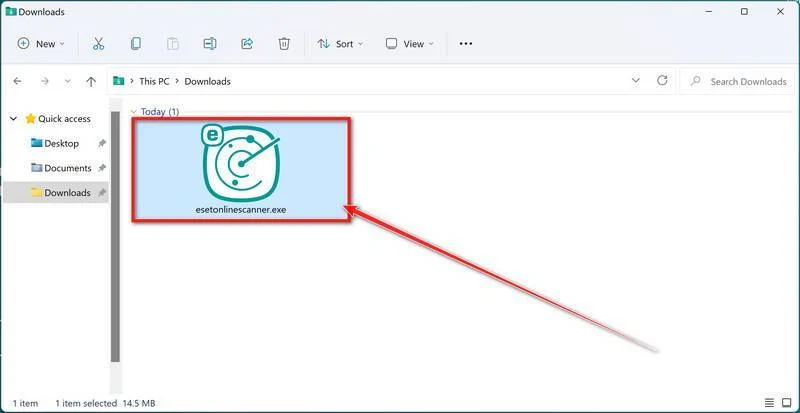
On the affected computer, open the folder containing the verified download and double-click esetonlinescanner.exe. Do not select a similarly named file from an unrelated download.
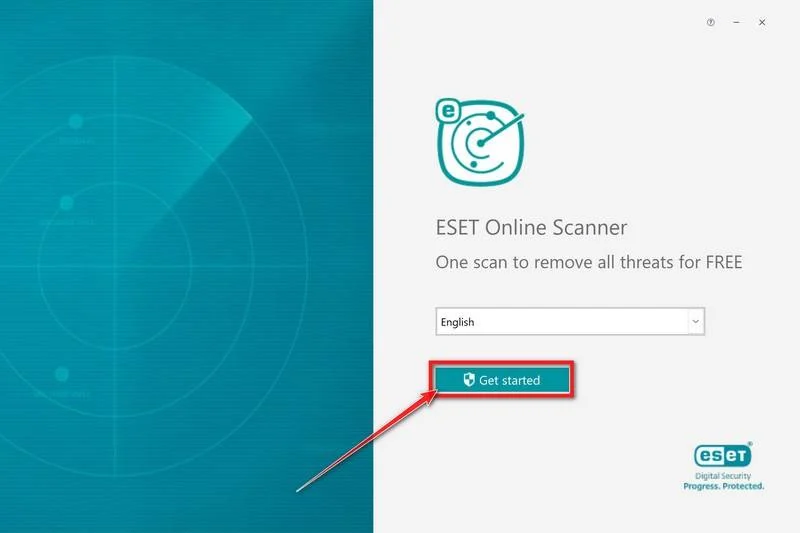
Choose your preferred language and click Get started. If Windows requests permission, confirm only after checking that the prompt belongs to the ESET application you opened.
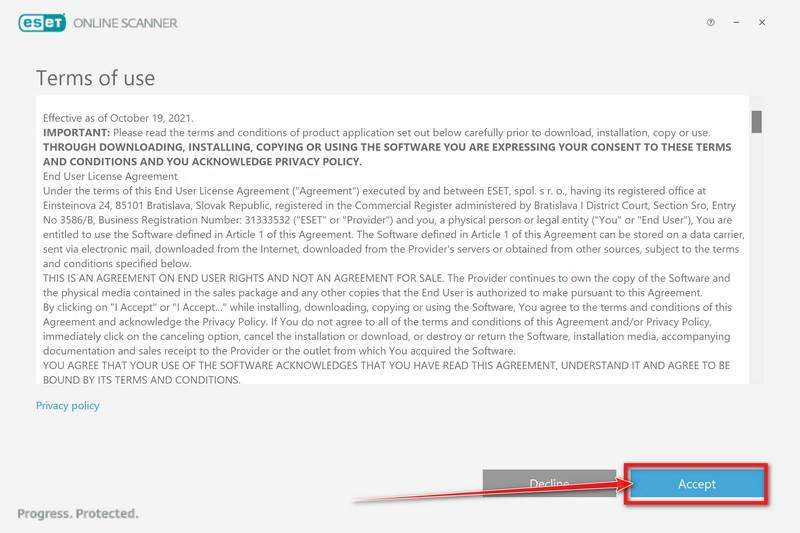
Read the terms. Click Accept if you agree, and continue through any additional Get Started screen.
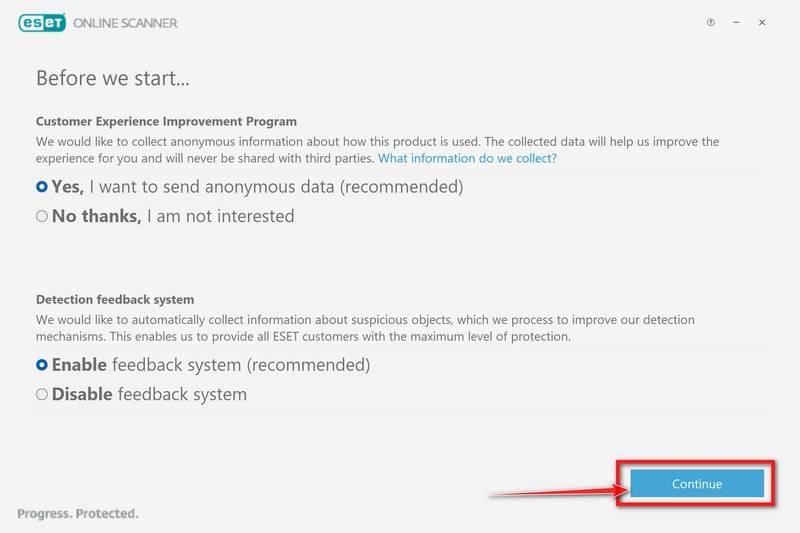
Choose whether to participate in the Customer Experience Improvement Program and Detection feedback system. These are preferences, not a requirement to buy protection.
Click Continue after reviewing those choices. Do not follow an unrelated website’s instruction to disable your existing security software.
Step 4: Run a Full Scan
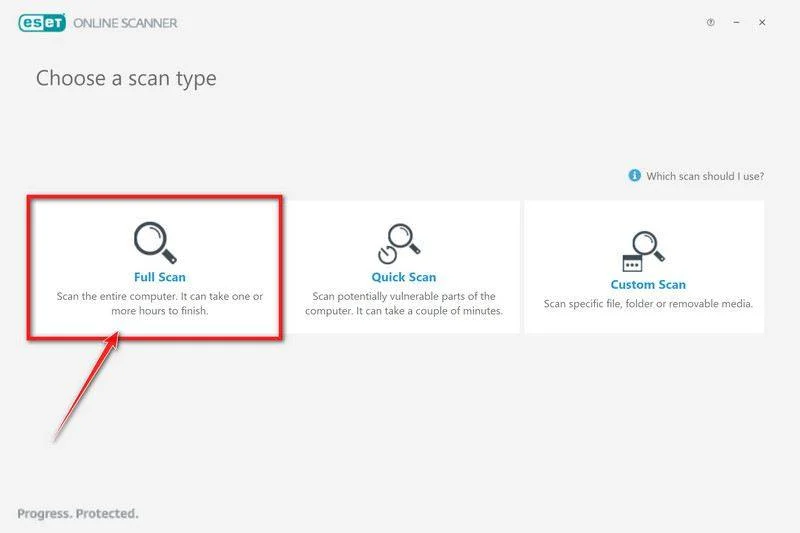
If the welcome screen appears, choose Computer scan. On the scan-type screen, select Full Scan rather than a quick check of common locations.
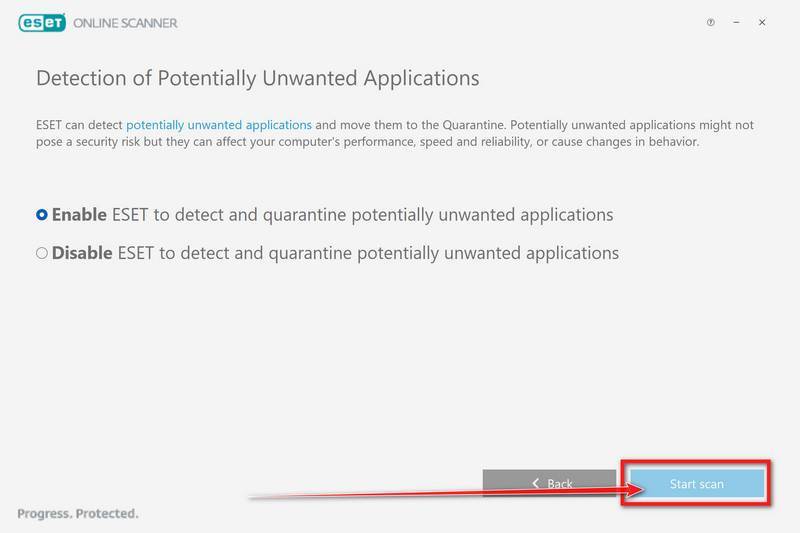
Enable detection of potentially unwanted applications, then click Start scan. These findings can include unwanted software, but they should not all be labeled NANOREMOTE.
Allow the detection modules to update before scanning. If the update fails, save the error and resolve the connection safely instead of repeatedly reconnecting the compromised computer.
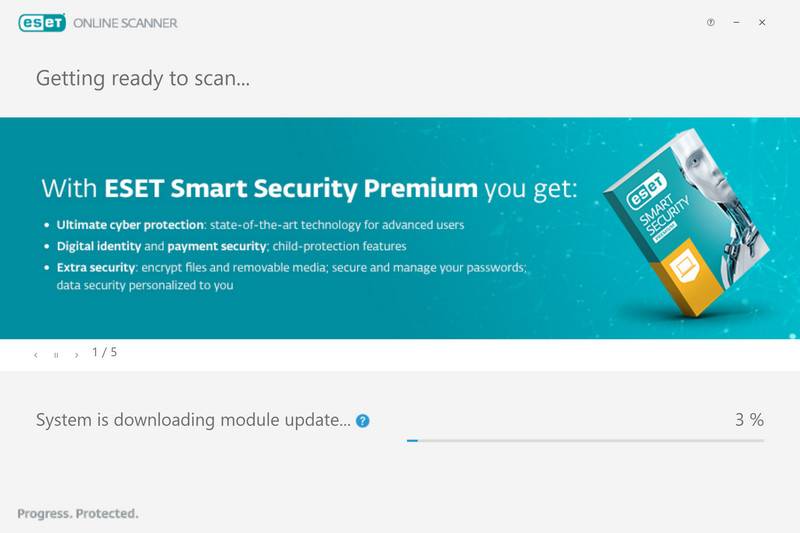
Let the scan finish. An in-depth check can take hours, depending on the data and hardware. Avoid opening personal accounts while it runs.
A full scan checks the files and areas it can access. Locked files, access errors, exclusions, and threats outside its detection coverage can limit the result.
Step 5: Review Cleanup Actions and Save the Report
When the scan ends, select View detailed results if detections were found. Read the recorded action beside each item rather than relying only on the summary.
ESET attempts to clean detected threats and places affected files in quarantine. Quarantine isolates files; it does not mean that every possible malicious component was found.
Choose Save scan log before clicking Continue. Keep the report with the original alert so a helper can compare what was detected and handled.
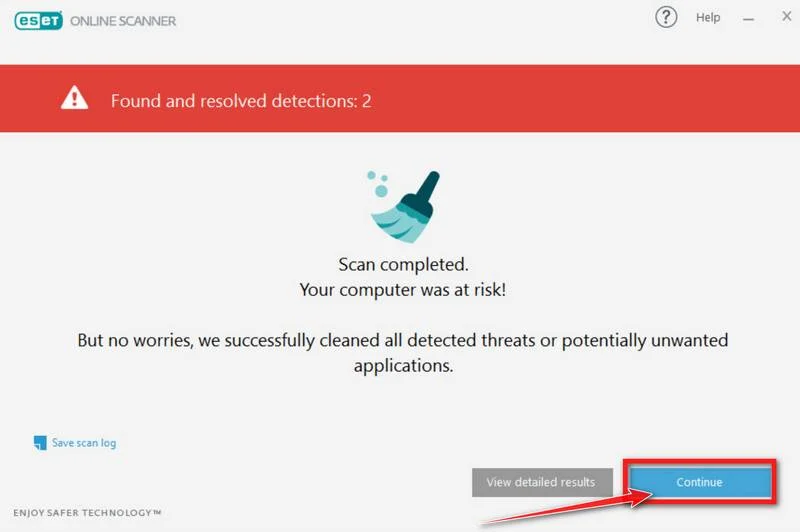
If an item could not be cleaned, keep the computer isolated and request help. Do not restore quarantined files just because an application stops working afterward.
Monthly scanning, feedback, email delivery of results, and paid-product offers are separate choices. Save your report before removing application data or closing the scanner.
Step 6: Restart When Appropriate and Check Unresolved Findings
After preserving evidence, follow any restart request needed to finish cleanup. On managed equipment, the security team should decide when that restart happens.
Run the recommended follow-up check and compare its report with the first one. Repeated detections, blocked cleanup, or renewed suspicious activity require further investigation.
Do not use this backdoor’s name as a reason to reset every browser. Review extensions or settings only when an actual detection or changed behavior points there.
Likewise, avoid deleting security-program folders, startup entries, or registry keys based on a familiar-looking name. A qualified helper can assess the exact paths and reports.
If removal fails or you cannot establish what the attacker changed, ask for help in the MalwareTips Windows malware-removal forum.
A clean rebuild may be safer when the system’s trust cannot be restored. Back up necessary documents with guidance, preserve reports, and avoid restoring executable files indiscriminately.
Rebuilding removes the existing Windows installation and can erase data. Plan it before starting; account recovery and exposed-file decisions still remain afterward.
For ongoing protection, Malwarebytes Premium is an optional paid product. It is not required for the free ESET procedure above.
Malwarebytes’ free Custom Scan and paid Threat Scan are different options. Neither a purchase nor a completed scan guarantees that stolen information becomes private again.
What NANOREMOTE Can Do After It Starts
It can turn instructions into activity on your computer
Elastic identified 22 command handlers in the backdoor. Together, they cover machine discovery, file management, program execution, and transfers between the computer and cloud storage.
For example, an operator can inspect folders, move or delete files, and run commands. This is broader access than a single unwanted browser extension.
The command-execution function can launch another process and return its output. That lets an attacker investigate the environment or introduce more tools without physically touching the computer.
Other handlers load executable programs into memory. One accepts a program already on disk; another accepts encoded program data supplied through the control channel.
Those capabilities explain why a response should consider additional payloads. Finding one backdoor file is not the same as establishing everything that happened while it was running.
Google Drive handles transfers, not every control message
NANOREMOTE can queue uploads and downloads through the Google Drive API. Transfers can be paused, resumed, or canceled, making the channel useful for sustained file movement.
An upload can move files off the affected computer. A download can bring another file onto it. Both directions matter when assessing what was exposed.
The analyzed sample also used compressed, encrypted command messages sent over HTTP to a configured IP endpoint. Its control traffic was not simply all routed through Google.
That distinction matters during an investigation. Blocking Drive alone would not account for the separate command channel or remove a program already running on the endpoint.
Google Drive is a legitimate service being abused here. This research does not show that every Drive account is compromised or that Google distributed the backdoor.
Memory loading changes what a file search can tell you
The loader decrypts the payload and starts it in memory. NANOREMOTE also uses a custom method for loading additional Windows executables.
Searching Downloads for a familiar-looking installer is therefore not a complete investigation. Some relevant activity can involve memory or files stored somewhere else.
The research also describes logging and crash-handling features. These help explain the program’s behavior, but they do not establish one universal startup entry to delete.
Do not apply a registry-cleaning recipe or remove every unsigned application. Let confirmed detections and a qualified investigation identify the components that actually belong to this infection.
Why the Security-Software Disguise Matters
The analyzed WMLOADER sample used the name BDReinit.exe and presented Bitdefender product information. Its digital signature was invalid.
It looked for an encrypted file called wmsetup.log beside the loader. Despite its extension, that file carried a payload rather than an ordinary troubleshooting log.
The useful lesson is to check the complete context: file location, signature, detection report, and associated activity. A plausible icon or description cannot supply that context.
Do not delete all files bearing either name. Security software can have legitimate components, and removing them blindly could damage protection while missing the actual malicious copy.
Elastic found overlaps with FINALDRAFT, including code patterns and compatible loader decryption. The researchers considered a shared development environment a likely explanation.
Those similarities do not establish how NANOREMOTE first reached your computer. Email, cracks, and fake updates are possible malware routes, not confirmed delivery here.
If you are investigating your own exposure, preserve the actual download history, installer, message, or alert that led to it. Your incident’s evidence matters more than a generic delivery list.
What to Do After NANOREMOTE Was Found
Use another trusted device for sensitive changes while the affected computer is isolated. Decide what needs protection from the access it had, not from the alert name alone.
-
Start with the accounts that control other accounts. Protect your primary email and password manager, then review their sign-in history, recovery details, and unfamiliar devices.
Change passwords that could have been exposed, using the clean device, and replace reused copies.
Use each service’s session or device controls to revoke access you cannot explain. A new password does not automatically invalidate every existing session on every service.
-
Review work access with your administrator. Business email, shared drives, administrative tools, and remote connections may need coordinated credential or token rotation.
Tell the team which user was signed in and when the detection appeared. Do not export company files or attempt to investigate colleagues’ accounts yourself.
-
Identify sensitive files stored locally. Consider financial records, identity documents, client material, and saved account-recovery information that the affected user could access.
Backdoor access creates an exposure risk, not proof every file was stolen. Keep a practical list so your provider or incident responder can prioritize the investigation.
-
Treat exposed wallet keys differently from passwords. If private keys or seed phrases were accessible, seek the wallet provider’s guidance from a clean device.
Deleting malware does not make a copied private key secret again. Do not enter a recovery phrase into a cleanup website or send it to someone offering help.
-
Check financial activity when the exposure warrants it. Contact the relevant bank or provider if you find unauthorized transactions or account changes.
Keep the transaction details and detection timeline. Antivirus software cannot reverse a payment, and nobody can guarantee recovery in exchange for an upfront fee.
-
Strengthen the accounts you keep using. Enable supported multifactor authentication, preferably phishing-resistant options, and retain recovery codes somewhere separate from the affected computer.
Return to those accounts only after the device response is complete. Otherwise, new credentials may be exposed again through the same unresolved access.
How to Avoid Reintroducing the Same Infection
Start with the file or event your own investigation identified. Remove its access route or source from normal use instead of assuming the problem ended with one scan.
If an installer was confirmed malicious, do not reinstall it from an old Downloads folder or backup. Obtain a fresh copy through the legitimate developer’s established channel.
Keep Windows and everyday applications supported and updated. Updates reduce known security gaps, but they do not turn a misleading installer into a trustworthy download.
Keep one properly configured real-time security product active. Avoid disabling protection just because an installer, message, or forum reply says that it interferes with setup.
Review restored files before opening them, especially scripts, executables, and archived installers. A backup is useful for recovery, but its contents still need assessment.
On a managed network, ask whether other endpoints or shared access need checking. A backdoor’s ability to transfer files and run programs can extend the response beyond one machine.
Frequently Asked Questions
Is NANOREMOTE a virus or a backdoor?
NANOREMOTE is a Windows backdoor. Its defining risk is remote access for commands, program execution, and file transfers, rather than evidence of self-spreading infection.
Does NANOREMOTE mean my Google Drive account was hacked?
No. The malware can use Google Drive as a transfer channel. That finding alone does not establish that your personal Google account supplied the attacker’s storage.
Should I delete BDReinit.exe or wmsetup.log myself?
Not based on the filename alone. Preserve the detection path and let security tools or a qualified responder identify the malicious component and associated files.
Will uninstalling a suspicious application remove NANOREMOTE?
Not necessarily. A backdoor may lack a usable uninstall entry, and additional payloads may already exist. Follow a full scanning and verification process.
Does a clean scan mean my accounts are safe?
No. A clean scan cannot revoke existing sessions or undo earlier file theft. Review affected accounts separately from the computer’s cleanup results.
Do I need to reinstall Windows?
Rebuilding may be appropriate when access was extensive, detections return, or trust cannot be restored. Preserve evidence and plan backups before making destructive changes.
The Bottom Line
Treat a confirmed NANOREMOTE infection as unauthorized access to Windows, not just one suspicious file. Isolate the device, complete the cleanup, and investigate unresolved findings.
Then protect the accounts and sensitive information it could reach. Keep your reports, use a clean device for account recovery, and get help if system trust remains uncertain.

Join the discussion
0 commentsShare your experience or ask a question about this article.
Your progress
Did these steps help?
Let us know how the guide worked for you.
Describe what you see and the step you reached. Keep passwords and other private information out.
Discussion
Start the conversation
Have a question or something useful to share? Add the first comment.