


A password manager should be a deliberate choice, not an unexpected addition to your computer. Finding an unfamiliar vault can leave you wondering which logins it holds.
If Secure PasswordVault has appeared on Windows, start by identifying the app and protecting access to any saved accounts. Then follow the appropriate removal steps below.
Overview
An Unwanted Password Manager, Not a Proven Password Stealer
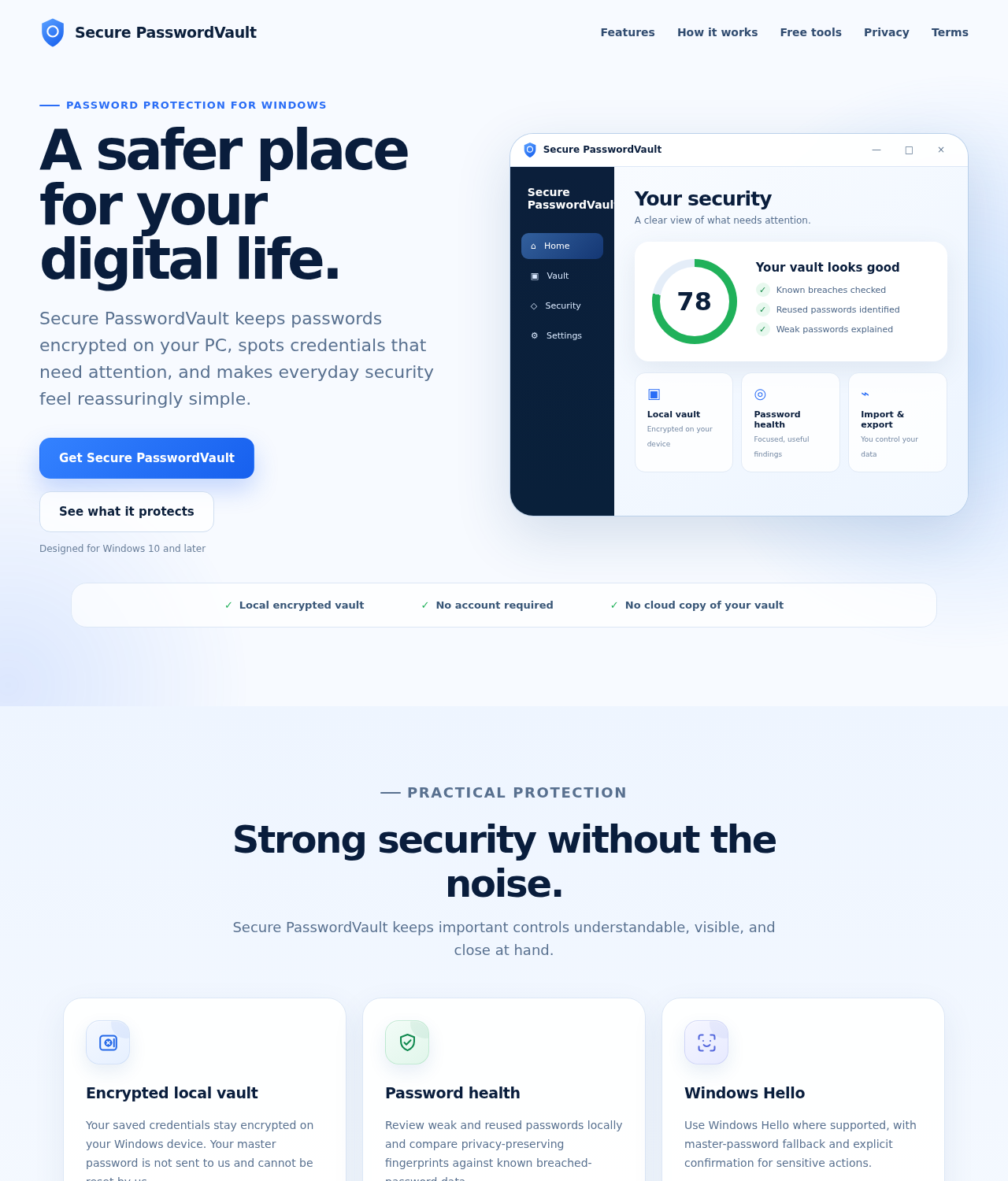
Secure PasswordVault has been reported as a potentially unwanted application promoted through deceptive advertising. The reported inspection did not establish ads, data collection, or browser extensions.
That distinction matters for your response. Remove an unwanted app without assuming that every password on the computer has already been stolen.
Protect Your Saved Logins Before Removing the App
A password manager may hold the only copy of a login. Uninstalling or clearing its data before checking recovery options can create an avoidable lockout.
The guide starts with controlled migration, followed by Windows removal and a free manual scan. Account protection is handled separately if you entered credentials.
Target the Application, Not Windows Credential Features
Microsoft also uses the name PasswordVault for a Windows programming interface. That built-in interface is not the unwanted app discussed in this guide.
Do not delete Windows components or empty every stored credential because a search result contains similar words. Identify the actual installed application before proceeding.
- Confirm the exact app name and publisher before removing anything.
- Preserve access to accounts before deleting their only saved logins.
- Use the Windows 11 or Windows 10 instructions that apply.
- Run a manual Malwarebytes scan without buying optional protection.
- Review detections and quarantine unwanted items before restarting when requested.
- Check affected accounts separately if passwords were entered into the app.
What to Do if Secure PasswordVault Appeared Unexpectedly
- Identify the installed application and whether you deliberately chose it.
- Preserve working access to credentials before uninstalling their only storage.
- Remove the named app using your Windows version’s instructions below.
- Check for other unwanted components with the illustrated free manual scan.
- Secure accounts separately if you entered passwords you now consider exposed.
How to Remove Secure PasswordVault From Windows
These instructions are for a personal Windows computer. If your employer or school manages the device, contact its IT team before uninstalling software or changing credentials.
Do not install another copy of the app to investigate it. Work from the entry already present, and avoid entering additional passwords during cleanup.
Step 1: Identify the App and Preserve Account Access
-
Check the application name and publisher first
Open the app’s entry in Windows Settings and record its exact name, publisher, and version where available. The Microsoft Store listing identifies the publisher as Mudassir123.
If you find only a Windows documentation page mentioning PasswordVault, stop here. A technical name appearing in documentation does not mean this application is installed.
-
Check whether you stored any important logins
Consider whether you typed passwords into Secure PasswordVault or imported another password collection. If neither happened, there is no vault migration to perform.
If it holds your only copies, confirm that you can recover those accounts before removing it. Start with your main email and any account-recovery information.
-
Move necessary credentials through a controlled process
The current Store description advertises encrypted .svault backup packages. It says restoration requires both the associated Recovery Kit and the original master password.
Preserve those materials privately if you need an existing backup. A Windows Hello unlock does not mean you can discard the original master password.
Before changing a vault’s master password, read its backup rules. An older encrypted package may require the master password that protected it when exported.
Keep the Recovery Kit separate from the backup package wherever practical. Neither belongs in a forum post, support attachment, or shared cloud folder.
Do not assume another password manager can import a proprietary .svault package. Restoring a backup and migrating credentials to different software are separate tasks.
Use a trusted replacement you selected independently. Migrate essential entries individually if necessary, or use each service’s official account-recovery process before removing the old vault.
Any browser-exported CSV contains readable credentials. Keep temporary files private, outside shared folders, and remove them after confirming that the intended migration succeeded.
-
Close the vault after checking your replacement
Verify that the replacement contains the required accounts and that you can open it. Close Secure PasswordVault before starting Windows removal.
Do not select an app-data reset as a shortcut. That can discard information before you have completed the migration you actually need.
Step 2: Uninstall the Named App on Your Windows Version
Use only the instructions for your Windows version. Removing one unwanted application does not require deleting unrelated programs, browser profiles, or saved Windows credentials.
Windows 11: Open Installed Apps
-
Open Windows Settings from the Start menu
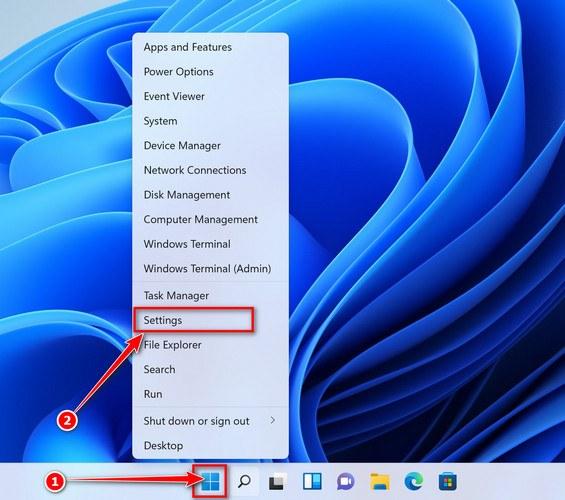
Press Windows + I to open Settings. You can also right-click Start and choose Settings from the menu.
-
Find Secure PasswordVault in the installed-app list
In Windows Settings, select Apps, then Installed apps. Search for Secure PasswordVault and check the publisher details against the entry you identified.
Select the three-dot menu beside that application, then choose Uninstall. Confirm removal and follow the app’s remaining prompts.
Windows 10: Open Apps and Features
-
Open the Apps section in Windows Settings
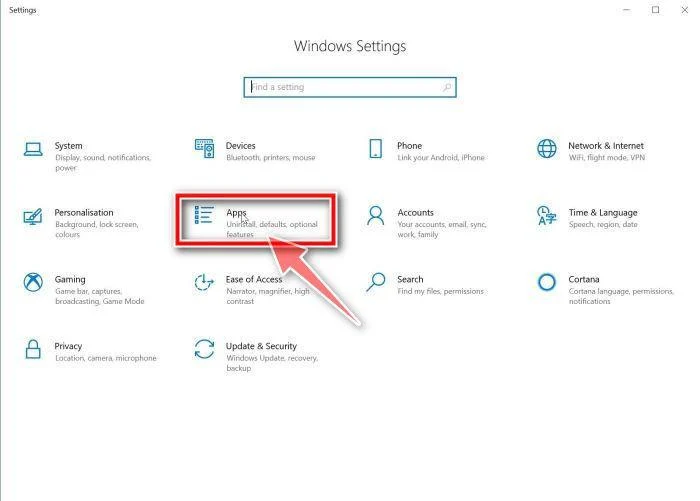
Press Windows + I, select Apps, and open Apps & features. Use the search box to locate the named application.
-
Remove only the application you have identified
Select Secure PasswordVault, choose Uninstall, and confirm the request. Read each remaining prompt before accepting an action.
Afterward, search the installed-app list again to check whether its entry remains. A failed uninstall needs troubleshooting, not indiscriminate deletion of folders or registry keys.
Microsoft’s uninstall guidance also describes removing apps from Start. Right-click the exact app and select Uninstall if the Settings route is unavailable.
If removal fails, save the error wording and request help. Do not grant remote access to a stranger or download an uninstaller advertised by a pop-up.
Step 3: Install Malwarebytes for a Free Manual Scan
A scan is useful when unwanted software was installed or the installer may have added other components. It is not a way to recover passwords or reverse charges.
-
Download the Windows installer through our verified route
Use the download button below for Malwarebytes for Windows. Manual scanning and quarantine are available free; a subscription is not required for these cleanup steps.
Malwarebytes Free for WindowsManual scanning and quarantine at no costGet Malwarebytes Free for WindowsChoose the free download on the vendor page. Paid protection is optional.Alternative direct Windows installer from MalwareTipsOptional real-time protection: Malwarebytes Premium
The optional Premium link is an affiliate offer for ongoing protection. You can complete the manual scan without purchasing that offer.
-
Open the installer and confirm its identity
When the download finishes, open your Downloads folder and double-click the MBSetup file. Check that the installation prompt identifies Malwarebytes before continuing.

If Windows requests permission for that installer, select Yes after checking the prompt. Cancel if a different or unexplained program requests access instead.
-
Finish setup without accepting unwanted optional offers
Follow the setup prompts and choose the computer type that applies. Read any optional Browser Guard, trial, or subscription offer before making a selection.
Use Skip where offered for extras you do not want. Open Malwarebytes when setup finishes, or launch it from the Start menu.
If Malwarebytes is already installed, open the existing application instead. There is no need to install a second copy to follow this guide.
Step 4: Run the Scan and Review Its Results
-
Start a normal manual Threat Scan first
Open Malwarebytes and select the Scan button on its dashboard. Let the application update its detection information when prompted, then allow the scan to finish.

-
Check the outcome before changing any settings
Read the result summary and open View report or View Scan Report to retain the details. Do not assume a particular detection name must appear.
A scan with no detections does not decide whether you want to keep this password manager. The Windows uninstall procedure remains the direct removal route.
If you downloaded a separate installer and want its folder checked, use the targeted Custom Scan option below. There is no need for rootkit scanning here.
-
Use a Custom Scan for an identified location
On the Scanner tile, select the three dots, then Advanced Scan and Custom Scan. Select the specific download folder or other relevant location.
Review how detected potentially unwanted programs are handled, then select Start Custom Scan. Do not add exclusions merely to make a warning disappear.
The current Malwarebytes Custom Scan instructions explain these controls. A targeted scan is optional, not a requirement to scan every drive repeatedly.
Step 5: Quarantine Detections That Require Removal
If Malwarebytes finds unwanted items, review their names and locations. Select the detections you intend to remove, then choose Quarantine.

If a finding is unclear, save its report before requesting assistance. Do not label an unfamiliar Windows component malicious based only on its name.
Quarantine isolates the detected items identified by the scanner. It does not change passwords, cancel subscriptions, or remove copies of information already shared elsewhere.
Do not immediately restore a quarantined item to recover app functionality. First establish whether it is a false positive and whether you still need the application.
Step 6: Restart When Requested and Confirm the Outcome
Save your open work before restarting. If Malwarebytes requests a restart to finish handling detections, accept the restart when you are ready.

After signing back in, check the installed-app list and confirm Secure PasswordVault no longer appears. Check whether its window or installation prompt returns during normal use.
If you still see the app, record its exact name and publisher again. It may require uninstall troubleshooting rather than another blind scan.
Do not reset every browser as a routine finishing step. Investigate a changed search engine, recurring extension, or notification permission only if that separate symptom exists.
For persistent problems, request help through the MalwareTips malware-removal assistance forum. Share the detection report and symptoms, never passwords or exported vault files.
Step 7: Protect Accounts if You Entered Credentials
If you entered passwords into an app you no longer trust, use a trusted device to secure the affected accounts. This precaution does not establish theft.
Start with your main email because it often controls password resets elsewhere. Change relevant passwords, check recovery details, and enable multifactor authentication where available.
Review recent sign-ins and active sessions on those services. Revoke unfamiliar sessions, and follow the provider’s recovery process if you find unauthorized account changes.
For reused passwords, update each affected account with a different strong password. Removing the application does not update a password reused on another website.
If no credentials were entered or imported, do not assume every account requires emergency recovery. Concentrate on uninstalling the unwanted app and checking the installed software.
What Is Known About Secure PasswordVault
The unwanted classification concerns the reported promotion, not demonstrated credential theft. A security-score display also cannot establish whether the app deserves access to your passwords.
The Microsoft Store lists Secure PasswordVault under Mudassir123, with an October 13, 2026 release date. Store availability does not replace your decision about trusting it.
The publisher describes local encryption, optional Windows Hello, and no required vault account. These are product claims, not an independent assessment of the encryption implementation.
A password vault occupies a sensitive position because its purpose is handling logins. Choose that software for its verified capabilities and developer, not an advertisement’s security warning.
If a promoted download appears while you are trying to watch a video or obtain another program, pause. That is not a reason to import passwords.
The Backup and Privacy Details That Matter Before Removal
The publisher’s website, securepasswordvault.net, says it cannot recover or reset the master password. It also describes cloud backup and restoration as future features.
Do not uninstall on the assumption that an online account will restore everything. Check the local recovery materials and working access to the accounts you need.
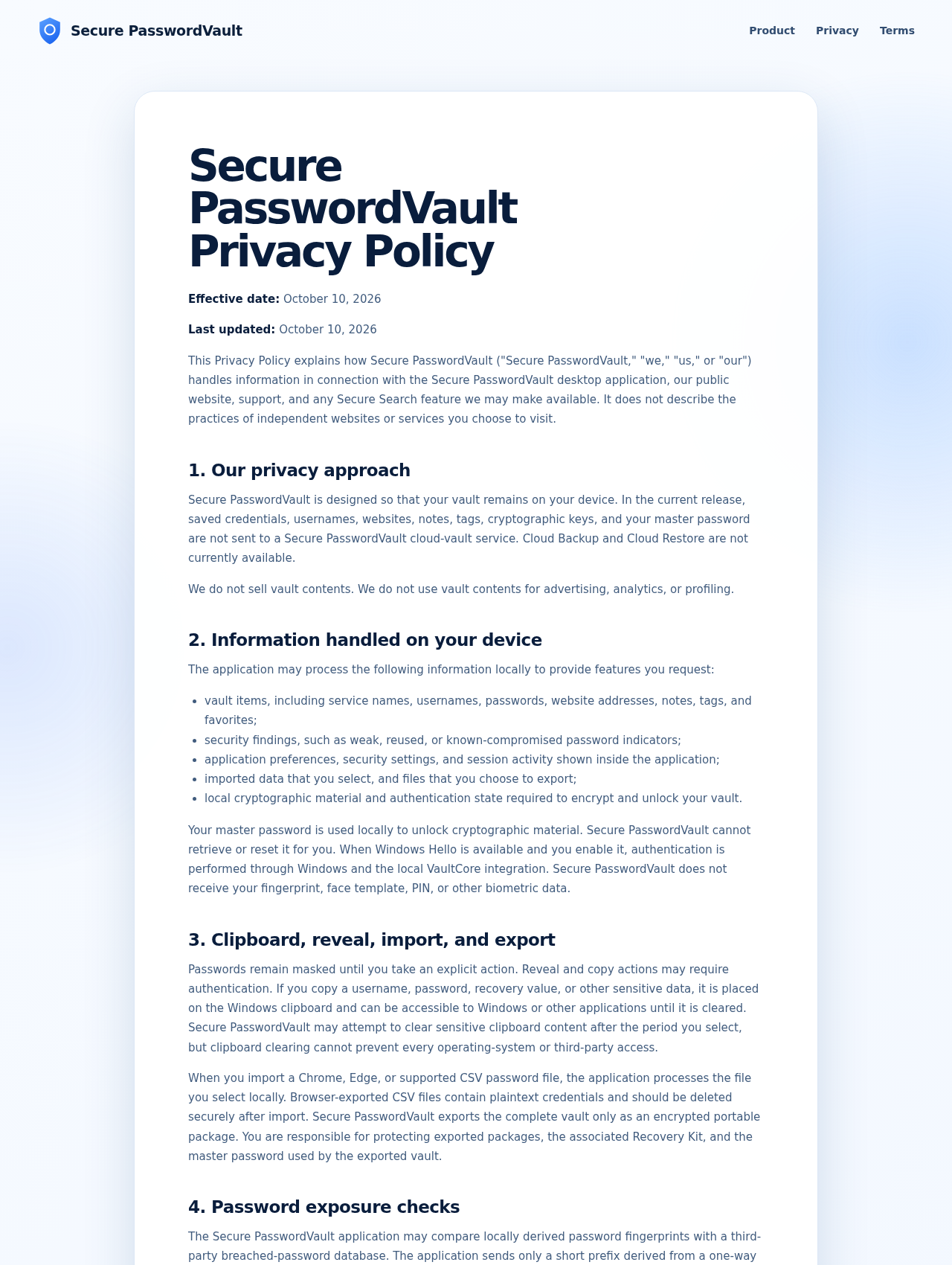
The privacy policy says current-release vault contents stay on the device and that app usage analytics are not collected. That statement is not proof of independent testing.
Its clipboard warning is especially practical: copied passwords can be accessible to other software until cleared. Avoid pasting secrets into support messages or a public forum.
The policy also discusses a possible Secure Search feature. That language alone does not show that this installation added a search extension or changed your browser.
Do Not Confuse the App With Windows PasswordVault
Microsoft’s PasswordVault documentation describes an application-programming interface in Windows.Security.Credentials. Developers use it to work with a credential locker.
This similarly named Windows feature is not the same thing as an installed third-party app called Secure PasswordVault. Keep that distinction clear when searching for removal instructions.
Do not run commands that erase all Windows credentials or remove system packages. Those changes can disrupt unrelated applications without uninstalling the named program.
On a shared computer, keep the check tied to the affected user’s app entry. Do not remove another person’s password manager or export their saved credentials.
Frequently Asked Questions
Is Secure PasswordVault a Confirmed Password-Stealing Virus?
The available report identifies an unwanted app and problematic promotion, not observed password theft. Respond to any actual credential exposure without assuming an unproven infection mechanism.
Will Uninstalling the App Delete Saved Logins?
Uninstalling or resetting an app can remove its stored data. Confirm account access and migrate necessary credentials before removal, rather than relying on an unverified backup feature.
Should I Delete Windows.Security.Credentials.PasswordVault?
No, that name identifies a legitimate Windows programming interface. Remove only the Secure PasswordVault application you have identified, not Windows credential infrastructure or unrelated password tools.
Do I Need Malwarebytes Premium for These Steps?
Manual scans and quarantine are available without buying Premium. Optional paid prevention is separate from the free scan and Windows uninstall procedure described here.
Why Does a Scan Show No Detections?
Detection depends on the scanner and installed version. A clear result does not establish that an unwanted app was uninstalled or that any entered passwords remain private.
Should I Reset Chrome, Edge, and Firefox Too?
Not merely because this application appeared. Repair a browser only when you identify an unwanted extension, changed setting, or other specific symptom requiring that action.
The Bottom Line
Remove Secure PasswordVault if it arrived unexpectedly or you do not want it handling your logins. Preserve access first, then use the Windows uninstall route.
Follow with the illustrated free scan when unwanted software was installed. Review the outcome rather than treating a completed scan as a guarantee about the whole computer.
If you entered sensitive credentials, secure those accounts separately from a trusted device. Seek guided help if removal fails, without sharing your vault or passwords.

Join the discussion
0 commentsShare your experience or ask a question about this article.
Your progress
Did these steps help?
Let us know how the guide worked for you.
Describe what you see and the step you reached. Keep passwords and other private information out.
Discussion
Start the conversation
Have a question or something useful to share? Add the first comment.