


An email says a payroll folder has been shared with you. The spreadsheet looks like something accounting might send, especially when you’re expecting salary information.
Before you open that file, pay attention to what happens between the message and the document. That short journey can change what you’re actually giving away.
Overview
A shared spreadsheet is the bait
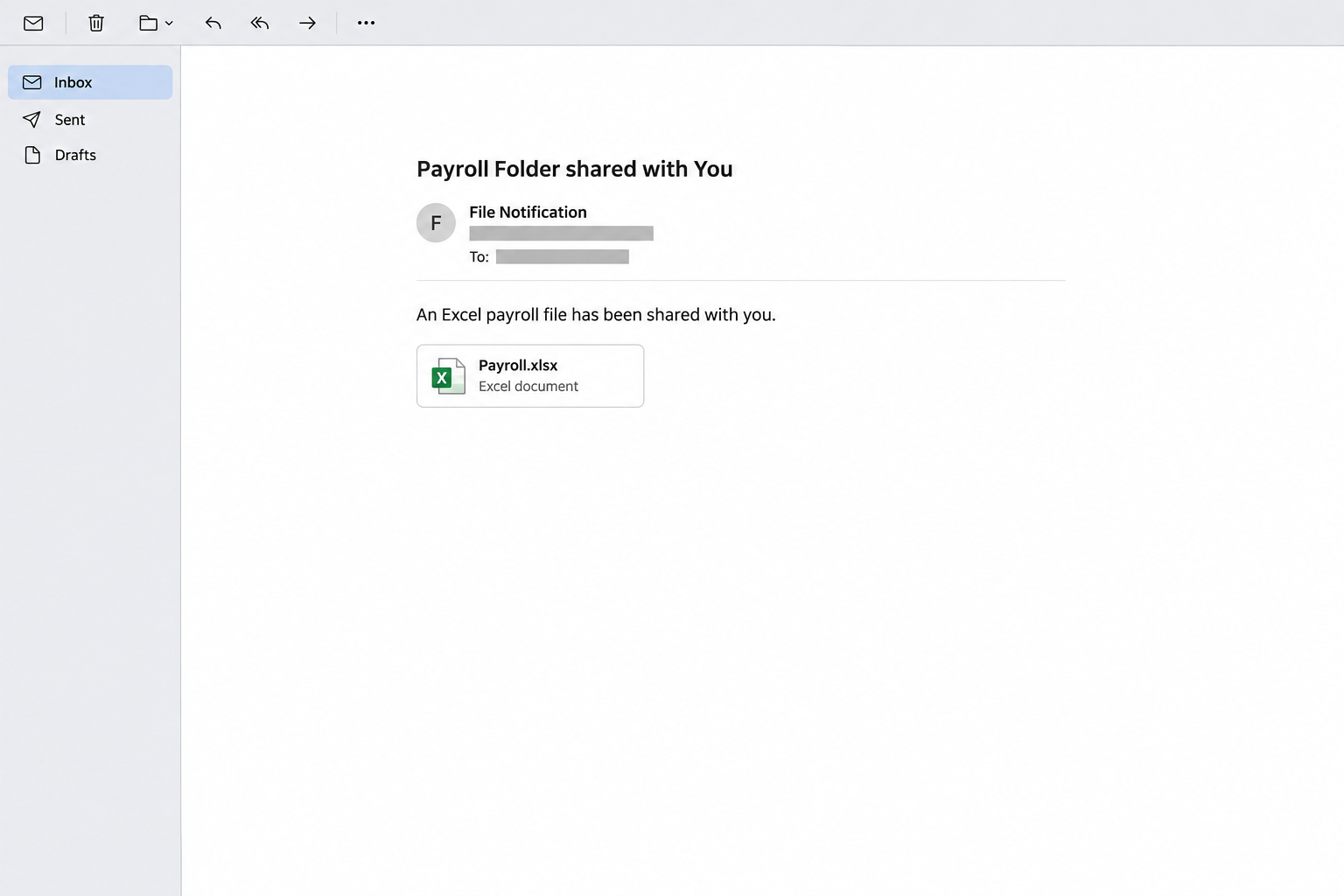
The Payroll File Shared email scam uses an apparent Excel document to attract attention. The reported subject is “Payroll Folder shared with You.”
Its message offers separate preview and download options. Both lead toward a counterfeit Gmail sign-in rather than providing the promised payroll information.
The file description, spreadsheet format, and apparent size make an ordinary administrative task feel familiar. They don’t establish who sent it or where its controls lead.
The image above is a simplified illustration of that invitation, not an original email. The reported message contains additional details that can vary between recipients.
The password request changes the situation
The dangerous part isn’t the word payroll. It’s asking you to unlock an unrelated page with the credentials protecting your Google account.
In the reported example, the login page sits on mdcserver[.]org, not Google’s sign-in service. Its copied branding and authorized-recipient wording don’t change that destination.
Google and Microsoft aren’t responsible for this impersonation. An Excel-looking invitation also doesn’t establish that the message came through a genuine Microsoft sharing service.
What deserves your immediate attention
Treat the message as suspicious when its document invitation leads to a different service and demands an account password before explaining the requested access.
- A familiar document icon appears without a verified sender.
- The supposed preview opens an unexpected sign-in page.
- The page describes itself as Google while using another domain.
- Your email address appears as reassurance rather than independent authentication.
- The invitation doesn’t match a conversation with your payroll team.
If you submitted a password, secure the account promptly. If you only received the email, reporting it is a more proportionate response than assuming an infection.
Why Payroll Is Such an Effective Distraction
Salary information has a built-in reason to be private. A sign-in request can therefore feel like protection, even when that request is the attack.
You might be checking a deduction, waiting for a bonus, or trying to understand a recent payslip. Those expectations give an otherwise unexplained message a possible purpose.
The invitation doesn’t need to promise extra money. Curiosity about your existing pay can be enough to make an unfamiliar document seem worth opening.
There is also an uncomfortable social pressure around missing work paperwork. You may worry that ignoring the email will delay a payment or create extra administrative work.
That pressure isn’t evidence that payroll actually sent anything. A genuine work task should survive a brief check with someone who can confirm it independently.
Ask whether that person shared the specific file through that specific service. A broad answer about routinely sending spreadsheets doesn’t authenticate the message in front of you.
How the Payroll File Shared Email Scam Works
Step 1: A routine-looking invitation arrives
The message presents itself as an automated file-sharing notification, rather than a personal request to reveal your password. That makes the proposed action feel smaller.
You think you’re deciding whether to read a spreadsheet. The attacker wants you to begin a sequence in which a password request will feel expected.
A copied icon can supply context instantly, but it cannot prove the document exists. The same applies to a filename containing workplace language.
Separate the invitation from any assumptions about your employer. Receiving a payroll-themed email doesn’t show that the sender knows your actual salary or employment records.
Step 2: Different document options lead toward the same trap
The reported email labels its choices “Online Preview” and “Download.” They look like different ways to obtain the same file, which makes the invitation feel flexible.
That apparent choice can obscure the more important question: whether either option goes to the service you normally use for confidential documents.
Don’t test the second option after the first looks suspicious. A different label isn’t an independent route, and comparing two untrusted controls doesn’t verify either destination.
Instead, open your usual payroll portal separately or contact the file’s supposed owner through an existing conversation. Use a route you already recognize.
Step 3: The page borrows a familiar account identity
The linked page imitates Gmail and presents the recipient as an authorized user. Recognizing your email address can make the page seem prepared specifically for you.
But an address is information, not proof of permission. A sender who can deliver an email already has at least one piece of identifying information to display.
The question is who receives your password when you submit it. Words inside a page cannot answer that question as reliably as the actual destination.
Google’s phishing guidance recommends going directly to the intended service when an email link leads to a password request.
Step 4: Familiar branding makes the request feel legitimate
A copied sign-in page doesn’t need an elaborate story once the document has created a reason to authenticate. The reader supplies much of the missing explanation.
You might assume a spreadsheet is private, that payroll selected Google for access, or that your current session expired. None follows automatically from seeing a login form.
A real third-party app can offer Sign in with Google. That legitimate process does not make every page displaying Google’s name trustworthy.
An unexpected password form should interrupt the task, not hurry it along. You can verify the file without completing an unfamiliar authentication journey.
Step 5: An exposed account can become the next target
Submitting credentials to a counterfeit form gives someone else information they can try against the real account. Whether they gain access depends on the account’s protections.
Successful access could expose private messages or support attempts to reset other accounts. Those are possible consequences, not proof that every recipient has already been compromised.
The practical response is to protect the credential and inspect the account. Waiting for an obvious missing message may give an intruder more time.
Don’t interpret a failed login or missing spreadsheet as reassurance. Neither tells you what happened to information already entered on the suspicious page.
Check the Invitation Without Opening the Document
Start with the work request
Think about why this particular file should exist. Was someone preparing it, did you request it, and does your organization use this sharing method?
You don’t need certainty about the attack to pause. An unexpected combination of document, sender, and sign-in service is enough to justify an independent check.
If you aren’t employed by the organization implied in the message, don’t investigate by signing in. The mismatch already removes its apparent business purpose.
Separate the display name from the sender
The sender name can look like a department or a software service. Expand the address details before treating that label as an identity.
For a workplace message, compare it with previous verified correspondence. A familiar colleague’s name paired with an unfamiliar address deserves a separate confirmation.
If your security team requests the original message, Gmail’s header instructions explain how to use the message menu and select Show original.
Headers can contain private routing information and recipient details. Share them through your organization’s reporting channel, not in a public comment or an unsolicited support chat.
Look beyond the first recognizable word
A long hostname can put a familiar brand at the beginning while placing the actual site under someone else’s domain. The first word isn’t necessarily the owner.
For example, a name ending in an unrelated domain remains unrelated even when earlier text resembles a service you recognize. Avoid using a long address as reassurance.
The browser’s connection indicator also isn’t an endorsement of the document. An encrypted connection can still lead to a dishonest website.
You don’t need to decode every technical detail. Leaving the invitation and returning through your own bookmark is usually simpler than investigating its link chain.
What to Do if You Have Fallen Victim to This Scam
-
Stop using the invitation and record what happened.
Close the suspicious page, then note whether you entered an address, submitted a password, downloaded something, or approved another request. Each action calls for a different response.
Keep the email and a private screenshot if safely available. Don’t reopen the page merely to collect better evidence or repeat the sign-in attempt.
-
Change an exposed password through your normal account route.
Open Google’s account settings independently, rather than using any follow-up link. Choose a new password that isn’t shared with another service.
If you cannot sign in, use Google’s account recovery instructions. A work or school account may require help from its administrator.
-
Review the sessions that can access your account.
Follow Google’s device-access guide to inspect signed-in devices and sessions. Sign out unfamiliar access and review details you cannot explain.
Several sessions can legitimately belong to one device. Background synchronization can also update activity times, so investigate context rather than assuming every repeated entry is hostile.
-
Inspect recovery details and security protections carefully.
Check for changes to recovery contacts and other sensitive settings. Follow Google’s compromised-account checklist when an unfamiliar change or login appears.
Keep two-step verification enabled and reject unexpected approval requests. Don’t give a caller backup codes or accept a prompt simply because it follows this email.
-
Check whether messages are being redirected or hidden.
In Gmail settings, inspect automatic forwarding. Disable an unfamiliar forwarding destination and save the change after preserving useful incident details.
Also inspect Filters and Blocked Addresses. Rules can archive, delete, or forward selected messages, so forwarding deserves more than one quick glance.
-
Protect other accounts that share the exposed password.
Change reused credentials through each service’s own site. Prioritize accounts that can authorize payments, reset other logins, or hold sensitive personal information.
Keep a private list of changes and unusual activity. That record is more useful than repeatedly testing the stolen password against services you rarely use.
-
Tell your employer when work information may be involved.
Contact payroll or your security team through a known internal route. Explain exactly what you submitted, rather than describing every interaction as a completed account takeover.
If an unexpected payment change followed, contact the appropriate financial institution promptly. Ask about available protective steps without assuming a reversal is guaranteed.
-
Report the message and avoid paid recovery strangers.
Use your email service’s phishing-report option and follow any workplace reporting procedure. Someone offering account recovery in an unsolicited message has not earned access.
Receiving this invitation alone doesn’t justify a device reset. If you also installed software or opened an unexpected file, tell your security team before attempting cleanup.
If You Clicked but Didn’t Enter Anything
Opening a page and handing over credentials are different events. Don’t let embarrassment turn a limited interaction into a more serious follow-up mistake.
Close the page and avoid its prompts. Check whether anything downloaded, whether you granted permission, or whether you approved a sign-in on another device.
If none of those happened, report the invitation and remain alert for related messages. A click alone doesn’t establish that someone now controls your inbox.
If you’re unsure whether autofill supplied information, describe that uncertainty honestly when reporting. You don’t need to reconstruct the event by revisiting the same page.
An ordinary download is also different from running an installer or enabling document features. Preserve that distinction when asking for help with a workplace device.
What a Genuine Payroll Check Should Accomplish
A genuine verification should answer a business question: who shared the file, why you need it, and where the authorized copy can be accessed.
It shouldn’t require you to trust the questionable message first. If someone confirms the file by sending another unexplained link, ask for your normal internal route.
You can also ask whether a salary-related message belongs in your employee portal rather than a shared spreadsheet. Different employers use different systems, so verify yours.
Keep the conversation practical and brief. Explaining that an unexpected invitation requested your Google password gives payroll a clear detail to check.
The goal isn’t to ban every shared document. It’s to stop a document label from becoming permission to hand credentials to an unrelated page.
Frequently Asked Questions
Is every payroll spreadsheet email a scam?
No, employers can legitimately share spreadsheets and payslips. This warning concerns a document invitation that redirects recipients toward a counterfeit account sign-in.
Why would an Excel file lead to Gmail?
Some legitimate workflows use different services together. That possibility doesn’t authenticate this invitation, and an unexpected Google password request should be checked independently.
Does seeing my email address prove the page is private?
No, a displayed address can be copied from information the sender already has. It doesn’t establish that Google owns the page or protects its form.
Did the message actually attach an Excel workbook?
The reported invitation presents preview and download choices for an apparent spreadsheet. A displayed document tile is not, by itself, a received workbook attachment.
Do I need to scan everything after receiving it?
Receiving the email alone doesn’t show malware infection. Device cleanup becomes a separate concern if you downloaded and ran software or encountered other suspicious behavior.
Can someone guarantee they will recover my Gmail account?
Treat that promise as another reason to stop. Use Google’s recovery process or your workplace administrator, and don’t share passwords or verification codes with strangers.
The Bottom Line
Don’t use the Payroll File Shared email’s links to enter your Google password. Confirm the document through payroll or your usual employee portal instead.
If you already submitted credentials, change the password, review account access, and report the exposure. The spreadsheet’s appearance matters far less than who received your login.

Join the discussion
0 commentsShare your experience or ask a question about this article.
Community experiences
Did this happen to you?
Your experience could help someone recognize the same scam. Submit a private report for our team to review.
I experienced this tooReports are reviewed before publication. Sharing publicly is always your choice.
Discussion
Start the conversation
Have a question or something useful to share? Add the first comment.