


A webmail notice says routine maintenance has affected active sessions. It sounds like an explanation for the sort of brief interruption that happens to any online service.
The message also offers a special route back into your inbox. Before using it, check whether that shortcut belongs to the provider you actually trust.
Overview
A maintenance announcement supplies the explanation
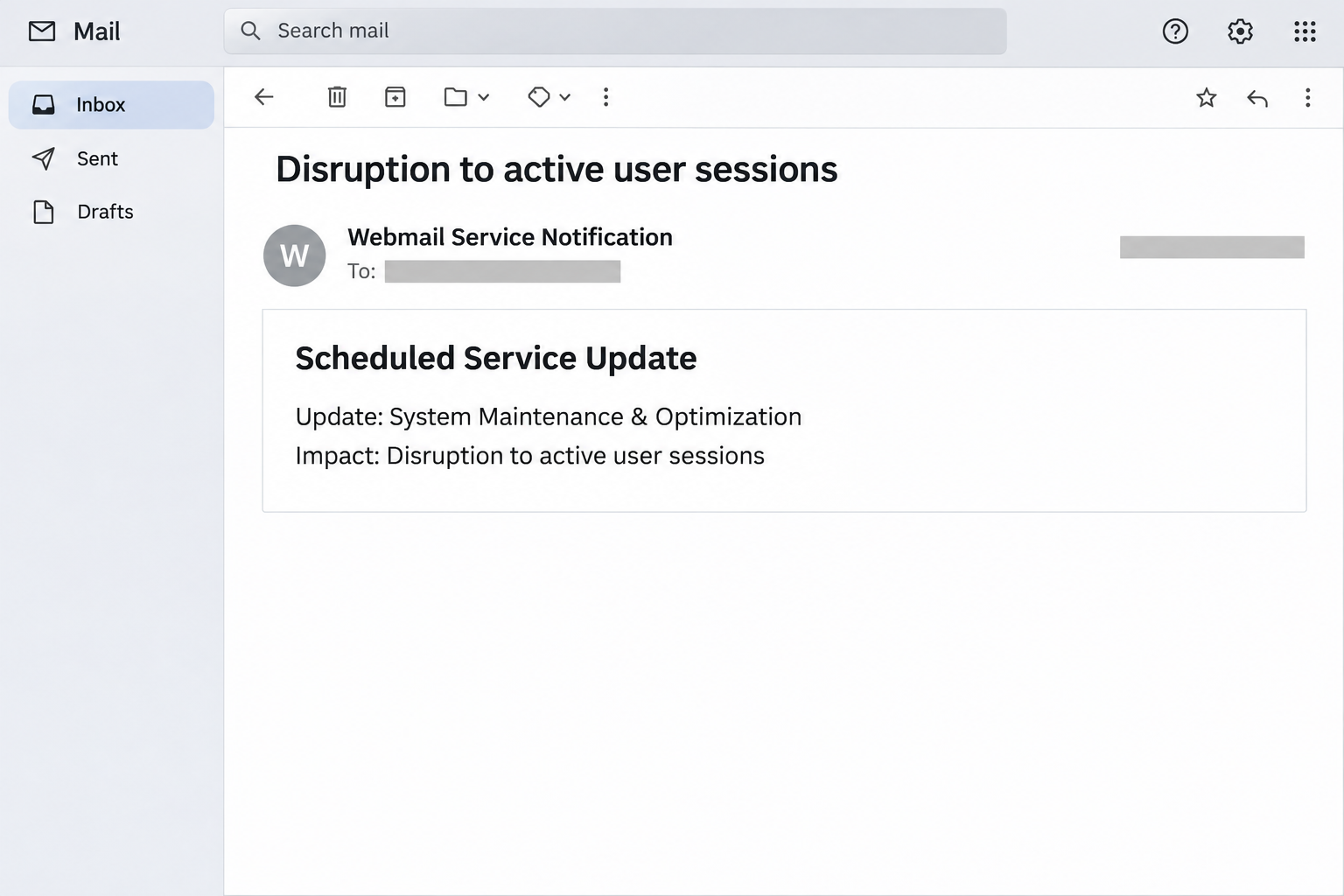
The Scheduled Service Update email scam poses as a webmail infrastructure notice. It describes maintenance and optimization, then directs the reader toward a supposedly secure access option.
The reported message discusses disruption to active sessions. It also says the recipient can continue using the existing webmail interface, making the special route unnecessary.
The illustration shows a simplified version of this maintenance-themed presentation. It is not an original notice from a hosting company or a working login page.
The offered shortcut leads away from normal access
In the reported example, the destination is cut-lunch[.]surge.sh. It imitates cPanel Webmail and asks for the mailbox address and password.
That is credential phishing, not a software update for your account. The legitimate cPanel platform has no connection to the impersonation.
Your hosting provider’s genuine webmail address may differ from your email domain. What matters is whether the provider independently identifies that address as authorized.
Check the service before following the notice
A maintenance announcement can be verified without using its embedded access control. Start from the hosting account, bookmark, or support channel you normally use.
- Look for a matching announcement in the provider’s customer area.
- Compare the requested login address with its documented access route.
- Ask whether any account action is actually required.
- Treat a prefilled email address as identification, not authentication.
- Report a copied portal that requests credentials unexpectedly.
If you gave the suspicious page a password, protect the mailbox first. If you only read the notice, don’t assume it installed software or changed your settings.
Why an Ordinary Service Update Can Hide a Password Trap
Many phishing emails shout about deletion or suspension. This one borrows the quieter language of routine administration, which can make the request feel less suspicious.
An explanation about sessions is especially convenient. It gives you a reason to expect a fresh sign-in, even if you recently used the mailbox successfully.
The apparent inconvenience is also small. You’re not being asked to transfer money immediately; you’re being asked to regain normal access to something you already use.
That small task can carry a larger risk. A mailbox password may protect business conversations, password-reset messages, customer details, or personal records.
The safest response isn’t to stop using webmail. It’s to separate the provider’s actual service from a shortcut supplied by an unverified notification.
You can make that distinction even when maintenance really is happening. A genuine outage doesn’t make every email discussing it genuine too.
How the Scheduled Service Update Email Scam Works
Step 1: The message presents a plausible infrastructure event
The notification claims that routine work has already been applied to the systems supporting email. It frames the event as ordinary upkeep rather than an emergency.
This creates a ready-made explanation for an unexpected authentication request. You may assume a session needs refreshing because the server changed something behind the scenes.
But an email can’t establish that maintenance occurred simply by describing it. Compare the claim with a notice in the provider’s independently accessed customer area.
If the provider has published no matching instruction, ask support before acting. You don’t need to decide immediately whether the email was technically well written.
Step 2: A security label recommends a different entrance
The invitation uses protective language for its access control. That makes a link supplied by the sender appear safer than the webmail address you already know.
Read that implication carefully: the unverified message is asking to choose where you authenticate. The security label itself doesn’t give it authority to make that choice.
If the existing interface remains available, use the independently verified entrance. A routine notice should not require you to abandon a known route without explanation.
You can also ask the provider whether the supposed action changes anything. A vague description of improved reliability isn’t a clear reason to disclose credentials elsewhere.
Step 3: A familiar login design reduces friction
The reported landing page copies cPanel’s webmail style. A familiar layout can make the transition from the maintenance notice feel like part of the same service.
The visual match doesn’t authenticate the operator. Page design can be reproduced, while the browser still connects to an address unrelated to the mailbox’s authorized login.
Likewise, a filled-in address can make a form seem personalized. An email recipient’s address is not secret information to someone already sending that person messages.
Don’t correct or complete the form to investigate it. Return to your established access route and let the actual provider assess the questionable destination.
Step 4: Authentication information goes to the wrong place
A counterfeit form can collect the details typed into it. Those details can then be tried against the genuine mailbox, regardless of whether the fake page displays success.
The available protections influence what happens next. An exposed password is serious, but it isn’t proof that an attacker completed a sign-in or accessed every message.
Avoid relying on the page’s final response. An error, a reload, or an unavailable mailbox doesn’t tell you what happened to information already supplied.
Report the exposure and change the password through the real service. The original maintenance story no longer needs to be resolved before you act.
Step 5: Mailbox access can support further deception
If access succeeds, a familiar mailbox can become a tool for contacting colleagues or customers. Requests coming from it may receive less scrutiny than unknown senders.
Forwarding and filtering changes can also affect what the owner sees. An attacker doesn’t necessarily need to lock the owner out to misuse access.
These are risks to investigate, not claims that every reported recipient experienced them. Your provider’s records can help establish the actual scope.
For a business mailbox, tell the responsible team about possible exposure before unusual payment instructions spread. A timely warning is useful even while the investigation continues.
How to Verify a Real Webmail Maintenance Notice
Use an entrance the provider has already established
The normal login may be available through your hosting customer area, a documented service address, or a bookmark you previously verified with support.
cPanel’s account-access documentation describes direct Webmail access and access through the control panel. Providers may choose how those routes are presented.
Don’t invent a server name or copy one from this suspicious email. Your provider can confirm the correct address for your particular account.
Check whether the announcement requires anything from you
Some maintenance is informational, while other changes require a scheduled action. A real instruction should explain the affected service, timing, and supported response.
Ask the provider whether you need to change a password, update client settings, or simply wait. These are different tasks with different consequences.
If a notice claims the work is complete but directs you to an unfamiliar portal, verify that portal separately. Don’t assume the maintenance explanation authenticates it.
A different login domain isn’t automatically fraudulent
Shared hosting can use a provider’s server name rather than your own business domain. That arrangement can be legitimate when the provider documents it.
Compare the address with your existing account information, not simply with the words after your email’s @ symbol. Verify unexpected changes before typing anything.
Keep mailbox credentials separate from hosting administration
A regular mailbox can have credentials distinct from the main hosting account. Some system-managed addresses are linked differently, so don’t assume all accounts behave alike.
Tell support which username and password you exposed. That helps it decide whether only one mailbox or a broader administrative account needs attention.
There is no benefit in volunteering other passwords to a caller who offers to help. Support should use an established verification process, not collect unrelated credentials.
Protect private details when reporting the link
Some phishing links include a recipient address or other identifying information. Copying such a link into a public discussion can spread information you intended to protect.
Share it through the provider’s private reporting route instead. If you only have a screenshot, explain that limitation rather than revisiting the page for completeness.
The useful evidence includes the original email, approximate interaction time, account involved, and actions taken. A dramatic public post is not needed to make the report meaningful.
What to Do if You Have Fallen Victim to This Scam
-
Stop using the special access route immediately.
Close the copied portal and avoid submitting a second password. Write down what you entered and whether anything downloaded or requested permission.
Keep the maintenance email available for reporting. Don’t reply to its sender asking whether the destination is genuine; that keeps verification inside the same untrusted conversation.
-
Reset the affected credential through your hosting provider.
Use the provider’s independently verified portal. If you manage cPanel, its Manage Email Accounts guide explains the relevant account-management interface.
If your access is limited or an administrator manages the mailbox, ask that person to handle the reset. Make clear which credential may have been exposed.
-
Review access beyond the visible inbox.
Ask support about active sessions, recent authentication, and unfamiliar changes. Explain the approximate time you used the suspicious page so records can be compared.
If the same password protects the hosting control panel, disclose that fact privately. Broader administrative access requires a different assessment from one ordinary email account.
-
Inspect forwarding destinations and message-processing rules.
cPanel’s Forwarders documentation explains where account forwarders appear. Record unfamiliar entries, then have the responsible administrator remove unauthorized forwarding.
Also check Email Filters for rules that redirect or hide messages. A mailbox copy can remain visible even while messages go elsewhere.
-
Check whether anyone received a request you didn’t send.
Review relevant correspondence with your organization’s security or finance team. Pay particular attention to unexpected changes in bank details or instructions to move conversations elsewhere.
If a contact needs warning, reach them through a previously established method. Describe the questionable instruction without distributing a working phishing destination.
-
Update legitimate email clients after changing the password.
A phone or desktop application using the old credential may need the new one. Use the application’s normal account settings, not a new configuration file from the notice.
Ask the provider if a client continues failing. Don’t weaken security settings or approve an unfamiliar server certificate simply to make the connection work.
-
Remove password reuse from other important accounts.
Change any other service sharing the exposed credential, giving each a separate replacement. Start with accounts that control payments, personal data, or recovery of other logins.
Ask your provider which additional sign-in protections it supports. Features available for a hosting control panel may differ from those available for an individual mailbox.
-
Report the message and assess any separate device exposure.
Use your provider’s abuse or phishing-report process and retain a private copy of relevant evidence. If you sent money after an account impersonation, contact the payment provider.
Receiving this maintenance notice alone doesn’t demonstrate infection. Unexpected software execution or granted access should be reported as an additional event, especially on a managed device.
If the Existing Mailbox Still Works
Being able to read email is reassuring, but it doesn’t settle whether an exposed password has been used elsewhere. Access isn’t always exclusive to one person.
If you entered credentials, complete the account review even when nothing looks missing. Ask support what its records show rather than relying only on the inbox’s appearance.
If you never entered anything, continue through the genuine service and report the notice. Don’t follow its shortcut just because the mailbox currently seems available.
You can also ask whether any real maintenance coincided with the email. A genuine service event and a fraudulent message can happen at the same time.
Frequently Asked Questions
Does cPanel send every hosting maintenance announcement?
Your hosting provider determines its own customer communications. A cPanel-looking page or reference doesn’t establish that the software company sent the email you received.
Is every request to sign in after maintenance suspicious?
No, genuine sessions can expire or be interrupted. Verify the service address independently rather than letting an unexpected notice supply your new login route.
Why does the copied form already know my email address?
A recipient address can be supplied through information already available to the sender. Displaying it does not prove the form belongs to your hosting provider.
Does this notice install a cPanel update on my computer?
The reported lure targets webmail credentials through a copied portal. Merely receiving the message doesn’t install a local program or establish that your device is infected.
What if I entered my hosting password rather than my mailbox password?
Tell the provider exactly which credential you used. Administrative access may affect more than email, so the response should account for the actual permissions involved.
Can I ignore the problem if changing the password restores access?
Restored access is useful, but review unauthorized sessions and mailbox changes too. Your provider can help determine whether additional containment or notification is needed.
The Bottom Line
Don’t use the Scheduled Service Update email’s shortcut to authenticate. Open webmail through the route your hosting provider has independently confirmed.
If you supplied a password, reset the relevant account and review access with support. A convincing maintenance explanation doesn’t make a copied portal safe.

Join the discussion
0 commentsShare your experience or ask a question about this article.
Community experiences
Did this happen to you?
Your experience could help someone recognize the same scam. Submit a private report for our team to review.
I experienced this tooReports are reviewed before publication. Sharing publicly is always your choice.
Discussion
Start the conversation
Have a question or something useful to share? Add the first comment.