


The school group starts with a homework reminder. By Friday, your teen is getting messages from numbers neither of you recognizes.
You want to help without making them hand over every conversation. Start by looking at the settings together.
Overview
What the controls actually change
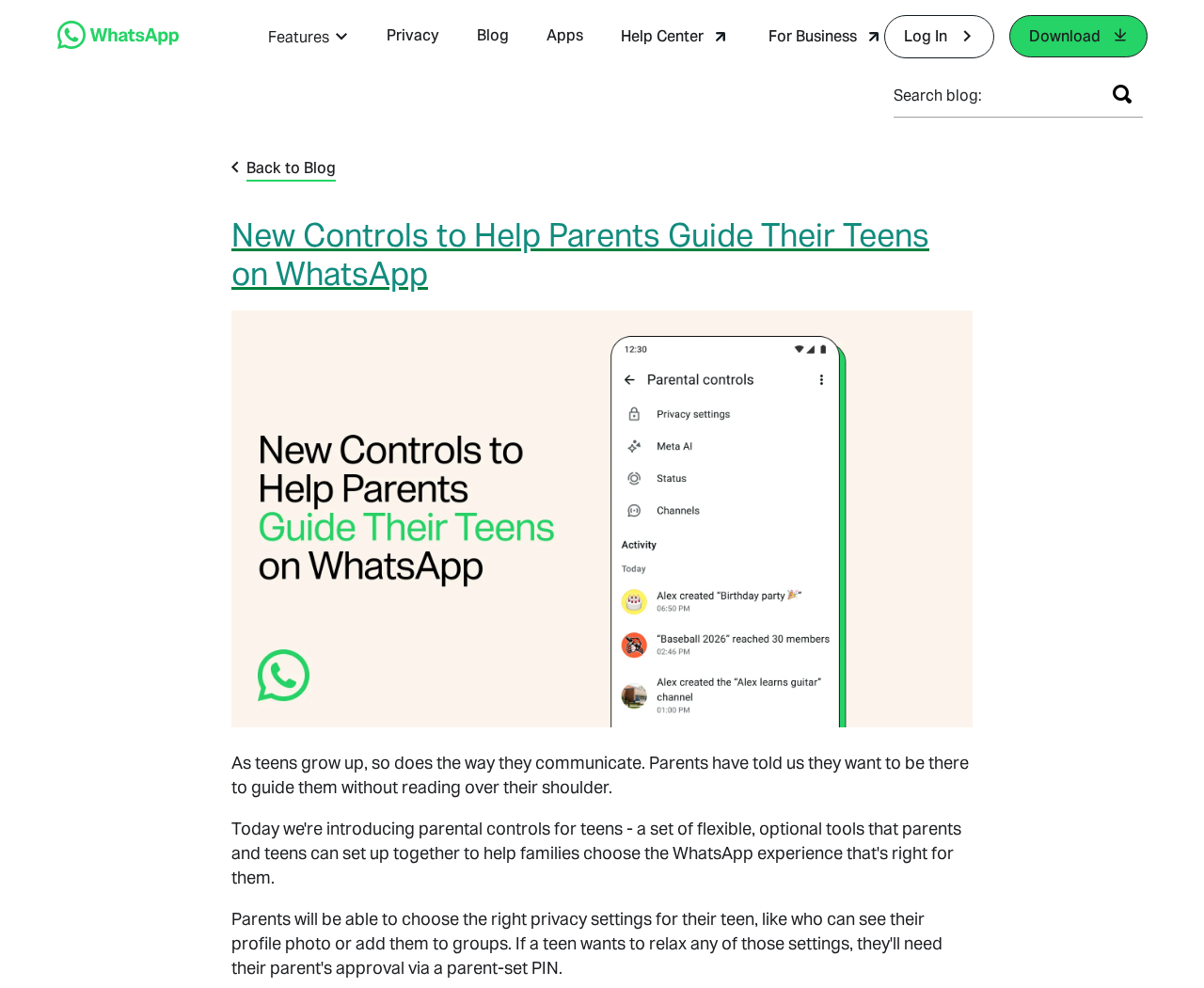
WhatsApp parental controls for teens let families put some decisions behind a parent PIN. The most useful ones concern who can add a teen to groups.
You can also set boundaries for profile visibility, Status, Channels and Meta AI. Which setting matters most depends on where your teen spends time in the app.
A teen who only chats with close friends has different needs from one in several sports groups where students regularly share invite links with one another.
What parents still cannot read
WhatsApp’s announcement says personal messages and calls stay private and end-to-end encrypted. Turning on parental controls does not give an adult a copy of the inbox.
Group activity alerts can tell you that something changed. They cannot tell you whether a new message is a joke, an argument or a request for money.
That difference matters. If you explain it before setup, your teen knows what will trigger a conversation and what stays between them and their friends.
The settings worth opening first
Start with settings that make it harder for an unknown person to get a foothold. Adjust the rest once you’ve seen how your teen uses WhatsApp.
- Groups: Decide who should be able to add your teen directly.
- Profile photo: Check whether strangers need to see a recognizable picture at all.
- Status: Review both whose updates your teen sees and who sees theirs.
- Channels: Discuss what your teen follows and how they decide whether to trust a post.
- Meta AI: Look at the age-appropriate content options together.
The group, photo and Status settings solve different problems. A person might still know a phone number even after a profile photo disappears from their view.
Think about what you want to change in real terms. Preventing an unexpected group addition is more useful than toggling a dozen settings nobody remembers later.
How to Set Up Parental Controls in WhatsApp
Start with both phones in the room
Set aside a few minutes when neither person needs their phone for something else. Agree on what you are changing before opening the setup screen.
Update WhatsApp on both phones from their official app stores. An update is a sensible first check, but it doesn’t guarantee an option is available.
The teen controls are for ages 13 to 17, with an adult parent or guardian. The setup is optional and designed to be completed together.
If the menu is missing, check WhatsApp’s help from inside the app. Do not download a separate parental controls app just because a video recommends it.
Follow the prompts on the teen’s phone
On the teen’s phone, open WhatsApp Settings and look for Parental controls. Choose Continue and answer the age question as shown in the app.
The teen’s phone shows a setup QR code. The adult scans it in person using their own phone’s camera and follows the verification prompts.
The adult creates a six-digit parent PIN. Back on the teen’s phone, enter that PIN where WhatsApp asks for it, then review the available controls.
The PIN is for approving changes to the teen settings. It is not the WhatsApp registration code that might arrive in a text message.
Nobody claiming to be WhatsApp support needs either code over chat. A relative who asks for a code should be checked by calling their usual number.
Save only the choices you understand
Write down the decisions in plain language if you need to. “Coach can still reach me” is a better test than remembering a menu label.
After you save, check the settings on the teen’s phone together. Verify what they say, especially the audience for photos and new Status updates.
Don’t test visibility by sending a real location to a new group. Use a harmless example with someone you both know if you need a demonstration.
Which WhatsApp Settings Should Families Choose?
Start with group invitations
A school club may use WhatsApp because everyone already has it. That doesn’t mean anyone who gets the team contact list should be able to add students.
Restricting direct additions is a good starting point. Tell your teen that a group invitation is still a decision, especially if they don’t recognize the organizer.
If the coach really changed numbers, there is usually another way to check. Ask at practice or call the school office using a number you already have.
A familiar group name is not enough. Compare the invite with what the organizer actually told you and avoid forwarding the link to find out.
Treat the profile and Status as different audiences
A profile photo can identify your teen to someone who already has their number. A Status update can reveal where the family is right now.
Ask your teen which updates they want classmates to see. A shared birthday photo and a video naming the street outside their home are different decisions.
Review the audience again when new teammates, customers or school contacts get added. A setting that made sense for ten friends may not fit fifty contacts.
Also check what your own account shares. It is harder to explain location privacy while adults are posting the child’s timetable to the same broad audience.
Make a decision about Channels and Meta AI
Channels are not the same thing as conversations with friends. A teen may see a convincing giveaway or health claim there without ever meeting the publisher.
Talk through one real example together. Check whether an event, free ticket or merch giveaway appears on the organizer’s own site before sharing or opening it.
WhatsApp describes a default 13+ Meta AI setting and a stricter Limited Content option. Look at the choices shown in the app rather than assuming they behave alike.
Tell your teen not to paste private messages, documents or addresses into an AI chat. That is a practical habit even if you choose the stricter setting.
What a Group Alert Does and Doesn’t Mean
WhatsApp says parents may receive notifications when teens join or leave groups or when a group grows meaningfully. None of those events automatically indicates a problem.
A soccer team can double in size after a tournament invitation. A chat with four members can still contain threats, aggressive messages or attempts to steal accounts.
Ask what changed before deciding that a group should go. Give your teen a chance to explain who runs it and why they are there.
A useful follow-up is, “If an admin asks everybody to pay for a trip, how would you check the amount?” That gives them a plan.
Make your response predictable. If telling you about a suspicious message always ends with their phone being taken away, they’ll have a reason to stay quiet.
Discuss how you’ll handle nighttime alerts too. A routine notification can wait; an active threat, a request for images or an account takeover should not.
What to Do if a Teen Gets a Suspicious Message
- Stop the conversation first. Don’t reply to demands, send money, open another link or share a code. A message can sound familiar and still be fraudulent.
- Check the story another way. Call the person or organization using contact details you already trust. Don’t use a new number supplied in the chat.
- Save useful details without spreading harmful material. Note the account name, number, date and relevant non-sensitive text. Never forward or copy intimate images of a minor.
- Use WhatsApp’s report and block options. For a suspicious group, leave when it is safe to do so. If it involves classmates, contact the school separately.
- Act quickly if something was shared. If money moved, contact the bank. If they shared a password, change it through the official site from a trusted device.
- Get help for threats or exploitation. Seek local emergency help for immediate danger and contact the appropriate child protection or police service for coercion.
If a teen already replied, start with “I’m glad you told me.” The useful information is what happened next, not why they failed to recognize a scam.
When they shared an account code, check the affected service through its own app or recovery page. Don’t ask the other person to give the account back.
On WhatsApp, look at Linked devices for sessions you don’t recognize. Remove any unfamiliar sessions you can access and follow in-app recovery guidance if locked out.
For school bullying, ask the school who handles safeguarding and what they need. Avoid putting allegations into a class group while staff are trying to establish what happened.
A message that threatens to share intimate content needs adult help immediately. Don’t pay, negotiate or ask the teen to send you a copy of the images.
Practice These Three Checks Before They’re Needed
A friend needs a code
Suppose a friend says they accidentally sent a code to your teen’s number. A code your teen receives is theirs and shouldn’t go back into that chat.
The quickest check is a call to the friend’s usual number. If they cannot answer, waiting is safer than treating urgency as proof that the message is real.
A club wants money by tonight
An account with a familiar badge claims everyone owes a registration fee. Before paying, compare it with the club’s published contact details and payment instructions.
A real club should be able to confirm the amount without needing your teen’s login, a code or a screen recording. Escalate payment decisions to an adult.
A friend forwards an invitation
A real friend can forward a bad link without knowing what’s behind it. The question is who issued the original invitation, not only who sent it last.
Look for the event inside the official app or on the organizer’s own site. If it isn’t listed, a message asking for a login can wait.
Revisit the Settings When Things Change
Pick a day to check in after a couple of weeks. Ask what got easier, what caused friction and whether any setting blocked something genuinely useful.
Take a fresh look when your teen changes school, joins a team or gets a new phone. Each change can bring a different set of people into their contacts.
If a setting is too strict, loosen that one setting rather than removing everything. Explain why you changed it and what would make you revisit it.
An older teen may want more independence and have a good case for it. Keeping an open route for help matters more than winning every settings debate.
When a teen gets a replacement number, remind close contacts separately. They should not trust a message asking for money simply because it mentions the switch.
Frequently Asked Questions
Can parents read their teen’s WhatsApp messages?
No. WhatsApp says the parental controls do not open a teen’s personal chats or calls to the supervising adult. Those conversations remain end-to-end encrypted.
If you want your teen to show you a worrying message, ask them directly. It is a separate decision from the settings you chose at setup.
Does WhatsApp tell parents about every new message?
The announced notifications cover certain group changes, not a running list of incoming messages. An alert is a reason to ask what happened, not an explanation.
A quiet notification screen doesn’t prove nobody is sending unwanted messages. Make sure your teen knows they can bring up a problem even without an alert.
Why can’t I find Parental controls in WhatsApp?
Check for updates from the official app store on both phones. On your teen’s phone, look in WhatsApp Settings and make sure you’re looking at the right account.
If the option still isn’t there, check the WhatsApp Help Center rather than installing a third-party app. You can review ordinary privacy settings while you wait.
Is the parent PIN my WhatsApp registration code?
No. The parent PIN approves changes to the parental settings. A registration code is used to verify access to the phone number for the account.
Keep both private. Only enter codes in the expected official app screen for the specific action you and your teen started, never into a forwarded link.
Do the settings stop strangers from contacting my teen?
They can limit who can add a teen to groups and what other people can see. They aren’t a guarantee against every message from an unknown number.
Go over how to block and report a contact. If someone keeps turning up under new numbers, save relevant details and ask for help rather than replying.
Can the settings be changed later?
Yes. WhatsApp says families can adjust or switch off the optional controls. A parent PIN is used when approving changes that relax protected settings.
Try scheduling a short review before changing anything. It gives your teen a chance to explain what they need and gives you a chance to explain concerns.
The Bottom Line
Set up WhatsApp parental controls together if they’ll help, and start with group invitations, profile photos and Status. Don’t treat alerts as a substitute for talking.
Keep the agreement simple: your teen can stop an uncomfortable chat, get help and show you what happened without having to give up every private conversation.

Join the discussion
0 commentsShare your experience or ask a question about this article.
Discussion
Start the conversation
Have a question or something useful to share? Add the first comment.