


You find your home on Street View and notice details you would rather keep private. The obvious next question is what a blur request actually changes.
Google now describes separate choices for existing pictures and future imagery. Understanding that distinction helps you make a privacy request with realistic expectations.
Overview
Blurring changes the picture, not every record of the address
A Street View panorama and a Maps place listing are different things. Hiding part of a panorama does not automatically erase a map pin or address.
Google’s current blurring instructions explain how an eligible homeowner or tenant can request that a residential image be obscured.
The request concerns the image you identify. Other photographs, search results, public records, and address information require separate consideration rather than one universal removal button.
An applied blur stays on existing imagery
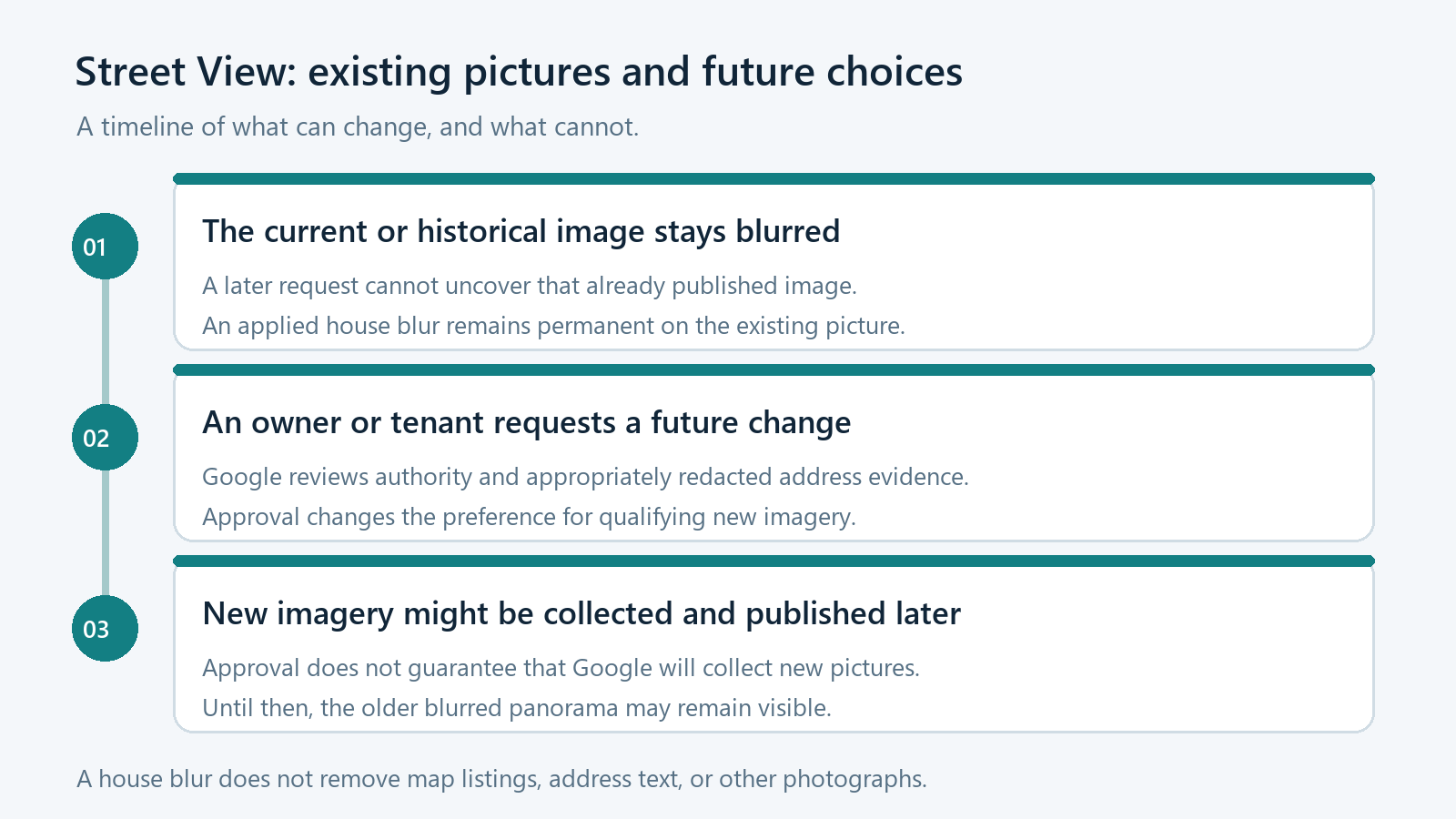
Google says an applied Street View blur is permanent. A later request does not restore the visible details in that existing or historical image.
That permanence matters when deciding how much of the home to identify. Check the requested area carefully instead of assuming you can undo it later.
It also explains why a newly purchased home’s earlier blurred image may remain obscured. A change of resident does not automatically restore that picture.
Future imagery has a separate request process
Google’s future-imagery guidance lets homeowners and tenants request that their home not be blurred in new imagery collected after approval.
This does not remove an existing blur or guarantee that Google will photograph the property again. Approval and future image collection are different events.
- Choose whether your concern involves an existing panorama.
- Confirm that you are eligible to make the request.
- Prepare only the required redacted proof of address.
- Use the reporting route inside the relevant imagery.
- Keep existing-image and future-image expectations clearly separate throughout.
A permanent image change deserves a careful preview
Inspect the selected home and requested area before submitting. Do not request changes to someone else’s residence merely because you know its address.
Start by Identifying What You Want Changed
Google Maps displays several kinds of information in one place, which makes their controls easy to confuse. A privacy request works better when it targets the right material.
The street-level panorama is the navigable photographic view along a road. Its camera position and capture date are part of understanding which picture you are reviewing.
A place listing can show a name, address, map location, business information, and other content. Its presence is not the same as an unobscured house image.
There may also be photographs uploaded by other people. Do not assume every picture beside an address came from a Google Street View car.
Before choosing a reporting route, identify the picture’s type and source. If several images show the location, one selected panorama is not a complete inventory.
Write down the concern in plain terms. For example, you may want a house obscured, an incorrect place corrected, or a personal photograph reviewed.
Those are different requests, even when they involve the same building. Sending one does not establish that the other issues have been resolved.
| Your concern | The relevant distinction | The expectation to avoid |
|---|---|---|
| Your home is visible in a Street View panorama. | A residential blur request addresses the selected imagery. | Assuming the request removes the address from Maps. |
| An existing house image is already blurred. | That published image remains permanently obscured. | Expecting a later request to restore its details. |
| You want future pictures left unblurred. | An eligible resident can request a future-imagery change. | Assuming approval guarantees new photography or immediate replacement. |
| A separate place listing contains incorrect information. | Listing corrections are separate from the panorama’s pixels. | Using a house-blur request as a listing-removal request. |
Who Can Request a Residential Blur?
Google’s current guidance limits house-blur requests to the homeowner or tenant. Knowing the property, visiting it, or disliking its appearance does not establish that authority.
The process includes a declaration that you have authority to request the change. It also requires address verification rather than accepting a bare assertion.
If you live in a shared property, first make sure you have identified the correct residential location. A wide image can include several entrances or neighboring homes.
Do not solve that ambiguity by submitting a request for the whole street. Use the reporting form’s image preview to explain the actual location accurately.
Someone helping a relative should keep the resident involved. Assistance with finding a page does not substitute for the eligibility declaration or required verification.
If your residence lacks a formal street address, Google describes an option for that situation. Do not invent an address to make the form accept your request.
These eligibility rules concern house blurring. Reports about other privacy issues should use the reporting choices appropriate to the actual content rather than an inaccurate ownership claim.
Prepare Proof Without Sending Unnecessary Personal Details
For a residential request, Google’s instructions ask for proof connecting you to the address. The document must match the location you want reviewed.
A document showing only a post office box does not establish the requested residential location. Handwritten documents and government-issued identification are also excluded by Google’s guidance.
Accepted examples include letters, utility bills, or bank statements showing the address and dated within six months. Lease and ownership-related records have stated exceptions.
Google accepts leases for the address even when they are older. Its future-imagery instructions also describe older homeowner insurance and ownership records as acceptable.
Use the current instructions for the request you are making. Do not treat an old screenshot or another person’s successful submission as the complete document standard.
Redact your name, account numbers, financial details, and other sensitive information. The property address and document date are the details Google says should remain visible.
Check the finished file before uploading it. A document can show additional account information on another page even when its first page looks appropriately limited.
Do not upload your evidence to a random public file converter merely to change its format. Use a trusted local method or an appropriate existing application.
The allowed formats are PNG, JPG or JPEG, and PDF, with a file size under 10 MB. Do not rename an unrelated file extension as a conversion.
Google says uploaded verification documents are deleted within its stated 60-day handling period. That policy is not a reason to include details the form does not need.
Keep the document limited to its purpose
You are verifying a residential location, not opening a financial account. Follow Google’s redaction requirements instead of submitting an entire unredacted statement or identity document.
What to Do If You Want to Blur Your Home
-
Open Google Maps independently and find your home. Enter Street View, then examine the image you actually want reviewed rather than reporting an unrelated nearby panorama.
Check the camera angle and visible property boundaries. If the picture shows multiple homes, identify yours carefully before moving into the reporting form.
-
Choose Report a Problem from the Street View image. Google’s instructions place this option within the imagery, rather than in an unsolicited message or outside service.
If the surrounding interface differs on your device, stay within Google’s official controls. Do not grant remote access to someone offering a faster reporting button.
-
Select the option concerning your home and make the required authority declaration. Supply the residential address or use the stated option for a residence without one.
Review the image preview and explain the relevant location accurately. Avoid including unrelated neighbors merely because they appear in the same camera view.
-
Upload the appropriately redacted address document and complete the requested fields. Read everything once more before submitting a change that may become permanent.
Retain your own record of what you requested and any confirmation. Do not publish the verification document as proof that you made a privacy request.
-
Watch for follow-up through the contact route you supplied. Google may need more information, and submission itself is not evidence that the blur has been applied.
When you check the outcome, revisit the relevant image. Looking only at the map pin cannot confirm whether the panorama’s appearance changed.
What a Future-Imagery Request Actually Means
An existing blur and a future preference can both be true. The old image can stay obscured while a later approved request affects newly collected imagery.
Google says an eligible homeowner or tenant can request that the home not be blurred in future Street View imagery collected after the request is processed.
Begin with the blurred home in Street View and open Report a Problem. The current instructions describe a specific choice for removing blur from future imagery.
Center the preview on the correct home and complete the ownership or tenancy declaration. Provide the redacted address evidence required for that request.
Do not submit the same request merely to uncover a historical picture. Google expressly states that the process does not remove blur from already published images.
Approval also does not summon a camera car or establish a publication date. Collection schedules vary, so a newly visible picture may never appear on your timetable.
If no new imagery is published, the old blurred picture can remain the image you encounter. That does not necessarily tell you whether the future preference was rejected.
Use the response to your request to understand its status. Repeatedly viewing the same old panorama is not a reliable substitute for that communication.
Consider the choice before seeking a change in either direction. A preference that fits your circumstances today may not match another resident’s future privacy needs.
Discuss shared concerns with the people who live there, without posting their documents or revealing private household details in a public help discussion.
Choose the Request That Fits Your Goal
These expandable choices explain the appropriate distinction without collecting your address. They cannot inspect your property, submit a report, or change Google’s imagery.
I want my currently visible home obscured
Review the residential blur process, confirm homeowner or tenant eligibility, and prepare redacted proof. Check the selected panorama before requesting a permanent visual change.
Remember that address text and separate photographs may remain available. Review those sources independently if they are part of your concern.
I want an old blurred picture made clear again
The existing-image blur is permanent under Google’s stated policy. Do not pay someone who promises a secret method for restoring that published panorama.
A request about future imagery concerns a different possible image. It does not reverse what happened to the current or historical picture.
I want future images of my home left unblurred
Use Google’s specific future-imagery request and complete its eligibility checks. Approval affects qualifying new imagery, without guaranteeing that Google will collect or publish any.
Keep the resulting correspondence so you can distinguish an approved preference from an expectation about when a replacement picture might appear.
Common Mistakes That Make the Result Confusing
Do not confuse the image date with the day you requested a change. A panorama can remain available long after it was originally captured.
Likewise, a photo viewed from another road position can show a different angle. Check which actual image is visible before assuming one request covered every view.
A successful blur is not proof that your home is undiscoverable. The street address may still appear in navigation, other websites, photographs, or public records.
Be cautious about services promising complete removal from every map. Ask exactly which information they control rather than accepting a broad privacy guarantee.
You do not need to send money, passwords, or remote computer access to follow Google’s reporting instructions. An outside helper cannot guarantee the review outcome.
When a form asks for clarification, describe the location without adding unrelated household information. The purpose is to identify the correct residential image, not document your routines.
Frequently Asked Questions
Does blurring my home delete its address from Google Maps?
No, the panorama and the location information are separate. A house-blur request should not be treated as a request to remove every map listing or address reference.
Can I reverse an existing Street View house blur?
Google says an applied blur is permanent on existing published imagery. Its separate future-image process does not make an older blurred picture clear again.
Can a tenant request a residential blur?
Yes, Google’s current instructions identify homeowners and tenants as eligible. You must make the authority declaration and provide the address verification required by the process.
Should I upload a government identity document as proof?
No, Google’s stated document criteria exclude government-issued identification. Use an accepted address document and redact sensitive details while leaving the required address and date visible.
Does approval guarantee that Google will photograph my home again?
No, the future-imagery guidance expressly denies that guarantee. Approval of a preference and collection or publication of a new photograph remain separate events.
Will a blur request remove images already created elsewhere?
Do not assume that it will. Google’s guidance specifically says a new blur request does not affect AI imagery already created or published by third parties.
The Bottom Line
Request a Street View home blur only after checking the correct image and understanding its permanence. Use the official route and submit carefully limited address evidence.
If your goal concerns future pictures, use that separate request. Neither choice removes every address reference, restores old imagery, or guarantees that a new picture will appear.

Join the discussion
0 commentsShare your experience or ask a question about this article.
Community experiences
Did this happen to you?
Your experience could help someone recognize the same scam. Submit a private report for our team to review.
I experienced this tooReports are reviewed before publication. Sharing publicly is always your choice.
Discussion
Start the conversation
Have a question or something useful to share? Add the first comment.