


An email asking you to prove you’re human sounds like another small security chore, especially when it arrives beside real notices from your hosting provider.
This one brings familiar webmail names into the conversation, then asks for a kind of cooperation worth examining before you continue.
Overview
A security check delivered through your inbox
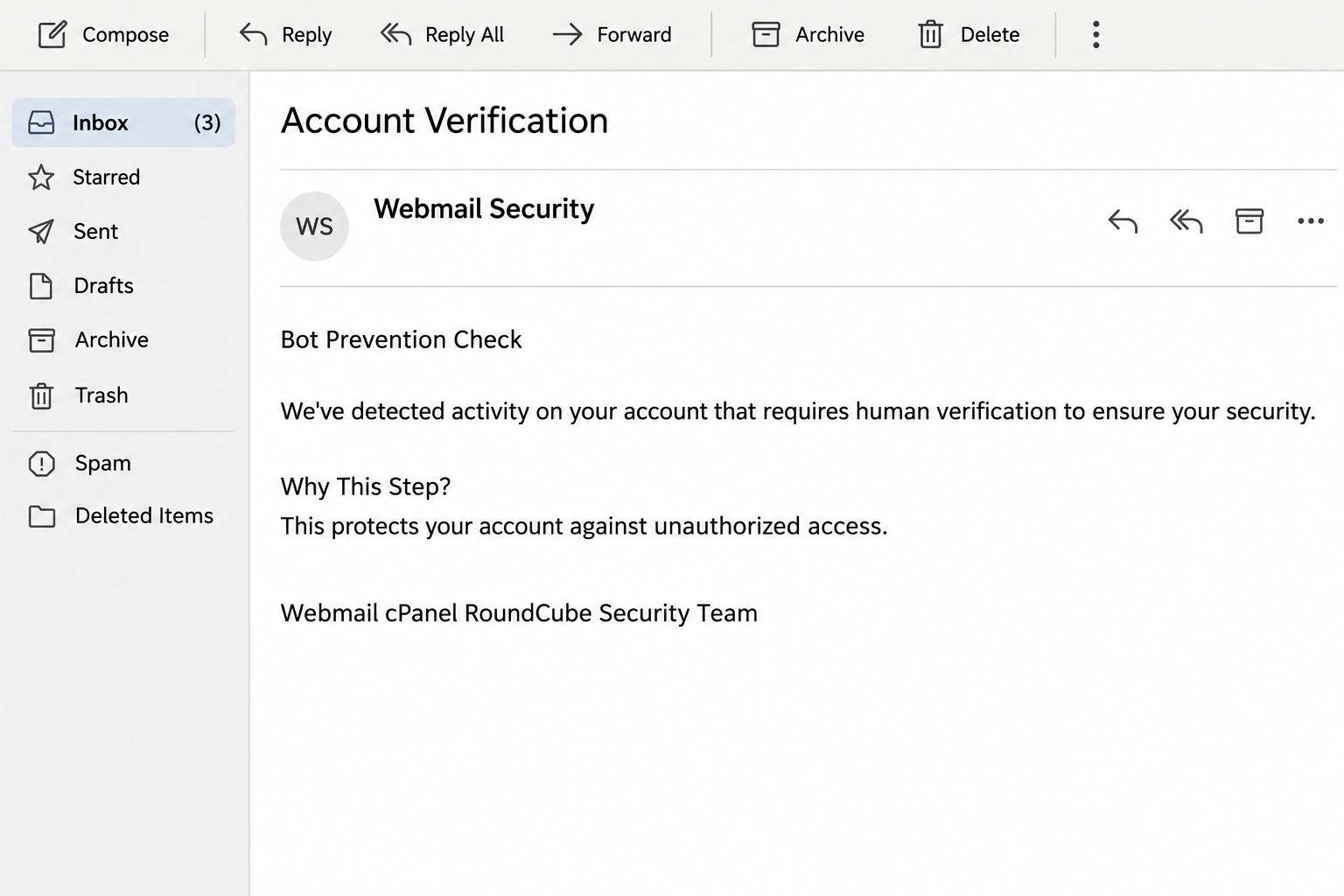
The cPanel Bot Prevention Checked email presents an account-verification task as protection against unauthorized activity. Its wording makes the recipient responsible for confirming that a human controls the account.
The recorded message combines cPanel and RoundCube references in its security-team signoff. That pairing feels familiar to people whose hosting accounts include browser-based email.
Its central request is human verification, not an invoice payment or a storage purchase. Recognizing that distinction helps you understand what the sender actually wants.
The password request changes the meaning
The documented link leads to a counterfeit webmail form at enfestarif[.]web.tr. That address is shown here in broken form so readers don’t accidentally visit it.
The form requests an email address and password, with the address already filled in. Supplying the password would hand a reusable account secret to the page’s operator.
A populated address doesn’t make this an authenticated account screen. Anyone who knows where to send the message can already know which address to display.
What matters before taking any action
The deceptive conduct belongs to the message and its counterfeit login page. Neither cPanel nor the Roundcube project should be treated as the operator of this phishing attempt.
- The supposed security task arrives through an unsolicited message rather than a session you intentionally started.
- The destination isn’t established as your organization’s authorized webmail address simply because it displays recognizable branding.
- The requested password is an account credential, not evidence that the visitor is a human.
- A working mailbox remains worth checking independently when a message claims that suspicious activity has occurred.
The practical answer is to leave this verification route alone and inspect the actual account through your normal login or hosting support.
Why the Human Verification Story Is Persuasive
A human check is usually a minor interruption. People expect to click a checkbox, select pictures, or wait while a site decides whether their browser looks automated.
That expectation makes the wording less alarming than a demand for money. You may approach the task as routine housekeeping before considering where it will take you.
The email adds an account-security reason for cooperating. Refusing a questionable check can suddenly feel like ignoring the very protection that is supposed to keep strangers out.
This reverses the sensible order of verification. Before trusting a password request, you need to establish who controls the page requesting that password.
Brand recognition cannot do that work alone. A logo or familiar product name describes what a page wants to resemble, not who has permission to collect your credentials.
The two product names don’t authenticate the sender
cPanel supplies hosting-management software, while Roundcube is a webmail application that a hosting provider can make available. Seeing both names together is not inherently suspicious.
The problem is the leap from those familiar names to an unrelated password-collection page. The email borrows a recognizable environment without demonstrating that it belongs to your provider.
A genuine hosting alert may also arrive by email. For example, cPanel documents configurable notifications about account changes, successful logins, and storage conditions.
Those real notifications don’t validate this particular message. They explain why the disguise is believable and why the safest check happens through a separately established account route.
How the cPanel Bot Prevention Checked Email Scam Works
Step 1: An account notice creates a small security obligation
The message arrives as an account-verification notice, using bot-prevention language to explain why your attention is required. It describes detected activity without providing an independently verified incident.
The recipient is encouraged to regard compliance as account protection. Instead of asking whether the message is trustworthy, you may start wondering whether delaying will leave the mailbox exposed.
That uncertainty is useful to the sender. A vague security issue can fit almost anyone’s situation, including someone who recently changed devices or signed in while traveling.
Your own recent activity can supply a convincing explanation that the email never proves. Remembering a real login doesn’t establish that this sender detected it.
Step 2: The verification button supplies the route
The email’s human-verification control moves the task away from your inbox. The important change is not the button’s appearance, but the website receiving the visit.
In the documented example, the destination is outside an established organizational webmail route. The page then presents a familiar-looking login instead of simply completing a bot check.
Don’t open the link again to inspect that behavior yourself. If you already visited it, an incident responder can work from browser history and the preserved email.
On a work account, send the original message through your organization’s reporting process. That preserves routing information more reliably than copying its visible text into another email.
Step 3: A familiar form turns the task into credential collection
The counterfeit screen uses webmail styling and requests the mailbox password. A prefilled email address reduces the effort needed to proceed and makes the page feel personally relevant.
Personal relevance is not proof of authorization. The sender could place the same address into a link or page without ever having accessed the mailbox itself.
The requested secret matters because it can work elsewhere. A mailbox password may also be used by mail applications or, dangerously, by unrelated accounts where you’ve reused it.
This is where the harmless-sounding human check becomes a phishing attempt. You are no longer answering a public challenge; you are disclosing a private authentication factor.
Step 4: A failed login can hide a successful theft
If the page accepts a password, it doesn’t need to open your actual inbox. It only needs to receive the secret you entered.
An error, a blank screen, or another password prompt can leave you thinking the attempt failed. None of those outcomes tells you whether the first submission was retained.
Treat a password entered on the counterfeit site as exposed even if you never reached a mailbox. Don’t keep trying different passwords to discover which one the page wants.
The available case does not establish a specific victim’s subsequent account activity. Account takeover is a risk to address promptly, not an outcome to assume without checking.
Step 5: The mailbox can become a route into other conversations
Successful access would let an intruder operate inside a channel that other people already trust. That can matter more than the contents of any single message.
A business mailbox may contain invoice discussions, password-reset messages, customer records, or active negotiations. A personal mailbox may connect shopping, social, financial, and recovery accounts.
The next fraudulent request could therefore arrive from a genuine address. Its apparent familiarity would reflect compromised access rather than a newly invented sender identity.
Recovery needs to examine account behavior as well as replace the exposed password. Otherwise, an unauthorized forwarding rule or surviving session could leave part of the problem unresolved.
Check the Account Without Following the Email
Start from the login route you already use
Open a saved bookmark or your provider’s established customer portal. Avoid searching for the suspicious message’s support label and choosing an unfamiliar sponsored result.
If you don’t know the correct address, consult existing account records or a trusted administrator. The questionable email should not supply the authority for its own investigation.
Find out whether the provider actually issued an account alert. Ask about the claimed human-verification requirement without sending your password or accepting another unverified link.
For a managed work mailbox, the IT team may control authentication and logs. Its findings should guide recovery rather than assumptions drawn from a lookalike form.
Keep mailbox access separate from hosting administration
The credentials for an individual mailbox and the main hosting account aren’t always interchangeable. A phishing page’s use of cPanel branding doesn’t tell you which account was compromised.
Tell support exactly which username and password you entered. If you tried several combinations, include that fact so the response covers every potentially exposed credential.
Don’t paste those passwords into the support conversation. Describe the affected accounts and use the provider’s secure reset process instead.
The cPanel Contact Information documentation explains available account notifications. Your provider decides which features are enabled, so missing options should be discussed with that provider.
Check facts rather than hunting for perfect grammar
An awkward signoff can be a clue, but polished language doesn’t make another version safe. A sender can improve the wording without changing the destination or credential request.
Likewise, the presence of a padlock only concerns the connection to the website currently open. It doesn’t turn that website into your hosting company.
The useful questions are concrete: Is this the authorized address, did the provider request this action, and why would this task require the mailbox password?
What to Do if You Have Fallen Victim to This Scam
-
Stop interacting with the verification page and preserve the message. Keep the original email, the approximate visit time, and a record of anything you entered.
You don’t need to revisit the page for a better screenshot. Browser history and the original message can help support identify the route without another interaction.
-
If you only received the email, report and delete it. Receiving a credential-phishing message does not mean the sender already has access to your account.
If you clicked without entering information, close the page and tell workplace security when applicable. Report any separate download or permission request accurately rather than assuming it occurred.
-
Replace any password you entered through the authorized account settings. Choose a unique replacement, and use official account recovery if the old password no longer works.
Update saved credentials in your own mail applications afterward. Repeated failures from an outdated mail-app password can complicate recovery and create additional account alerts.
-
Ask the provider to review sessions and available login records. Request termination of unfamiliar access where supported, and ask whether other authentication methods need resetting.
Enable supported multifactor protection through the legitimate settings. A second factor is valuable, but don’t approve unexpected prompts or disclose recovery codes to someone claiming to complete this check.
-
Inspect mailbox rules, forwarding, and recovery information. Work with your administrator if these settings aren’t available to your user account or require server-level checks.
Look for unfamiliar destinations, message-deletion rules, delegates, and changed contact information. Preserve suspicious settings before removing them if your incident-response team needs evidence.
-
Protect other accounts that used the exposed password. Replace each reused password separately rather than choosing one new secret for the entire group.
Prioritize financial services and accounts that can reset other logins. Confirm that recovery email addresses and phone numbers still belong to you.
-
Warn affected contacts if unauthorized messages were sent. Use another trusted channel when your mailbox’s control is still uncertain, and identify the messages they should disregard.
For invoice conversations, verify payment instructions with the real business contact. Ask your bank immediately about recall or fraud procedures if money was already sent elsewhere.
-
Keep the follow-up proportional to what happened. Password exposure requires account protection; a separate executed download requires device investigation as an additional response.
This recorded campaign demonstrates credential collection, not a particular installed malware family. Tell technical support about any extra action rather than treating a password change as device cleanup.
Questions to Ask Your Hosting Provider
Explain that you received a bot-verification notice using cPanel and RoundCube branding. Ask whether the provider sent it and which account, if any, shows suspicious activity.
If a password was disclosed, ask what evidence remains available and how long relevant logs are retained. Acting promptly may preserve information that later becomes unavailable.
Request a review of the affected mailbox rather than an indiscriminate reset of every hosting service. Broader changes may be necessary, but they should follow the actual exposure.
A useful support request includes your account identifier, incident time, and actions taken. It should not contain passwords, one-time codes, or unnecessary copies of private correspondence.
Frequently Asked Questions
Is cPanel Bot Prevention Checked a legitimate security notice?
The documented email is a phishing message that sends recipients to a counterfeit webmail login. Check any genuine account concern through your provider’s established portal instead.
Does the prefilled email address prove the page belongs to my provider?
No, a sender who knows your address can display it on a page. That personalization doesn’t authenticate the website or demonstrate access to your inbox.
Is this the same as a normal CAPTCHA?
A normal human challenge is not permission for an unrelated site to collect your mailbox password. The destination and requested secret are the decisive differences here.
What if the fake page rejected my password?
Assume any submitted password was exposed despite the error. Change it through the real account settings and check whether the same secret protects other services.
Should I change the main cPanel password too?
Change it if you entered that credential, reused the exposed password there, or your provider identifies related access. The logo alone doesn’t establish a hosting-account compromise.
Can I trust a later message from my own address?
Investigate unexpected messages even when their address looks familiar. If an account was accessed, an intruder could send through it, so independent confirmation remains important.
The Bottom Line
Do not complete the cPanel Bot Prevention Checked email’s verification. Its counterfeit webmail form turns a reassuring security task into a request for your mailbox password.
Check the real account through your hosting provider. If you entered a secret, replace it promptly and review sessions, mailbox rules, and linked accounts before considering recovery finished.

Join the discussion
0 commentsShare your experience or ask a question about this article.
Community experiences
Did this happen to you?
Your experience could help someone recognize the same scam. Submit a private report for our team to review.
I experienced this tooReports are reviewed before publication. Sharing publicly is always your choice.
Discussion
Start the conversation
Have a question or something useful to share? Add the first comment.