


A Microsoft security alert can be difficult to set aside when your email, documents, and subscriptions all depend on the same account staying available.
This message leaves the problem broad and offers a review link. That combination deserves a closer look before you try to put things right.
Overview
One alert covering several possible problems
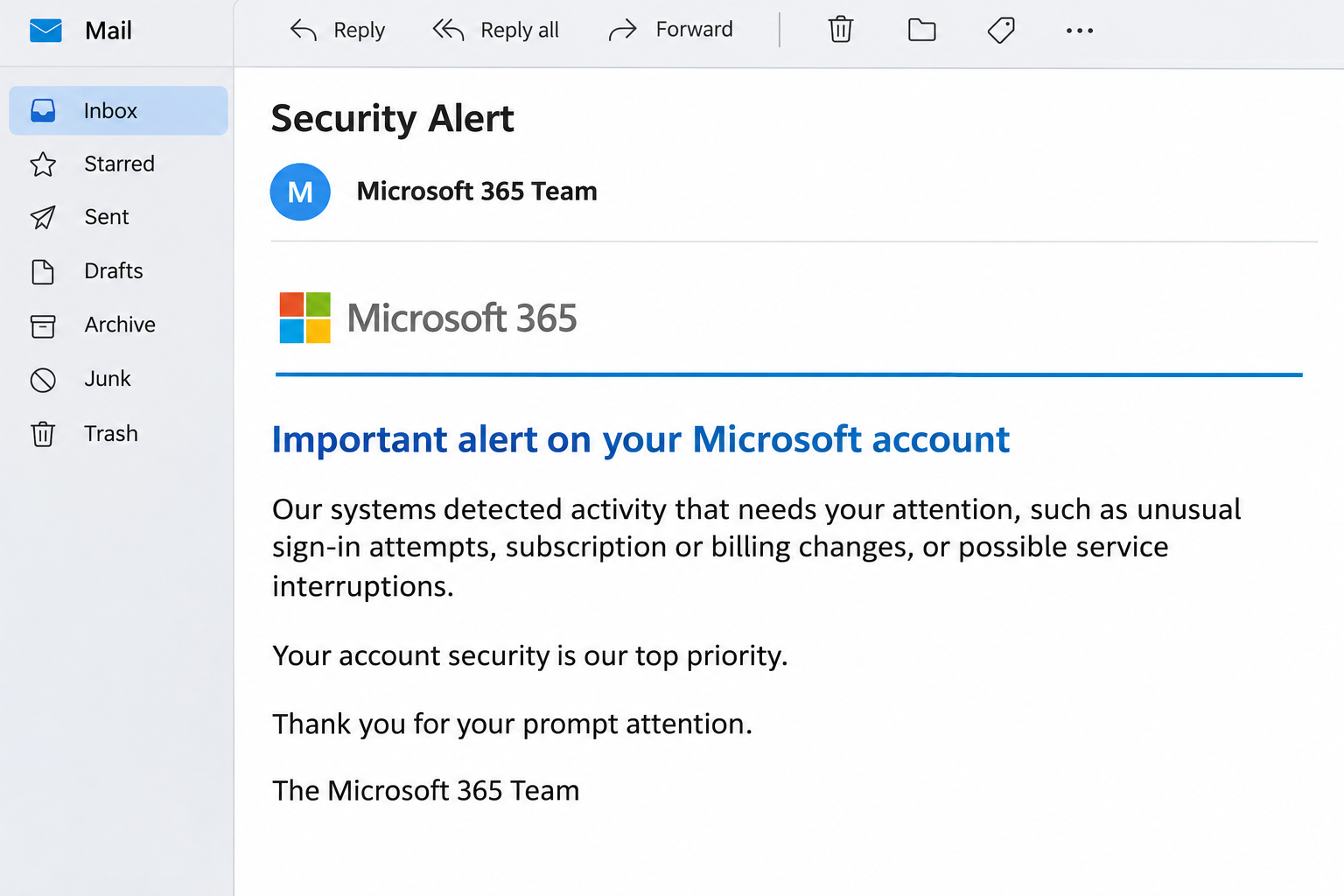
The Important Alert On Your Microsoft Account email arrives as a security notice and signs off as a Microsoft 365 team communication. It says detected activity requires attention.
Rather than naming one verified event, the wording lists possibilities: unusual sign-in attempts, billing or subscription changes, and potential service interruptions.
That range lets the message fit many readers’ concerns. Someone awaiting a renewal may imagine a billing issue, while someone who recently traveled may think about account access.
The review route leads to a counterfeit login
The recorded destination is roblox.goyodroo.ai[.]in, not an established Microsoft account-authentication address. It presents an imitation Microsoft sign-in page intended to collect account credentials.
The site address is deliberately broken here rather than offered as a link. Its unrelated wording matters because it contradicts the authority claimed by the message.
Microsoft is not responsible for this impersonation. The legitimate account service and the fraudulent notice should remain separate when deciding what to protect.
A real account check is still available
You can examine a genuine security concern without using the email’s review control. Open your established Microsoft account route and inspect the information available there.
- Identify which Microsoft account the warning could concern, especially if you have both personal and work accounts.
- Compare the message’s claim with actual account activity rather than guessing which listed problem might apply.
- Do not use a copied logo or familiar signoff as evidence that a new website can request your password.
- Treat any credentials already submitted to the counterfeit page as exposed, even if no successful login followed.
The useful decision is not to ignore all security notices. It is to keep the investigation outside a route selected by an unverified sender.
Why This Alert Feels Relevant Without Being Specific
Security notices often arrive after events you don’t immediately remember. A new app, a changed network, or a subscription renewal can make an unexpected email seem explainable.
This message takes advantage of that uncertainty by naming several categories at once. You may unconsciously choose the explanation that best fits your own recent activity.
The email has not demonstrated knowledge of that activity. Your memory can fill gaps in a generic message and make it feel more personalized than it is.
This is worth recognizing because the wording doesn’t need to be dramatic. A restrained request to review an account can still direct you into a fraudulent authentication process.
The company name doesn’t identify the destination
A display name can say Microsoft while the link points somewhere else. Those two parts of the communication need to be evaluated separately.
A sign-in page can also reproduce familiar colors and layouts. Its appearance describes an imitation, not the organization’s authorization to collect your account secret.
The recorded domain’s Roblox-related label doesn’t make Roblox part of the incident either. A word within a hostname is not evidence that the named company controls the page.
The important point is the mismatch between the claimed account-review authority and the actual password-collection destination. Neither brand should inherit responsibility through an impersonator’s chosen wording.
How the Important Alert On Your Microsoft Account Email Scam Works
Step 1: A broad security concern opens the conversation
The notice announces account activity needing attention without establishing a concrete event. It gives the reader a reason to investigate while leaving the detail behind a link.
That missing detail is part of the attraction. Opening the review promises to resolve uncertainty about which account, subscription, or sign-in might be involved.
You don’t need to answer that question through the message. An independent account check can address the concern without handing the sender control over your next destination.
If the notice reached a work address, your administrator may already have a reporting process. Use it rather than attempting to diagnose the linked page on your own.
Step 2: Familiar account language lends authority
The message uses Microsoft account and Microsoft 365 language to resemble normal service communication. A routine signoff can make an outside request feel like part of an existing relationship.
Having a real subscription reinforces that feeling, but it doesn’t authenticate the notice. The sender doesn’t need to know whether you actually use each named service.
The message’s reassurance about account protection also frames cooperation as sensible. Pausing may feel irresponsible when the email claims that your security is its priority.
In reality, authentication comes before cooperation. Establishing where you are signing in is more important than accepting the page’s explanation of why a login is needed.
Step 3: The review control moves you to the wrong site
Following the documented link opens a counterfeit Microsoft account page on the unrelated host. The supposed security review has become a request for credentials at an untrusted destination.
This is not proof of a Microsoft outage, a billing failure, or an account restriction. Those remain claims in the email until checked against independent records.
Avoid returning to the site to see whether it still works. Preserve the message and, if needed, let your security team inspect the destination without involving your account.
If the browser blocks the page, leave that protection in place. A block is not an obstacle you should bypass to complete the sender’s requested review.
Step 4: The login attempt exposes a reusable secret
The counterfeit form seeks information useful for accessing a real account. It doesn’t need to complete a genuine sign-in before the information has reached its operator.
A refusal, repeated prompt, or blank response can therefore be misleading. You may think you mistyped, while the secret has already been disclosed.
Don’t try another password to solve that problem. Identify the account connected to the submitted credential and secure it through the actual provider.
If you also entered a code or approved an authentication prompt, include that in your report. The exposure may extend beyond the password itself.
Step 5: A real account can become the next disguise
If an intruder gains access, subsequent communication may come through a genuine mailbox. That gives fraudulent requests a different kind of credibility from the original lookalike notice.
Possible misuse includes reading correspondence, seeking account-reset messages, or impersonating the owner to contacts. The actual incident needs checking rather than assuming every possible consequence occurred.
For a business account, let administrators assess affected services and permissions. A password reset alone may not answer whether a session or application still has access.
For a personal account, review security information and available session controls. Recovery is about restoring your control, not merely making the original email disappear.
Check Microsoft Activity Without Using the Alert
Establish whether this is a personal or managed account
An Outlook.com address and a Microsoft 365 work account can involve different administration and recovery routes. An identical-looking sign-in box doesn’t erase that distinction.
Use the account you normally access for the service in question. If you’re unsure which identity a work notice concerns, ask your organization’s support team.
Don’t enter both sets of credentials on the suspect page to discover which one it accepts. That would create a second exposure without providing trustworthy account information.
Understand what recent activity can tell you
Microsoft’s Recent activity explanation describes the information available for personal accounts. It helps distinguish attempted access, successful activity, and account changes.
An unfamiliar location deserves review, but it isn’t automatically evidence of an intruder. Network routing and travel can affect location information, so compare the event with your own activity.
Likewise, a failed attempt isn’t the same as a successful sign-in. Read what the event actually says rather than allowing the email’s broad warning to define it.
Your administrator can interpret corresponding work-account records. Avoid assuming that a consumer support article describes every feature available in an organizational tenant.
Keep billing and security questions distinct
If your concern is a charge, check the actual purchase or subscription history. An email that lists billing among several possible problems doesn’t establish that money was taken.
If your concern is a suspicious login, inspect the account’s security activity instead. A subscription cancellation is not a substitute for securing exposed credentials.
This separation makes the response faster and more accurate. You can address the real problem without accepting the sender’s invitation to troubleshoot several imagined problems simultaneously.
What to Do if You Have Fallen Victim to This Scam
-
Exit the counterfeit review and write down what happened. Preserve the original email, the approximate interaction time, and the type of information supplied.
Don’t include passwords or codes in an ordinary incident report. Record which accounts were involved so their legitimate providers can handle recovery.
-
If nothing was submitted, report the email as phishing. Close the destination if you opened it, and don’t revisit it to test the warning.
Tell workplace security about a clicked business-account link when required. Receipt of the email alone doesn’t demonstrate that your Microsoft account was accessed.
-
Replace a disclosed password through the real account route. Use an established app, trusted bookmark, or official recovery process rather than a reset link from this notice.
If you used the same secret elsewhere, change those credentials too. Give each service its own password instead of moving the same replacement across accounts.
-
Review account access and unfamiliar security changes. Check available session controls, recovery contacts, authentication methods, and application permissions appropriate to your account type.
Ask a work-account administrator to review organizational access. Be specific if you approved a prompt, entered a one-time code, or accepted an application’s permissions.
-
Inspect the mailbox for evidence of unauthorized use. Look at recent sent messages, unexpected replies, forwarding, and rules that could hide or redirect correspondence.
Preserve suspicious findings for the provider or security team. An ordinary automatic reply or filter should not be removed merely because it looks unfamiliar at first glance.
-
Check the services actually connected to the affected account. Prioritize sensitive files, financial notifications, and other accounts that rely on the mailbox for recovery.
Investigate real changes rather than assuming the email’s entire list of possible problems happened. Report unauthorized purchases through the actual billing and payment-provider channels.
-
Use official support if your access has already changed. Microsoft’s compromised-account help provides a starting point for personal-account recovery.
For managed accounts, contact your organization’s administrator instead. Avoid anyone who promises guaranteed restoration in exchange for a payment or a verification code.
-
Assess any additional device exposure separately. This recorded route is credential phishing, not a documented remote-support call or an identified malware installer.
If software or remote access was also involved, protect the account from another trusted device and obtain technical assistance. Give support a clear account of that separate exposure.
If the Page Looked Exactly Like Microsoft
Visual accuracy doesn’t reverse a credential disclosure. A convincing imitation may actually make it harder to remember that the address belonged to a different site.
Start with the practical facts: which credential was entered, whether any approval followed, and whether the genuine account still allows access. Those details determine which protections need attention.
The browser’s saved-password behavior can provide a useful clue, but it isn’t a verdict. A missing autofill suggestion may have several causes and should prompt caution rather than experimentation.
Never disable browser or account protections to make the review work. A warning, rejected login, or unexpected challenge is a reason to stop and verify elsewhere.
If you’re embarrassed about responding, report anyway. A prompt, accurate account of the incident helps the people protecting your account far more than a delayed explanation.
Frequently Asked Questions
Is Important Alert On Your Microsoft Account a real notification?
The documented message is phishing and leads to a counterfeit sign-in page. Check genuine account activity through your normal Microsoft account route rather than its review link.
Does the email prove someone successfully signed in?
No, its broad description doesn’t establish a real account event. Check the actual activity record and distinguish unsuccessful attempts from successful access or changed settings.
Why does it mention both billing and unusual logins?
Several possible concerns make the same notice seem relevant to more recipients. The list invites you to imagine a problem without independently identifying one.
Is this a Windows activation or support-number scam?
This recorded case uses a fake account-login page, not a Windows error or support callback. Respond to the exposure that actually occurred rather than a different Microsoft impersonation.
What if I entered a code after my password?
Tell the account provider or work administrator promptly. Describe what the genuine code or approval said, since it may identify the action the attacker was attempting.
Can I safely check my account while ignoring this link?
Yes, open the legitimate account independently and inspect its available security and billing records. You don’t need the email’s permission to perform that check.
The Bottom Line
Do not sign in through the Important Alert On Your Microsoft Account email. Its broad warning funnels readers toward an unrelated website collecting account credentials.
Check genuine account concerns through Microsoft’s established services. If you submitted a password or approval, protect the account and investigate unfamiliar access rather than relying on a failed page.

Join the discussion
0 commentsShare your experience or ask a question about this article.
Community experiences
Did this happen to you?
Your experience could help someone recognize the same scam. Submit a private report for our team to review.
I experienced this tooReports are reviewed before publication. Sharing publicly is always your choice.
Discussion
Start the conversation
Have a question or something useful to share? Add the first comment.