


You installed a TV player for a match, and the stream actually loaded. On a busy evening, that may be the only check you have time to make.
Then another app opens and an ordinary screen asks you to confirm something. The timing matters, even if the two apps seem to have nothing in common.
Overview
A working stream doesn’t clear the installer
Massiv is an Android banking Trojan that ThreatFabric researchers identified in targeted campaigns. One route used an unofficial installer made to look like a television application.
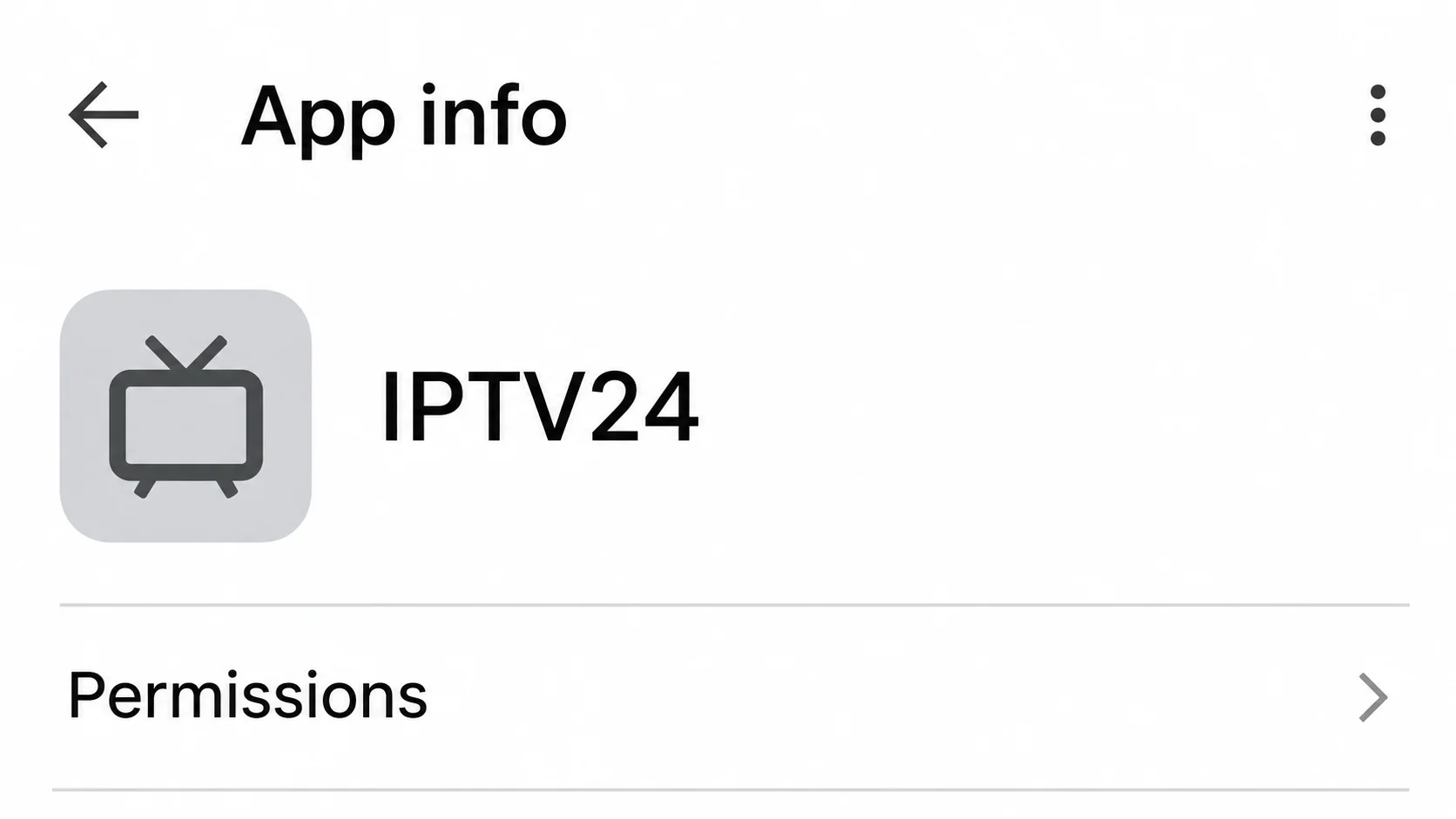
One of the apps that delivered it was labeled IPTV24. A streaming page could still work, which gave people little reason to suspect the extra software on their phones.
The lead reconstructs an Android app-information view using that documented label. It isn’t a picture of a confirmed infection, and a matching label by itself can’t identify a malicious package.
This is not a warning that internet television is inherently unsafe. The relevant combination is an unfamiliar outside-store package, an unexpected update and access the player doesn’t need.
Why Portugal’s digital ID was part of the story
The researchers observed a fake screen targeting gov.pt, Portugal’s government app. It asked for a phone number and PIN rather than keeping the deception within a video player.
That matters because Chave Móvel Digital is used for digital authentication and signatures. If the wrong person gains access, the potential impact can extend beyond whatever balance you see today.
ThreatFabric reported observing accounts opened in the names of people whose devices were infected.
That doesn’t make every unexplained login or new-account notice a Massiv case, but it changes what to check.
The signs worth taking seriously
An older phone may be slow even if nothing is wrong. Pay more attention to changes you can tie to the download or to an actual account activity notice.
The following details give your bank or a technician something concrete to work with:
- The player came from an APK linked outside your usual store, and a second installation appeared instead of an ordinary store update.
- An unfamiliar service has access to accessibility features, notifications or installation privileges after the player was added.
- A bank approval or digital identity request arrived while you weren’t trying to sign in, transfer funds or open an account.
You don’t need all three signs to ask for help. An unexpected payment approval is enough to stop using the phone for banking while you check the transaction independently.
How the Massiv IPTV App Scam Works
Step 1: A player seems to solve a problem right away
People looking for a stream often focus on whether a feed loads, not on who published the player.
An unofficial download is easier to accept when the match has already started.
Installers from outside the store can be legitimate.
What matters here is that the package didn’t come through a provider you had independently checked, yet it asked to become trusted software.
If you saw the offer but never installed anything, that’s different from giving an app access on the phone.
You can close the page and remove an unopened installer without trying it.
Step 2: A second install is presented as routine
The player can tell you it needs another package before it’s ready. A message like that may look like an ordinary update if you’ve already accepted the first download.
The case research describes a separate harmful component. That means deleting the apparent video player might not remove everything that arrived as part of the same installation chain.
If you went through two installation prompts, tell the technician or administrator that detail.
Check the installed app list around the same time, rather than relying on the icon you remember tapping.
Step 3: Access outside the player makes a false screen possible
The malware can display its own content over a targeted app. You may start with a genuine banking or government app and still end up looking at a fraudulent prompt.
Malicious use of accessibility features also gives operators ways to act on a device. These features have important legitimate uses, so don’t remove a service just because it’s unfamiliar.
What changed when the video player arrived? If it asked for permission to inspect or control unrelated screens, that’s a stronger reason to investigate than an icon that looks generic.
The researchers also describe access to certain messages and notifications. On a potentially compromised phone, receiving a code proves that a message arrived, not that the request was yours.
Step 4: The financial problem can continue after the stream ends
Credential theft is one possibility, but the researchers documented device takeover and resulting financial fraud as well.
It’s possible for account activity to involve a phone that the bank already recognizes.
If a new beneficiary, transaction or account application appears, ask the provider how it was authorized. Report the fake player and the timeline, not just the payment you noticed.
Separately check digital identity activity if you entered a PIN or responded to an unexpected request.
A replacement card doesn’t address an identity provider’s access, just as removing the app doesn’t reverse a transfer.
What an Approval Prompt Can Tell You
A request to sign something is different from a request to log in. In either case, if you didn’t start the action, avoid using the prompt itself to investigate.
On a separate device, open the genuine service and look for the corresponding action or ask its support team to explain it.
Give the time without reading out a verification code.
If the bank confirms a new beneficiary or device enrollment, ask whether pending transfers remain. Don’t stop at the balance screen, because account changes may matter before any money moves.
Also check whether your bank has the right contact number. Don’t accept a call from a supposed fraud specialist simply because it came shortly after you reported the fake installer.
When you call independently, ask which device the bank can disconnect and how they’ll verify a replacement. Keep a case number so you can reconnect with the same fraud team.
What to Do if You Have Fallen Victim to This Scam
-
Get another phone or computer before acting on money or identity. From there, call the bank using the number on your card or inside a previously verified bank channel.
Give the fraud team the time of installation and the time of the activity.
Ask them to review payments, active mobile sessions, recipients and account changes, not just the latest transfer.
-
Tell the digital ID provider if you entered a PIN. For Portugal’s service, use the published contacts on Autenticação.gov rather than a number shown in the suspicious screen.
Explain whether you entered a PIN, saw a signing request or approved something you did not start.
Ask which credentials or authorizations the service can suspend and how to verify activity.
-
Keep the infected phone from rejoining the network on its own. Switch on airplane mode, then verify Wi-Fi remains off.
Don’t use the suspect phone to call from a banking notification.
If this is a work phone, ask your administrator what to preserve before removing software. If there was financial fraud, ask your bank what it needs before erasing anything.
-
Keep a timeline, even if nothing was debited. Record the player name, download source, permission prompts and times. Save statements and official alerts from your separate device where possible.
Check for unexpected account-opening notices as well as outgoing money. The bank may not be the only organization that needs to know if your identity was used elsewhere.
-
Recover the affected accounts while the phone stays out of use. From a trusted device, follow your bank’s instructions for new passwords, restored device enrollment and changed authentication options.
Once the phone is ready to return to service, set a new screen-lock PIN if the old one may have been exposed. Reinstall banking apps only through verified publisher links.
How to Remove Massiv From an Android Phone
Step 1: Identify software installed around the first IPTV download
On a personal phone, open Settings > Apps and show the full app list. Tap the suspect player to see its app information without launching it again.
Look for a recently added companion that matches the same chain. A harmful app can use a familiar display name, so don’t try to remove the genuine Google Play Store.
If you can’t distinguish the apps, capture their details for support.
A screenshot of Settings is safer than opening the suspect player or looking for live copies of the malware online.
Step 2: Revoke permissions that keep an identified app in control
In Settings, search for Accessibility, then examine the installed or downloaded services. Select only a service you can identify as belonging to the unwanted app and turn that service off.
Use Settings search for Device admin apps if you can’t uninstall it. Deactivate its administrator access if present; leave employer management, accessibility tools and unrelated system services alone.
Review Notification access and Display over other apps for the same threat. The names may vary by phone, so use Settings search before changing anything.
Step 3: Uninstall the unwanted pieces and close the install route
Return to the confirmed app’s information screen, choose Uninstall, and acknowledge the prompt. Check that the entry is gone, then do the same for the identified secondary app.
Use Settings search for Install unknown apps. Open the entry for the browser or file manager used to install the package and turn off Allow from this source where enabled.
If the app blocks removal or keeps returning, contact your phone maker or the MalwareTips mobile removal forum from another device before trying more invasive changes.
Step 4: Verify the publisher before scanning
After removal, review Android security updates before returning to everyday use. If the phone is under professional investigation, follow the investigator’s instructions on when it’s safe to reconnect.
In Play Store, open your profile icon, choose Play Protect and run its scan. Turn protection back on if you can confirm it was turned off during the misleading installation.
For another check, open the Malwarebytes app listing. Confirm the publisher, tap Install, and then use Open from Play Store, rather than any APK offering a security download.
Step 5: Follow scan results and verify the phone again
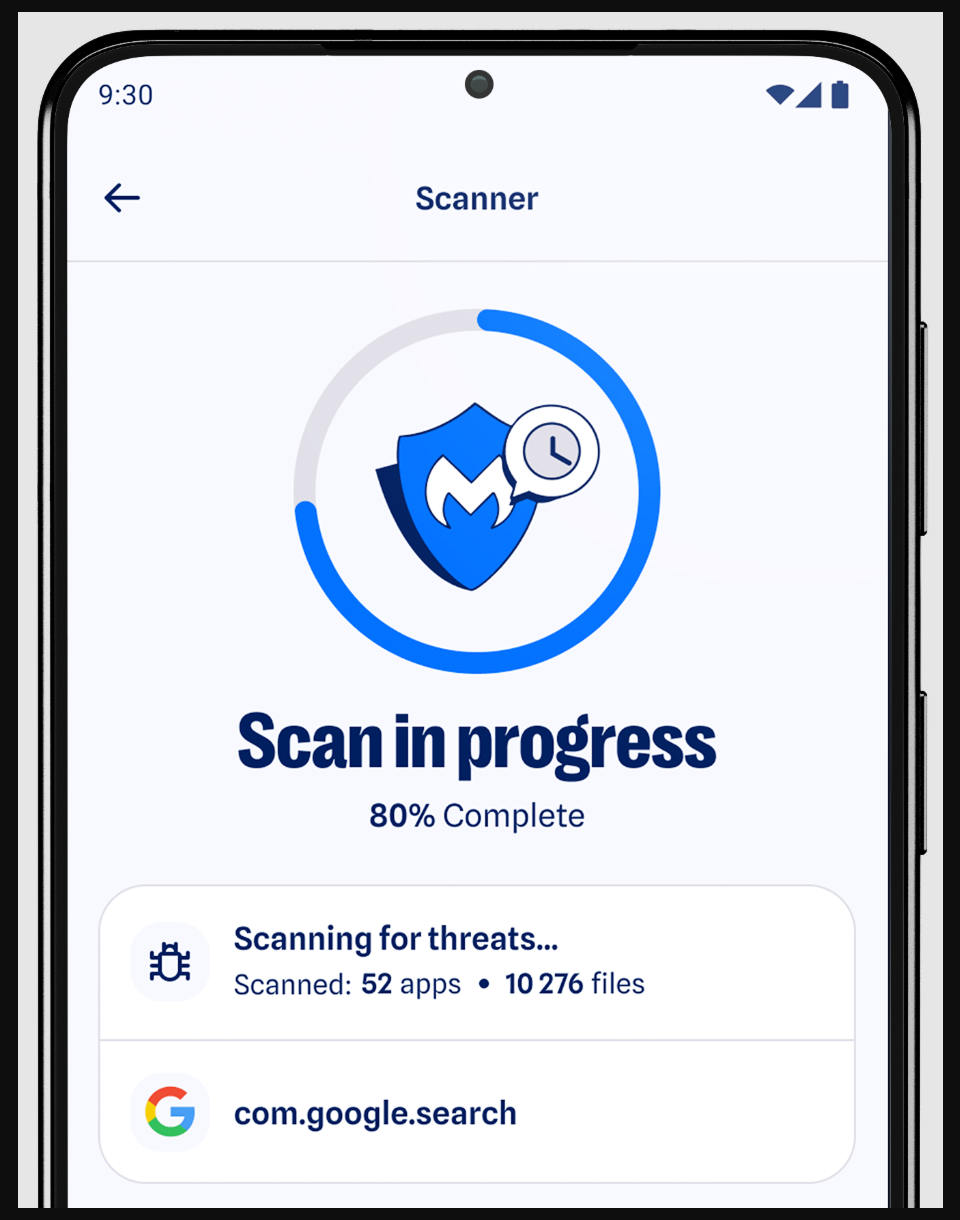
In the Malwarebytes app, go to Device and choose Scan now.
Let the scan finish; the image shows the vendor’s progress view, not a Massiv detection or test on your phone.
Open the results and select a confirmed unwanted app. Choose the uninstall action and confirm in Android.
When you restart the phone, check that the named app stays gone.
If the scanner and the app list tell different stories, or suspicious prompts continue, keep banking off the device.
Another scan alone can’t establish what was accessed while it was infected.
The Malwarebytes Android offer is an optional affiliate link. It isn’t needed to report fraud, contact the identity provider, or review the scanner result above.
Step 6: Plan any reset with your data and access in mind
If the app or unexpected controls return, ask for help planning a reset before signing back in everywhere. A reset erases data, and may also remove evidence the bank needs.
Confirm you can access the Google account needed to set the phone up afterward.
Preserve necessary personal documents and photos without bringing old installers or automatically restoring the same app selection.
Ask the bank when to enroll the cleaned or replacement phone.
Once it’s enrolled, test a normal sign-in you initiated and verify that security notifications reach the device you actually control.
Frequently Asked Questions
Is every IPTV24 app an example of Massiv?
No conclusion follows from that displayed name alone.
Compare the download source, timing, permissions and any trusted security finding, and don’t assume a legitimate streaming publisher is part of the fraud.
Can the stream really work on an infected phone?
Yes, a visible stream can coexist with unwanted software. ThreatFabric observed a streaming page in the delivery chain, so playback isn’t a reliable way to verify the package you installed.
Why did the phone ask for my Portuguese digital identity PIN?
One observed fake screen targeted the gov.pt app. If you entered the PIN or approved a request you didn’t initiate, contact the identity service independently and alert your bank.
Should I delete the real Google Play Store?
No, leave the genuine system store intact. If another recently installed app uses a similar name, ask your device maker or a technician to verify its identity before taking action.
Will changing my bank password fix the phone?
Changing the password protects access only as far as the bank’s security controls allow. It doesn’t remove an unwanted app, so pair account recovery with the Android cleanup above.
What if I got a new-account notice but lost no money?
Report the account opening anyway if you didn’t request it. Contact the provider named in the notice through an independent channel, and ask what identity checks and records are available.
The Bottom Line
Don’t trust an outside-store player because it plays a stream. Massiv showed how a working video screen can coexist with a threat to your bank account and digital identity.
If you installed the fake player and granted unusual access, move financial activity to another device now.
Contact your bank, then remove the identified apps and verify the phone before using it.

Join the discussion
0 commentsShare your experience or ask a question about this article.
Community experiences
Did this happen to you?
Your experience could help someone recognize the same scam. Submit a private report for our team to review.
I experienced this tooReports are reviewed before publication. Sharing publicly is always your choice.
Discussion
Start the conversation
Have a question or something useful to share? Add the first comment.