


A scan flags one file, puts it in quarantine and tells you there are no other detections. That’s useful news, but the name on the report raises a different question.
With Phoenix Worm, the first item you find may not tell you everything that happened. The decisions you make before reconnecting the Mac can matter as much as the scan.
Overview
Phoenix Worm is a foothold, not a complete account of the attack
Mosyle researchers described Phoenix Worm as an early-stage piece of malware in research shared with 9to5Mac.
It was designed to establish access and allow more software to reach an affected machine later.
Security researchers call this kind of program a stager.
The name describes its role: the first component can be valuable to the attacker even if it doesn’t perform the final task.
That’s the practical distinction between a detection result and an incident report. One says which object was found. The other asks what happened while that object could run.
The reported sample was not limited to macOS
The researchers discussed versions for macOS, Linux and Windows. That doesn’t mean a Mac detection automatically places computers running another operating system under the same attack.
The removal procedure here is specifically for macOS. If another device is flagged, follow a cleanup procedure verified for its operating system.
Start with three pieces of information that a technician can act on:
- The exact alert and whether the security product blocked, quarantined or could not remove the detected object.
- The earliest time the object or related activity is known to have appeared on the Mac.
- Which network, user account and ordinary work were in use close to that time.
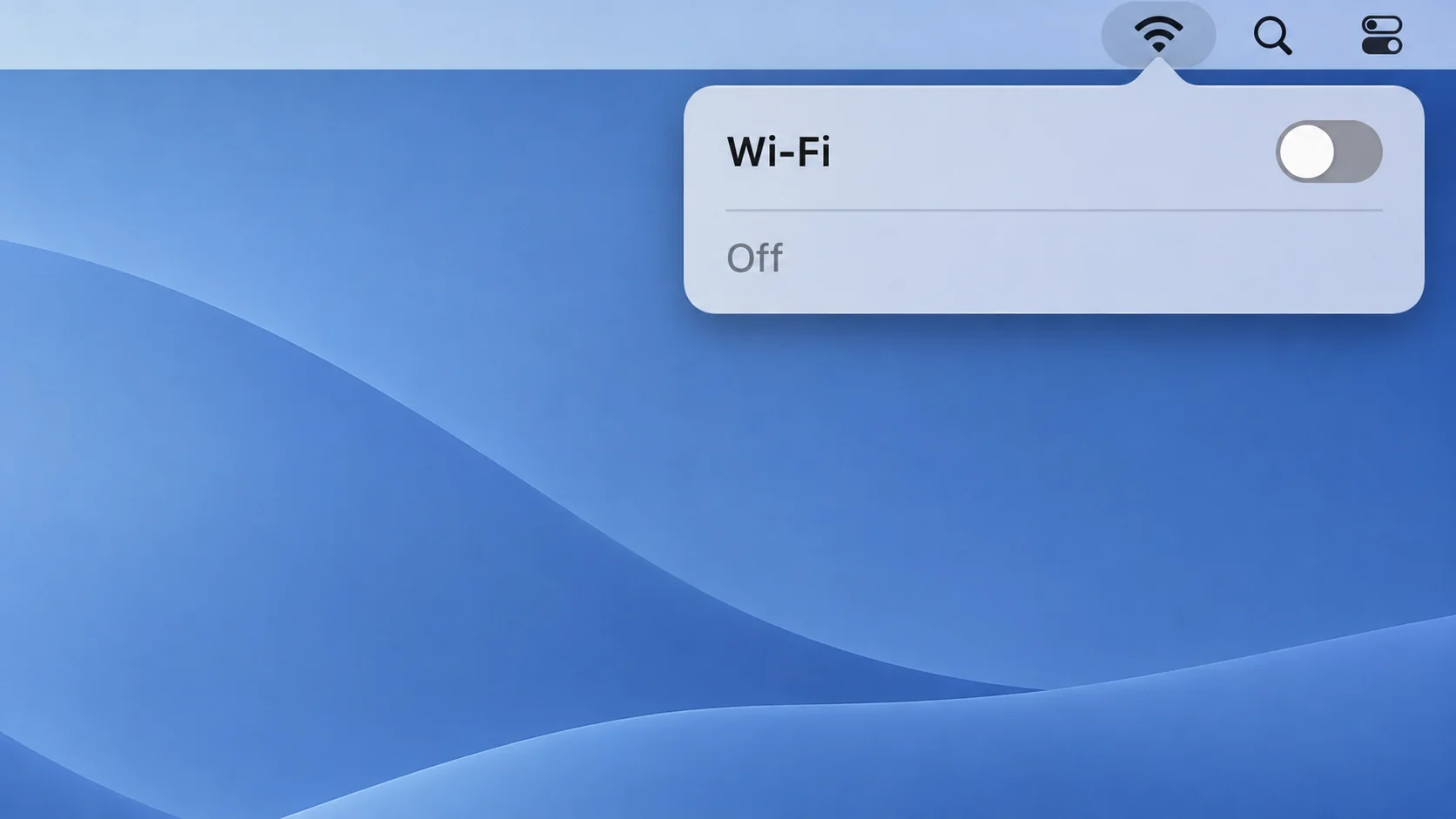
The image shows a reconstructed Mac Wi-Fi panel with networking switched off. It illustrates containment, not evidence that a Mac was infected or that Wi-Fi caused the incident.
What a detection doesn’t establish
The report describes potential follow-on activity, including the ability to bring in additional software.
It doesn’t name a particular second-stage infection on your computer just because the scanner flags Phoenix Worm.
Don’t assume that encrypted files, an unusual login or a second scanner alert is automatically linked. Preserve the times and ask whether investigators can establish a relationship.
The same research also described ShadeStager, a separate credential-stealing implant. The two names appear together because they were reported together, not because Phoenix was shown delivering ShadeStager.
How the Phoenix Worm Backdoor Changes the Cleanup
The first file and the follow-on software need separate checks
Authorities often describe a security incident by the best-known tool they found.
In a stager case, that tool may be the means of maintaining access, not the last thing that ran.
If your scanner quarantines a file, note what it can prove: that it found and isolated the item it named.
Keep the scan time and its result together for later comparison.
The report generally can’t tell you what the Mac received earlier. Checking other alerts, startup changes and the history available to a technician is how you reduce that uncertainty.
If a device was offline the whole time, tell the responder.
If it was online for several days before the alert, record that too instead of assuming either case settles the outcome.
Normal startup doesn’t answer whether another program ran
A backdoor can operate without a conspicuous window. A Mac may start and look normal while investigators still have to check what ran during the exposure window.
Keep ordinary delays in perspective. A slow launch or a hot laptop has many possible causes, so don’t report either detail as proof of this malware on its own.
If the detector alerts again after a restart, note whether it points to the same item or a different one. That difference can help support decide where to look next.
The path named by the alert is useful context, but it isn’t a list of files to delete.
Ask a trusted technician to identify any additional item before removing it manually.
A local quarantine doesn’t close network or account questions
The researchers described communication with outside infrastructure and collection of device information. The response team may need to compare a device timestamp with records from the network it used.
If you were on a company VPN, mention it even if you didn’t open sensitive files.
Access logs and reports can live with teams that don’t see the alert on your Mac.
For household devices, check notices from the router provider or its trusted management app if you receive a separate alert. Don’t reset network equipment based solely on one Mac detection.
Switching Wi-Fi off is a way to limit new communication. It’s not a substitute for checking activity that occurred before you disconnected, or for dealing with an attached network cable.
Which Evidence to Save Before You Change the Mac
Use a second device to photograph the scanner result if that is all you can do safely.
A picture of the alert is useful even if exporting a report feels unfamiliar.
Include the date, the product reporting the issue and its exact response.
Two people may say a threat was removed when one actually means the file was detected but remains present.
If you’re comfortable with the scanner’s export function, save the report using its built-in controls. Don’t export the suspected program itself or attach it to a support message.
The Mac’s network names, account names and device serial may be sensitive. Send relevant details through an authorized private channel rather than posting a full screenshot or log publicly.
Keep your records from before and after cleanup separate. An initial finding, an attempted removal and the first clean scan answer different questions on the timeline.
When someone offers to help, tell them whether you have a backup from before the incident.
Knowing it exists doesn’t mean you should restore everything from it without checking dates and contents.
The location of a detection also matters. Ask whether the object was on the startup disk, an external drive or a backup the scanner happened to be reading.
Finding a file in an old backup is different from finding it running on the Mac. Don’t connect that backup disk to other devices while the distinction is unresolved.
If the notice says the file was blocked, ask whether it was prevented from running or stopped after it started. That detail changes what you need to check before reconnecting.
What to Do if Phoenix Worm Was Detected
-
Keep the Mac offline until you’ve documented the alert. Switch off Wi-Fi through the menu bar or Control Center and remove an Ethernet cable if there is one.
Keep the detection window available if possible. On a company Mac, use a clean device to notify security and wait for directions before rebooting or uninstalling anything.
-
Collect the timeline rather than searching for a copy of the malware. Start with the time of the alert, the file location it reported and your last ordinary activity.
Tell support whether you recently added software or a browser extension, without guessing which caused the finding. Let them compare your memory with the logs they already have.
-
Look for signs of exposure from another device. Check recent sign-in activity in the official account settings for the services you used while the Mac may have been affected.
If you see activity you can’t explain, revoke the affected sessions where available and review passwords, recovery settings and linked devices.
On a managed account, ask security to do that centrally.
-
Don’t reconnect just to see if another alert appears. A second alert isn’t needed to establish the need for cleanup, and the lack of one is not an all-clear.
Ask the technician when a trusted network connection is appropriate for updates. If a different machine is already flagged, report it separately rather than moving backup media between both devices.
-
Handle any downstream damage based on what actually happened. If transactions appeared, contact the account provider using a known route and preserve the timestamps for the security team.
If files were changed or encrypted, preserve affected copies and known-good backups. Don’t promise yourself that quarantining the first file will reverse changes made by other software.
How to Remove Phoenix Worm and Check a Mac for Other Malware
Step 1: Establish who is responsible for cleanup
At home, you can follow the confirmed findings in a security report. At work, have the people responsible for device management decide how to isolate and examine the Mac first.
If there is only an allegation from a web page, don’t treat it as a scanner result. Use your actual security program rather than taking directions displayed by the page.
For a credible finding, keep reliable personal backups available and document where the notice appeared.
Don’t clear temporary files or browser history before a responder has a chance to check what matters.
Step 2: Review startup items that can be tied to the incident
Choose System Settings from the Apple menu. Under General, select Login Items & Extensions to see what opens automatically.
Compare those entries with the apps you use and anything the detection report names.
For a positively identified unwanted login item, select it and use the remove button. Switch off its matching unwanted background entry if the item is still present there.
An odd name isn’t enough to convict a startup item. Leave security services, work management and ordinary sync tools alone unless the owner or responder confirms a problem.
Step 3: Start with the correct, verified Mac package
On a known-clean computer, obtain the Malwarebytes macOS installer. If you’re asked to reconnect to complete a component, follow your technician’s advice about a safe connection.
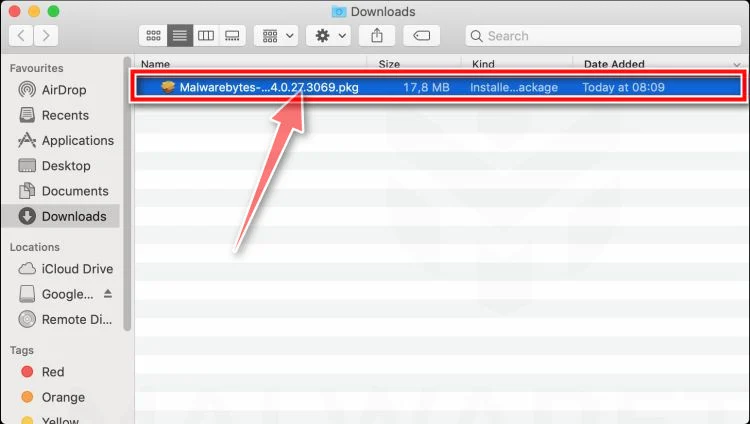
Use trusted transfer media if that’s appropriate for your setup. On the Mac, open the installer package in Finder.
The tutorial picture shows the package in Downloads with an older filename.
Follow the installer prompts for the verified package. If the source or publisher can’t be confirmed, stop before granting an installer permission to change the Mac.
Step 4: Record the scan results and test whether findings return
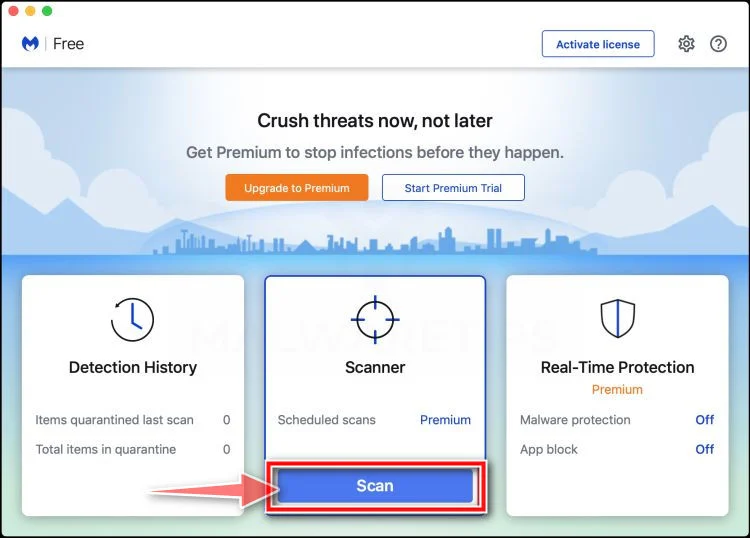
Open Malwarebytes from the Applications folder, then choose Scan in its scanner area. The older dashboard below identifies the control even if the current design looks different.
When the result appears, quarantine the identified threats.
If a restart is requested, restart only when you are cleared to do so, then check whether the app still reports unresolved items.
Make a fresh note of any different detection after restarting. A returning item and a newly detected component are both useful details, but they describe different outcomes.
The optional Malwarebytes Mac subscription is an affiliate link for ongoing protection.
You can run the manual check without buying it, and a subscription won’t determine what happened before the scan.
Step 5: Verify the Mac before bringing it back into use
Recheck the startup entries you identified and review any additional detections. If you can’t rule out a second stage, get help deciding whether a clean rebuild is the safer route.
You can ask the MalwareTips removal community or a trusted technician. Share nonsecret results, not samples or full logs that include account details.
Before a rebuild, verify your ability to get back into your Apple Account and review the backups.
Erasing the Mac removes files and settings you may otherwise be unable to recover.
Restore necessary, known-good data rather than blindly copying the old applications and startup configuration. Once the device is cleared to reconnect, use software update to apply current macOS security fixes.
Frequently Asked Questions
Does Phoenix Worm mean my files are encrypted?
No, the detection identifies a stager, not an observed ransomware outcome on your computer. Preserve any files showing unusual changes so a responder can check what actually happened.
Is Phoenix Worm confirmed to spread through email?
The cited sample report doesn’t establish the first exposure route for your device. A recent attachment is worth noting only as a lead, not presenting as the cause without evidence.
Why should I record the scan time?
It gives a responder a point to compare with network, account or endpoint records. That may help separate activity before quarantine from changes discovered while checking afterward.
Can I use this guide on Windows or Linux?
No, the removal steps here apply to a Mac. If a separate machine is flagged, isolate it as appropriate and use a procedure verified for that device and operating system.
Is a successful quarantine enough to reconnect?
Quarantine isolates the object that the scanner identified. Check with security or trusted support before reconnecting if you don’t know whether other software ran afterward.
Is Phoenix Worm another name for ShadeStager?
No, those are separate pieces of malware. They were reported by the same research team, but that doesn’t mean a Phoenix Worm finding identifies ShadeStager or any other second stage.
The Bottom Line
If your Mac flags Phoenix Worm, isolate the device and keep the original detection record.
Check what the scanner actually removed and whether anything else may have run before it did.
Don’t reconnect for sensitive work until you have a sensible device and account recovery plan. Use a trusted technician if the detection repeats or you can’t account for what happened.

Join the discussion
0 commentsShare your experience or ask a question about this article.
Your progress
Did these steps help?
Let us know how the guide worked for you.
Describe what you see and the step you reached. Keep passwords and other private information out.
Discussion
Start the conversation
Have a question or something useful to share? Add the first comment.