

Every few months, a new “get paid instantly” trend takes over TikTok, promising users quick cash for almost no effort. This time, it’s something called the Apple Pay Fall Quiz — a viral scheme that claims you can earn $750 in Apple Cash just for answering a few quick questions. The ad looks convincing, featuring screenshots of Apple Wallet balances over $1,200 and captions like “Didn’t even care about Apple’s new update but their fall quiz though omg.”
It seems simple enough: answer a few quiz questions, connect your Apple Wallet, and get paid. But there’s one major problem — it’s a complete scam.
Behind the polished design and fake testimonials lies a deceptive network of affiliate marketing and data-harvesting sites that have nothing to do with Apple. In this article, we’ll break down exactly how the Apple Pay Fall Quiz Scam works, what happens when you click those tempting ads, and how to protect yourself if you’ve already been tricked.
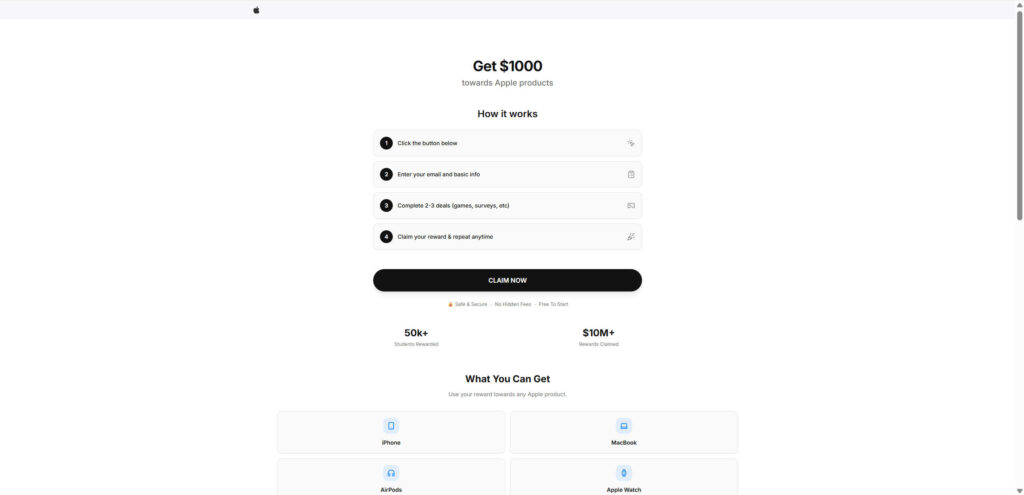
Scam Overview
The Viral TikTok Hook
The Apple Pay Fall Quiz started circulating on TikTok in late 2024 and quickly spread across social media. It’s marketed through short, attention-grabbing videos showing people supposedly receiving large Apple Cash payouts. These clips display realistic-looking Apple Wallet screenshots with transactions labeled “Apple Services” for amounts like $874.90 or $400.60, making it seem like Apple is sending free cash to users who take a quick seasonal quiz.
The TikTok caption often reads something like:
“Didn’t even care about Apple’s new update but their fall quiz though omg.”
It’s subtle, casual, and designed to look organic — like a friend or influencer sharing a personal discovery. But in reality, the ad is part of a coordinated scam campaign.
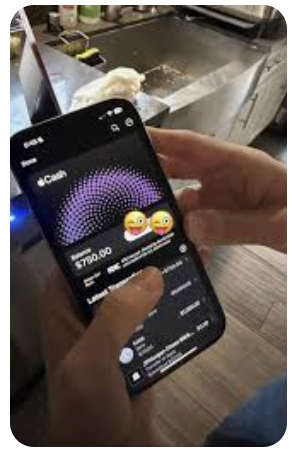
The Promise
The scam claims you can “earn up to $750 toward Apple Pay” by answering a few questions. Some variations call it the “Apple Wallet Rewards Quiz” or “Apple Fall Survey.”
The landing pages typically display bold promises like:
- “Answer Quick Questions. Cash Out Instantly.”
- “Complete short surveys or polls, then withdraw your rewards to your Apple Wallet via Apple Pay.”
- “Exclusive Apple Fall Event — Claim Your $750 Bonus.”
Of course, these claims are fake. None of the sites involved are affiliated with Apple, and no Apple Cash reward ever exists.
The Deceptive Network
Clicking one of these TikTok ads takes you down a chain of fraudulent websites — a pattern common to many online “reward” scams. The first site often looks like a legitimate Apple promotion, with phrases such as:
“Welcome to Wallet Rewards — Answer quick questions and get $750 via Apple Pay.”
From there, you’re redirected to other domains that promise rewards for completing “offers.” These include names like:
- WalletRewards.com
- UpLevelRewards.com
- RewardsGiantUSA.com
- SurveyPrizeCenter.com
None are connected to Apple or any real payment system.
The Familiar Scam Model
The Apple Pay Fall Quiz fits into a long-running pattern of affiliate link scams that have appeared under countless names — Cart700.com, RedReview.info, ReviewersCost.com, Sidereward.com, and many others. These scams all share the same structure:
- Impersonate a well-known brand like Apple, Target, or TikTok.
- Promise huge rewards for small tasks.
- Collect personal data and redirect users to endless offers.
- Never deliver the promised payout.
It’s the same playbook, repackaged to match the latest trends and seasonal buzzwords like “fall quiz” or “holiday rewards.”
Why It Looks Convincing
Scammers know presentation matters. They use every trick to make the Apple Pay Fall Quiz look authentic:
- The Apple logo and design mimic Apple’s website perfectly.
- Fake Apple Wallet screenshots show “Apple Cash” deposits.
- The quiz interface looks sleek, with dropdown menus and multiple-choice questions.
- Timer countdowns create a sense of urgency (“Offer expires in 5 minutes!”).
- User testimonials appear in the comment section, saying things like, “It actually worked for me!”
These psychological tactics lower skepticism and push users to act quickly before verifying legitimacy.
Apple Has Nothing to Do with It
Let’s be clear: Apple is not behind the Apple Pay Fall Quiz. The company never conducts giveaways, surveys, or reward programs that send money through Apple Pay or Apple Wallet. Any genuine Apple promotions are hosted exclusively on apple.com or through verified partners.
Apple does not pay users for completing quizzes, and it never requests personal data or survey participation in exchange for cash rewards.
How the Apple Pay Fall Quiz Scam Works
The inner workings of the Apple Pay Fall Quiz Scam reveal a well-orchestrated affiliate scheme designed to exploit curiosity, greed, and trust in Apple’s brand. Below is a detailed step-by-step breakdown of how the scam operates.
Step 1: The Social Media Hook
The scam begins with a TikTok ad or short video. It uses engaging visuals like screenshots of Apple Wallet balances or excited “users” showing off payments. These videos often feature:
- Fake balances like “Apple Cash +$1,200.”
- Realistic transaction screenshots with Apple branding.
- Phrases such as “It’s legit, just answer a few questions!”
The ad ends with a call to action — typically a link in the bio or caption — directing viewers to “Take the Apple Pay Fall Quiz” to claim their $750 reward.
Step 2: The Fake Quiz Page
Once you click the link, you’re taken to a landing page that looks like an official Apple survey. It uses familiar fonts, colors, and a layout reminiscent of Apple’s marketing materials.
The quiz itself usually asks generic questions such as:
- “How often do you use Apple Pay?”
- “Which Apple device do you own?”
- “What’s your favorite Apple feature?”
The page then says you “qualify for your reward” and prompts you to enter your name, email, and sometimes phone number to continue.
This is the first data-harvesting stage — the scammers are now collecting personal information they can later sell to marketing companies or use in further scams.
Step 3: The “Offer Wall” Trap
After the quiz, you’re told to complete several “offers” before receiving your Apple Pay reward. These offers are the real money-makers for the scammers. They include:
- Downloading apps or games.
- Signing up for free trials of subscription services.
- Taking additional surveys.
- Providing your credit card details for “verification.”
Each completed offer triggers a small affiliate payout for the scammers. The affiliate networks behind these offers pay websites for generating sign-ups — and the scammers exploit that system to make money off unsuspecting users.
Step 4: The Fake Progress System
To keep you hooked, the site uses progress bars and status messages like:
- “Step 2 of 3 Completed.”
- “You’re almost done — just one more offer to go!”
- “Verifying your Apple Pay balance…”
This illusion of progress creates the sense that you’re close to unlocking your $750 reward. But no matter how many offers you complete, the reward never comes.
Step 5: The Endless Loop
If you try to finish every task, the site redirects you again — sometimes back to the start, sometimes to a new domain with similar promises. You’ll see phrases like:
“Congratulations! You’re eligible for an additional bonus. Complete two more offers to claim your total rewards.”
This loop is intentional. It keeps users generating affiliate income for the scammers indefinitely.
Step 6: The Hidden Costs
Many of the “offers” involve signing up for free trials that later convert into paid subscriptions. Victims often report unexpected credit card charges weeks later from unfamiliar companies.
These charges are buried in the fine print of the offers — which most users never read because they’re focused on the fake reward.
Step 7: The Aftermath
After completing multiple tasks, users realize there’s no Apple Cash reward. But by then, the damage is done. Victims often face:
- Floods of spam emails and calls from marketers.
- Recurring charges from unwanted subscriptions.
- Potential data exposure, since personal details are shared across affiliate networks.
At this point, the scammers have already made their profit — and victims are left frustrated and deceived.
What to Do If You’ve Fallen Victim to the Apple Pay Fall Quiz Scam
If you’ve clicked on one of these fake Apple Pay quiz ads or submitted your information, it’s essential to take quick action to limit the damage. Here’s a detailed step-by-step recovery guide.
1. Stop All Interaction with the Website
Close the page immediately and do not click any further links or offers. Avoid revisiting the site or responding to any follow-up emails or messages.
2. Change Your Passwords
If you entered your email or password anywhere on the scam site, change your passwords immediately — especially for your Apple ID, email account, and online banking apps. Use strong, unique passwords and enable two-factor authentication wherever possible.
3. Check for Unauthorized Charges
If you provided credit card details for any “trial offers,” review your bank or credit card statements for unfamiliar charges. Contact your bank to dispute fraudulent transactions and consider requesting a replacement card.
4. Cancel Any Trial Subscriptions
If you unknowingly signed up for free trials, log in to those services and cancel before they start billing you. Be thorough — scammers often hide subscription terms in small print.
5. Run a Security Scan
Use reputable antivirus or anti-malware software to scan your device for potential trackers or malware that may have been installed while visiting the site.
6. Monitor Your Email and Phone for Spam
Expect an increase in spam emails and robocalls. Do not click on links in suspicious messages, and mark them as spam to train your filters.
7. Report the Scam
Reporting helps stop similar scams from spreading. File reports with:
- Federal Trade Commission (FTC): reportfraud.ftc.gov
- Internet Crime Complaint Center (IC3): ic3.gov
- Better Business Bureau (BBB): bbb.org/scamtracker
- Apple Support: Inform Apple about the fraudulent use of its brand and logos.
8. Educate Others
Warn friends, family, and classmates about the scam — especially those who may have seen the ad on social media. The more people know, the fewer will fall for it.
9. Consider Credit Monitoring
If you shared sensitive information (like your full name, address, or birthdate), consider using a credit monitoring service. These tools alert you to suspicious activity related to your identity.
10. Stay Skeptical of Similar Offers
Be cautious with any online promotion promising large rewards for minimal effort. Legitimate companies like Apple, Google, or Microsoft do not hand out cash prizes through random online quizzes.
Is Your Device Infected? Run a Free Malware Scan
Slow performance, constant pop-ups, or strange behavior? These are classic signs of a malware infection. The fastest way to find out is to scan your device with Malwarebytes Free — one of the most trusted malware removal tools available.
The free version detects and removes the most common threats, including:
- Adware — the cause of those annoying pop-ups
- Browser hijackers — unwanted redirects and changed homepages
- Trojans and spyware — hidden programs stealing your data
- Potentially unwanted programs (PUPs) — software you never asked for
👉 Select your device below — Windows, Mac, or Android — then follow the simple steps to download Malwarebytes, scan your system, and remove any threats it finds. The scan usually takes 5 to 20 minutes.
Run a Malware Scan with Malwarebytes for Windows
Malwarebytes is one of the most popular and trusted anti-malware tools for Windows — and it’s completely free for removing infections. It catches threats that many antivirus programs miss, including adware, browser hijackers, and trojans. Follow the steps below to scan and clean your PC in just a few minutes.
Download Malwarebytes
Click the button below to download the latest version of Malwarebytes for Windows from the official source. The free version is all you need — it will scan your computer and remove adware, browser hijackers, and other malicious software at no cost.
Download MalwarebytesOfficial installer for Windows 11 and 10. Your download starts right away.Want real-time protection? See Malwarebytes Premium Malwarebytes Free for WindowsScans and removes malware at no cost
-
Install Malwarebytes
When the download finishes, open your Downloads folder and double-click the MBSetup file. If Windows shows a User Account Control pop-up, click “Yes” to allow the installation.

Follow the On-Screen Prompts to Install Malwarebytes
The setup wizard will walk you through a few quick screens:
-
Choose where you’re installing the program — “Personal Computer” or “Work Computer” — then click Next.

-
Malwarebytes will now install on your device. This usually takes under a minute.

-
When installation is complete, the “Welcome to Malwarebytes” screen will open automatically.

-
On the final screen, click Open Malwarebytes to launch the program.

-
Enable “Scan for Rootkits”
Before scanning, turn on rootkit detection so Malwarebytes can find even the most hidden threats. Click the Settings gear icon on the left side of the screen.

In the settings menu, find “Scan for rootkits” and click the toggle so it turns blue.

Done? Click “Dashboard” in the left pane to return to the main screen.
Start the Scan
Click the blue Scan button. Malwarebytes will automatically update its virus database and start checking your computer for malware.

-
Wait for the Scan to Finish
The scan checks your entire system for browser hijackers and other malicious programs, so it can take 5 to 20 minutes depending on your computer. Feel free to do something else — just check back occasionally to see the progress.

-
Quarantine the Detected Threats
When the scan is done, you’ll see a list of everything Malwarebytes found — malware, adware, and potentially unwanted programs. Click the “Quarantine” button to remove all of them at once.

Malwarebytes will now remove the malicious files and registry entries and move them safely into quarantine.

-
Restart Your Computer
Some threats can only be fully removed after a reboot. If Malwarebytes asks you to restart, click Yes. Once you’re logged back in, Malwarebytes has finished removing the threats it found.

That’s it — your Windows PC is now clean of trojans, adware, and other malware, and should be back to running smoothly.
If you are still having problems with your computer after completing these instructions, then please follow one of the steps:
- Run a computer scan with ESET Online Scanner
- Ask for help in our Windows Malware Removal Help & Support forum.
Run a Malware Scan with Malwarebytes for Mac
Malwarebytes for Mac is a free on-demand scanner that removes the malware other security software tends to miss — adware, browser hijackers, and unwanted programs included. Cleaning an infected Mac with Malwarebytes has always been completely free, and it’s our go-to recommendation. Follow the steps below to scan and clean your Mac in just a few minutes.
-
Download Malwarebytes for Mac
Click the button below to download the latest version of Malwarebytes for Mac.
Download MalwarebytesOfficial installer for macOS. Your download starts right away.Want real-time protection? See Malwarebytes PremiumMalwarebytes Free for MacScans and removes malware at no cost -
Open the Malwarebytes setup file
When the download finishes, open your Downloads folder and double-click the setup file to begin the installation.

-
Follow the On-Screen Prompts to Install Malwarebytes
The Malwarebytes for Mac Installer will guide you through a few quick screens. Click “Continue” and keep following the prompts until the installation completes.



When the installation is complete, Malwarebytes opens to the Welcome to Malwarebytes screen. Click “Get started“.
-
Select “Personal Computer” or “Work Computer”
Malwarebytes will ask what type of computer you’re installing it on. Click either Personal Computer or Work Computer, whichever applies.

-
Start the Scan
Click the “Scan” button. Malwarebytes will automatically update its detection database and begin checking your Mac for malware.

-
Wait for the Scan to Finish
Malwarebytes will scan your Mac for adware, browser hijackers, and other malicious programs. This can take a few minutes, so feel free to do something else — just check back occasionally to see the progress.

-
Quarantine the Detected Threats
When the scan is done, you’ll see a list of everything Malwarebytes found. Click the “Quarantine” button to remove all the threats at once.

-
Restart Your Mac
Malwarebytes will now remove all the malicious files it found. Some threats can only be fully removed after a reboot — if Malwarebytes asks you to restart, allow it. Once you’re logged back in, your Mac is clean.

That’s it — your Mac is now free of adware, rogue browser extensions, and other potentially harmful software.
If you are still experiencing problems while trying to remove a malicious program from your computer, please ask for help in our Mac Malware Removal Help & Support forum.
Run a Malware Scan with Malwarebytes for Android
Malwarebytes for Android automatically detects and removes dangerous threats like malware and ransomware so you don’t have to worry about your most-used device being compromised. Aggressive detection of adware and potentially unwanted programs keeps your Android phone or tablet running smooth.
-
Download Malwarebytes for Android.
You can download Malwarebytes for Android by clicking the link below.
Get Malwarebytes for AndroidOpens Google Play in a new tab.Want real-time protection? See Malwarebytes Premium for AndroidMalwarebytes for AndroidScans your phone and removes malware at no cost -
Install Malwarebytes for Android on your phone.
In the Google Play Store, tap “Install” to install Malwarebytes for Android on your device.

When the installation process has finished, tap “Open” to begin using Malwarebytes for Android. You can also open Malwarebytes by tapping on its icon in your phone menu or home screen.

-
Follow the on-screen prompts to complete the setup process
When Malwarebytes will open, you will see the Malwarebytes Setup Wizard which will guide you through a series of permissions and other setup options.
This is the first of two screens that explain the difference between the Premium and Free versions. Swipe this screen to continue.
Tap on “Got it” to proceed to the next step.
Malwarebytes for Android will now ask for a set of permissions that are required to scan your device and protect it from malware. Tap on “Give permission” to continue.
Tap on “Allow” to permit Malwarebytes to access the files on your phone.
-
Update database and run a scan with Malwarebytes for Android
You will now be prompted to update the Malwarebytes database and run a full system scan.

Click on “Update database” to update the Malwarebytes for Android definitions to the latest version, then click on “Run full scan” to perform a system scan.

-
Wait for the Malwarebytes scan to complete.
Malwarebytes will now start scanning your phone for adware and other malicious apps. This process can take a few minutes, so we suggest you do something else and periodically check on the status of the scan to see when it is finished.

-
Click on “Remove Selected”.
When the scan has been completed, you will be presented with a screen showing the malware infections that Malwarebytes for Android has detected. To remove the malicious apps that Malwarebytes has found, tap on the “Remove Selected” button.

-
Restart your phone.
Malwarebytes for Android will now remove all the malicious apps that it has found. To complete the malware removal process, Malwarebytes may ask you to restart your device.
That’s it — your Android phone is now clean — no more malicious apps, adware, or browser redirects.
If you are still having problems with your phone after completing these instructions, then please follow one of the steps:
- Restore your phone to factory settings by going to Settings > General management > Reset > Factory data reset.
- Ask for help in our Mobile Malware Removal Help & Support forum.
Stay Protected: Block Ads and Malicious Sites
Now that your device is clean, keep it that way. Most infections start with a malicious ad or a fake download button — so blocking them at the source is your best defense.
We recommend AdGuard, which blocks malicious ads, phishing pages, and dangerous redirects before they can reach you.
👉 Download AdGuard and browse safely
The Bottom Line
The Apple Pay Fall Quiz Scam is a modern twist on an old trick — using the credibility of a trusted brand to lure users into a fraudulent web of affiliate links and data collection. The promise of easy money, sleek design, and believable testimonials make it seem real, but the truth is simple: Apple is not giving away money.
This scam is part of a broader pattern of fake “reward” websites that impersonate major companies to profit from clicks and user data. Victims never receive payouts, only frustration, spam, and financial risk.
To protect yourself:
- Verify before you click. Always check if a promotion appears on the official company website.
- Question unrealistic offers. If it sounds too good to be true, it is.
- Educate others. Awareness is the most effective weapon against online scams.
Apple’s real promotions are hosted only on apple.com, and the company will never ask users to complete tasks, fill out quizzes, or download apps in exchange for cash rewards.
If you see another ad promoting an “Apple Pay Fall Quiz,” “Apple Wallet Rewards,” or “Apple Cash Giveaway,” scroll past it — and report it. Staying informed and alert is the best way to stop scammers from profiting off deception.
Frequently Asked Questions
What is the Apple Pay Fall Quiz Scam?
The Apple Pay Fall Quiz Scam is a fake online promotion that claims users can earn $750 in Apple Cash simply by completing a short quiz or survey. It typically appears on TikTok and other social media platforms as a sponsored post or viral video showing fake screenshots of Apple Wallet balances and Apple Cash payments. The ads often feature captions such as “Didn’t even care about Apple’s new update but their fall quiz though omg,” which make it sound like a real Apple event or seasonal reward program.
When users click the ad, they are redirected through a series of fake “reward” or “survey” websites that use Apple’s branding without permission. These sites collect personal information, push users to complete endless “offers,” and generate affiliate revenue for scammers. Despite claims of instant rewards, there is no official Apple Pay Fall Quiz, and users never receive the promised Apple Cash payout.
Is the Apple Pay Fall Quiz real or fake?
The Apple Pay Fall Quiz is 100% fake. Apple has not launched any fall-themed reward program, survey, or quiz that pays users through Apple Pay. The entire concept is a scam created to exploit trust in Apple’s brand and the popularity of TikTok. The scammers use realistic designs, Apple logos, and fake screenshots of Apple Wallet transactions to make the scheme look credible. However, none of the websites or payment proofs are legitimate.
If you see any social media post claiming Apple is paying users for taking a quiz, it is a scam. Apple does not give away cash or gift cards through third-party platforms or random online surveys.
How does the Apple Pay Fall Quiz Scam work?
The scam follows a step-by-step process designed to mislead users and profit from their actions:
- The Hook: A TikTok video or social ad shows a fake Apple Cash balance or “proof” of payment. The video uses hashtags like #ApplePay and #FallQuiz to appear legitimate.
- The Click: The ad links to a fraudulent website such as WalletRewards.com or similar domains claiming to be part of an Apple Pay promotion.
- The Quiz: The site presents a simple quiz with questions like “How often do you use Apple Pay?” or “Which Apple device do you own?” to make the experience feel interactive.
- The Data Grab: After the quiz, users are told they qualify for the reward and must enter personal details such as their name, email, and phone number.
- The Offers: Users are then asked to complete several “deals” or “offers,” which include downloading apps, signing up for free trials, or submitting credit card information. Each of these actions generates affiliate commissions for the scammers.
- The Loop: Even after completing all the steps, users never receive their Apple Cash reward. Instead, they are redirected to new “bonus” offers that prolong the scam and increase scammer profits.
Why do people believe the Apple Pay Fall Quiz is real?
People believe it because the scam uses Apple’s trusted brand identity and familiar design style. The fake websites and videos copy Apple’s minimalist aesthetic, logos, and color palette. The ads also show fake Apple Cash screenshots that look identical to real transaction receipts. By combining visual authenticity with the lure of quick money, scammers create a believable illusion.
Additionally, the casual, influencer-style tone of TikTok ads makes the scam seem organic and harmless. When viewers see other users claiming they’ve received rewards, they’re more likely to try it themselves without double-checking its legitimacy.
What happens when you click the Apple Pay Fall Quiz ad?
Clicking the ad triggers a chain of redirects through multiple websites. Initially, you’re taken to a site with Apple-like branding that promises easy cash rewards. Then, you’re funneled into a network of affiliate marketing sites such as UpLevelRewards.com or RewardsGiantUSA.com. These platforms prompt you to complete “offers” or “deals,” which often involve installing apps, signing up for subscriptions, or entering personal data.
Each time you complete an offer, the scam operators earn a small commission. You, on the other hand, never receive any reward. Instead, your personal data gets harvested, and you may start receiving spam emails, unwanted phone calls, or even recurring subscription charges from the free trials you completed.
Is Apple really paying users through Apple Pay for taking quizzes?
No, Apple does not pay users for taking quizzes, completing surveys, or testing apps. Apple’s real rewards and promotional offers are always hosted on Apple.com or within official Apple apps. Any website, email, or social media post claiming Apple is sending money through Apple Pay in exchange for completing a quiz is fraudulent. Apple does not partner with third-party sites or affiliate programs for giveaways.
What information do scammers collect in this scam?
The Apple Pay Fall Quiz Scam collects a wide range of personal and financial information that can later be sold or misused. This includes:
- Full name and email address
- Phone number and location data
- Device information (from tracking cookies)
- Payment information if you entered it for “trial offers”
- Social media account data if you linked accounts during the process
This information can be used for targeted marketing, sold to spam networks, or in some cases, exploited for identity theft or fraudulent subscriptions.
Are the Apple Wallet screenshots shown in the ads real?
No, the screenshots are completely fabricated. Scammers use simple photo editing tools to create fake Apple Wallet transactions that show “Apple Services” payments of $400, $750, or $1200. These visuals are designed to convince users that people are actually receiving money from Apple. However, no such transactions exist. Real Apple Pay notifications and receipts come directly from Apple and never involve “surveys” or “quizzes.”
What are the risks of participating in the Apple Pay Fall Quiz?
Participating in this scam exposes you to multiple risks:
- Data theft: Your personal details can be sold or shared with third-party advertisers.
- Spam and phishing: You’ll likely receive floods of unwanted emails, texts, or calls from scammers.
- Hidden charges: Some offers trick users into recurring subscriptions that bill monthly.
- Identity theft: Providing too much personal or payment data can lead to more serious financial fraud.
- Device compromise: Scam sites can install tracking cookies or malicious code that monitor your activity.
What should I do if I fell for the Apple Pay Fall Quiz Scam?
If you interacted with the scam or entered your information, follow these steps immediately:
- Stop using the site and close all related pages.
- Change your passwords for all accounts linked to your email or Apple ID.
- Monitor your bank statements and report unauthorized charges to your financial institution.
- Cancel any free trials or subscriptions you may have signed up for.
- Run a security scan on your device using trusted antivirus software.
- Report the scam to the Federal Trade Commission (FTC) at reportfraud.ftc.gov.
- Contact Apple Support to report fraudulent use of Apple’s brand and confirm your Apple ID security.
- Warn others by sharing credible information about the scam on social media or with friends.
Can I get my money back if I was charged?
If you entered credit card details and were charged for unwanted subscriptions or trial offers, you can usually dispute the charges with your bank or credit card company. Explain that you were misled by an online scam. Many banks will reverse fraudulent transactions and issue you a new card to prevent further billing.
Final Thoughts on the Apple Pay Fall Quiz Scam
The Apple Pay Fall Quiz Scam is a manipulative scheme designed to trick users into completing affiliate offers and sharing personal data under the false promise of Apple Cash rewards. It’s part of a wider pattern of fake “reward” websites that impersonate major brands like Apple, Target, and Costco. The safest approach is simple: never trust promotions that promise hundreds of dollars for taking quizzes, answering surveys, or downloading apps. Always verify any Apple-related offer on apple.com, and remember that Apple will never contact you through random social media ads or third-party websites. Awareness, skepticism, and quick reporting are the best ways to stop scams like this from spreading.

Join the discussion
0 commentsShare your experience or ask a question about this article.
Discussion
Start the conversation
Have a question or something useful to share? Add the first comment.