

It starts as a simple nudge.
A text message says you have AT&T reward points sitting in your account, and they are about to expire. It gives a specific number to make it feel real, a deadline to make it feel urgent, and a “redeem now” link to make it feel easy.
That mix is not an accident.
These “AT&T Reward Points will expire” texts are a classic smishing scam (SMS phishing). The goal is to push you into clicking a link, landing on a convincing AT&T lookalike page, and handing over personal and payment details before you have time to second-guess it.
If you have received one of these messages, or clicked one and now feel uneasy, you are not alone. This scam is designed to feel routine, like the kind of corporate reminder you have seen a hundred times.
Below is a deeply practical breakdown of how it works, what red flags to look for, and exactly what to do if you entered any information.
Scam Overview
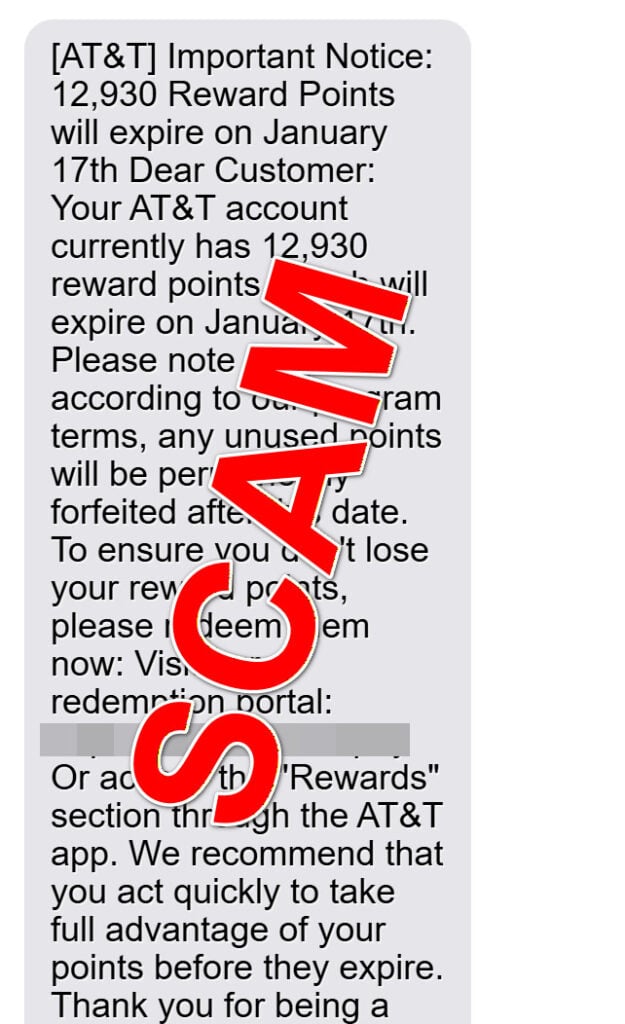
The AT&T Reward Points scam text is a fake message that pretends to come from AT&T’s rewards program. The message typically claims:
- You have a specific amount of points (for example, “11,430 reward points”)
- Your points will expire on a specific date (for example, “January 13th”)
- If you do not act, the points will be “permanently forfeited”
- You should redeem them immediately using a provided link
The link is the trap.
In examples like the one shown, the text sends you to a non-AT&T domain that looks nothing like a legitimate AT&T address. A real AT&T rewards experience would be hosted on an AT&T-controlled domain (like att.com) or handled inside official AT&T apps and services. Scammers rely on the fact that many people do not inspect the domain closely on a phone screen, especially when the page that loads looks polished.
What the scam site looks like
Once you click, the scam typically opens a page that imitates AT&T branding and layout. Many versions use big, clean banners and marketing-style imagery to create instant legitimacy. You may see headings like:
- “Holiday gift guide”
- “Give the gift of connection”
- “Member Verification”
- “Access your exclusive rewards program”
Then it gets personal fast.
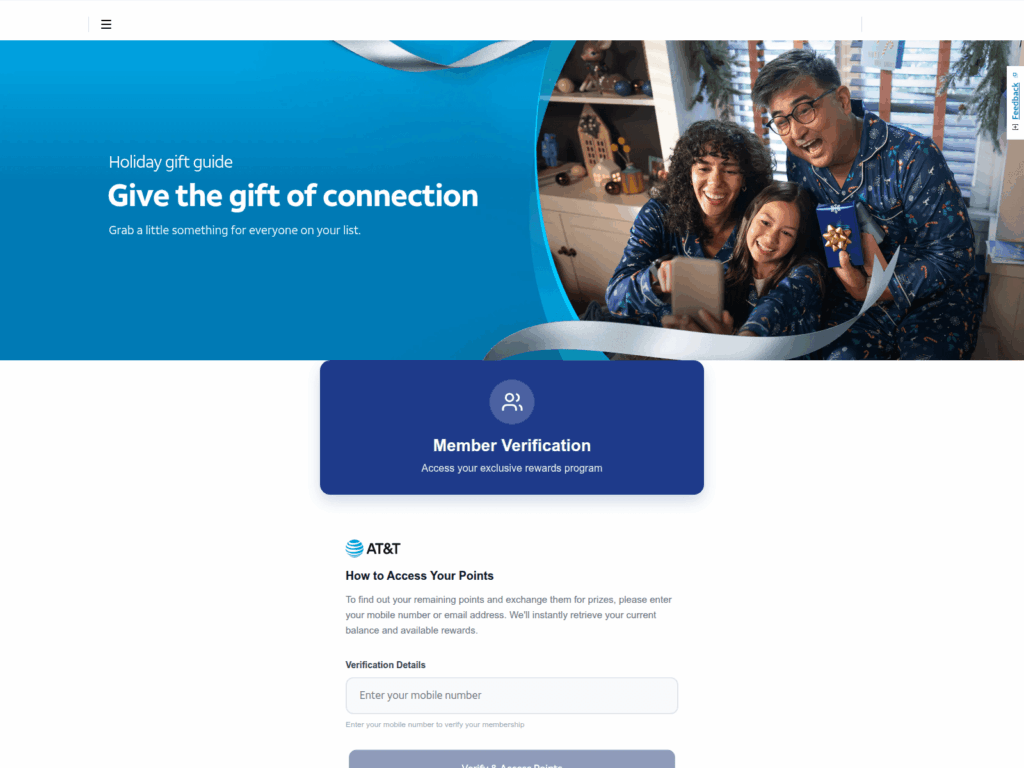
The page will usually ask for “verification details,” such as:
- Mobile phone number
- Email address
- Full name
- Home address
After that, it moves into the real money step.
Many versions end by asking for credit card information, often framed as one of these excuses:
- “Small verification charge” to confirm your identity
- “Shipping fee” for your reward
- “Account validation” for points redemption
- “Payment method required” to complete redemption
This is where victims get hit.
The criminals can use the card immediately, sell it to other fraudsters, or save it for later. The personal details you enter are just as valuable, because they can be used for identity theft, account takeover attempts, SIM swap or port-out fraud, and targeted follow-up scams.
Why this scam works so well
This scam succeeds because it pushes the same psychological buttons that legitimate rewards programs often use, but in a more aggressive way.
The urgency trick
A hard deadline like “expires on January 13th” is meant to make you act right now. Many people click simply to “check” because they do not want to lose something they think is already theirs.
The specificity trick
A random, oddly specific number like “11,430 points” is there to stop your brain from asking, “Is this real?” Specific numbers feel like they came from a real database.
The loyalty trick
The message often closes with a friendly line like “Thank you for being a loyal AT&T customer.” That small touch is meant to lower your guard and make the interaction feel normal and corporate.
The familiar workflow trick
The fake page often resembles a normal rewards flow: verify identity, view points, redeem, confirm delivery, finalize. When the steps look familiar, people are less likely to question them.
Common red flags in the message itself
Even when the page looks professional, the text message usually contains multiple signs of fraud. Watch for these patterns:
- A link that is not an official AT&T domain
- Overly urgent language, like “act quickly” or “redeem them now”
- Generic greetings like “Dear Customer” instead of your name
- Awkward phrasing or grammar that feels slightly “off”
- A request to click a link instead of directing you to open the official app
- A message that appears out of nowhere when you have never used AT&T rewards
In the example shown, the link is a major giveaway. It uses a strange domain that has nothing to do with AT&T. Scammers love unfamiliar domain endings because they can register many of them cheaply and rotate through new ones as old ones get blocked.
What the scammers are actually after
This is not really about reward points.
The points story is just bait to collect high-value information quickly. Depending on the version, the scammers may be aiming for:
- Credit card number, expiration date, and security code
- Billing address tied to your card (useful for card-not-present fraud)
- Full name, phone number, and address (useful for identity theft and fraud attempts)
- Email address and password (some versions add a fake login step)
- Enough personal data to attempt SIM swap or account takeover
Once the criminals have your information, you may see follow-up activity that looks like:
- Unauthorized charges on your card, often small test charges first
- Fraud alerts from your bank or card issuer
- Phishing emails or texts that use your name and address to feel more convincing
- Calls pretending to be AT&T, your bank, or a delivery company
- Attempts to access your email, mobile carrier account, or shopping accounts
How criminals scale this scam
These scams are mass-sent. Criminal groups can blast thousands or millions of messages using:
- Spoofed numbers
- Rotating phone numbers
- Bulk SMS services
- Compromised accounts
- Bot-driven campaigns that test which messages get clicks
The scam websites are often “templated,” meaning the scammers can quickly clone the same design, swap the brand (AT&T today, another brand tomorrow), and change the domain whenever a host shuts them down.
That is why you might see the same scam structure across many “points expiring” texts, even if the brand name changes.
Variations you might see
Not every AT&T reward points scam text looks identical. You might encounter:
- Different point amounts (like 8,250 or 14,910)
- Different deadlines (“expires tonight,” “expires in 24 hours,” “expires in 48 hours”)
- A promise of a specific prize (“free gift,” “exclusive reward,” “limited-time item”)
- A “claim now” or “verify membership” button
- A request for a small fee like $1.95 or $3.99 for shipping
- A step asking you to confirm your email and phone, then adding payment
The core structure is the same: urgency plus a link, then a form, then payment data.
How The Scam Works
Below is the typical step-by-step flow, with the key tactics scammers use at each stage.
Step 1: The scammer sends a believable “points expiring” text
The text is crafted to look like a routine rewards notification. It usually includes:
- The brand name: “AT&T”
- A formal-sounding subject line: “Important Notice”
- A specific point balance
- A specific expiration date
- A link to “redeem” or “verify”
The message is designed to feel like something you would skim, not analyze.
It also sets the emotional hook: you are about to lose value.
Here is how the scam texts look
[AT&T] Important Notice: 12,930 Reward Points will expire on January 17th Dear Customer: Your AT&T account currently has 12,930 reward points, which will expire on January 17th. Please note that, according to our program terms, any unused points will be permanently forfeited after this date. To ensure you don’t lose your reward points, please redeem them now: Visit our redemption portal: [link] Or access the “Rewards” section through the AT&T app. We recommend that you act quickly to take full advantage of your points before they expire. Thank you for being a loyal AT&T customer.
Step 2: The link sends you to a lookalike site
When you tap the link, you land on a fake page made to resemble an AT&T rewards portal.
This is the key moment.
On a phone, people often do not look at the address bar carefully. Scammers take advantage of that by using:
- Similar words like “att” in the subdomain
- Clean layouts and professional typography
- Brand colors and logos
- Marketing imagery
The page may load quickly and look polished, which tricks people into believing it is official.
Step 3: The page asks for “member verification”
The first form is usually framed as harmless verification.
You might see prompts like:
- “Enter your mobile number”
- “Enter your email address”
- “Confirm your membership”
- “Retrieve your points balance”
This step is not harmless.
A phone number and email address are valuable because they can be used to:
- Target you with more scams
- Attempt password resets on other services
- Build a profile that makes future scams feel personal
- Test whether your number is active and responsive
If the page also asks for your home address, it becomes even more dangerous. Your address can be used to pass basic fraud checks or to build a convincing identity profile.
Step 4: The site creates a fake “success” moment
Many versions show a confirmation screen that says something like:
- “Congratulations”
- “Your points are ready”
- “Rewards found”
- “Select your gift”
This is psychological.
Once you feel like you are “in” and it is “working,” you are more likely to continue. This is the same tactic used in many online scams: give the victim small wins to keep them moving forward.
Step 5: The scam pivots to payment details
Now the scam goes for the payout.
The site may claim you need to pay a small amount for:
- Shipping
- Processing
- Verification
- Taxes
This is where your card data gets stolen.
Even if the fee looks tiny, your full card details are the prize. Once entered, criminals can:
- Charge your card immediately
- Store your card details for later fraud
- Sell your details to other criminals
- Use your billing address for “card-not-present” purchases
Some criminals will run a small test charge first, like $1 or $2, to confirm the card works. Then the bigger fraud begins.
Step 6: Victims may be sent to additional forms
In some versions, after you enter card details, the site asks for more:
- Date of birth
- Account PIN
- Security question answers
- “AT&T login” credentials
Any extra detail increases the damage potential.
If criminals get your AT&T account access, they may attempt:
- SIM swap or number port-out
- Access to voicemail (often used for verification codes)
- Viewing or changing account details
- Using your number to help take over other accounts
Step 7: The scammer uses and spreads your data
After submission, one of several things happens:
- The site displays an error, then asks you to try again (to capture your info twice)
- The site shows a fake confirmation and then goes silent
- You get redirected to a generic page
- You never receive anything, because there was never a reward
Behind the scenes, your data is now in criminal hands.
The timeline for fraud can be immediate or delayed. Some criminals act within minutes. Others wait days or weeks, especially if they plan to bundle and sell your details.
Step 8: Follow-up scams and “support” traps
A common next move is a follow-up contact pretending to help.
You may get:
- A call claiming to be AT&T fraud department
- A text saying your redemption failed, asking you to re-enter data
- An email claiming you need to confirm your identity
This is designed to squeeze more information out of you, especially if you started the process but did not finish.
Why the fake domains keep changing
Even if one domain gets shut down, the scammers simply switch to another.
They can clone the same site in minutes and send a fresh batch of texts. That is why the best defense is not trying to memorize scam domains, but training yourself to trust only official access paths:
- Use the official myAT&T app
- Type att.com manually
- Avoid clicking reward links in unsolicited texts
What To Do If You Have Fallen Victim to This Scam
If you clicked the link but did not enter anything, you are probably fine, but you should still take a few quick precautions.
If you entered any personal data, and especially if you entered credit card details, treat it as a real exposure and act quickly.
Below is a calm, prioritized checklist. Do the first items as soon as you can, then work down the list.
- Stop interacting with the scam page immediately
Close the browser tab. Do not submit more information, and do not “try again.”
If the site is still open, do not copy anything from it, do not download anything, and do not call any phone numbers listed on the page.
- If you entered credit card details, contact your bank or card issuer now
Tell them you entered your card details into a fraudulent website.
Ask for the following:
- A card replacement with a new number
- A block on any pending or suspicious charges
- A dispute process for any unauthorized transactions
- Fraud monitoring alerts on the account
If you already see unauthorized charges, report them right away. Even small charges matter, because they can be test transactions.
- Check for recent transactions and set alerts
Open your banking app and review:
- Pending transactions
- Recent purchases
- Small “verification” charges you do not recognize
Then enable alerts for:
- Card-not-present purchases
- Any transaction above $1
- International purchases (if your bank supports this setting)
The earlier you catch fraud, the easier it is to stop.
- If you entered your address and phone number, watch for targeted follow-ups
Once scammers have your basic identity details, they may try more personalized scams, including:
- Fake delivery issues
- Fake AT&T account problems
- Fake bank fraud calls
Be extra cautious with any unexpected calls or texts over the next few weeks, especially if they reference your address, a “reward,” or an “account verification.”
- Secure your email account immediately
Even if the scam did not ask for your email password, the scammers now know your email address.
That can trigger password reset attempts across your accounts.
Do this:
- Change your email password to a strong, unique one
- Turn on 2-step verification (authenticator app is best)
- Review recent login activity and active sessions
- Remove any unknown devices
If your email gets compromised, criminals can reset passwords for many other services.
- Change passwords on key accounts if you reused any credentials
If you entered any password on the scam site, assume it is stolen.
Change passwords for:
- AT&T account (and any carrier account)
- Banking
- Apple ID or Google account
- Amazon and other shopping accounts
Use unique passwords for each site. Password reuse is one of the fastest ways a small scam becomes a big mess.
- Add extra protection to your mobile carrier account
Because this scam is tied to a phone number, it is smart to harden your carrier security.
If you are an AT&T customer, look for settings like:
- Account passcode or PIN protections
- Extra authentication for account changes
- Number transfer or port-out protections (if available)
This helps reduce the risk of SIM swap or port-out attempts, where criminals try to move your number to another SIM to intercept verification codes.
- Run a quick device security check
Most versions of this scam are form-based and do not install malware, but it is still wise to check.
On your phone:
- Update your operating system
- Update your browser
- Remove any suspicious profiles (iPhone) or unknown apps (Android)
- Consider running a reputable mobile security scan if you already use one
Also clear your browser data for the session if you want extra peace of mind.
- Report the scam text
Reporting helps carriers and platforms block future messages.
You can:
- Forward the message to 7726 (SPAM) if your carrier supports it
- Report it inside your messaging app (many phones have “Report junk”)
- Report the scam to consumer protection agencies in your country
If you are in the United States, reporting to the FTC is a good step.
- Consider a credit freeze if you shared full identity details
If you entered your full name, address, and other personal details, consider whether you should place a credit freeze, especially if you also gave date of birth or other identifiers.
A freeze can help prevent criminals from opening new credit in your name.
If you do not want a full freeze, at least consider a fraud alert.
- Watch for “secondary fraud” for the next 30 days
This is the phase many people miss.
After a successful capture, scammers may try:
- Fake refund calls
- Fake “we noticed fraud” calls
- Fake “you need to verify again” texts
A good rule: if someone contacts you unexpectedly about this situation, do not engage through their link or number. Use official contact methods you find yourself, like the number on your bank card or the official AT&T website.
- If you lost money, document everything
Take screenshots of:
- The text message
- The website page (if still accessible)
- Any transactions
- Any communication you received afterward
This helps with disputes and reports.
It also protects you if the scam evolves into a larger identity issue.
Is Your Device Infected? Run a Free Malware Scan
Slow performance, constant pop-ups, or strange behavior? These are classic signs of a malware infection. The fastest way to find out is to scan your device with Malwarebytes Free — one of the most trusted malware removal tools available.
The free version detects and removes the most common threats, including:
- Adware — the cause of those annoying pop-ups
- Browser hijackers — unwanted redirects and changed homepages
- Trojans and spyware — hidden programs stealing your data
- Potentially unwanted programs (PUPs) — software you never asked for
👉 Select your device below — Windows, Mac, or Android — then follow the simple steps to download Malwarebytes, scan your system, and remove any threats it finds. The scan usually takes 5 to 20 minutes.
Run a Malware Scan with Malwarebytes for Windows
Malwarebytes is one of the most popular and trusted anti-malware tools for Windows — and it’s completely free for removing infections. It catches threats that many antivirus programs miss, including adware, browser hijackers, and trojans. Follow the steps below to scan and clean your PC in just a few minutes.
Download Malwarebytes
Click the button below to download the latest version of Malwarebytes for Windows from the official source. The free version is all you need — it will scan your computer and remove adware, browser hijackers, and other malicious software at no cost.
Download MalwarebytesOfficial installer for Windows 11 and 10. Your download starts right away.Want real-time protection? See Malwarebytes Premium Malwarebytes Free for WindowsScans and removes malware at no cost
-
Install Malwarebytes
When the download finishes, open your Downloads folder and double-click the MBSetup file. If Windows shows a User Account Control pop-up, click “Yes” to allow the installation.

Follow the On-Screen Prompts to Install Malwarebytes
The setup wizard will walk you through a few quick screens:
-
Choose where you’re installing the program — “Personal Computer” or “Work Computer” — then click Next.

-
Malwarebytes will now install on your device. This usually takes under a minute.

-
When installation is complete, the “Welcome to Malwarebytes” screen will open automatically.

-
On the final screen, click Open Malwarebytes to launch the program.

-
Enable “Scan for Rootkits”
Before scanning, turn on rootkit detection so Malwarebytes can find even the most hidden threats. Click the Settings gear icon on the left side of the screen.

In the settings menu, find “Scan for rootkits” and click the toggle so it turns blue.

Done? Click “Dashboard” in the left pane to return to the main screen.
Start the Scan
Click the blue Scan button. Malwarebytes will automatically update its virus database and start checking your computer for malware.

-
Wait for the Scan to Finish
The scan checks your entire system for browser hijackers and other malicious programs, so it can take 5 to 20 minutes depending on your computer. Feel free to do something else — just check back occasionally to see the progress.

-
Quarantine the Detected Threats
When the scan is done, you’ll see a list of everything Malwarebytes found — malware, adware, and potentially unwanted programs. Click the “Quarantine” button to remove all of them at once.

Malwarebytes will now remove the malicious files and registry entries and move them safely into quarantine.

-
Restart Your Computer
Some threats can only be fully removed after a reboot. If Malwarebytes asks you to restart, click Yes. Once you’re logged back in, Malwarebytes has finished removing the threats it found.

That’s it — your Windows PC is now clean of trojans, adware, and other malware, and should be back to running smoothly.
If you are still having problems with your computer after completing these instructions, then please follow one of the steps:
- Run a computer scan with ESET Online Scanner
- Ask for help in our Windows Malware Removal Help & Support forum.
Run a Malware Scan with Malwarebytes for Mac
Malwarebytes for Mac is a free on-demand scanner that removes the malware other security software tends to miss — adware, browser hijackers, and unwanted programs included. Cleaning an infected Mac with Malwarebytes has always been completely free, and it’s our go-to recommendation. Follow the steps below to scan and clean your Mac in just a few minutes.
-
Download Malwarebytes for Mac
Click the button below to download the latest version of Malwarebytes for Mac.
Download MalwarebytesOfficial installer for macOS. Your download starts right away.Want real-time protection? See Malwarebytes PremiumMalwarebytes Free for MacScans and removes malware at no cost -
Open the Malwarebytes setup file
When the download finishes, open your Downloads folder and double-click the setup file to begin the installation.

-
Follow the On-Screen Prompts to Install Malwarebytes
The Malwarebytes for Mac Installer will guide you through a few quick screens. Click “Continue” and keep following the prompts until the installation completes.



When the installation is complete, Malwarebytes opens to the Welcome to Malwarebytes screen. Click “Get started“.
-
Select “Personal Computer” or “Work Computer”
Malwarebytes will ask what type of computer you’re installing it on. Click either Personal Computer or Work Computer, whichever applies.

-
Start the Scan
Click the “Scan” button. Malwarebytes will automatically update its detection database and begin checking your Mac for malware.

-
Wait for the Scan to Finish
Malwarebytes will scan your Mac for adware, browser hijackers, and other malicious programs. This can take a few minutes, so feel free to do something else — just check back occasionally to see the progress.

-
Quarantine the Detected Threats
When the scan is done, you’ll see a list of everything Malwarebytes found. Click the “Quarantine” button to remove all the threats at once.

-
Restart Your Mac
Malwarebytes will now remove all the malicious files it found. Some threats can only be fully removed after a reboot — if Malwarebytes asks you to restart, allow it. Once you’re logged back in, your Mac is clean.

That’s it — your Mac is now free of adware, rogue browser extensions, and other potentially harmful software.
If you are still experiencing problems while trying to remove a malicious program from your computer, please ask for help in our Mac Malware Removal Help & Support forum.
Run a Malware Scan with Malwarebytes for Android
Malwarebytes for Android automatically detects and removes dangerous threats like malware and ransomware so you don’t have to worry about your most-used device being compromised. Aggressive detection of adware and potentially unwanted programs keeps your Android phone or tablet running smooth.
-
Download Malwarebytes for Android.
You can download Malwarebytes for Android by clicking the link below.
Get Malwarebytes for AndroidOpens Google Play in a new tab.Want real-time protection? See Malwarebytes Premium for AndroidMalwarebytes for AndroidScans your phone and removes malware at no cost -
Install Malwarebytes for Android on your phone.
In the Google Play Store, tap “Install” to install Malwarebytes for Android on your device.

When the installation process has finished, tap “Open” to begin using Malwarebytes for Android. You can also open Malwarebytes by tapping on its icon in your phone menu or home screen.

-
Follow the on-screen prompts to complete the setup process
When Malwarebytes will open, you will see the Malwarebytes Setup Wizard which will guide you through a series of permissions and other setup options.
This is the first of two screens that explain the difference between the Premium and Free versions. Swipe this screen to continue.
Tap on “Got it” to proceed to the next step.
Malwarebytes for Android will now ask for a set of permissions that are required to scan your device and protect it from malware. Tap on “Give permission” to continue.
Tap on “Allow” to permit Malwarebytes to access the files on your phone.
-
Update database and run a scan with Malwarebytes for Android
You will now be prompted to update the Malwarebytes database and run a full system scan.

Click on “Update database” to update the Malwarebytes for Android definitions to the latest version, then click on “Run full scan” to perform a system scan.

-
Wait for the Malwarebytes scan to complete.
Malwarebytes will now start scanning your phone for adware and other malicious apps. This process can take a few minutes, so we suggest you do something else and periodically check on the status of the scan to see when it is finished.

-
Click on “Remove Selected”.
When the scan has been completed, you will be presented with a screen showing the malware infections that Malwarebytes for Android has detected. To remove the malicious apps that Malwarebytes has found, tap on the “Remove Selected” button.

-
Restart your phone.
Malwarebytes for Android will now remove all the malicious apps that it has found. To complete the malware removal process, Malwarebytes may ask you to restart your device.
That’s it — your Android phone is now clean — no more malicious apps, adware, or browser redirects.
If you are still having problems with your phone after completing these instructions, then please follow one of the steps:
- Restore your phone to factory settings by going to Settings > General management > Reset > Factory data reset.
- Ask for help in our Mobile Malware Removal Help & Support forum.
Stay Protected: Block Ads and Malicious Sites
Now that your device is clean, keep it that way. Most infections start with a malicious ad or a fake download button — so blocking them at the source is your best defense.
We recommend AdGuard, which blocks malicious ads, phishing pages, and dangerous redirects before they can reach you.
👉 Download AdGuard and browse safely
The Bottom Line
AT&T Reward Points scam texts are a smishing campaign built around urgency and familiarity. The message claims your points are about to expire, then pushes you to a fake rewards portal where criminals try to collect your phone number, address, and credit card information.
The safest move is simple: do not click reward links in unexpected texts. If you want to check your points, open the official myAT&T app or go directly to att.com by typing it yourself.
If you already entered information, do not panic. Act quickly, focus first on protecting your payment method and email account, and then add extra security to your mobile carrier account. A few decisive steps now can prevent the scam from turning into a long, stressful chain of follow-up fraud.
FAQ
Are AT&T reward points expiration texts real?
Some legitimate companies send rewards reminders, but the scam versions are very common. If the text includes a link that is not an official AT&T domain (like att.com) or pressures you to act immediately, treat it as fraudulent and do not click.
What is the biggest red flag in these “points expiring” texts?
The link. Scam texts often use strange domains that only include “att” in the subdomain or URL path to look convincing. Official AT&T pages should be on att.com or accessed through the official myAT&T app.
I clicked the link but did not enter any info. Am I safe?
Most likely yes. Close the page and do not interact further. As a precaution, clear your browser tab, update your phone and browser, and watch for follow-up texts. The risk rises sharply only if you entered data.
What information do scammers try to steal on the fake rewards page?
These pages typically collect:
- Phone number and email address
- Full name and home address
- Credit card number, expiration date, and security code
Some versions also try to capture passwords or account PINs.
Why would a “rewards” page ask for my credit card?
Because it is a scam. The site may claim you must pay a small shipping or verification fee, but the real goal is to steal your card details and billing information for fraud.
What should I do immediately if I entered my credit card details?
Do these steps right away:
- Call your bank or card issuer and report the card details were entered on a fraudulent website
- Cancel and replace the card with a new number
- Review recent and pending transactions
- Turn on alerts for all purchases, including small amounts
What if I entered my address and phone number but no payment details?
Still take it seriously. Scammers can use your details for targeted follow-up scams and identity-based fraud attempts. Watch for suspicious calls or texts, secure your email account, and consider adding extra security to your mobile carrier account (PIN or port-out protection).
Can this scam lead to SIM swap or number port-out fraud?
Yes, especially if the scammers collect enough personal info to impersonate you with a carrier. Protect yourself by setting a strong account PIN with your carrier and enabling any extra verification options available for account changes.
How do I check my real AT&T rewards safely?
Do not use links from unexpected texts. Instead:
- Open the official myAT&T app directly
- Type att.com into your browser yourself and sign in from there
If anything looks off, stop and verify using official support channels.
Will blocking the number stop these messages?
It helps, but it will not stop the scam entirely. Criminals rotate numbers constantly. Also report the message as junk/spam in your messaging app and forward it to 7726 (SPAM) if your carrier supports it.
How can I report an AT&T rewards text scam?
You can report it by:
- Forwarding the text to 7726 (SPAM) when available
- Using your phone’s “Report junk” option
- Reporting to consumer protection agencies (in the US, the FTC is a common option)
Reporting helps improve filtering and takedowns.
Why do these scam sites look so professional?
Because scammers reuse polished templates. They clone layouts, logos, and marketing banners to reduce suspicion. A professional look does not mean a site is safe. The domain and the request for sensitive data matter more.
What are signs the redemption site is fake even if it looks like AT&T?
Common warning signs include:
- A non-AT&T domain name
- Requests for a full address before you even log in
- Requests for credit card details for “verification” or “shipping”
- Vague wording like “Dear Customer”
- Overly urgent deadlines and pressure language
I entered my email address. What should I do now?
Turn on strong protection for your email because it is the gateway to many accounts:
- Change your email password to a unique one
- Enable 2-step verification
- Review recent login activity and remove unknown devices
Then watch for password reset emails you did not request.
How long after the scam could fraud show up?
It can be immediate (minutes or hours) or delayed (days or weeks). Some criminals run small test charges first, then escalate. Keep transaction alerts enabled and review statements closely for at least 30 days.
Can I get my money back if I was charged?
Often yes, but you must act quickly. Contact your card issuer, dispute unauthorized charges, and document everything (screenshots of the text, the link, and any transaction records). Outcomes depend on your bank and timing, but reporting fast improves your chances.








