

You are trying to watch a video when a page insists that a free AI plugin will make playback work better. A download starts, and the file looks like a normal Windows installer. It is an easy moment to think the interruption is just another nuisance on a streaming site.
The name on the page is not the clue that matters most. The path from a video player to an executable is. Here is what investigators found behind that detour.
The Awesome AI Windows Plugin scam turns on that one choice: whether to run the unexpected file.
Overview
A streaming interruption becomes a software offer
The Awesome AI Windows Plugin scam was not a real upgrade for a video player. Microsoft’s investigation describes a malvertising chain that likely began on free movie streaming sites. A click on an embedded player or popup sent visitors to a page advertising a fictitious plugin for free, high-quality video.
That setting did much of the persuasion. Someone already waiting for a movie might accept a download they would reject in an unrelated email. The page framed the file as a playback helper, not as an unfamiliar program seeking access to the computer.
On March 13, 2026, Microsoft observed one run of this campaign targeting more than 66,000 devices. That is the reach of the observed run, not a count of people who installed malware or lost accounts. Microsoft said the wider activity could move from launch to large-scale exposure within hours.
The download was a Windows executable, not a browser plugin
The button retrieved a file called ProFluxeFlowAi-win-Setup.exe. Its name borrowed the feel of a legitimate AI product, Flux Pro AI, but the file was presented as an “Awesome AI Windows Plugin” for videos. Those names should not be treated as evidence that either legitimate AI product distributed the file.
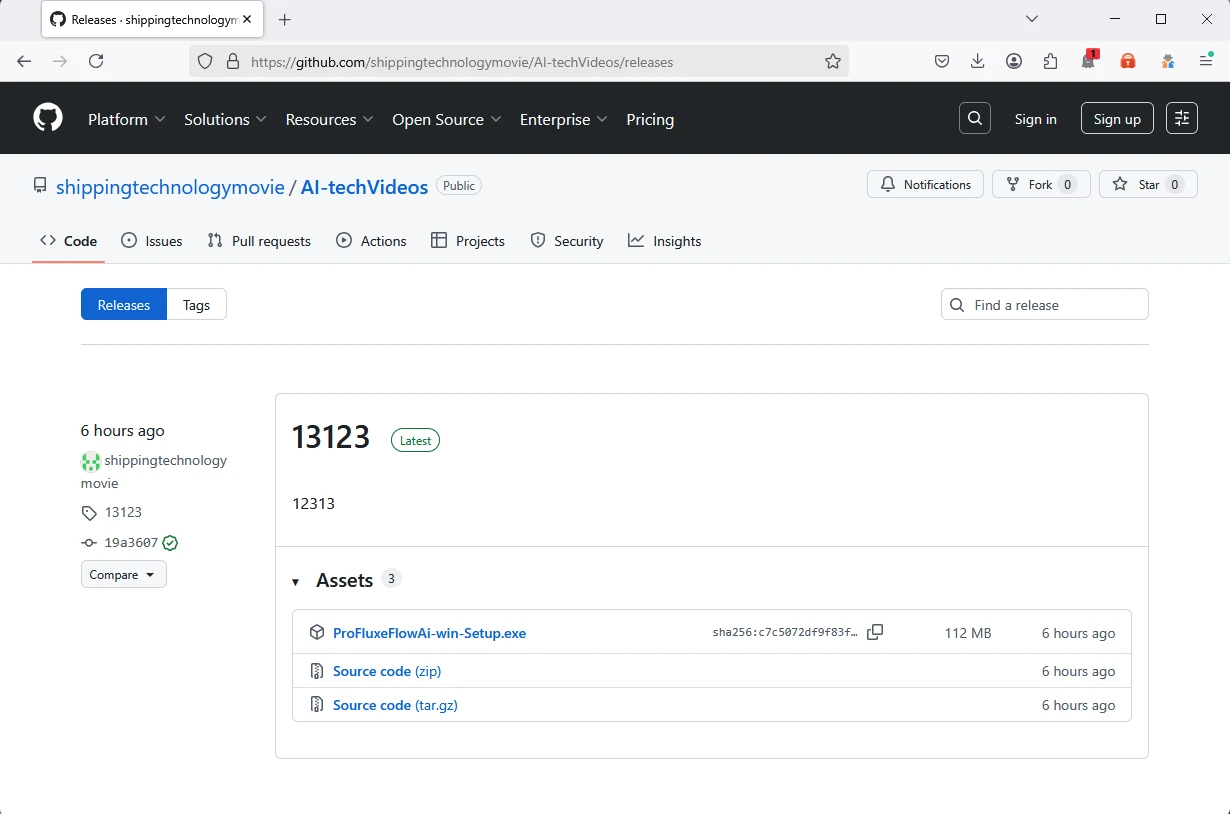
The executable was hosted in a GitHub repository called shippingtechnologymovie/AI-techVideos. GitHub was used as a file host. The repository’s existence did not verify the software, its publisher, or its safety. GitHub later removed the repository after the malicious activity was reported.
- The hook was a streaming-related popup or redirect.
- The promise was a free video helper with an AI-sounding name.
- The delivered object was an executable that had to be run on Windows.
- The file came from a GitHub release belonging to the attacker-controlled chain.
- The observed final payload was Vidar, an information-stealing malware family.
The harm begins only after more than one click
A webpage cannot install this file merely because a visitor sees it. The visitor had to download and launch the executable. Even then, the program displayed a simple “Continue” checkmark and waited for another click before its suspicious behavior began.
That extra step made the attack look more like ordinary setup and could frustrate automated analysis.
Microsoft traced the next stage to a Python-based downloader and then to Vidar. Vidar can steal sensitive data from an infected computer. The specific data exposed depends on the device and what was available to the malware.
A person who only saw the page is in a different position from someone who ran the file.
Microsoft revoked a related code-signing certificate and worked with GitHub to remove the repository. Those interventions matter, but they do not make a similar future popup safe. The offer’s wording, filename, host, and signing certificate can all rotate.
Why a Signed File on GitHub Can Still Be Dangerous
The scam borrowed two kinds of legitimacy that can be persuasive in a hurry. One was GitHub, a familiar place for software releases. The other was a digital signature. Many Windows users have learned that unsigned executables deserve caution, so a signed file may appear to pass an informal safety check.
MalwareTips has also examined counterfeit software download sites that installed Silver Fox malware. That was a different campaign, but it illustrates why the full download path matters more than a familiar-looking page.
Neither signal is a substitute for knowing who published the software and why the software is needed. A stranger can create a GitHub repository. A code-signing certificate says something about a signing process, not that the program’s behavior is benign. In this case, Microsoft said the certificate was fraudulently obtained and later revoked.
The details of the release page also failed the common-sense test. A supposed video plugin appeared in a repository with a generic, movie-themed account name. The download was a large standalone .exe, not a browser extension installed through a browser’s normal store or settings.
A streaming page had no legitimate need to supply a separate AI executable just to play a movie.
Some visitors might have seen a download start automatically. That by itself does not prove execution. Windows generally keeps a downloaded executable inert until someone opens it.
This distinction matters: do not panic because a file appeared in Downloads, but do not open it to see whether it works.
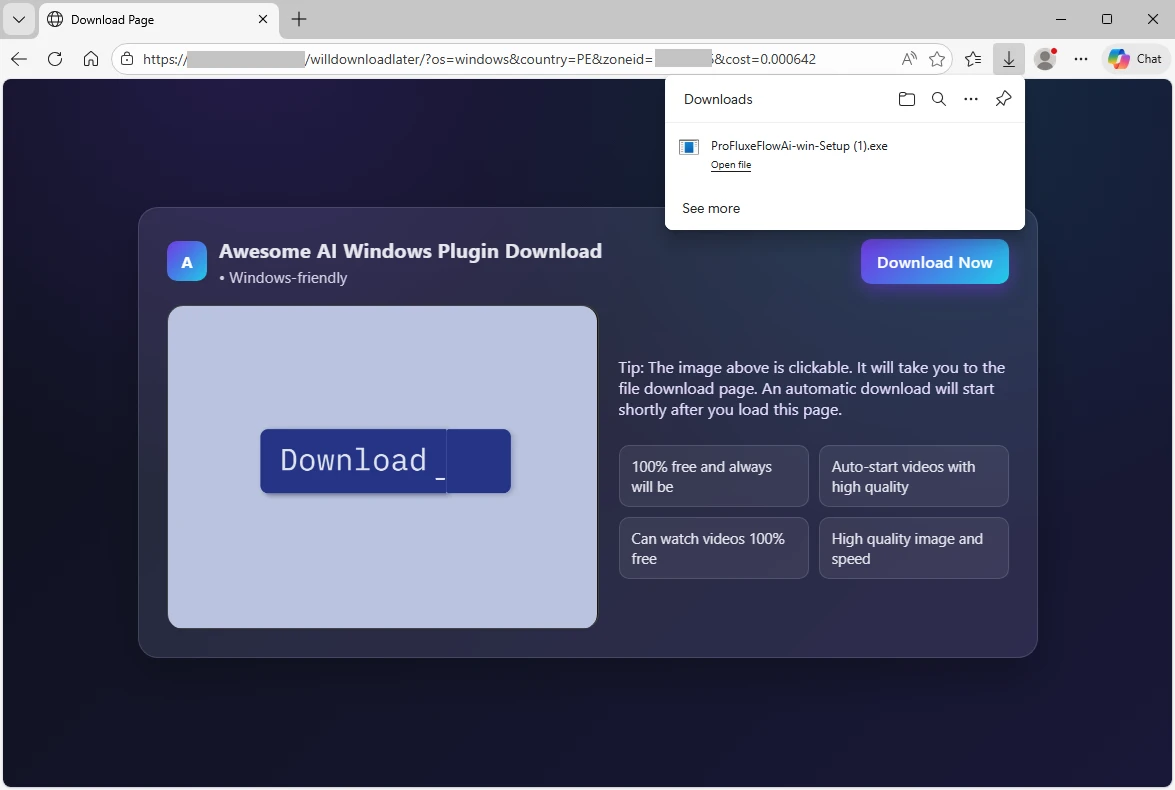
The screenshot above is Microsoft’s capture of the deceptive download page. Notice how the page tries to make the download seem like part of the video experience. It says very little about a real publisher, functionality, or a reason to trust the file. The emotional argument is convenience.
How the Awesome AI Windows Plugin Scam Works
Step 1: A video site creates the interruption
The victim starts on a free movie streaming site or a similar page with ads and embedded player controls. Microsoft assessed that interaction with a player or popup was the likely entry point in the observed chain. The person was not searching for an AI application or asking Windows to install a plugin.
That difference matters. The attacker met the user in the middle of another task. When a popup appears just as a video is meant to begin, the urge to fix playback can beat the urge to research the download.
Step 2: A landing page sells a fictitious helper
The redirect opens a page for the “Awesome AI Windows Plugin.” It promises better access to high-quality video and offers a prominent download button. The language is broad enough to fit many video sites. The page does not explain a verifiable browser feature that requires this specific installer.
The AI phrase is camouflage. AI tools are familiar enough to sound modern, but the term does not explain how this file improves streaming. It makes a vague video fix feel current and perhaps official.
Step 3: GitHub supplies the executable
Clicking the offer retrieves ProFluxeFlowAi-win-Setup.exe from a GitHub-hosted release. The repository name and folder fit the video’s theme. A user who recognizes GitHub may take that as reassurance, although the platform did not certify the file as a playback tool.
The browser’s download panel can make a file look like routine software. It displays a filename and an “Open file” control. It does not tell the reader whether an executable contains a stealer. The dangerous action is opening the file, not merely noticing the download.
Step 4: A signed installer asks for one more click
Microsoft found the executable carried a fraudulently obtained Microsoft-issued signing certificate. That made it appear less suspicious than a plainly unsigned unknown file. After launch, the installer showed a “Continue” checkmark and waited.
This pause was not a necessary video-player setup step. Microsoft assessed it as a way to avoid automated environments that do not click the control. It also gives a person the impression that they are actively completing a normal installation.
Step 5: The program downloads an information stealer
After the user clicked “Continue,” the executable dropped a Python interpreter and script into the user’s local application data folder. The script contacted attacker infrastructure and loaded the next stage. In the example Microsoft analyzed, that payload was Vidar.
Information-stealing malware can seek browser data, saved credentials, session cookies, and other accessible information. Microsoft reported the payload family, not a universal list of every item taken from every device. The appropriate response is to treat an executed installer as a potential compromise until a proper review says otherwise.
Step 6: The names change while the tactic survives
GitHub removed the observed repository, and Microsoft revoked the signing certificate. That closed important pieces of this specific run. But the attacker can change the download URL, create another repository, or market a different “AI” helper.
That is why a search for one filename is only a partial safety measure. The durable warning sign is a video page that pushes an unrelated Windows executable, especially one whose publisher and function cannot be independently verified.
Company, Address, and Fulfillment Checks
The name on the popup was not a publisher
“Awesome AI Windows Plugin” was the pitch shown to visitors, not a verified software publisher. Microsoft called it a fictitious product name. The file name’s resemblance to Flux Pro AI did not make Flux Pro AI responsible for the download.
A real company should not be blamed simply because its name was echoed in a malicious filename.
If a software offer is genuine, there should be a clear publisher, an official download location, a support channel, and documentation explaining why it is needed. The page captured in this case supplied a promise and a button, not that chain of accountability.
The GitHub address identified a host, not an owner
The release was placed in shippingtechnologymovie/AI-techVideos. This is an address within GitHub, not an office, verified vendor account, or manufacturer’s address. The account and repository formed part of the attacker-controlled distribution path. GitHub later took them down.
Typing “github.com” in an address bar does not make every file on the site safe. Open platforms host legitimate projects and malicious uploads alike. Check the project’s verified owner and official product site before treating any release as trustworthy.
There was no legitimate support path to verify
The campaign depended on a quick installation, not a durable customer relationship. Microsoft’s account of the observed landing page did not establish a real support team for the plugin. We found no basis to present a phone number, return address, or customer service contact as part of this scam.
If a similar page offers a support chat, that channel belongs to the page until independently verified. Do not use contact information supplied by the popup to ask whether the popup is safe. Leave the page and consult the software’s actual developer through its official site.
The file’s behavior is the real product trace
The most useful trace here is not a shipping warehouse or refund policy. It is the file path from the landing page to GitHub to the downloaded executable and onward to Vidar. Microsoft documented those stages and named the final payload observed in this run.
That chain is why this is a confirmed malicious campaign, not a complaint about an annoying ad. A fake video helper delivered a stealer. The exact operator behind every upstream ad placement was not publicly named, so the article does not assign guilt to the video site or to a similarly named real AI product.
How to Check a Video Plugin Offer Before Installing Anything
Start with the task you were doing. If you were watching a video, ask why a separate executable is suddenly required. Modern browsers can play common video formats without an unknown AI-branded download. A site may have legitimate playback problems, but the site’s own popup is not an independent diagnosis.
Look for the software on the verified developer’s site, not the popup’s link. Confirm the publisher’s name, documentation, and download path there. If you cannot identify the developer, there is no good reason to run the file merely to finish a movie.
Do not let a signature or GitHub URL substitute for this check. Those can be abused. Compare the repository owner with the official developer’s links. Read the release history, but remember that polished pages and a few commits can be created quickly.
If the browser has already downloaded the executable, leave it unopened. You can remove an unexpected file from Downloads. If you are unsure whether it ran, inspect your download history and ask whether you clicked the operating system’s run or open prompt. A browser download alone is not the same as an infection.
People sometimes search the filename and find no warning. That is not a clean bill of health. Malware names and hashes can change quickly. The important behavioral question is why an unrequested executable was offered during video playback.
What to Do if You Have Fallen Victim to This Scam
- If you only saw the page, close it. Do not press the download button or follow any instruction from the popup. If a file was downloaded automatically but never opened, remove it without launching it.
- If you ran the installer, disconnect the affected Windows device from the internet. This can limit further communication while you arrange a scan and review. Do not use that device to sign in to banking, email, or cryptocurrency services until you understand what ran.
- Scan and investigate. Update and run a full scan with a reputable security product such as Malwarebytes. It can help find and remove known malware, but a clean result does not by itself prove that credentials were never copied. For a work device, involve your IT or security team promptly.
- Change important passwords from a separate, clean device. Begin with your primary email, password manager, bank, and any accounts used in the browser. Revoke active sessions where the service allows it and turn on strong multifactor authentication. Do not merely change passwords on the potentially infected computer.
- Protect funds and identity. If wallets, exchanges, or payment accounts were accessible on the device, review transactions and security settings. Contact the provider immediately about unauthorized activity. Preserve the downloaded filename, timestamp, browser history, and any alert for your records.
- Block repeat exposure. AdGuard can reduce malicious ad and redirect exposure while you browse, but it cannot undo an executed file. Keep browser and operating-system protections enabled and avoid video sites that repeatedly force unrelated downloads.
- Watch for follow-up fraud. Anyone promising guaranteed recovery of stolen credentials or crypto for a fee is another risk. Use official support channels and report the incident to your security team or appropriate authorities.
Frequently Asked Questions
Was Awesome AI Windows Plugin a real video tool?
Microsoft described the product name in this campaign as fictitious. The observed download led to an executable that delivered malware, not a verified browser playback feature.
Does seeing the popup mean my computer was infected?
No. Seeing the page or even receiving a downloaded file is not the same as running it. The highest concern is for people who opened the executable and clicked through its “Continue” prompt.
Was GitHub hacked to host the file?
Microsoft documented an attacker-controlled repository used to host the release. That is not evidence that GitHub itself was compromised. GitHub removed the repository after the report.
Does a digital signature prove the installer was safe?
No. Microsoft said the certificate associated with this executable was fraudulently obtained and later revoked. A signature is not a guarantee of benign behavior.
What if I downloaded the file but never opened it?
Delete the untrusted file without running it. Check your browser download history if you are unsure. If you did open it, follow the stronger response steps above.
Can this scam return under another name?
Yes. The observed repository and certificate were disrupted, but the same tactic can use new ads, filenames, and hosts. Treat any surprise executable from a streaming popup as untrusted.
The Bottom Line
The Awesome AI Windows Plugin scam turned a video interruption into a malware download. The AI name, GitHub release, and signed file were credibility cues around a program Microsoft traced to Vidar.
If you did not run the file, avoid it and move on. If you did, respond as though sensitive browser and account data may be exposed, and use a clean device to secure the accounts that matter most.

Join the discussion
0 commentsShare your experience or ask a question about this article.
Discussion
Start the conversation
Have a question or something useful to share? Add the first comment.