

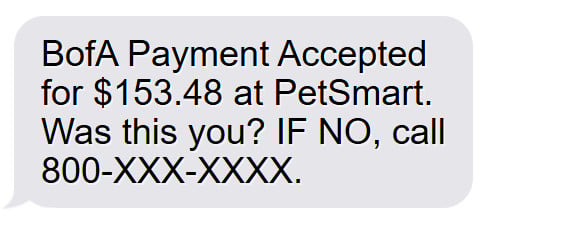
You’re going about your day when a text pops up: “BofA Payment Accepted for $153.48 at PetSmart. Was this you?” It looks legitimate. It even sounds like the real Bank of America (BoA). But here’s the chilling truth: it’s a scam.
These phishing attacks are not just widespread—they’re evolving. In recent years, Bank of America customers have become frequent targets of sophisticated smishing campaigns. These scams mimic real fraud alerts, luring victims into a trap that can compromise their personal data, banking credentials, and more.
If you think you could never fall for it, think again. These scammers are professionals.
Read on to discover how the Bank of America text scam works, how to recognize it, and what you can do if you’ve been caught in their net.
Scam Overview
Bank of America (BoA) is one of the largest financial institutions in the United States, which makes it a prime target for cybercriminals and fraudsters. Among the most effective tools in a scammer’s arsenal today is the phishing text message—known as “smishing” (SMS phishing).
What is the BoA Text Scam?
The BoA text scam is a deceptive technique where scammers send fake messages that appear to come from Bank of America. These messages typically warn of suspicious account activity, declined transactions, or a suspended debit card. The goal is to alarm the recipient into acting quickly without thinking.
Often, these texts include a phone number to call or a link to click. In many cases, the sender’s name may resemble an official BoA department, such as “BofA_Support_Line@comcast.net” or variations like “bofa-alert@haix.it”. The messages may even include legitimate-sounding phrasing such as:
- “(Fraud) Alert: Your BoFA ATM/Debit card has been suspended. Please call 1-800-XXX-XXXX to verify.”
- “BofA Payment Accepted for $153.48 at PetSmart on 04/21. Was this you? IF NO RING 8XX-XXX-XXXX.”
These messages are constructed to mirror actual Bank of America fraud alerts. In fact, they are so convincing that many victims call the number provided, only to be redirected to a fake call center or interactive voice system that imitates BoA’s actual fraud department.
Once victims are hooked, the scam progresses with tactics that further compromise security and drain financial resources.
The Scope of the Scam
This is not a fringe operation. Data from recent investigations have uncovered extensive and coordinated campaigns targeting BoA users across the country:
- 59+ card suspension messages traced to scam campaigns.
- 97+ unique phone numbers used in smishing attempts.
- 254+ spoofed email addresses mimicking legitimate BoA alerts.
- Suspicious domains and email headers, such as those ending in “@comcast.net” or “@haix.it”.
Domains like “b_o_f_a_support_line@comcast.net” are designed to hide behind foreign infrastructure, making them difficult to shut down or trace. These operations often use rotating phone numbers and disposable email addresses to avoid detection.
What’s more alarming is how sophisticated these scam networks have become. Many use automated voice systems and scripted customer service agents who can answer common questions, making it incredibly difficult to distinguish them from actual BoA representatives.
Psychological Manipulation
These scams rely on a sense of urgency and fear. By mimicking the language and formatting of real BoA alerts, they lower the guard of even the most cautious users. Scammers use pressure tactics like immediate suspension of cards or large unauthorized transactions to provoke panic.
Victims are often caught during vulnerable moments—early in the morning, late at night, or when they’re distracted. This timing is strategic. By triggering an emotional response, scammers bypass rational thinking and manipulate victims into compliance.
And once they have your attention, they make you believe that only immediate action will prevent financial disaster. That action, unfortunately, often leads you directly into their trap.
How The Scam Works: Step-by-Step Breakdown
Understanding how this scam unfolds is critical to avoiding it. Below is a detailed step-by-step walkthrough of how these fake BoA text scams are orchestrated.
Step 1: The Setup – Spoofed Message
The scam begins with a text message. It might look like this:
“BofA Payment Accepted for $153.48 at PetSmart. Was this you? IF NO, call 800-XXX-XXXX.”
Or:
“Alert: Your BofA ATM/Debit card has been suspended. Please verify activity immediately by calling 888-XXX-XXXX.”
These messages are often sent from spoofed email addresses like:
- b_o_f_a_support_line@comcast.net
- alerts_bofa@protonmail.com
They may also use caller ID masking techniques to display a name resembling “Bank of America” or “BoFA Security.”
This first message is the bait—crafted to mimic real financial alerts in tone, structure, and content. Many use clever formatting and capitalize on the fear of unauthorized spending or blocked funds.
Step 2: The Hook – Call the Number
Once you call the provided number, you’ll encounter one of two things:
- An Interactive Voice Response (IVR) menu that mimics BoA’s actual fraud hotline.
- A live scammer pretending to be a fraud specialist from Bank of America.
The system may play hold music or even queue messages similar to BoA’s official line. Live scammers are trained to sound reassuring and competent. They might introduce themselves with names, badge numbers, and even offer to “verify” your case ID to build legitimacy.
In both cases, the illusion of legitimacy is strong. These scammers follow detailed, scripted dialogues. Their tone is professional, and the background noise may even simulate a real call center environment.
Step 3: Verification Request – Gathering Information
They’ll begin asking for standard verification details:
- Full name
- Date of birth
- ZIP code
- Last four digits of your Social Security Number
- Full debit or credit card number
- Online banking username
To build further trust, they may even send you a real BoA-style 2FA (two-factor authentication) code to your phone and ask you to read it back. This enables them to bypass your account protections.
Once this information is collected, it’s either used immediately to access your accounts or sold on the dark web to other criminals.
Step 4: The Remote Access Ruse
Once they have initial access, the scam intensifies. The caller will claim your device has been compromised or infected. To “fix” the issue or process a “refund,” they will ask you to:
- Download a remote desktop app such as AnyDesk, TeamViewer, or Zoho Assist.
These tools give the scammer full access to your computer or smartphone.
They walk you through installing the app, adjusting permissions, and even leaving it open for “further diagnostics.” What they’re really doing is preparing to take full control over your digital life.
Step 5: Taking Over
With remote access in place, the scammer now has real-time control over your device. Here’s what happens next:
- They log into your online banking to monitor transactions.
- They install malware or keyloggers to capture passwords.
- They transfer money out or make unauthorized purchases.
- They may change account settings, lock you out, or reroute recovery emails.
In many cases, they will create a scenario where you appear to be refunded too much money. Then they ask you to return the “excess” using:
- Gift cards (Google Play, Apple, Target)
- Zelle or Cash App transfers
You are instructed to purchase gift cards and send the codes immediately, under the guise of reconciling the mistake. Victims have reported losing thousands of dollars through this technique. Some have even been told to go to multiple stores to avoid gift card purchase limits.
Step 6: Vanishing Act
Once the scammers have what they want, the number stops working. Emails bounce back. You’re left locked out of your accounts or out thousands of dollars.
By this point, your personal data may already be in circulation. Many victims face additional fraud attempts days or weeks later, sometimes from different angles like email phishing or fake tech support calls.
What to Do If You’ve Fallen Victim
If you’ve already interacted with a scammer through a BoA text scam, it’s essential to act fast. Here’s a detailed checklist to help you mitigate the damage.
1. Disconnect and Uninstall Remote Tools
If you allowed remote access via AnyDesk, TeamViewer, or similar:
- Immediately disconnect from the internet.
- Uninstall any remote access applications.
- Reboot your device in Safe Mode.
- Revoke access permissions granted to third-party apps.
2. Secure Your Accounts
- Change your Bank of America online banking password immediately.
- Change passwords for any email or social accounts that use the same credentials.
- Enable Two-Factor Authentication (2FA) wherever possible.
- Use a password manager to generate and store secure passwords.
3. Contact Bank of America Fraud Department
Call BoA directly at their official number: 1-800-432-1000
- Report the scam.
- Request a freeze on your account.
- Ask for a new debit/credit card.
- Monitor pending transactions for anything suspicious.
4. Monitor Your Credit and Bank Statements
- Set up fraud alerts with major credit bureaus (Experian, Equifax, TransUnion).
- Consider placing a credit freeze to prevent new accounts from being opened in your name.
- Monitor your statements daily for unauthorized charges.
- Sign up for a credit monitoring service if possible.
5. Report the Scam
- FTC (Federal Trade Commission): https://reportfraud.ftc.gov/
- IC3 (Internet Crime Complaint Center): https://www.ic3.gov/
- Bank of America’s Phishing Email Reporting: abuse@bankofamerica.com
Also report the scam to your local law enforcement agency. If gift cards were purchased, report the codes as stolen to the issuing companies.
6. Scan Your Device
Use reputable antivirus or antimalware software to scan your device.
- Delete suspicious files or software.
- Restore your device from a clean backup if needed.
- Keep your software and operating system updated.
7. Don’t Blame Yourself
These scammers are highly skilled at manipulation. The best thing you can do now is learn from the experience and share it with others to prevent future victims.
Even well-informed individuals can fall for well-crafted scams. Stay vigilant, informed, and proactive about your cybersecurity.
Is Your Device Infected? Run a Free Malware Scan
Slow performance, constant pop-ups, or strange behavior? These are classic signs of a malware infection. The fastest way to find out is to scan your device with Malwarebytes Free — one of the most trusted malware removal tools available.
The free version detects and removes the most common threats, including:
- Adware — the cause of those annoying pop-ups
- Browser hijackers — unwanted redirects and changed homepages
- Trojans and spyware — hidden programs stealing your data
- Potentially unwanted programs (PUPs) — software you never asked for
👉 Select your device below — Windows, Mac, or Android — then follow the simple steps to download Malwarebytes, scan your system, and remove any threats it finds. The scan usually takes 5 to 20 minutes.
Run a Malware Scan with Malwarebytes for Windows
Malwarebytes is one of the most popular and trusted anti-malware tools for Windows — and it’s completely free for removing infections. It catches threats that many antivirus programs miss, including adware, browser hijackers, and trojans. Follow the steps below to scan and clean your PC in just a few minutes.
Download Malwarebytes
Click the button below to download the latest version of Malwarebytes for Windows from the official source. The free version is all you need — it will scan your computer and remove adware, browser hijackers, and other malicious software at no cost.
Download MalwarebytesOfficial installer for Windows 11 and 10. Your download starts right away.Want real-time protection? See Malwarebytes Premium Malwarebytes Free for WindowsScans and removes malware at no cost
-
Install Malwarebytes
When the download finishes, open your Downloads folder and double-click the MBSetup file. If Windows shows a User Account Control pop-up, click “Yes” to allow the installation.

Follow the On-Screen Prompts to Install Malwarebytes
The setup wizard will walk you through a few quick screens:
-
Choose where you’re installing the program — “Personal Computer” or “Work Computer” — then click Next.

-
Malwarebytes will now install on your device. This usually takes under a minute.

-
When installation is complete, the “Welcome to Malwarebytes” screen will open automatically.

-
On the final screen, click Open Malwarebytes to launch the program.

-
Enable “Scan for Rootkits”
Before scanning, turn on rootkit detection so Malwarebytes can find even the most hidden threats. Click the Settings gear icon on the left side of the screen.

In the settings menu, find “Scan for rootkits” and click the toggle so it turns blue.

Done? Click “Dashboard” in the left pane to return to the main screen.
Start the Scan
Click the blue Scan button. Malwarebytes will automatically update its virus database and start checking your computer for malware.

-
Wait for the Scan to Finish
The scan checks your entire system for browser hijackers and other malicious programs, so it can take 5 to 20 minutes depending on your computer. Feel free to do something else — just check back occasionally to see the progress.

-
Quarantine the Detected Threats
When the scan is done, you’ll see a list of everything Malwarebytes found — malware, adware, and potentially unwanted programs. Click the “Quarantine” button to remove all of them at once.

Malwarebytes will now remove the malicious files and registry entries and move them safely into quarantine.

-
Restart Your Computer
Some threats can only be fully removed after a reboot. If Malwarebytes asks you to restart, click Yes. Once you’re logged back in, Malwarebytes has finished removing the threats it found.

That’s it — your Windows PC is now clean of trojans, adware, and other malware, and should be back to running smoothly.
If you are still having problems with your computer after completing these instructions, then please follow one of the steps:
- Run a computer scan with ESET Online Scanner
- Ask for help in our Windows Malware Removal Help & Support forum.
Run a Malware Scan with Malwarebytes for Mac
Malwarebytes for Mac is a free on-demand scanner that removes the malware other security software tends to miss — adware, browser hijackers, and unwanted programs included. Cleaning an infected Mac with Malwarebytes has always been completely free, and it’s our go-to recommendation. Follow the steps below to scan and clean your Mac in just a few minutes.
-
Download Malwarebytes for Mac
Click the button below to download the latest version of Malwarebytes for Mac.
Download MalwarebytesOfficial installer for macOS. Your download starts right away.Want real-time protection? See Malwarebytes PremiumMalwarebytes Free for MacScans and removes malware at no cost -
Open the Malwarebytes setup file
When the download finishes, open your Downloads folder and double-click the setup file to begin the installation.

-
Follow the On-Screen Prompts to Install Malwarebytes
The Malwarebytes for Mac Installer will guide you through a few quick screens. Click “Continue” and keep following the prompts until the installation completes.



When the installation is complete, Malwarebytes opens to the Welcome to Malwarebytes screen. Click “Get started“.
-
Select “Personal Computer” or “Work Computer”
Malwarebytes will ask what type of computer you’re installing it on. Click either Personal Computer or Work Computer, whichever applies.

-
Start the Scan
Click the “Scan” button. Malwarebytes will automatically update its detection database and begin checking your Mac for malware.

-
Wait for the Scan to Finish
Malwarebytes will scan your Mac for adware, browser hijackers, and other malicious programs. This can take a few minutes, so feel free to do something else — just check back occasionally to see the progress.

-
Quarantine the Detected Threats
When the scan is done, you’ll see a list of everything Malwarebytes found. Click the “Quarantine” button to remove all the threats at once.

-
Restart Your Mac
Malwarebytes will now remove all the malicious files it found. Some threats can only be fully removed after a reboot — if Malwarebytes asks you to restart, allow it. Once you’re logged back in, your Mac is clean.

That’s it — your Mac is now free of adware, rogue browser extensions, and other potentially harmful software.
If you are still experiencing problems while trying to remove a malicious program from your computer, please ask for help in our Mac Malware Removal Help & Support forum.
Run a Malware Scan with Malwarebytes for Android
Malwarebytes for Android automatically detects and removes dangerous threats like malware and ransomware so you don’t have to worry about your most-used device being compromised. Aggressive detection of adware and potentially unwanted programs keeps your Android phone or tablet running smooth.
-
Download Malwarebytes for Android.
You can download Malwarebytes for Android by clicking the link below.
Get Malwarebytes for AndroidOpens Google Play in a new tab.Want real-time protection? See Malwarebytes Premium for AndroidMalwarebytes for AndroidScans your phone and removes malware at no cost -
Install Malwarebytes for Android on your phone.
In the Google Play Store, tap “Install” to install Malwarebytes for Android on your device.

When the installation process has finished, tap “Open” to begin using Malwarebytes for Android. You can also open Malwarebytes by tapping on its icon in your phone menu or home screen.

-
Follow the on-screen prompts to complete the setup process
When Malwarebytes will open, you will see the Malwarebytes Setup Wizard which will guide you through a series of permissions and other setup options.
This is the first of two screens that explain the difference between the Premium and Free versions. Swipe this screen to continue.
Tap on “Got it” to proceed to the next step.
Malwarebytes for Android will now ask for a set of permissions that are required to scan your device and protect it from malware. Tap on “Give permission” to continue.
Tap on “Allow” to permit Malwarebytes to access the files on your phone.
-
Update database and run a scan with Malwarebytes for Android
You will now be prompted to update the Malwarebytes database and run a full system scan.

Click on “Update database” to update the Malwarebytes for Android definitions to the latest version, then click on “Run full scan” to perform a system scan.

-
Wait for the Malwarebytes scan to complete.
Malwarebytes will now start scanning your phone for adware and other malicious apps. This process can take a few minutes, so we suggest you do something else and periodically check on the status of the scan to see when it is finished.

-
Click on “Remove Selected”.
When the scan has been completed, you will be presented with a screen showing the malware infections that Malwarebytes for Android has detected. To remove the malicious apps that Malwarebytes has found, tap on the “Remove Selected” button.

-
Restart your phone.
Malwarebytes for Android will now remove all the malicious apps that it has found. To complete the malware removal process, Malwarebytes may ask you to restart your device.
That’s it — your Android phone is now clean — no more malicious apps, adware, or browser redirects.
If you are still having problems with your phone after completing these instructions, then please follow one of the steps:
- Restore your phone to factory settings by going to Settings > General management > Reset > Factory data reset.
- Ask for help in our Mobile Malware Removal Help & Support forum.
Stay Protected: Block Ads and Malicious Sites
Now that your device is clean, keep it that way. Most infections start with a malicious ad or a fake download button — so blocking them at the source is your best defense.
We recommend AdGuard, which blocks malicious ads, phishing pages, and dangerous redirects before they can reach you.
👉 Download AdGuard and browse safely
Frequently Asked Questions (FAQ)
What is the Bank of America text scam?
The Bank of America text scam is a phishing scheme where scammers send fraudulent SMS messages claiming to be from BoA. These messages often reference fake transactions or account suspensions and urge recipients to call a phone number or click a link. The goal is to steal personal information, banking credentials, and gain remote access to devices.
Is Bank of America really sending these texts?
No. These texts do not come from Bank of America. While they are designed to look official, they are part of a smishing campaign operated by scammers. BoA does not send texts from email-based addresses or ask customers to call unverified numbers.
How can I tell if a text from BoA is fake?
Watch for these red flags:
- The message comes from an email domain like “@comcast.net” or “@haix.it.”
- It asks you to call a number not listed on BoA’s official website.
- It includes poor grammar, strange capitalization, or urgent threats.
- It asks for sensitive information like your full SSN, card number, or 2FA code.
What happens if I call the number in the scam text?
You will likely be connected to a scam call center or fake automated system. The scammers will impersonate BoA employees and try to collect your private details or convince you to install remote access software like AnyDesk. This can lead to identity theft and financial loss.
Why do scammers ask for remote access to my device?
They claim your device is compromised or needs to be secured. Once connected, they can:
- Steal banking credentials.
- Transfer funds in real-time.
- Install malware.
- Lock you out of your own accounts.
What should I do if I already responded to a scam message?
Take these steps immediately:
- Disconnect from the internet.
- Uninstall any remote access apps.
- Contact Bank of America directly at 1-800-432-1000.
- Change all affected passwords.
- Report the scam to the FTC and IC3.
- Monitor your bank and credit statements closely.
Can scammers access my BoA account with a 2FA code?
Yes. If you give them the two-factor authentication code sent to your phone, they can bypass security and access your account. Never share 2FA codes with anyone over the phone or through a text message.
Should I report these texts?
Absolutely. Reporting helps authorities track and stop these scams. Forward suspicious messages to Bank of America’s fraud department at abuse@bankofamerica.com, and file a report with the FTC and IC3.
Is it safe to use BoA’s mobile app or website?
Yes, as long as you access it directly through the official app or by typing in the URL (https://www.bankofamerica.com). Avoid clicking on links in unsolicited messages or emails.
Will Bank of America ever ask me to download software?
No. Bank of America will never ask you to download remote desktop tools or give anyone control of your device. If someone claims otherwise, it’s a scam.
The Bottom Line
The Bank of America text scam is a highly organized and convincing fraud operation that preys on fear and urgency. From fake fraud alerts to full-on remote takeovers of your devices, these scams are a growing threat to consumers everywhere.
Always be skeptical of unexpected texts requesting immediate action or personal information. When in doubt, contact your bank directly through official channels. Never trust a number or link from an unsolicited message.
Stay alert, stay informed, and never let urgency override caution. The more you know, the harder it is for scammers to succeed.
If you found this article helpful, share it with friends and family—you could save someone from falling victim to this dangerous scam.

Join the discussion
3 commentsShare your experience or ask a question about this article.
Discussion
This happened to an 80 year old person. B of A’s help-did not bother to talk to this client. the client had only 1 B of A Credit card for over 50 years. No checking, savings or anyother BOA Account. The bank president put him in a room and told him to call the 800 number on the. back of the one credit card he had in his wallet. Many hours over several days were on hold to BOA, and no help. They could not even tell the client the dates they supposedly issued other cards to the client. (he got 4 cards within one week ) He did not ask for any of those cards) so now, he is stuck. BOA after one month ,closed his case, claiming the fraud came from his phone number. The their obtained a second card and got just under 10 Grand off of card one, transferred it to the new card-and is off with this money. So BOA closed the investigation. Reported the fraud to the clients credit reports and the money, back to thge clients account, as now they claim he owes the money. I am sure BOA is aware of this scam using their BOA name and logo. so no help from this worthless bank. We had a personal friend get the texts off of the clients cell phone. We are waiting for the fraud package that BOA used for their investigation. Once we get it, we have to file many reports to different agencies. And as the clock is ticking, try to get help to avoid ruining the clients credit and demanding this debt to be paid by the client. When we called the fraud unit, they could not answer all the questions, like when did they send out the added cards and who requested them. Now as it stands, one can say the client falsely filed a fraud claim and BOD now sees it as the client committed fraud by reporting this. BOA always was bad, this takes it to a new limit. if you see the class action suit filed against BOD for not investigating fraud, this is not news to this bank,
In reply to Dani J
Hi Dani, thank you for sharing this. That sounds like a serious fraud case, especially involving an elderly victim and accounts/cards they say they did not request. Keep pushing for written records from the bank, file police and identity theft reports, and consider complaints with the CFPB and state attorney general.
In reply to Dani J
Hi Dani, thank you for sharing this.
That sounds like a serious fraud and identity-theft situation, especially involving an elderly person and cards they say they never requested. Keep pushing for written records from the bank, file police and identity theft reports, and consider complaints with the CFPB and your state attorney general.