

Imagine seeing an offer that promises up to $750 in rewards just for sharing your shopping feedback about Costco. The site looks clean, professional, and convincing, featuring Costco’s logo and phrases like “Earn up to $750” and “Start Earning.” It even includes fake notifications showing people supposedly receiving cash for their reviews. Sounds like an easy side income opportunity, right? Unfortunately, it’s not.
BulkTester.com is not an official Costco site. It is a scam designed to mislead users into completing affiliate offers and handing over personal information. Victims who think they’re joining a legitimate review program end up sharing sensitive data, signing up for unwanted trials, and wasting time — with no real payout at the end.
This article will walk you through everything you need to know about the BulkTester.com Costco Gift Card Scam — how it works, why it’s dangerous, and how you can protect yourself if you’ve already fallen for it.
Scam Overview
What Is the BulkTester.com Scam?
The BulkTester.com Costco Gift Card Scam is a deceptive website pretending to offer users cash rewards or Costco gift cards in exchange for reviewing Costco products and services. It claims to let you “share your shopping experience” and “get rewarded up to $750.”
On the surface, the site looks legitimate. It uses Costco’s familiar red and blue logo, minimalist design, and persuasive marketing language. It advertises an “easy review process” and “instant approval.” However, the promises made are false. There is no official Costco review program offering such high payouts for feedback.
The real goal of BulkTester.com is to trick users into providing personal details and completing affiliate deals that generate money for the scammers. Once you finish the so-called “deals,” you never receive any compensation or gift cards.
The Appearance of Legitimacy
The scammers behind BulkTester.com understand that appearance builds trust. The site uses a professional design featuring:
- The Costco logo, copied from the real company’s branding.
- Clean white and red color themes associated with Costco’s identity.
- Promises of quick payouts, instant approval, and flexibility.
- Fake testimonials and “verified” pop-ups showing users supposedly earning money (“Ashley from Portland just earned $650 reviewing Costco”).
These design tricks are intended to lower suspicion and make the offer look official.
Why It’s a Scam
There are several reasons why BulkTester.com is clearly fraudulent:
- Unauthorized use of Costco’s logo and name – The site is not affiliated with Costco. Using official trademarks without permission to promote false offers is a violation of intellectual property law.
- No contact or company information – Legitimate survey or feedback platforms include privacy policies, company addresses, and support details. BulkTester.com has none.
- Unrealistic earnings promises – No legitimate company pays hundreds of dollars simply for filling out short surveys.
- Affiliate redirection – Clicking “Start Earning” takes you to a series of third-party “offers” that generate commissions for the scammers.
The False Promise
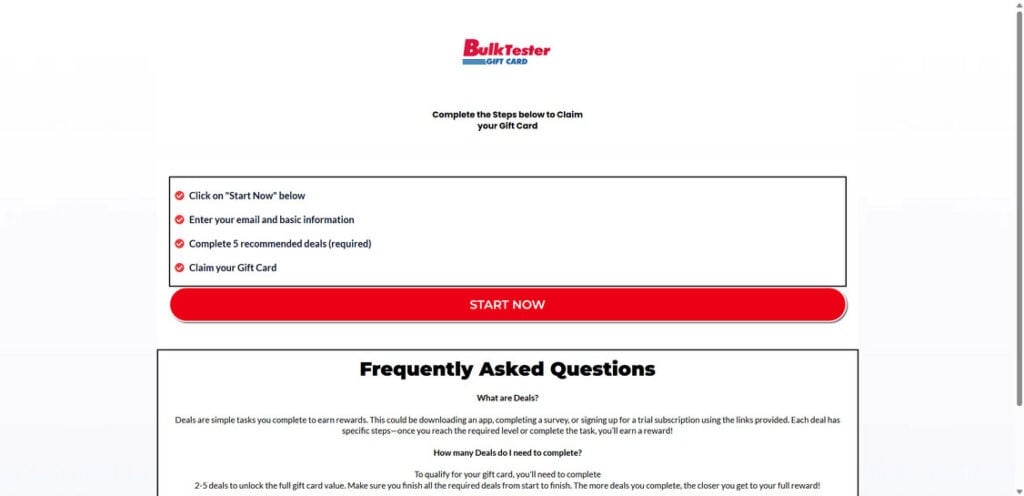
The site claims users can join for free, complete surveys about Costco products, and receive cash or gift cards in return. It highlights three simple steps:
- Sign Up – Join the supposed “Costco review program.”
- Share Feedback – Complete simple surveys about Costco shopping experiences.
- Get Paid – Earn up to $750 for your opinions.
These steps are fictional. No matter how many surveys or tasks you complete, no money or gift card will ever be sent. Instead, your information is harvested for marketing purposes, and the scammers earn affiliate commissions from your clicks and sign-ups.
How It Hooks Victims
The site preys on users by combining psychological manipulation and familiarity. The use of Costco’s logo builds instant trust, while the promise of easy money triggers curiosity and excitement. People often think, “It’s Costco, so it must be real,” and act quickly without verifying.
This emotional appeal is amplified by false urgency — fake notifications claiming others are earning money, or “limited offer” warnings. Once users click through, they’re caught in the scammers’ web.
The Real Objective
The main objective of BulkTester.com is to collect personal data and generate affiliate revenue. When you complete tasks like downloading an app, signing up for a trial, or entering your details for “verification,” the scammers profit.
Each completed offer triggers a commission payout for them. The scam’s success depends on volume — the more people who sign up and complete offers, the more money they make.
Victim Experiences
Users who fall for the scam often report:
- Receiving endless spam emails and texts from unfamiliar sources.
- Being billed for “free trials” that converted into paid subscriptions.
- Never receiving any payment or gift card.
- Having difficulty unsubscribing or deleting their data.
The scam can also lead to data privacy risks, as personal information may be sold to data brokers or shared with other scam networks.
If you come across BulkTester.com or similar sites, know that they are not authorized or verified by Costco.
How the Scam Works
To understand the full mechanics of the BulkTester.com Costco Gift Card Scam, let’s break it down step by step.
Step 1: The Hook – Online Ads and Emails
The scam starts when users encounter an ad on social media or through an email. These ads often read:
- “Get paid $750 to review Costco products!”
- “Exclusive Costco review program — join now!”
- “Ashley from Portland just earned $650 reviewing Costco!”
The ads feature Costco’s logo and promise easy cash rewards. They may appear on Facebook, Instagram, YouTube, or even in spam emails.
Step 2: Redirection to BulkTester.com
When users click the ad, they are redirected to BulkTester.com. The website is well-designed and gives the impression of a professional survey platform. The top of the page says:
“Share Your Shopping Experience. Join our exclusive feedback program and earn up to $750.”
The page includes buttons like “Start Earning” and sections labeled “Why Join Our Program?” which list fake benefits like flexible timing and easy approval.
Step 3: Collecting Personal Information
Once users click “Start Earning,” they’re asked to fill in personal details such as:
- Full name
- Email address
- Phone number
- ZIP code
This information is stored and used to target victims with spam and additional scams. It may also be sold to data brokers who specialize in email marketing lists.
Step 4: The “Offers” or “Deals” Stage
After providing personal information, the user is told to complete 2–5 “offers” to qualify for their payment. These offers usually involve:
- Signing up for “free trials” of subscription services.
- Downloading mobile apps.
- Completing third-party surveys.
- Providing payment details for trial memberships.
Each completed offer earns the scam operators a small affiliate commission — often a few dollars per user.
Step 5: Fake Progress Indicators
Throughout the process, the website uses fake progress bars and messages like “Step 2 of 3 completed” or “You’re almost done!” to keep users engaged. This illusion of progress encourages users to continue completing more offers.
Step 6: Hidden Costs
Victims who enter payment details for free trials often find unexpected charges on their bank statements. Many of these subscriptions automatically renew after a short trial period. Canceling them can be complicated, and scammers rely on this confusion to maximize profits.
Step 7: No Payout, No Contact
Once the user completes all offers, they’re shown a vague message like “Thank you for joining our program” or “Your submission has been received.” No gift card or payment ever arrives. There is no customer support or valid contact information.
Step 8: Monetizing Your Data
Afterward, the scammers continue to profit by selling the collected data. Victims’ emails and phone numbers are distributed to advertising networks, spam marketers, and sometimes other fraudulent websites.
Step 9: Recycling the Scam
When BulkTester.com starts gaining negative attention, the scammers abandon it and launch a new domain, often with a similar layout. These clone sites may use other brand names such as Walmart, Target, or Amazon, promising similar fake rewards.
Step 10: Expanding the Network
The scam is part of a broader ecosystem of fraudulent “reward” programs. Operators often manage dozens of identical sites, each targeting a different retailer. Their goal is to maintain a steady flow of traffic and profit before each site is shut down.
What to Do If You Have Fallen Victim to the BulkTester.com Scam
If you’ve already entered your details, signed up for offers, or provided payment information, don’t panic — but act quickly. Here’s what you should do to protect yourself.
1. Stop Using the Website Immediately
Close the page and do not complete any additional offers. Avoid clicking links in any follow-up emails.
2. Change Your Passwords
If you used the same email-password combination on other accounts, change them all. Use strong, unique passwords and enable two-factor authentication where possible.
3. Monitor Your Bank and Credit Card Statements
Check your recent transactions for unfamiliar or recurring charges. If you see any unauthorized payments, contact your bank or card provider to dispute them and cancel the affected card.
4. Cancel Any Subscriptions You Signed Up For
If you joined any “free trials” through the scam, locate those services and cancel them immediately. Look for confirmation emails from third-party providers to find contact details.
5. Run a Full Security Scan
If you downloaded any apps or attachments as part of the scam, scan your device using reliable antivirus or anti-malware software.
6. Report the Scam
Help stop the spread by reporting the scam to the following agencies:
- Federal Trade Commission (FTC): reportfraud.ftc.gov
- Internet Crime Complaint Center (IC3): ic3.gov
- Better Business Bureau (BBB): bbb.org/scamtracker
- Costco’s official customer service: to report unauthorized use of their branding.
7. Block and Mark Spam Emails
If you start receiving promotional or suspicious emails, mark them as spam. Do not click any links or open attachments from unfamiliar senders.
8. Consider Identity Protection
If you entered sensitive information such as your address or payment details, consider enrolling in identity theft monitoring. This can alert you if your data is misused.
9. Educate Friends and Family
Warn others about the scam. Sharing your experience can help others avoid falling into the same trap.
10. Stay Vigilant for Similar Sites
Scammers often reuse the same design under different names. Be cautious with any website offering gift cards or cash in exchange for surveys or reviews.
Is Your Device Infected? Run a Free Malware Scan
Slow performance, constant pop-ups, or strange behavior? These are classic signs of a malware infection. The fastest way to find out is to scan your device with Malwarebytes Free — one of the most trusted malware removal tools available.
The free version detects and removes the most common threats, including:
- Adware — the cause of those annoying pop-ups
- Browser hijackers — unwanted redirects and changed homepages
- Trojans and spyware — hidden programs stealing your data
- Potentially unwanted programs (PUPs) — software you never asked for
👉 Select your device below — Windows, Mac, or Android — then follow the simple steps to download Malwarebytes, scan your system, and remove any threats it finds. The scan usually takes 5 to 20 minutes.
Run a Malware Scan with Malwarebytes for Windows
Malwarebytes is one of the most popular and trusted anti-malware tools for Windows — and it’s completely free for removing infections. It catches threats that many antivirus programs miss, including adware, browser hijackers, and trojans. Follow the steps below to scan and clean your PC in just a few minutes.
Download Malwarebytes
Click the button below to download the latest version of Malwarebytes for Windows from the official source. The free version is all you need — it will scan your computer and remove adware, browser hijackers, and other malicious software at no cost.
Download MalwarebytesOfficial installer for Windows 11 and 10. Your download starts right away.Want real-time protection? See Malwarebytes Premium Malwarebytes Free for WindowsScans and removes malware at no cost
-
Install Malwarebytes
When the download finishes, open your Downloads folder and double-click the MBSetup file. If Windows shows a User Account Control pop-up, click “Yes” to allow the installation.

Follow the On-Screen Prompts to Install Malwarebytes
The setup wizard will walk you through a few quick screens:
-
Choose where you’re installing the program — “Personal Computer” or “Work Computer” — then click Next.

-
Malwarebytes will now install on your device. This usually takes under a minute.

-
When installation is complete, the “Welcome to Malwarebytes” screen will open automatically.

-
On the final screen, click Open Malwarebytes to launch the program.

-
Enable “Scan for Rootkits”
Before scanning, turn on rootkit detection so Malwarebytes can find even the most hidden threats. Click the Settings gear icon on the left side of the screen.

In the settings menu, find “Scan for rootkits” and click the toggle so it turns blue.

Done? Click “Dashboard” in the left pane to return to the main screen.
Start the Scan
Click the blue Scan button. Malwarebytes will automatically update its virus database and start checking your computer for malware.

-
Wait for the Scan to Finish
The scan checks your entire system for browser hijackers and other malicious programs, so it can take 5 to 20 minutes depending on your computer. Feel free to do something else — just check back occasionally to see the progress.

-
Quarantine the Detected Threats
When the scan is done, you’ll see a list of everything Malwarebytes found — malware, adware, and potentially unwanted programs. Click the “Quarantine” button to remove all of them at once.

Malwarebytes will now remove the malicious files and registry entries and move them safely into quarantine.

-
Restart Your Computer
Some threats can only be fully removed after a reboot. If Malwarebytes asks you to restart, click Yes. Once you’re logged back in, Malwarebytes has finished removing the threats it found.

That’s it — your Windows PC is now clean of trojans, adware, and other malware, and should be back to running smoothly.
If you are still having problems with your computer after completing these instructions, then please follow one of the steps:
- Run a computer scan with ESET Online Scanner
- Ask for help in our Windows Malware Removal Help & Support forum.
Run a Malware Scan with Malwarebytes for Mac
Malwarebytes for Mac is a free on-demand scanner that removes the malware other security software tends to miss — adware, browser hijackers, and unwanted programs included. Cleaning an infected Mac with Malwarebytes has always been completely free, and it’s our go-to recommendation. Follow the steps below to scan and clean your Mac in just a few minutes.
-
Download Malwarebytes for Mac
Click the button below to download the latest version of Malwarebytes for Mac.
Download MalwarebytesOfficial installer for macOS. Your download starts right away.Want real-time protection? See Malwarebytes PremiumMalwarebytes Free for MacScans and removes malware at no cost -
Open the Malwarebytes setup file
When the download finishes, open your Downloads folder and double-click the setup file to begin the installation.

-
Follow the On-Screen Prompts to Install Malwarebytes
The Malwarebytes for Mac Installer will guide you through a few quick screens. Click “Continue” and keep following the prompts until the installation completes.



When the installation is complete, Malwarebytes opens to the Welcome to Malwarebytes screen. Click “Get started“.
-
Select “Personal Computer” or “Work Computer”
Malwarebytes will ask what type of computer you’re installing it on. Click either Personal Computer or Work Computer, whichever applies.

-
Start the Scan
Click the “Scan” button. Malwarebytes will automatically update its detection database and begin checking your Mac for malware.

-
Wait for the Scan to Finish
Malwarebytes will scan your Mac for adware, browser hijackers, and other malicious programs. This can take a few minutes, so feel free to do something else — just check back occasionally to see the progress.

-
Quarantine the Detected Threats
When the scan is done, you’ll see a list of everything Malwarebytes found. Click the “Quarantine” button to remove all the threats at once.

-
Restart Your Mac
Malwarebytes will now remove all the malicious files it found. Some threats can only be fully removed after a reboot — if Malwarebytes asks you to restart, allow it. Once you’re logged back in, your Mac is clean.

That’s it — your Mac is now free of adware, rogue browser extensions, and other potentially harmful software.
If you are still experiencing problems while trying to remove a malicious program from your computer, please ask for help in our Mac Malware Removal Help & Support forum.
Run a Malware Scan with Malwarebytes for Android
Malwarebytes for Android automatically detects and removes dangerous threats like malware and ransomware so you don’t have to worry about your most-used device being compromised. Aggressive detection of adware and potentially unwanted programs keeps your Android phone or tablet running smooth.
-
Download Malwarebytes for Android.
You can download Malwarebytes for Android by clicking the link below.
Get Malwarebytes for AndroidOpens Google Play in a new tab.Want real-time protection? See Malwarebytes Premium for AndroidMalwarebytes for AndroidScans your phone and removes malware at no cost -
Install Malwarebytes for Android on your phone.
In the Google Play Store, tap “Install” to install Malwarebytes for Android on your device.

When the installation process has finished, tap “Open” to begin using Malwarebytes for Android. You can also open Malwarebytes by tapping on its icon in your phone menu or home screen.

-
Follow the on-screen prompts to complete the setup process
When Malwarebytes will open, you will see the Malwarebytes Setup Wizard which will guide you through a series of permissions and other setup options.
This is the first of two screens that explain the difference between the Premium and Free versions. Swipe this screen to continue.
Tap on “Got it” to proceed to the next step.
Malwarebytes for Android will now ask for a set of permissions that are required to scan your device and protect it from malware. Tap on “Give permission” to continue.
Tap on “Allow” to permit Malwarebytes to access the files on your phone.
-
Update database and run a scan with Malwarebytes for Android
You will now be prompted to update the Malwarebytes database and run a full system scan.

Click on “Update database” to update the Malwarebytes for Android definitions to the latest version, then click on “Run full scan” to perform a system scan.

-
Wait for the Malwarebytes scan to complete.
Malwarebytes will now start scanning your phone for adware and other malicious apps. This process can take a few minutes, so we suggest you do something else and periodically check on the status of the scan to see when it is finished.

-
Click on “Remove Selected”.
When the scan has been completed, you will be presented with a screen showing the malware infections that Malwarebytes for Android has detected. To remove the malicious apps that Malwarebytes has found, tap on the “Remove Selected” button.

-
Restart your phone.
Malwarebytes for Android will now remove all the malicious apps that it has found. To complete the malware removal process, Malwarebytes may ask you to restart your device.
That’s it — your Android phone is now clean — no more malicious apps, adware, or browser redirects.
If you are still having problems with your phone after completing these instructions, then please follow one of the steps:
- Restore your phone to factory settings by going to Settings > General management > Reset > Factory data reset.
- Ask for help in our Mobile Malware Removal Help & Support forum.
Stay Protected: Block Ads and Malicious Sites
Now that your device is clean, keep it that way. Most infections start with a malicious ad or a fake download button — so blocking them at the source is your best defense.
We recommend AdGuard, which blocks malicious ads, phishing pages, and dangerous redirects before they can reach you.
👉 Download AdGuard and browse safely
Frequently Asked Questions
What is the BulkTester.com Costco Gift Card Scam?
The BulkTester.com Costco Gift Card Scam is a fake promotion pretending to pay users up to $750 for reviewing Costco products and shopping experiences. The website claims that participants can “share feedback” and receive cash or gift cards as rewards. However, the offer is entirely false. BulkTester.com is not affiliated with Costco and does not distribute any real gift cards or payments. Instead, it collects personal information and directs users to affiliate “deals” that generate revenue for the scammers behind the site. Victims never receive any compensation, only spam messages, and sometimes unauthorized charges from unrelated subscriptions.
Is BulkTester.com officially connected to Costco?
No. BulkTester.com has no connection to Costco or any legitimate feedback program. The scammers use Costco’s logo, colors, and branding without permission to make the site appear authentic. Costco has confirmed through official channels that it does not run or endorse any review-for-payment programs hosted on third-party websites. The use of Costco’s name is unauthorized, and any offers claiming to pay users for reviews should be considered fraudulent. Always verify promotions directly through the official Costco website, not through external domains like BulkTester.com.
How does the BulkTester.com scam work?
The scam operates using deceptive marketing tactics and affiliate manipulation. Here’s how it typically works:
- Users see an ad on social media promising up to $750 for reviewing Costco products.
- Clicking the ad redirects them to BulkTester.com, which imitates Costco’s branding and layout.
- The site asks users to enter personal information such as names, emails, and phone numbers.
- Participants are told to complete 2–5 “offers” or “deals” to qualify for their reward.
- These offers include signing up for trials, downloading apps, or completing surveys.
- Every time a user completes a deal, the scammers earn an affiliate commission.
- No real gift card or cash payment is ever delivered, even after completing all the steps.
The real purpose of the site is to harvest user data and make money from affiliate marketing networks.
Why is BulkTester.com considered a scam?
BulkTester.com is a scam because it deceives users through false promises and unauthorized brand usage. It promotes a non-existent reward program, uses Costco’s name to gain credibility, and manipulates people into completing affiliate offers. The site has no legitimate payout system, no customer support, and no verifiable contact information. It violates basic transparency and consumer protection standards. Victims report losing time, privacy, and sometimes money through hidden charges on the so-called “free trials.”
What are the red flags that show BulkTester.com is fake?
Several warning signs indicate that BulkTester.com is fraudulent:
- The website domain does not belong to Costco.
- The site lacks a clear privacy policy or company information.
- Unrealistic promises of earning $750 for short reviews.
- Fake testimonials and pop-ups showing people supposedly earning money.
- Generic design template reused across other known scam websites.
- Affiliate tracking links that redirect users through external networks.
- No evidence or documentation of any real payments made to users.
If you notice these signs, it’s best to leave the website immediately.
What happens if I sign up on BulkTester.com?
If you sign up on BulkTester.com, your information becomes part of the scammers’ data pool. After providing your email, phone number, or ZIP code, you will likely start receiving:
- Spam emails promoting unrelated services.
- Text messages about fake offers or giveaways.
- Phone calls from telemarketers or scam agents.
If you completed any deals or entered payment information, you might also face hidden subscription charges. The site’s operators profit from the data they collect and from the affiliate deals you complete.
Can BulkTester.com steal my personal or financial information?
Yes, BulkTester.com can misuse the information you share. By entering your personal details, you allow scammers to sell or distribute your data to advertisers and other fraudulent networks. If you provided credit card information for “verification” or “free trials,” there’s a risk of unauthorized charges appearing later. These charges are often tied to third-party subscriptions that renew automatically. Always monitor your accounts closely if you’ve interacted with the site.
Why do scammers use Costco’s name and logo?
Scammers use Costco’s name, logo, and red-and-blue color scheme to build instant trust and credibility. Costco is a well-known and respected retailer, so many users assume the offer is real simply because the branding looks official. This tactic, known as brand impersonation, is one of the most common elements in online scams. By mimicking a legitimate brand, scammers lower suspicion and increase the number of victims who will click through and provide personal information.
What should I do if I entered my information on BulkTester.com?
If you entered any personal or payment information, take the following steps immediately:
- Stop interacting with the website and close it.
- Change your passwords for any accounts associated with the same email address.
- Monitor your bank and credit card statements for suspicious transactions.
- Cancel any free trials or subscriptions you may have signed up for.
- Run an antivirus scan on your device if you downloaded any apps from the site.
- Report the scam to the Federal Trade Commission (FTC) and other relevant authorities.
- Block spam emails or texts that result from submitting your information.
Acting quickly can minimize the risk of identity theft or financial loss.
Will I ever receive the $750 from BulkTester.com?
No, you will not receive any real money or gift card from BulkTester.com. The entire offer is fabricated. Victims who complete every required “deal” or “survey” never get paid. Instead, they receive vague confirmation messages like “Your submission has been received” or “Thank you for joining our program.” These messages serve only to close the loop and prevent complaints.
How can I report the BulkTester.com Costco Gift Card Scam?
You can report the scam to the following organizations to help stop its spread:
- Federal Trade Commission (FTC): reportfraud.ftc.gov
- Internet Crime Complaint Center (IC3): ic3.gov
- Better Business Bureau (BBB): bbb.org/scamtracker
- Costco’s official customer service: to alert them about brand misuse.
Provide as much detail as possible, including screenshots, emails, and website links.
What should I do if I gave BulkTester.com my credit card information?
If you provided credit card or banking details, take these actions immediately:
- Contact your bank or card issuer and explain that you may have fallen victim to a scam.
- Request to cancel the card and issue a replacement.
- Dispute any suspicious charges and ask for a refund where possible.
- Enable transaction alerts to monitor your account in real time.
- Avoid using your card on unfamiliar or unverified websites in the future.
Are there other websites like BulkTester.com?
Yes. The same scammers often create multiple websites with identical designs and offers, just changing the brand name. Similar scams have impersonated major retailers like Target, Walmart, and Amazon. These clone sites all use the same model: promise a reward, collect data, redirect through affiliate links, and disappear after a few months.
What are affiliate scams and how are they related to this one?
Affiliate scams misuse legitimate marketing systems to deceive users. In a normal affiliate program, a marketer earns a small commission when they refer real customers to genuine products. Scammers twist this model by creating fake offers like BulkTester.com, which lead people through affiliate links. Each completed “deal” pays the scammer a commission, even though the user gains nothing. This unethical practice is how these scams make money at scale.
How can I avoid scams like BulkTester.com in the future?
Here are practical steps to protect yourself from similar scams:
- Only trust offers hosted on the official brand website.
- Avoid sites that promise large rewards for minimal effort.
- Look for HTTPS security and verifiable contact information.
- Never enter payment details on unverified websites.
- Check online reviews or scam reports before signing up.
- Be cautious with social media ads that use well-known brand names.
- Use spam filters and antivirus software to block malicious links.
The Bottom Line
The BulkTester.com Costco Gift Card Scam is another example of how scammers exploit trusted brands and people’s desire for easy rewards. It looks legitimate, uses Costco’s name and logo, and promises effortless earnings. But in truth, it’s an affiliate and data-harvesting scheme that profits at your expense.
No real Costco program pays users hundreds of dollars for reviewing products. If you come across offers like BulkTester.com, remember: legitimate companies never ask you to complete “deals” or enter personal payment details for a reward.
Stay cautious, verify every opportunity through official websites, and protect your personal data. Awareness is your best defense against online scams like this one.








