


If a new monitor still feels choppy, check which refresh rate Windows is sending to it before changing anything in your games or apps.
Refresh rate is how many times per second the display updates. A higher number can make motion look smoother, but it depends on the display and connection.
Choose a supported refresh rate for the right display
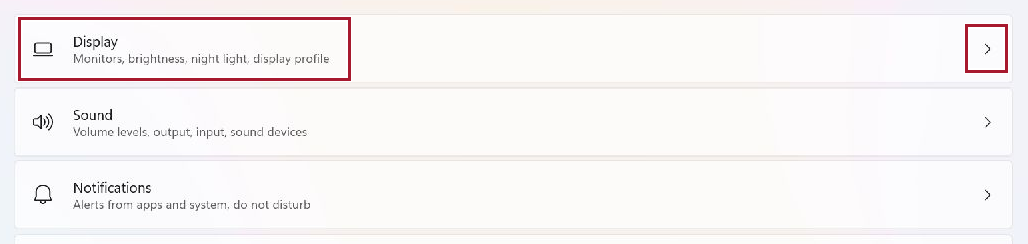
Step 1: Open Display in System settings
Open Settings with Windows + I, select System, and then open Display. If several monitors are connected, use Identify when available to match screen numbers.
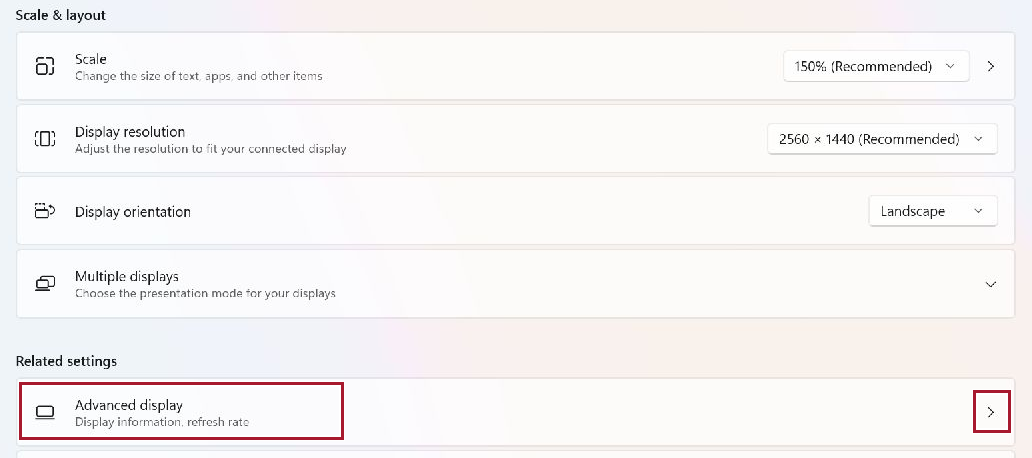
Step 2: Open Advanced display
Scroll past Scale & layout and select Advanced display under Related settings. This page shows the current resolution and refresh rate for the selected screen.
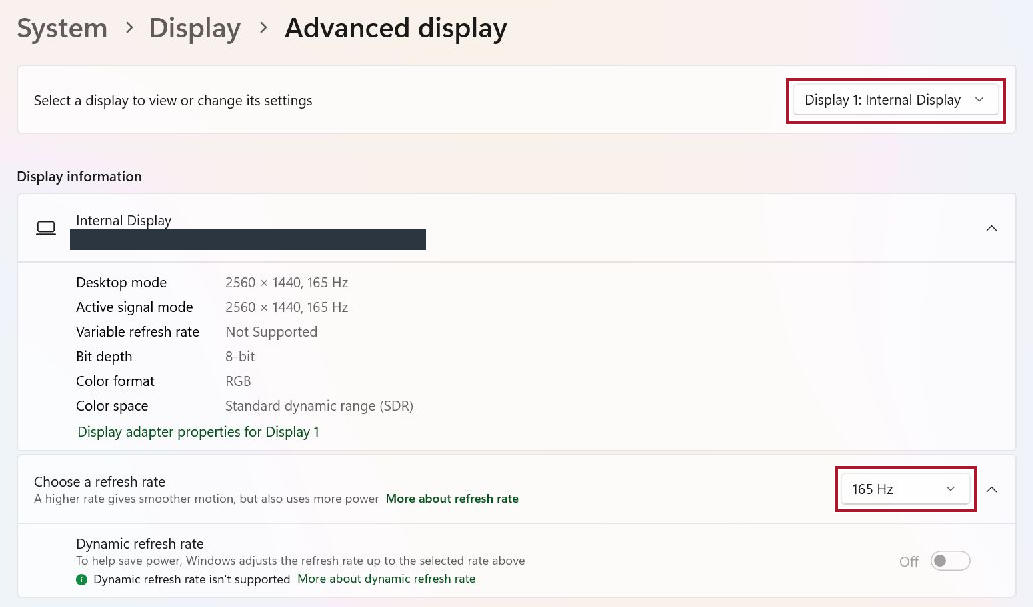
Step 3: Select the monitor and choose a rate
Check the display selector at the top. In Choose a refresh rate, pick a supported rate and confirm only if the picture looks correct.
An asterisk next to a rate means it does not support the current resolution. Choose an unmarked rate if you want to keep that resolution.
If the expected rate is missing
First check that you are editing the intended monitor. The available rates also depend on resolution, the monitor and the connection, including any cable, adapter or dock.
If the picture disappears after a change and Windows offers a timed confirmation, let it revert instead of confirming blindly. Recheck the chosen rate under Display information.
Microsoft’s Windows instructions cover the controls and supported options.

Join the discussion
0 commentsShare your experience or ask a question about this article.
Discussion
Start the conversation
Have a question or something useful to share? Add the first comment.