


An app can ask for access to your location, photos, microphone, or contacts without needing it for everything you do. The useful question is which specific feature needs that access.
Review granted permissions alongside the activity your device shows. Then narrow one permission at a time and test the feature you actually want to keep.

Overview
A permission describes what an app can request or access
Permission screens show the access you’ve allowed under the phone’s rules. An enabled setting doesn’t establish that the app used the data at any particular time.
Permission alone does not establish that the app used it.
If you previously shared a file or let an app upload information, changing its permission doesn’t necessarily remove the copy it already received.
Start with the data you care about and the job the app does for you. A reasonable choice for a navigation app is not necessarily appropriate for a coupon app.
Recent use gives you a different kind of information
Some phones provide a history of sensitive access, such as when an app used your camera or location. Compare the time with what you were actually doing.
A recent microphone entry may make sense immediately after recording a voice note.
An entry you can’t explain is a reason to review the app and settings, not automatic proof of spying.
The history has a limited window and may only collect some kinds of events. Don’t treat an empty report as a complete audit of what an app has ever done.
Keep the useful feature and narrow its access first
Allowing less access can be more practical than removing an app you still need. Which options appear depends on the app, the permission, and the phone’s software.
Use this distinction when reviewing a request:
- For one photo upload, check whether you can select the intended image instead of opening the entire library.
- For a local weather estimate, check whether a manually selected city or approximate location is enough.
- For a camera or microphone feature, grant access when you use that feature if the phone offers that choice.
- For a necessary work or accessibility feature, confirm how it works before changing the permission it depends on.
Start With Features Rather Than a List of Apps
Write down the activity you want to allow
Pick one app whose access you want to review, then name one real function you use.
For example, you might use a messaging app for voice notes but not for live location.
Check the permissions connected to both activities. You may be able to keep the microphone available when you record without giving an unrelated location feature broader access.
If you are unsure why the app wants something, leave the request pending or deny it for now.
Try the normal task and see whether the limitation actually affects the feature.
Consider different ways to do the same job
A shopping app may offer delivery estimates with a postal code rather than precise device location. Check whether you can enter the information needed for the estimate yourself.
If a store app offers a photo upload, choose the relevant image with a supported system selection control.
Don’t give the app the rest of your library merely to attach one file.
An event app might let you add a single appointment without reading existing appointments. Look for an option that fits that outcome instead of granting access to your entire calendar.
Check the circumstances under which the app needs access
Some navigation and fitness features expect to keep working after the screen is locked.
Read what the app says it needs, and test a safer setting before limiting a feature you depend on.
Check whether the goal is proximity, exact position, live tracking, or a reminder based on an area.
Only some uses need precise location, and not all need it in the background.
For a medical alert, safety tool, or accessibility service you rely on, don’t interrupt a working setup without an alternative.
Consult the app’s official support or the person who manages it.
Review App Access on an iPhone
Inspect one category from Privacy & Security
Open Settings > Privacy & Security and choose the category, such as Camera or Microphone. Use its list to check which apps have permission before changing any individual switch.
The graphic below shows where to start on each platform. Use the setting for your app or category, not a switch that cuts access for every app at once.
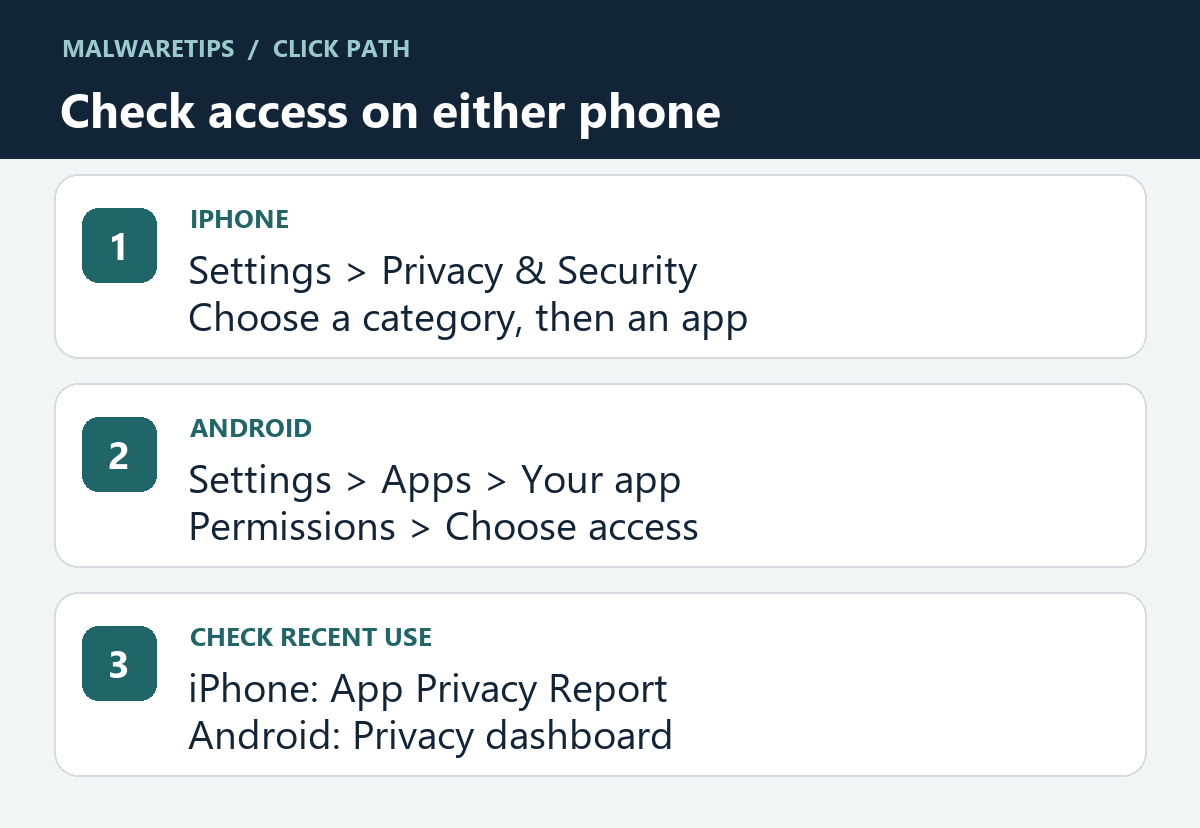
Start with a category that matters to you, such as photos or contacts. Decide whether you still use the feature before changing the setting for an app in the list.
The available controls aren’t identical for every category. If the app offers a limited selection or a narrower option, select it and test the feature before extending the access again.
Try a precise-versus-approximate comparison
Apple offers per-app location controls on supported systems. Where you see a precise-location setting, consider whether the feature works with approximate information before granting more detail.
Open the app to the feature you wanted and see whether the result remains useful.
For turn-by-turn navigation, the setting you prefer may differ from the one you choose for weather.
If you grant location to make one task work, review whether that choice makes sense afterward. Don’t extend it to an app simply because the message uses urgent language.
Read the App Privacy Report in context
Open Settings > Privacy & Security > App Privacy Report, then tap Turn On App Privacy Report. Use the app normally, then reopen the report and review Data & Sensor Access.
Apple’s privacy report example shows access entries and a separate network section. Compare an entry’s time with your action, then tap it for detail.
The report starts collecting after activation. An empty screen immediately afterward is expected, and turning the report off deletes the history stored for it.
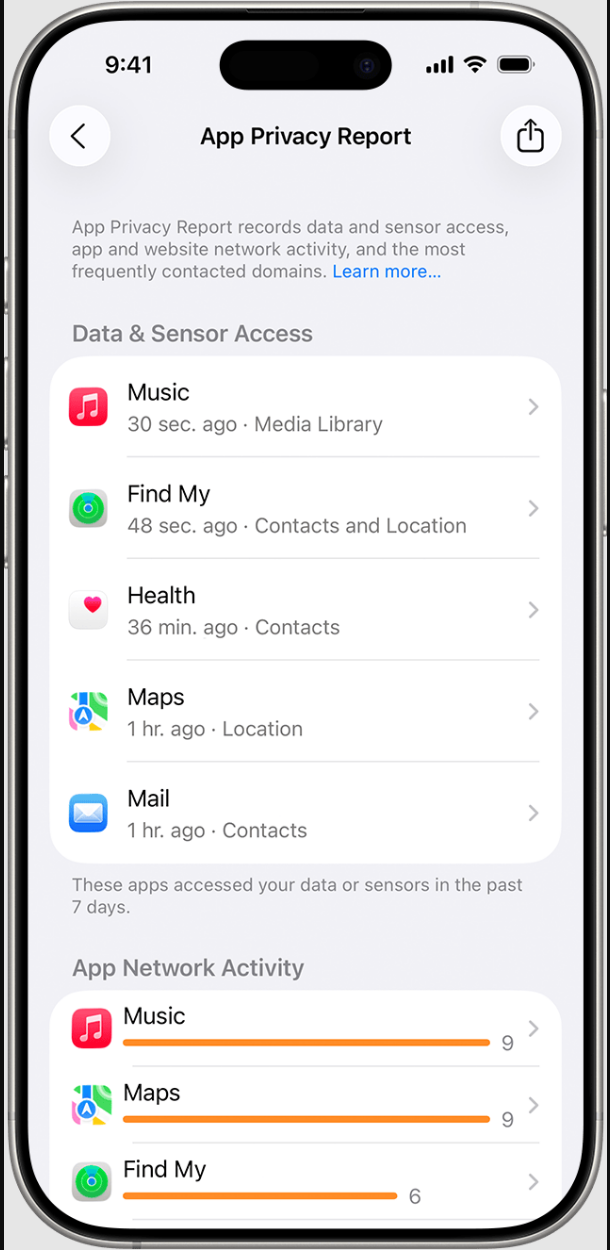
Look at the app name, permission or category, and time together. Compare each entry with a task you remember instead of interpreting a timestamp by itself.
An app may connect to a domain used for embedded content or a service it relies on.
A domain in the report doesn’t, by itself, show what information was sent there.
Review App Access on Android
Start from the app if you already know what to check
Go to Settings > Apps, select the app, and open Permissions. Tap See all apps first if needed. Choose the permission and set the access that fits the feature.
For a list by data type, use Settings > Security & privacy > Privacy > Permission manager on a recent Pixel. Google documents both routes, and other phones may group them differently.
The app’s page can show which permissions you allowed or denied. Look for the one related to the task you just performed and change only that setting at first.
For supported settings, Android may offer access only while using an app, a prompt each time, or no access.
Options depend on the feature, and all-time access is not appropriate for every app.
Start from a permission category if you don’t know which app is involved
Use Android’s permission manager to look at a category such as microphone, location, or calendar. This can surface apps you haven’t used recently but still recognize.
Where your version offers a privacy dashboard, compare the category with the recent access history. Open the provider’s current instructions for your model if the menu differs.
If the dashboard shows microphone use at a time you were in a call, check the calling app before assuming the phone captured audio without a reason.
Test limited photos and location where your device offers them
Some Android apps let you use a photo picker without granting broad library access. Choose the items you need to share and make sure the remainder stays outside the selection.
For an app that needs an area rather than an address, try approximate location if the choice appears.
You can revisit the permission if that setting prevents the task from working.
Avoid assuming that apps on different phones will show the same prompt. Confirm what the screen actually allows on the phone in front of you.
Check What Happens After You Make a Change
Repeat the real task rather than opening the app once
To check the Android history, open Settings > Security & privacy > Privacy > Privacy dashboard on a recent Pixel. Select a permission such as Location and compare its entries with your test.
If a category is missing from a manufacturer’s Settings list, use Settings search for Privacy dashboard or Permission manager.
Don’t install a tool just to change a permission already controlled there.
If you narrowed camera access for a scanning app, try its scanning function, not just its home screen.
If you removed contacts access, test the specific way you start a conversation.
If the only missing function is one you never use, there’s no need to restore the permission. An app may work well enough even though an optional feature stays disabled.
Keep a note of what changed so you can reverse just one setting if needed. This is especially useful if a work or family account relies on the same app.
Distinguish a phone permission from information you already shared
Changing Photos permission doesn’t delete an image already uploaded to a social account. Review the app’s site, shared albums or account controls for the copy that already left the phone.
If you remove Contacts access, the service may still have synced contacts from before the change. Confirm which of its settings affect stored information and which only stop new access.
Likewise, changing location permissions may not remove an address you deliberately provided to a merchant. Use its actual account, order or privacy options to address that stored record separately.
Treat an unfamiliar access record as a lead
If you see an app you don’t recognize, check its exact name and developer through the system’s app details or the official store.
An icon and a generic name aren’t enough.
If you suspect account compromise, review the service separately from another trusted device. Restricting a microphone permission does not sign strangers out of your email or social accounts.
If changes could put you at risk from someone monitoring your device, plan a safe way to get help before modifying access. Use a separate trusted device if necessary.
Work Through Two Common Permission Decisions
Attach a single picture without opening your full library
Suppose a marketplace app asks for photo access to attach a return image.
If the platform offers limited selection, select only the package image and submit it through the genuine order page.
Check the background of the image for documents and addresses before uploading. Limited access protects against unnecessary library access, not information you accidentally included in the chosen photo.
If access still fails, verify the provider’s documented upload options. You may be able to use a secure web route or choose a file without opening more of the library.
Keep a commute feature without leaving unrelated access open
Suppose an app offers route suggestions, local alerts, and automatic arrival notices. Your use might involve only looking up a route while the app is in the foreground.
Try a narrower location setting, then check route lookup and any alerts you actually rely on. Don’t judge the choice by whether every optional feature stays available.
If a necessary feature fails, change the relevant permission deliberately and note why. You can keep a broader setting for one trusted function without granting it to unrelated apps.
What to Do When an App Asks for More Access Than You Expected
- Identify the service you are using and the specific button or feature that triggered the request.
- Choose the narrowest option that fits, or leave access off if you don’t need the feature.
- Review one category or app in the operating system’s permission settings.
- Test the real task and check available activity history rather than assuming a granted permission has already been used.
- Handle data already uploaded through the provider’s account controls, not by assuming changing the device setting deletes old copies.
- If independent account evidence indicates compromise, secure that account through its own official process.
Frequently Asked Questions
Does permission to use my microphone mean an app recorded me?
No, authorization and actual use are different. Review the sensor activity available on your device and compare it with the feature you were using.
Can I select only certain photos for an app?
Some versions and apps support a limited selection or the operating system’s picker. Use it for the chosen files when available rather than granting the entire library by default.
What happens if I deny location permission?
The app may still run, but some features may stop working or ask for a location manually. Test the feature you actually need before changing the choice.
Does turning off a permission delete what the app already received?
Not necessarily, because data may already be stored in an account or shared elsewhere. Check the service’s own controls if you want those copies addressed.
Should I disable all permissions for every app at once?
Review access one category or app at a time instead. Broad changes can break necessary work, safety, or accessibility features and make problems harder to diagnose.
Is an empty privacy history proof nothing happened?
No, activity views vary by device and cover limited information. Use the history as one clue, and check account records separately if you suspect actual unauthorized access.
The Bottom Line
Start from what you need the app to do, then choose the access it needs to do that job. Keep a broader setting only when its benefit is clear.
Test the feature after each change and review old copies through the service that stores them. Controlling future access is useful without pretending it can undo every past share.

Join the discussion
0 commentsShare your experience or ask a question about this article.
Community experiences
Did this happen to you?
Your experience could help someone recognize the same scam. Submit a private report for our team to review.
I experienced this tooReports are reviewed before publication. Sharing publicly is always your choice.
Discussion
Start the conversation
Have a question or something useful to share? Add the first comment.