


An alarming event in your iPhone calendar does not mean your iPhone is infected. Unsolicited invitations and unwanted calendar feeds can put misleading reminders right next to real appointments.
Before deleting anything, find the calendar that owns the event. Removing a single invitation, unsubscribing from a feed, and fixing an account that syncs events solve different problems.

Overview
An event can advertise something without installing anything
The title of a calendar event can claim that a device is infected, a payment has failed, or an account will close.
Those messages come from an event, not from iOS itself.
Don’t open a link or call a number in the event to learn what it means. You can investigate the calendar itself from the app where you already manage appointments.
An event arriving without your permission is annoying and potentially deceptive. It doesn’t show that a stranger opened your iPhone, signed into your account, or downloaded an app.
The event’s owner tells you what you can remove
A one-off invitation may have a named organizer. A set of reminders may belong to a feed under its own calendar name. A connected account can supply either.
Find the event’s calendar and whether other unwanted entries belong to the same one. Check your calendar list instead of assuming the appearance of a new appointment grants someone access.
If you own a calendar or share it with other people, deleting the calendar itself can have consequences beyond the notification you want to stop.
Start with the smallest change that solves the problem
Apple distinguishes deleting or reporting an individual event, unsubscribing from a calendar, and hiding a calendar. Hiding changes what you see without necessarily removing the underlying subscription.
Pick the action that matches the source:
- Report or remove an unsolicited invitation using the calendar provider’s own controls.
- Unsubscribe from an unwanted calendar feed after verifying it contains only material you don’t need.
- Use the connected account’s calendar settings when the event comes from a different provider.
- Keep shared work and personal events intact while you establish where the unexpected entries originated.
Identify Whether You Are Looking at an Invite or a Feed
Read the event without following its content
Open the event from Calendar to see its details. Look for the calendar name, the organizer if one appears, and whether the item repeats.
Treat all links and instructions inside the description as untrusted. You don’t need to open a payment form, confirm that a device is infected, or reply to a sender.
Take a private note of the calendar name if you need help. If making a screenshot, crop out names and times from neighboring appointments before sharing it.
Check what else uses that calendar
Find the named calendar in the app’s calendar list. See whether all of the suspicious entries have that name or whether they come from unrelated places.
Check other events in the same group. A calendar with genuine meetings and one unexpected invitation is not necessarily a feed you should delete.
Unwanted items can be repeated without coming from a feed. A recurring invitation can produce several reminders, so look at the source rather than counting how many you see.
Find out who controls the copy you see
An iPhone can display events from several accounts, including iCloud and Google. A change on the phone may not resolve an issue in the provider that supplied the event.
If you see the same event on another device, check whether both display the same calendar account. That is consistent with sync and is not, by itself, proof of compromise.
If the calendar belongs to an employer or school, ask its administrator before removing the account or changing permission settings that could affect other work.
Remove an Unsolicited Event Without Deleting Your Schedule
Use Calendar’s own event controls
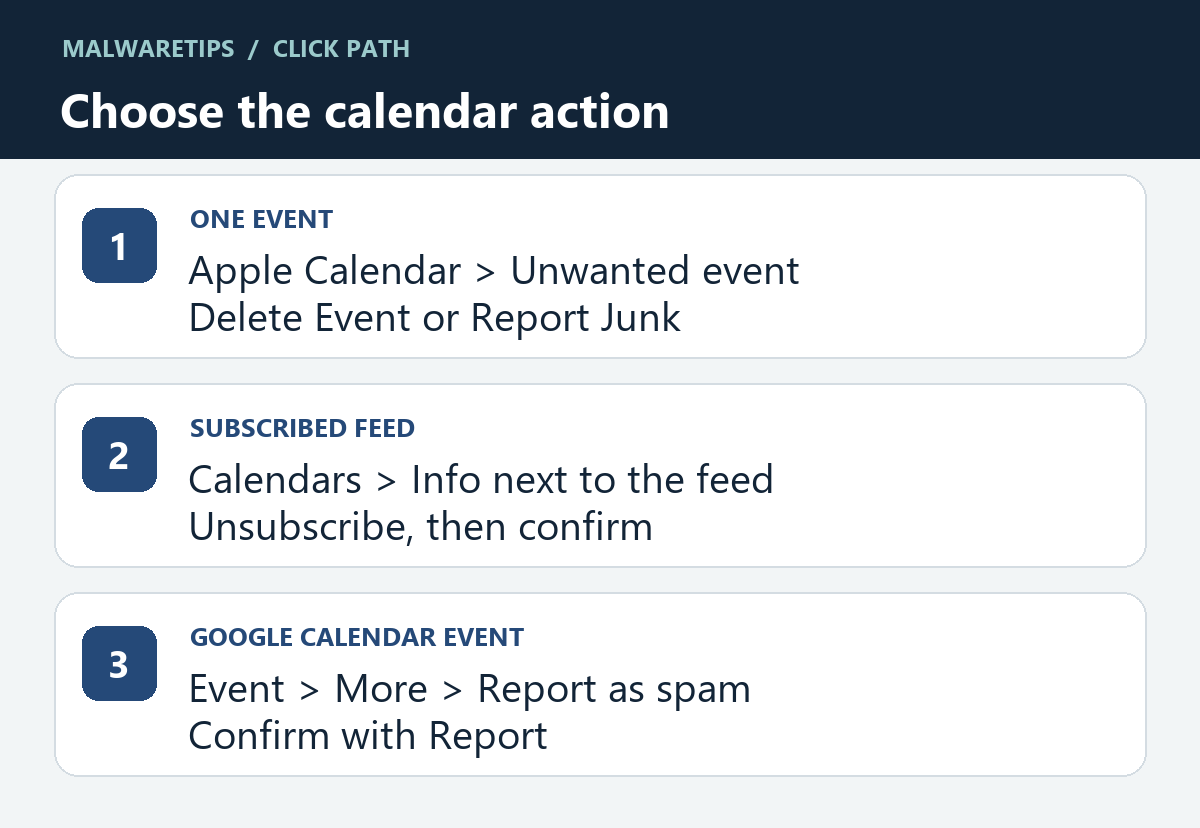
For iOS 26 or later, tap the unwanted event in Calendar, choose Delete Event, and tap Delete Event again to confirm. Keep the calendar itself if other appointments belong there.
To report an event from an unknown contact, choose Report Junk instead when present, then confirm Delete and Report Junk.
The Apple Calendar guide explains both ways to remove an event.
Some events are read-only, and some controls depend on the calendar provider or your role. If the button is not present, verify who owns the calendar before trying anything broader.
Do not use an unsubscribe link in the body of the appointment. It belongs to the message, not to the genuine Calendar app’s own controls.
The diagram separates three routes that solve different problems. Identify the source first, because deleting one event won’t stop a subscribed feed from adding another one.
Keep real meetings if there is only one unwanted entry
Suppose a fake renewal alert appears among ordinary iCloud appointments. If a supported junk-report control is available, use it for that unwanted event, not for the calendar itself.
If Calendar asks whether to remove one item or a series, check which events belong to that series. Don’t use the series option to remove unrelated work or family meetings.
Check the next day or next scheduled recurrence after you remove the item.
If similar entries persist, see whether they are new invitations or the same series from a connected source.
Don’t confirm a suspicious request just to dismiss it
A spam invitation doesn’t become legitimate because the usual responses are visible. Avoid sending a reply to a sender you don’t trust simply to make the alert go away.
If you expected an appointment around the same time, confirm separately through the organization that scheduled it. Do not rely on a contact number embedded in the event.
For legitimate shared events, understand the impact before removing something you organized. Other participants may depend on that event even if you no longer want it displayed.
Unsubscribe From a Feed You Don’t Recognize
Find the subscription in the app before you remove it
In Apple’s documented iOS 26 or later process, open Calendar, select Calendars, and tap the information button beside the unwanted calendar. Look for the app’s Unsubscribe control.
If it’s an unwanted subscription, tap Unsubscribe, then confirm Unsubscribe. When offered, Unsubscribe and Report Junk also reports the feed to Apple.
If you see Delete Calendar instead, pause and identify whether it is a calendar you own. Deleting a real personal or shared calendar could remove events you meant to keep.
Use hiding to investigate when you aren’t sure
Temporarily deselect the suspect calendar in the list and check what’s missing. If your real meetings disappear with the unwanted entry, don’t assume the whole calendar is junk.
Hiding is useful for identifying the group, but it isn’t the same as canceling a subscription or removing an invitation.
Return to the underlying source if you want to stop future events.
Make one calendar change at a time. Otherwise it’s easy to remove a legitimate feed and still leave the source of the unwanted event running.
Watch for another account adding the events back
If the same appointments return, open the calendar list again rather than repeating the original deletion. Check whether they now appear under a different account or subscription.
You may need to remove an unwanted feed at the service that manages it. A shared schedule controlled by a workplace or a family organizer may require the owner’s help.
Compare an event that’s definitely genuine before and after changes. That confirms you preserved the calendars you use rather than only silencing every reminder.
Handle Events From Google or Another Connected Service
Use the provider’s controls when Apple Calendar is only showing a copy
In the Google Calendar iPhone app, open the unwanted event. Tap More at the upper right, choose Report as spam, then tap Report.
If the button is missing, check that you’re in Google’s app and reviewing the account that received the invitation. Google limits which events can be reported.
Google notes that its reporting option does not apply to events sent from other calendar providers. When Google can report a recurring event, the report can remove that whole series.
Review the provider’s invitation settings for future events. Check how a setting affects legitimate invitations from new clients, schools, or healthcare providers before enabling it.
Separate changes to new invitations from the existing calendar
On a computer, open Google Calendar and select Settings > Settings > Event settings > Add invitations to my calendar. Choose Only if the sender is known if that suits you.
Choose When I respond to the invitation in email if you prefer to add invitations yourself. Google’s invitation options apply to new invitations, not old events.
An unfamiliar sender can still reach your inbox with an invitation. Check that message only if you expected it, and confirm a legitimate sender before adding it to your schedule.
If you want to keep a real event from an unfamiliar organizer, confirm the appointment independently first.
A more restrictive setting changes visibility and doesn’t establish whether a sender is genuine.
For a work calendar, ask whether your organization controls invitation settings. Don’t disconnect a managed account or change its access permissions without understanding what you would lose.
Treat a new shared subscription differently from an account change
An unfamiliar calendar name alone doesn’t establish that anyone took over your account. Look for independently verifiable activity, such as a changed password, a surprise sign-in, or invitations you sent.
If those changes appear in the provider’s own records, use its official account security tools. Calendar cleanup will not revoke an unfamiliar account session.
If you already entered a password on a page linked from an event, change it through the real service.
Review active sessions and report an unauthorized payment separately if you see one.
Check That the Fix Worked Without Losing a Real Event
Compare one bad reminder with one real appointment
After reporting one event, reopen its date and confirm the entry no longer appears. After unsubscribing, open Calendars and confirm the feed is no longer in your list.
When several family members share a calendar, ask one of them to check a routine appointment that’s supposed to remain.
A missing genuine appointment is a reason to stop changing settings.
Look at the date where the unwanted event appeared, then check a legitimate appointment you know belongs to another calendar. Confirm both checks before declaring the problem solved.
If a real meeting was hidden, restore only its own display selection. That should not require reopening the suspicious link or subscribing to the unwanted feed again.
If the event is visible on another device, confirm the affected account there and allow the normal sync process to catch up before assuming the removal failed.
Respond to the action you actually took
If you only viewed the appointment in Calendar, dismiss the request and remove the unwanted item. There is no reason to erase the whole phone because an event appeared.
If you paid, entered credentials, or installed something at the event’s direction, note exactly what happened. Use a trusted route to reach the affected service, payment provider, or device support.
Keep records privately if a provider asks for them. Share enough to explain the incident without passing along the event’s suspicious link or unrelated personal appointments.
What to Do About Calendar Spam on an iPhone
- Open Calendar directly and identify the suspicious event’s calendar and organizer without opening its links.
- Check whether the event is an isolated invitation, a repeating series, or part of an unwanted subscription.
- Use the built-in report, delete, or unsubscribe action that matches the source of the unwanted events.
- If a connected provider manages the event, use its official calendar controls and consider how future invitation settings affect real appointments.
- Check the original date and a known legitimate meeting so you can tell what was removed and what stayed.
- If you gave out a password, payment detail, or other access, recover the affected service independently of Calendar.
Frequently Asked Questions
Does an unwanted calendar event mean my iPhone has malware?
No, the appearance of an unsolicited invite or feed is not proof of malware. Treat any link you opened or information you shared as a separate question.
Should I delete the whole calendar to remove one event?
Usually you can start with the event and its built-in report or deletion options. Delete a calendar only after you confirm what it contains and who owns it.
Does hiding a calendar cancel the subscription?
No, hiding controls what you see in the Calendar app. Use the genuine unsubscribe control if the calendar is an unwanted subscription you want to remove.
Why did the same alert appear on my other device?
Two devices may show appointments from the same account or subscription. Identify the shared source rather than assuming both devices have a separate fault.
What if my account does not show Report Junk?
The available options depend on the provider, the invitation, and your software. Use the official controls for the account that supplies the event.
Can I safely use the unsubscribe link inside an appointment?
Do not rely on a link supplied by the suspicious event. Use the built-in Calendar control for a subscribed calendar instead.
The Bottom Line
Unwanted appointments are easiest to remove when you identify who supplies them. Delete an individual invite, unsubscribe from the right feed, or fix the connected account without erasing your schedule.
Check again that genuine events still appear and that the unwanted reminder is gone. If you entered information elsewhere, recover the affected service through its own official route.

Join the discussion
0 commentsShare your experience or ask a question about this article.
Your progress
Did these steps help?
Let us know how the guide worked for you.
Describe what you see and the step you reached. Keep passwords and other private information out.
Discussion
Start the conversation
Have a question or something useful to share? Add the first comment.