

“Become a Chipotle reviewer and receive a $100 gift card!” If you’ve seen this offer online, in an ad, or shared on social media, it likely caught your attention. The promise of free food and easy rewards is tempting. But what appears to be a generous promotion is actually part of a growing digital scam.
The Chipotle Reviewer Gift Card Scam is designed to deceive users into thinking they are participating in a legitimate product review program in exchange for a gift card. In reality, these fraudulent sites are collecting personal information, profiting from affiliate deals, and exposing users to potential financial risk.
This article explores how this scam works in detail, why it’s so effective, and what to do if you’ve already been caught in the trap. If you or someone you know has encountered a “Chipotle Reviewer” offer, this guide will help you stay informed and protected.
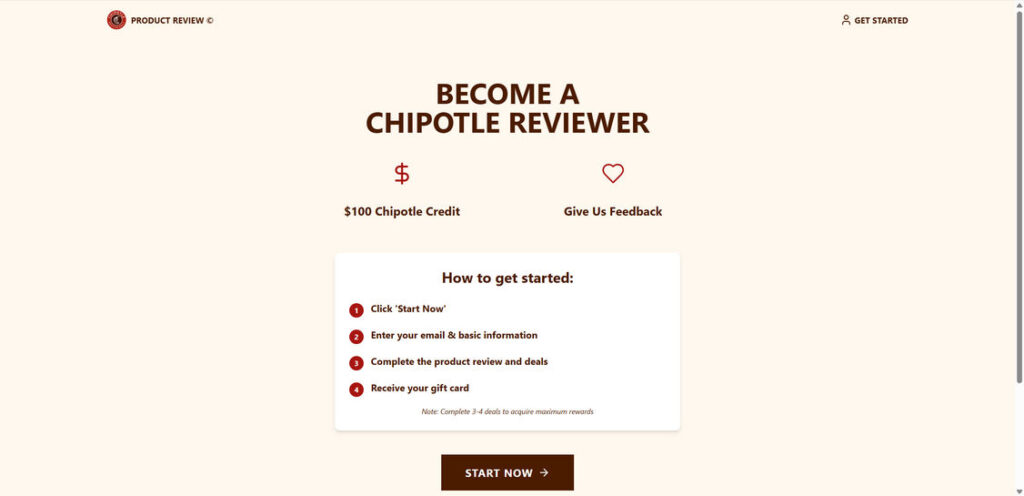
Scam Overview: The False Promise of a $100 Chipotle Gift Card
The Chipotle Reviewer scam is one of many schemes that use well-known brands to build trust and credibility with unsuspecting users. These scams promise users a high-value reward—usually in the form of a $100 Chipotle gift card—in exchange for completing a series of simple tasks, such as signing up for services or reviewing products.
Why It Looks Real
These scam websites are designed to closely mimic real promotional pages. You’ll often see:
- Chipotle logos and color schemes
- Clean, modern design layouts
- A clear list of steps to follow (e.g., 1. Enter your email, 2. Complete offers, 3. Claim your gift card)
- Progress bars and confirmation messages
- Testimonials or “live” popups showing recent redemptions
The structure and presentation feel authentic, especially for users unfamiliar with how legitimate brand promotions work.
The Psychological Appeal
Scammers understand how to tap into psychological triggers. This particular scam targets:
- Desire for free rewards: A $100 gift card for a few minutes of your time seems like a good trade.
- Trust in familiar brands: People are more likely to click when they see a name they recognize, like Chipotle.
- Urgency: You may see a countdown timer or “limited availability” alert pushing you to act fast.
- Social Proof: Fake notifications or reviews show others “winning” the same reward.
The Hidden Motive
The scam’s true goal isn’t to give out gift cards. It’s to make money by:
- Getting users to complete affiliate marketing offers
- Harvesting personal data to sell to advertisers or other scammers
- Driving app downloads that may contain malware or adware
Users think they’re participating in a legitimate program, but they’re actually being used to generate revenue for the site owners.
How the Chipotle Gift Card Scam Works
Understanding the mechanics behind this scam can help you recognize and avoid it. Below is a detailed look at how the operation unfolds:
Step 1: Attracting Victims
The scam starts with an ad or social media post that grabs attention:
- “Get $100 in Chipotle credit for becoming a reviewer!”
- “Chipotle wants your feedback—rewarded with free meals!”
These ads are often found on:
- TikTok
- Google Ads
- Low-reputation coupon and giveaway websites
They use urgent language and well-known logos to get clicks.
Step 2: Landing Page Setup
Clicking the ad takes you to a landing page, usually hosted on a domain not affiliated with Chipotle. The page might include:
- A big call to action button (“Start Now” or “Claim Gift Card”)
- Instructions like “Complete 3 Deals to Qualify”
- Branding elements that mirror Chipotle’s website
- No terms of service, contact information, or company credentials
It appears legitimate, but it lacks any legal disclosures or company accountability.
Step 3: Personal Data Collection
Before accessing your “reward,” the site requires you to:
- Submit your name and email
- Provide a phone number
- Sometimes fill out a short survey about your shopping habits
This information is either sold to third-party marketers or used to enroll you in further scams.
Step 4: Offer Wall and Monetization
After the data submission, users are asked to complete a series of “verification” tasks or “sponsored deals.” These may include:
- Signing up for subscription services (e.g., video streaming, meal kits)
- Downloading and installing apps
- Registering for sweepstakes or surveys
- Starting free trials that require credit card info
Each completed offer earns an affiliate commission for the scam site. You, the user, get nothing in return—except maybe a hidden charge on your bank account.
Step 5: Never-Ending Progression
You may see:
- Progress bars suggesting you’re close to earning the gift card
- Messages like “2 of 3 deals completed!”
- More offers after you complete the initial set
Some users report being told they didn’t complete the offers “correctly” and are encouraged to do more. This creates a loop that benefits only the scammer.
Step 6: Ghosting the Victim
Once the scammer has made their profit, the user is abandoned. You never receive:
- A confirmation email
- A gift card code
- Any reply to your inquiries
Some victims are redirected to new sites or stuck in an endless series of affiliate offers.
What to Do If You Fell for the Chipotle Reviewer Scam
If you’ve engaged with one of these scam sites, it’s important to act quickly to protect your data and finances.
1. Close the Site and Clear Your Browser Data
Exit all tabs, then clear your browser history, cache, and cookies to remove any lingering scripts or trackers.
2. Change Passwords Immediately
If you used a password that’s shared with other accounts:
- Change it right away
- Use a unique, strong password for each site
- Enable two-factor authentication wherever possible
3. Check Your Bank and Credit Card Statements
If you entered payment information for a “trial offer,” watch for:
- Unauthorized or recurring charges
- Fees for subscriptions you didn’t intend to keep
- Any unusual spending patterns
Dispute any questionable transactions with your financial institution.
4. Scan Your Devices
If you downloaded any apps or software during the scam:
- Run a full antivirus and anti-malware scan
- Remove anything suspicious or unfamiliar
- Restore your device to a previous state if needed
5. Report the Scam
File complaints with the following:
- Federal Trade Commission (FTC): reportfraud.ftc.gov
- Internet Crime Complaint Center (IC3): www.ic3.gov
- Chipotle customer support: Notify them that their branding is being misused
6. Unsubscribe and Block Spam
You may begin receiving an influx of emails, texts, and robocalls. To reduce impact:
- Use your email provider’s spam filter
- Unsubscribe where safe to do so
- Block numbers and use spam call blockers
7. Consider Identity Theft Protection
If you entered your address, birthday, or sensitive details:
- Freeze your credit with the three major bureaus
- Sign up for identity monitoring services
- Monitor your credit reports for any unauthorized activity
8. Warn Others
Scammers thrive in silence. Share your experience:
- On social media
- In community forums
- On consumer review sites like BBB or Trustpilot
Raising awareness can prevent others from becoming victims.
Is Your Device Infected? Run a Free Malware Scan
Slow performance, constant pop-ups, or strange behavior? These are classic signs of a malware infection. The fastest way to find out is to scan your device with Malwarebytes Free — one of the most trusted malware removal tools available.
The free version detects and removes the most common threats, including:
- Adware — the cause of those annoying pop-ups
- Browser hijackers — unwanted redirects and changed homepages
- Trojans and spyware — hidden programs stealing your data
- Potentially unwanted programs (PUPs) — software you never asked for
👉 Select your device below — Windows, Mac, or Android — then follow the simple steps to download Malwarebytes, scan your system, and remove any threats it finds. The scan usually takes 5 to 20 minutes.
Run a Malware Scan with Malwarebytes for Windows
Malwarebytes is one of the most popular and trusted anti-malware tools for Windows — and it’s completely free for removing infections. It catches threats that many antivirus programs miss, including adware, browser hijackers, and trojans. Follow the steps below to scan and clean your PC in just a few minutes.
Download Malwarebytes
Click the button below to download the latest version of Malwarebytes for Windows from the official source. The free version is all you need — it will scan your computer and remove adware, browser hijackers, and other malicious software at no cost.
Download MalwarebytesOfficial installer for Windows 11 and 10. Your download starts right away.Want real-time protection? See Malwarebytes Premium Malwarebytes Free for WindowsScans and removes malware at no cost
-
Install Malwarebytes
When the download finishes, open your Downloads folder and double-click the MBSetup file. If Windows shows a User Account Control pop-up, click “Yes” to allow the installation.

Follow the On-Screen Prompts to Install Malwarebytes
The setup wizard will walk you through a few quick screens:
-
Choose where you’re installing the program — “Personal Computer” or “Work Computer” — then click Next.

-
Malwarebytes will now install on your device. This usually takes under a minute.

-
When installation is complete, the “Welcome to Malwarebytes” screen will open automatically.

-
On the final screen, click Open Malwarebytes to launch the program.

-
Enable “Scan for Rootkits”
Before scanning, turn on rootkit detection so Malwarebytes can find even the most hidden threats. Click the Settings gear icon on the left side of the screen.

In the settings menu, find “Scan for rootkits” and click the toggle so it turns blue.

Done? Click “Dashboard” in the left pane to return to the main screen.
Start the Scan
Click the blue Scan button. Malwarebytes will automatically update its virus database and start checking your computer for malware.

-
Wait for the Scan to Finish
The scan checks your entire system for browser hijackers and other malicious programs, so it can take 5 to 20 minutes depending on your computer. Feel free to do something else — just check back occasionally to see the progress.

-
Quarantine the Detected Threats
When the scan is done, you’ll see a list of everything Malwarebytes found — malware, adware, and potentially unwanted programs. Click the “Quarantine” button to remove all of them at once.

Malwarebytes will now remove the malicious files and registry entries and move them safely into quarantine.

-
Restart Your Computer
Some threats can only be fully removed after a reboot. If Malwarebytes asks you to restart, click Yes. Once you’re logged back in, Malwarebytes has finished removing the threats it found.

That’s it — your Windows PC is now clean of trojans, adware, and other malware, and should be back to running smoothly.
If you are still having problems with your computer after completing these instructions, then please follow one of the steps:
- Run a computer scan with ESET Online Scanner
- Ask for help in our Windows Malware Removal Help & Support forum.
Run a Malware Scan with Malwarebytes for Mac
Malwarebytes for Mac is a free on-demand scanner that removes the malware other security software tends to miss — adware, browser hijackers, and unwanted programs included. Cleaning an infected Mac with Malwarebytes has always been completely free, and it’s our go-to recommendation. Follow the steps below to scan and clean your Mac in just a few minutes.
-
Download Malwarebytes for Mac
Click the button below to download the latest version of Malwarebytes for Mac.
Download MalwarebytesOfficial installer for macOS. Your download starts right away.Want real-time protection? See Malwarebytes PremiumMalwarebytes Free for MacScans and removes malware at no cost -
Open the Malwarebytes setup file
When the download finishes, open your Downloads folder and double-click the setup file to begin the installation.

-
Follow the On-Screen Prompts to Install Malwarebytes
The Malwarebytes for Mac Installer will guide you through a few quick screens. Click “Continue” and keep following the prompts until the installation completes.



When the installation is complete, Malwarebytes opens to the Welcome to Malwarebytes screen. Click “Get started“.
-
Select “Personal Computer” or “Work Computer”
Malwarebytes will ask what type of computer you’re installing it on. Click either Personal Computer or Work Computer, whichever applies.

-
Start the Scan
Click the “Scan” button. Malwarebytes will automatically update its detection database and begin checking your Mac for malware.

-
Wait for the Scan to Finish
Malwarebytes will scan your Mac for adware, browser hijackers, and other malicious programs. This can take a few minutes, so feel free to do something else — just check back occasionally to see the progress.

-
Quarantine the Detected Threats
When the scan is done, you’ll see a list of everything Malwarebytes found. Click the “Quarantine” button to remove all the threats at once.

-
Restart Your Mac
Malwarebytes will now remove all the malicious files it found. Some threats can only be fully removed after a reboot — if Malwarebytes asks you to restart, allow it. Once you’re logged back in, your Mac is clean.

That’s it — your Mac is now free of adware, rogue browser extensions, and other potentially harmful software.
If you are still experiencing problems while trying to remove a malicious program from your computer, please ask for help in our Mac Malware Removal Help & Support forum.
Run a Malware Scan with Malwarebytes for Android
Malwarebytes for Android automatically detects and removes dangerous threats like malware and ransomware so you don’t have to worry about your most-used device being compromised. Aggressive detection of adware and potentially unwanted programs keeps your Android phone or tablet running smooth.
-
Download Malwarebytes for Android.
You can download Malwarebytes for Android by clicking the link below.
Get Malwarebytes for AndroidOpens Google Play in a new tab.Want real-time protection? See Malwarebytes Premium for AndroidMalwarebytes for AndroidScans your phone and removes malware at no cost -
Install Malwarebytes for Android on your phone.
In the Google Play Store, tap “Install” to install Malwarebytes for Android on your device.

When the installation process has finished, tap “Open” to begin using Malwarebytes for Android. You can also open Malwarebytes by tapping on its icon in your phone menu or home screen.

-
Follow the on-screen prompts to complete the setup process
When Malwarebytes will open, you will see the Malwarebytes Setup Wizard which will guide you through a series of permissions and other setup options.
This is the first of two screens that explain the difference between the Premium and Free versions. Swipe this screen to continue.
Tap on “Got it” to proceed to the next step.
Malwarebytes for Android will now ask for a set of permissions that are required to scan your device and protect it from malware. Tap on “Give permission” to continue.
Tap on “Allow” to permit Malwarebytes to access the files on your phone.
-
Update database and run a scan with Malwarebytes for Android
You will now be prompted to update the Malwarebytes database and run a full system scan.

Click on “Update database” to update the Malwarebytes for Android definitions to the latest version, then click on “Run full scan” to perform a system scan.

-
Wait for the Malwarebytes scan to complete.
Malwarebytes will now start scanning your phone for adware and other malicious apps. This process can take a few minutes, so we suggest you do something else and periodically check on the status of the scan to see when it is finished.

-
Click on “Remove Selected”.
When the scan has been completed, you will be presented with a screen showing the malware infections that Malwarebytes for Android has detected. To remove the malicious apps that Malwarebytes has found, tap on the “Remove Selected” button.

-
Restart your phone.
Malwarebytes for Android will now remove all the malicious apps that it has found. To complete the malware removal process, Malwarebytes may ask you to restart your device.
That’s it — your Android phone is now clean — no more malicious apps, adware, or browser redirects.
If you are still having problems with your phone after completing these instructions, then please follow one of the steps:
- Restore your phone to factory settings by going to Settings > General management > Reset > Factory data reset.
- Ask for help in our Mobile Malware Removal Help & Support forum.
Stay Protected: Block Ads and Malicious Sites
Now that your device is clean, keep it that way. Most infections start with a malicious ad or a fake download button — so blocking them at the source is your best defense.
We recommend AdGuard, which blocks malicious ads, phishing pages, and dangerous redirects before they can reach you.
👉 Download AdGuard and browse safely
Frequently Asked Questions About the Chipotle Reviewer Gift Card Scam
Is the Chipotle Reviewer program real?
No. Chipotle is not running any official promotion that pays people to review food in exchange for gift cards. Any website claiming otherwise is likely a scam.
What does the scam actually do?
These sites collect your data, earn affiliate commissions when you complete offers, and may sign you up for paid services without your full knowledge. There is no reward.
Can I really get a $100 gift card from this offer?
No. Despite completing all the required steps, users never receive a gift card. It’s just a tactic to keep you engaged while scammers profit from your actions.
What if I only gave my email—am I still at risk?
Yes. Your email address may be sold to third-party marketers or used in phishing attempts. Be on the lookout for suspicious emails and don’t click links from unfamiliar senders.
Are these offers dangerous?
Some offers are linked to legitimate services, but others may:
- Trick you into paid subscriptions
- Contain malware
- Require sensitive personal or financial information
How can I tell if an offer is fake?
Look for these red flags:
- Requires you to complete unrelated offers
- Uses urgent language or countdown timers
- No real contact information or terms of service
- Promises rewards without company verification
What should I do if I submitted payment info?
Contact your bank immediately. Cancel any unauthorized subscriptions and dispute charges. Monitor your statements for any further suspicious activity.
Can I report these scams?
Yes. Report them to the FTC, IC3, and Chipotle’s official customer service to help shut them down and protect others.
Is it safe to download apps from these sites?
Not always. Avoid downloading anything prompted by scam websites. Use trusted app stores and read reviews before installing any app.
How can I protect myself from scams like this?
- Don’t trust offers that seem too good to be true
- Verify promotions directly with the brand’s website
- Use spam filters and antivirus software
- Stay informed by reading scam warnings and consumer alerts
The Bottom Line
The Chipotle Reviewer Gift Card Scam is a classic example of modern digital fraud. It exploits brand recognition, urgency, and the promise of rewards to trick users into giving up personal data and completing revenue-generating actions. The sites look real, feel official, and are persuasive—but they’re entirely fake.
If you see any offer claiming you can earn money or rewards for minimal effort, always pause and verify. Legitimate companies do not require you to complete unrelated tasks or provide sensitive data in exchange for gift cards.
Stay vigilant. If it sounds too good to be true, it almost always is.

Join the discussion
0 commentsShare your experience or ask a question about this article.
Discussion
Start the conversation
Have a question or something useful to share? Add the first comment.