


You open Chrome on a computer you bought yourself, and the menu hints that an organization is in charge. You don’t remember handing anyone the keys.
The notice tells you less than it seems. Before trying to remove it, find out which setting it refers to and what would change if it disappeared.
Overview
Start with the policy, not the warning
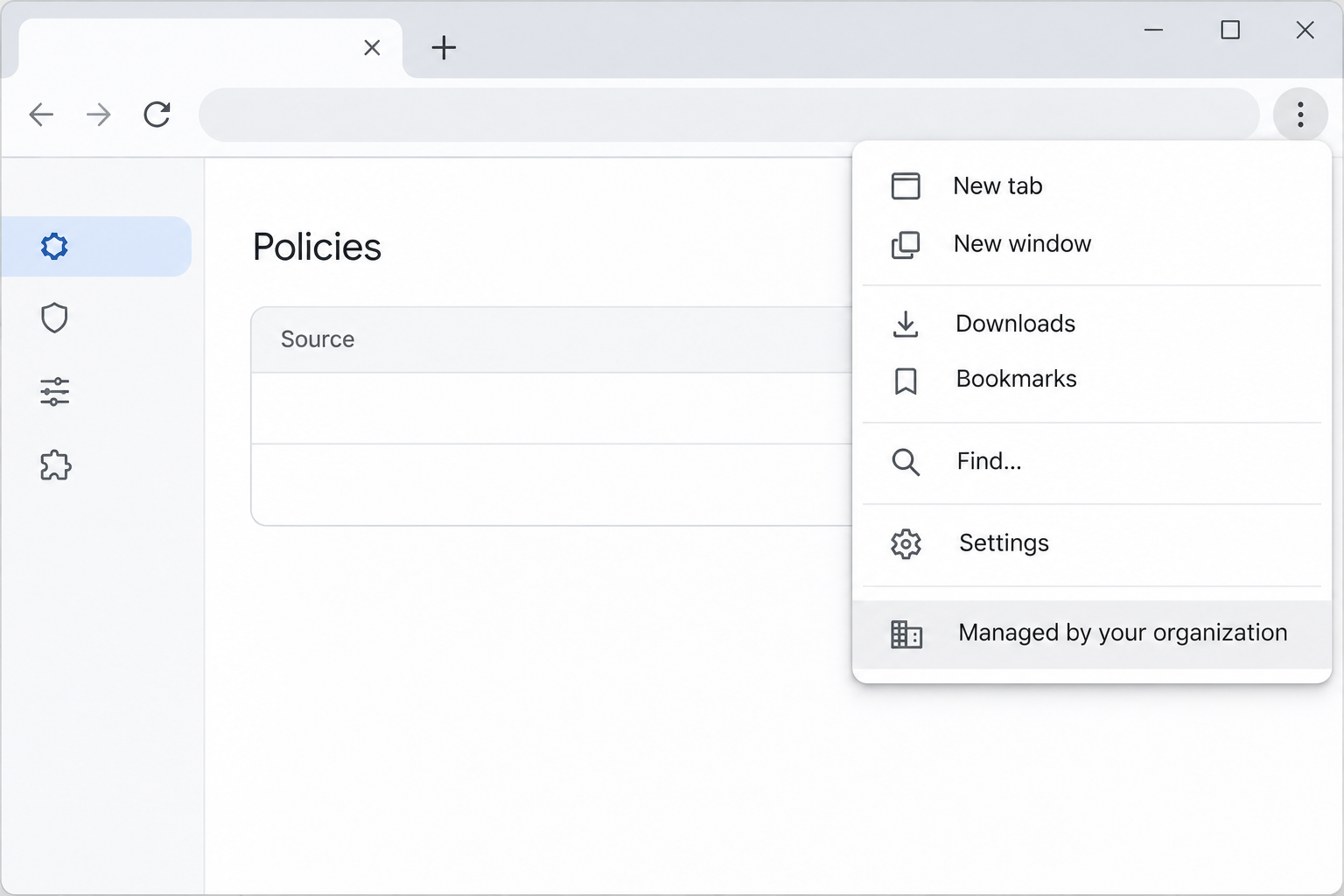
Chrome displays a management notice when applicable management settings are present. It can appear after a legitimate configuration change or alongside unwanted changes you never approved.
Google’s consumer help points to the management and policy pages. They give you more to investigate than the presence of a line at the bottom of a menu.
Ask what the policy controls, which users it affects, and whether it explains any symptom. A company account and an unfamiliar search redirect should not get the same response.
A policy can come from outside the browser
Chrome can receive settings through an organization, the operating system, or a local configuration used by software on the computer. Closing a tab won’t remove those settings.
The browser’s source and scope columns narrow the search. They don’t always name which installer or utility wrote the setting, so a platform source isn’t a verdict.
Start by looking without changing any settings. If you recognize why a policy is there and want its protection, there may be nothing to fix.
Ownership changes what you can safely do
If the computer belongs to a workplace or school, contact its administrator. Even on your own computer, a work profile may be managed under an arrangement you accepted.
- Check the profile: Note whether the notice appears in your personal profile, your work profile, or both before making changes.
- Record an active policy: Write down its name, source, scope and status without posting full policy exports or internal addresses.
- Look for an actual symptom: A new search provider or extension is more useful evidence than the notice on its own.
Read Chrome’s Policy Page Without Deleting Anything
Make a baseline in the affected profile
Type chrome://management into the address bar of the profile where you saw the notice. You may see a description of the management in effect or managed extensions.
Next, open chrome://policy in that same profile. Use the policy page to record what is set, rather than assuming every policy name shown is active.
If there is a control to display unset policies, leave it off for the initial check. You’ll have fewer rows to interpret, and many available policies won’t apply to you.
Record the state when the symptom is present. Comparing a browser before and after an intentional change is more useful than a cropped screenshot that omits the most important column.
Don’t share a raw policy export on a public forum. It can include server addresses or other details about your work, school, security product, or installed extensions.
Separate the source from the scope and level
Google’s policy reference distinguishes the origin of a policy from the level where it applies. A setting can be local to the computer or associated with managed browser infrastructure.
A Platform source points toward operating-system configuration or a similar local management route. It doesn’t say an individual user intentionally set the value or name the responsible application.
A Cloud source means the policy came through cloud management. Use the profile and scope for context; the source label alone doesn’t identify the administrator or owner.
Scope tells you where the setting applies. Compare a machine-level row across profiles, while a current-user row calls for a closer look at that profile.
A mandatory policy can prevent a change. A recommended policy may still let you choose another setting, so read the row before assuming it is locked.
Pay attention to status when it appears. An error or conflicting setting should be read in context, not treated as proof that the policy successfully changed the browser.
Follow the policy name back to a real change
Suppose a row is about extensions and you cannot remove a browser add-on. Record the extension name shown in the browser and look for a policy tied to it.
If the problem is a search redirect, check which provider the browser actually uses. A policy about an unrelated setting doesn’t explain why your searches are landing somewhere else.
If all you see is a notice, you don’t have a symptom to fix yet. An unfamiliar setting could come from a routine security installation.
Make a note about chronology without claiming it proves causation. A policy appearing the same week as a new program is a useful lead, not a reason to uninstall everything.
Compare Three Common Explanations
Your work identity supplies the policy
Look at the profile you opened, not just the email website in the current tab. Opening work email in a browser isn’t the same action as enrolling the browser itself.
If you’re allowed to use both identities, compare the work profile with an existing personal profile. Don’t remove access just to see whether the wording changes.
Ask the administrator whether the policy is expected and whether it applies to the device or the profile. The answer determines how to separate personal activity from work.
A browser-management notice doesn’t prove someone is actively watching a specific page. If you need an answer about monitoring, ask which controls are enabled and where they apply.
Local software configures a setting you recognize
Review programs you intentionally installed and security settings you rely on. Some legitimate tools use browser policies because application settings don’t cover the same options.
Look up the exact policy name and product version in the vendor’s documentation. A forum answer for another product or release doesn’t establish what your device is doing today.
Don’t disable security software just to hide the indicator. Removing a useful control for cosmetic reasons makes you worse off without answering why the notice appeared.
If the vendor confirms a supported option to remove the browser integration, consider what you would lose before using it. Retest the policy page and the feature it affected afterward.
An unknown setting accompanies a change you didn’t choose
Take persistent redirects, surprise extensions, and locked search settings seriously. Together they make a stronger case for investigating unwanted software than an isolated management notice.
Record the publisher and installation date of suspect apps when you can. Check the vendor before removing anything, so a useful security or work tool isn’t mistaken for the source.
A policy can make the usual option to remove an extension unavailable. Identify where the policy comes from before changing the software it manages.
For suspected hijacking, avoid visiting sensitive accounts through the affected browser until you understand the change. Use another trusted device if you need to review important accounts immediately.
Check What Changes Across Profiles and Computers
An Edge notice deserves its own policy check
Microsoft documents edge://policy as the place to inspect the settings applied to Edge. Chrome’s policy page won’t describe everything Edge is using.
If both browsers show unexpected changes, compare the affected settings before blaming one extension. Similar symptoms can point to a common source, but they don’t prove it.
Keep the findings separate in your notes. If only Edge shows a managed start page, don’t remove Chrome settings while trying to fix the wrong browser.
macOS profiles are not ordinary browser preferences
On a Mac, Apple explains how to inspect configuration profiles. Use the device management information to see whether a profile may be involved.
A profile can configure more than a browser. Before anyone removes it, verify whether it supplies network access, certificates or settings for an organization you still need.
If a profile cannot be removed or the device is enrolled through a current employer, contact the administrator. A personal browser profile is not permission to bypass device management.
If a used computer still belongs to an unfamiliar management setup, ask the seller to resolve the enrollment issue. Don’t count on a browser reset.
Keep One Record You Can Compare After a Change
Build a simple before-and-after note
For each suspicious row, note the policy name, whether it lists your user or the machine, and the expected behavior when you open a fresh browser window.
Add one observation from the browser itself, such as a new tab opening to an unfamiliar page or searches going to a provider you didn’t choose.
Capture the policy page in a private note, with the profile name and time beside it. You’ll need those details to compare the result later.
Keep your record separate from the affected profile, especially if someone else administers it. Give only the necessary details to the person helping you.
After a restart, compare the same browser profile and setting. A policy may appear to vanish simply because you reopened the browser under a different identity.
Make changes one at a time with the owner’s permission. If three things disappear after you remove several programs, you won’t know which one set the policy.
If one affected row disappears and another remains, compare their functions. A remaining policy may be legitimate even though a different policy caused the behavior you wanted to fix.
Use the result to decide who needs to help
A policy traceable to a school or workplace belongs with its administrator. A row traceable to a known privacy or endpoint product belongs with the product vendor.
If a policy still can’t be traced and appears with an unwanted redirect, share the minimum necessary facts with a trusted technician. Keep real account details and organization addresses private.
An unexpected search provider can also be a normal user setting. Verify that a policy governs it before attributing the change to the management notice and planning a repair.
If the notice remains but the unwanted behavior is gone, don’t assume the repair failed. Determine whether the remaining policy does something you expect, instead of removing it on sight.
What to Do If the Policy Doesn’t Belong on Your Personal Browser
- Preserve the evidence before changing settings. Record the browser and profile, the policy row, the symptom and when it first appeared.
- Verify who is allowed to manage the device. Ask the owner or administrator if the device, work profile, or network connection has a management arrangement.
- Confirm the software or setting that supplies the policy. Check documentation or vendor support before using an official removal method for a verified unwanted program.
- Remove a verified unwanted extension through the browser if allowed. If the control is forced, address its confirmed source rather than trying to override a work or school policy.
- Restore changed browser preferences after you remove the cause. Restart the browser, reopen its policy page and verify whether the exact row and behavior have changed.
- Treat account exposure as a separate problem. If you entered credentials on a redirected page, recover the account through the legitimate service from another trusted device.
Google’s settings reset guide describes the preferences a user reset changes. A settings reset isn’t a substitute for removing the software or organization that reapplies a policy.
Don’t clear every policy folder to make the notice disappear. That can remove unrelated controls while leaving the original program free to put them back.
If a redirect continues after the apparent source is gone, get help before making broad changes. You may need a targeted investigation of the software responsible for the symptom.
A useful repair ends with a repeatable check. Close and reopen the browser, return to the same profile, and see whether the same unexpected behavior comes back.
Frequently Asked Questions
Is the management notice a virus warning?
No, it says that management settings are in effect. Check the actual policy and any unexplained behavior before deciding whether the device needs malware investigation.
Can a work profile manage Chrome on a personal computer?
It can have settings tied to work use, depending on how the profile or browser is enrolled. Ask the administrator what applies before removing the profile.
What does a Platform source tell me?
It means Chrome received the setting through the operating system or a similar local route. The label doesn’t name the app or person responsible for it.
Why won’t Chrome let me remove one extension?
It could be required by a policy or enforced by an administrator. Record the extension and inspect applicable policies before attempting to remove the underlying source.
Will resetting Chrome shut off organizational management?
A reset restores certain user settings, not the source of a policy. If an outside service or app still controls the setting, it can remain or reappear.
Should I remove every profile on a used Mac?
No, verify the installed profiles and the device’s ownership first. Ask the seller or administrator to resolve an unexpected enrollment through the supported process.
The Bottom Line
Read the policy row before trying to get rid of the management notice. Leave legitimate settings in place, and ask the person responsible if the browser is managed by agreement.
If an unknown policy matches an unwanted change, document it and address the verified source. Check that the specific policy and symptom are gone before calling the browser repaired.

Join the discussion
0 commentsShare your experience or ask a question about this article.
Community experiences
Did this happen to you?
Your experience could help someone recognize the same scam. Submit a private report for our team to review.
I experienced this tooReports are reviewed before publication. Sharing publicly is always your choice.
Discussion
Start the conversation
Have a question or something useful to share? Add the first comment.