


A page on your iPhone says it just found viruses. Seconds later, an app promises to remove anything the page claims to have detected.
Those are two claims about what software can see. Understanding the difference helps you decide whether to close a tab, secure an account, or get support.
Overview
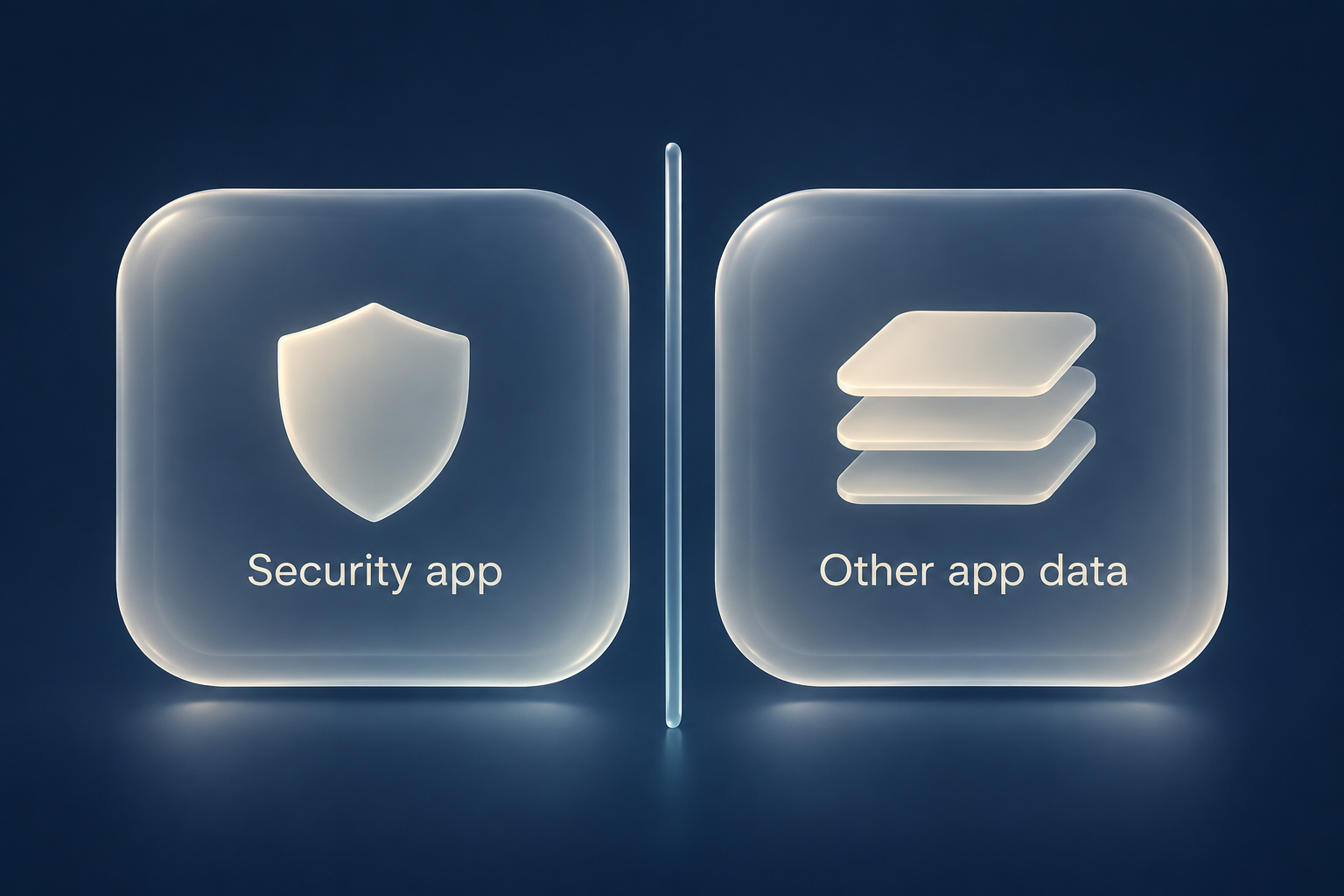
A security app doesn’t have a full view of iOS
A conventional desktop antivirus can have broader access to system files and programs than an ordinary iPhone app. The same product name doesn’t mean the apps have the same powers.
Apple’s platform security guide explains sandboxing, which restricts how third-party apps access other apps and the system. An ordinary app cannot independently inspect everything on the device.
Some apps filter web requests, check links you submit, or monitor data breaches. Those can be useful features, but none establishes that the system has been scanned.
Treat a website warning as web content
A warning inside an ad or browser tab is not a device diagnosis. Even if it names the right phone model or shows an Apple-style graphic, it remains web content.
Apple does have genuine security communications, but a pop-up selling a cleanup app is not how you should verify an alert. Use the affected service through a route you know.
Look at what happened immediately before the warning. Opening a web page, entering a password, and approving installation of a profile produce different questions to answer.
A stolen account and a compromised device need different fixes
A scammer can use a password you typed on another website without installing anything on your iPhone. Recover the account even if the phone works normally.
Conversely, a profile or app you approved can deserve closer inspection even if no payment was taken. Review the exact approval instead of buying a scanner in response.
- Only saw the warning: Close the tab without touching its buttons and don’t install software merely to clear the message.
- Entered a password or payment information: Contact the service or card issuer independently, using an unaffected device if you can.
- Approved an installation or management profile: Identify what was installed and check its origin, scope, and removal consequences before proceeding.
Why an iPhone Security App Cannot Promise a Complete Scan
The app can read what iOS lets it read
Sandboxing gives the app its own storage area and requires it to use system-provided access for other resources. That is different from a program inspecting every installed app.
If you select a file to share with an app, that app may be able to analyze the selected file. It hasn’t automatically gained access to every other file.
Some security products use different features on iPhone and desktop. Read the feature list for the iPhone version before paying for a plan advertised across multiple operating systems.
A security app might filter websites or warn about a leaked account. Neither feature can testify that another app is safe or that nobody accessed your account.
If a company promises to find every hidden threat on your iPhone, ask what access and documented feature supposedly make that possible. Don’t rely on a broad promise.
Devices still need security updates
Sandboxing reduces what third-party apps can do in normal operation. It isn’t a statement that Apple software will never have a bug or that an iPhone cannot be targeted.
Install available updates through Settings, not a download link from a warning page. If prompted, use Apple’s instructions for the iOS version your device supports.
If an older model no longer receives the security support you need, evaluate whether to replace it for sensitive use. Paying for a separate consumer scanner doesn’t replace system patches.
Don’t assume an unfamiliar battery pattern proves malware. Review the battery usage screen and match the change to known apps, updates or connectivity before reaching a conclusion.
Evaluate a security product by its specific feature
A web filter can help identify some known dangerous destinations. It won’t prevent you from handing money to someone on a legitimate marketplace or trusting a convincing message.
A breach alert can tell you an account identifier appears in a known dataset. It doesn’t mean the account was used or that the phone needs to be erased.
If an app requests a VPN or filtering configuration, read what traffic it handles and how to turn it off. Its privacy policy matters because of the access involved.
If your problem is a pop-up or an exposed password, deal with it directly. Buying a broad bundle can add cost without solving either problem.
Follow the Route That Matches What You Did
The warning was confined to a webpage
Close the tab using Safari’s interface instead of clicking the page’s own close button. Some ads draw a convincing button that leads farther into the same offer.
Apple’s pop-up guide shows where to enable Block Pop-ups and Fraudulent Website Warning in Safari settings. These features don’t verify every page you might encounter.
If the same alert opens when you return to a tab, close the tab rather than following its instructions. Check whether the symptom exists anywhere outside that website.
If you were browsing a site and didn’t enter information, approve a prompt or install anything, the warning doesn’t justify buying whatever product it names.
You signed in or approved a verification request
Open the real service independently and check recent activity. If you entered a password on the wrong page, replace it before worrying about whether the page also showed a warning.
If you approved a sign-in request or entered a one-time code, check whether access was granted and look for unfamiliar sessions. A code expires, but a session can outlast it.
Review recovery details such as email addresses, trusted numbers and devices. If someone changed those, removing a browser tab won’t fix the account they can still recover.
Use Apple’s compromised account guidance for the Apple Account itself. An alert about an account you don’t use isn’t a reason to enter credentials on an unfamiliar page.
If the password was reused on another account, change that account’s password too. You don’t need to replace unrelated unique passwords just because the submitted one was exposed.
You approved software, a profile, or a permission
Make a note of what you approved and when. The action may have granted camera or location access to one app, or installed a broader configuration with different consequences.
Apple’s profile guide directs users to Settings > General > VPN & Device Management to check installed profiles. An organization you trust may legitimately manage its equipment.
If you see a profile you cannot explain, get help identifying it before changing anything. Apple notes that removing a profile also removes associated settings, apps and data.
If you added an app you don’t trust, stop using it and review the data and permissions you gave it. Deleting it cannot retract information already sent elsewhere.
On a managed device, ask the responsible administrator before removing work or school profiles. Report the suspicious event without publicly sharing enrollment identifiers or organizational settings.
Look for Evidence Before You Reset or Replace Anything
Account alerts can be confirmed independently
Compare activity in the actual account with the time and device described. A message can claim that an account was accessed even when the service has no matching record.
If a bank alert followed a visit to a suspicious page, use the bank’s official contact details. Ask what information was used and whether any transactions are still pending.
Unexpected password reset messages are a reason to check the account. Don’t approve a request just to quiet a notification, since agreement can be the thing an attacker needs.
Problems that persist need their own diagnosis
Check whether unexpected behavior continues in the same app, in several apps, or on the lock screen. That narrows the issue more usefully than assuming any odd behavior is malware.
If a privacy concern involves another person with access to your devices or accounts, think about safety first. Don’t make visible changes that could put you in danger without support.
If you receive a credible targeted threat notification, use official support or a qualified digital security professional. Apple describes Lockdown Mode as a special measure for highly targeted attacks.
Lockdown Mode can limit ordinary features and isn’t a routine treatment for scam pop-ups. Use it when the threat and the support guidance justify the trade-off.
How to Judge the Claim Before You Pay for Protection
Ask whether the feature would have changed what just happened
Suppose a suspicious website was open but you didn’t submit anything. A tool that monitors email breaches would not have changed what the page displayed.
If you did submit a password, a web blocker might have prevented the visit, but it won’t revoke a session after the fact. Account recovery is the immediate job.
If the issue is repeated messages, check whether your current tools can filter the specific channel you use. Protection for Safari doesn’t necessarily examine a third-party chat app.
When considering a paid feature, read its coverage and subscription terms before selecting a trial. Marketing that promises total protection isn’t the same as a documented capability on iOS.
Preserve a credible warning without chasing it
An unexpected account warning is worth recording if you need help. Capture enough to identify the sender and time without exposing credentials, recovery codes or payment details.
Open the real account separately and decide whether the event has a matching record. If there is no match, you can report the impersonation without trusting the message’s link.
If support asks what the device was doing, describe the action rather than the ad’s diagnosis. Saying that a webpage opened is more useful than repeating its claim about viruses.
Watch for fake support numbers in follow-up offers. Reach Apple, your bank, or the app developer through a verified site or app rather than the route advertised on the warning.
What to Do After a Suspicious iPhone Warning
- Leave the warning without interacting with any offers. Close the browser tab or app through the normal interface, not a button drawn on the warning itself.
- Record what you actually shared or approved. A password, a card number, a management profile and a notification permission each call for a different next step.
- Verify account activity in the real service. Review sessions and recovery information, and change exposed credentials from a trusted device that isn’t showing the suspicious behavior.
- Contact your card issuer if payment information was exposed. Use an official phone number or app and ask which protective action fits what you entered.
- Review the relevant app or profile in Settings. Document it and confirm who owns the device and what removing the profile would affect before acting.
- Ask for qualified help if the evidence points beyond a browser page. Describe the observed behavior instead of relying on a screenshot that simply says viruses were found.
Before any reset, check that you can reach important accounts, restore irreplaceable data and confirm which settings would be removed. Resetting isn’t the first thing to try for an ad.
If you’re resolving a payment made to a suspicious app or site, preserve notices and receipts. Removing the app won’t cancel a transaction or automatically end a subscription.
Write down which warning you saw before deciding whether anything still needs attention. A closed ad and a still-active unknown sign-in shouldn’t be treated as the same result.
Frequently Asked Questions
Can an App Store app scan my entire iPhone?
An ordinary third-party app doesn’t have broad access to other apps or the system. Check which feature it actually provides rather than reading its name as a scan guarantee.
Can an iPhone still be affected by malicious software?
Yes, iOS protections make certain kinds of access harder but don’t rule out software vulnerabilities or malicious apps. Update the system and use support if you have credible evidence.
Does opening a webpage mean I installed a configuration profile?
Opening a page is not the same as following the installation approval. Check the installed profile list if you think you completed the process and don’t recognize what was added.
Does a pop-up know how many viruses I have?
A number shown by an ad isn’t a trustworthy result. Close the tab rather than letting the page choose the app or payment it wants you to use.
Should I erase the phone if I typed my Apple password?
Recover the Apple Account first, check devices and trusted numbers, and protect your recovery access. Erasing the phone doesn’t end someone else’s session or reverse changes to the account.
Should I turn on Lockdown Mode after every scam text?
Apple reserves it for people facing unusually sophisticated targeted threats. Most scam texts are better handled by ignoring the link and verifying any claim through the real service.
The Bottom Line
Don’t buy an iPhone antivirus because a webpage claims to have scanned your device. Judge any security app by the specific protections it can actually provide on iOS.
If you already acted, secure the account or card details you shared. If you approved an installation, identify what changed with help from a trusted source.

Join the discussion
0 commentsShare your experience or ask a question about this article.
Community experiences
Did this happen to you?
Your experience could help someone recognize the same scam. Submit a private report for our team to review.
I experienced this tooReports are reviewed before publication. Sharing publicly is always your choice.
Discussion
Start the conversation
Have a question or something useful to share? Add the first comment.